
If there are dead spots in your home for internet connectivity, it’s super annoying. Try out a TP-Link WiFi extender and maybe a quick upgrade will make your life better.
It was a simple premise (get something that’s supposed to help), and then pit wired ethernet versus wireless backhaul. It’s easy to think an extender is just repeating the signal, so what did you realy gain?
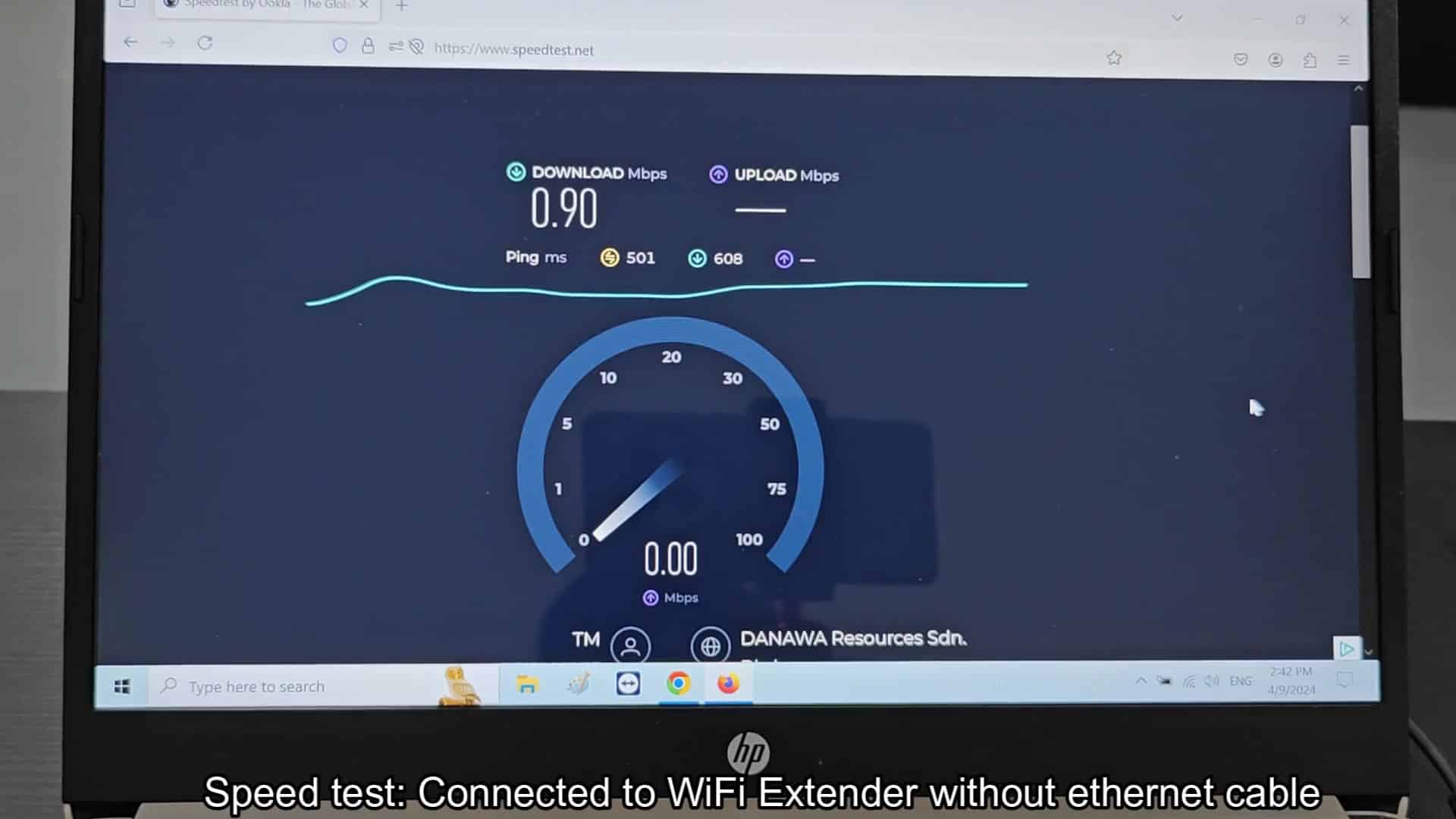
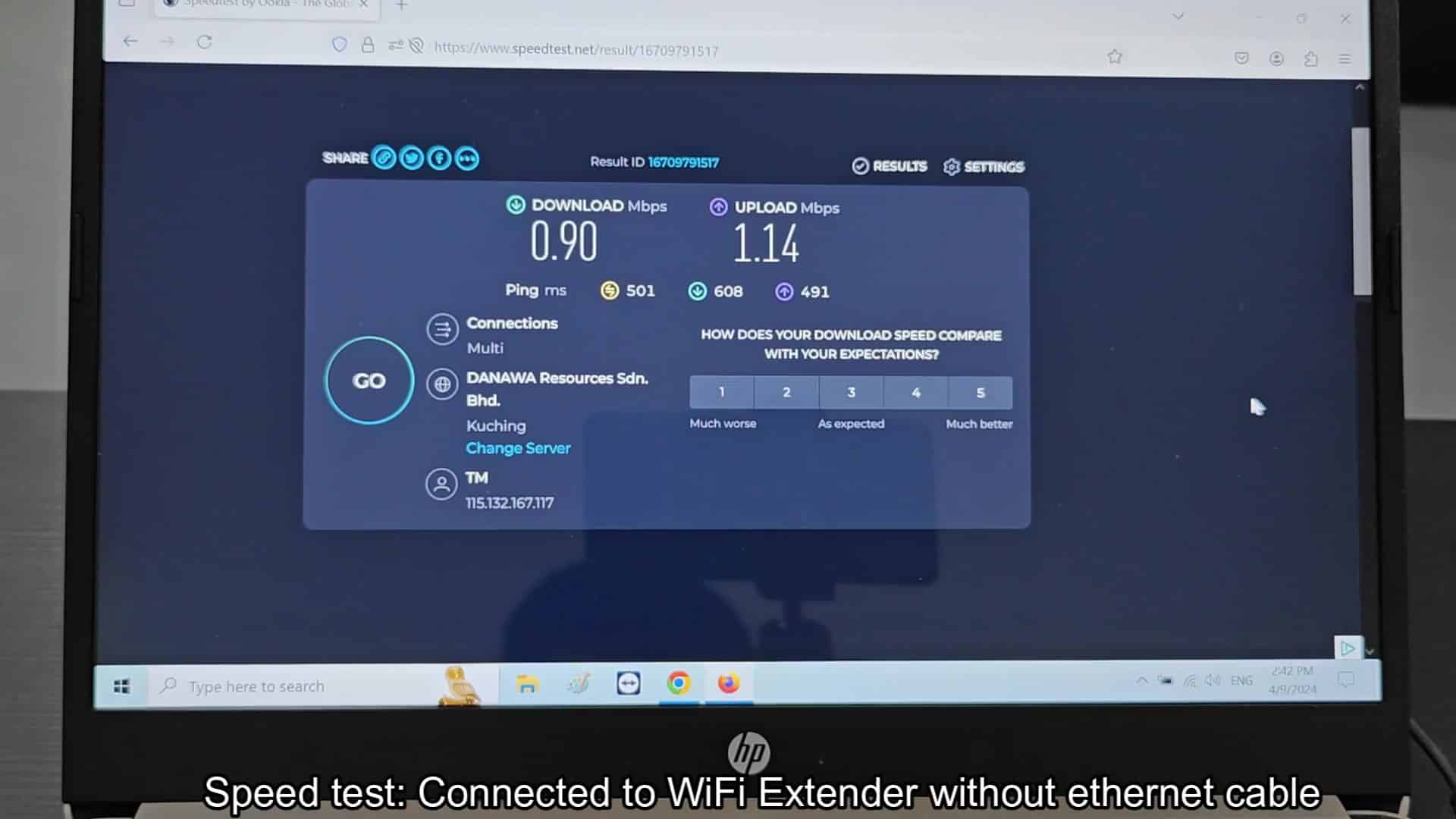
To begin with, you run a baseline speed test using just WiFi with the extender plugged in. We weren’t impressed; download speeds hovers around 0.90 Mbps, that’s barely good enough to browse the web. Likewise, upload speeds was also bad at 1.14 Mbps. Ping times were insane. They would fluctuate from 501 to 608 milliseconds, making online things feel slow and unresponsive.
But what realy irked me was the latency (high ping makes everything feel like it’s running in slow motion). During this initial testing period, I could see the potential. Though it was difficult to play a game or watch a video with that much lag. But there was just something off about it; it was sluggish and unstable.
Testing Wired vs Wireless Performance
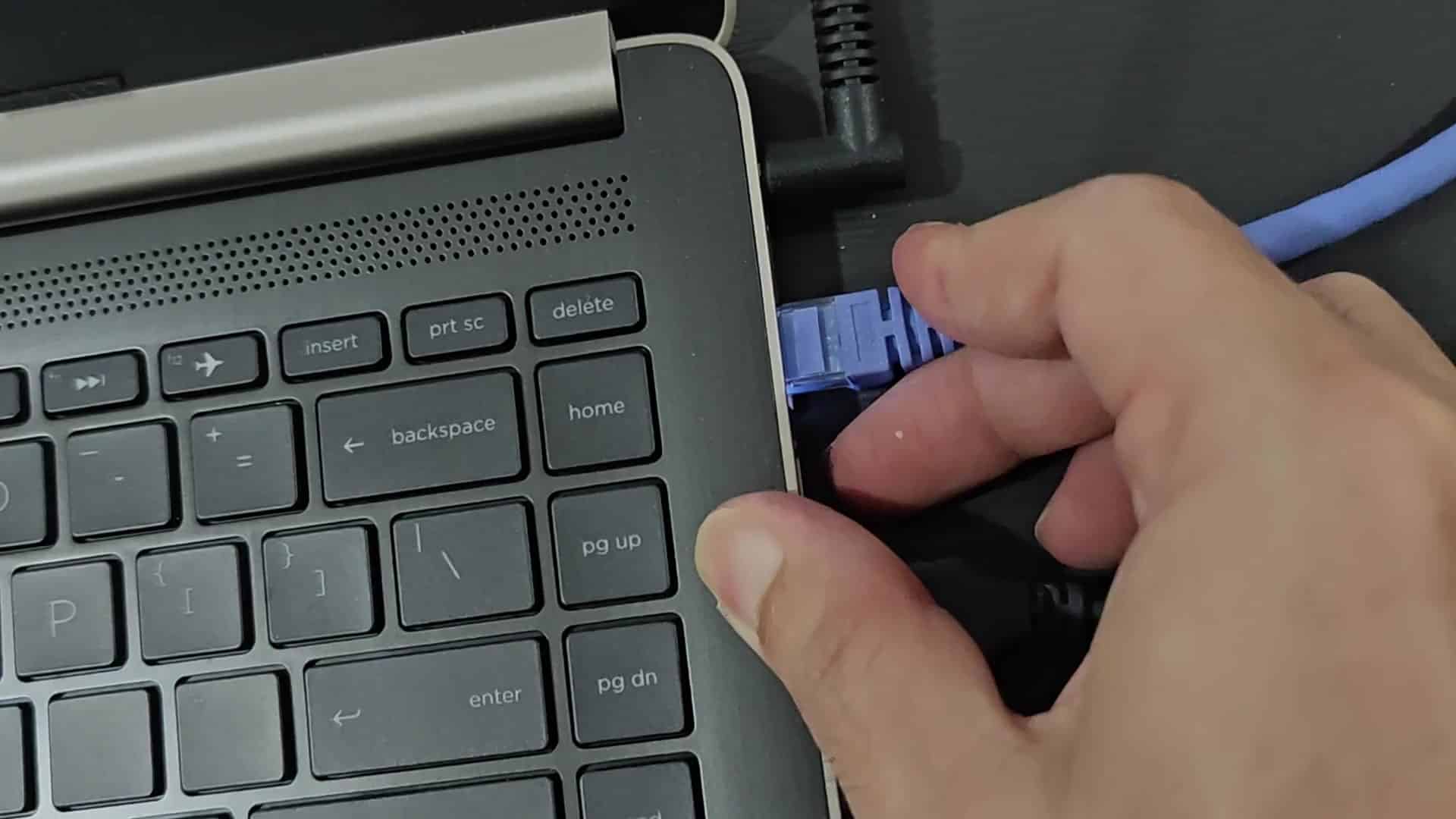
Next, you plug a blue Ethernet cable directly into the extender to establish a hard-wired connection rather than relying on the wireless signal alone. The green lights also illuminated instantly to show it had made physical connection.
Again, there’s not much to do here other than plug it in; the set-up is very straightforward and takes less than a minute.
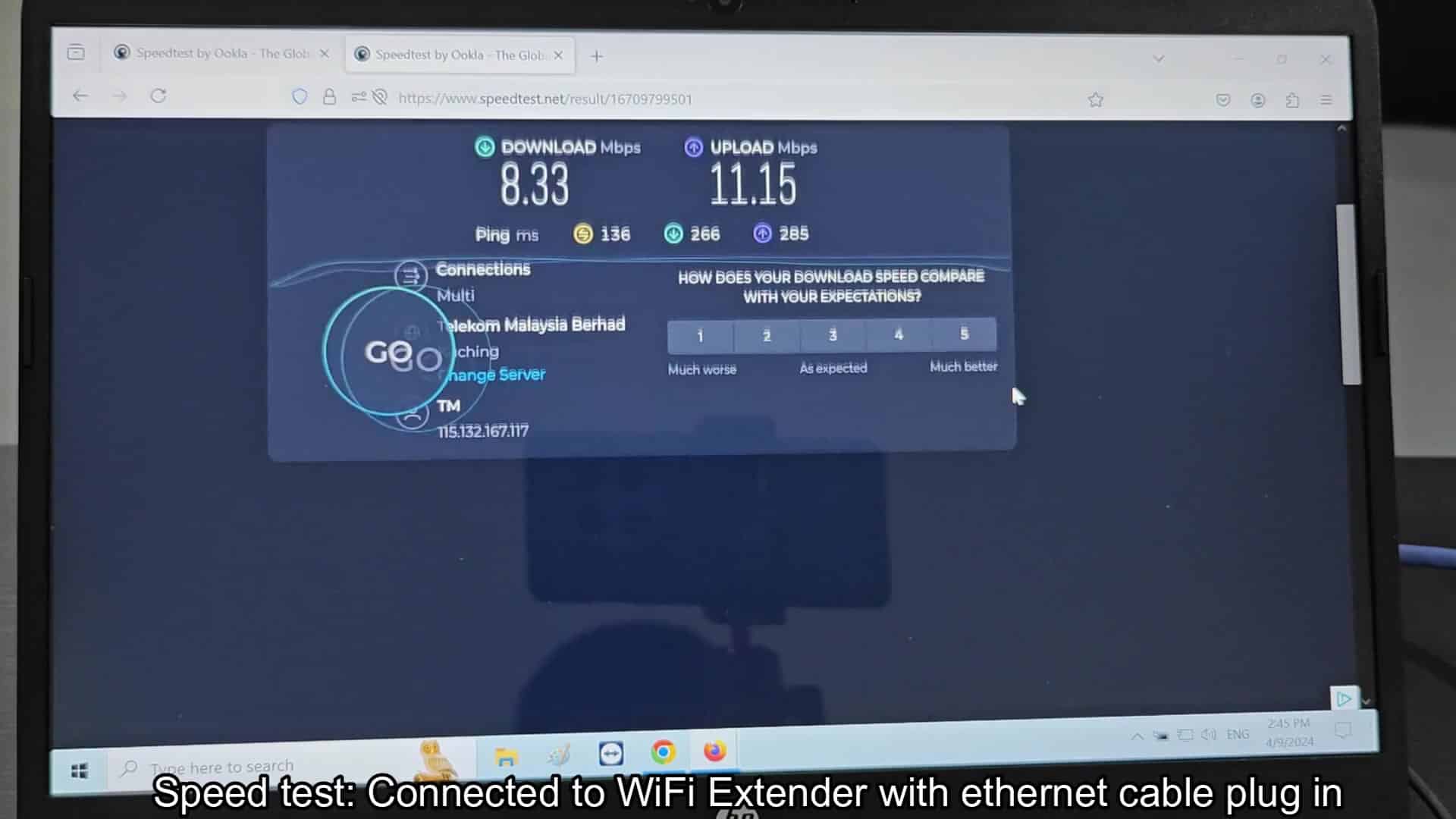
Once it’s installed with the cable, you rerun your speed test to see how it performs different than before. The first time around, I noticed that performance metrics shot up by leaps and bounds and the ping was down quite a lot at 136 milliseconds. That decrease in ping improved the overall snappiness of the network, the gauge on my screen immediately respond to the change.
However, the nitty gritty stats were even more impressive, with download speeds jumping from less than 1 Mbps to 8.33 Mbps. Upload speeds shot up equally dramatic as well: 11.15 Mbps.
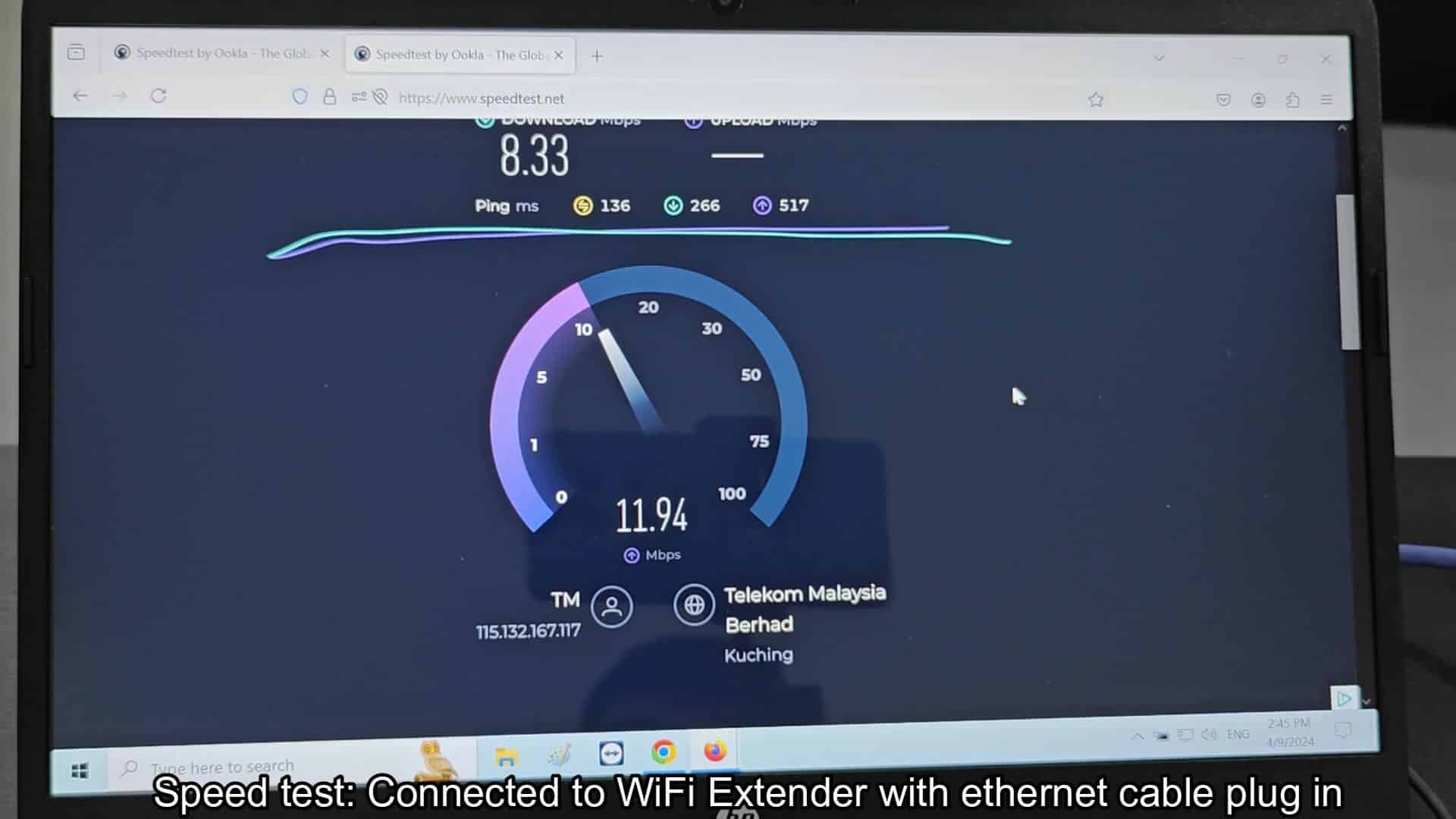
That’s a near-nine fold jump in throughput capability, which is plenty good enough for HD video streaming without any buffering problems whatsoever. The wired connection was clearly vastly better then the wireless connection.
To verify that everything is consistent, you check out the nitty-gritty results page, where the ping averaged a solid 136 milliseconds with slight variation. The IP address verified that there’s a good routing path set up, and the server location information displayed a straight-line connection via Telekom Malaysia Berhad. All this add up to a strong, healthy connection.
It’s clear how much better it is when you look at the data side-by-side before and after Ethernet. After I added the cable, my ping dropped below 140 ms, download increased to 8.33 Mbps and upload to 11.15 Mbps. Ping was above 500 ms and download was 0.90 Mbps. That’s a night and day difference for network quality.
The wired option had lower ping, which means there is less lag for things like video calls and games. Speeds was all higher through the wired connection. Because you’ve proven that an Ethernet cable has a huge impact on bandwidth, you can download files much faster and stream in smooth high quality.
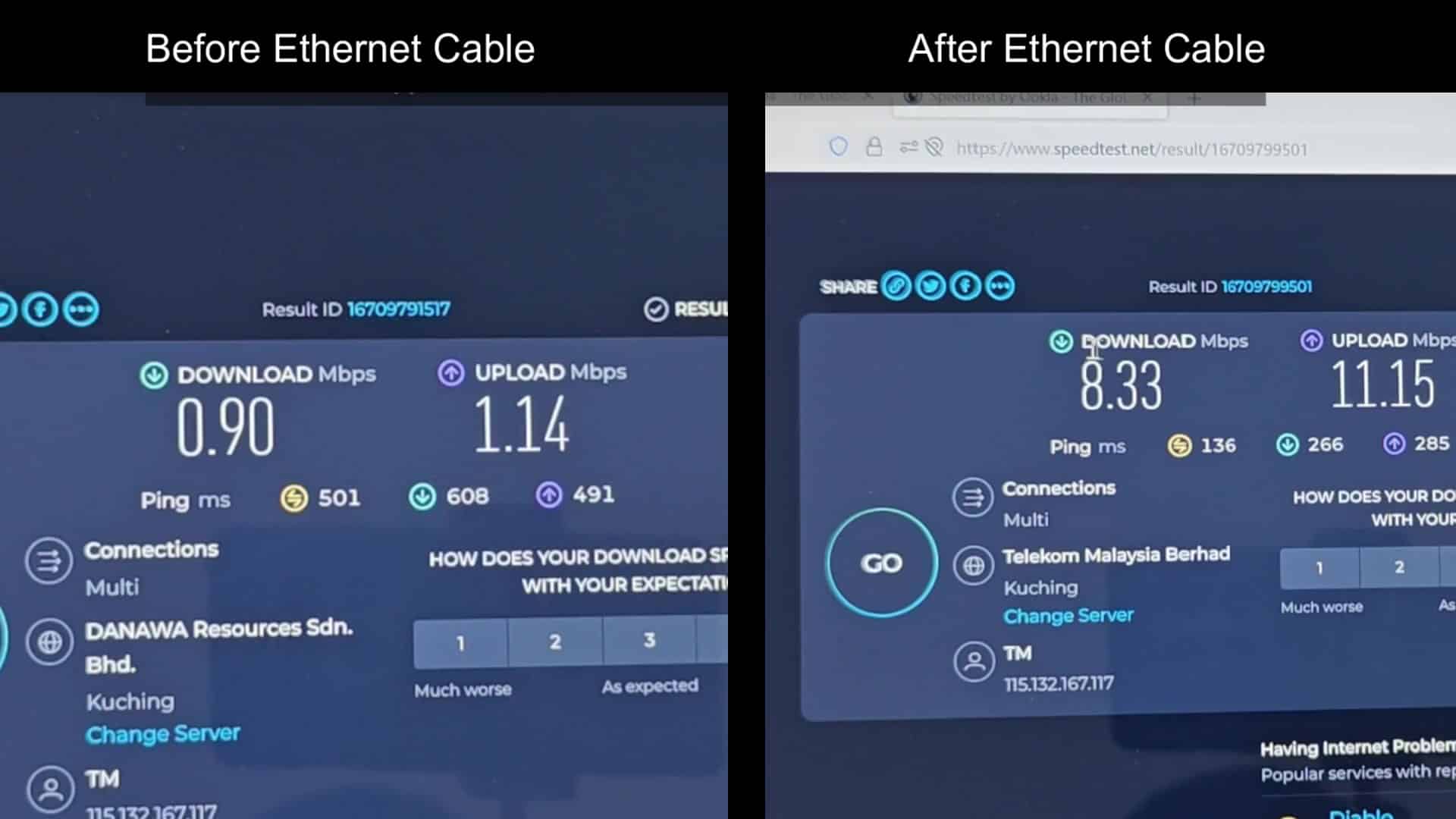
It doesn’t make only a slight difference, it transforms the extender.
With WiFi backhaul, there is signals lost, and there is interference between your extender and your router. A physical cable removes all of that completely. You have a straight line from point A to point B with no wall bounce or air bounce. This makes for stable speeds every time. And that’s an easy answer to your always-on connectivity problems.
Sure, lots of folks out there believe an extender is only as good as its wireless reach, but you didn’t anticipate this extreme performance gain with just this simple tweak. The test results speak for themselves. No further explanation should of been required. It makes a big difference.