If you’re experiencing problems with your 2.4GHz connectivity, these is relatively easy fixes that involve changing settings of your devices and/or your router. Here’s how to troubleshoot the problem if a laptop or phone won’t connect to network even though it picks up the 5GHz signal.
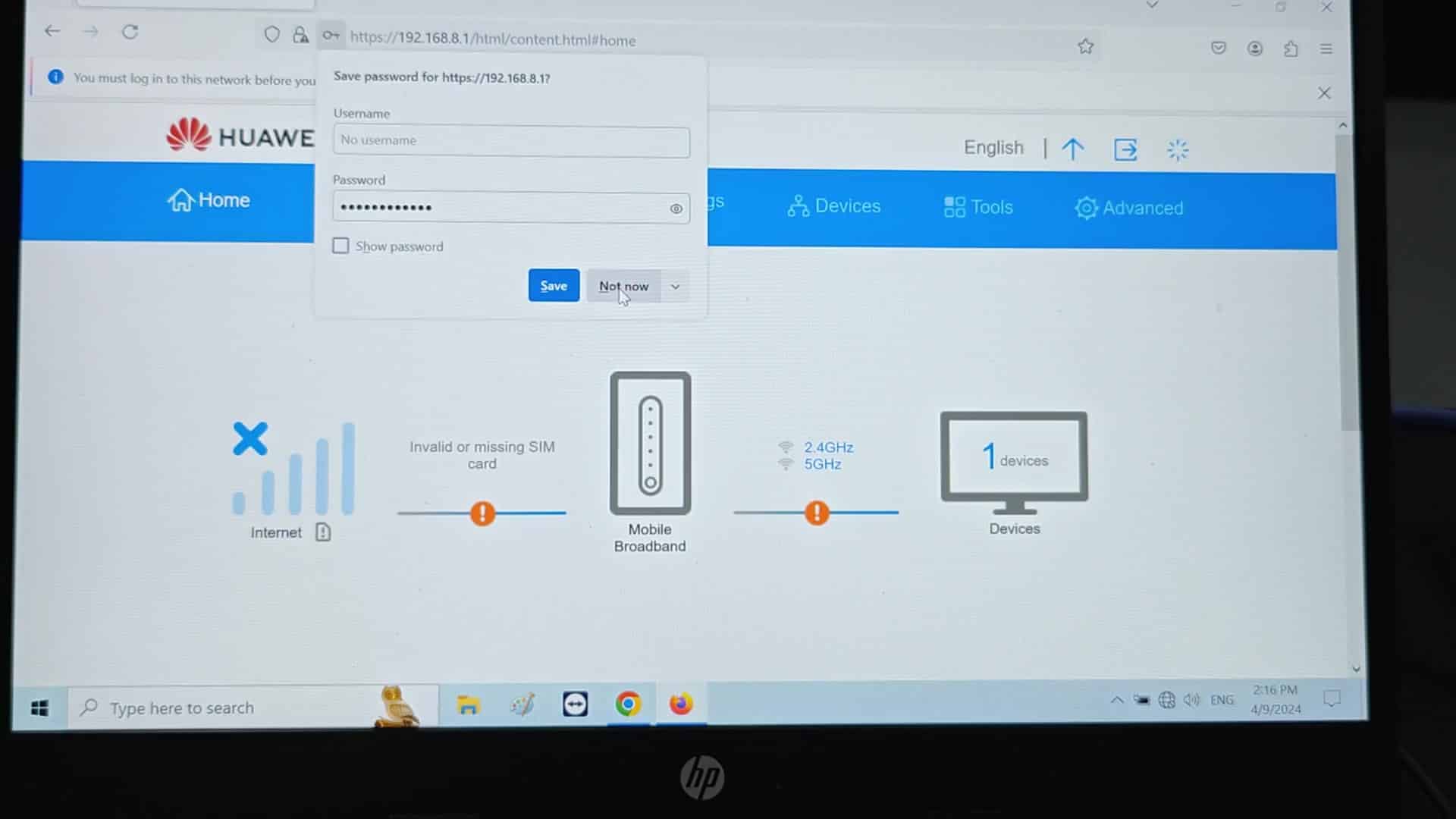
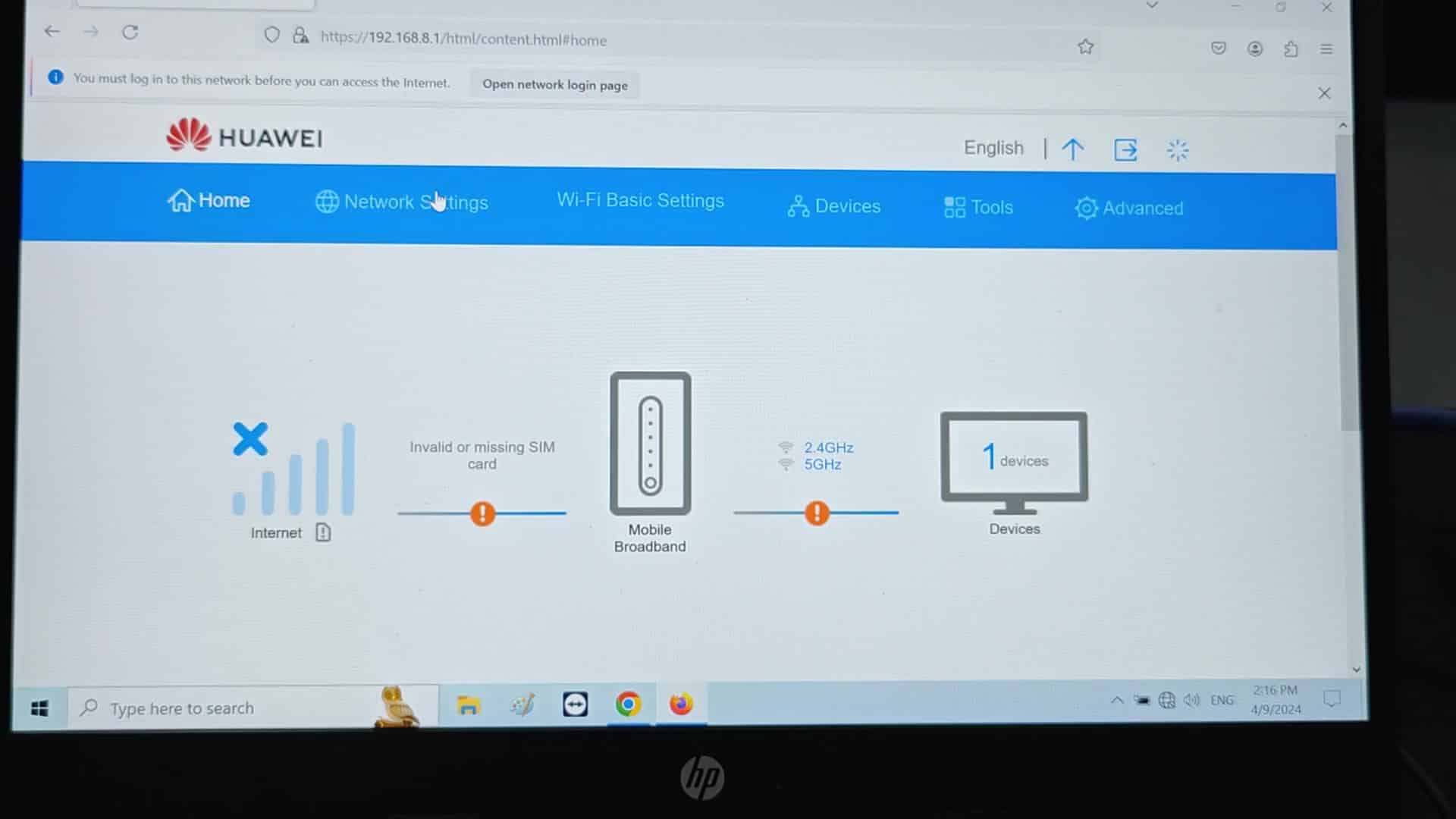
First, try turning off and then back on again: the Wi-Fi radio. On your router’s dashboard, switch off your router’s Wi-Fi radio and then switch it back on. If there were any occasional software cache issues due to mobile broadband drop-outs or firmware updates, this will clear them out temporarly. Since you don’t have to unplug anything, this is an easy place to start.
Otherwise, try adjusting the band steering settings. A lot of routers automatically favors the 5GHz signal, or lump it together with the other frequency by the same name. Disable any such settings and turn off “5GHz preferred” toggle. This allows the router to broadcast unique SSIDs for each frequency. Your device will then see 2.4GHz network separately and know exactly which one to connect too.
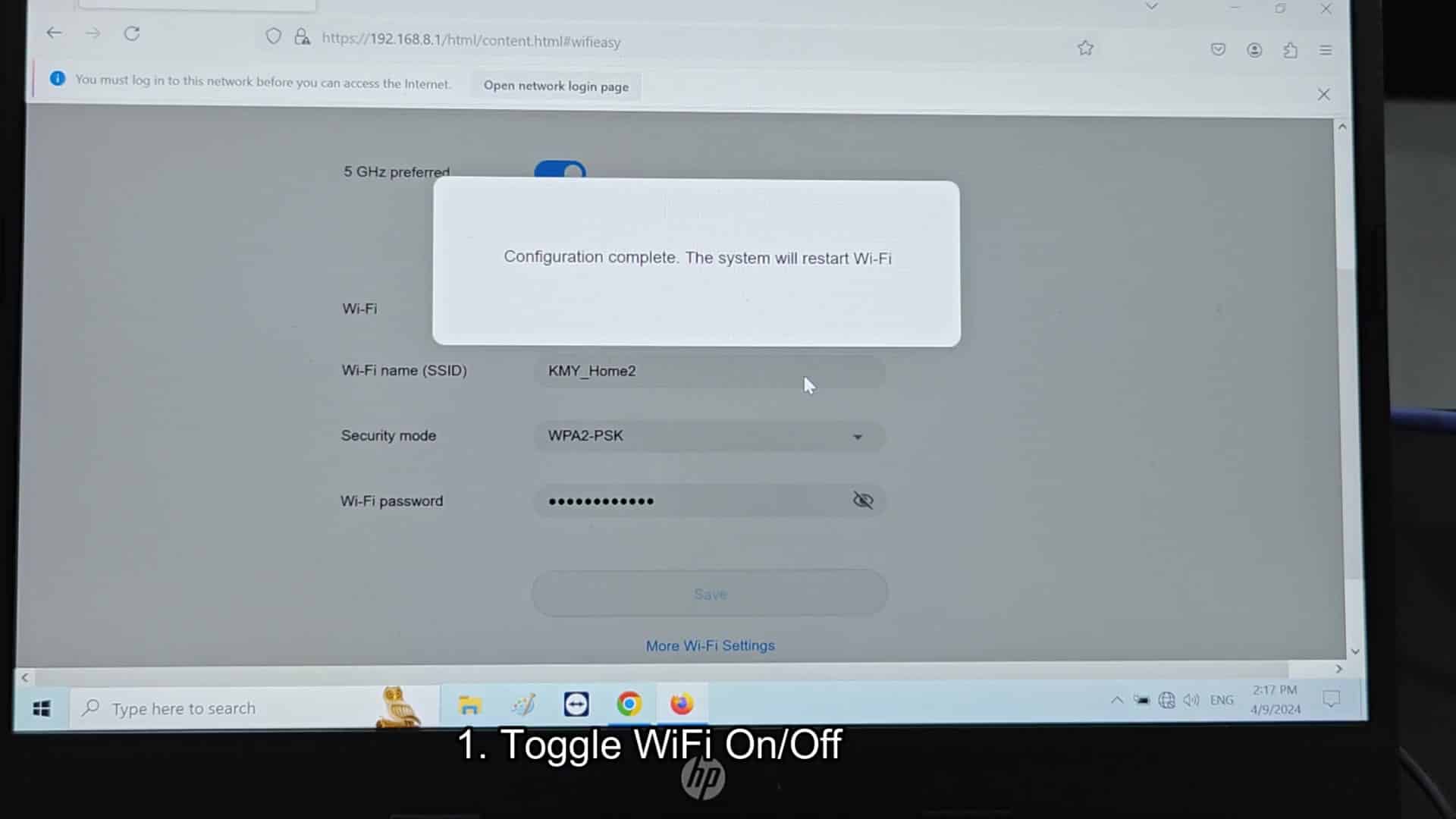
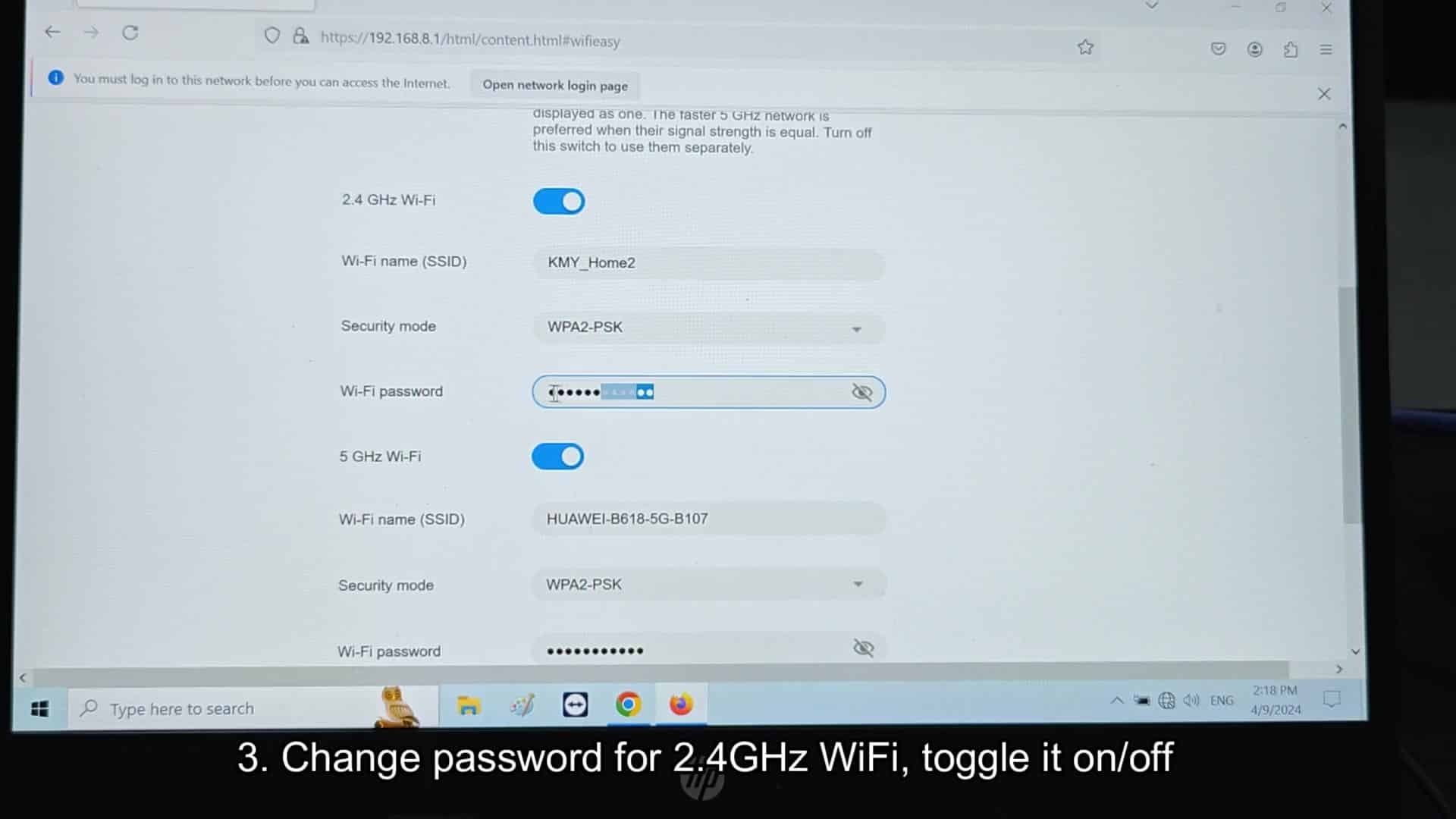
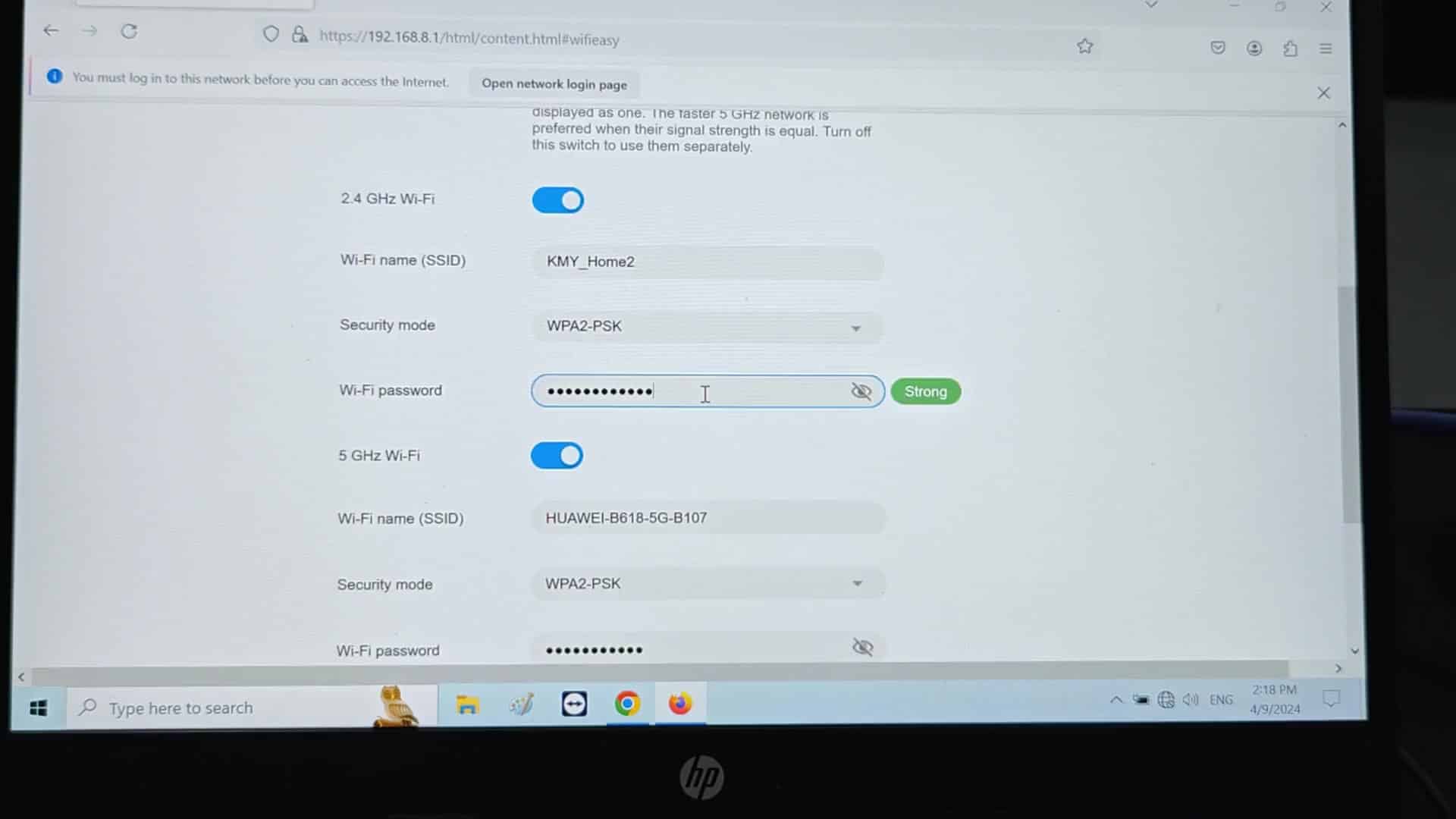
In particular, reset password of your 2.4GHz network. Stored passwords on your devices may be corrupted even if you didn’t change the Wi-Fi passcode in awhile. Reset the password to something else, commit it, then turn the radio back off. It will force all your device to try signing in again from scratch with new handshake data. For some older smart home device this breaks out of authentication loops.
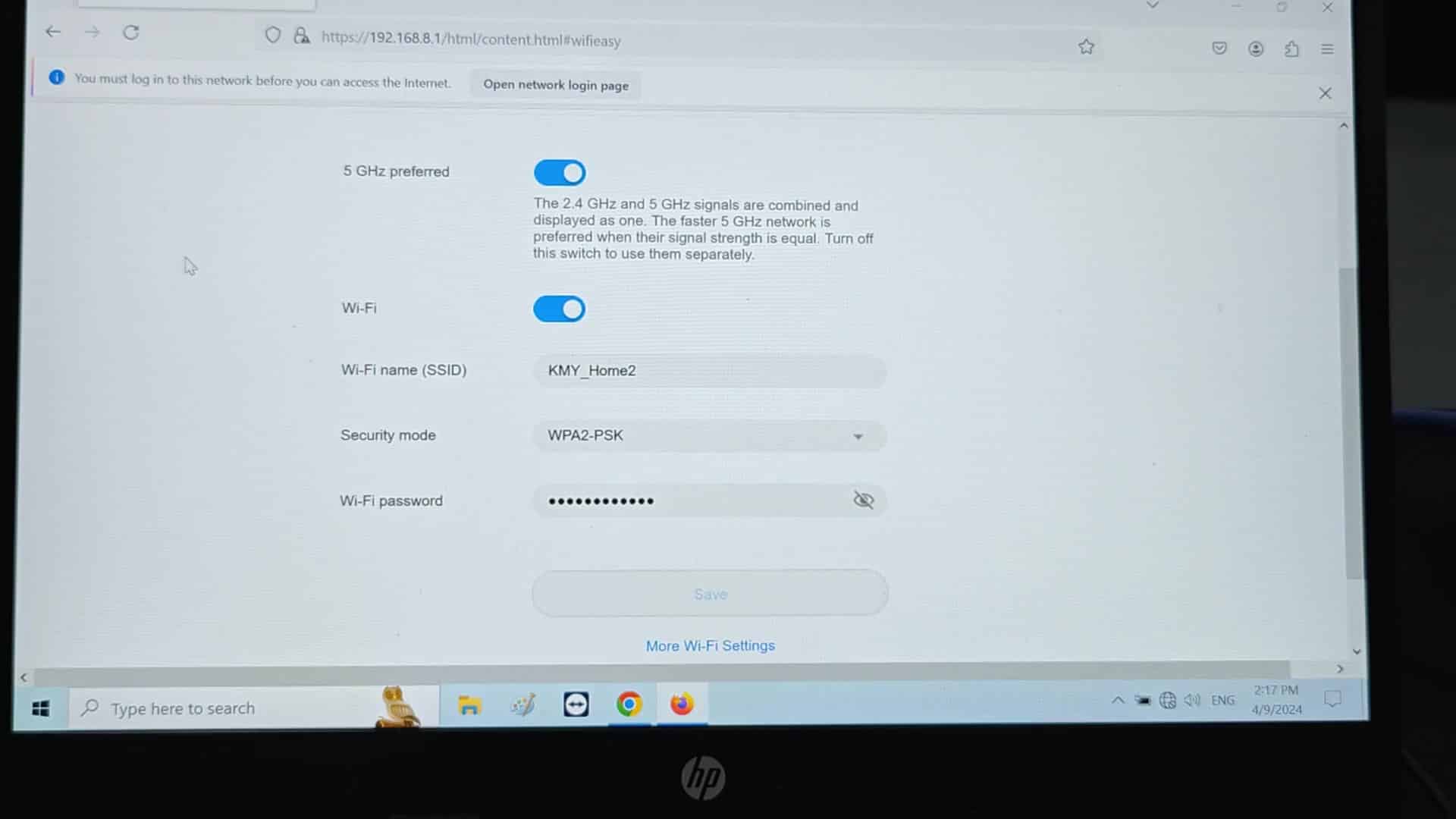
Change the 2.4GHz SSID so it’s not identical than that of 5Ghz. When you move throughout your home, devices will get confused if they see two similar-looking SSIDs. They may end up connecting to whichever is closer without fully realizing it. Telling the bands apart with a unique name clears up any confusion for your laptop and phone, it allows them to pick the right signal on-the-fly.
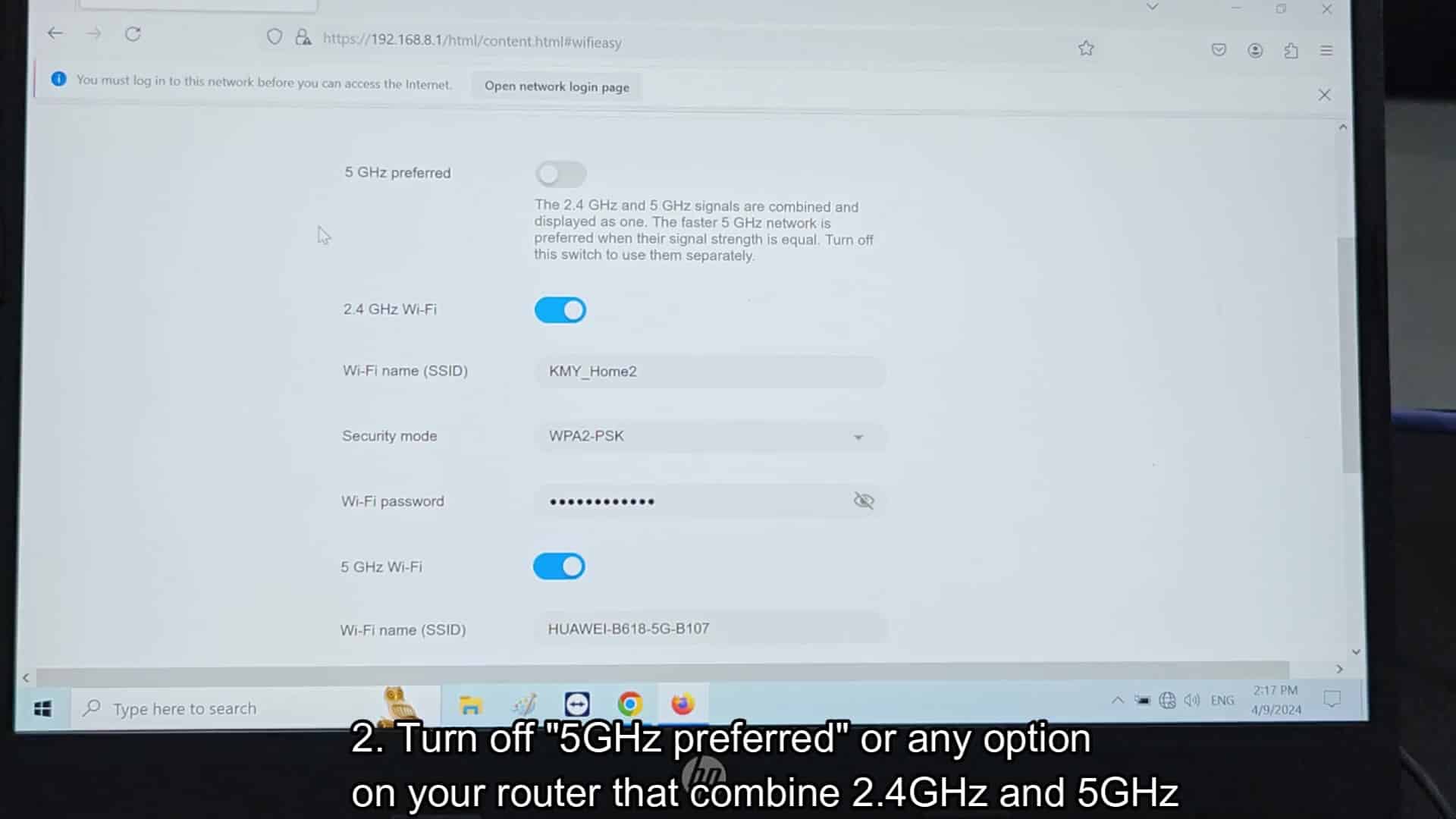
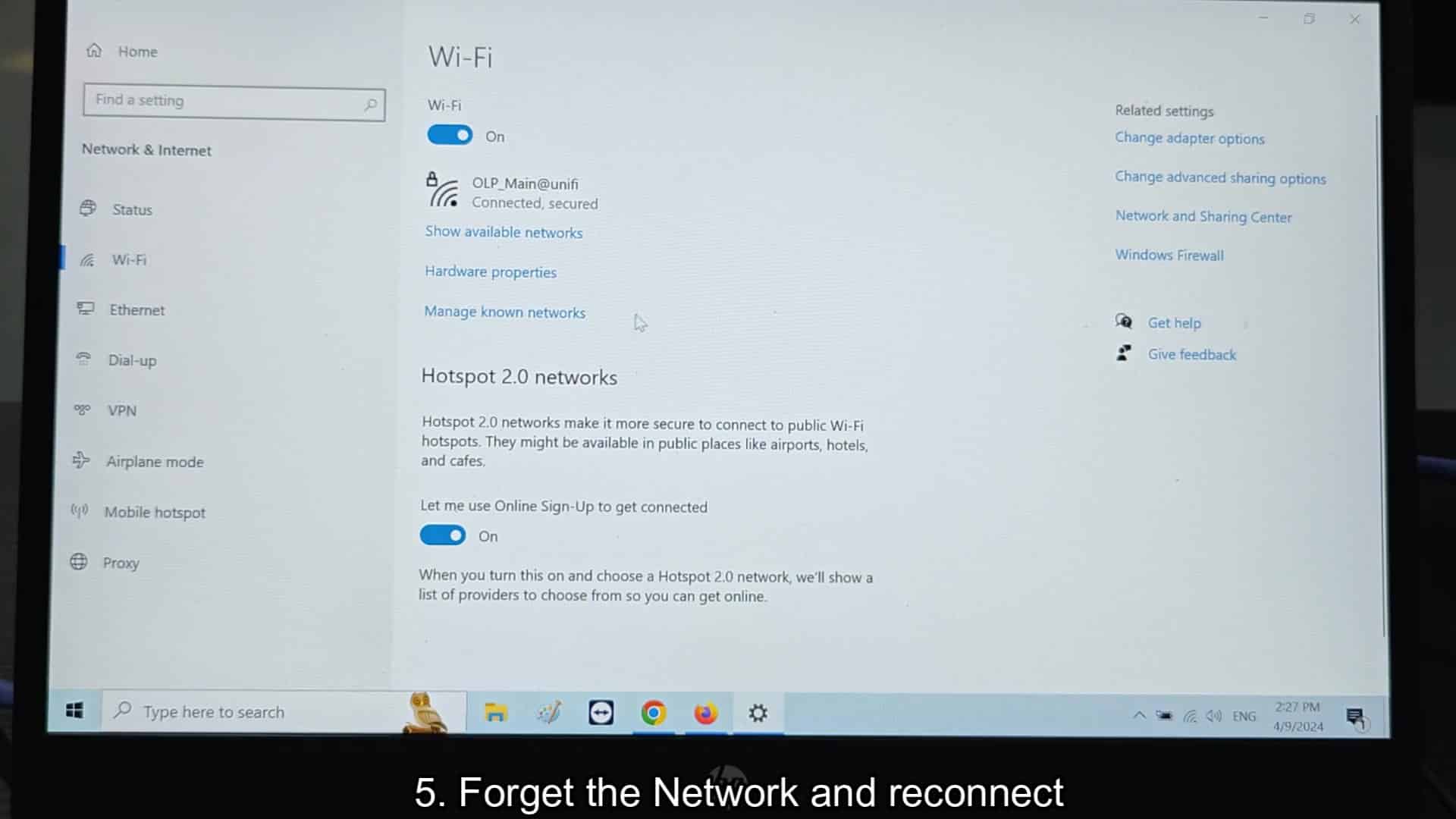
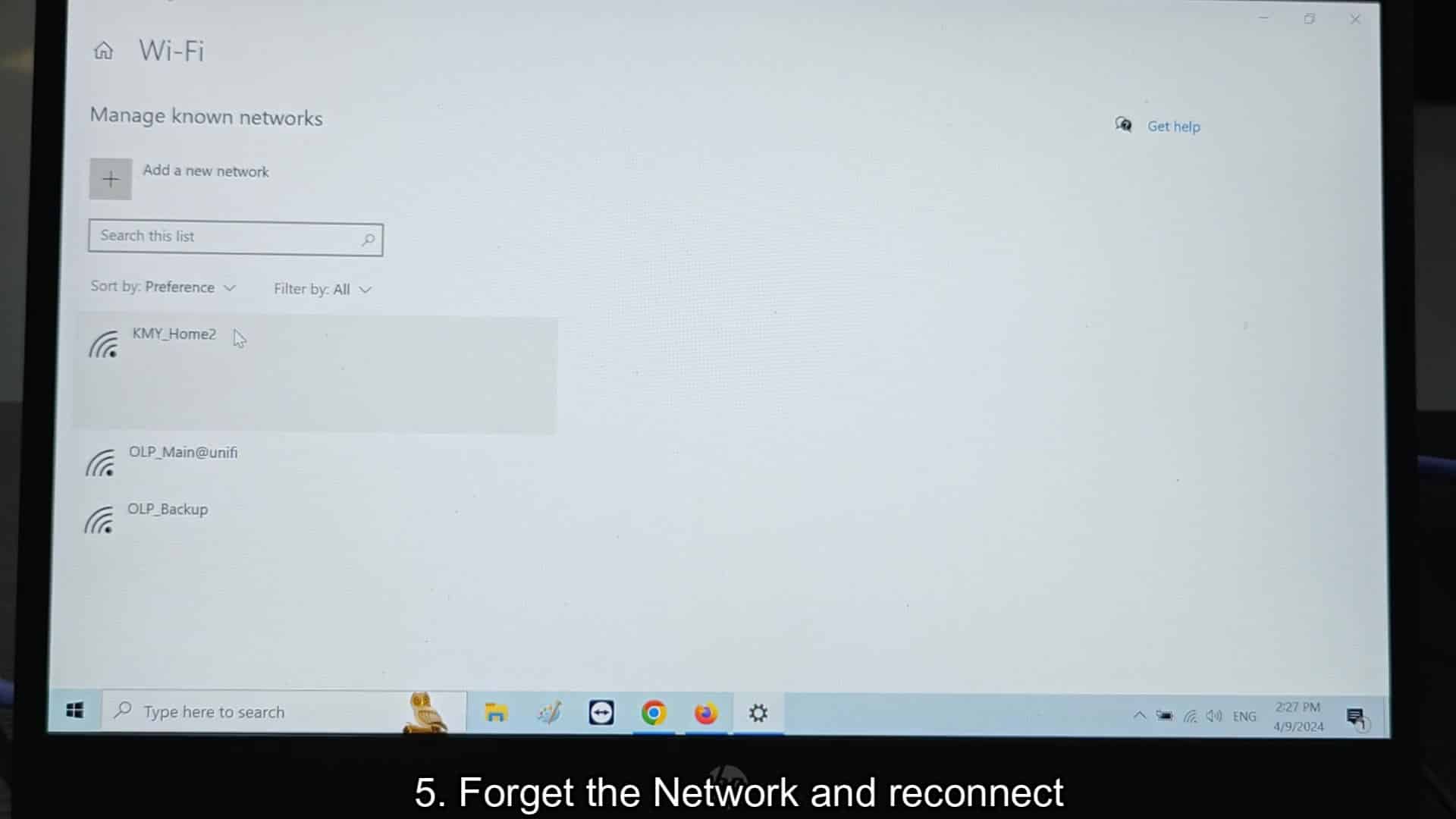
On device side, erase the currently connected 2.4GHz network in your Windows network settings. Bad config data can be saved to a profile that blocks you reconnecting. Erase the network from your list of known networks. Then, scan for signal again and try connect manually. If your router side changes aren’t sticking, this will clear any local cache issue on the PC.
Advanced Router Configuration Tips
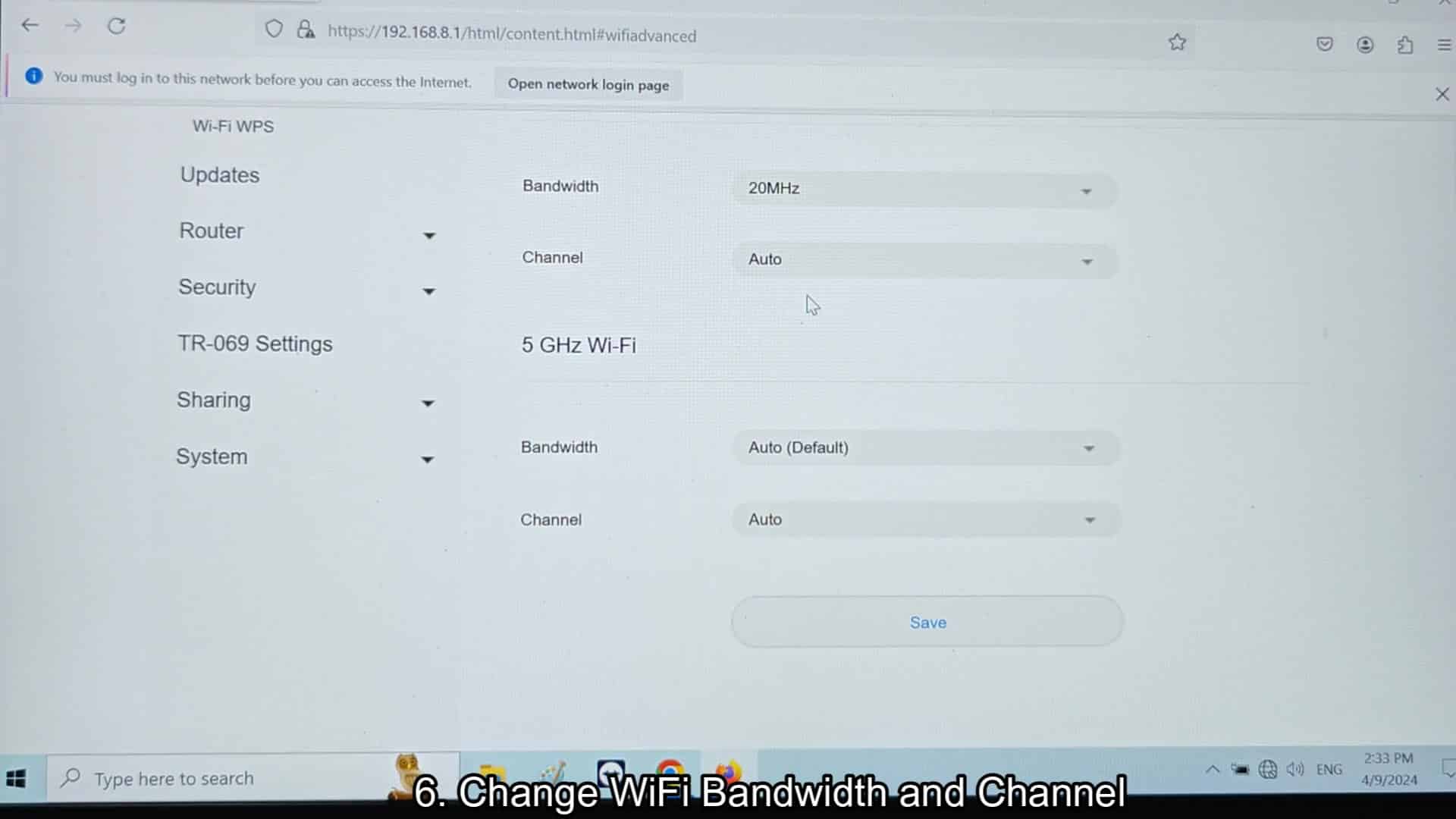
If you’re still having issues, adjust your channels and bandwidth. The 2.4Ghz band is so clogged because other electronics and even your neighbor’s will interfere. In your advanced menu, go into the 2.4ghz band. Set it to manual mode. Choose a less busy channel and switch the bandwidth to 20MHz. Your connection will be more stable and signal quieter.
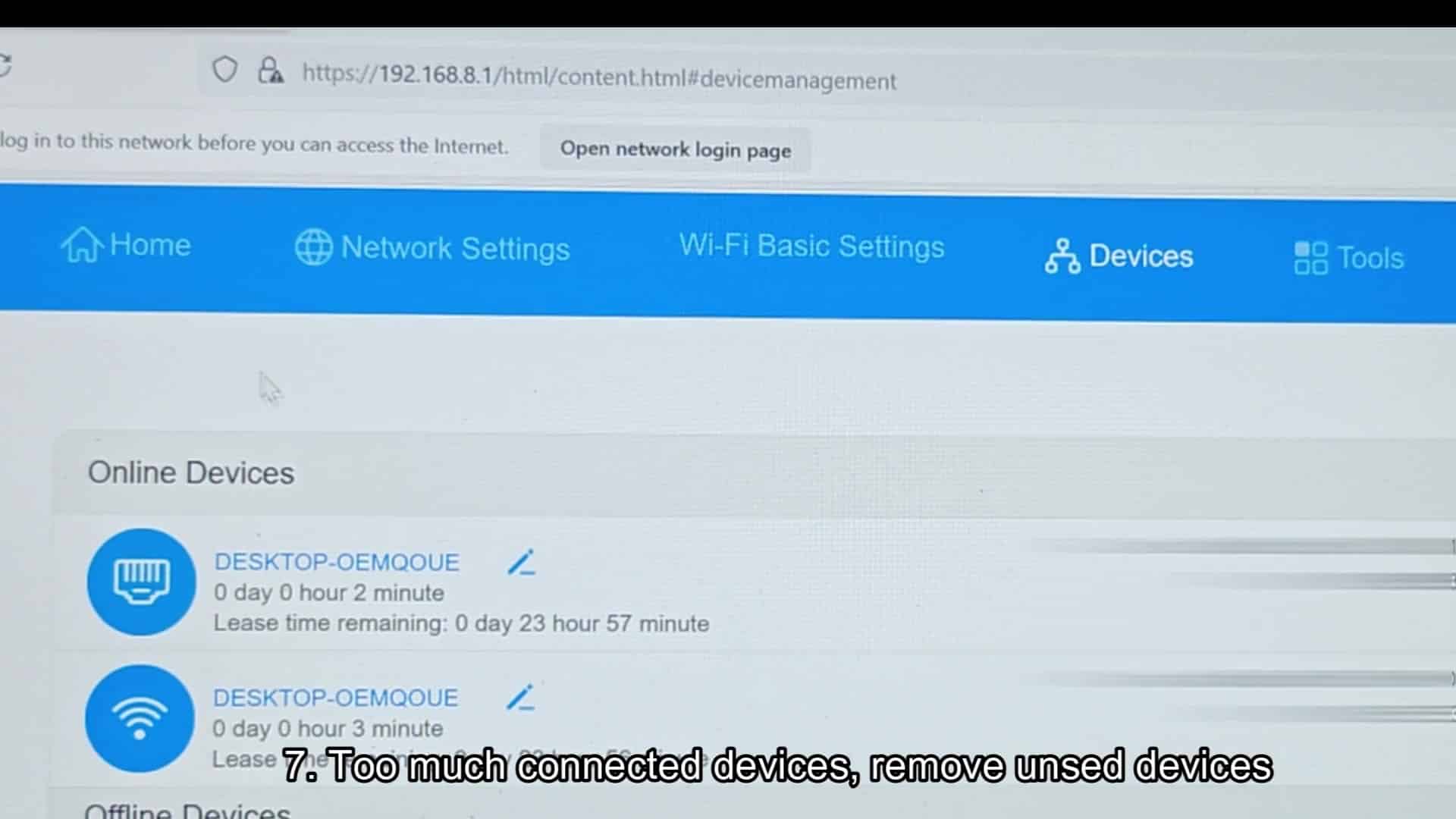
And lastly, review what’s on your router’s list of connected online devices. If there is too many trying to use its limited 2.4GHz radio resources, they may get dropped and/or new ones will be rejected. Free up some bandwidth by removing any unused gadgets from the network so that only the devices you actualy want to use can still connect. Fewer devices equals better performance for all those left on list.