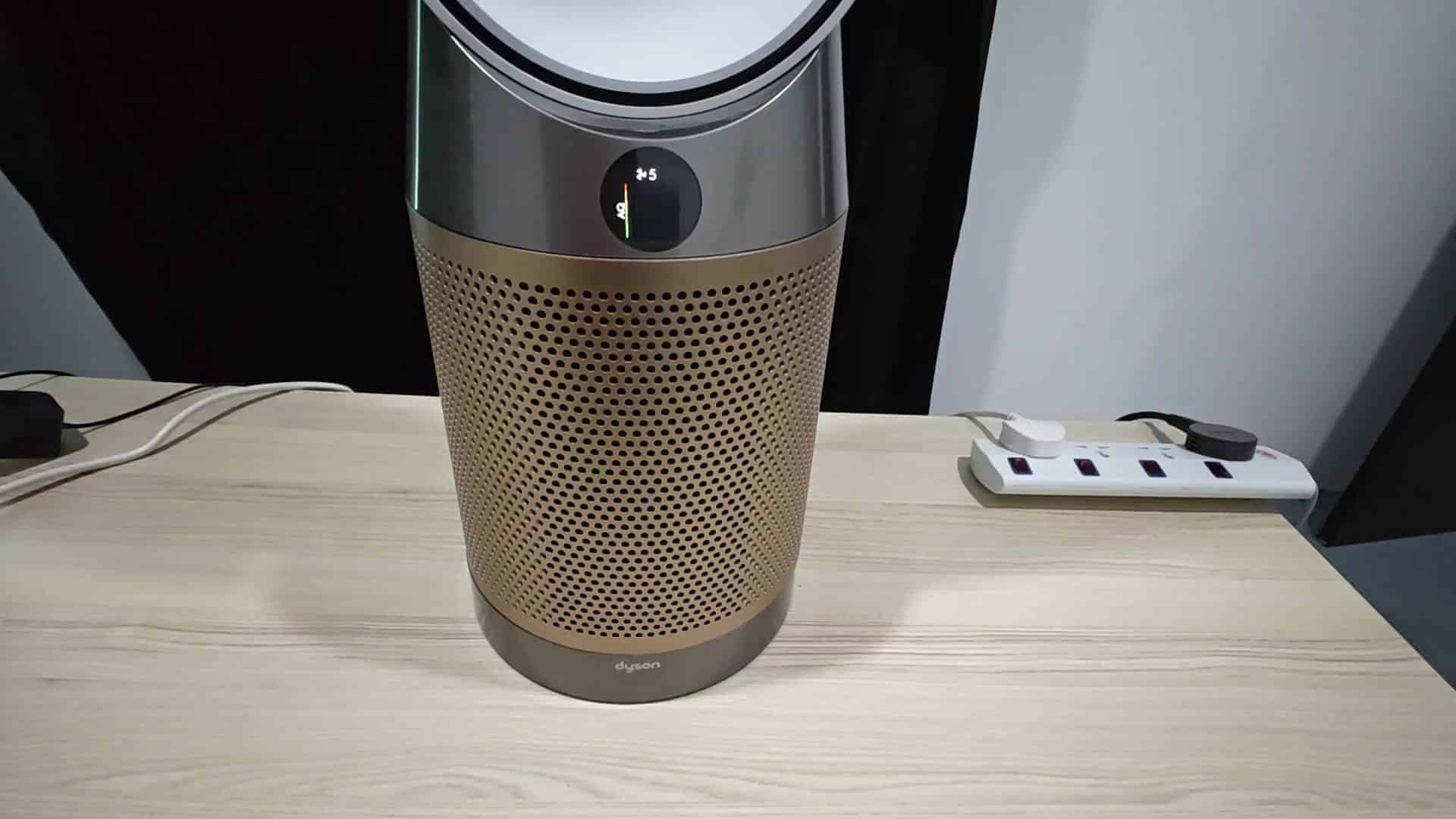
The physical remote control is handy, though we’ve all lost or misplaced it before. Before long you’re down on all fours digging around under sofa trying to find it… Again. There has got to be a better way.
The Dyson ecosystem puts all the controls right at your fingertips… literalley. With this approach, there are no additional hardware accessories required outside of the smartphone you’re already using. No more hunting for a tiny piece of plastic when you wish to change airflow level, it’s kind of a liberating feeling.
And the app interface isn’t so complicated that you have to read owner’s manual to learn how to operate it. Just download it from whichever app store you prefer, and then follow instructions to get it set up and connected to your Wi-Fi network. It is surprisingly painless compared to some other smart home gadgets you might setup. And there aren’t any weird Bluetooth pairing problems here, either.
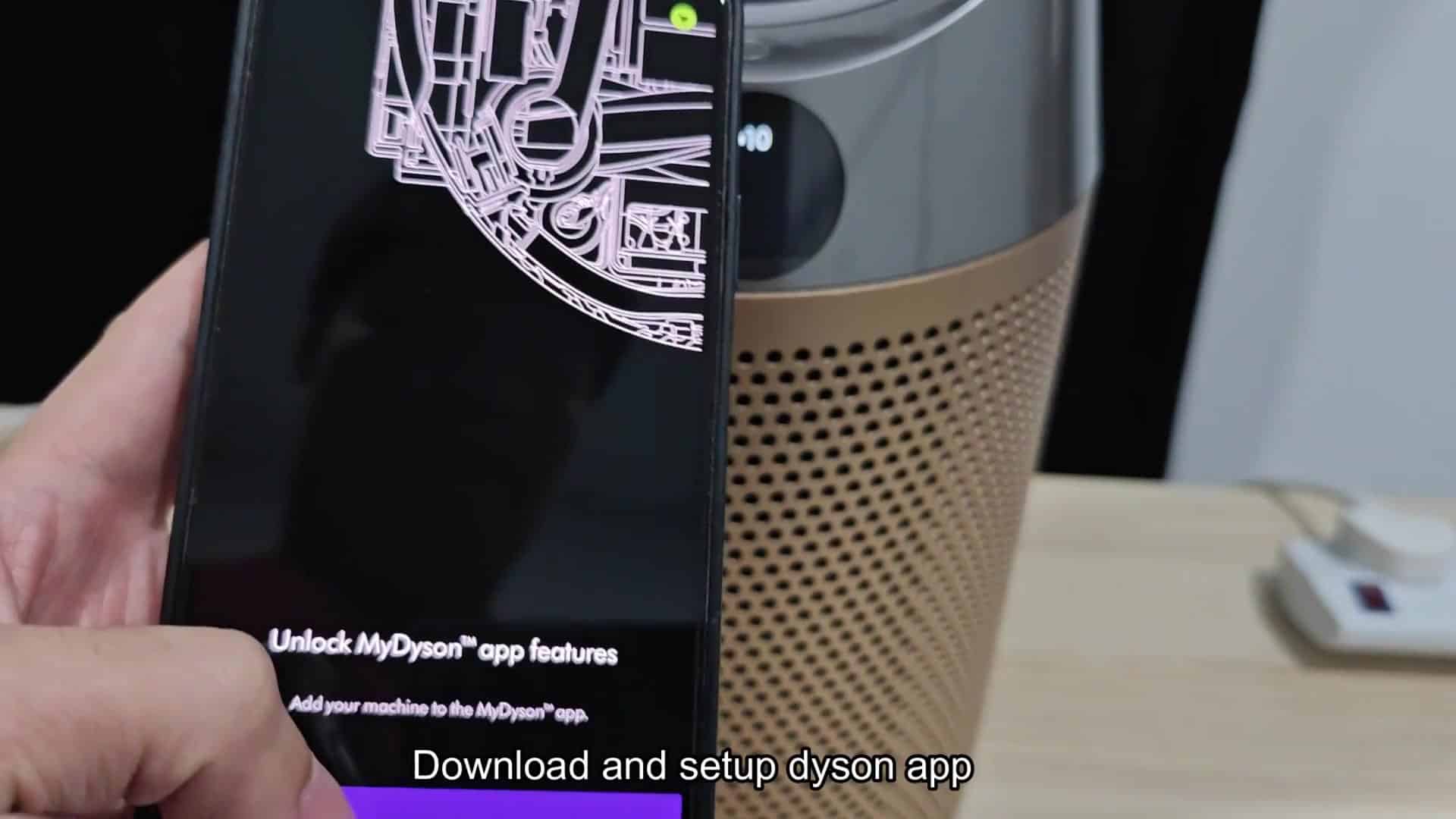
To begin, we need to add the actual appliance to our MyDyson account in the mobile app. Tap the option to add a new device and follow on-screen prompts. Then you see a message on your phone screen saying something like verify the connection and unlock features.
A status indicator pops up letting you know that system is validating the connection of hardware to software. This means the little checkmark in a circle on power symbol lights up on the purifier itself. Do not turn off machine now, as it needs to stay on for this process.
Once the app knows it is talking to the right device, it enable more features. The first handshake makes sure the phone can sends a command to the air purifier. Everything is working well so far.
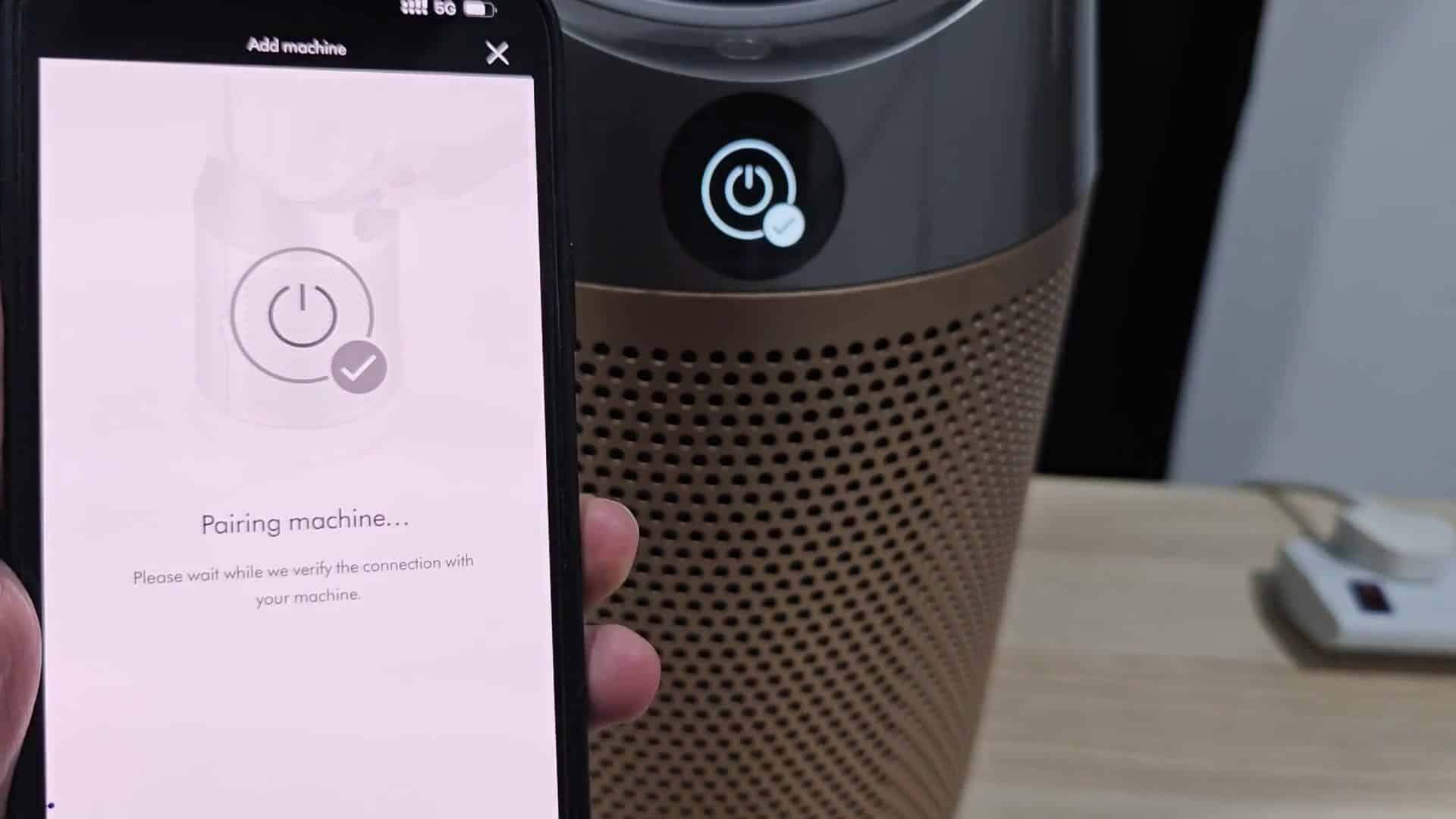
The two are connected once system verifies the link and you continue with setup by confirming the link. The screen updates and the power icon will display a checkmark signaling it was successful. You’re instructed to tap the “Continue set-up” purple button. Then you hover your finger on the screen for a second before tapping forward.
On device next to you the front panel lights up showing a power symbol. That small bit of visual proof lets you know the link has been established. From search to link; it’s fast. No lengthy wait time. No fancy troubleshoots. Easy peasy.
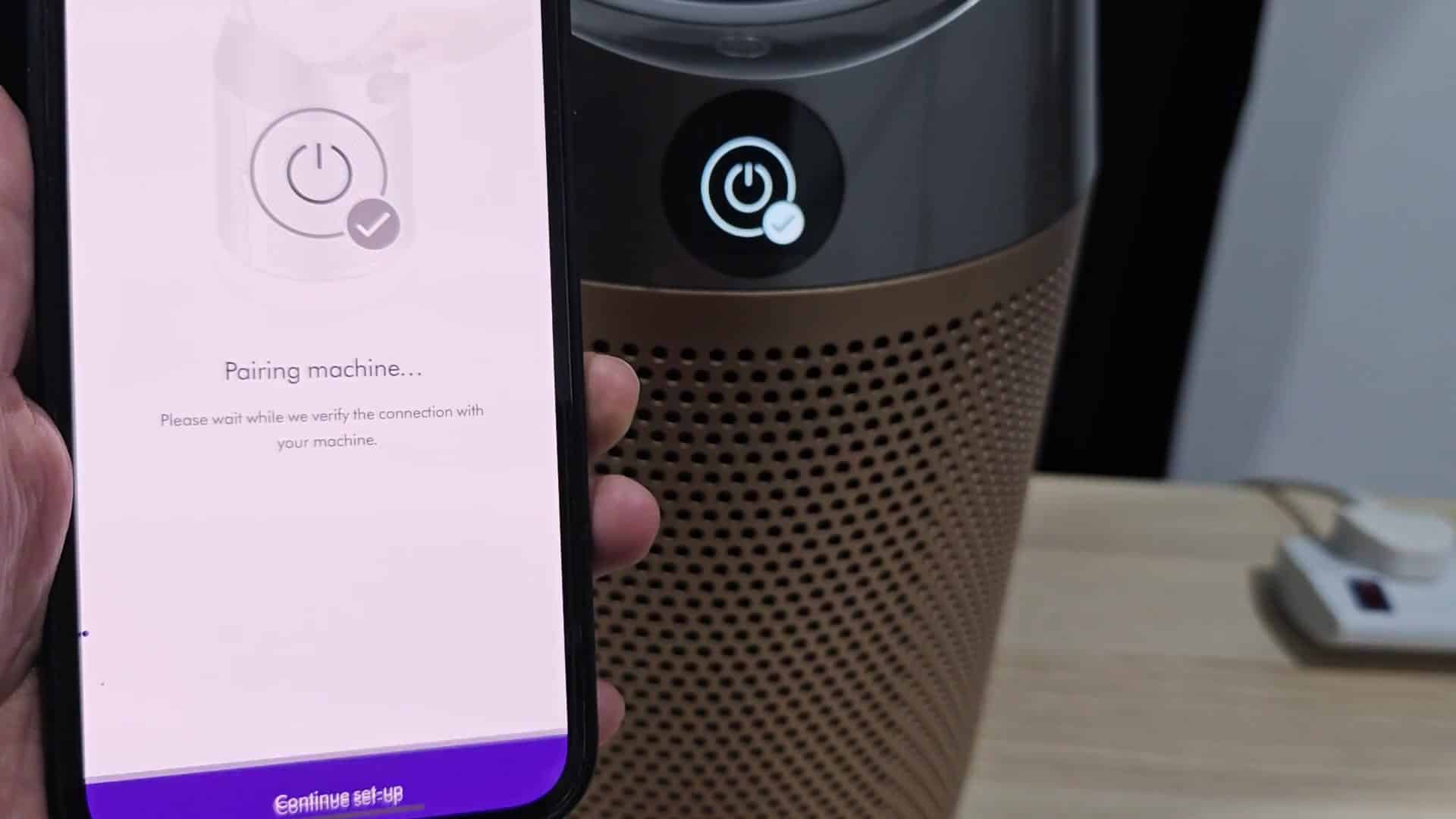
Then, finally, we have that giant checkmark showing up on each screen as the last bit of confirmation. As the purifier’s screen updates, the phone will still say it’s “Confirming connection.” Once you see that big green checkmark, you know the digital bridge has been built. You are then free to continue setting up how you want the thing to work in your particular environment.
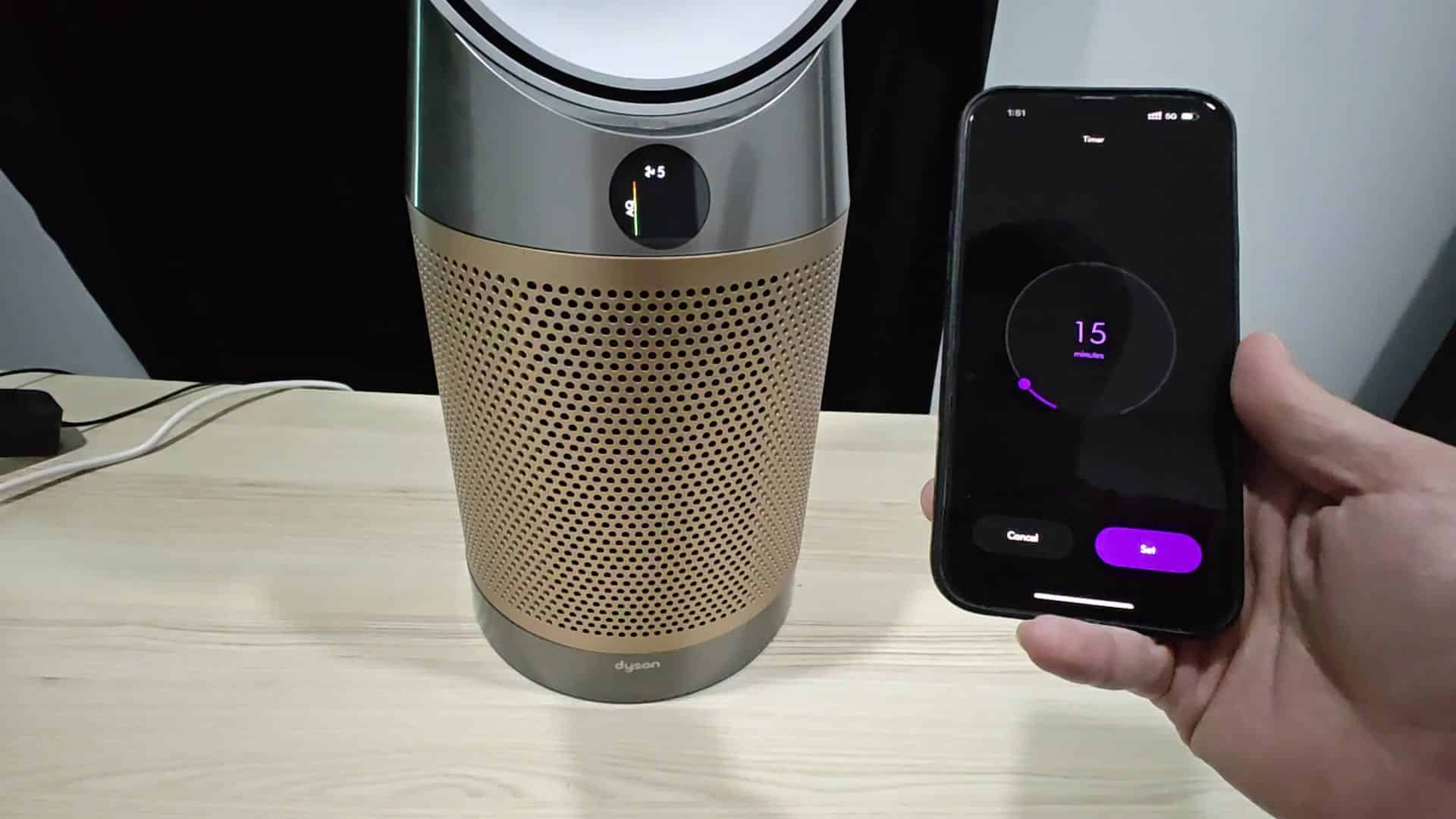
Next, the app prompts you to set unit’s location in your home. This will help if you add additional units down the road. If you have multiples, this keeps them organized by rooms. When you’re out of town, you’ll be able to tell at a glance which one to control thanks to room label you give it. That helps keep things organized in a way the remote just doesn’t. It makes sense.
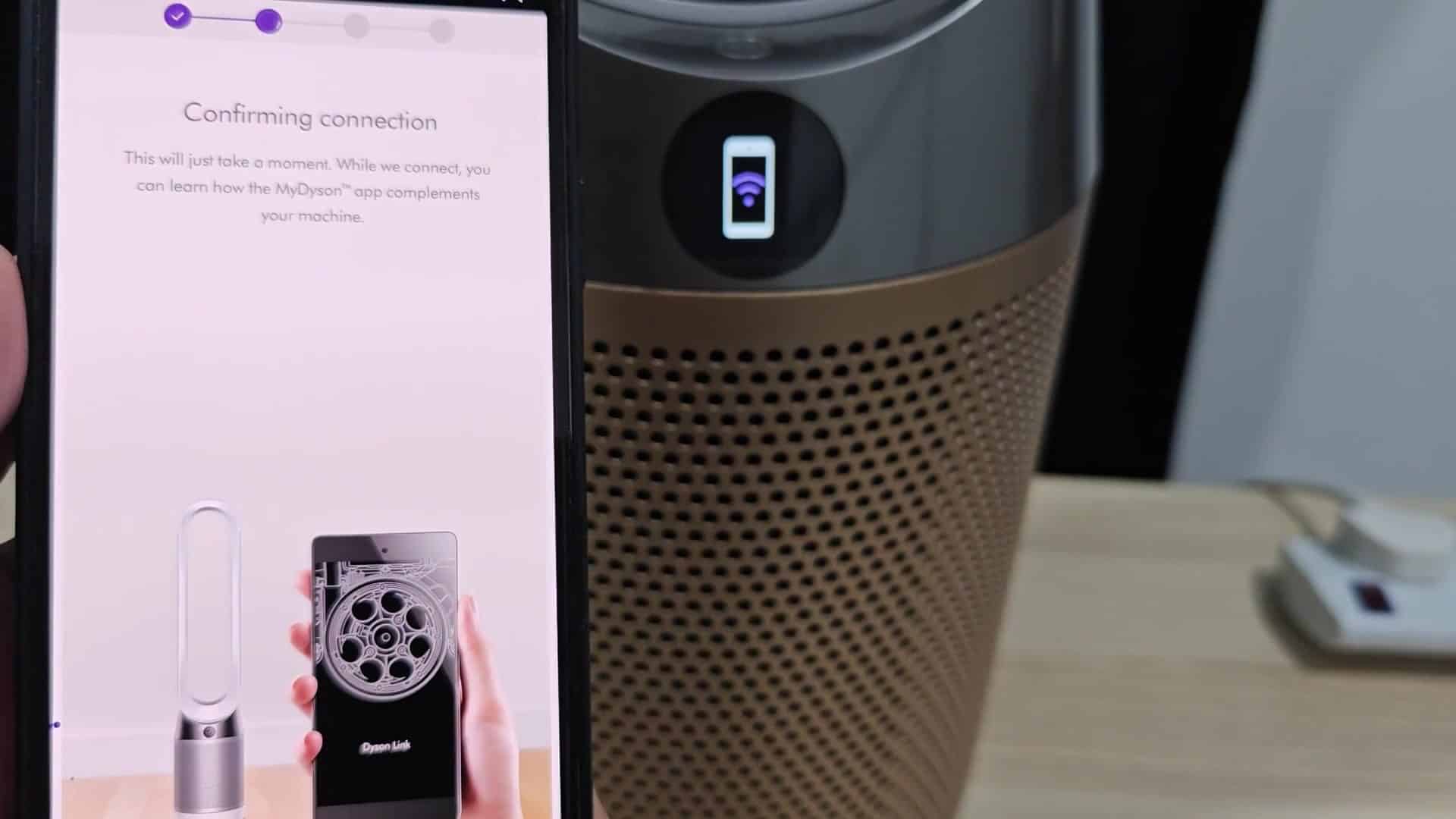
Next, you use your phone’s touchscreen to scroll through different rooms where you might place the units (Living room, Kitchen, Bedroom, Office, etc). Choose “Office” because that’s where you want to place this one.
As you do so, the air quality index remains displayed on the purifier’s screen. Now you have personalized experience; naming the device according to its purpose or placement. This helps keep things organized in the app dashboard. And it makes setting up feel natural and logical. It’s not confusing as to which device you’re working with.
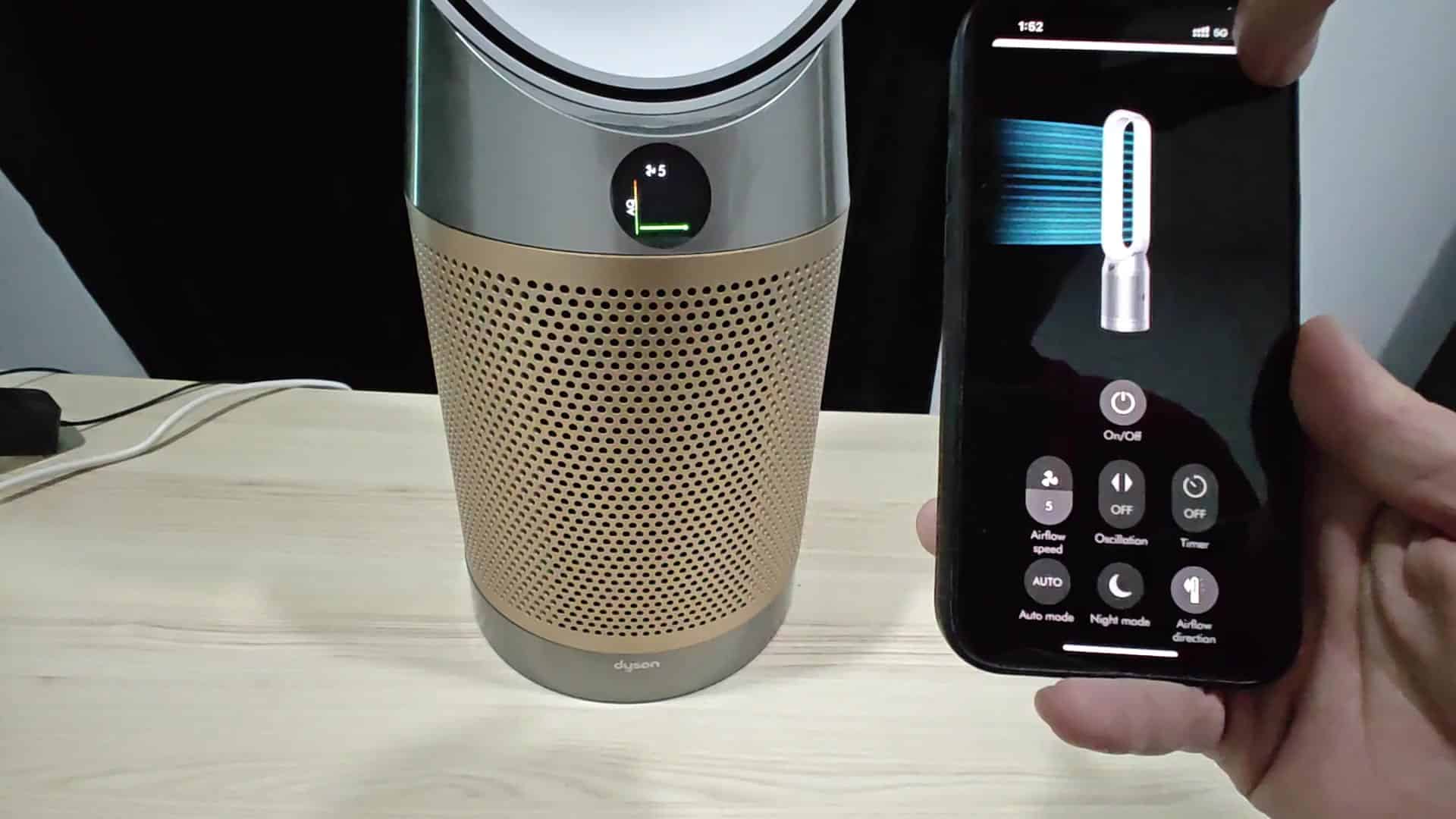
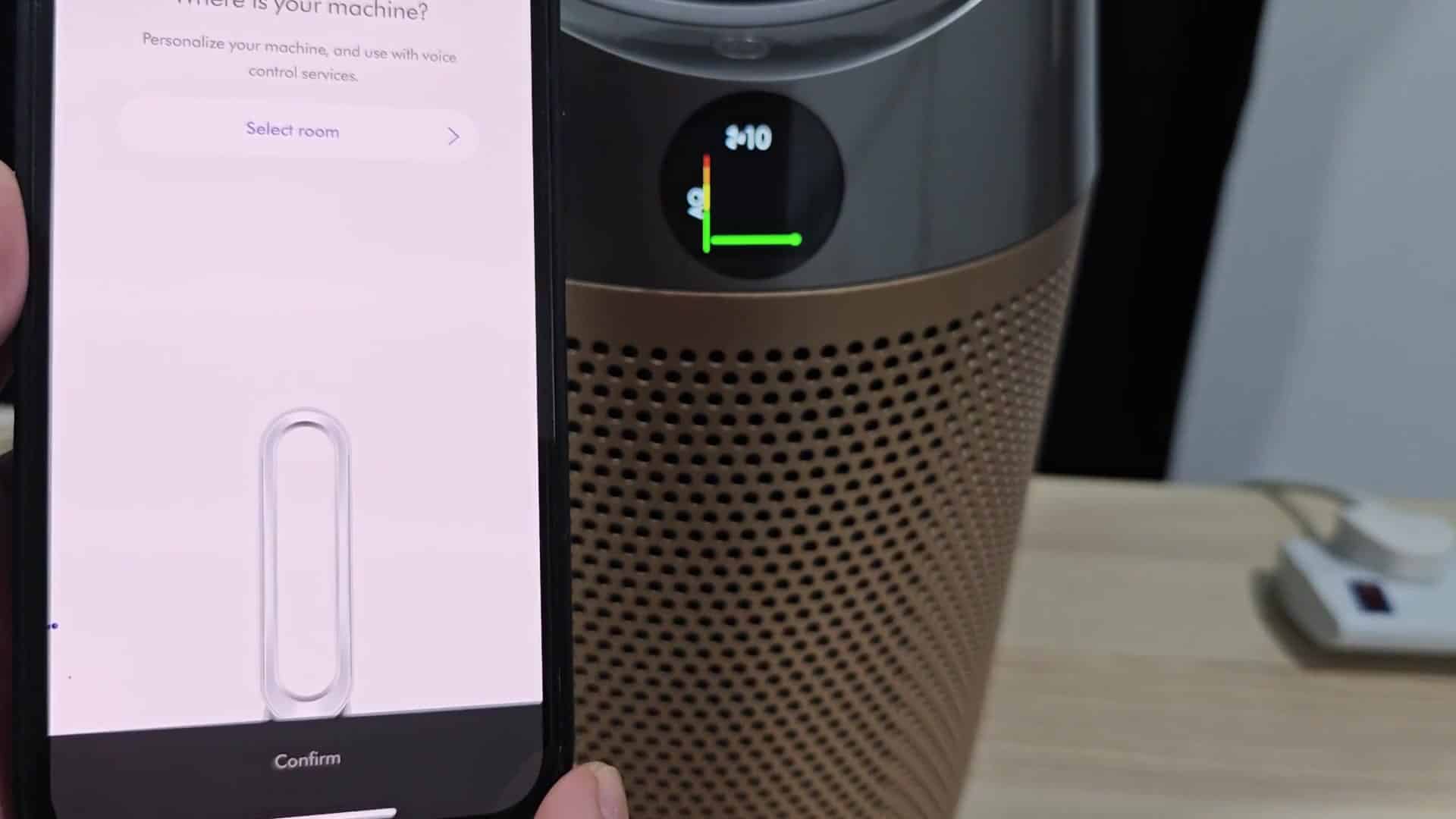
Next up is verifying the setup record’s date. Above you see that your phone thinks it’s currently December 3, 2024. To close out this section of the process, tap the purple “Confirm” button below. For reference, there’s an image of the Dyson fan above the button.
You know what? I think this logs initial activation date of the device into the system. Maybe that’ll come in handy down the road if you’re trying to remember how old filters is getting. But don’t spend too much time thinking about it; it’s just a formality. It is done.
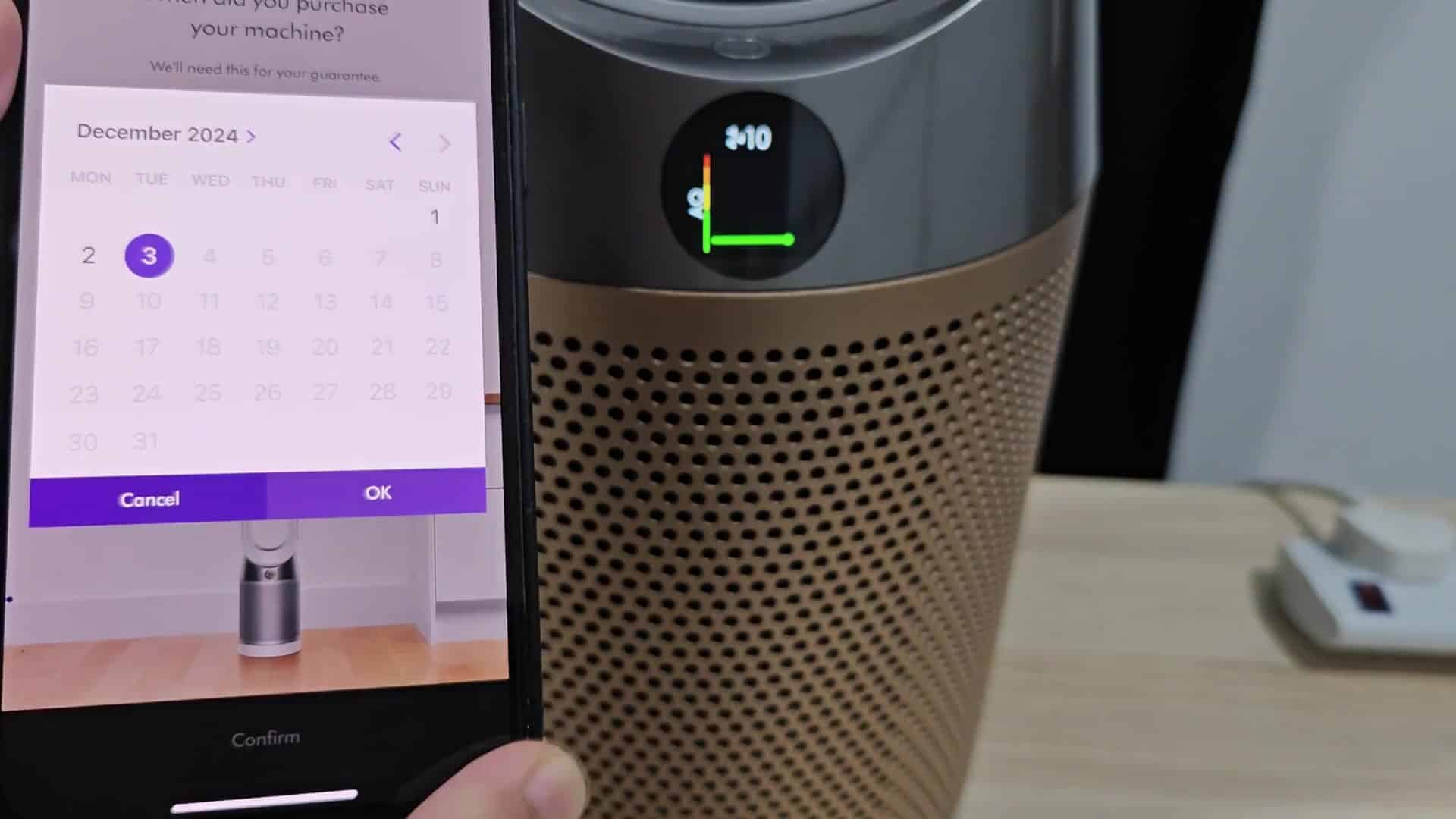
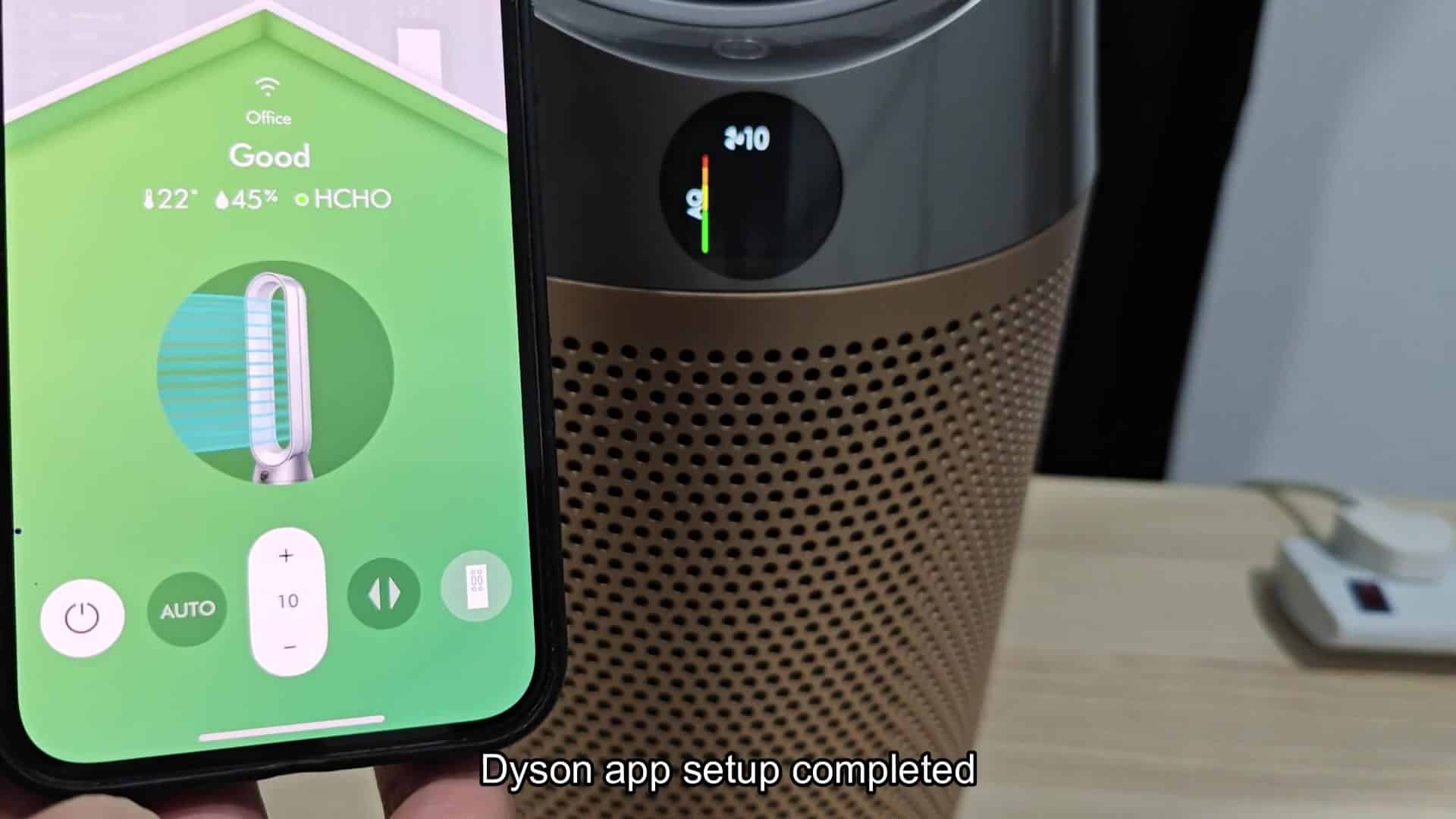
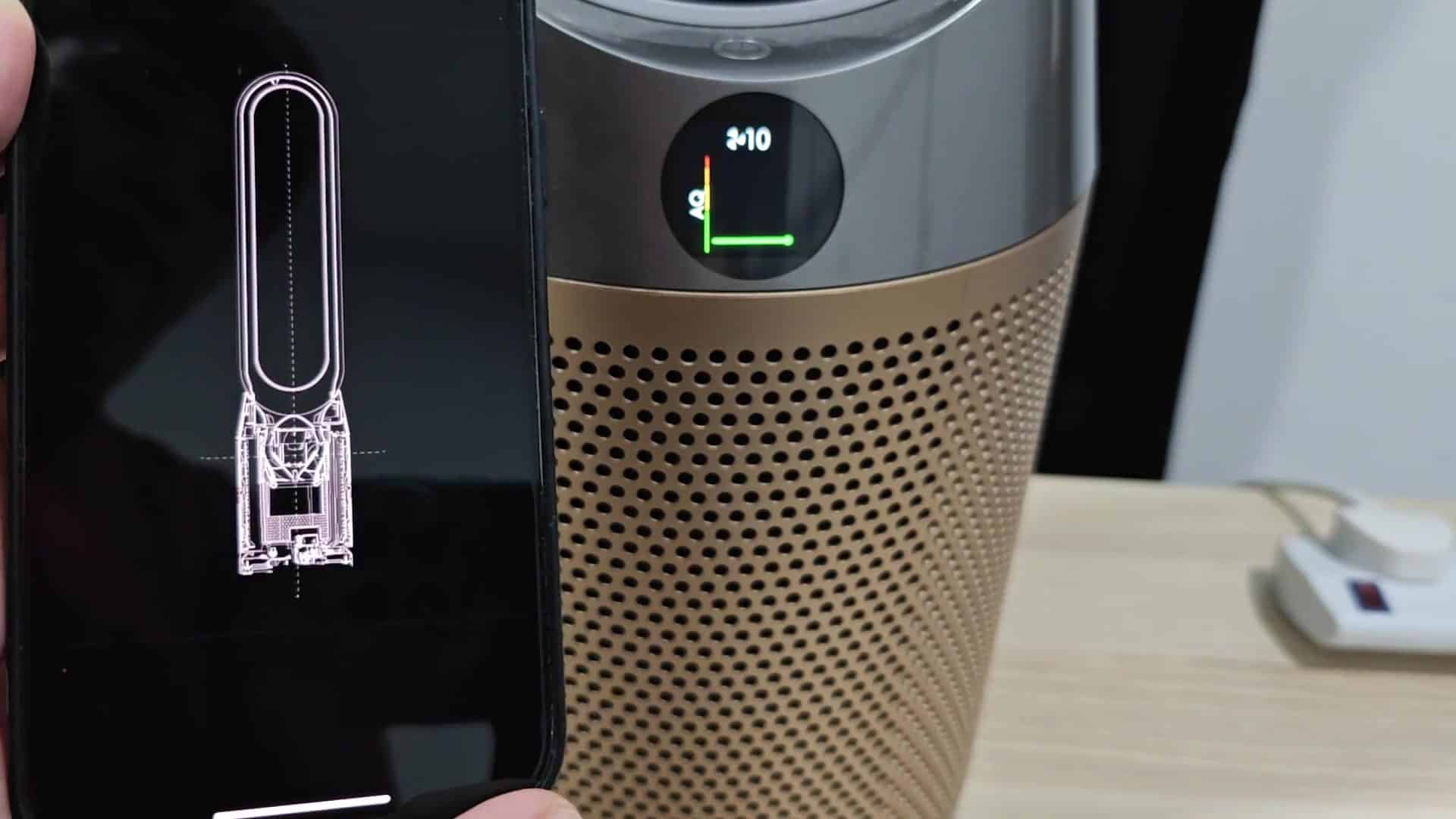
Now that everything’s been set up, the main dashboard pops up on-screen. Air quality has been rated by the app as good (“Green”), the color of the text. Humidity, temperature and even formaldehyde levels are all neatly displayed. Fan speed is currently on level ten and the machine is set to Auto mode.
Controlling Purifier Modes
This data is mirrored on the Dyson device sitting beside you, which displays it on its round screen as well. There’s no lag whatsoever between what happens on your phone and how the actual purifier behaves. Tweak something from the app and it will happen instantly. That’s much better than searching around for remote control.
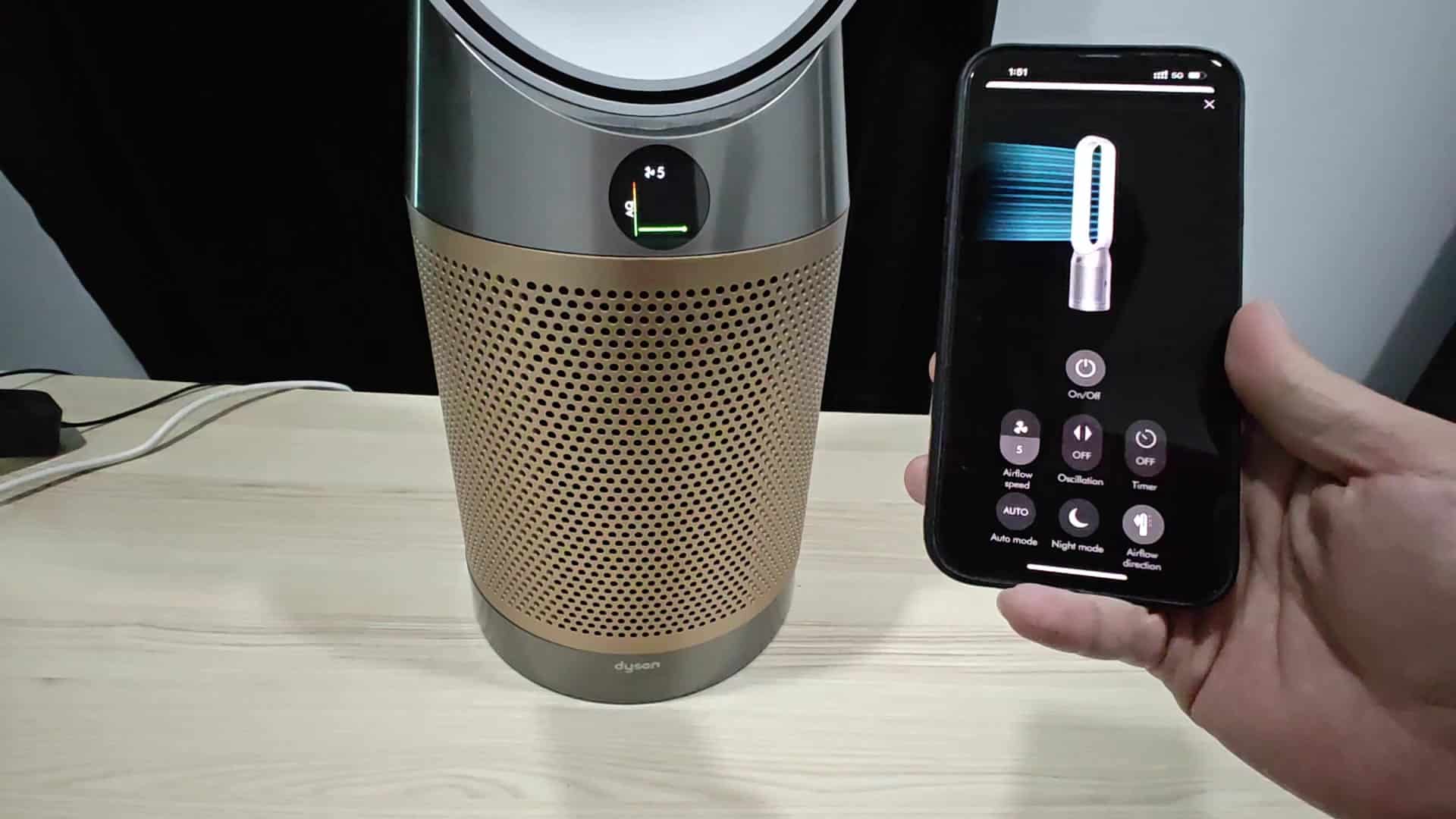
There are three modes: Sleep, Night and Auto. You can toggle between different modes like Auto, Night, and Sleep. There’s also an airflow slider that lets you play around with response time, in case you want the purifier to blow air faster, for example. Adjusting the speed via your phone instantly change the fan speed on the purifier.
The digital panel also gives you access to oscillation settings. Want to turn off the head movement? No need to stand up, just do it right from your chair. That kind of control is much easier than relying on physical buttons on device. Once you’re used to the app experience, the remote loses all meaning. It is totally worth it.