
Plug in a new speaker and follow these simple instructions. If you’re using something like an Anker Soundcore Mini, which is tiny and will easily fit into a pocket, then this step is easy enough.
But sometimes, knowing where to find that pairing screen can be tricky. Try it out on both your Android phone and iPhone and get used to navigating it. While the menus will have different names, the steps themselves is almost identical.
Testing the Connection Quality
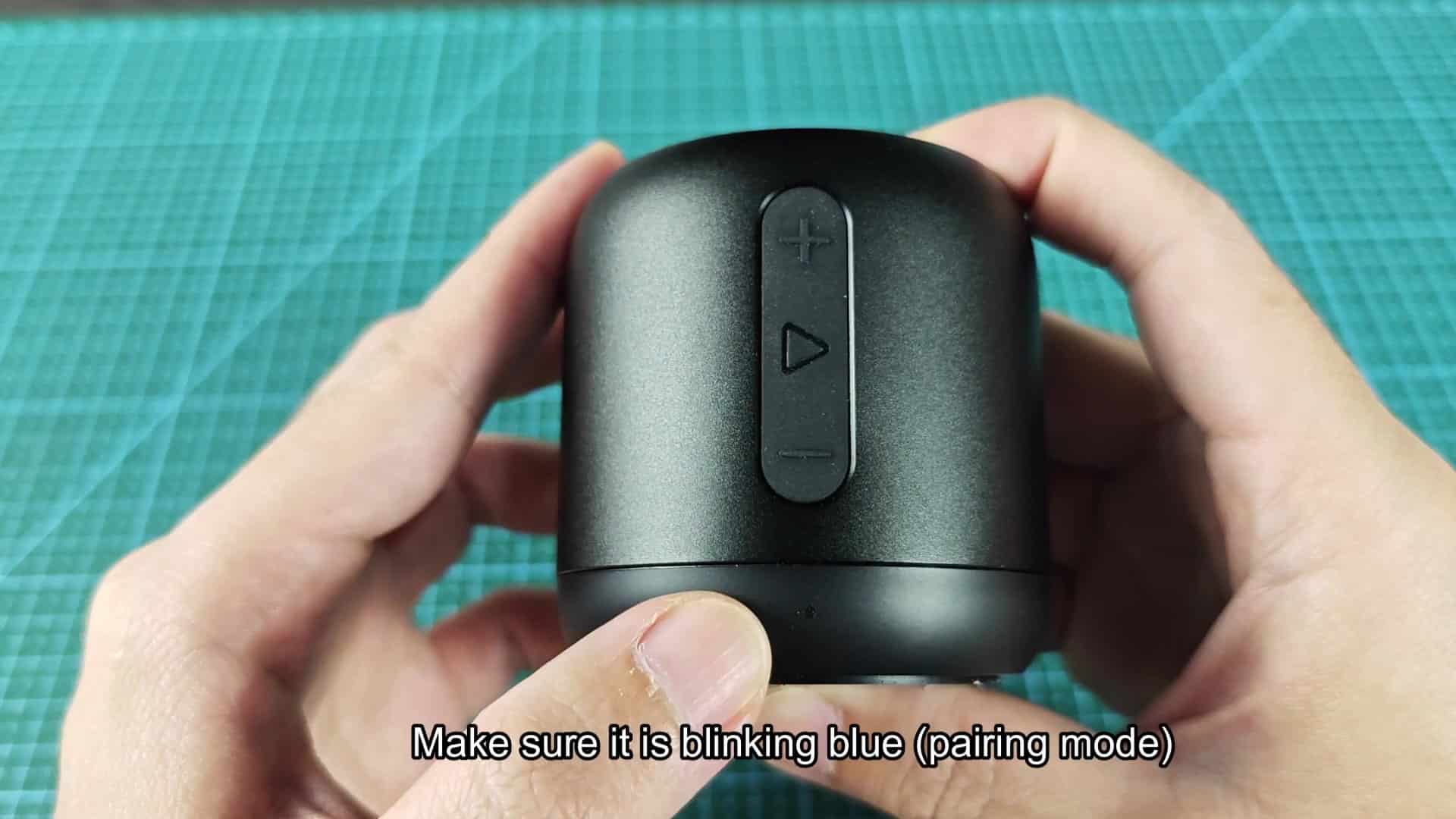
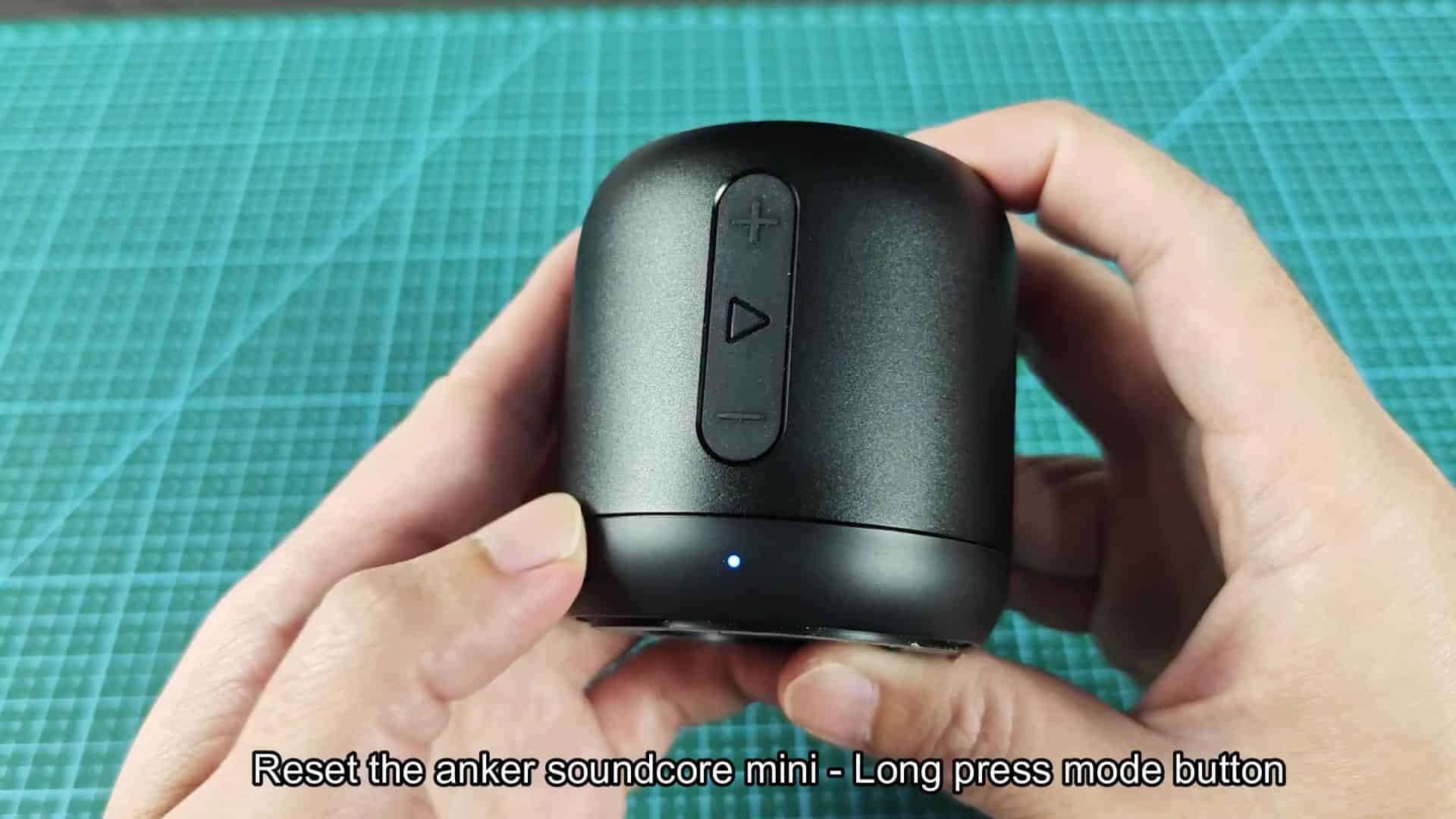
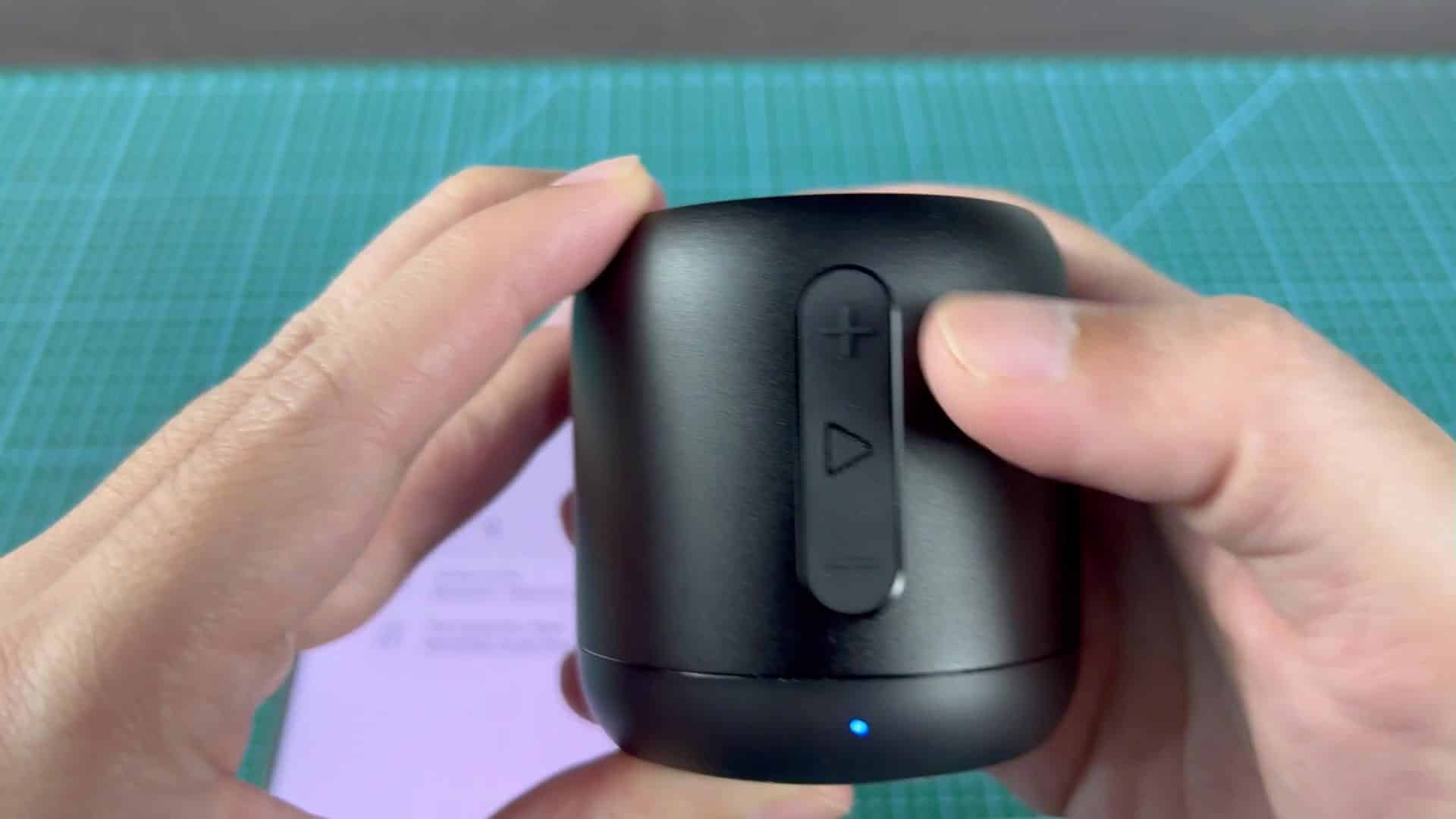
Once you’re in the Bluetooth menu, make sure the speaker is in pairing mode first. If it was acting funky or already paired with something else, you’ll want to reset it. To do that, simply press the mode button for a few seconds; when the LEDs light up, you know you’ve done it corectly.
That will remove any lingering connections and place the speaker into pairing mode. Don’t try a short click. Go long on this one.
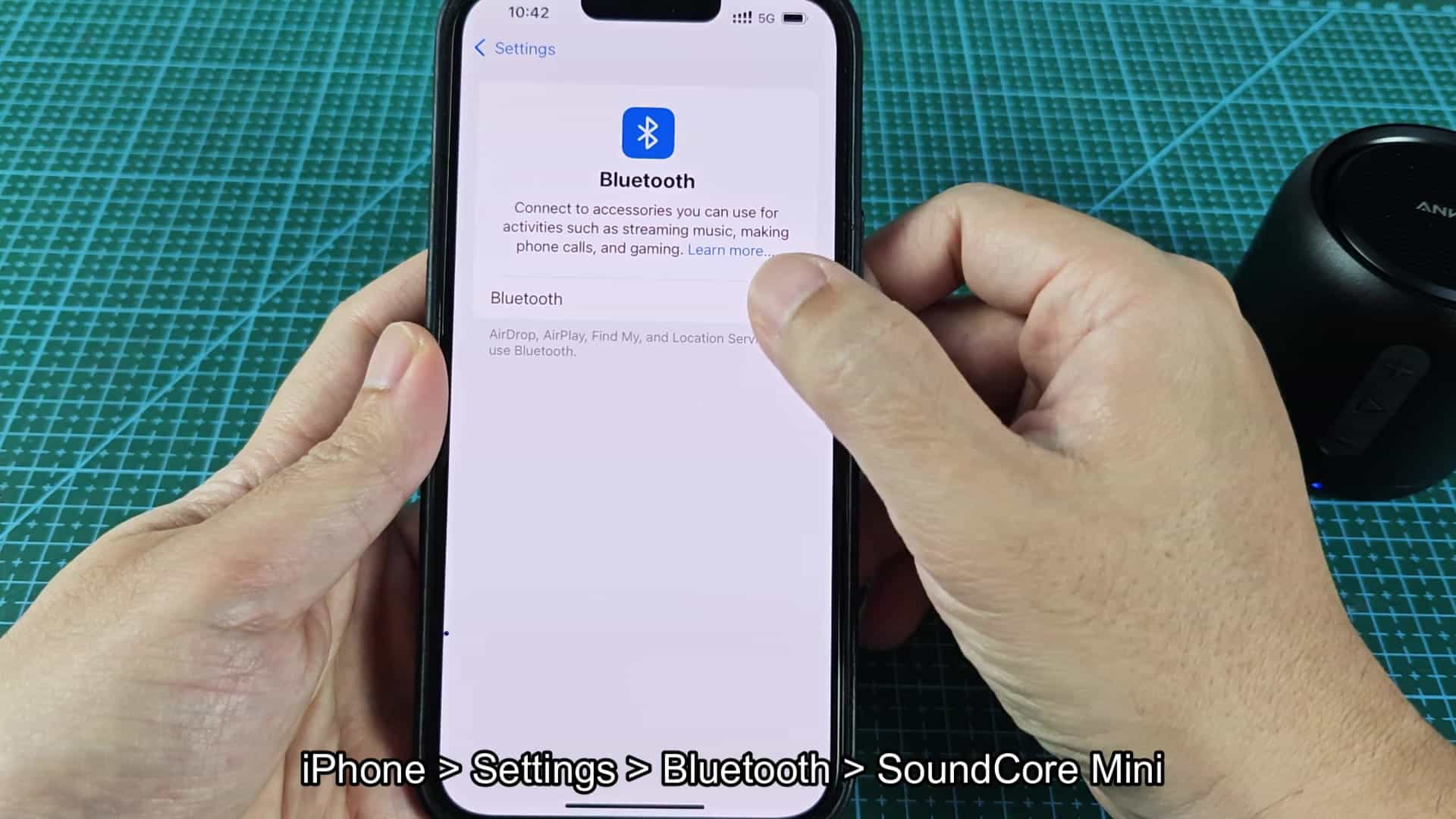
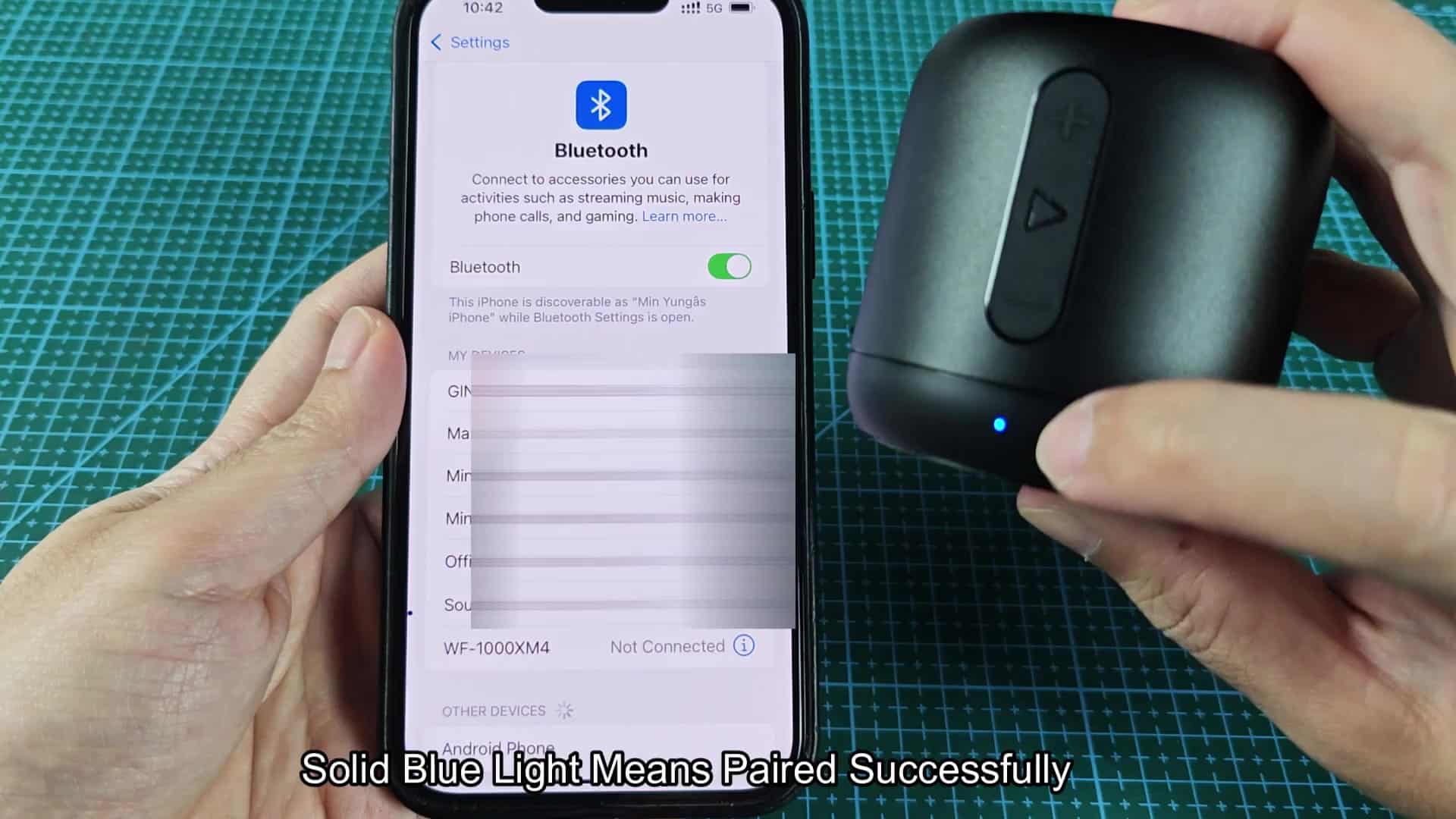
On the iPhone, for example, you begin with the Settings app, found on the home screen. Because Bluetooth appears toward the top of the settings list, you’ll find it easily enough. Below Airplane Mode and generally Wi-Fi, tap the Bluetooth option to open its management screen. There, you’ll discover a list of devices available for connection. That’s what your phone can reach.
The iPhone Bluetooth screen has a toggle at the very top. You make sure this switch is on because it turns green when active.
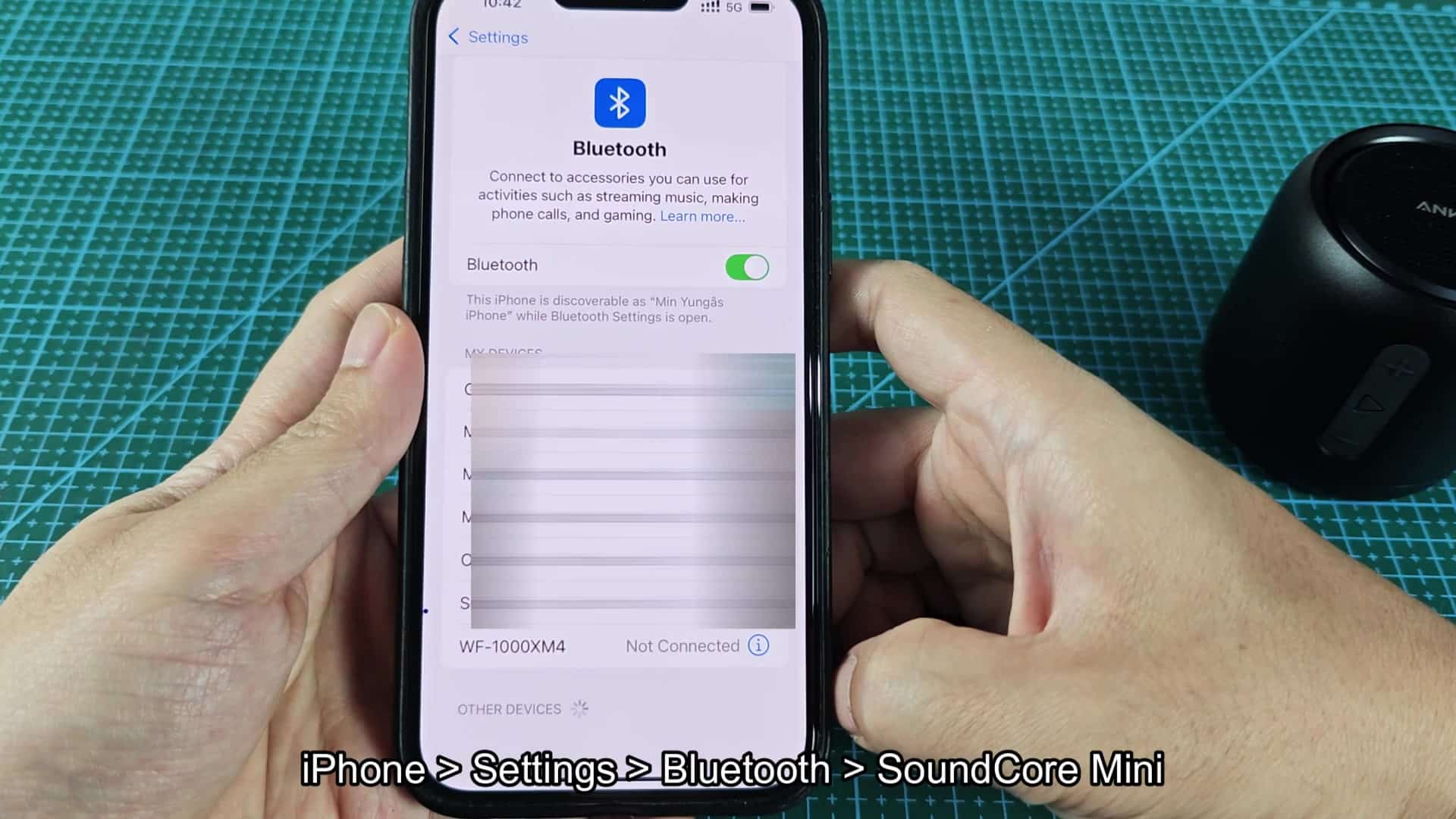
At the very top of your iPhone’s Bluetooth screen, you’ll find a toggle. Make sure that it’s switched to On (if it is), it will be turned green.
Right below that, you’ll find “My Devices,” which lists all the devices you’ve already connected to your phone. They’re frequently left in the “Not Connected” status and need to be selected by hand. Old pairs of headphone might clutter up your screen a bit.
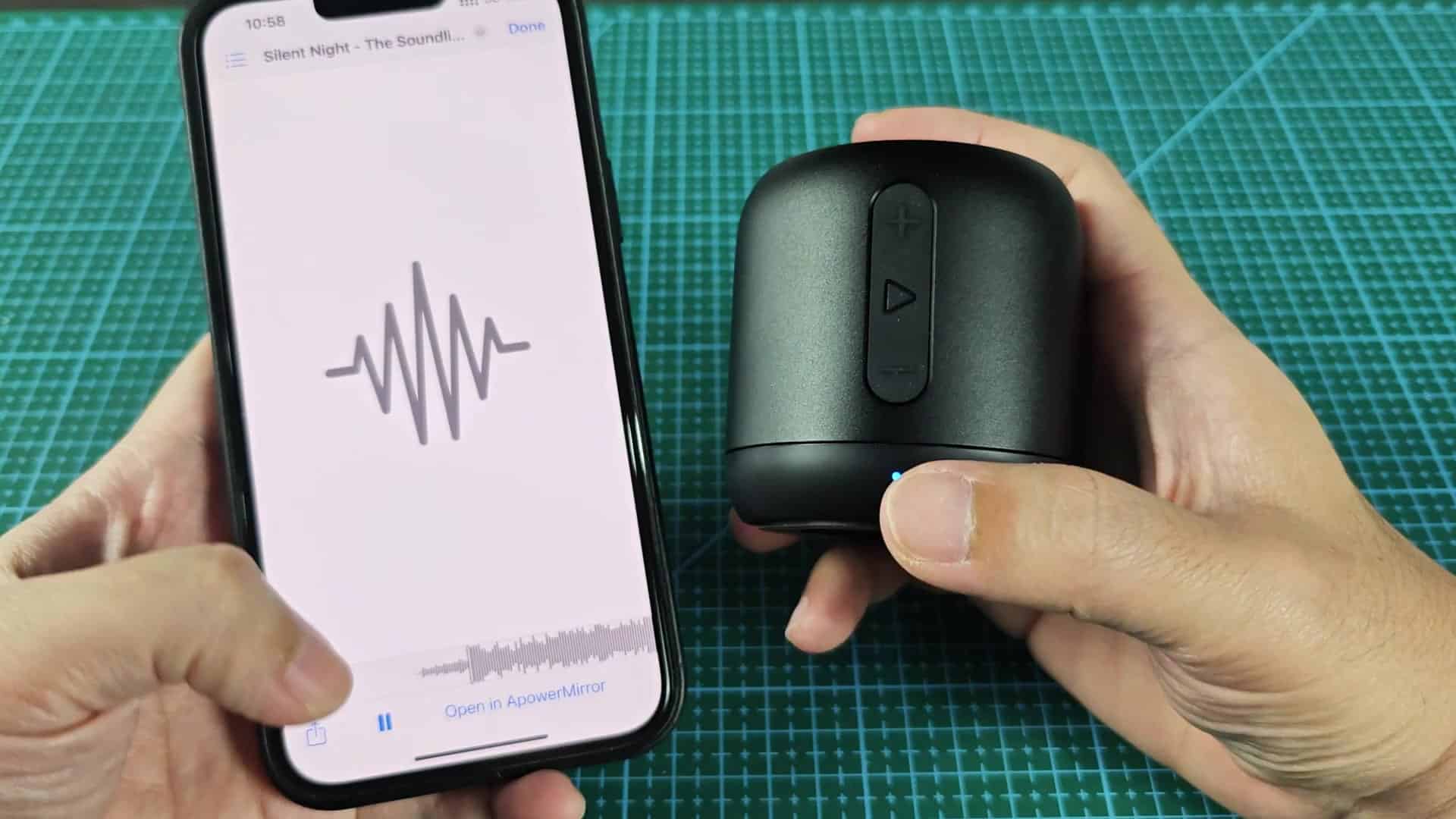
You scroll down to find the new device in the list of available connections.
Scrolling down to discover the new device in your list of connected devices. There, in plain sight, among other electronics in the area, you see the SoundCore Mini appear. Tap on it.
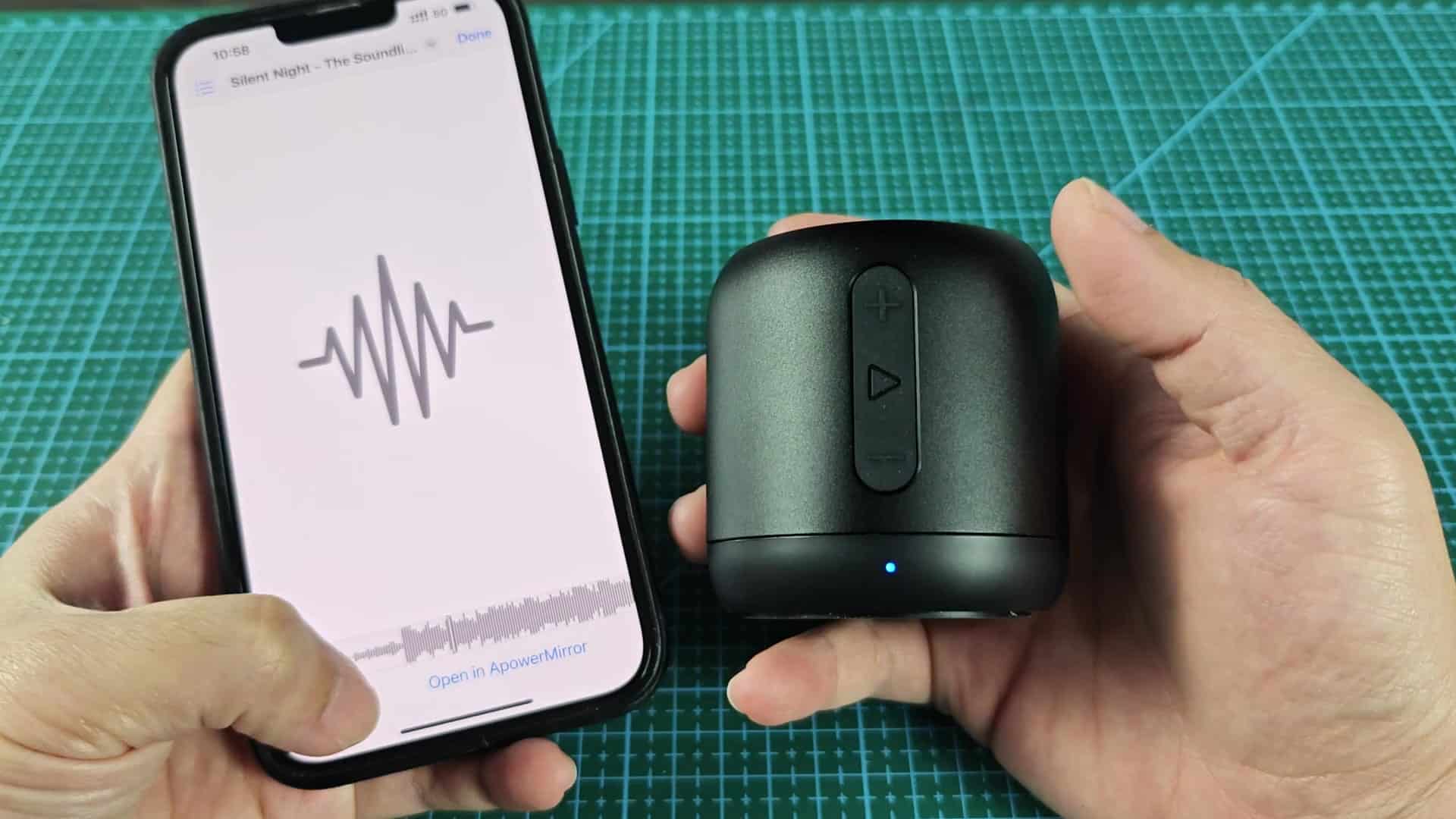
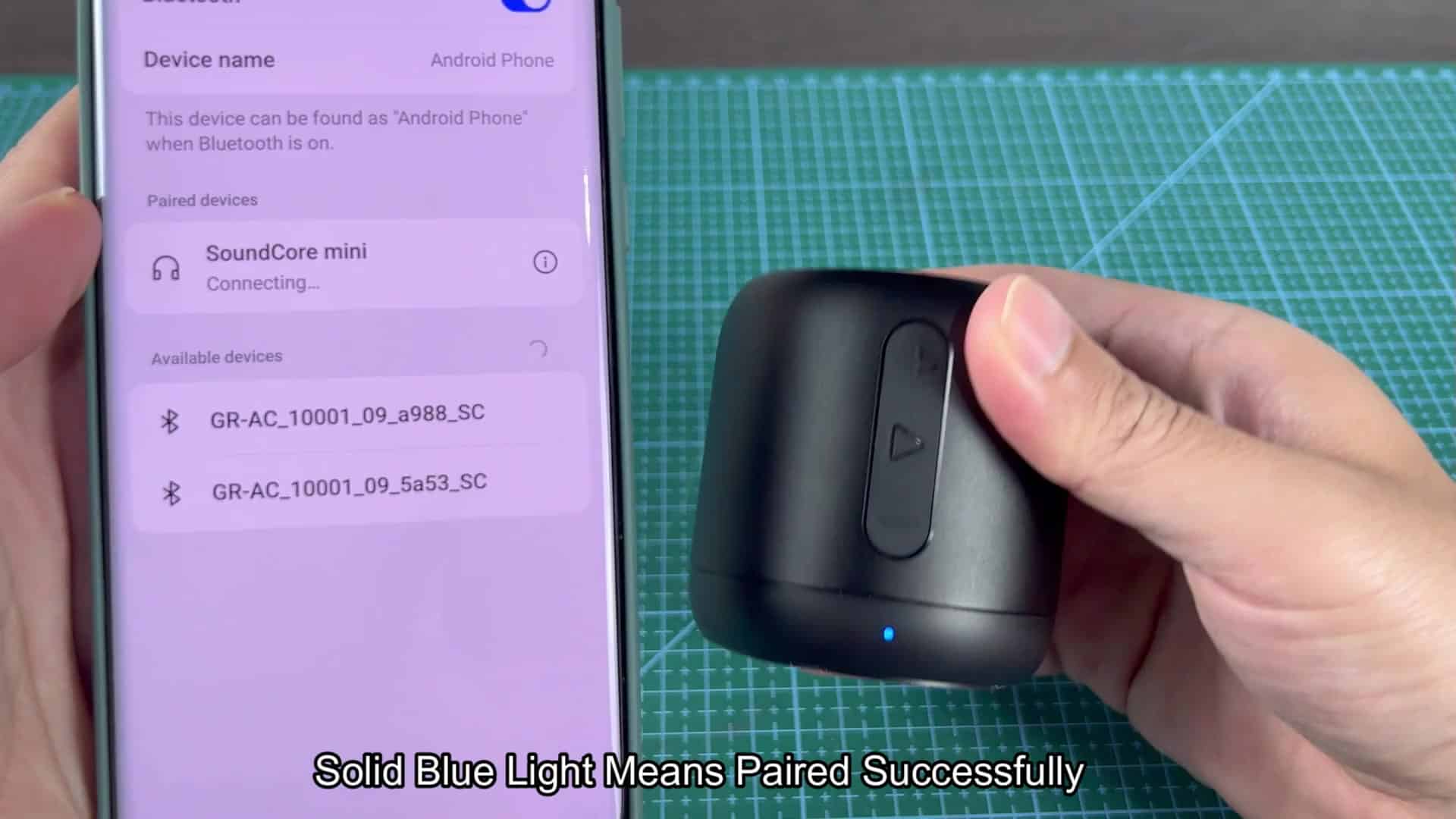
A handshake occurs between the two devices. The display refreshes a little bit showing that it’s connecting. Wait a few seconds for it to lock into place.
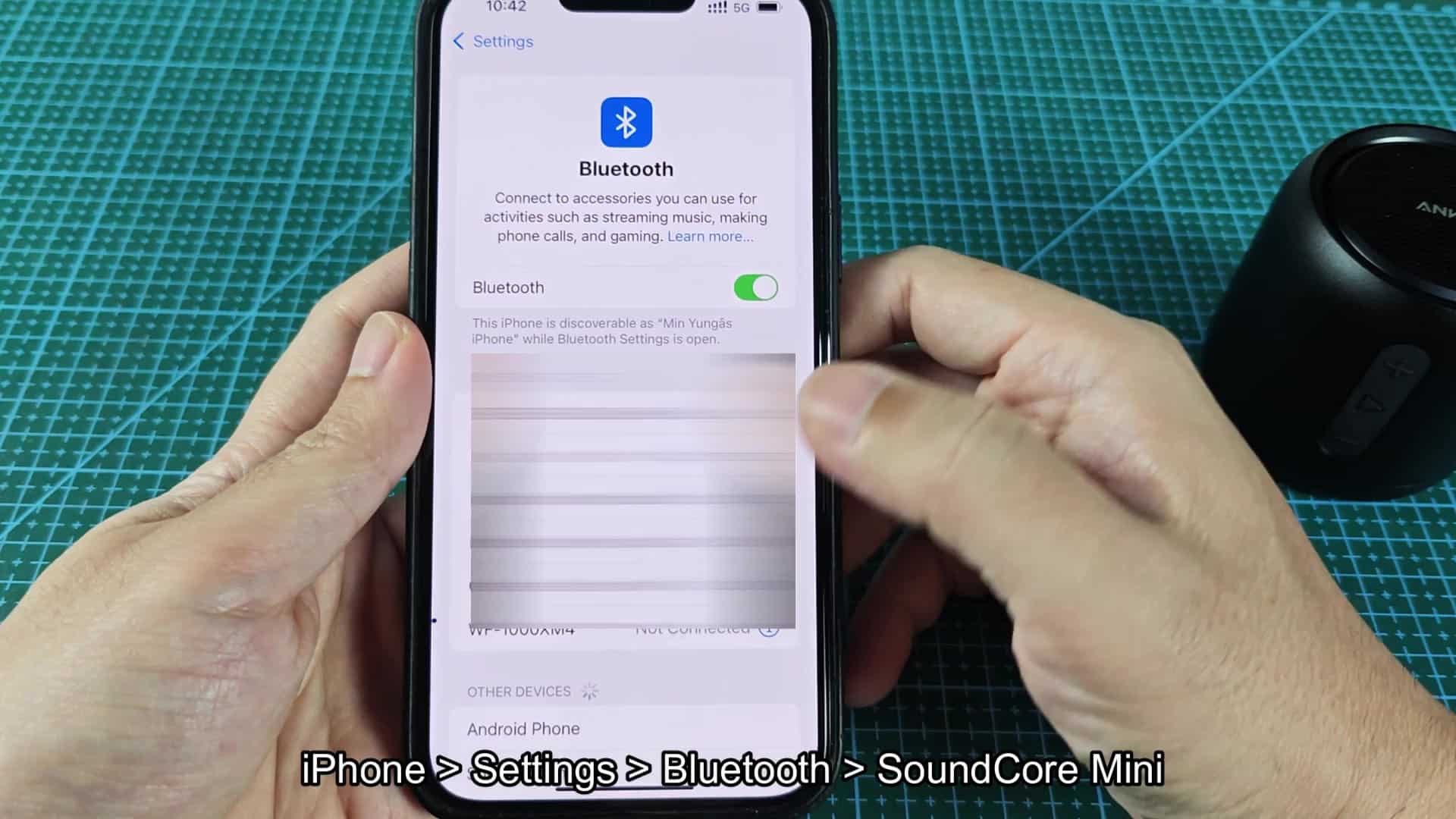
The link goes through fine; the little blue light on the speaker base lets you know all is well. And the device status on your phone flashes to indicate that it’s connected and good to go.
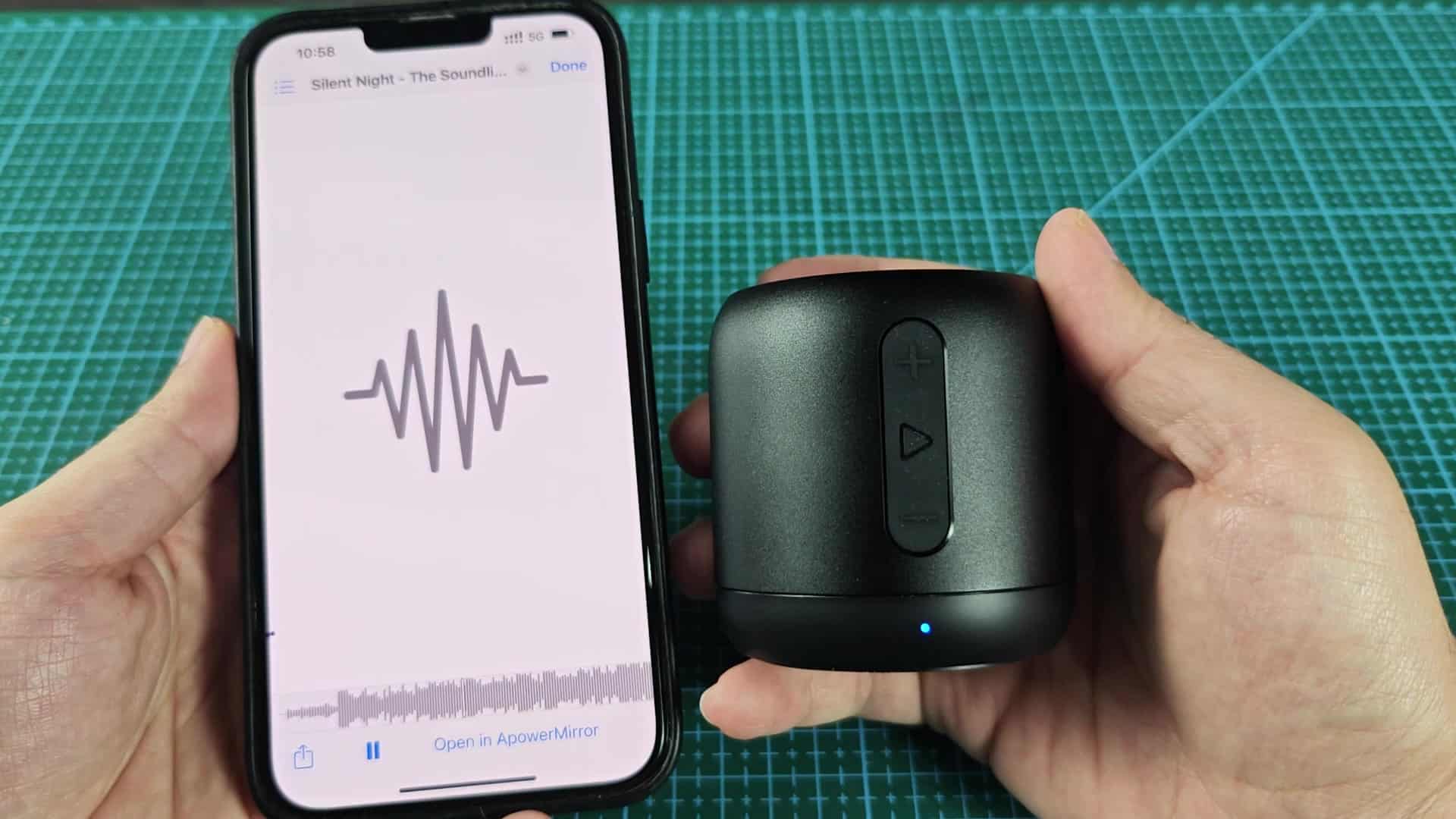
Test it out: play something in your music library. Sound travels loud and clear, even though it does come from a small package. If you don’t get it the first time around, no problem.
The playback screen on the iPhone displays current song details and waveform visualization.
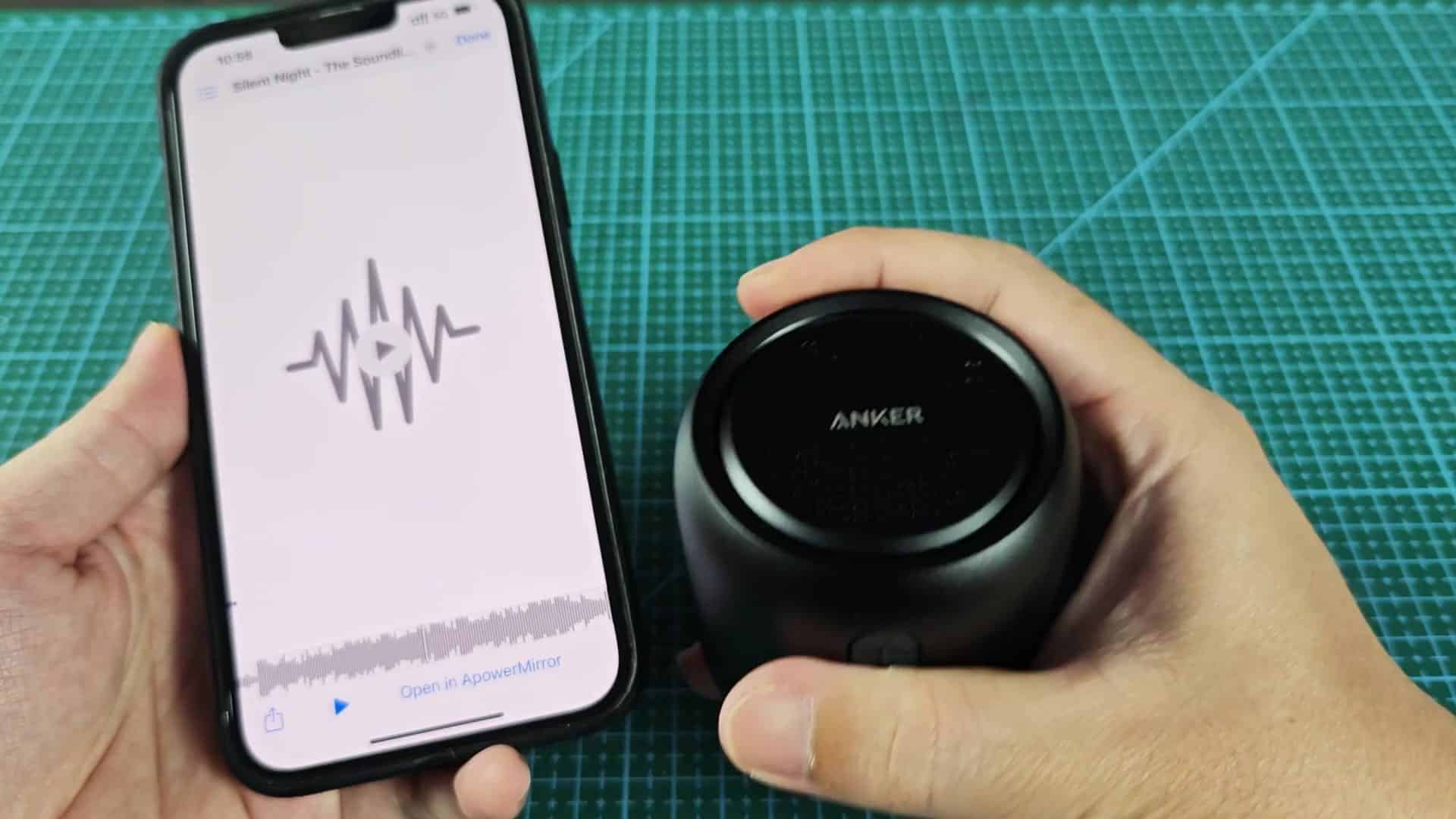
On the iPhone, there’s a waveform visualization along with whatever information is available about the song that’s playing back. By holding the speaker up to the phone, you can watch both simultaneously. And the blue LED will stay lit to show that both power and data are flowing as intended.
First use your phone’s controls to start/pause your music. That makes sure the digital connection is good before pressing the physical buttons on the device.
Do that again on an Android phone. The experience may be slightly different. The interface might look different, but the logic are identical. Open your phone’s system settings, find the Bluetooth section, and look for your device name at the top (and a list of available devices beneath). If the speaker doesn’t show up right away, give it some time; most often it’ll pop up within seconds. Again, refresh the list.
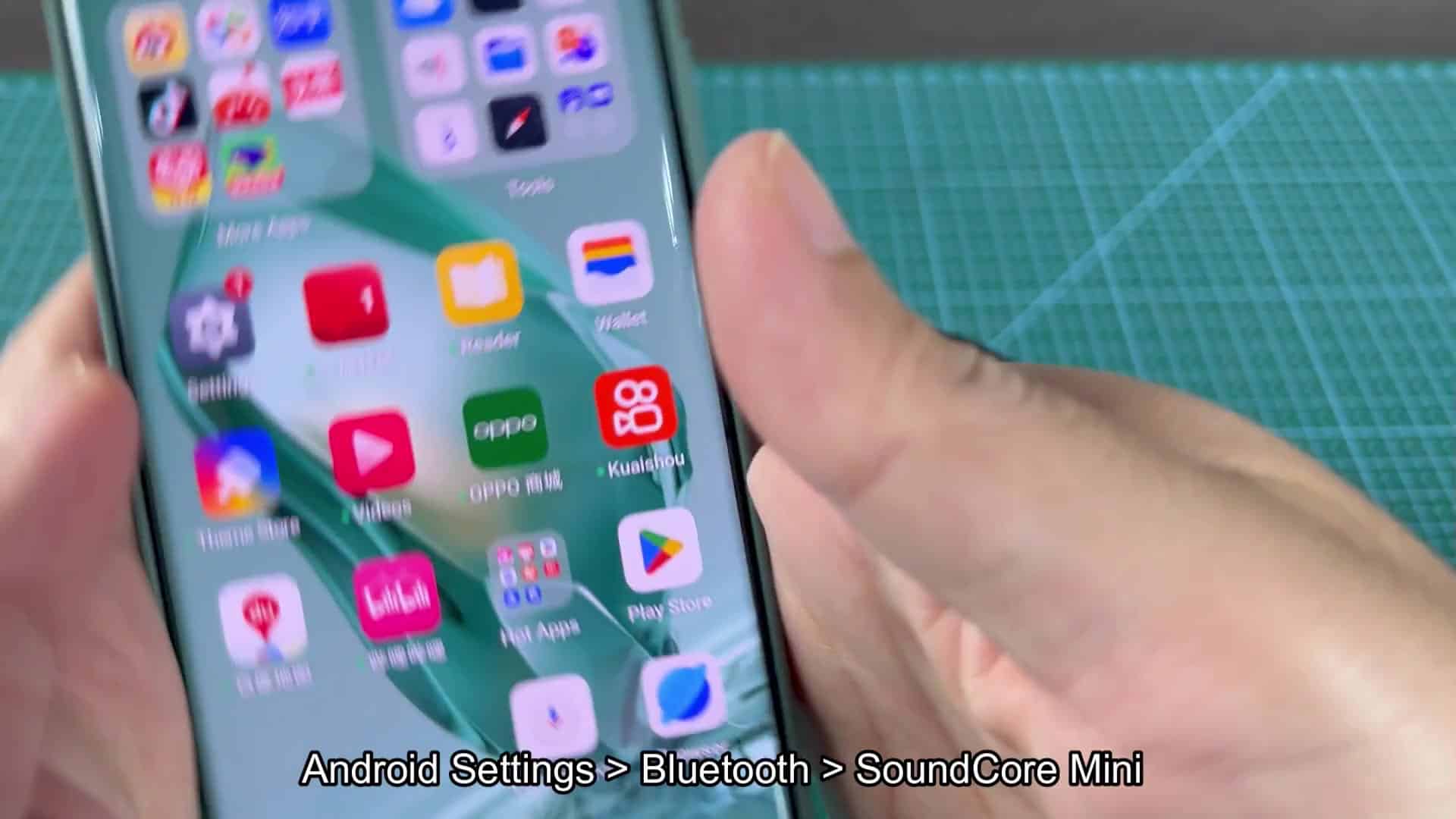
When you long press the mode button to put it in discovery mode, the SoundCore Mini will show up on your Android’s list of Bluetooth devices in a “Pairing” state, which indicates that the device and the phone is negotiating a connection. After they link up, it switches over to “In use,” which also shows how much juice the speaker has left. Having the percentage displayed right there on the phone makes it easier to keep tabs on its charge when using it for extended periods.
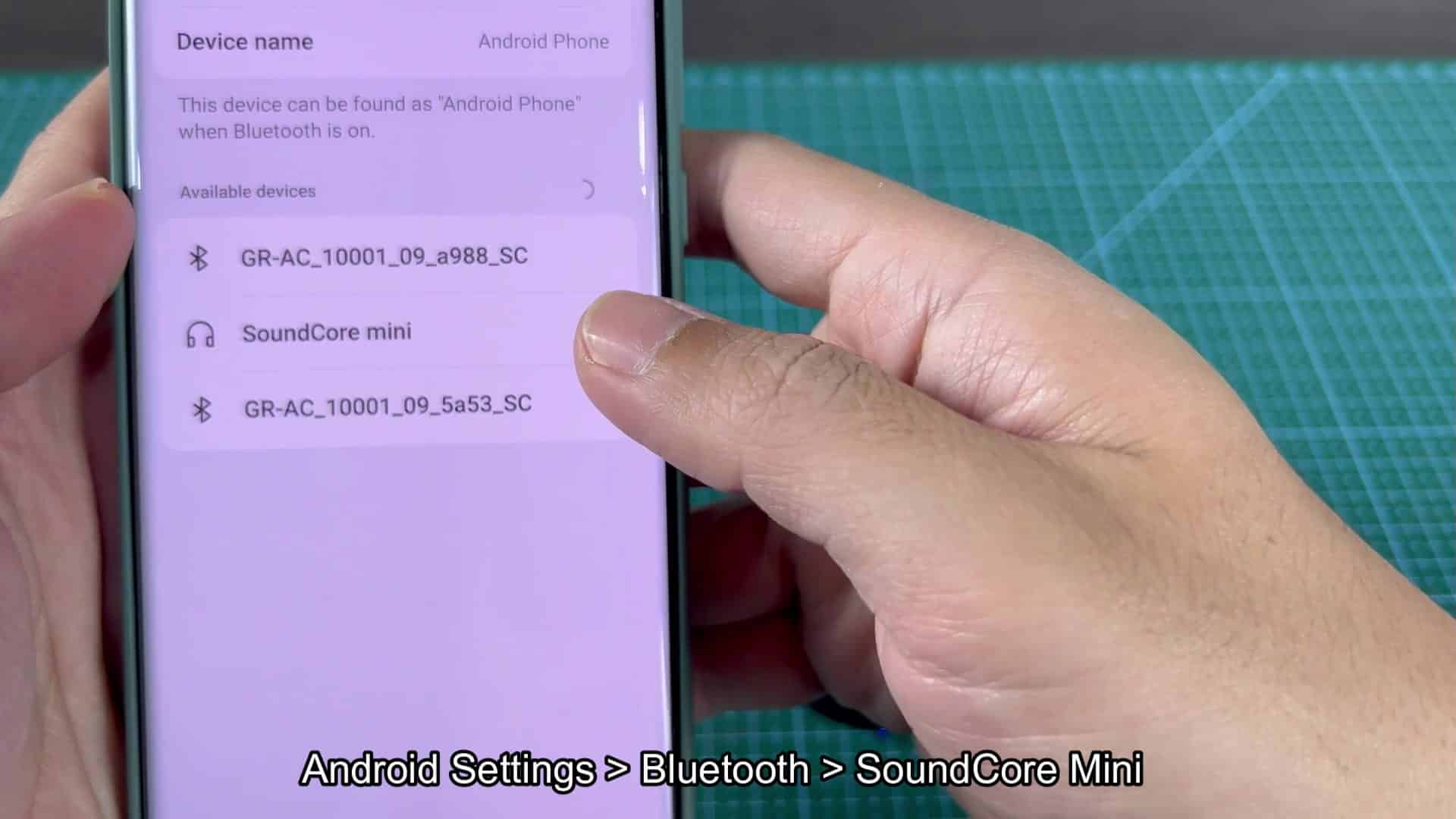
Next, you turn on your Android phone and fire up your music app. The app displays a basic track list with a play button. You pick a song and tap on play to listen to it.
There’s no delay or stuttering when the sound reaches the speaker. It immediately starts playing. This means Android is as good at pairing than iOS devices are.
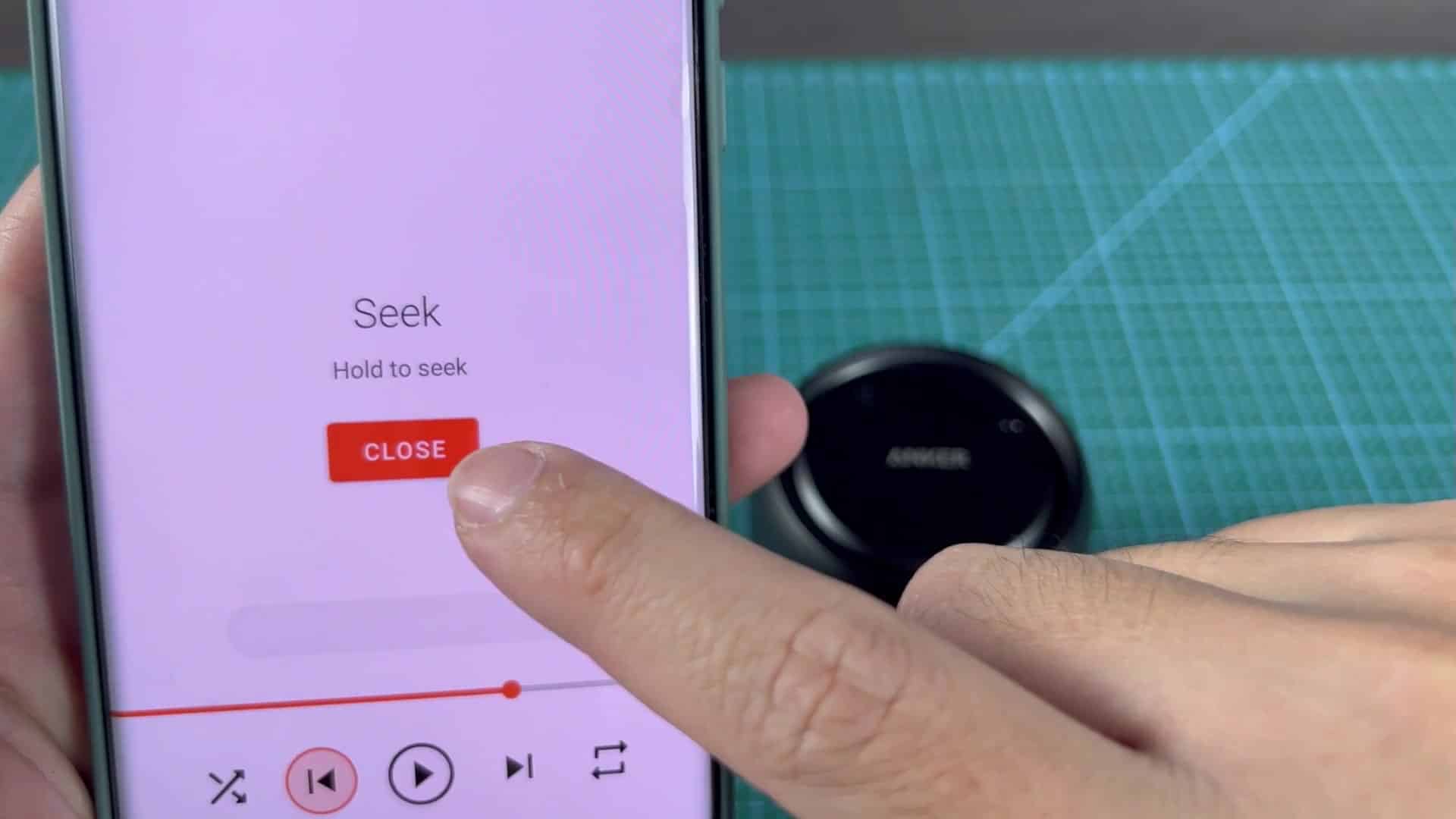
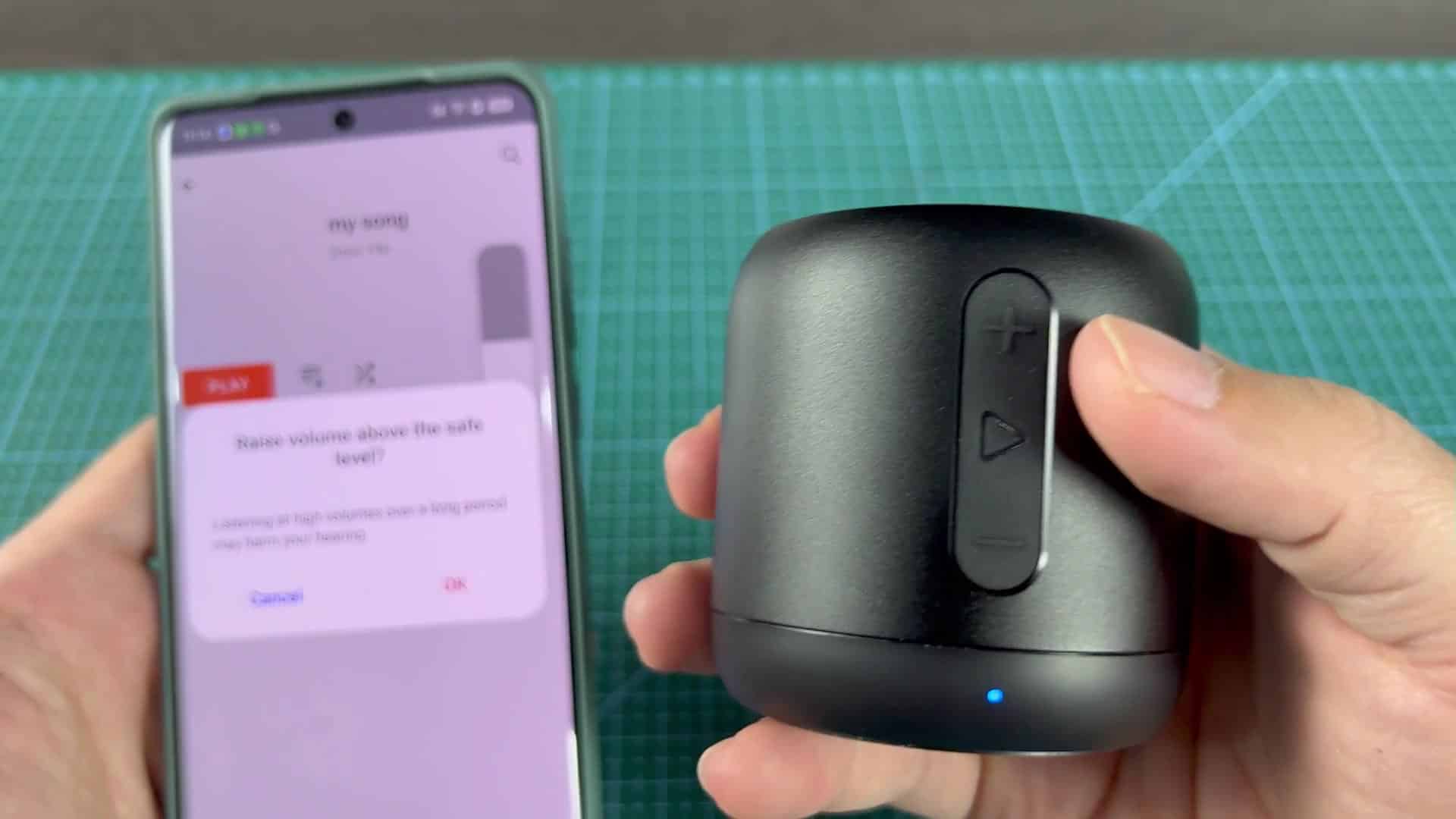
When it’s playing back, you get to try out the physical controls of the speaker itself. You press the up volume button and the output increase as expected.
A dialog box comes up on your phone warning you against excessive volume, which you acknowledge to continue increasing the sound. It’s an exchange that shows that the software limits are being respected by the hardware buttons. That helps make sense of how they work together.
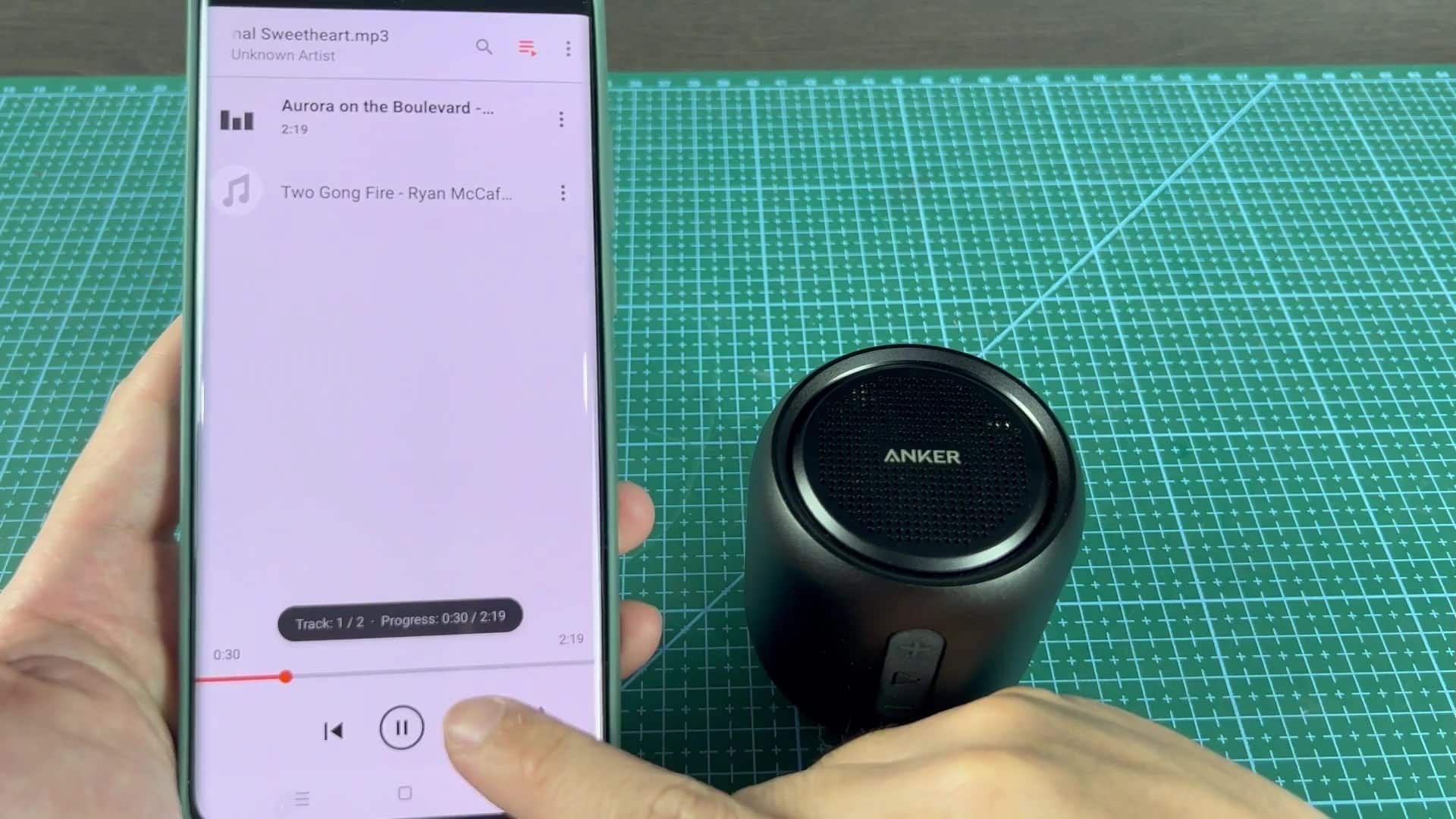
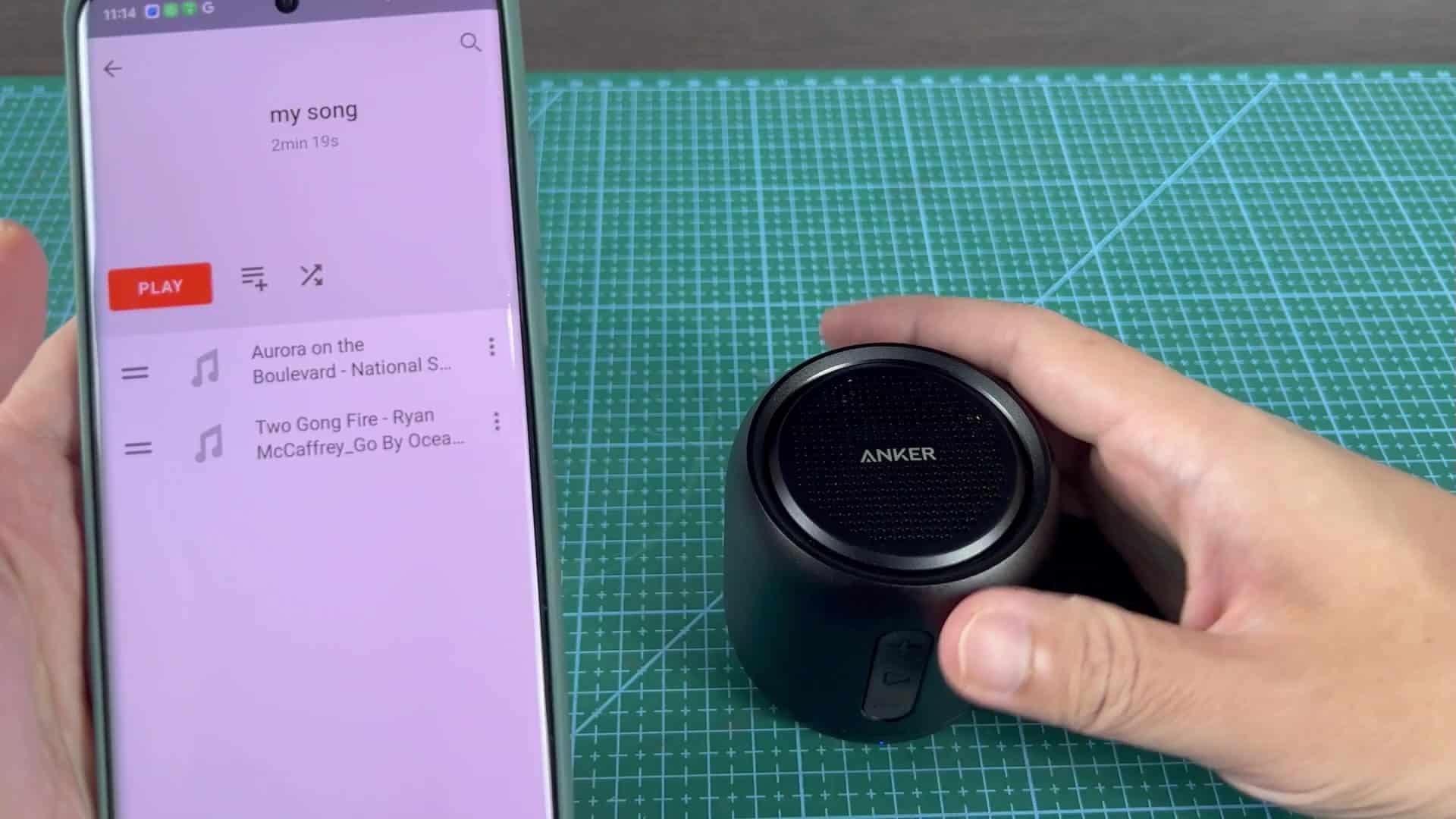
The interface of the speaker itself works well when navigating around songs. When you skip forward to the next track it updates the phone’s screen without delay. The connection between digital feedback and physical input feels tight. You don’t notice any delays when pressing a button. The action reflect on the display quickly, which is good enough for occasional use.
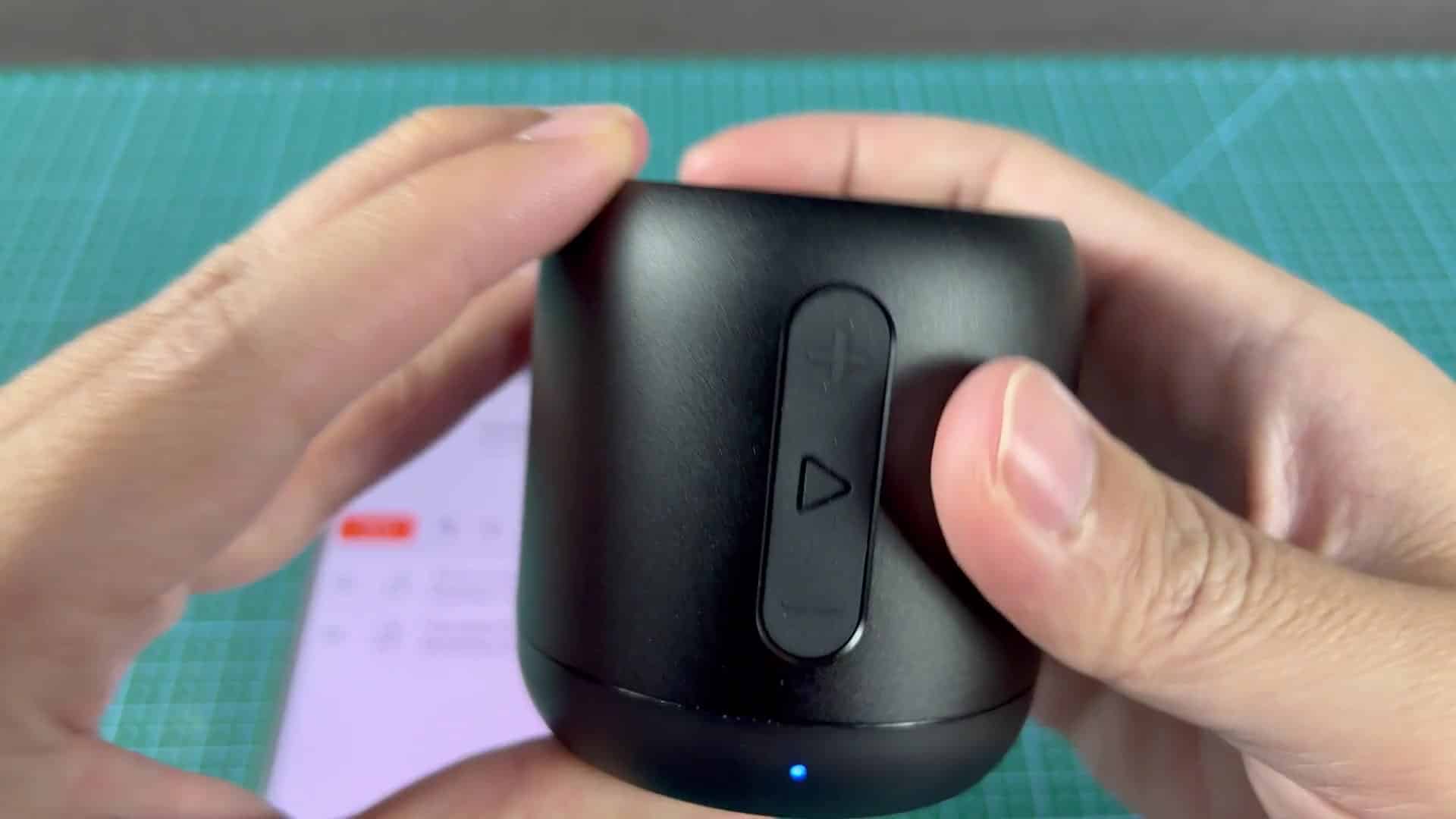
Then you swap to another song on your playlist to confirm it holds up. Sure enough, there’s no skipping, stuttering, reconnecting or anything else. The phone displays the song’s progress and duration as the speaker swaps seamlessly from one song to the next. There are no breaks in the music when switching tracks at home for a workout, or at a party. It just works.
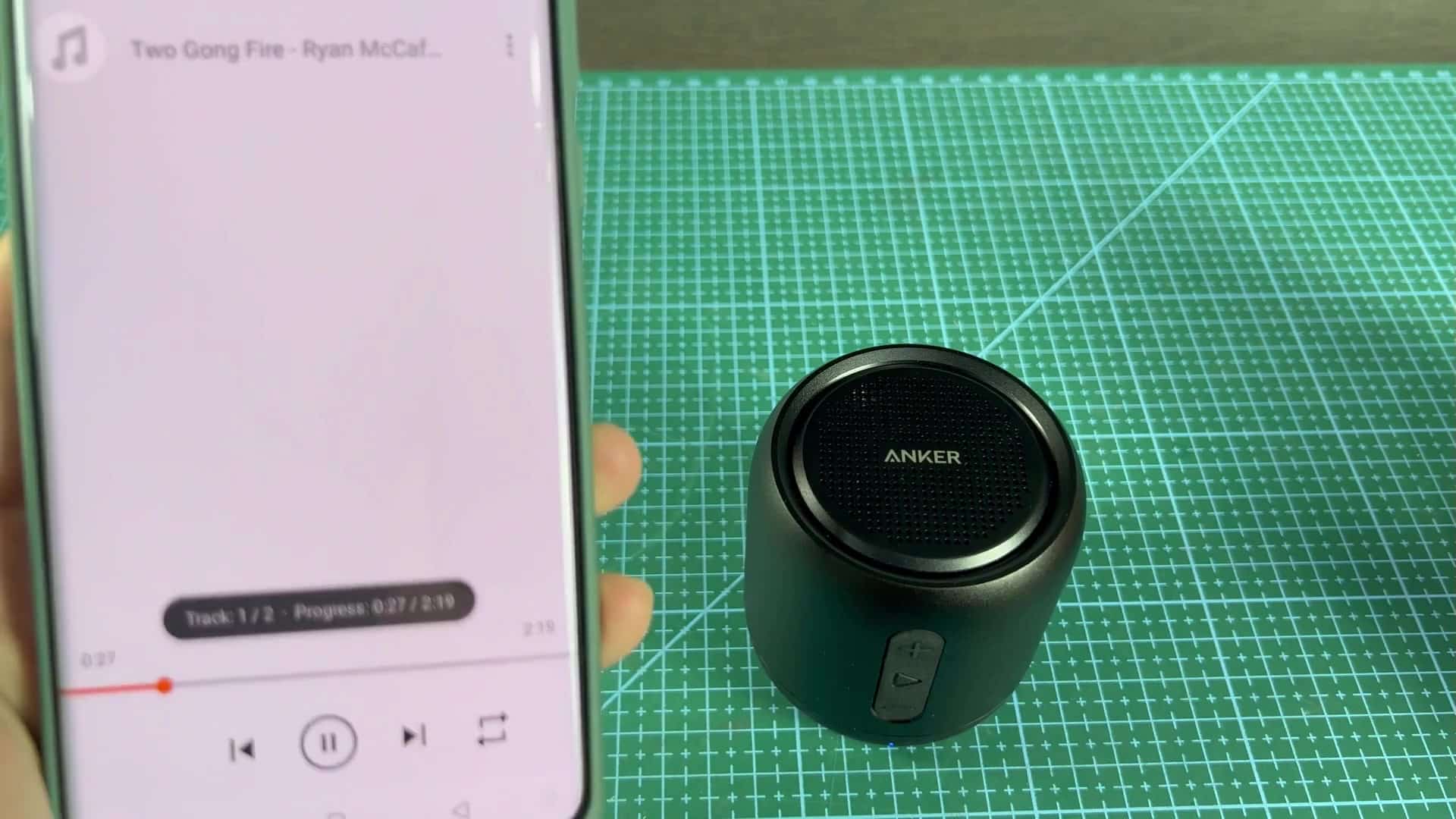
Everything works just fine and it doesn’t cut off until the end of the song. During my test, I kept getting good Bluetooth connections on both ends.
As for the Anker Soundcore Mini, it does what is supposed to do wherever you put it. It pairs in one minute (assuming you follow regular steps).
