
Typically when you have a Dyson air purifier, you just turn it on and let it hum along in the background. But occasionally one of those indicator lights will start misbehaving, or you’ll replace the filter and want to get things back into sync.
It’s not rocket science. Just observe what happens when you push certain buttons and you can guess the combination. Once you realize which buttons goes together, it’s pretty straightforward.
Resetting the Filter Indicator
To reset the machine, you do not need a computer or an app. The entire process happen on the device panel and remote control.
For starters, examine the unit. On most models, there’s a round screen that displays fan speeds and/or air quality levels. No app or computer is required to reset it, just the device panel.
Locate the power button on the top of the column. While pressing it with one finger, press the power button on the remote simultaneously.

When you hold down both of these buttons at once, it will switch screens on display. All of the numbers dissapears and the unit will stop what it was doing.
That’s important, because if you only push one button, it won’t do anything special. It will either shut the unit off or adjust the fan speed. For it to recognize a system reset, you must get it this dual input. Continue to hold them down until you notice it confirms it on the screen.
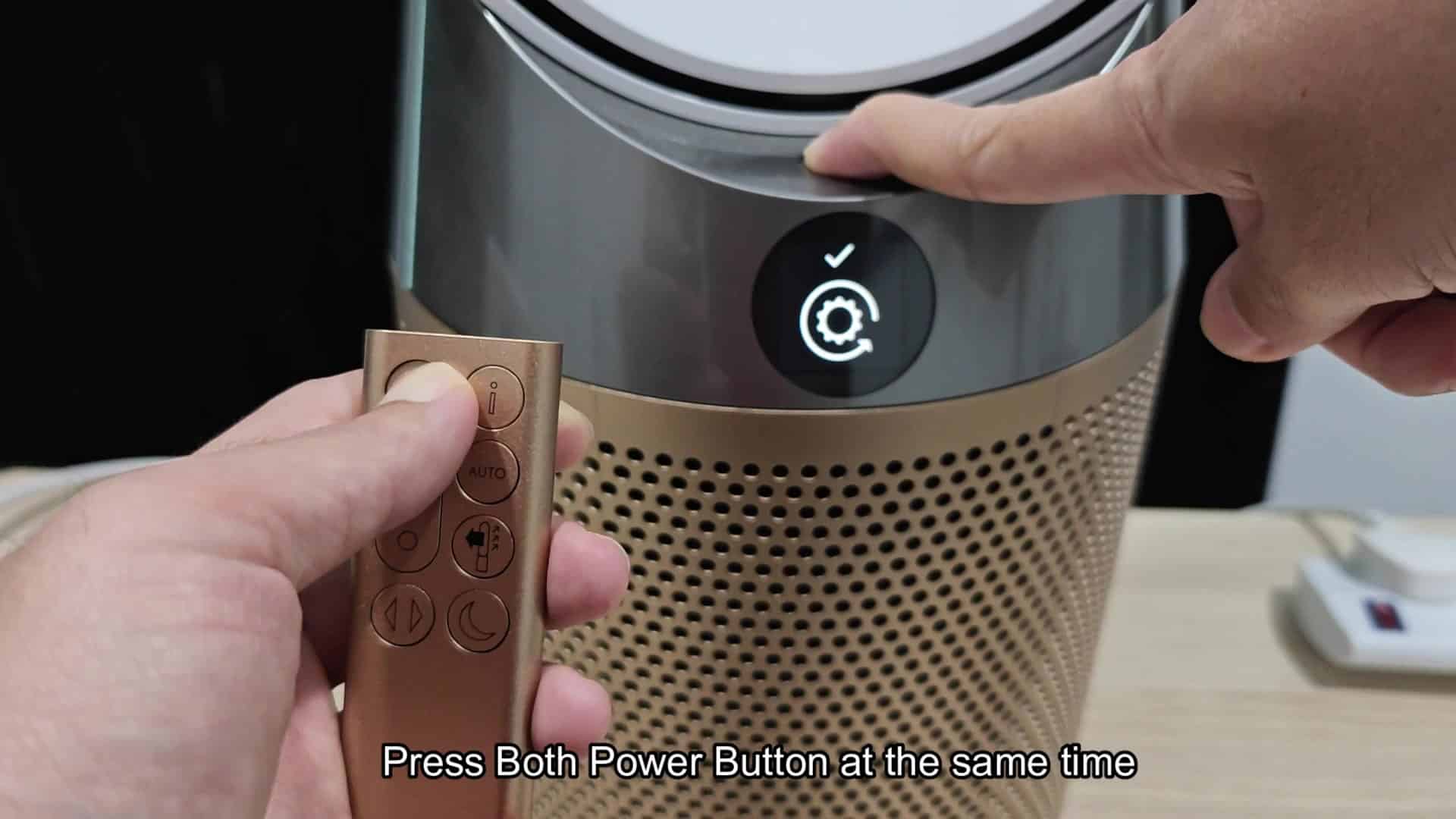
It blinks out and then you see the successfully reset message. That’s your confirmation that the internal software are updated.

Occasionally, the machine becomes convinced it has an error, but realy it doesn’t. A reset clears those false flags. It restarts the unit with a fresh set of settings. It is surprising simple.
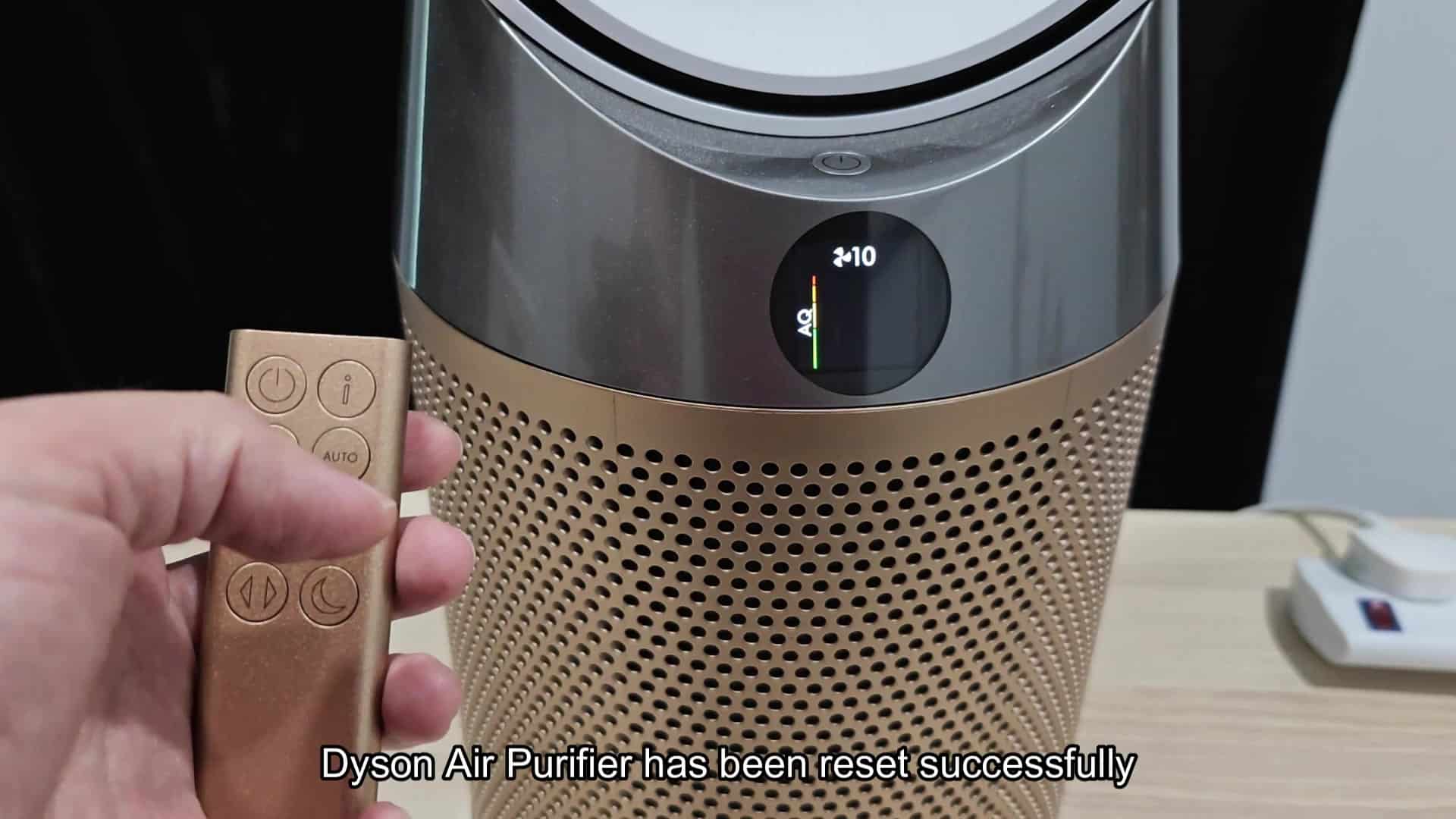
Next up is the filter indicator. After resetting the main unit, you’ll want to walk over and adjust the filter indicator.
Remember, replacing the filter doesn’t mean the filter automatically knows it’s been replaced. To stop the filter from alerting you that it needs maintenance, you must tell it manually. To do this, you’ll use only the remote control. Do not touch any buttons on actual unit for this step in the process.
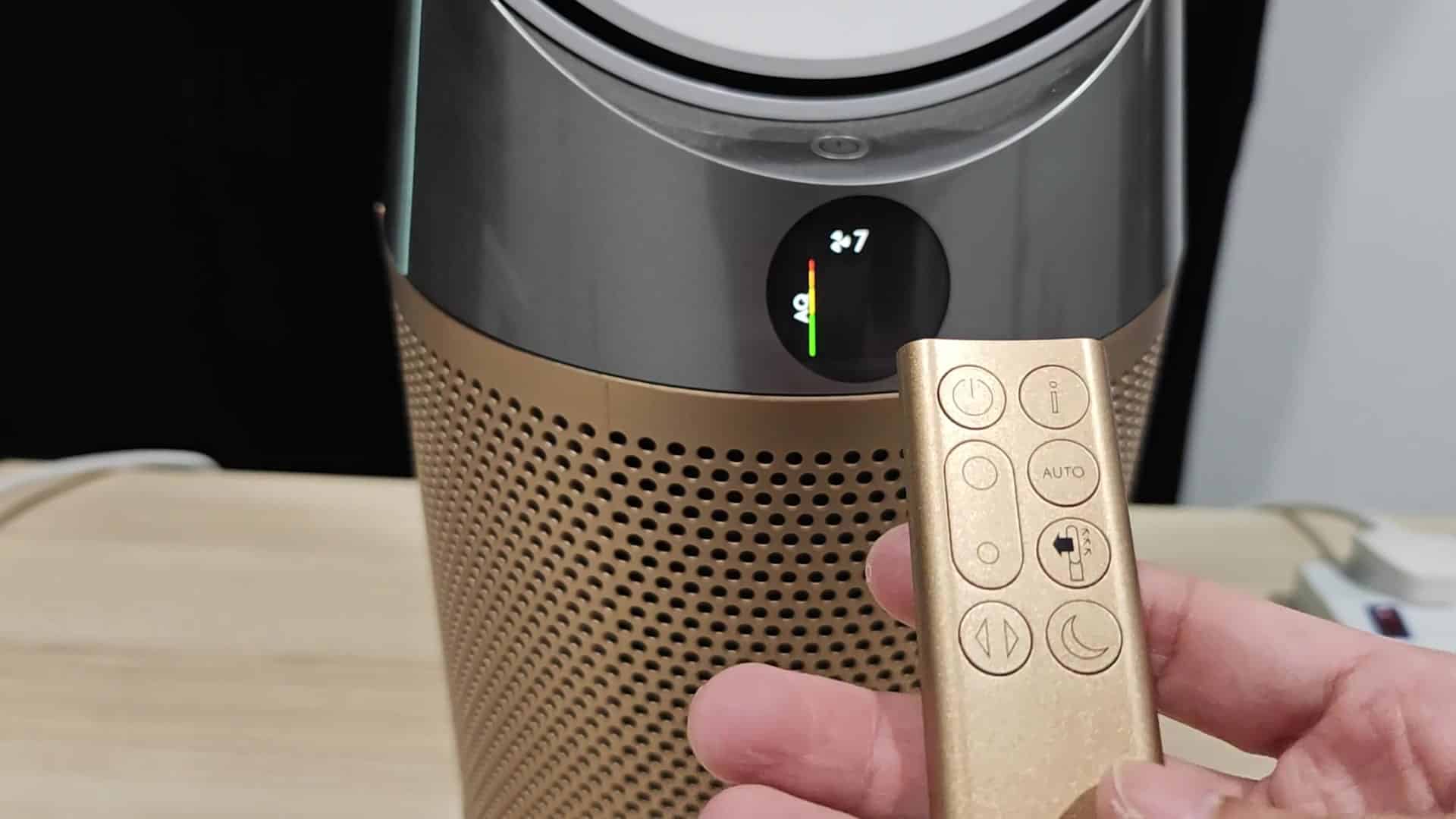
Pressing the night mode button on the gold remote will do it. This little button does more then just dim the lights.
To start the filter reset process, long press the night mode button on the gold remote. Press it down hard and hold until you see something happen on the display. The system should of take a few seconds to respond.

Then the screen will refresh again displaying another number and a little refreshing icon. That graphic signals to me that the system is taking in the new filter data.
So continue pressing the night button until the icon goes away. You might wonder why I use that button for this purpose. It is always consistent and does not fail, the remote and unit communicate well.
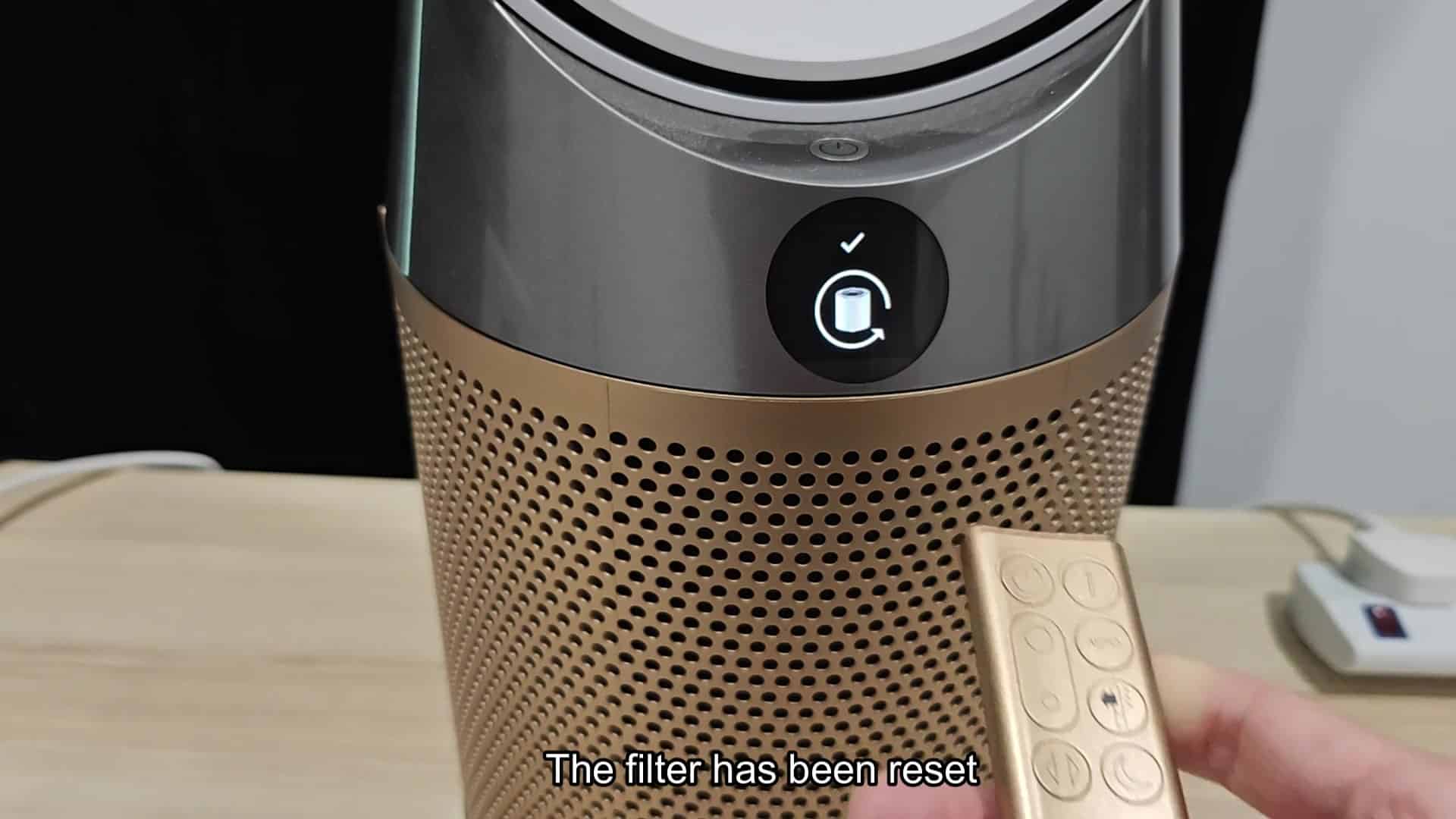
At last the screen go back to normal and shows a green bar indicating that it’s on. Then a message comes up saying the filter was reset.
That was the only software step, no tools required and no screws popped out of main housing during the process. Now the machine thinks it has a new filter in place. After doing it once, the workflow seems reasonable. Just hit the proper key.
