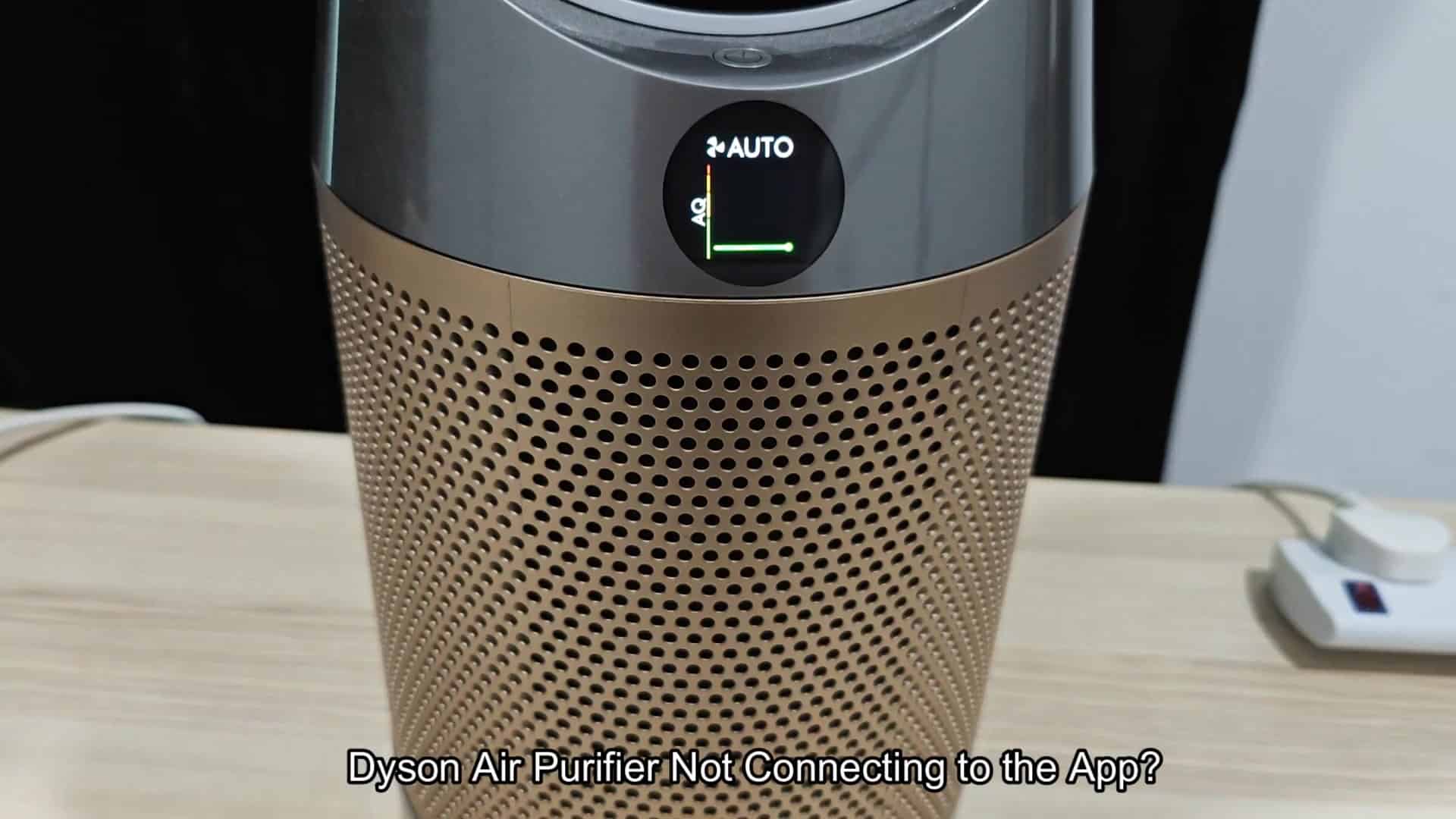
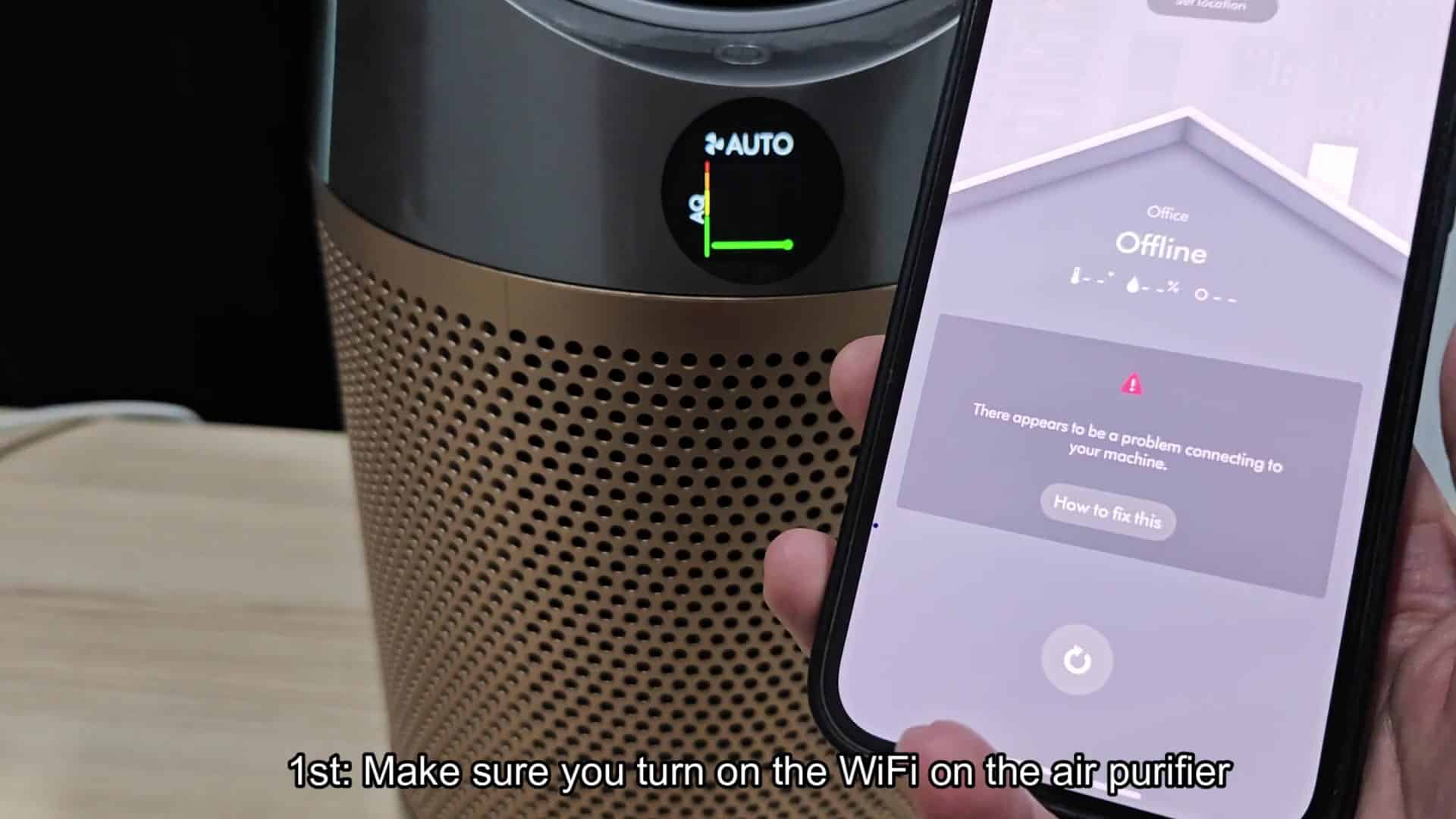
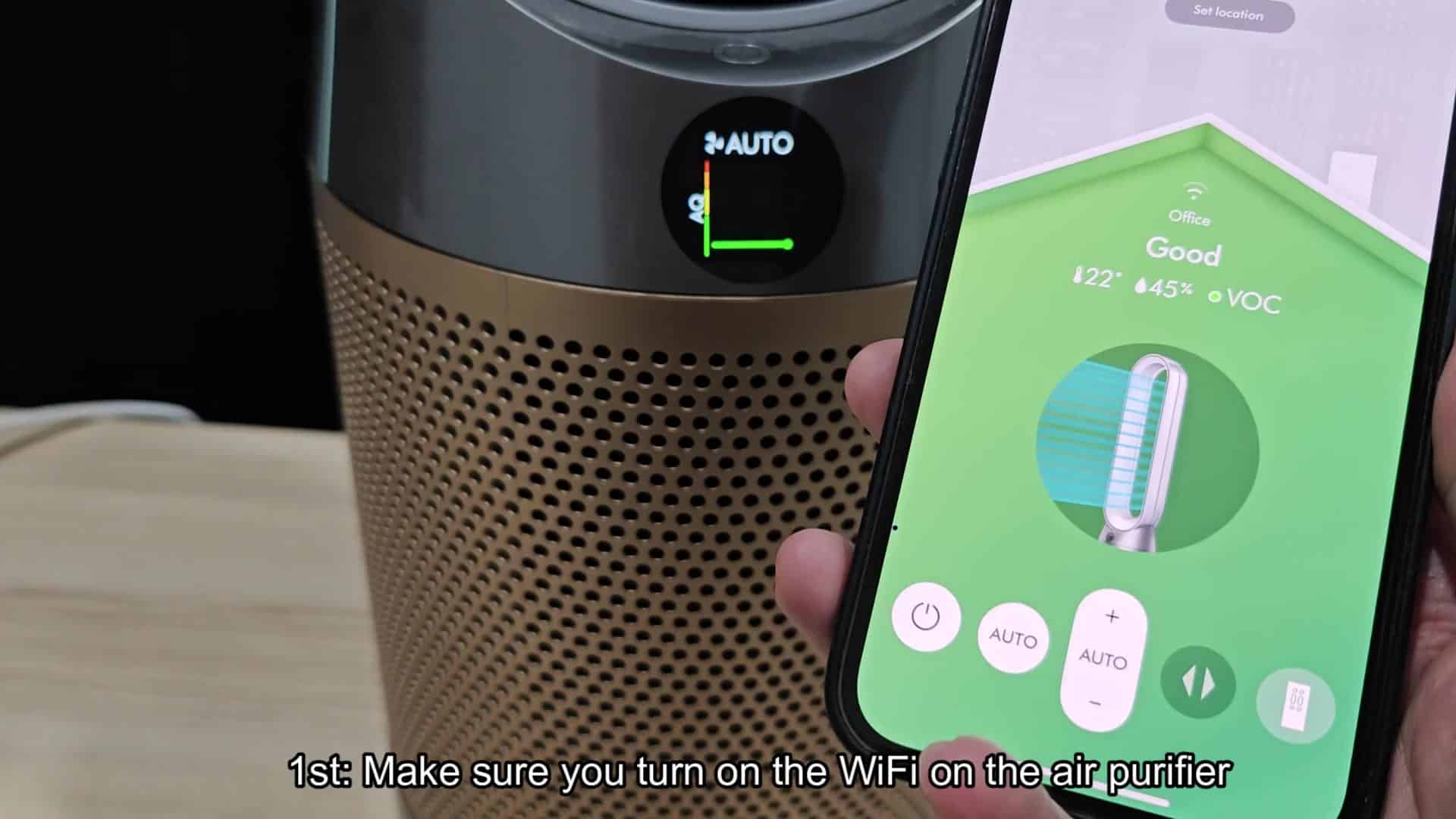
Perhaps you noticed that your Dyson air purifier no longer connect to network even though you didn’t do anything differently. When this happens, the device is displayed as offline in app and sometimes you won’t be able to get it connected again right away. Usually, that’s because of an accidental press somewhere on remote control or just a temporary glitch. Try accessing WiFi status of the device straight from machine first.
To re-enable WiFi functionality, press both oscillation button and night mode buttons together for three seconds. You’ll see a confirmation of this on screen. Open MyDyson app on your phone. The interface should load quickly, however, air purifier might still appear grayed out in the room list.
Performing a Factory Reset
Wait until the WiFi light stays on steadily.
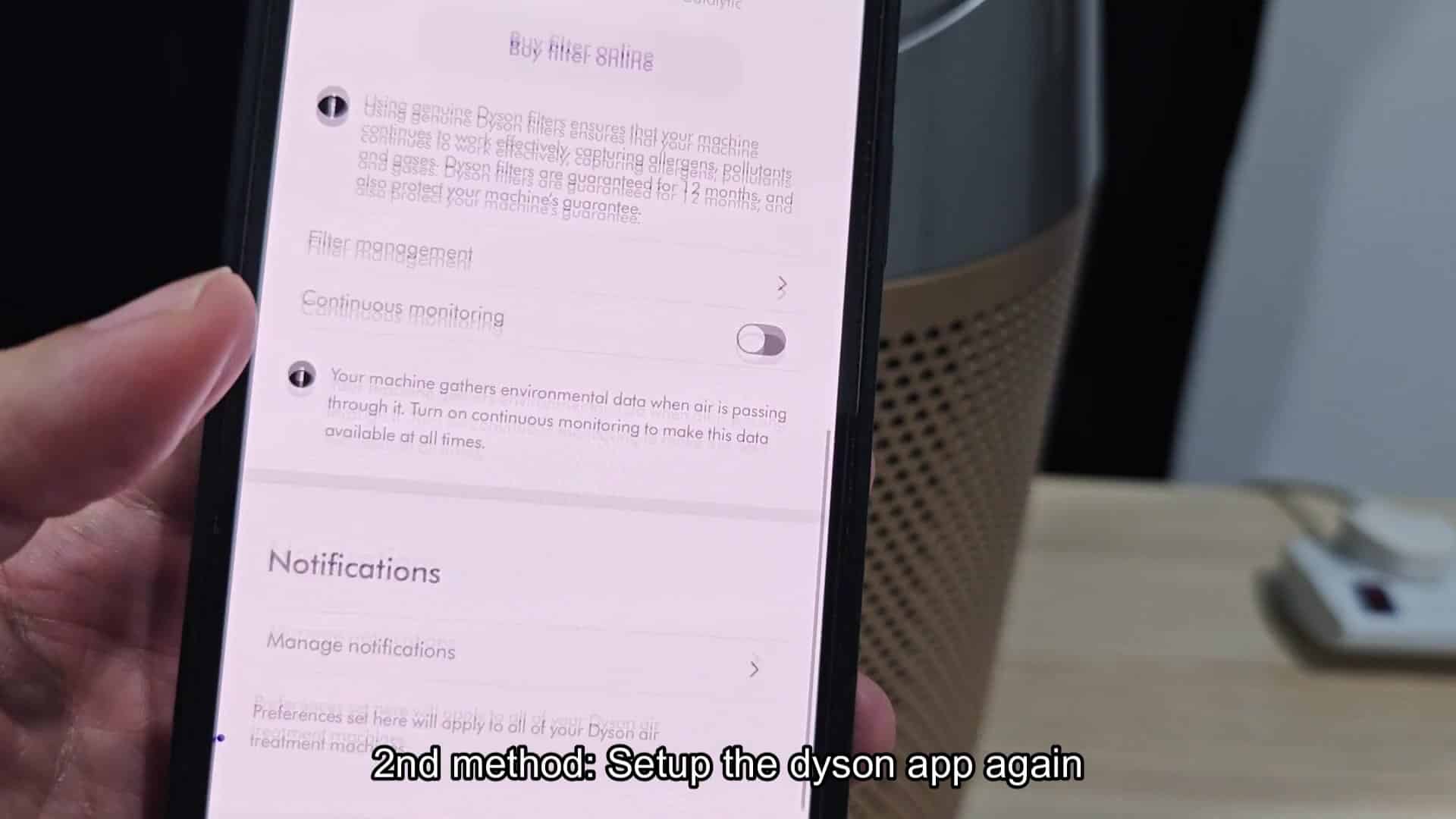
Alternatively if you’re still having no luck getting device online after it powers up, take it out of app completely and have it reconnect from scratch. It’ll blow away all old connection profiles that may be corrupted and make the device starts over with a clean slate. You should of see it vanish immediately from your home dashboard after you confirm delete in remove section further down.
Then do a hard reset on actual unit first before putting it back into app to clear any cached network errors. To enter factory reset mode, press both of power buttons found near top of handle simultaneously. Press and hold each one for a few seconds.
The display will blink numbers and eventualy stop on a checkmark inside of a gear symbol. Once this happens, machine resets and is ready for new pairing settings. Don’t try to pair while there’s leftover information still present. You’ll want to wait until you see a solid green indicator light above the number ten that means it is in setup mode.
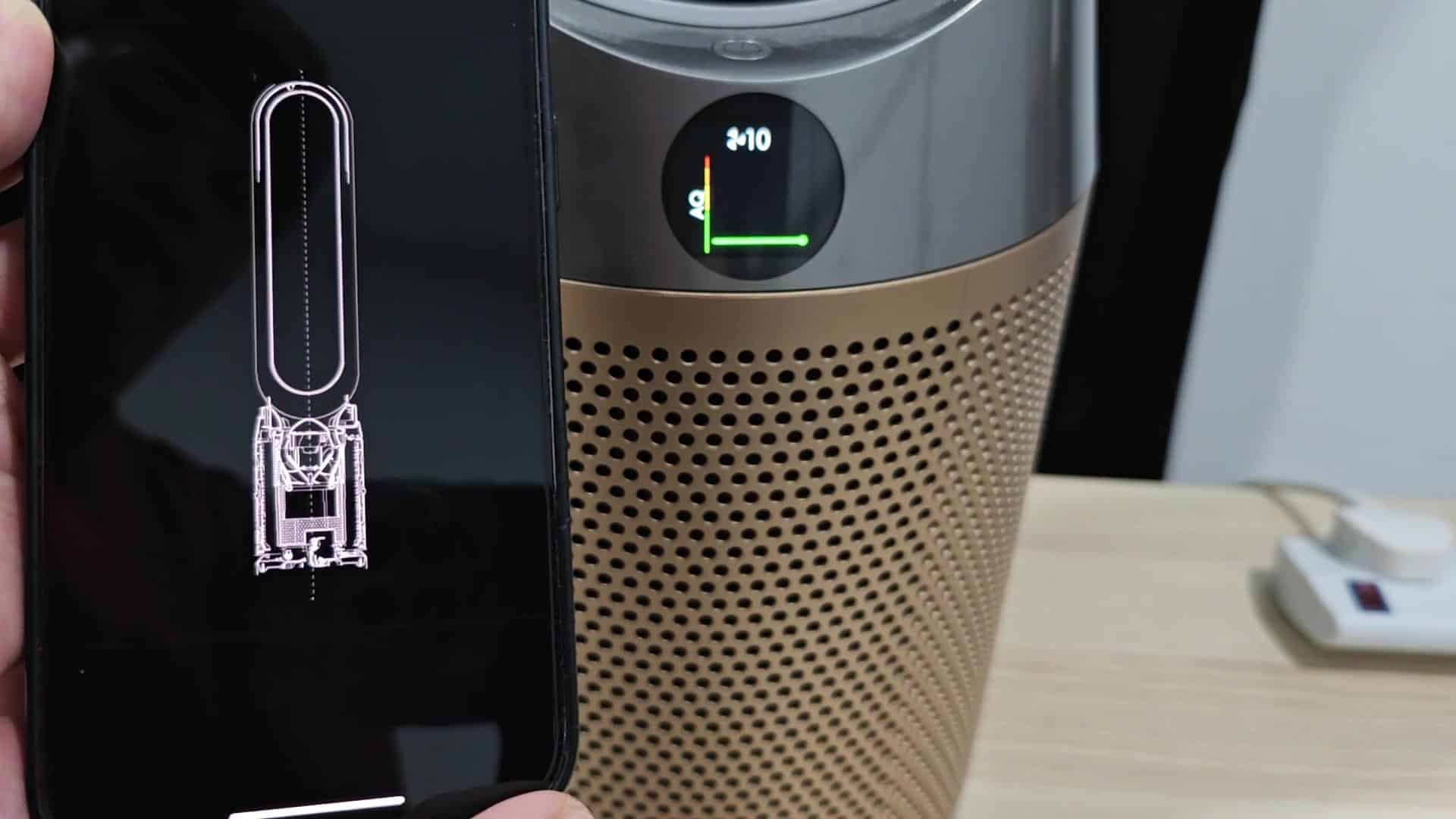
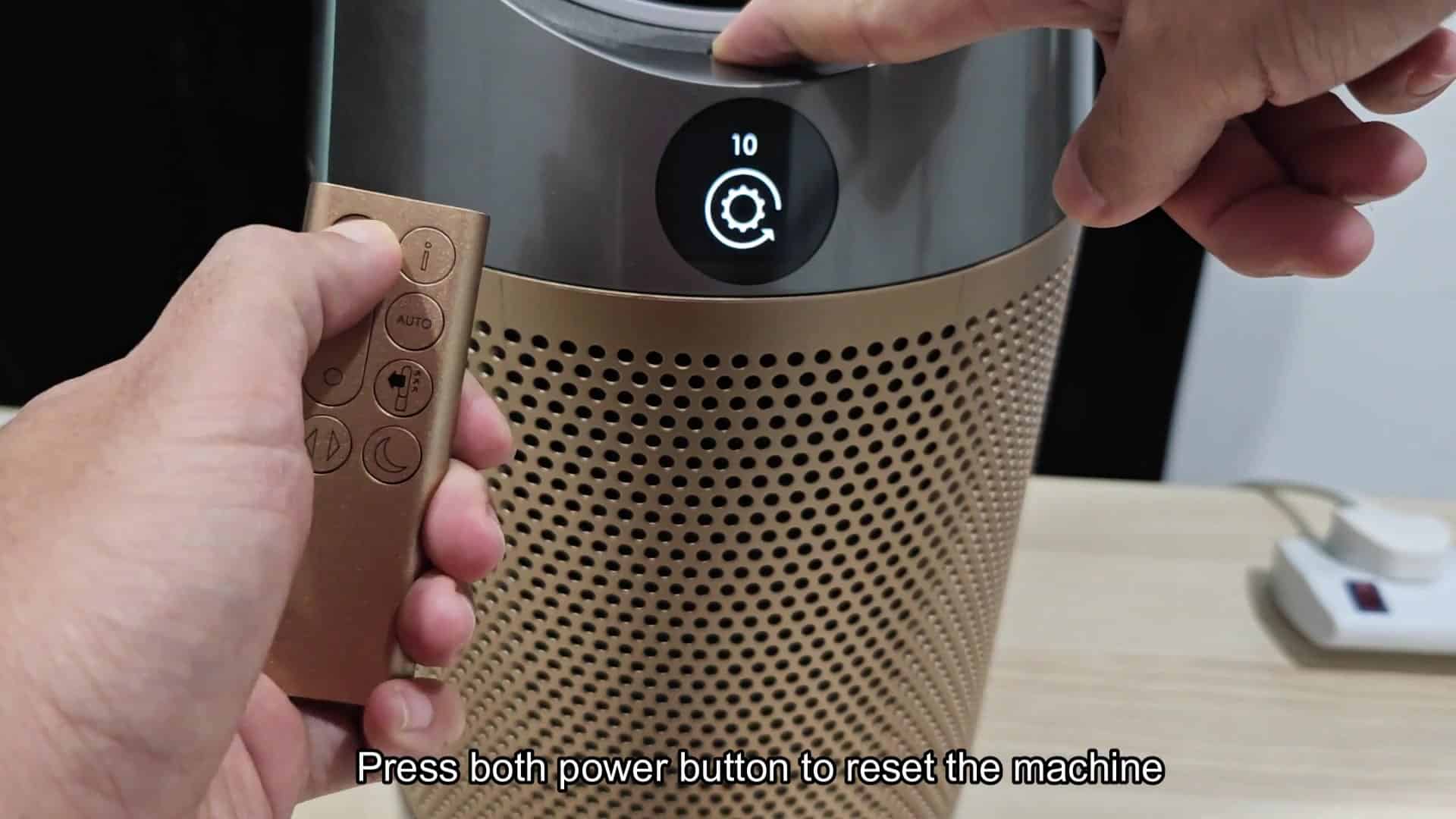
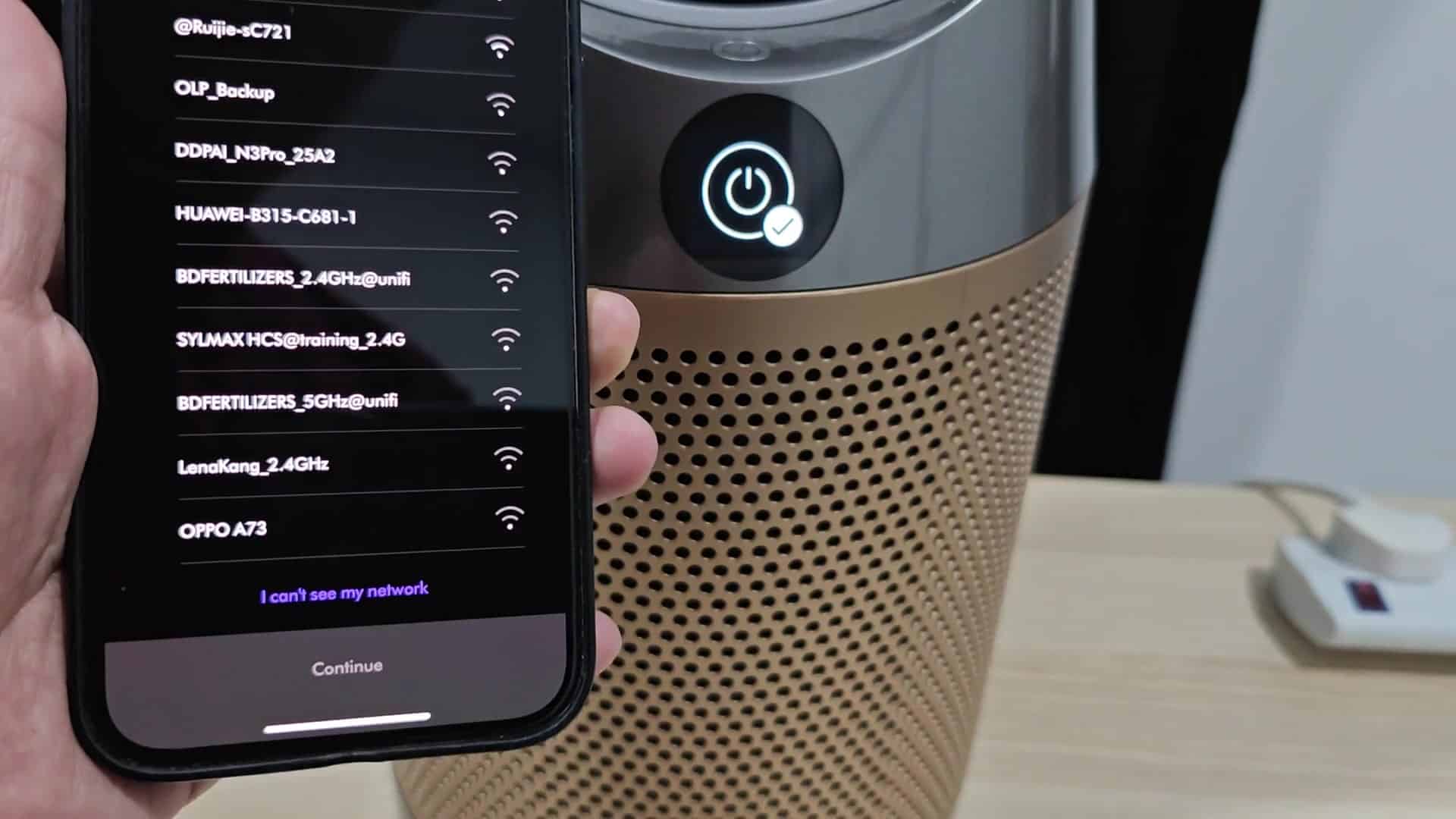
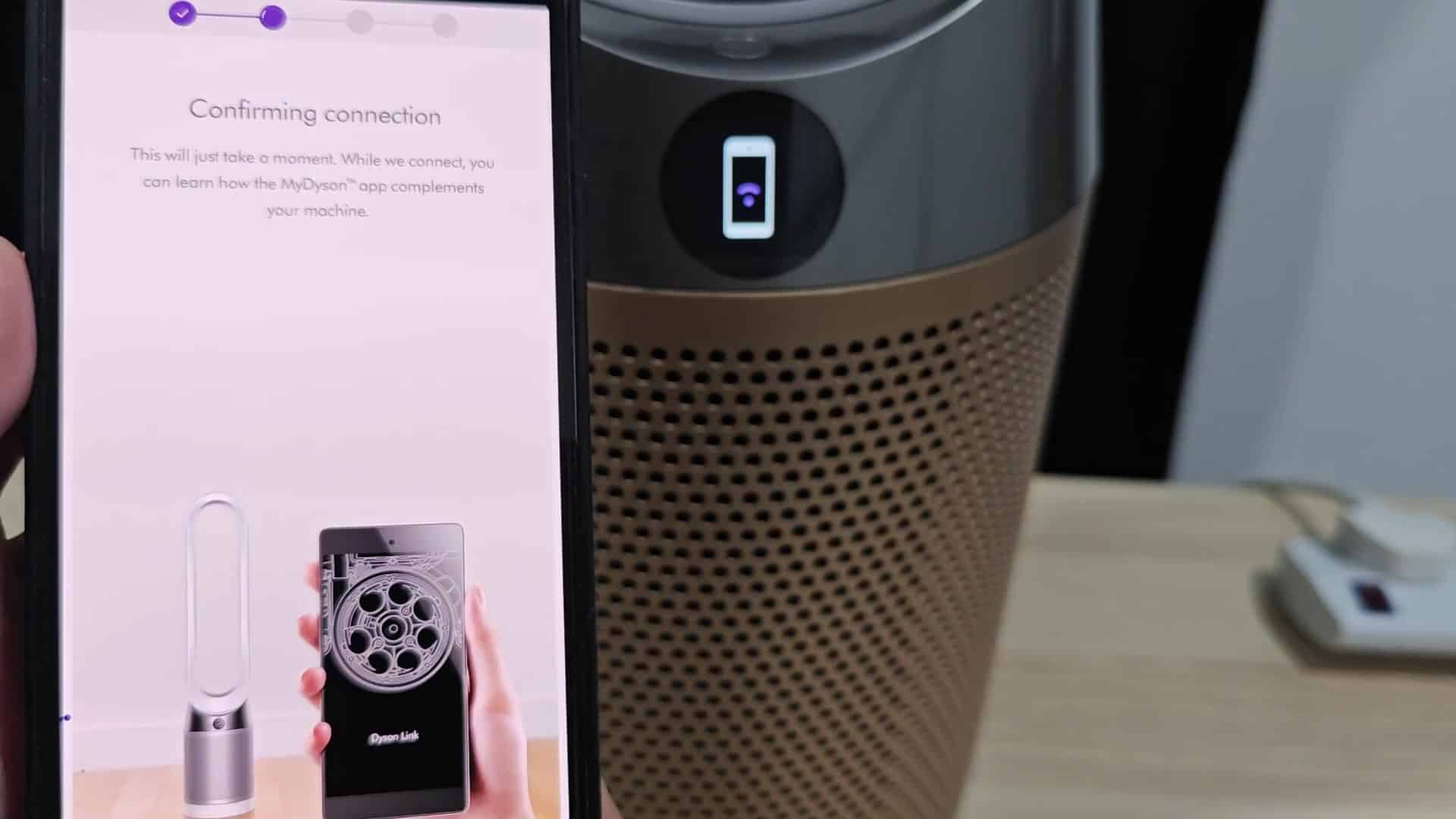
Then open up app and choose to add another machine. Point it near the purifier’s display, which will let the two device speak over Bluetooth Low Energy. While the devices are a couple inches apart, let phone scan until it finds the serial number inside hardware. When found, press that big purple button on bottom of phone and enter network setup stage.
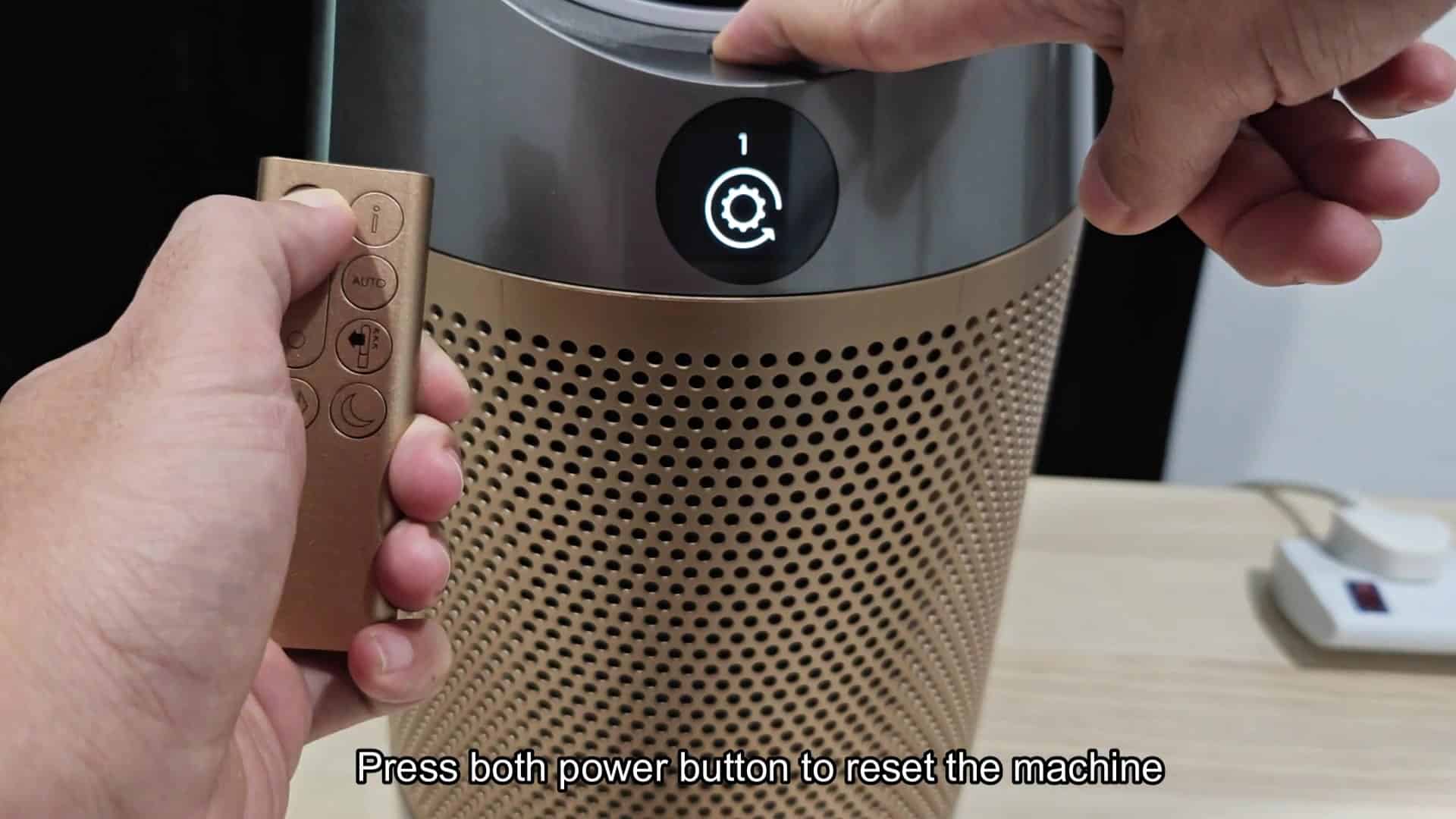
Tap on your home network from list of WiFi networks that shows up and type in passcode with care. This is usualy a 2.4GHz connection and not the faster 5GHz band that newer routers offer. Once you feed in your login details, the app signal the purifier and waits until connection process finishes. The progress bar will gradualy fill, indicating that the backend is working on it.
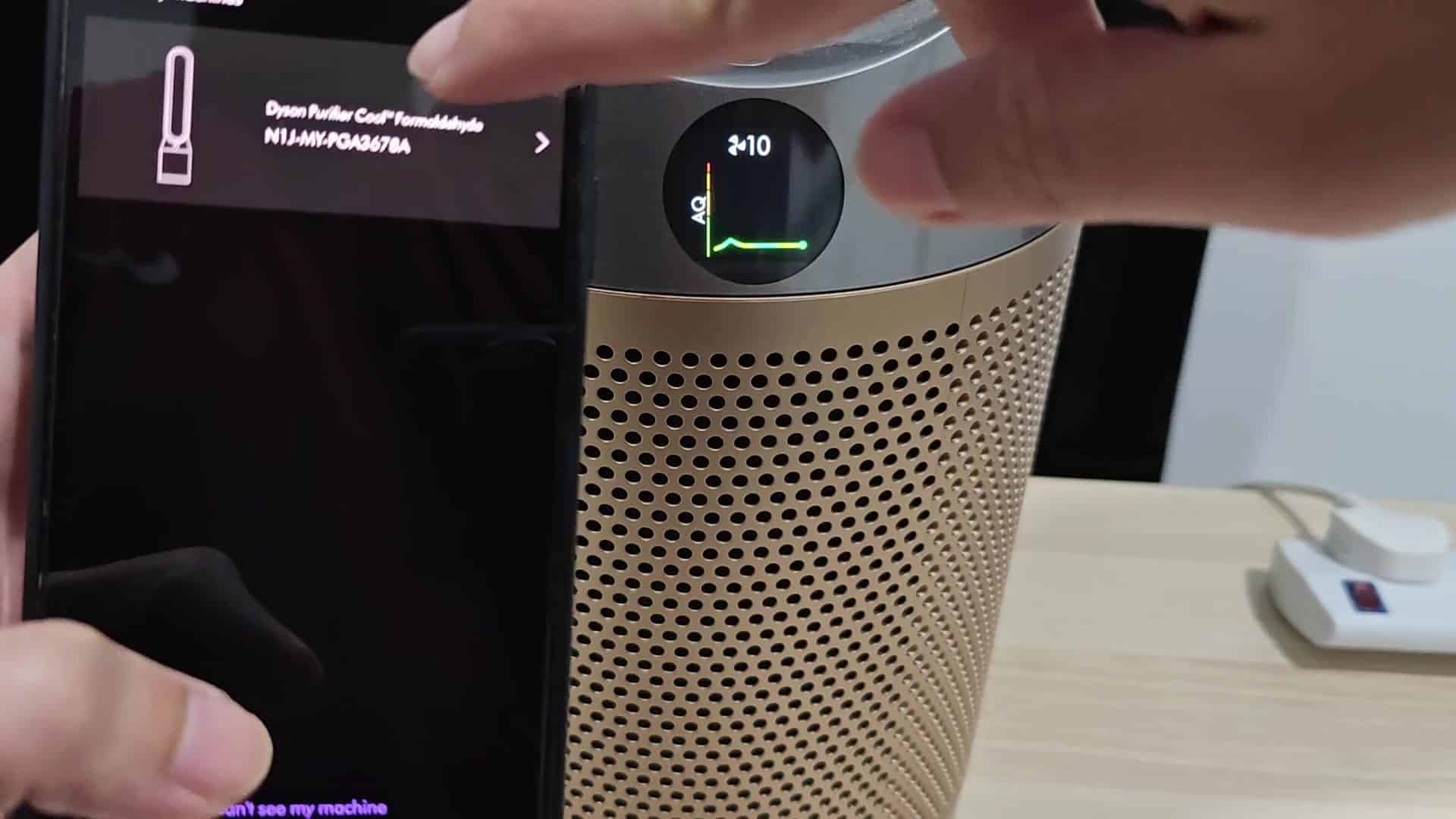
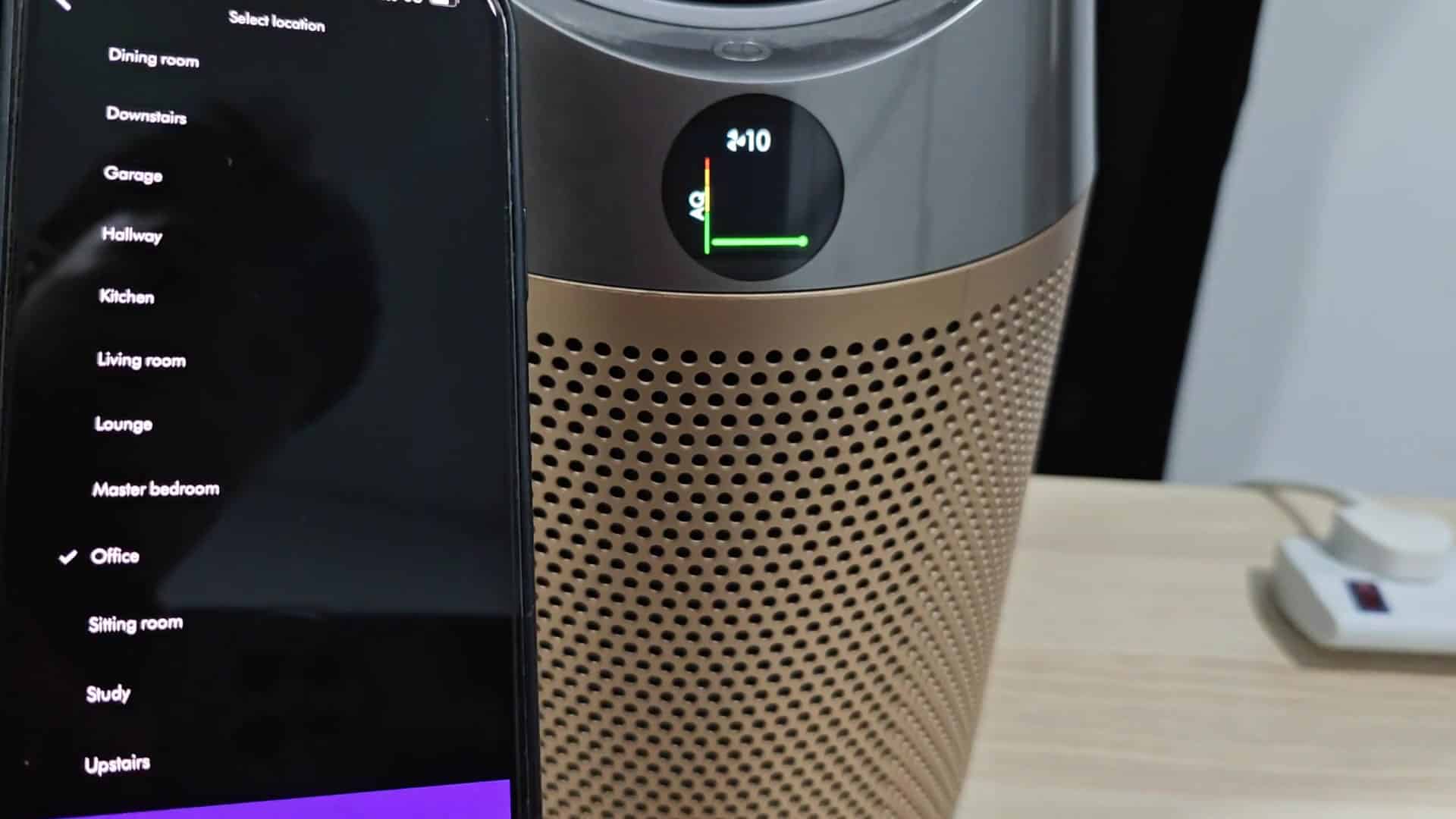
Once connected (after a brief wait), the app prompts you to place it into one of the room in your house layout. For this purpose, pick correct area for air quality monitoring from dropdown menu; that’s where particulate matter count and humidity levels will be displayed on dashboard.
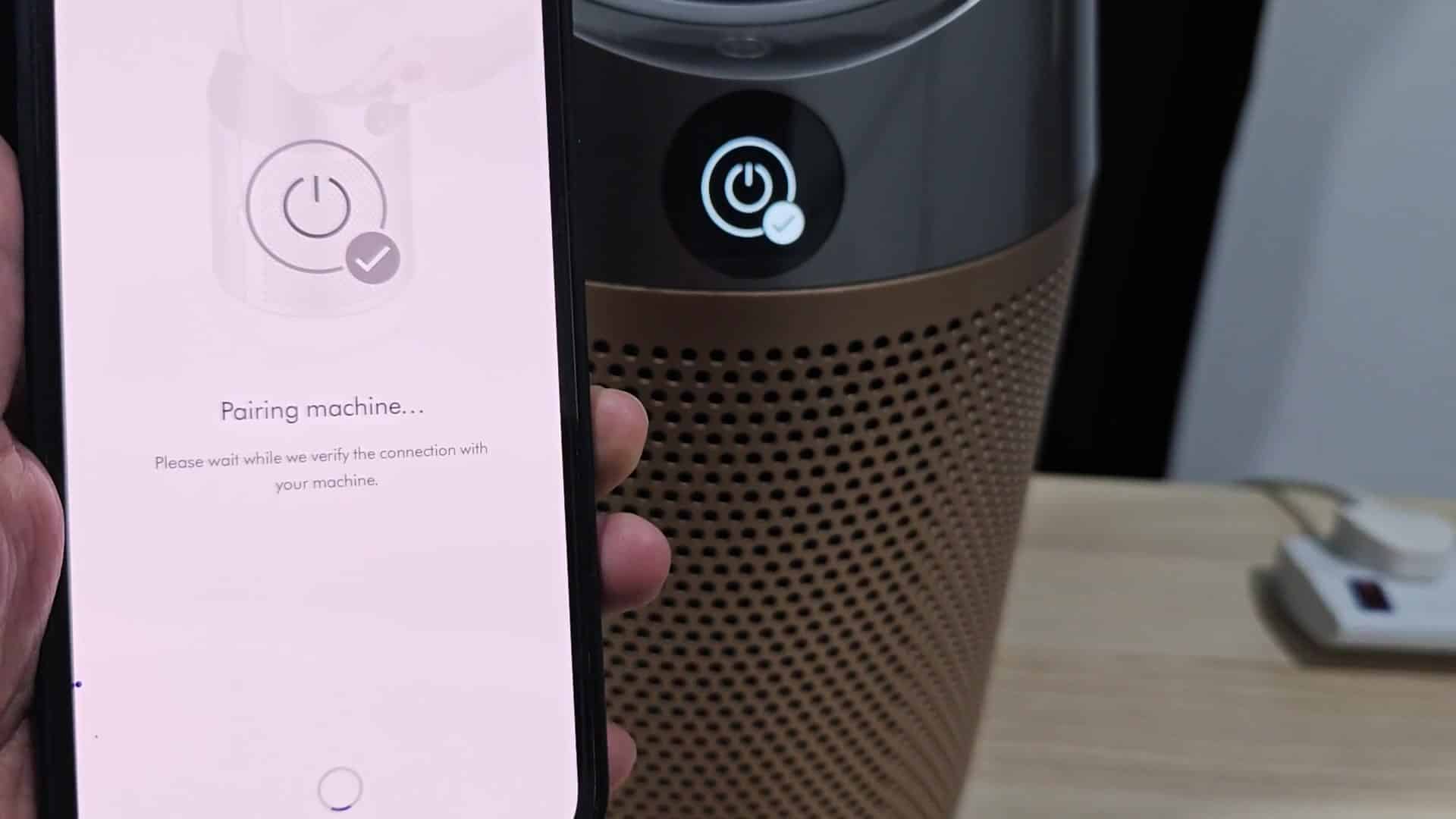
From there, you’ll see what the air is like, wherever you are in the world: the fan will adapt accordingly to particulate matter level without you having to rely on local sensors.