
The setup procedure for the Nintendo Switch 2’s internet connection couldn’t be easier. There is no hoops to jump through. Just connect to your Wi-Fi network using the console.
From the home screen, launch the System Settings menu with a quick press. The menu will load without any delay. Within System Settings, scroll down to the Internet option. You’ll find it near the top of the list. Once highlighted, the information will appear on the right-hand side of the screen.
Testing your connection speed
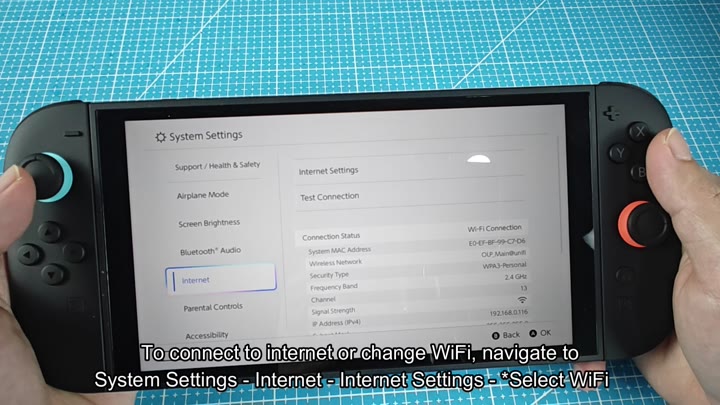
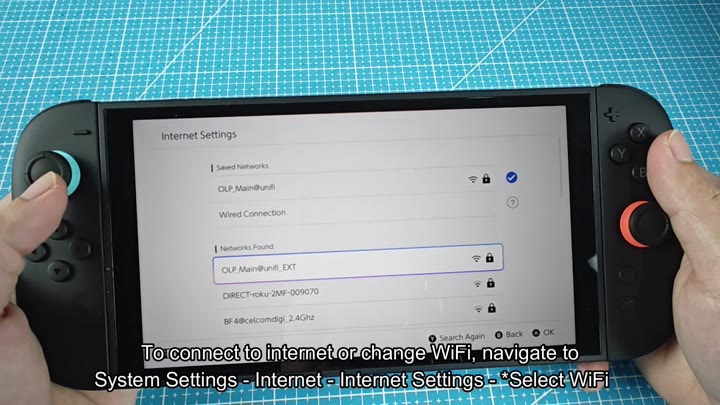
If you choose Internet, it will take you to Internet Settings. A list of available network appears.
It could be connected and saved to your home network (e.g. It is OLP_Main@unifi. OLP_Main@unifi). That’s good because you won’t need to re-enter the password. It will show you other nearby networks, such as: These are OLP_Main@unifi_EXT or random networks of your neighbors. Ignore them; just use your main one.
It might take a second for the connection to happen. A “Connect to the Internet” pop-up appears. And those little dots is spinning. It is waiting.
Three things has to be checked: 1) system status 2) Wireless Network Status 3) Internet Access. It spins around and all are checked. Give it time, sometimes it seems slow but that’s what it’s doing.
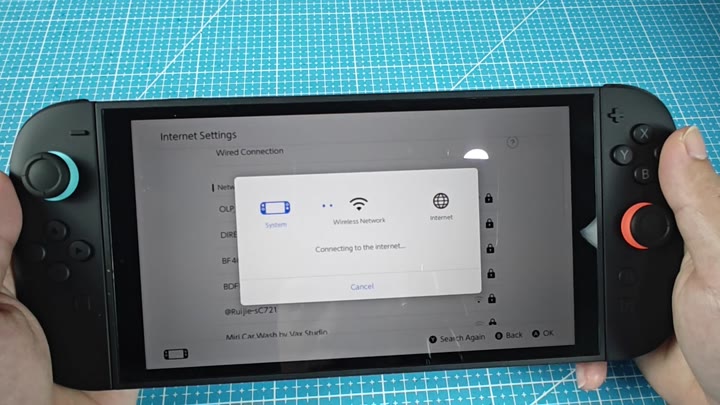
Relax, let the console do what it does. In the available list, you may see something like @Ruijie-SC721 pop up, but you should of avoided that if you already have a good home network.

After connecting, it will go back to the main internet menu and begin updating the settings. Now you can see the info on the connection. It’s listed under network name OUP_MainBunj8_EXT, which is fine for most homes. The security type say WPA2-Personal. That’s typical. And the IP address has changed to a different one just for this time, like 192.
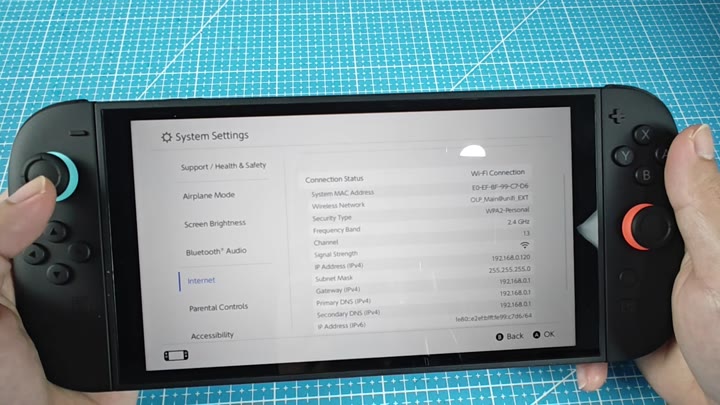
192.168.0.120
Now let’s test your connection to make certain all is well. It runs a download and an upload speed test. That’s important for gaming online since nothing kills that more like lag.
At the top of the test results, it says your SSID is OLP_MainBundl_EXT. Next to that, you’ll find your IPv4 address (mine was 210.186.87.204) and possibly an IPv6 address that starts with 2001. Don’t worry if you don’t understand it all.
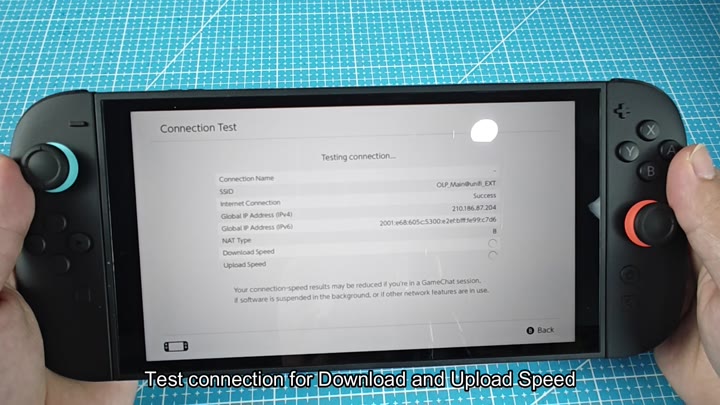
Speed values will populate into placeholders while you wait for them to tick upward. Everything should appear good. Solid signal strength and no packet loss.
The whole process takes minutes. You do not need to mess with router settings or reboot the device. Just follow the simple navigation. The interface is clean and has no clutter. You know exactly where to go because the path is System Settings, then Internet.
It only takes a couple of minutes. There’s no fiddling with your router settings; no rebooting the router either. The interface has no clutter. It’s clean and you know exactly where you’re going, System Settings, then Internet.
After that your Switch 2 will be good to go. Everything will work fine online. Multiplayer works great. You can download updates without a hitch and everything seem to run smoothly. Connecting things is actualy simpler than it used to be, and Nintendo made it very easy. There is no complicated code or hidden menu. Just click and connect.
The same goes for the longer signal. Hit settings, select the network, and there ya go. It’s all right in front of you; the security stuff such as WPA3 and WPA2. If your router doesn’t allow that, then no worries. That will be changed by the console itself and all you have to do is stare at the screen while it does its thing.
Don’t fret if it’s all foreign to you. It makes sense. Listen to the prompts, and before long, you’ll have it hooked up.
As for the IP address, that gets automatically assigned through DHCP. No static IPs required here. Unless you’re gaming online, your download speed tends to be good; upload speed isn’t so bad either. That’s okay… Most of these connections tend to be asymmetrical.
Having access to the internet opens doors. Enjoying a game or two online is fun. There aren’t any hidden tricks involved. Simply follow the menu.
