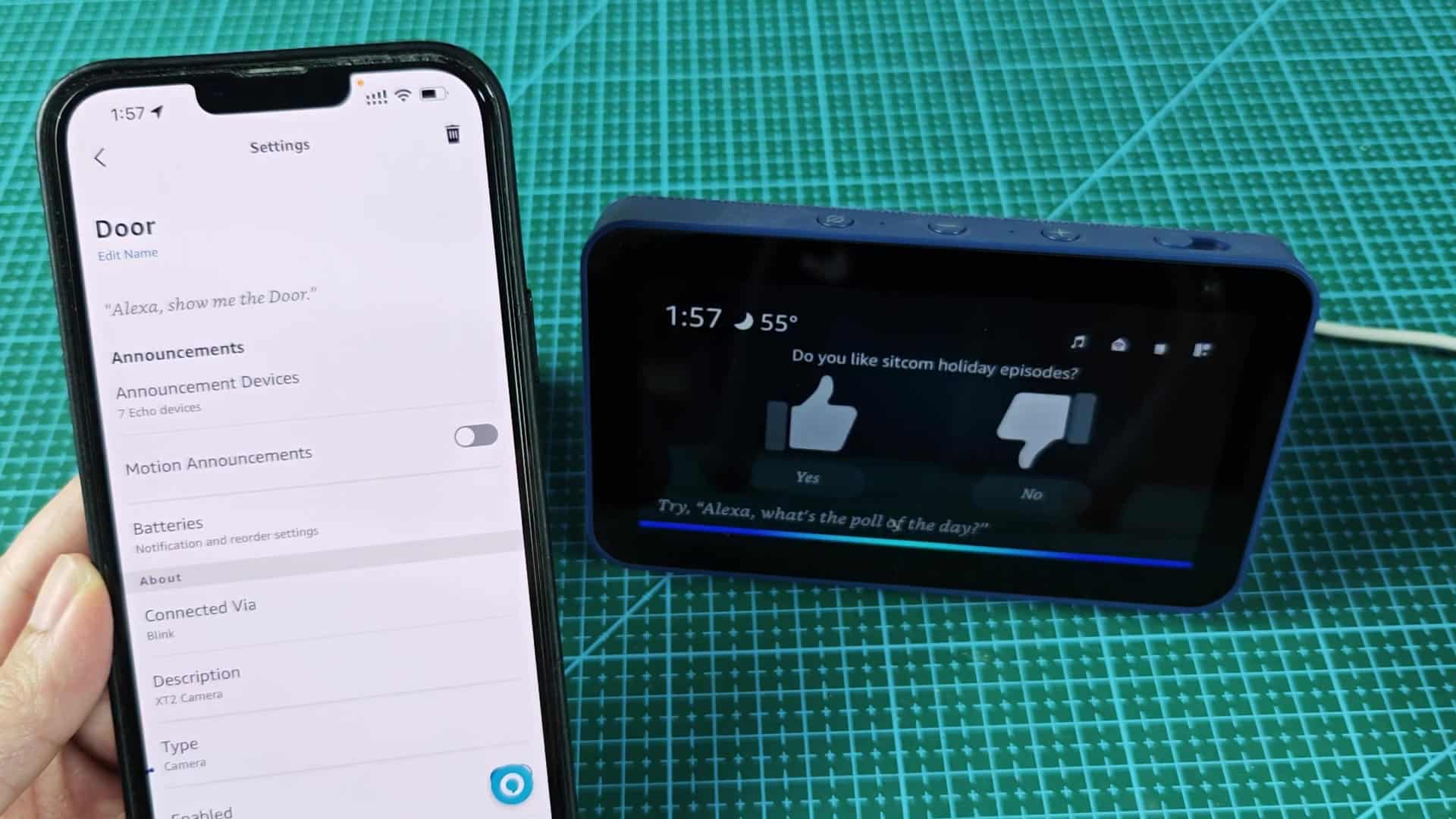
The Blink camera isn’t something that just plugs into an Echo Show… It actualy needs some setup on the software side as well. For one, you need to turn on the right skill for the device within your Alexa app so you can see live feed. That way, all the devices works together.
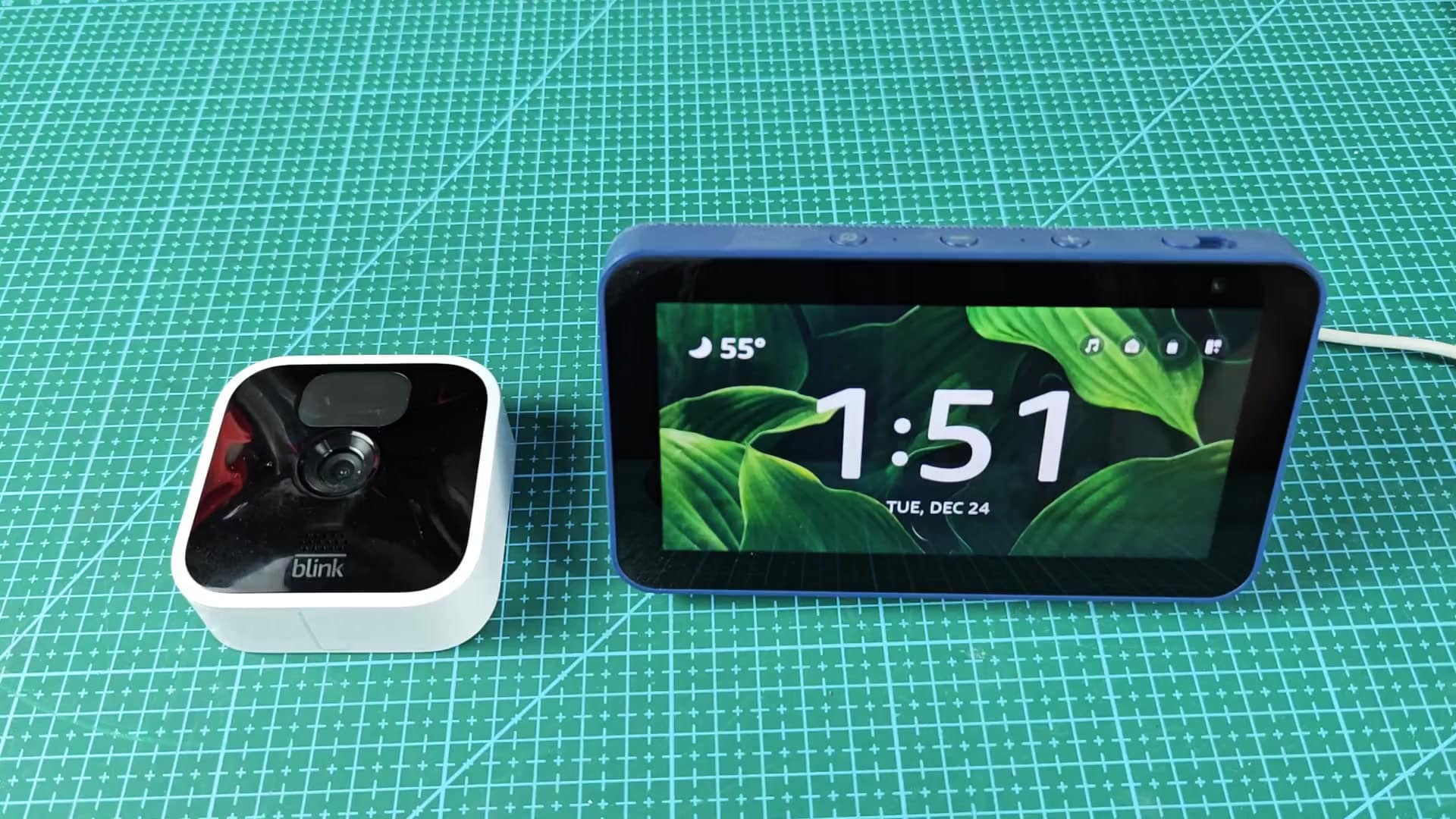
To get started, open the Alexa app on your smartphone. The interface is straightforward. Navigate to the menu and locate Skills section. This is where Amazon connect third-party devices to its ecosystem.
Testing and Optimization Tips
If you don’t see Blink right away, search for it within the section. On the Blink SmartHome skill page, tap the enable button to make connection. When prompted, grant the app permission to access your camera data. This complete the setup quickly and lets you use all feature.
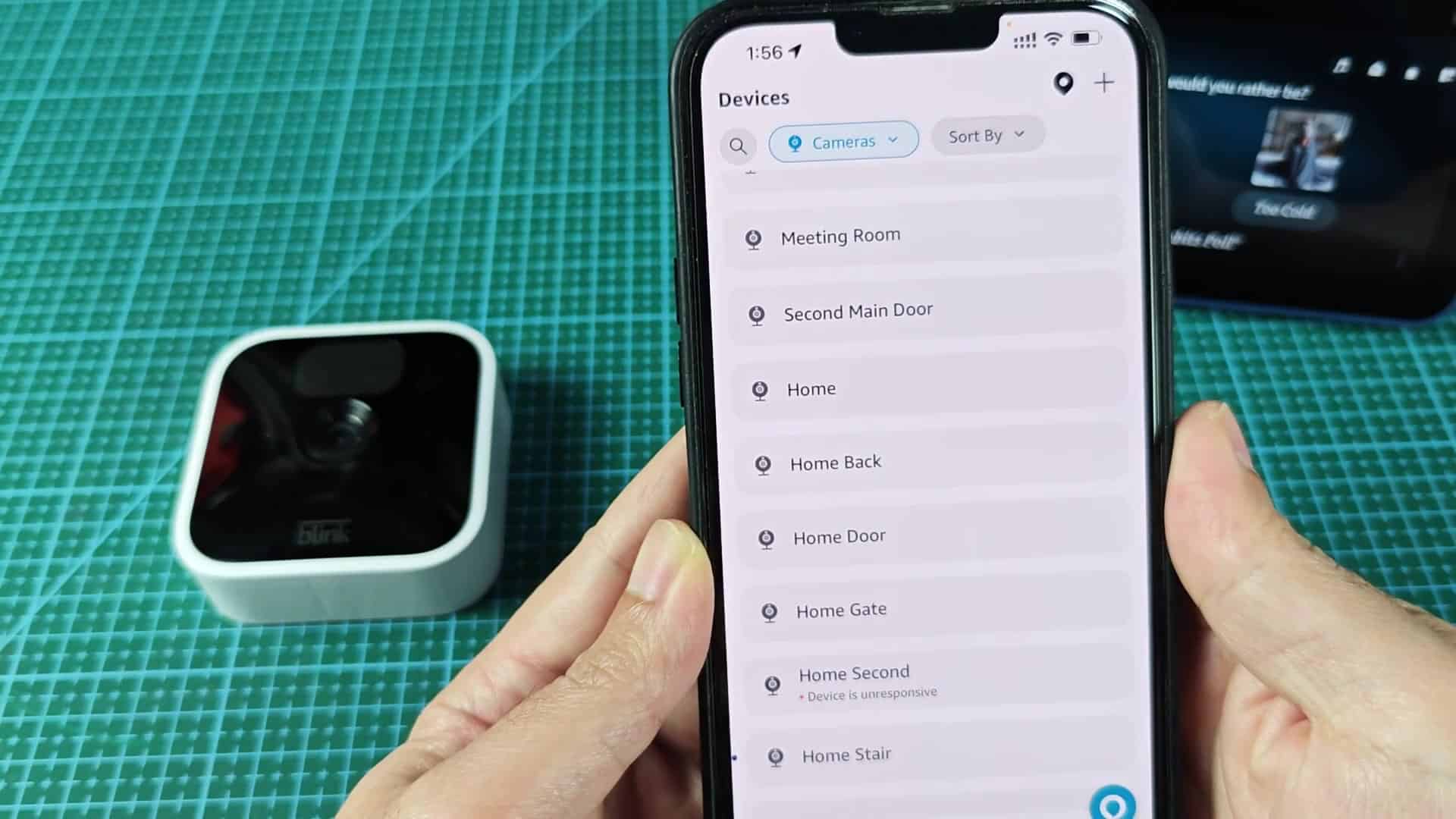
Once the skill is enabled, you’ll find your cameras listed under device list. To isolate Blink cameras from thermostats and other items, filter by cameras. Make sure your specific camera appear here, showing online.
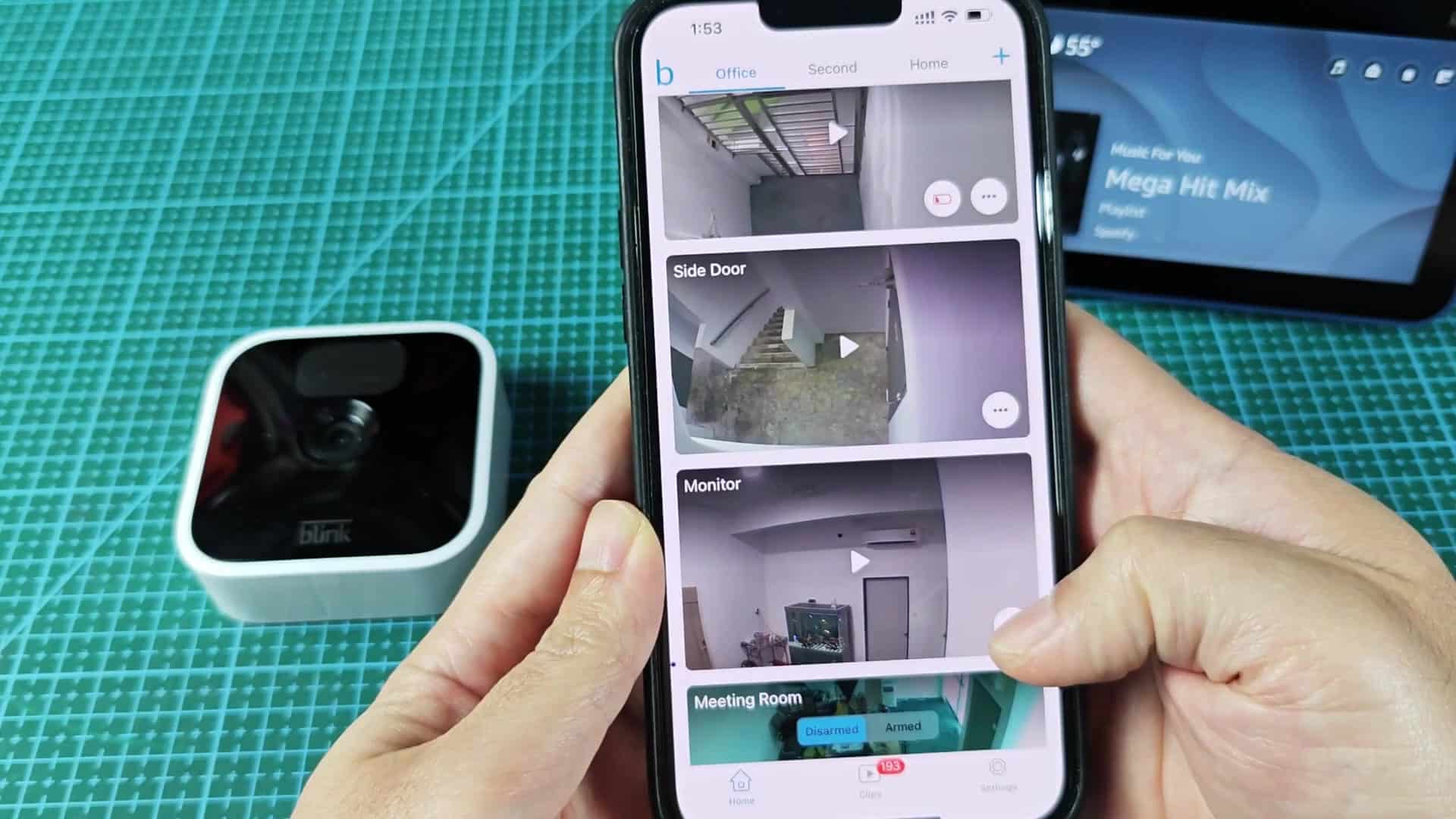
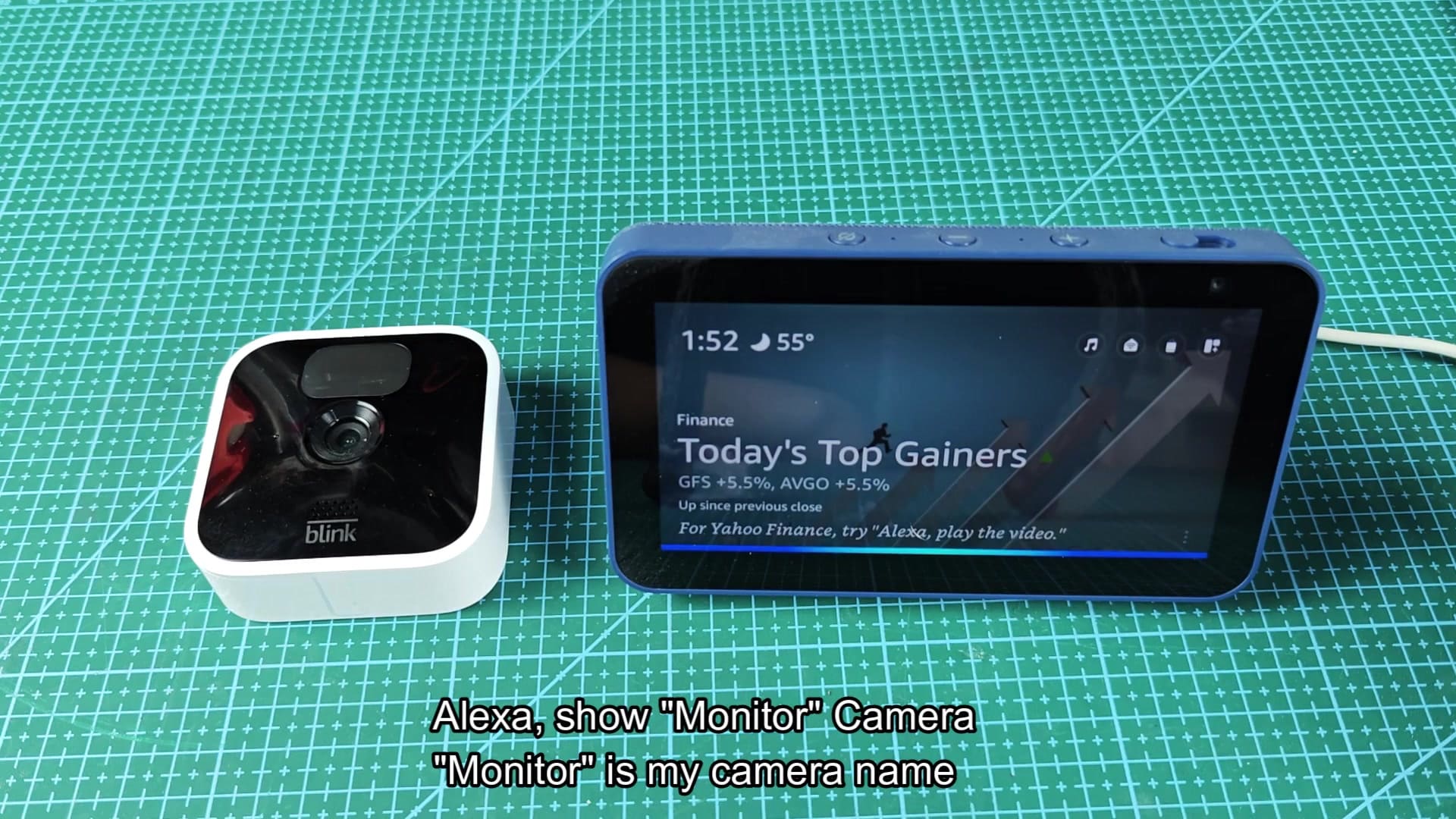
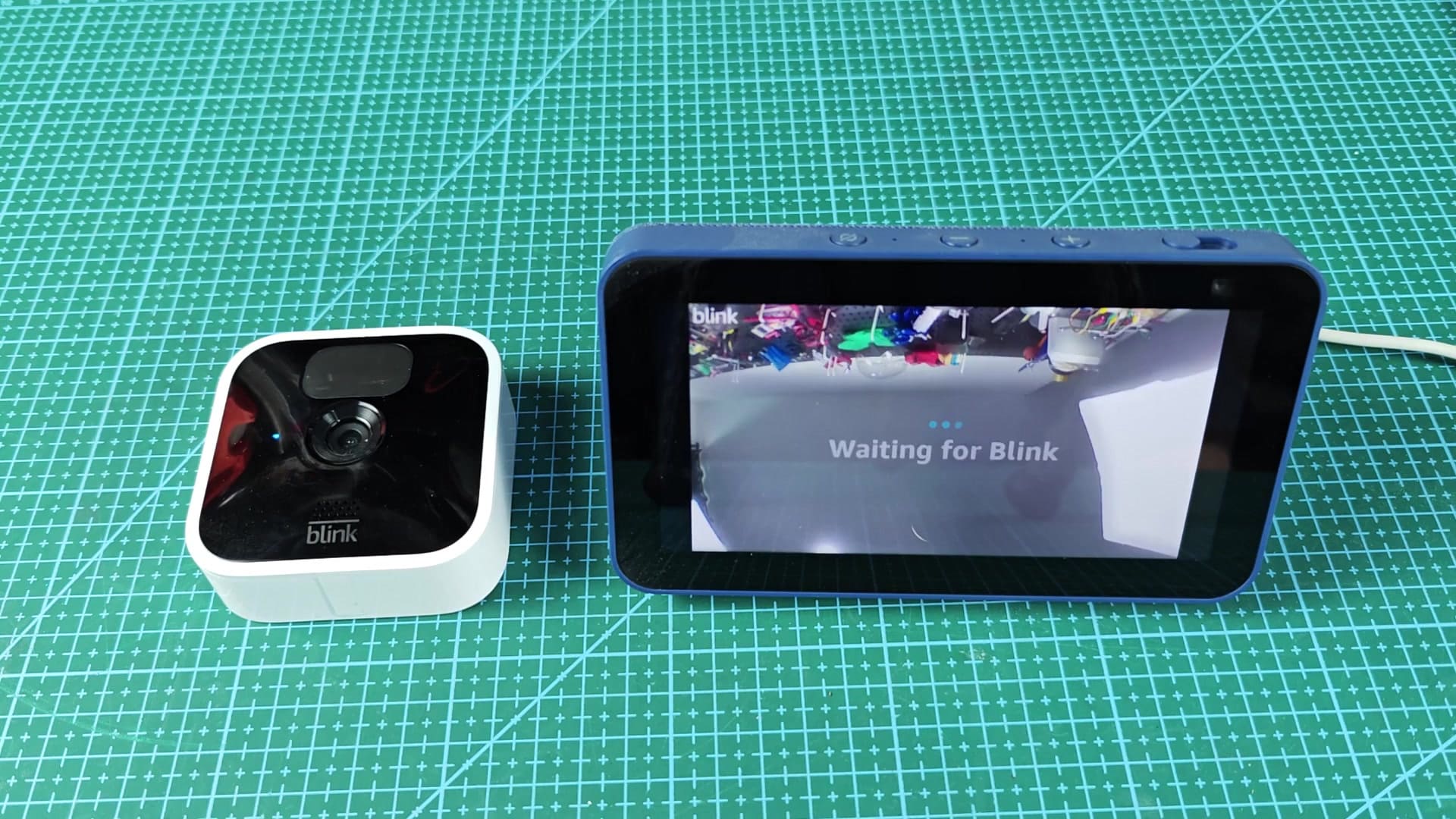
Stand next to your Echo Show and test out how voice commands works. When giving commands, be precise with the camera’s exact name; it improves the chance that Alexa identifies the right stream. Nicknames might not work correctaly. For example, say “Alexa, show Door camera.”
The Echo Show switch screens instantly. There shouldn’t be much of a wait before live feed loads on high-res screen. As it happens, you can see what’s happening down the hall without delay.
The video quality isn’t going to blow you away, but it work reasonably well for checking-in on things in a hurry. It won’t replace the phone app for detailed review, but it saves time by eliminating the need to reach for your phone. The convenience makes initial setup worthwhile.

To stop viewing the feed, say “Alexa, stop” to resume normal Echo Show use. It happens instantly without any lagging or stuttering.
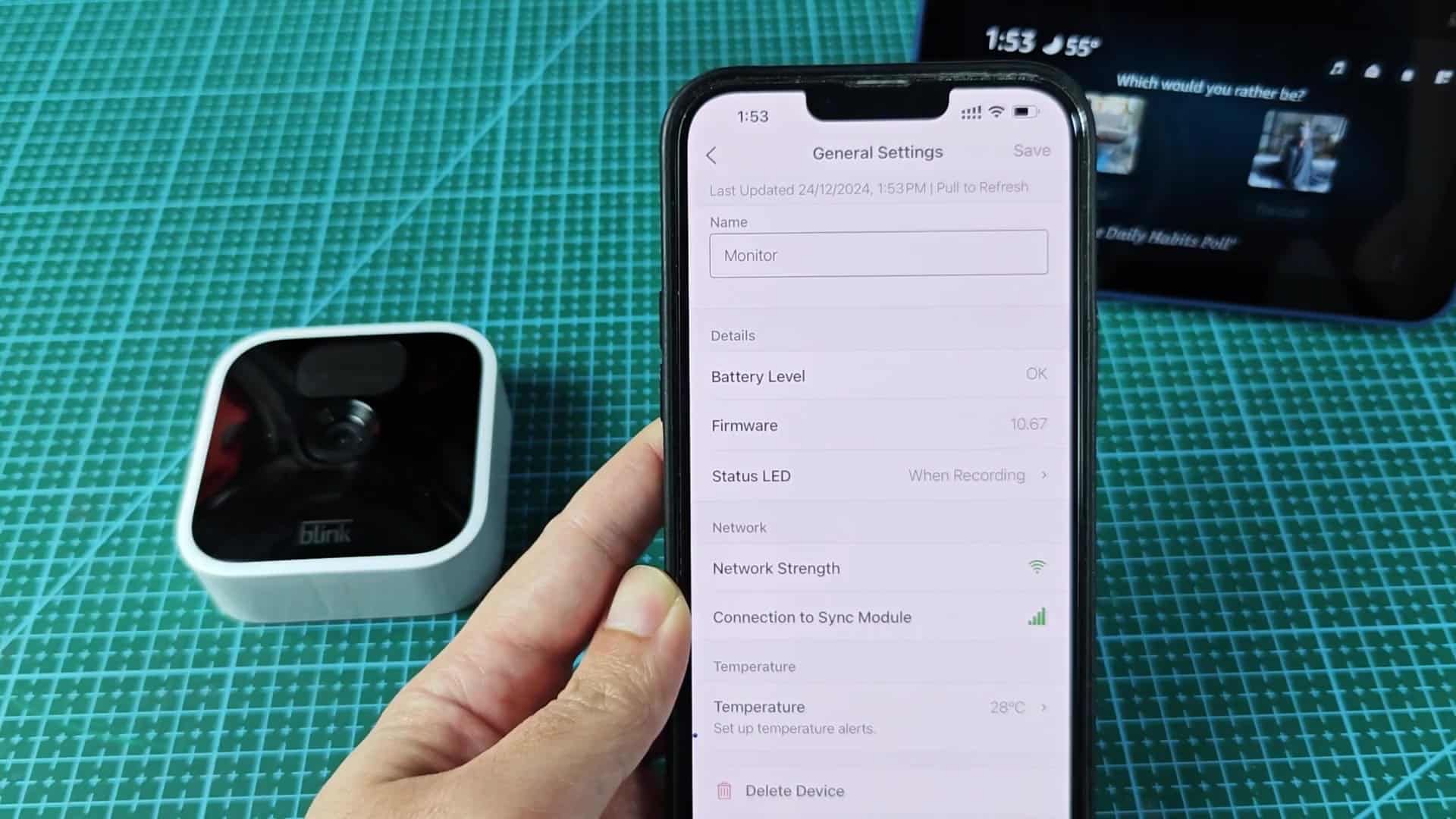
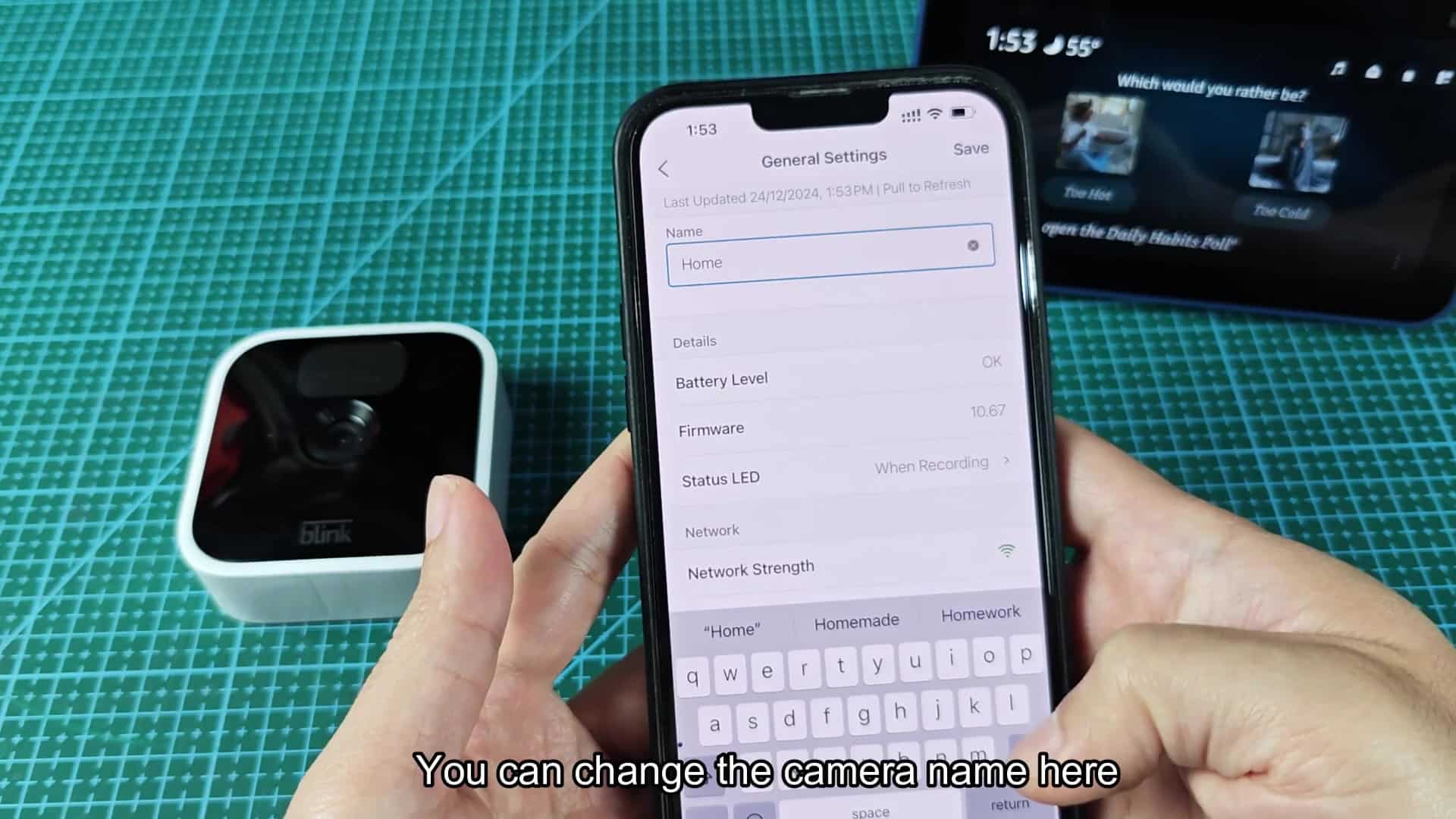
Test out other cameras using specific label you assigned in the Blink app for best results. Using generic descriptions like “the front camera” frequently fails since exact names leads to better voice recognition performance. Stick to consistency, it help the system work accurately.
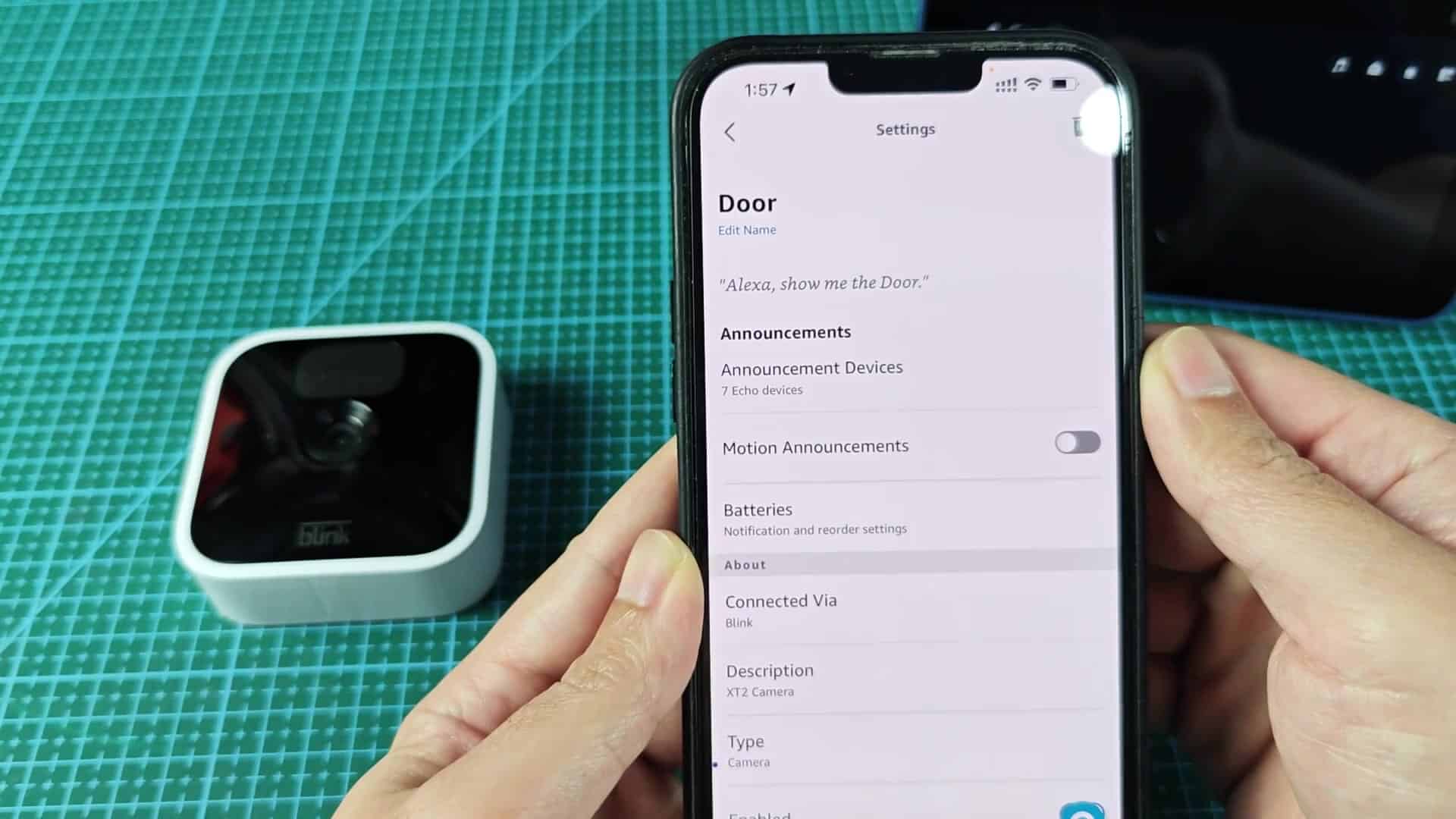
Since the Echo Show only displays video, check battery levels via Alexa app on your phone. Don’t let batteries run dry, which could of happen at critical moments.
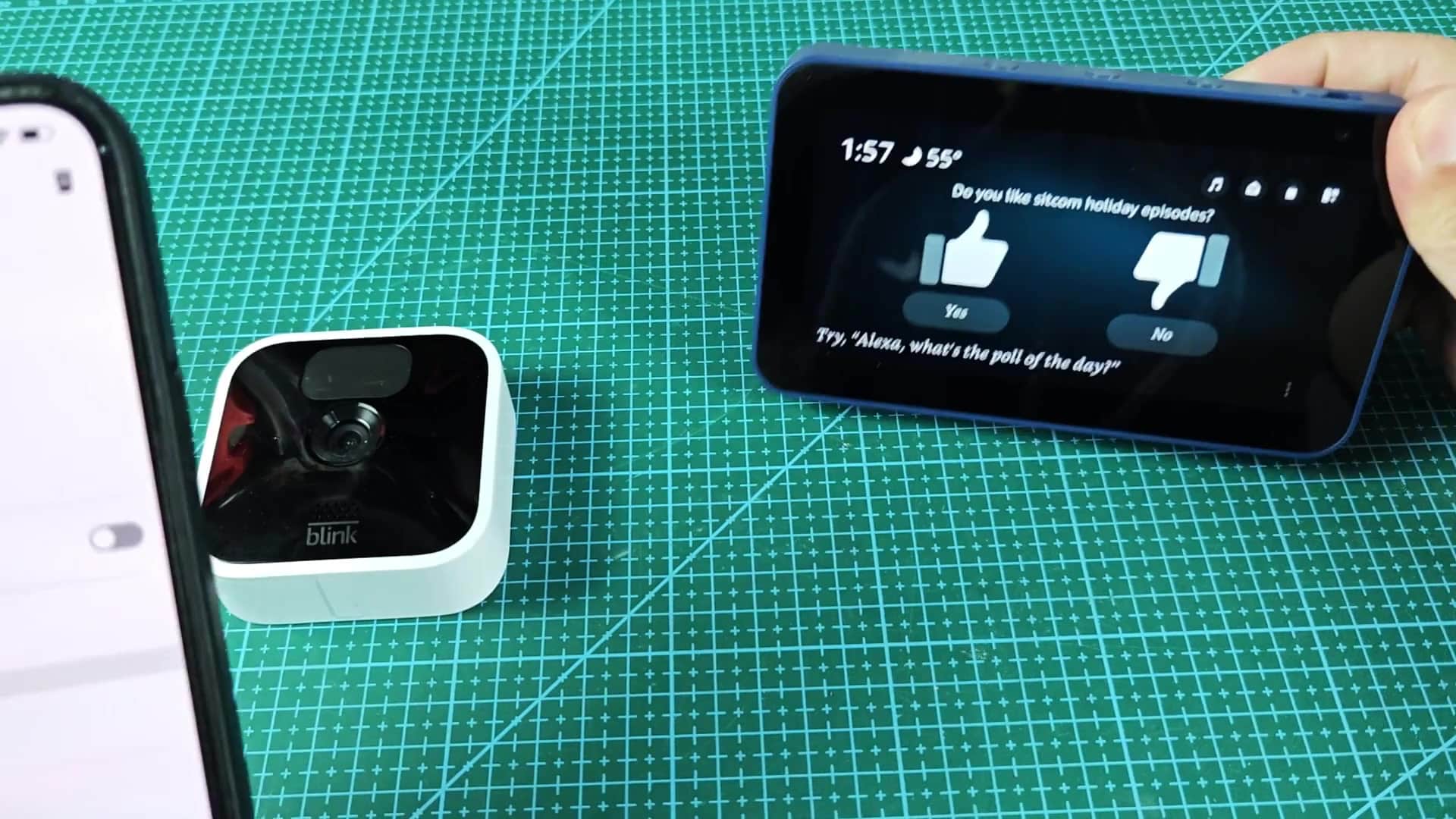
Over time, integration between Alexa and Blink has gotten more stable. Earlier versions of skill had some bugs, but current experience handles connections without issue. You shouldn’t encounter any disconnect issues with recent updates.
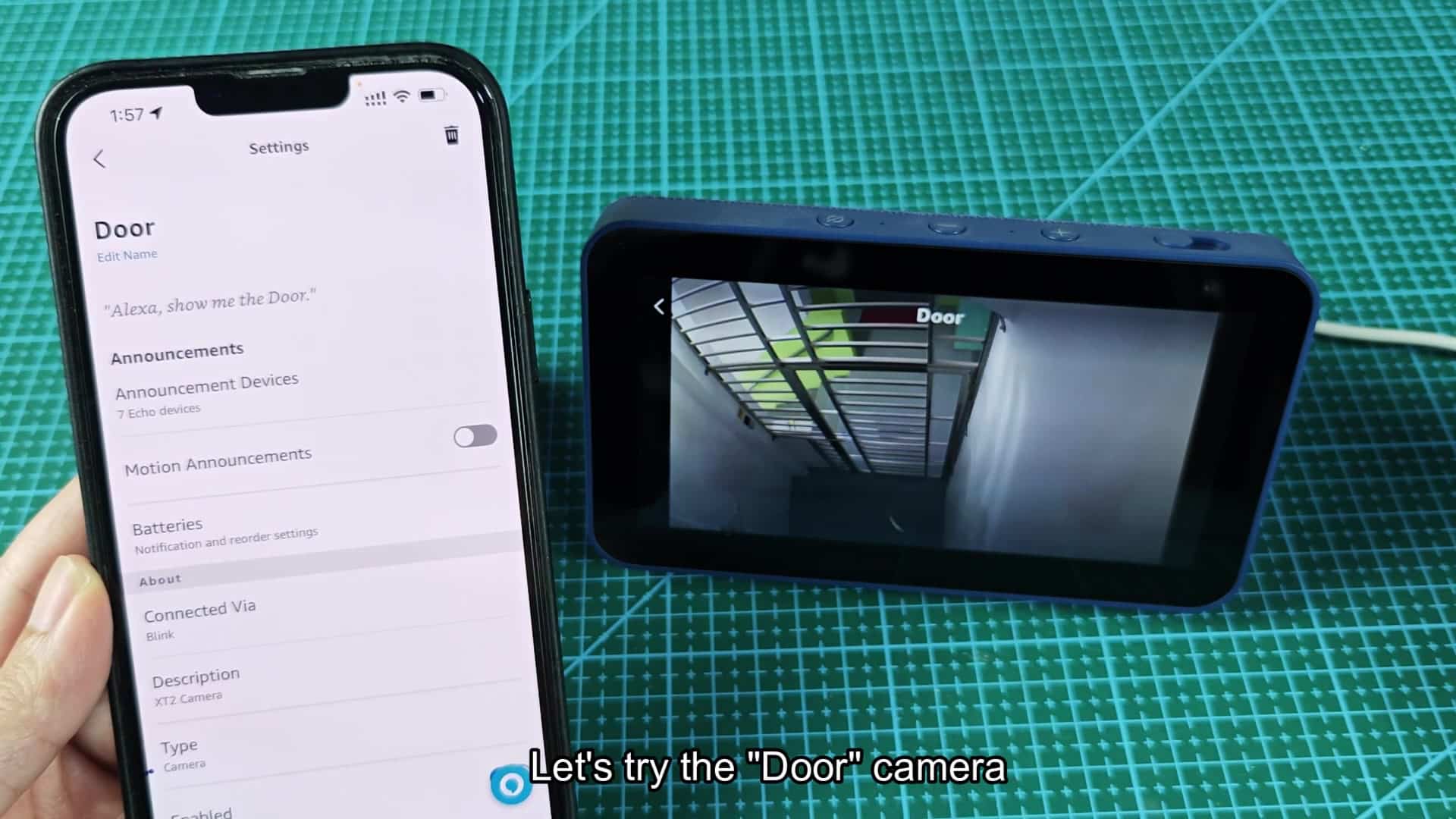
Add an audible alert system with motion announcements. Even if you’re not staring at the screen, the Echo Show will announce motion detection. This feature act as a helpful alarm to increase security.