
Getting your robot vacuum’s Wi-Fi working correctly isn’t always easy. After performing a firmware update, a Deebot T9 may refuse to connect to home network. The app continues displaying an offline state even when you move it closer and restart the router.
That should of clear the issue but a hard reset will fix the glitch that causes this problem in the first place. If you’re wondering how, here’s what’s involved (it’s pretty simple, just knowing where to find it).
Performing The Hard Reset
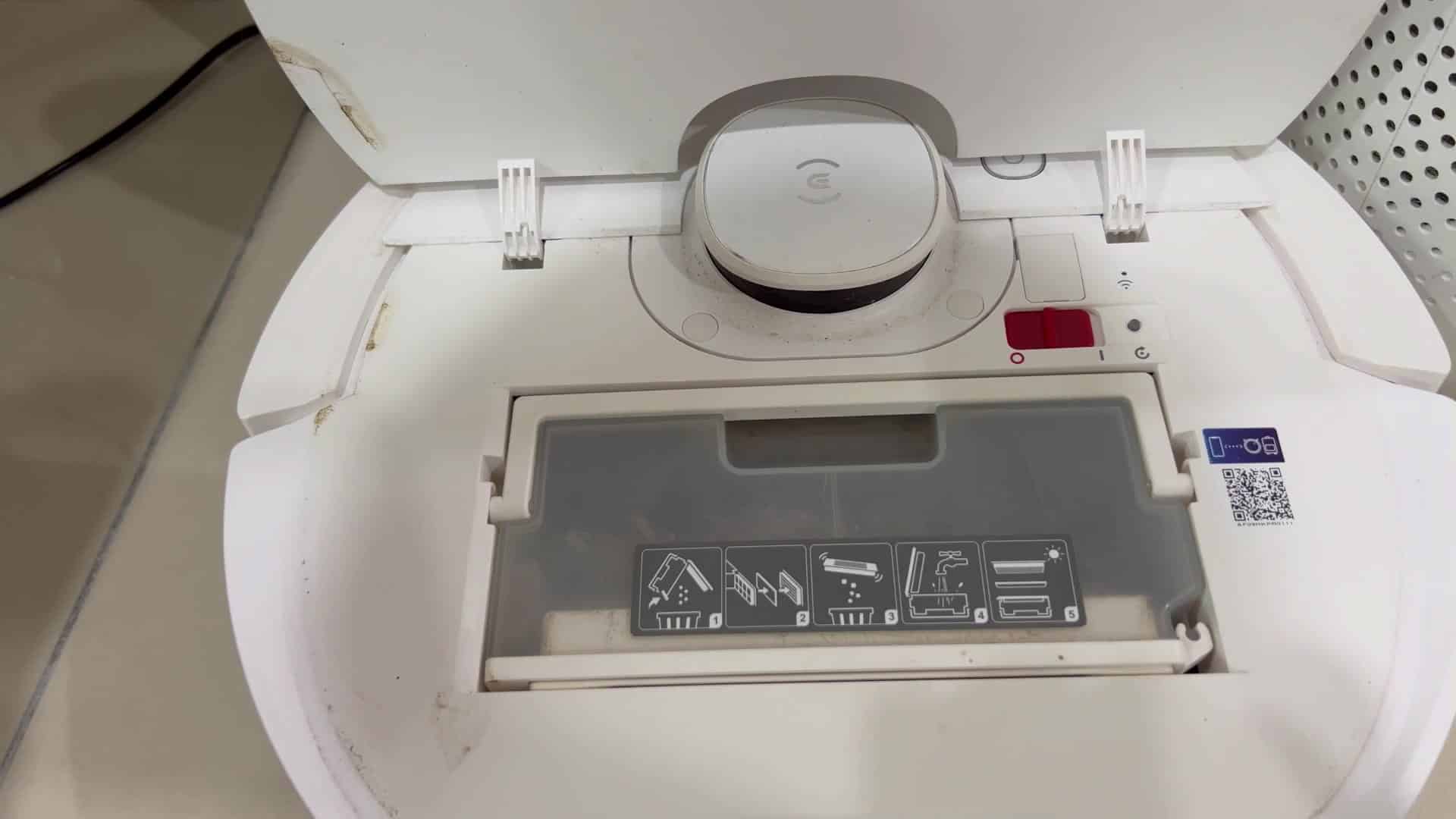
But before that, you’ll need to get inside the unit. To do this, remove the top cover of the robot which houses its dustbin compartment. It’s held tightly in place and requires a little effort to pop off.
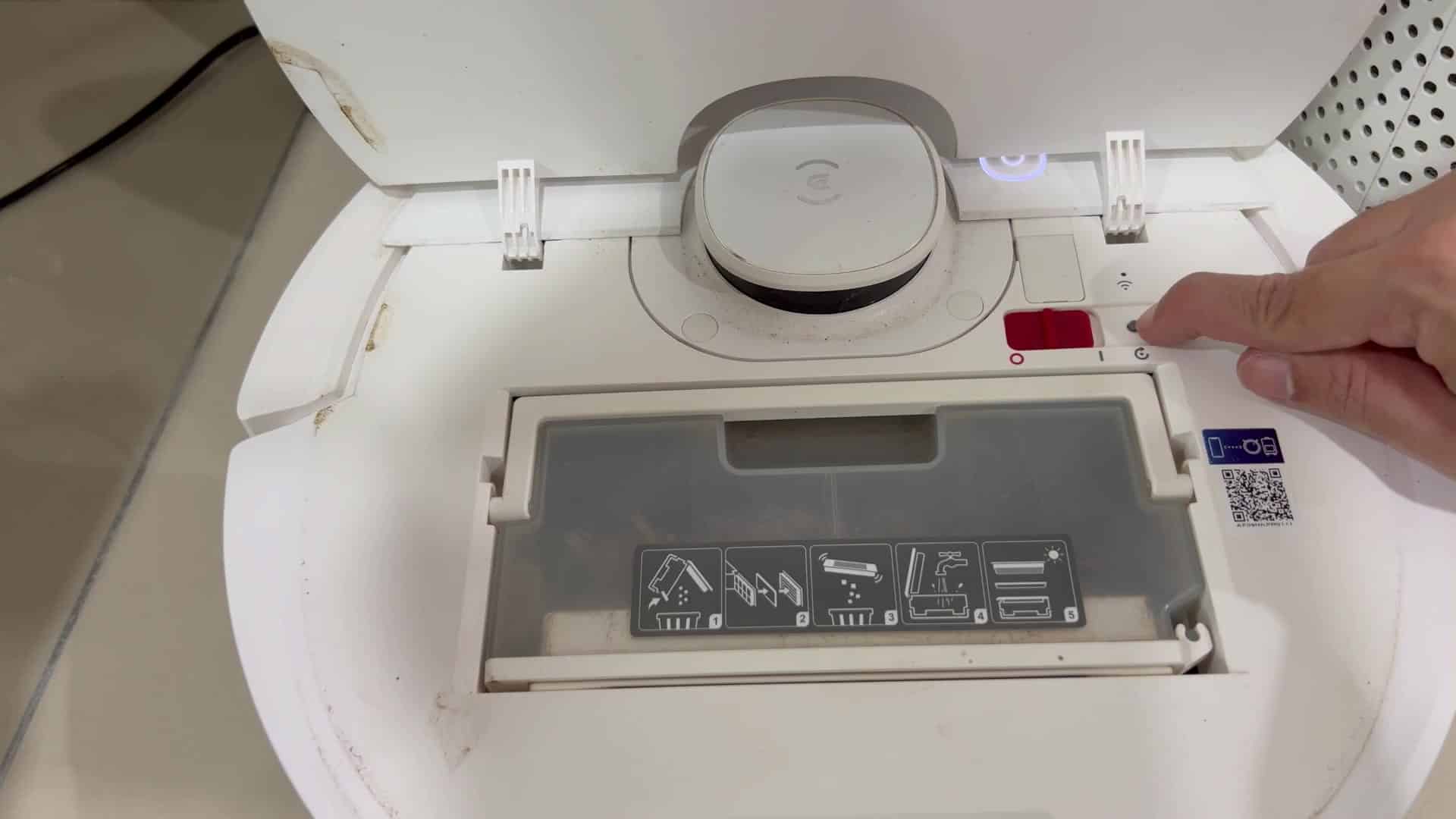
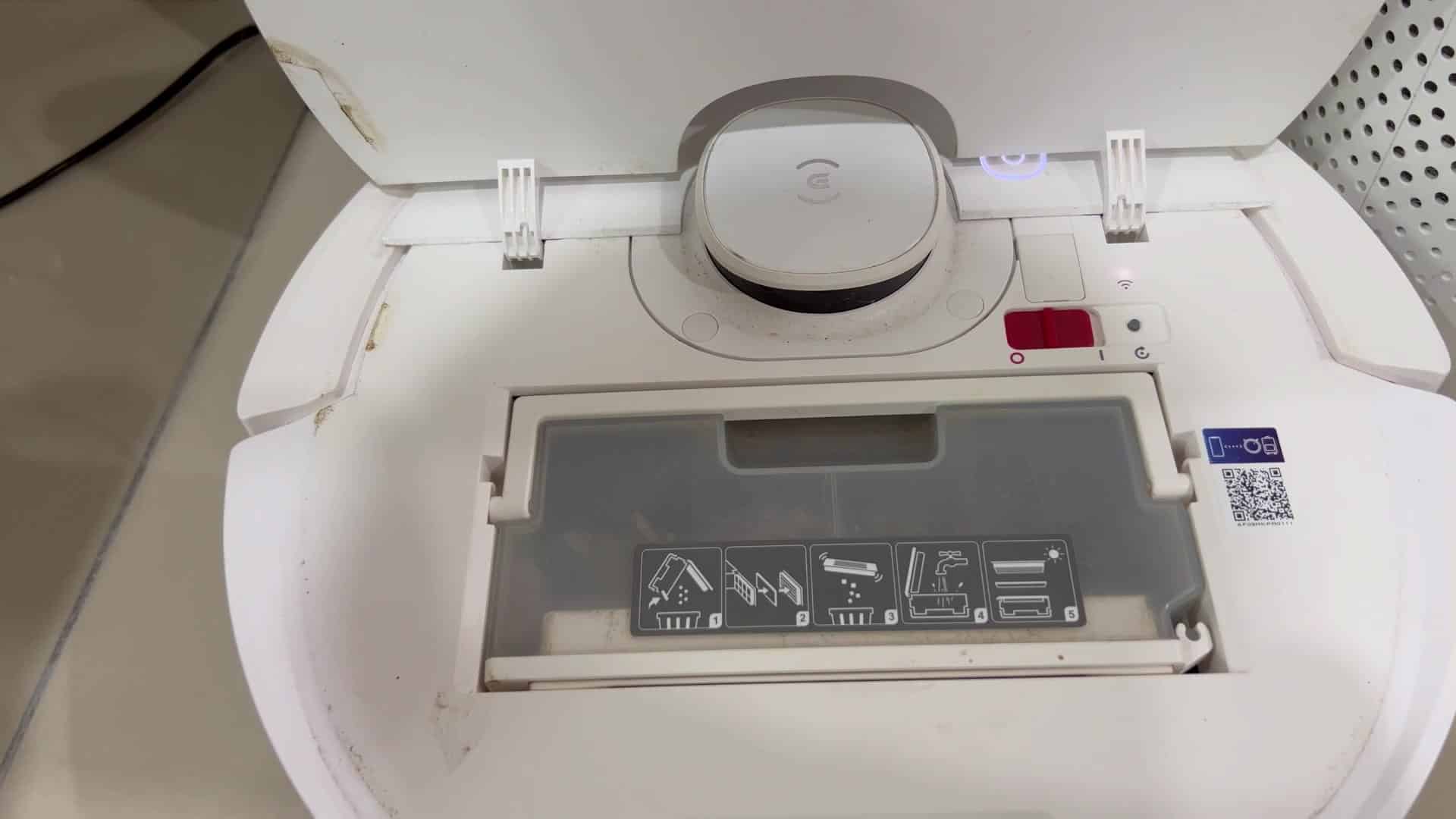
When it does, the innards will be exposed. Everything’s laid out pretty neatly though the design hides some buttons from casual view. A bit of looking around should get you to the right button.
The Reset button is in the compartment. It is small and tucked in with other indicator lights. Simply push it one time to engage the reset process. You don’t have to hold it down for several more seconds like you would of had to do on some of older units. The unit instantly recognizes that you want it to reset. It respond instantly.
Pressing the button makes the Wi-Fi indicator light start blinking. This visual clue tells you that network settings is erased. It’s time to add new connection information to your robot.
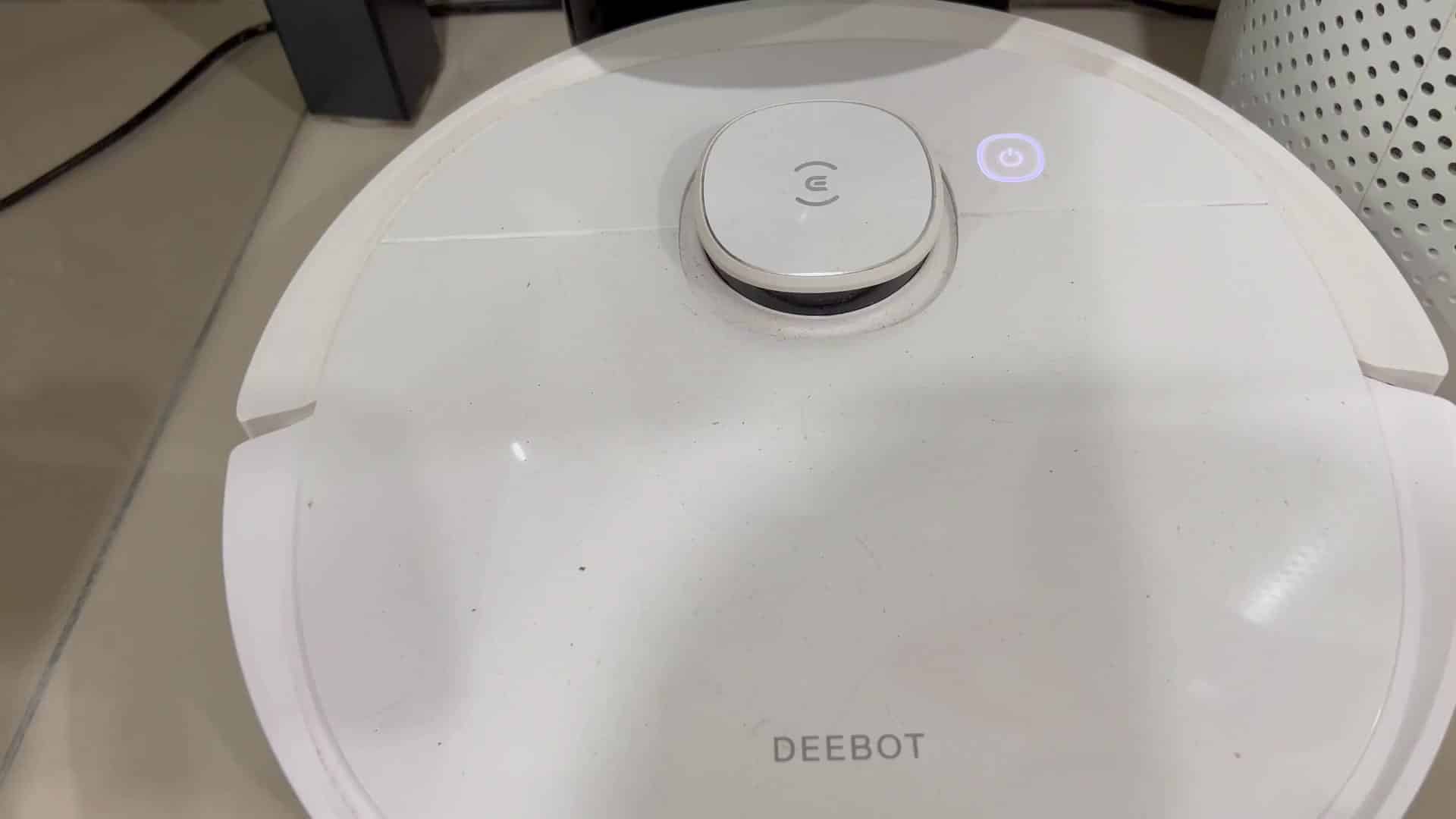
Because it’s different, it’s obvious: the light blinks more differently than before to let you know there’s no more old configuration. A few seconds later, the light has stabilized. You’re good to go.
Next, the robot tells you to re-connect it to your Wi-Fi. Almost immediately, that’s reflected in your smartphone app. You go into the app and begin the re-pairing process. The setup wizard take you through putting in your network password. And finally, it connects, no more offline errors. Problem solved.
Many users expect the reset to take longer. Many fear that performing a hard reset will cause them to lose their custom cleaning zones and map data.
In most cases, mapping data are stored on internal memory which survives a network reset or in the cloud. To be safe, backing up important settings is always good practice but you may find your T9 retains its floor plan after the process. Navigation accuracy has not been affected.
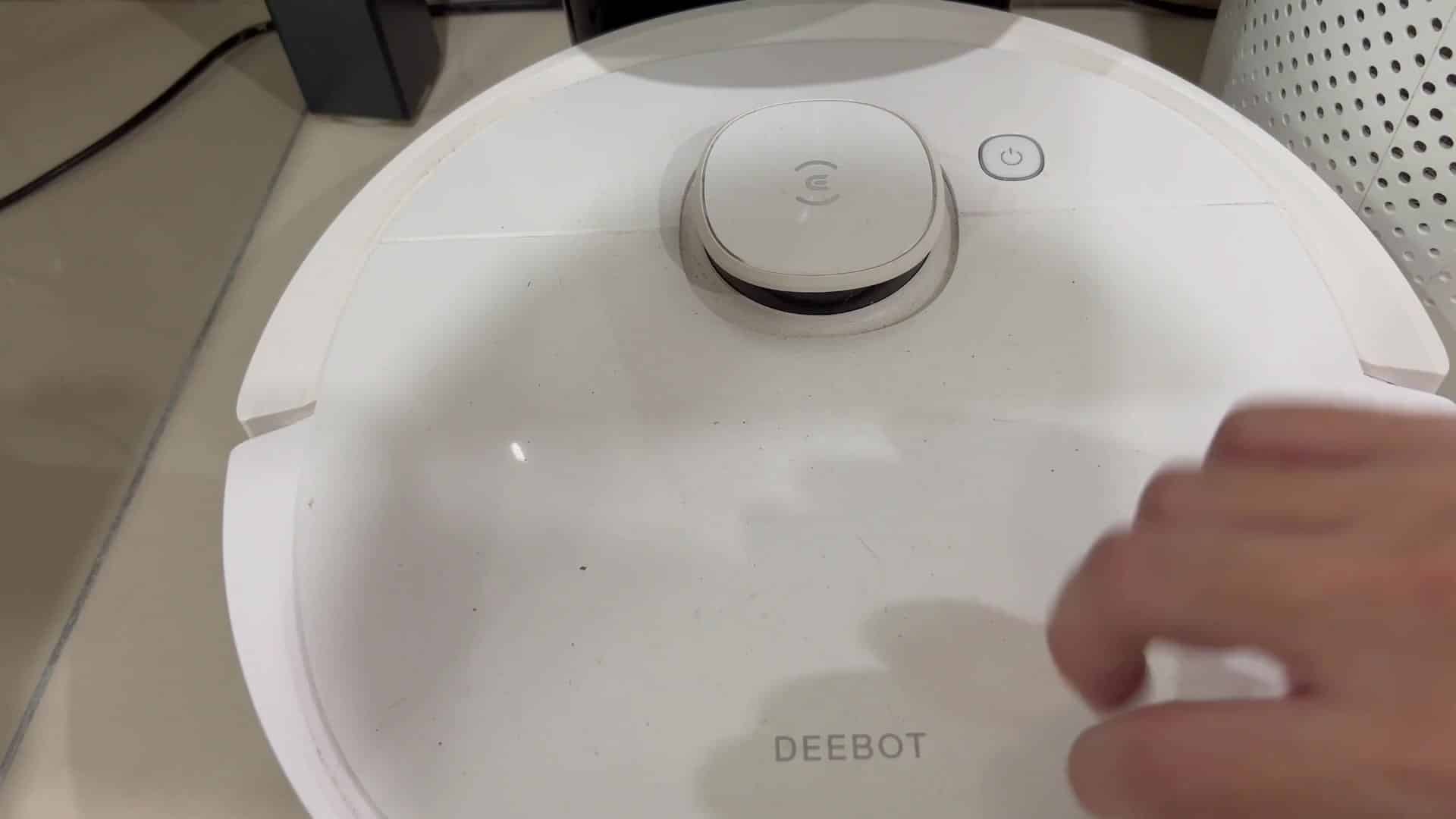
Place the upper cover back onto the robot securely. It’s held in place snugly. When it’s all locked down, the latch snaps shut, keeping dirt and dust inside while it is running.
If your lid isn’t snapped into place properly, the Roomba may struggle with suction and have issues finding a good path around your floor. Be sure that everything is secure then power up the machine once more.
The robot automatically drive back to its docking station to recharge.
After doing so, everything’s back on track with the device. Your app diagnostics shows that it has found a strong Wi-Fi connection. Your daily cleanup tasks are still scheduled.
The problem is solved with a quick hack that totally eliminates the connectivity headache. It’s one of those handy resets worth remembering if you experience any future hiccups.

