The Ring Doorbell battery status is now clearly displayed in the app and no longer hidden behind any guessing games. There’s no need to dig around confusing menus for answer… Just go straight to the main screen and see for yourself. The battery level appear as an icon in the upper-right corner of device’s tile inside the Ring app… It’s basically just a smartphone battery indicator icon. If it’s green, all good; anything else (red/yellow) means your battery is low.
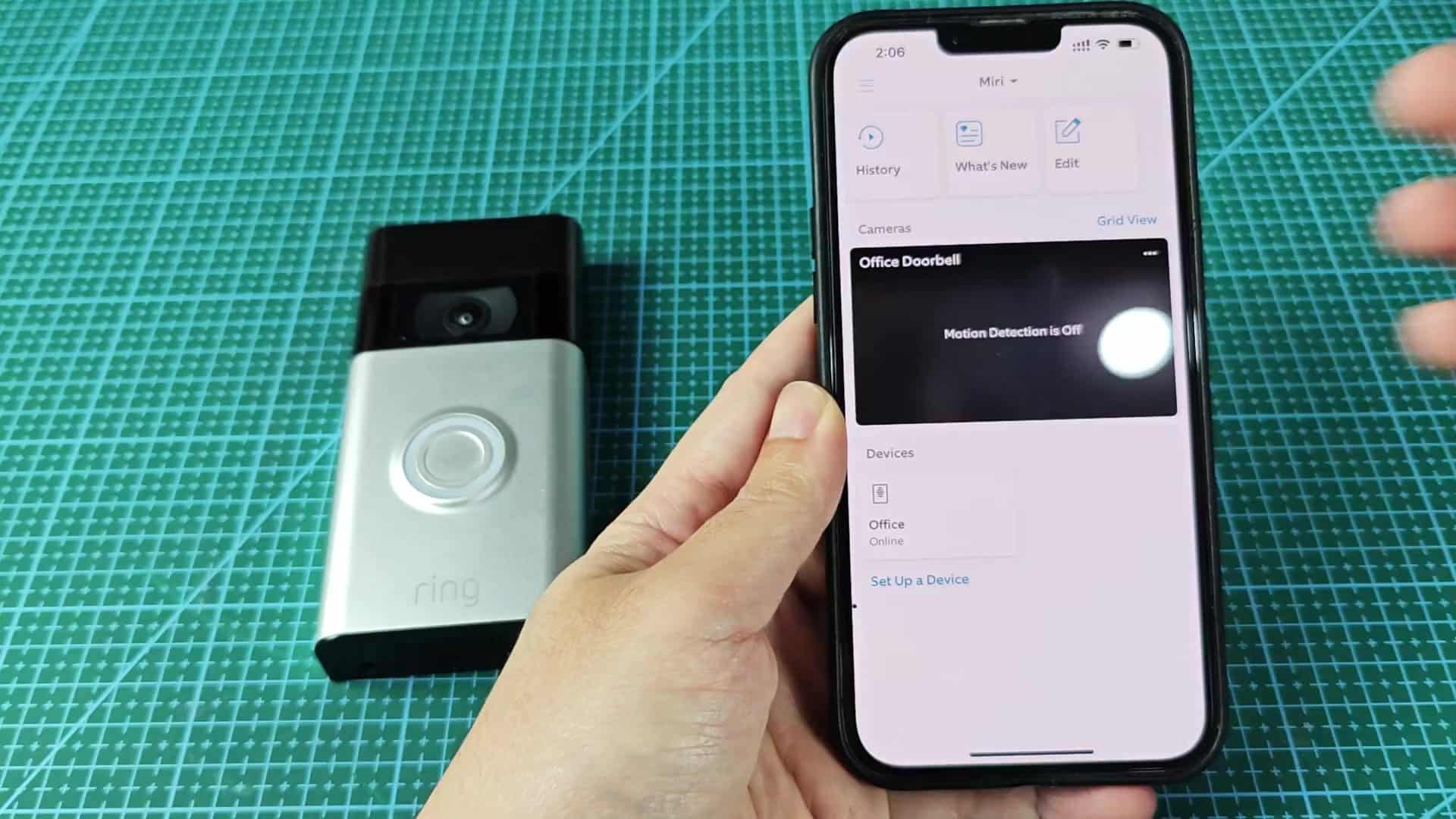
It’s a bit of time-saving design here since instead of diving in settings while you’re waiting on that delivery driver to show up at your door, you’ll have a quick visual cue. But then again sometimes you don’t want a quick look, you want to know exactly what percent battery is left. For that, you just tap on the device name up above in list view. This will take you into the device-specific settings for your doorbell.
Checking Detailed Battery Health
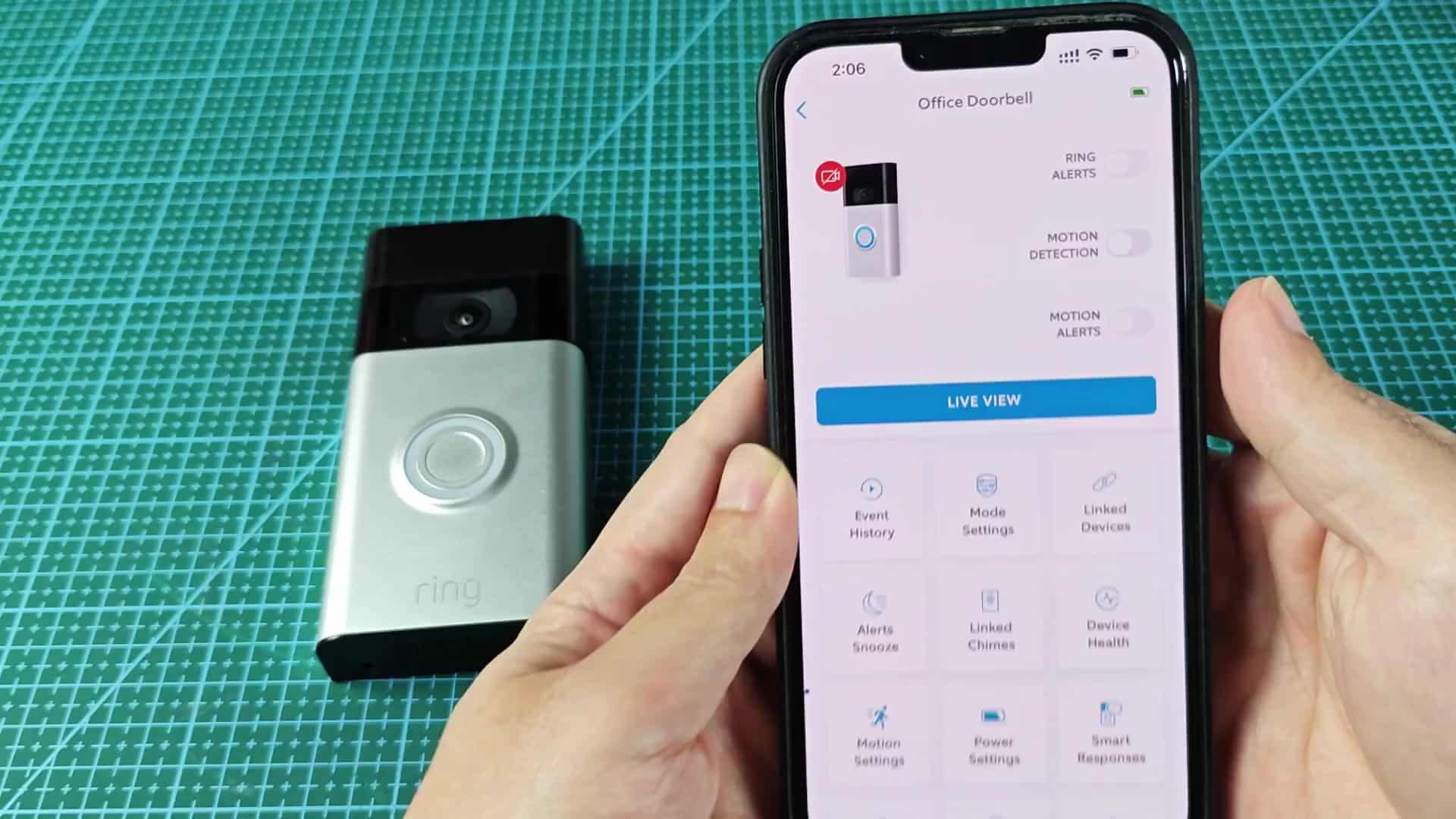
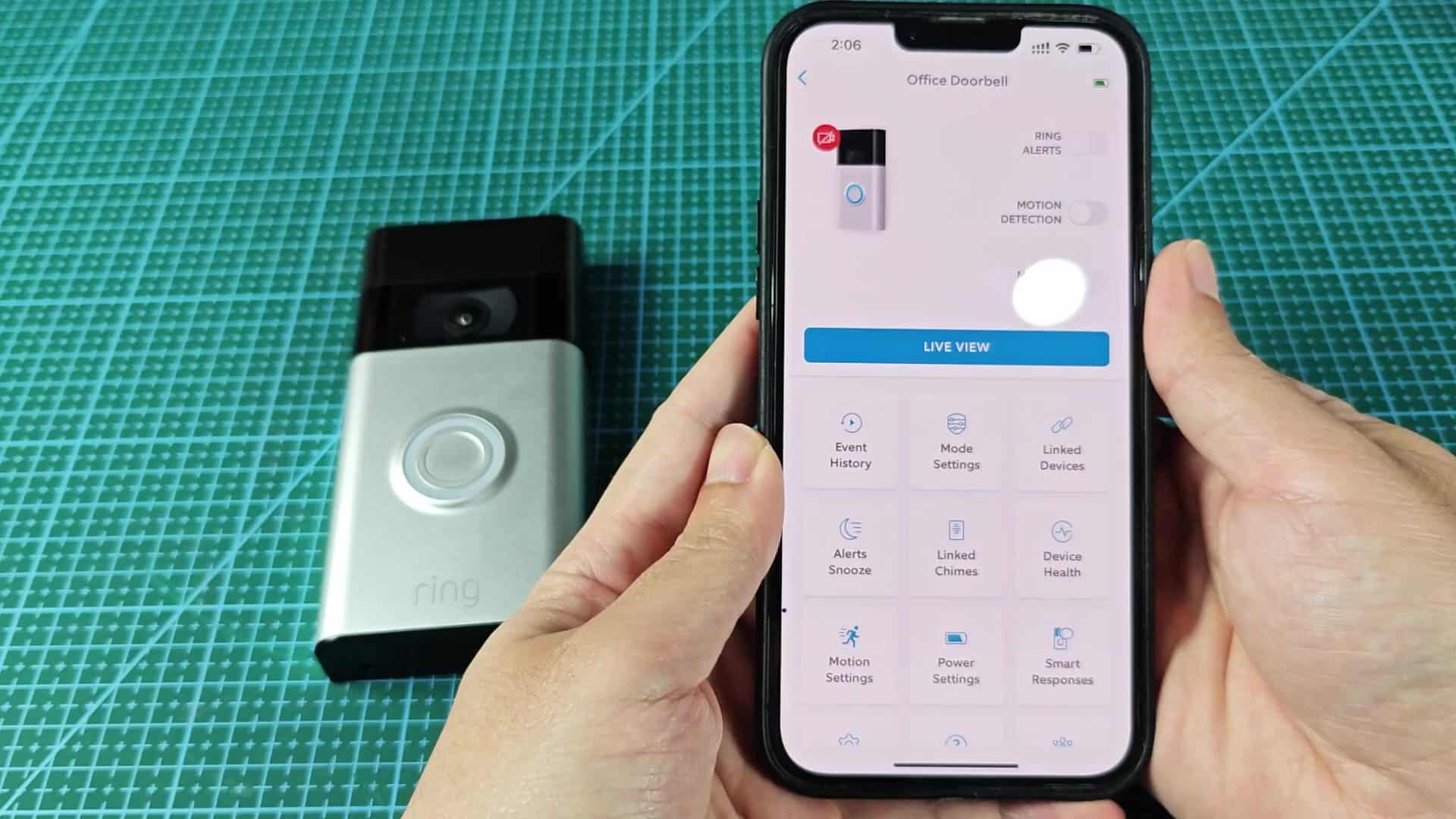
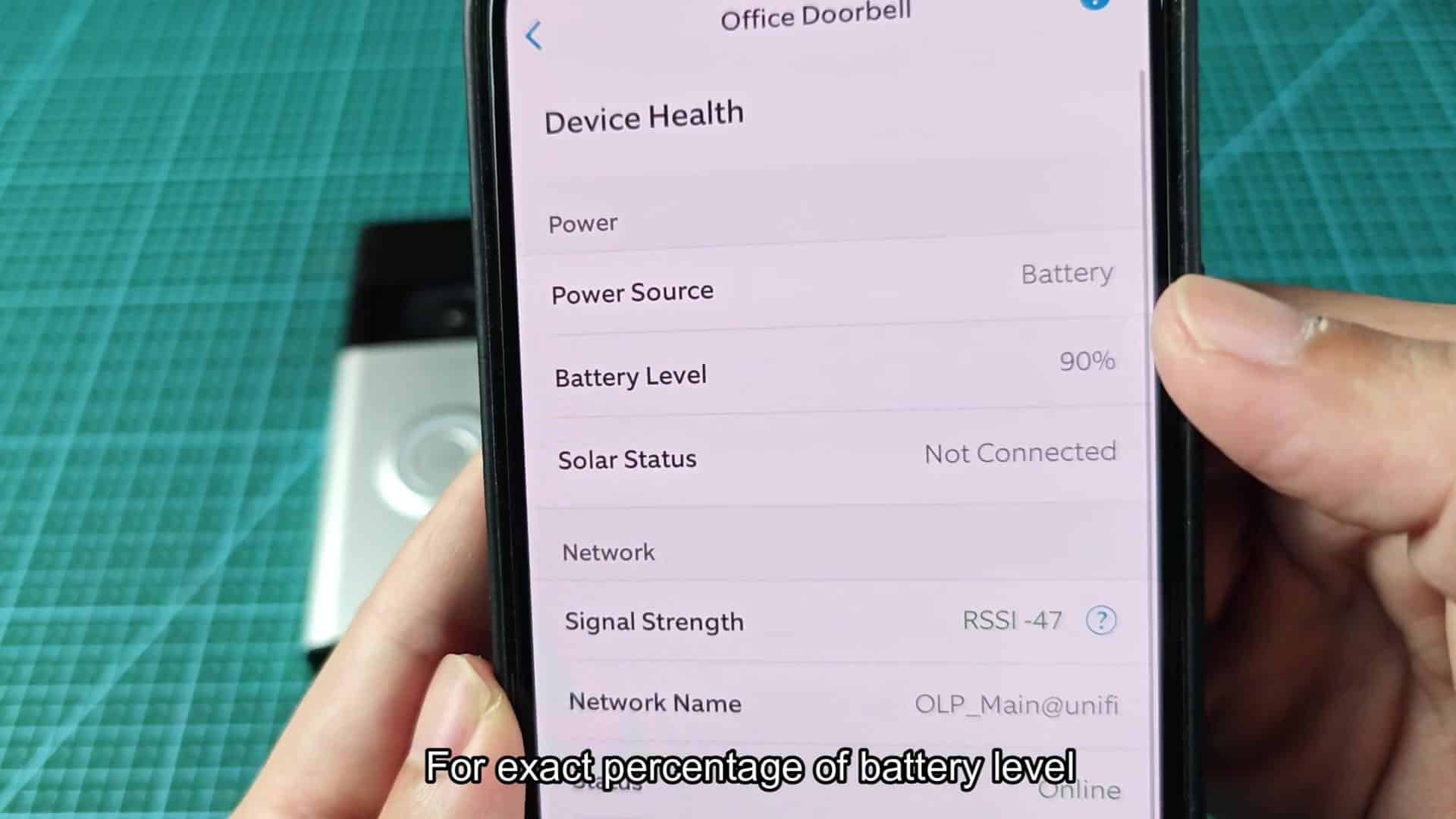
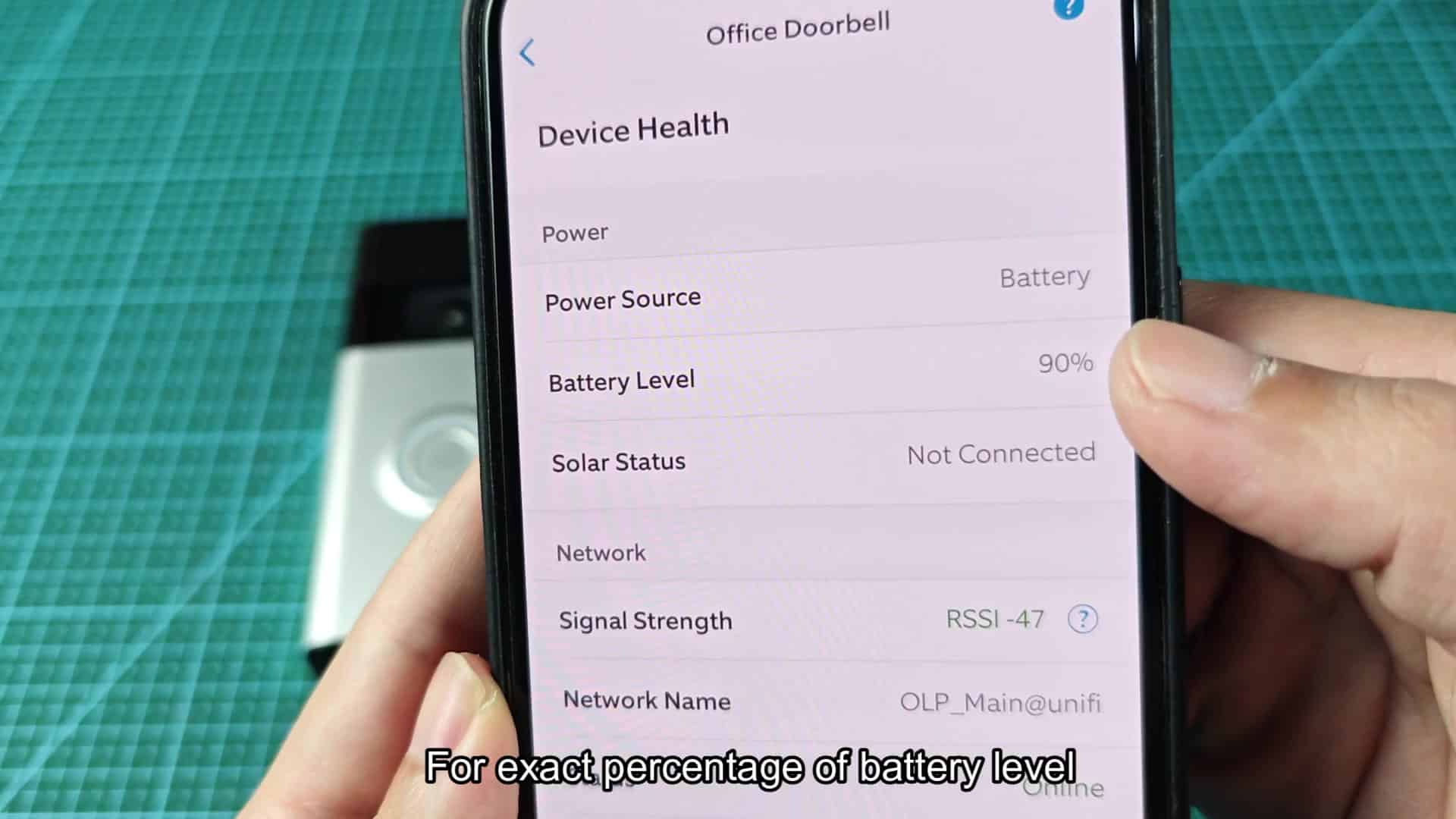
Scroll down from there past all those toggles and privacy and motion zones until you reach a section called Device Health, which contain all of the wonky tech details on how unit is currently performing. Within the Device Health menu, there’s a clear listing of the battery level: It shows exactly how much of the pack remains charged.
Sometimes it’ll be at 90%. Other times, it will be down to 15%.
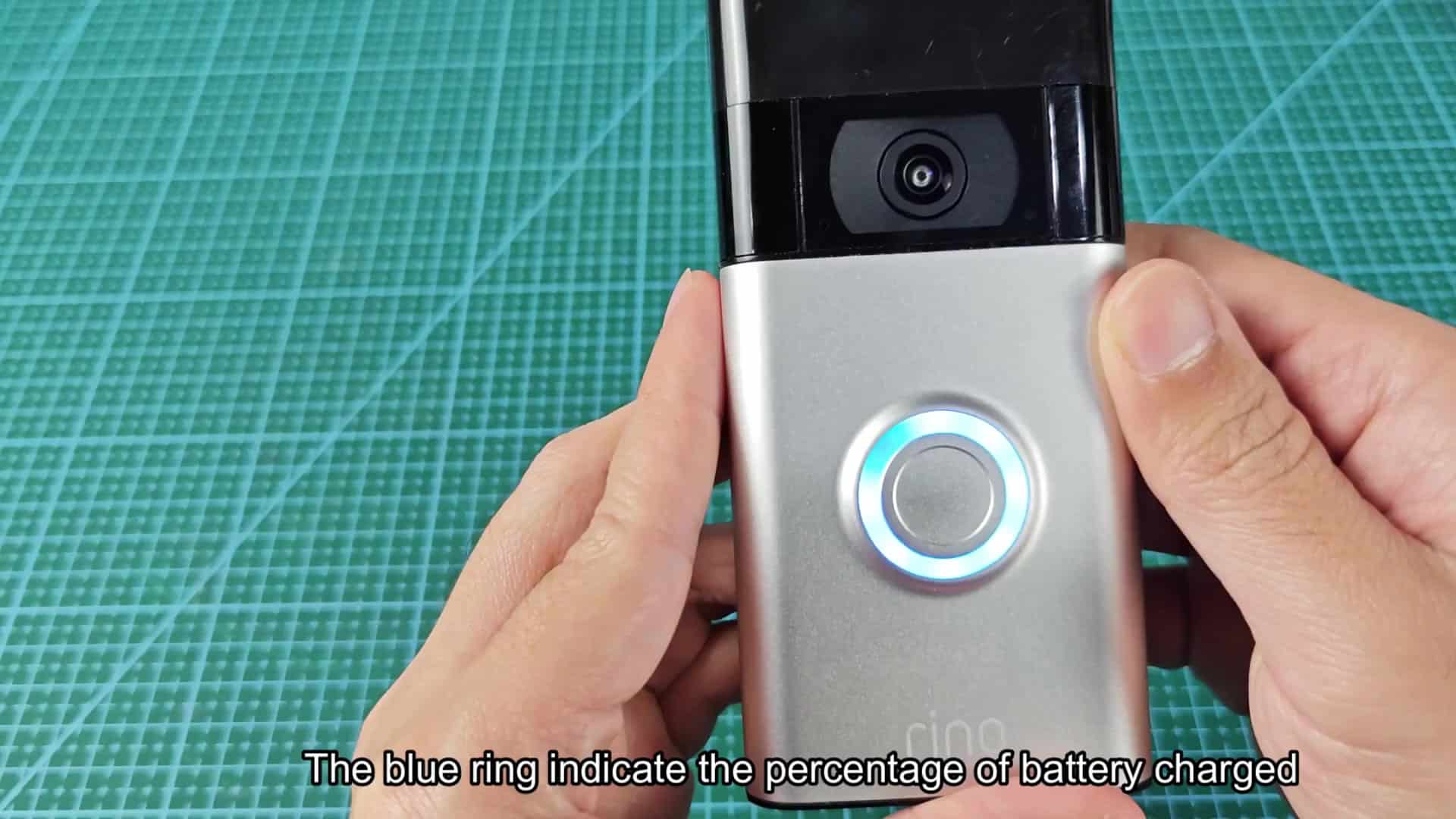
Knowing exactly what that number is make it easier for you to know when you need to swap batteries. Instead of guessing, it gives you plain data, not some vague indicator. That takes away all the guesswork with app. To charge, you’ll pull off the faceplate to plug in the charging cable. The device will start recharging, flashing with a blue ring that animates around the button, letting you know how charged it is getting.
As the device gets more charged, the rate at which it cycles increase… Indicating you’re nearing full. When you see it lit in blue, you can see progress of the charge through an animation that changes slightly as the battery fills up.
You can press the button periodically for status updates. This shows that it have a solid connection and is lighting up. The light means power is coming back to your unit through a feedback loop based off the hardware itself. No flashing lights or weird error codes (just a solid), “I’m getting my power back.” It used to be that you’d have to sit around waiting for your motion event to time out before checking whether it was charging or not, but checking the health menu or tapping on the app icon every few minutes only take about a second.
You’ll see a blue charge indicator light, letting you know as soon as it’s done, at which point you can simply re-mount doorbell on your wall. There’s no technical skill needed, just open up the app and look at some numbers. You should of checked sooner to avoid any issues with the moddern battery life.