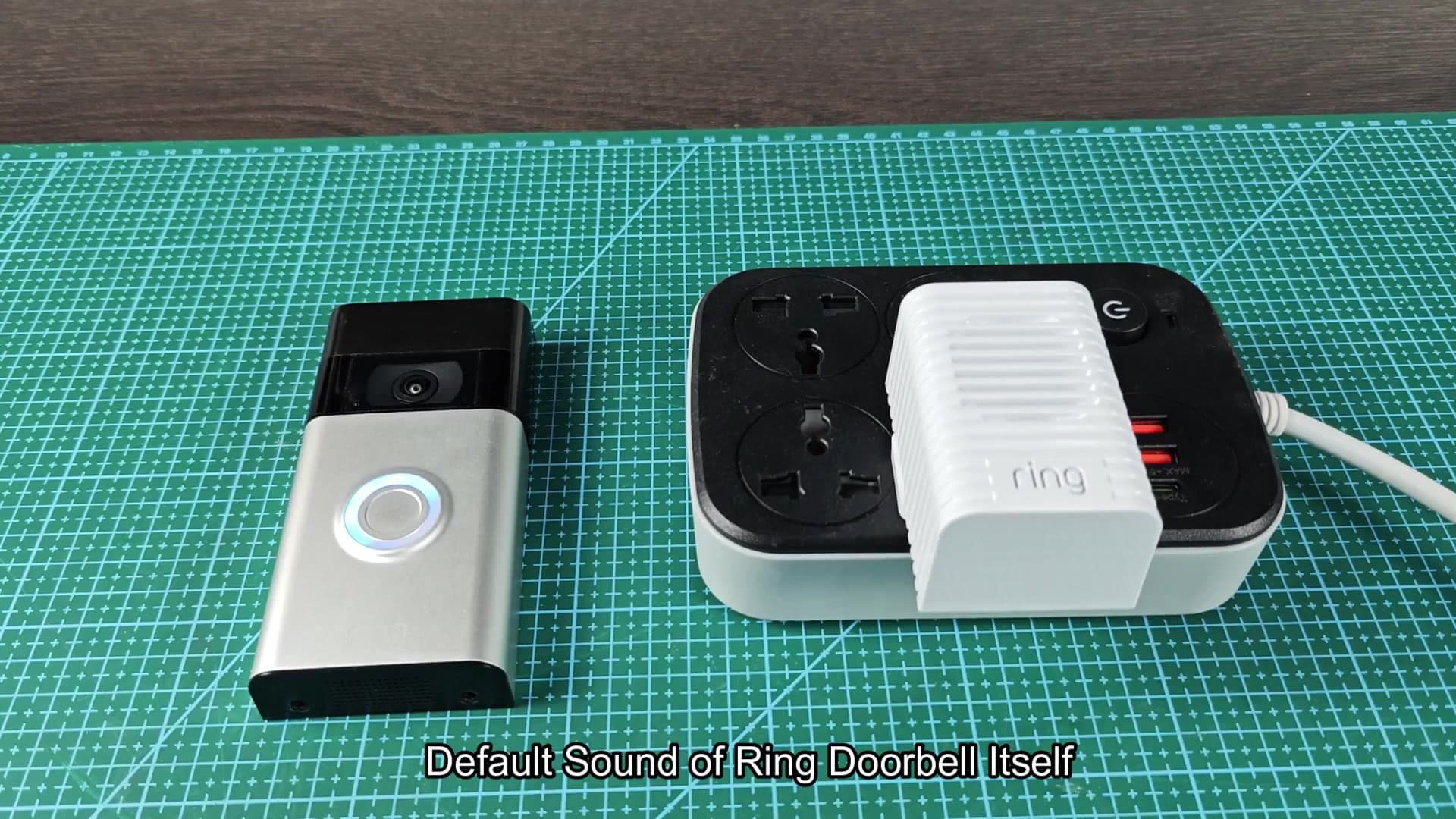
The Ring device hardware does not allow you to replace the default doorbell sound. There’s no way to change the Ring button into something else, it only plays a single tone when pressed.
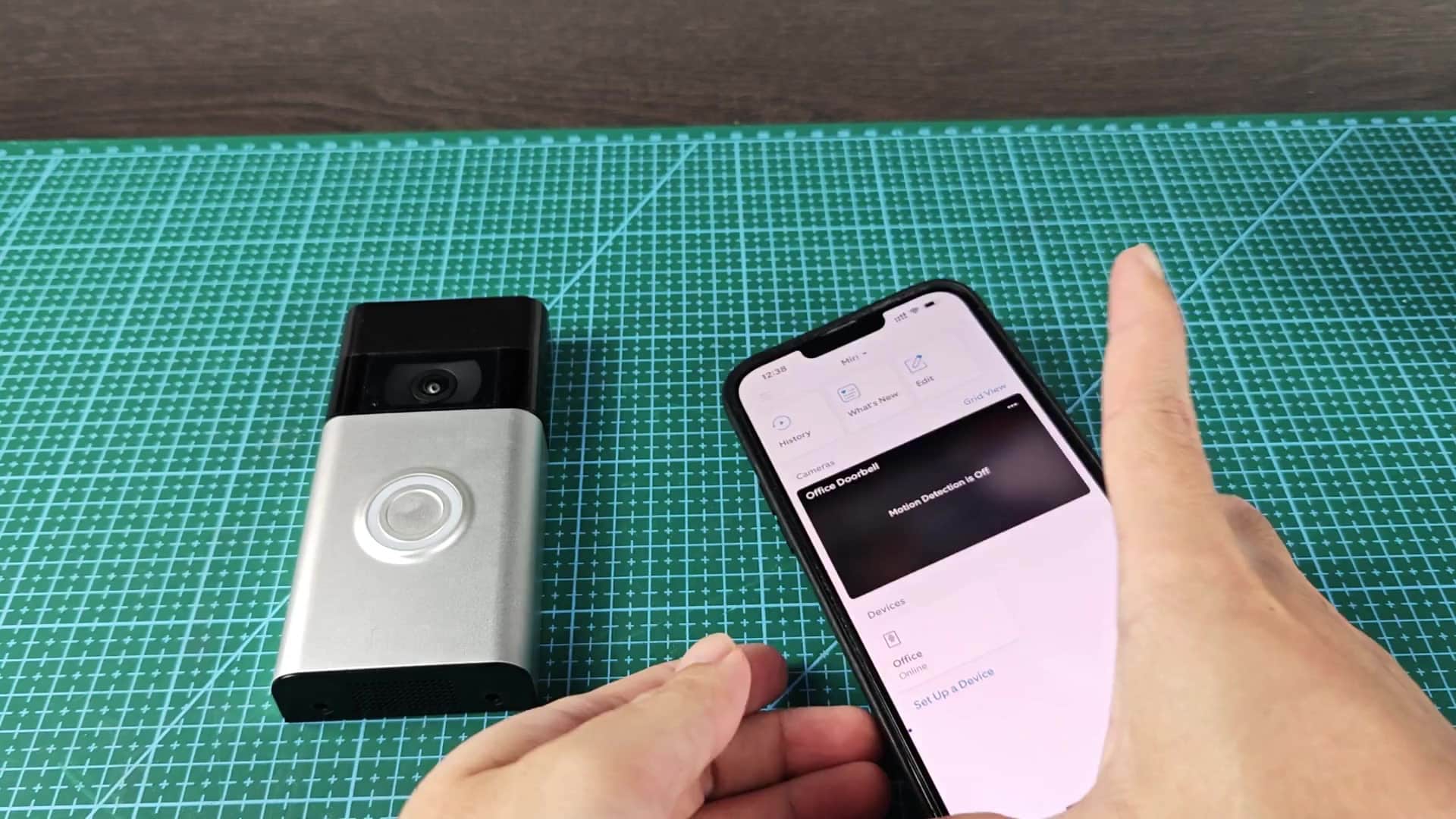
You can, however, customize certain other audio within the Ring eco-system. That said: there are a few places in the Ring system where you’ll have some level of control over audio feedback. You reach each one through different parts of app menus.
Customizing Indoor Chime Sounds
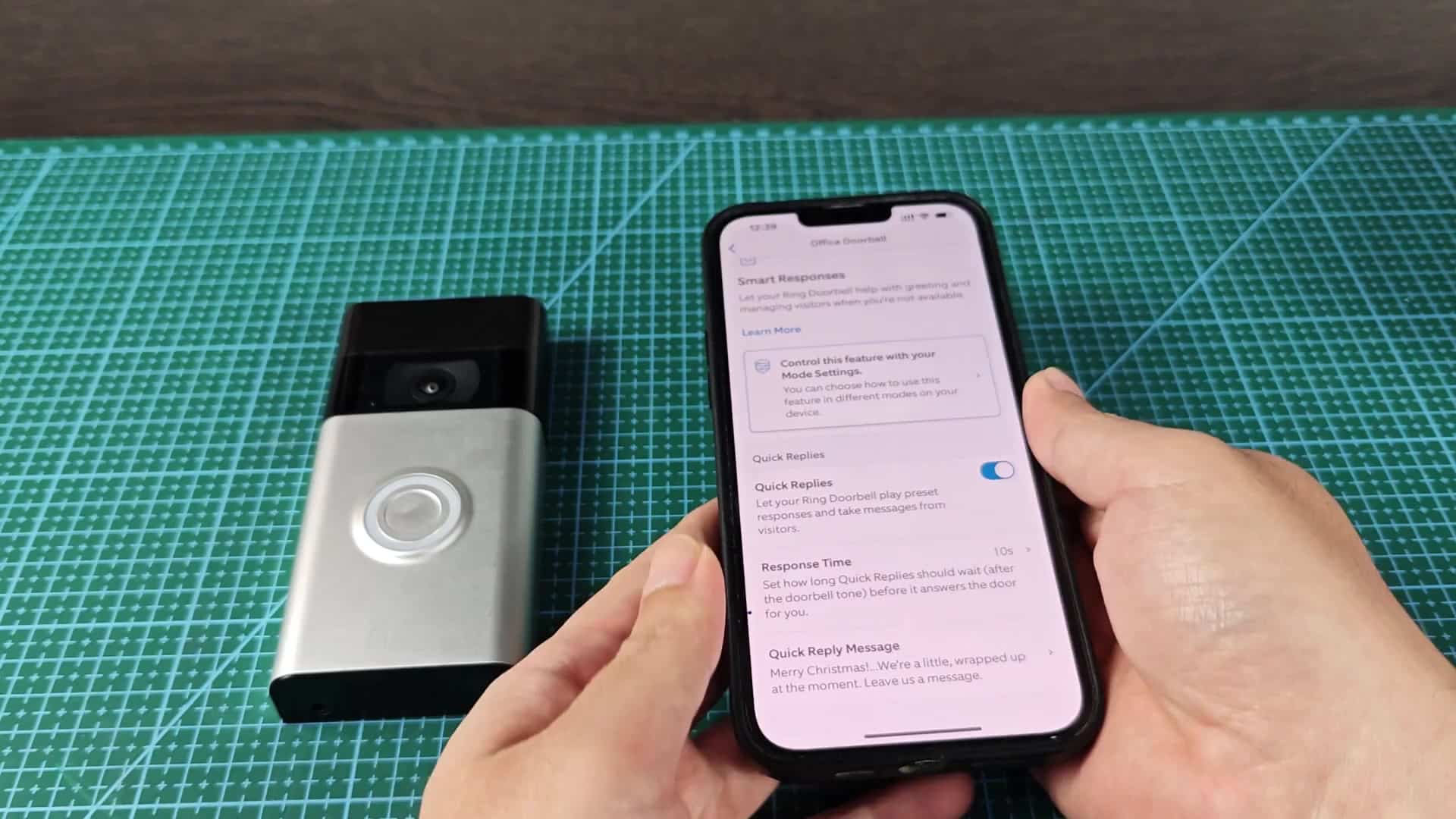
Quick Replies is one of those features. It’s located in the Smart Responses portion of the app. Here’s how it works: You enable the feature, then you opt into a template for what you want to say. That could be a winter holiday greeting or whatever.
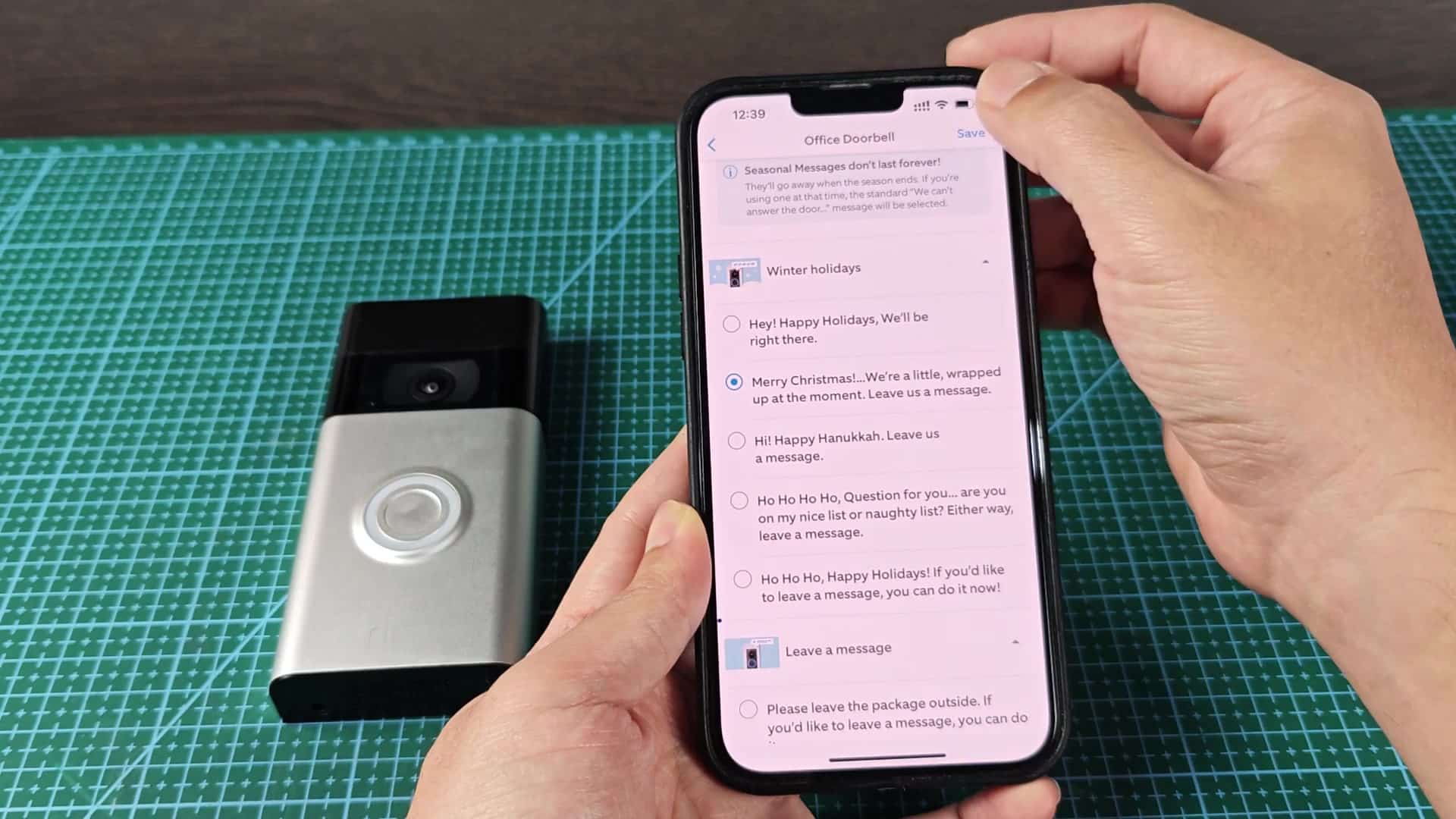
When somebody rings the bell, they’ll hear that prerecorded greeting rather than nothing at all. It gives another level of communication while still avoiding any need to talk live.
How do you set it up? Simple enough. Just go into Smart Responses. Tap the toggle button for Quick Replies. Then choose an option from the drop-down menu, your settings are confirmed once saved.
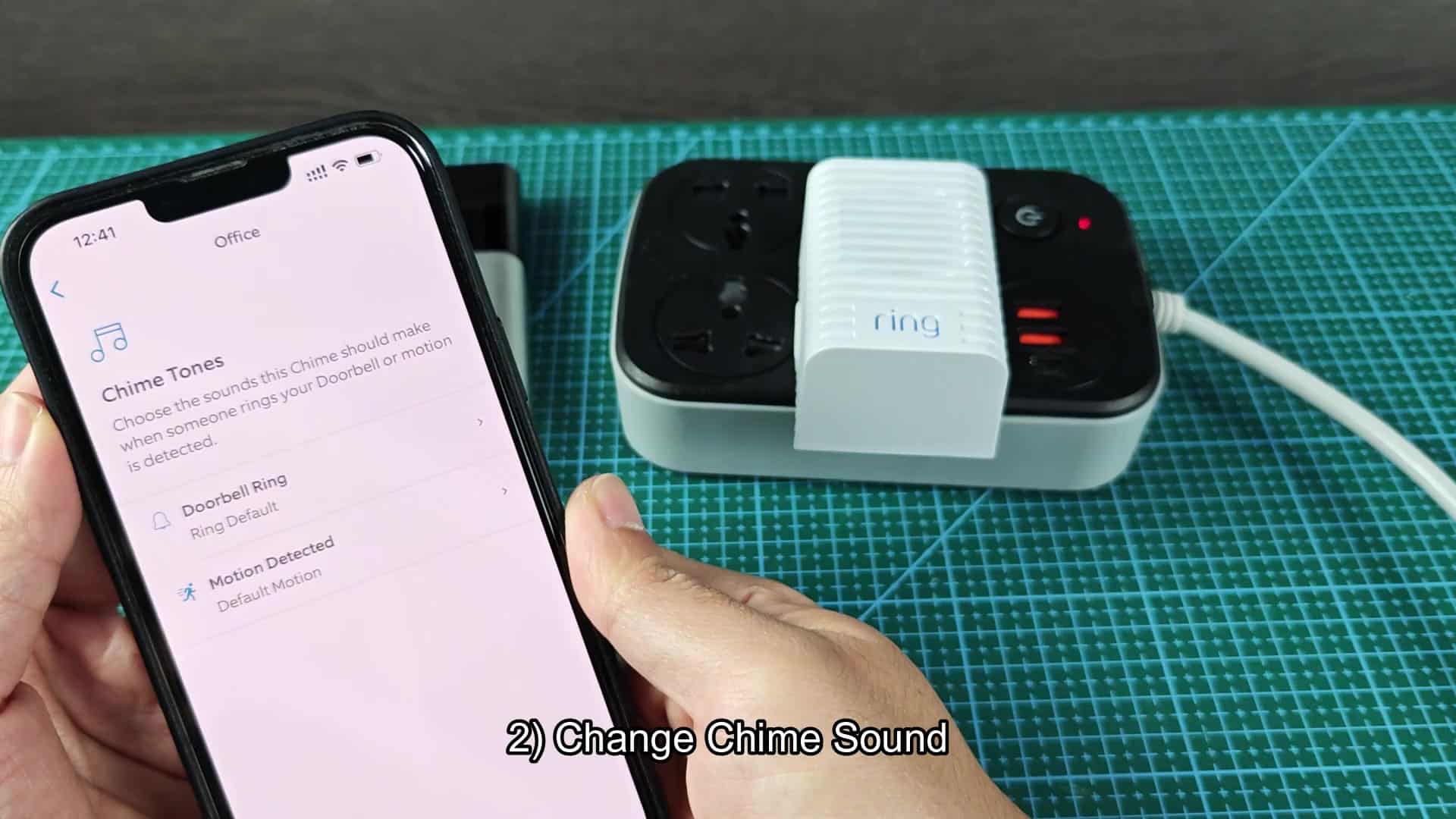
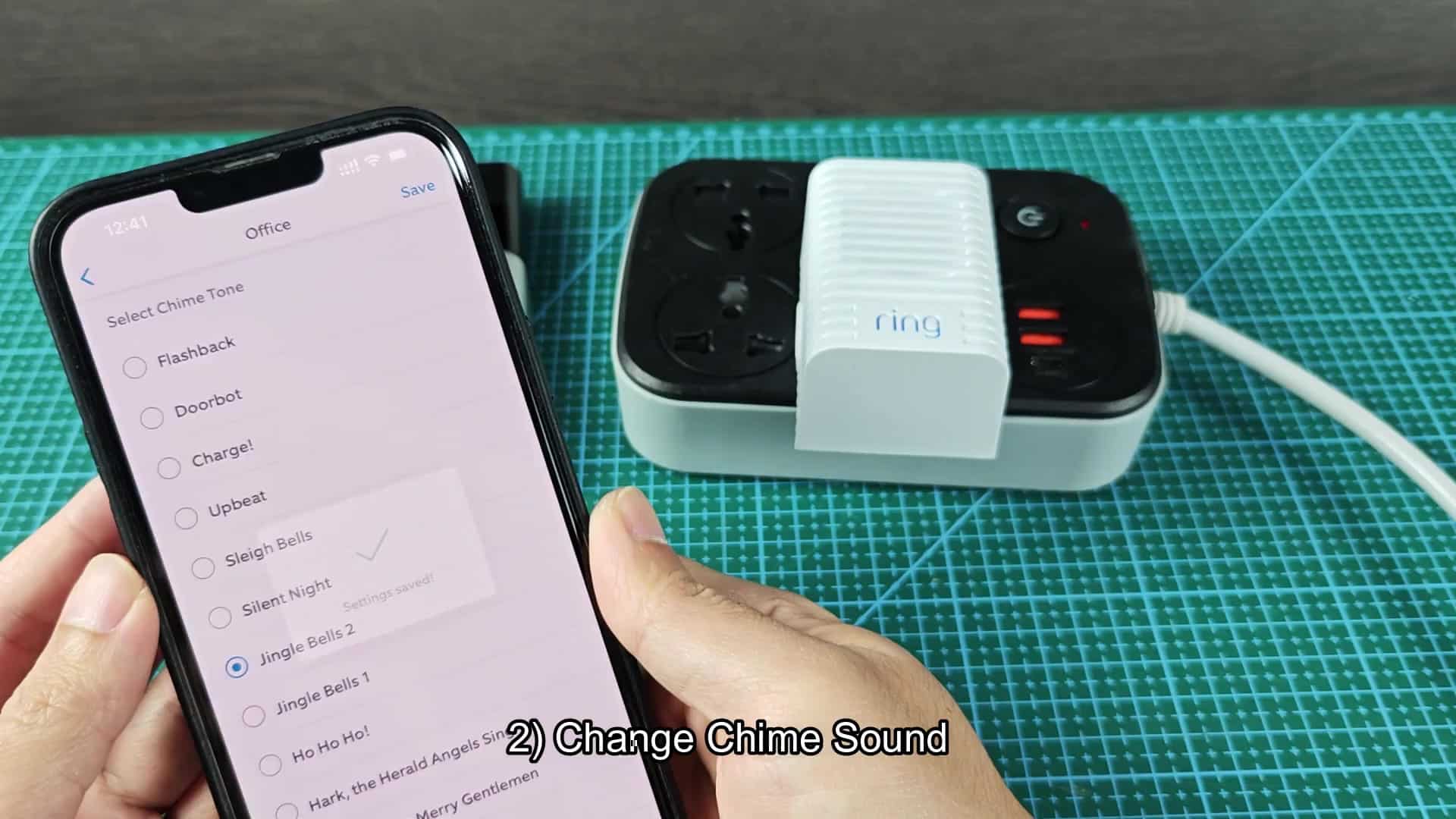
That brings us to the other part: the Ring Chime device. It’s another piece of hardware that plugs into a power strip or wall outlet. Here’s where you can alter ring sound, though it is limited to pre-configured selections. No custom audio file are available.
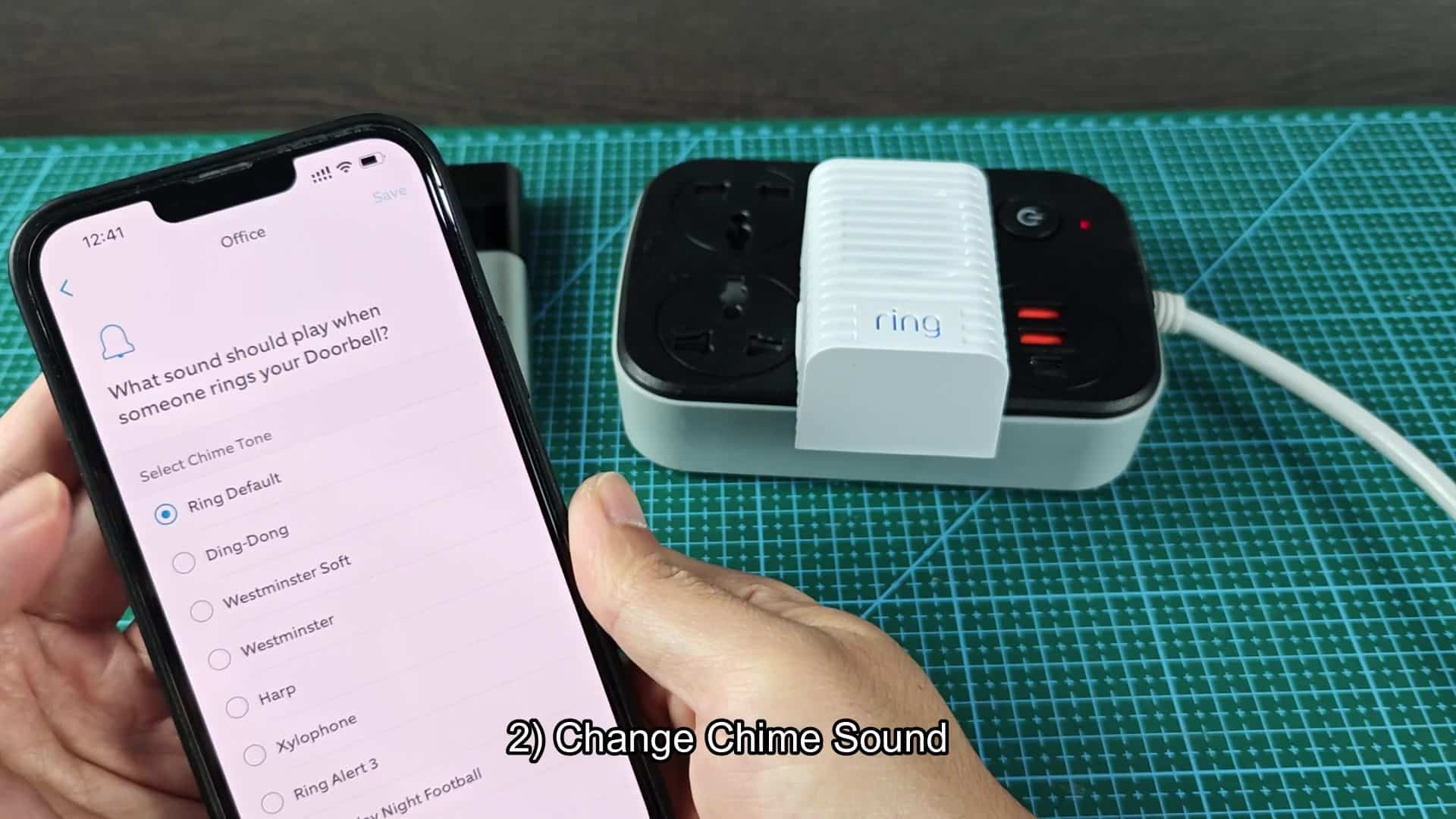
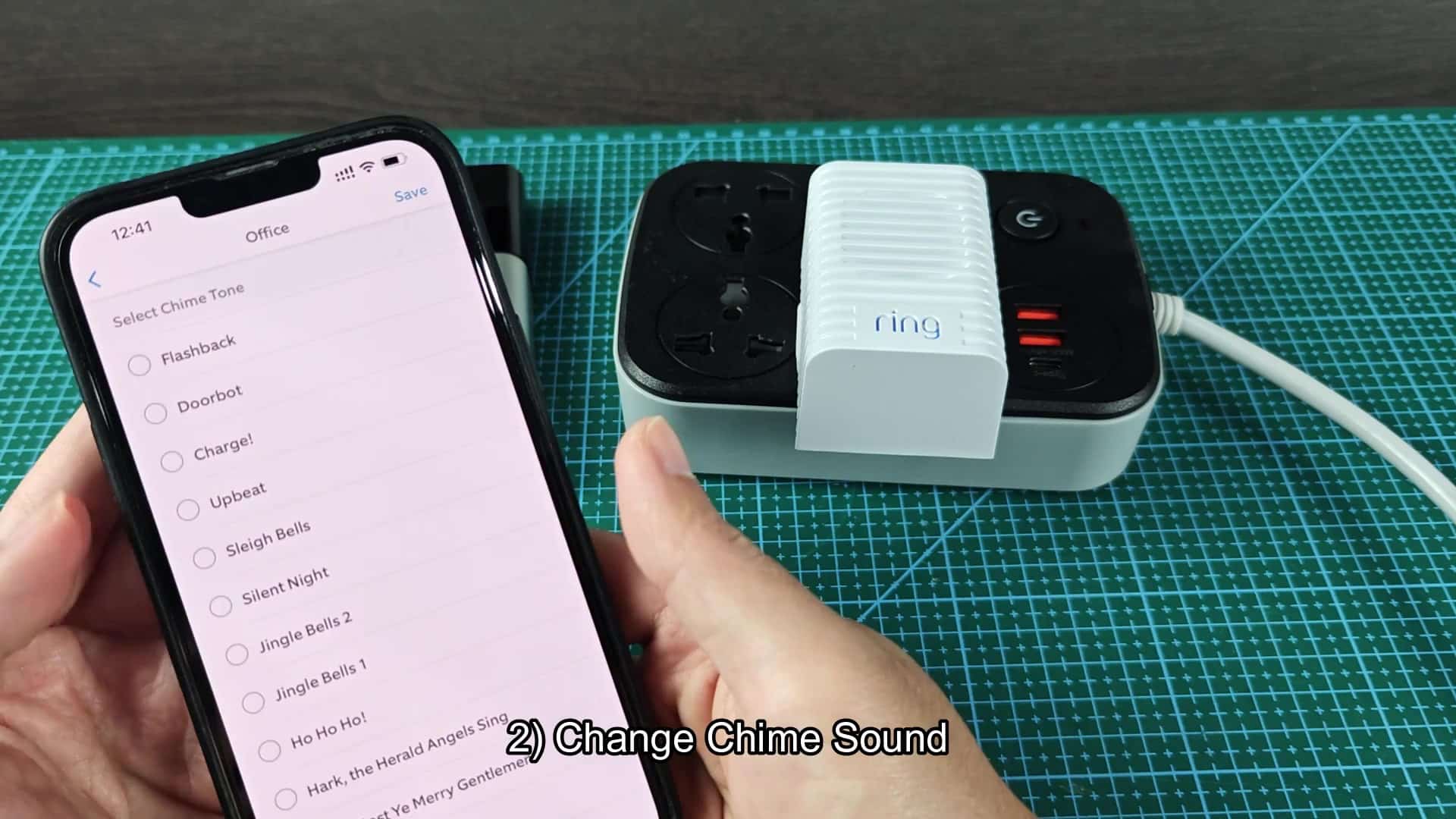
To do so, head over to Devices and tap on the Chimes. Next, tap on Chime Tones. A list of choices will pop up on-screen. There are all sorts of classic ones like Westminster Soft and Ding-Dong, along with some seasonal picks such as Jingle Bells 2. Tap on one, then hit the save button to make it stick. The chime device itself instant update.
There’s also a chance to experiment with different tones that will suit your requirements. They’re all soft tones in varying degrees. The Harp tone is very gentle, for example. Others are louder and more traditional sounding.
Once you’ve selected a tone, you’ll want to adjust the volume. Use a slider to set the volume from maximum down to minimum. Perhaps you wish to leave it on a moderate setting where it won’t surprise people. It’s clear on the settings page which tone you have active. That means total control of the indoor alert.
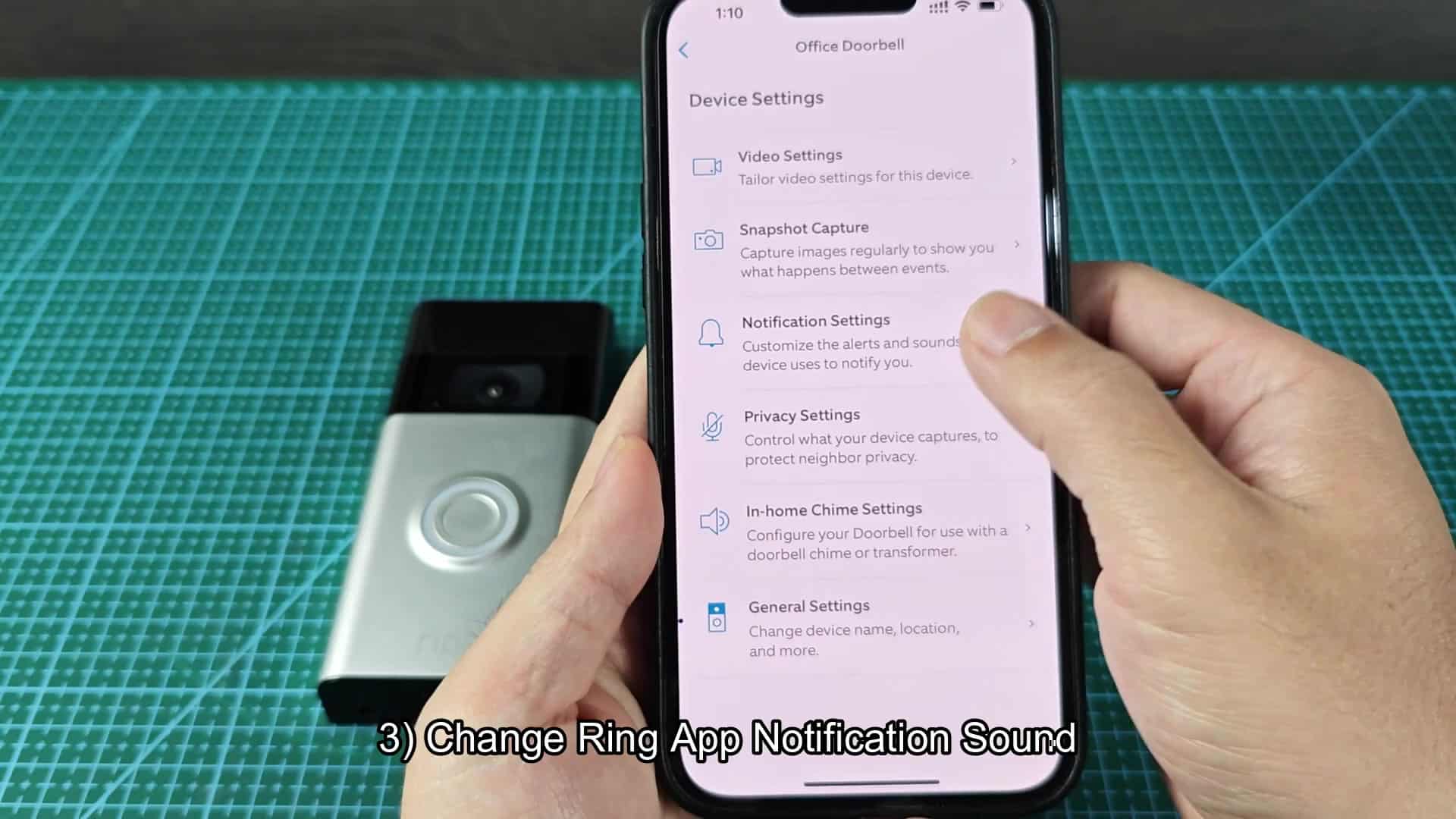
The last customization option is the App Notification Sound. That’s the sound that plays on your phone when someone rings the doorbell or when motion is picked up by the door. To get there you go into Device Settings and then Notification Settings. Note that it is different than the sound of the chime device itself.
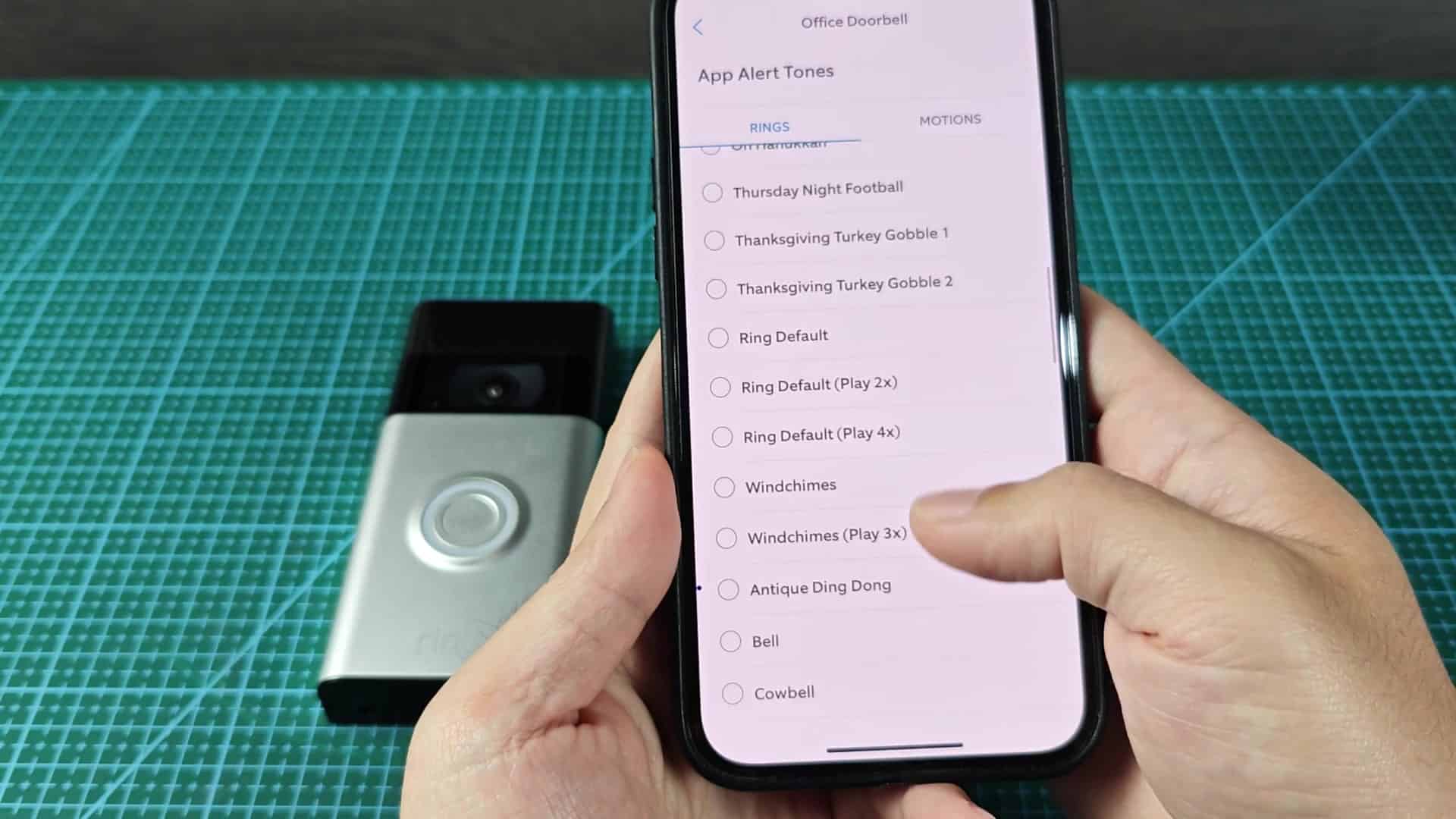
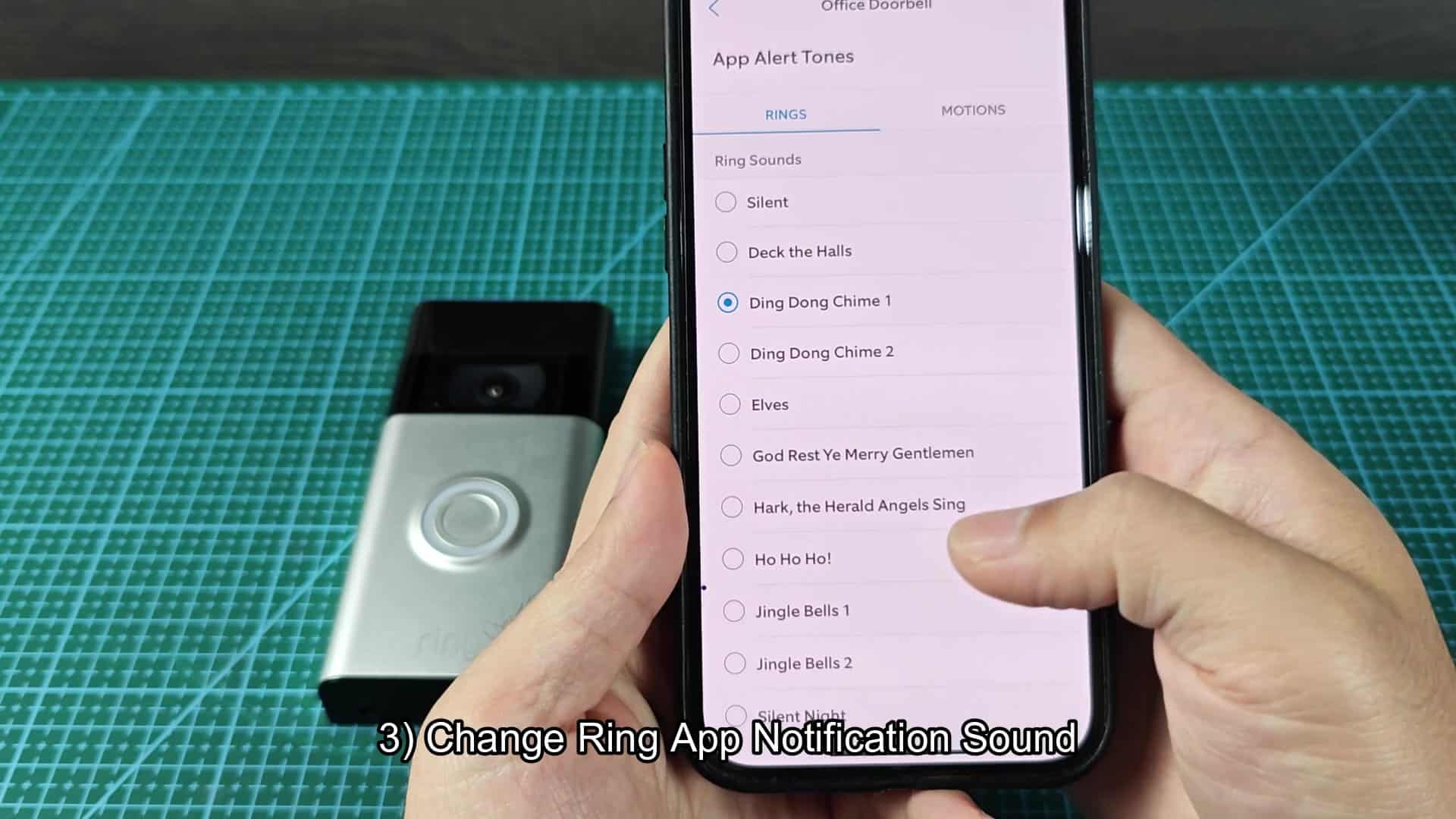
To check out what sounds are available, you tap on App Alert Tones. There are a lot of the same options here that were on the chime, along with some silent ones for those who don’t want any sound at all.
For example, if you want a holiday theme, you can scroll down in the RINGS tab to see what’s available. For testing, you may choose something like Elves. (Ho Ho Ho!) The system will let you hear how it sounds before saving it.
Next up is the MOTIONS tab. There are tone options for motion alerts too. These tend to be more location specific, such as Motion at Front Door. Each can be customized individually. Depending on the camera, you’ll also have an option for variations on wind chimes for motion alerts. Some cameras offer windchime variations for motion tones. Again, the level of detail enables you to dial-in each alert type.
Ultimately, that’s still a stationary button for your doorbell. But what happens in terms of sound around that button? That part is entirely up to you.
Indoor chimes and notification sounds can be made to suit your preferences. There’s a bit of menu diving involved but it’s worth it. This system is actualy more adaptable then one would expect.