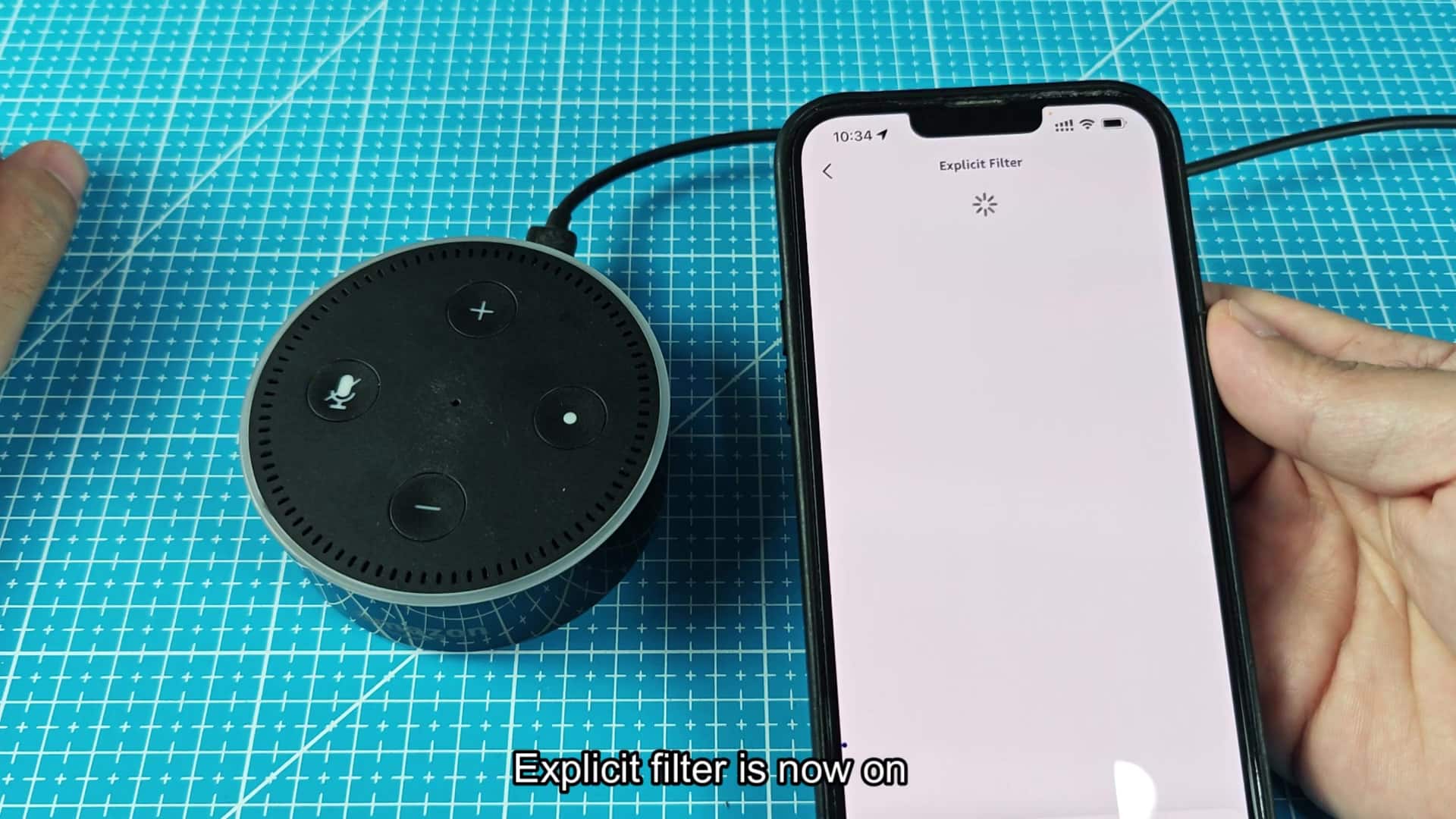
Smart speaker owners can handle their music preferences themselves. In the case of Alexa devices, there’s a setting that lets users manage what plays based off their preferences inside the Alexa universe.
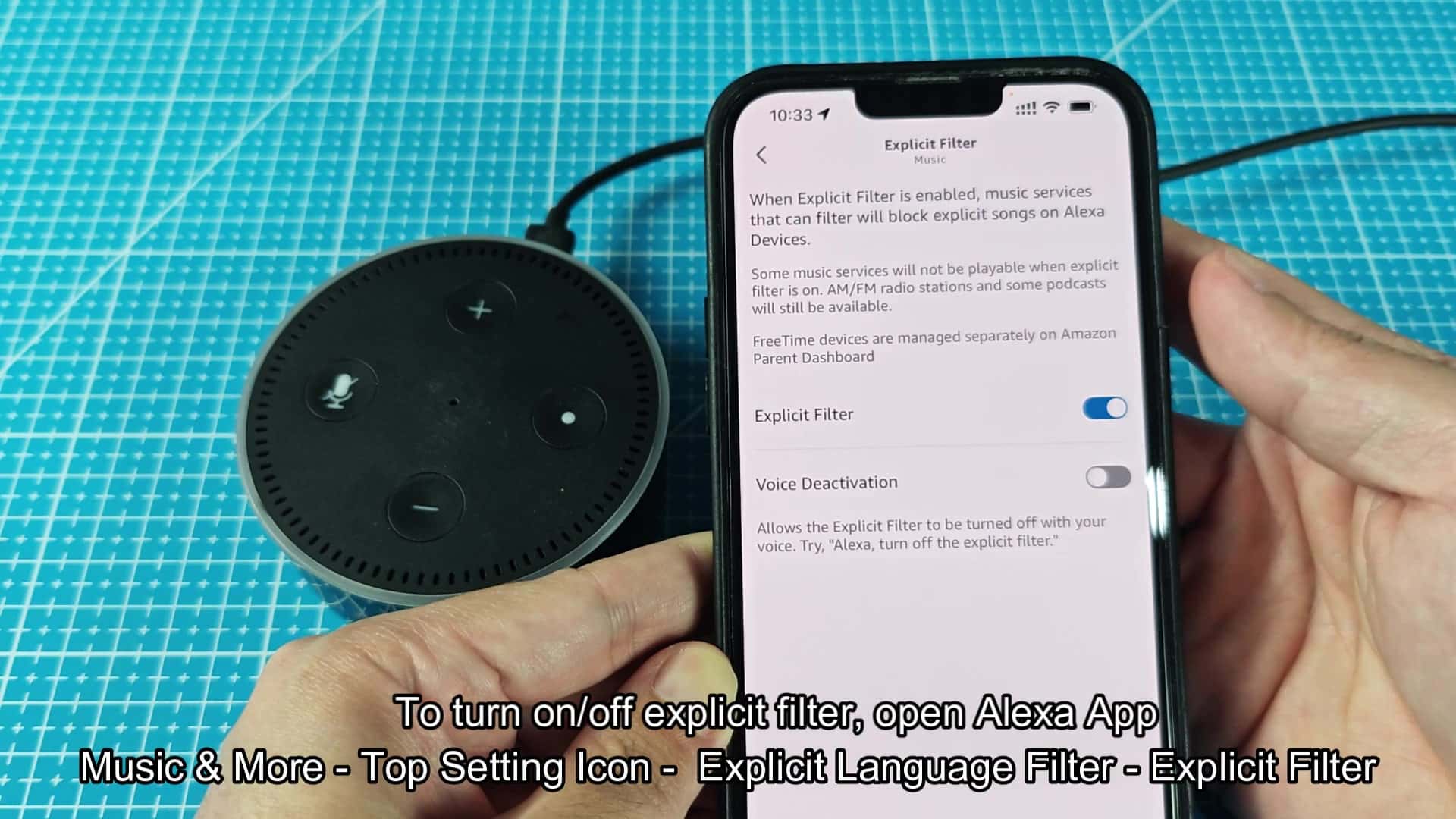
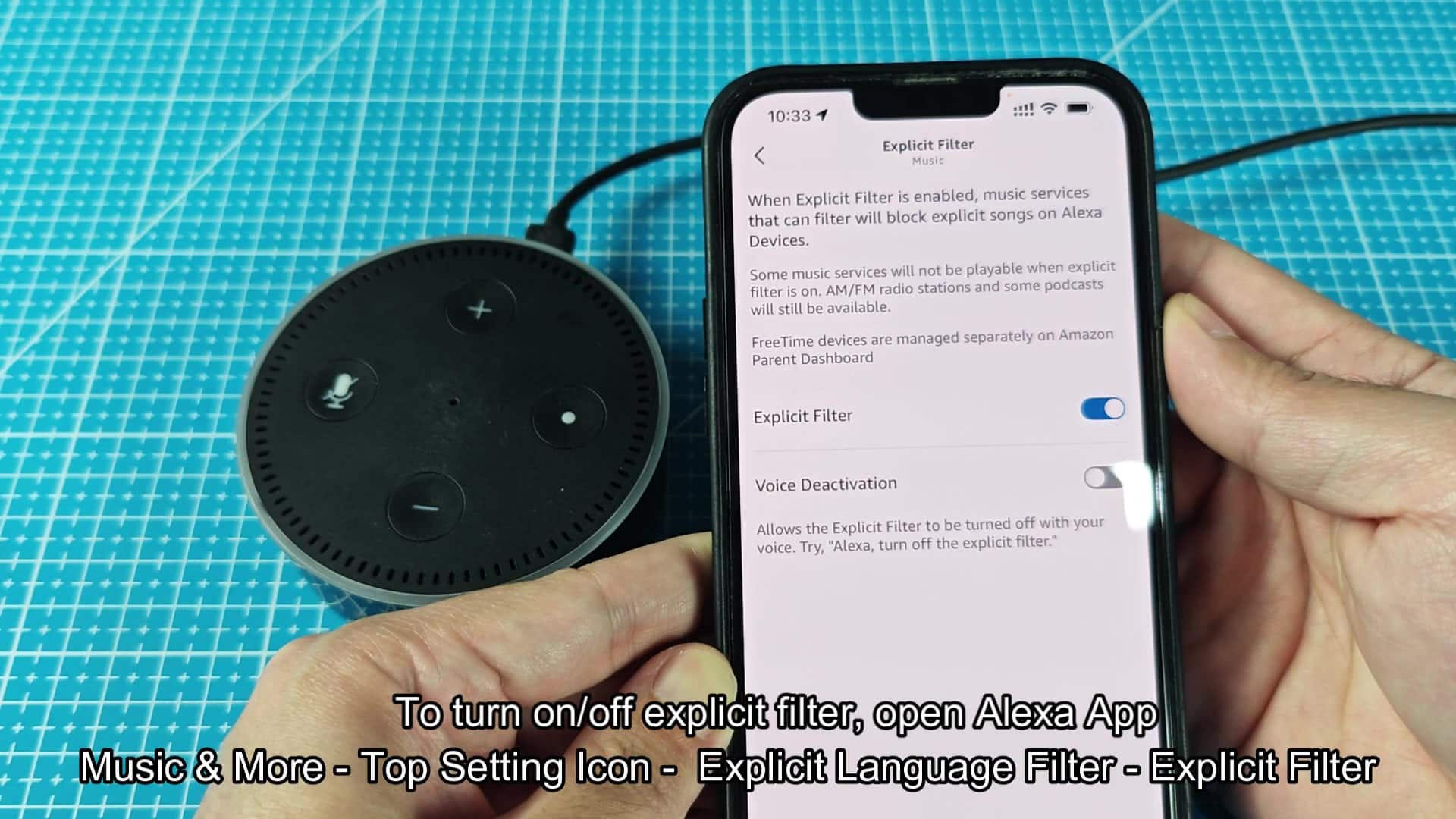
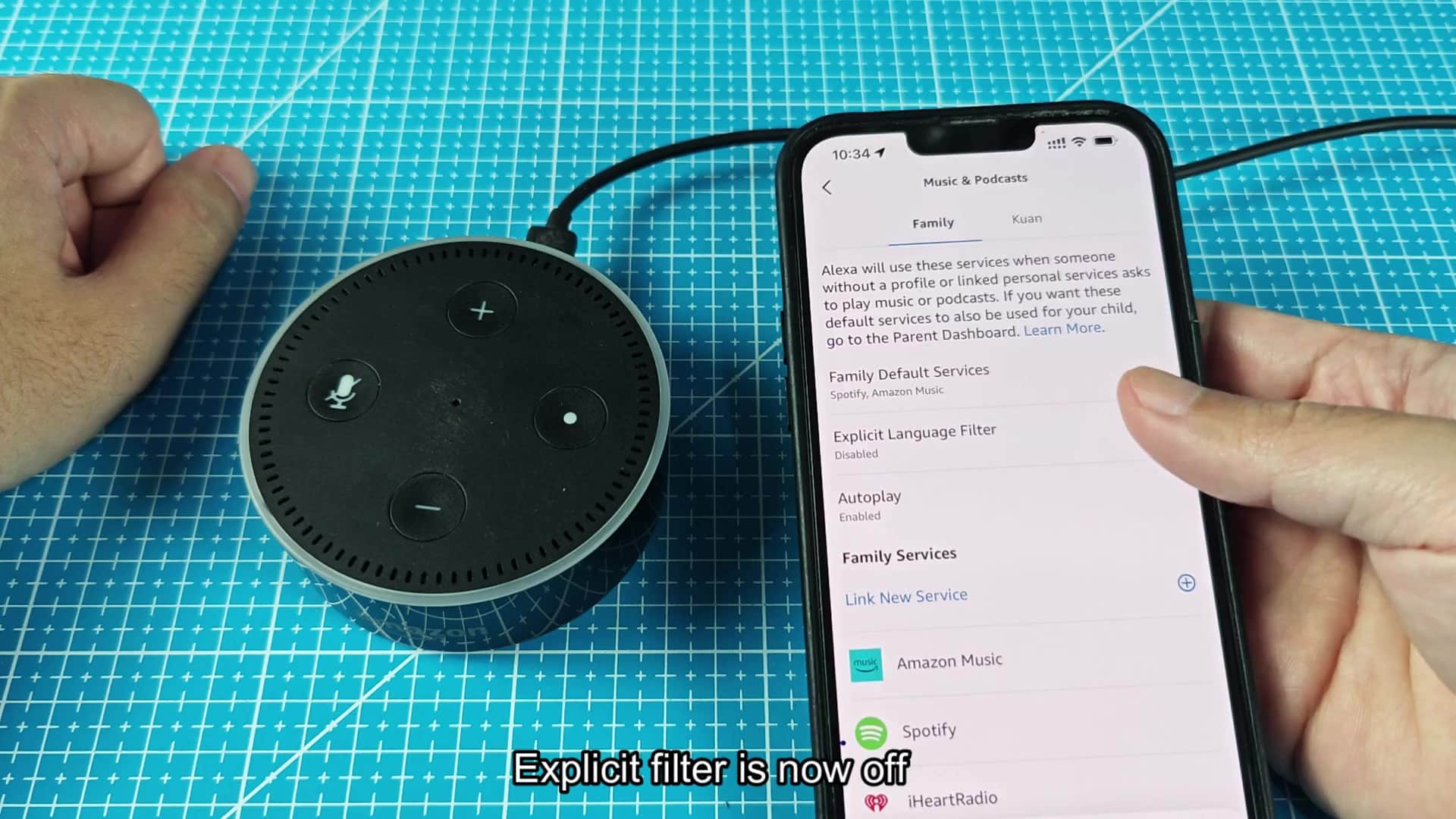
When turned on, the explicit language filter will block any song containing adult lyrics. Turning this off unlocks your entire library. It’s simple enough, provided you know where to find it. If you are using the mobile app, head over to the main menu and find the section called Music & More; that’s where all those audio settings lives. Tap it, and you’ll see a new page that has all the differant ways you can play back music.
Using Voice Commands for Quick Control
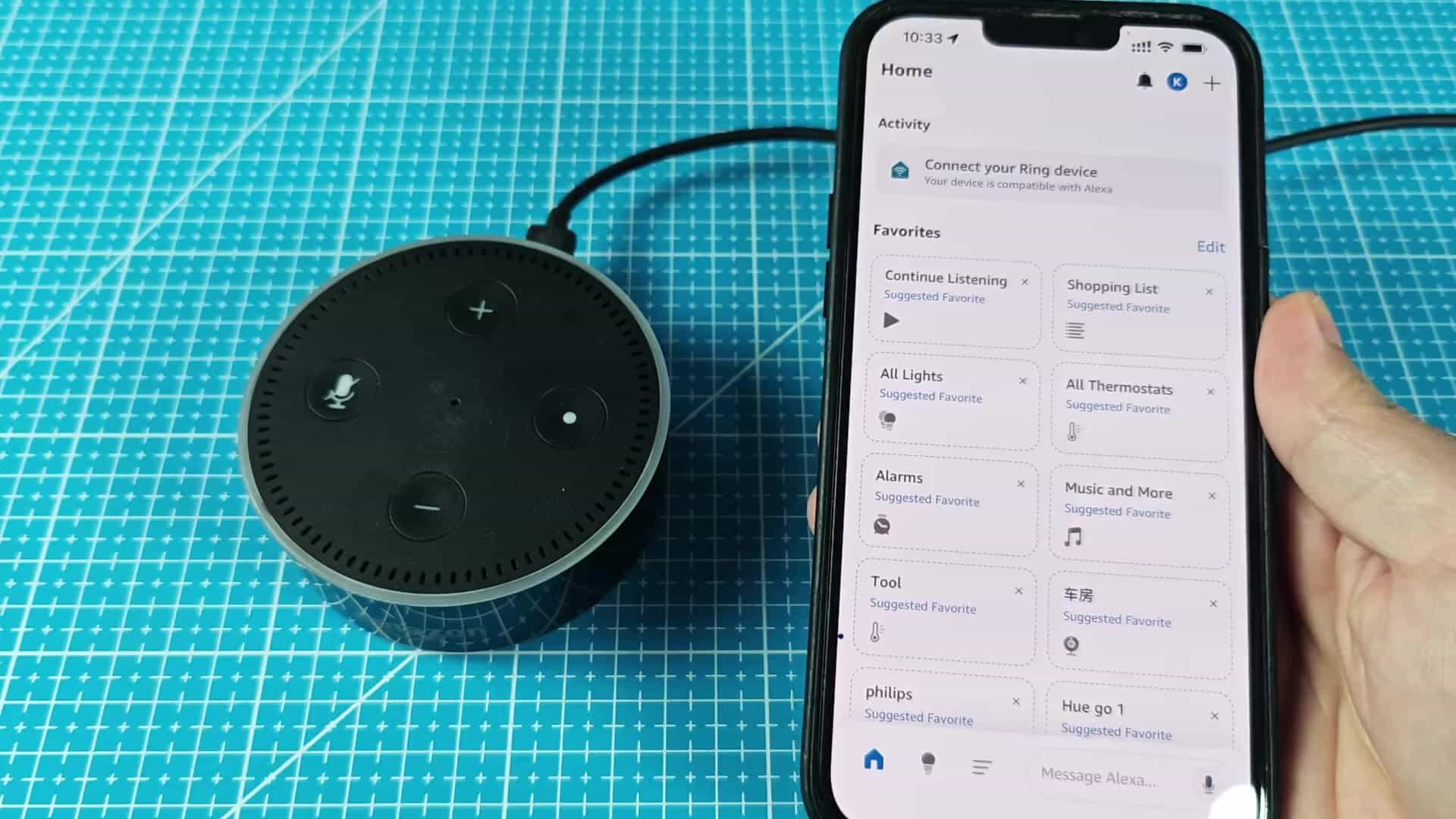
In the upper-right corner of that page, there should be settings gear. If you’re simply scanning around for playlists, you might miss it. Look for the toggle within the settings menu. As you can see, it’s simply titled Explicit Language Filter. So there shouldn’t be any confusion. If you’re wondering where to find it, it’s near the top of the list. As you can see, it’s simply titled Explicit Language Filter. So there shouldn’t be any confusion. In fact, if you’re wondering where to find it, just know that it’s up near the top of the list.
You may also notice other settings around it such as family services and autoplay. The design here is straightforward, and doesn’t litter your screen with unneccessary stuff. It’s also easy to toggle. Simply slide and your status will be updated instantly. Turn it on and the filter will block out all of that nasty stuff. Turn it off and everything plays through freely.
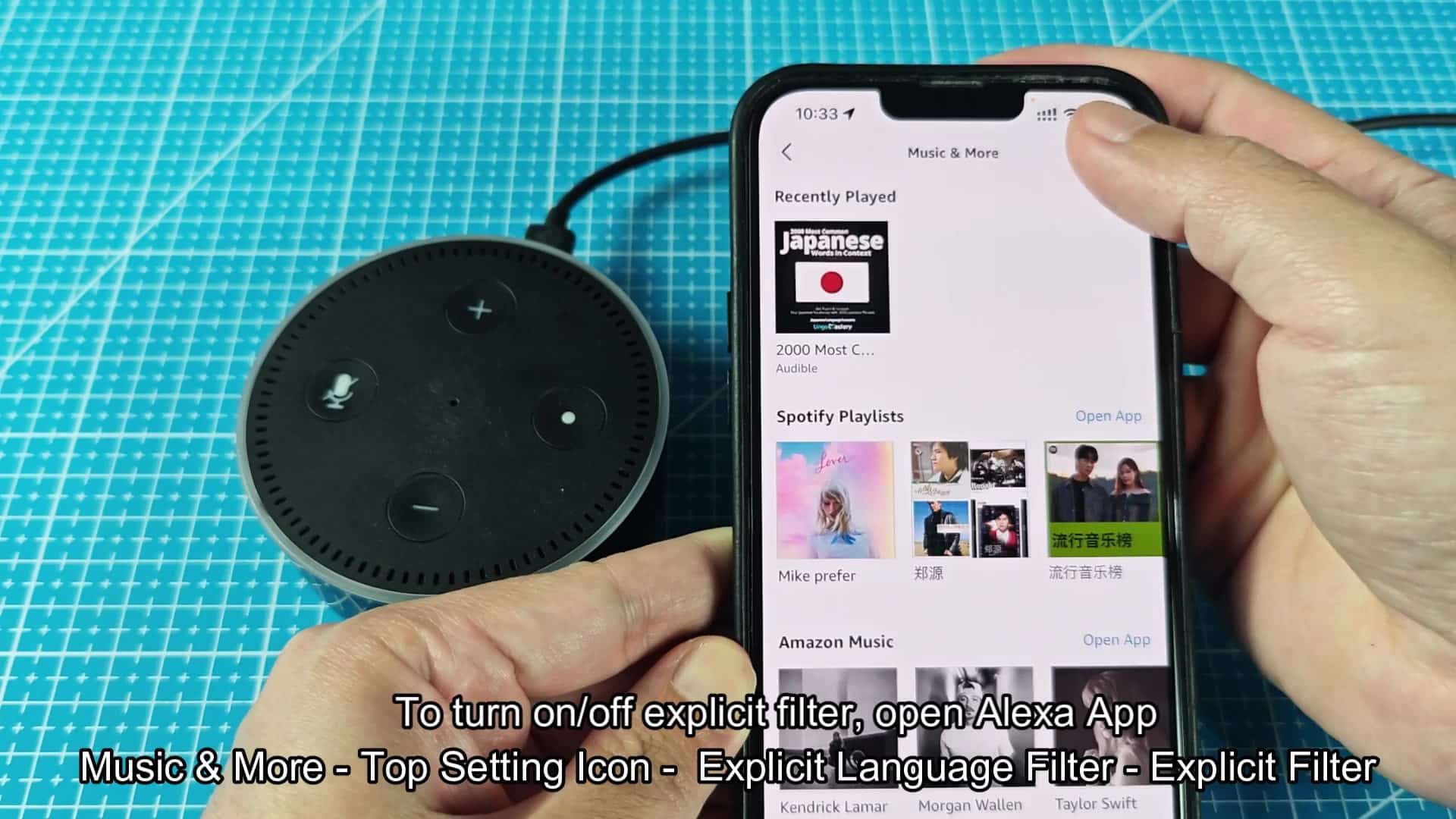
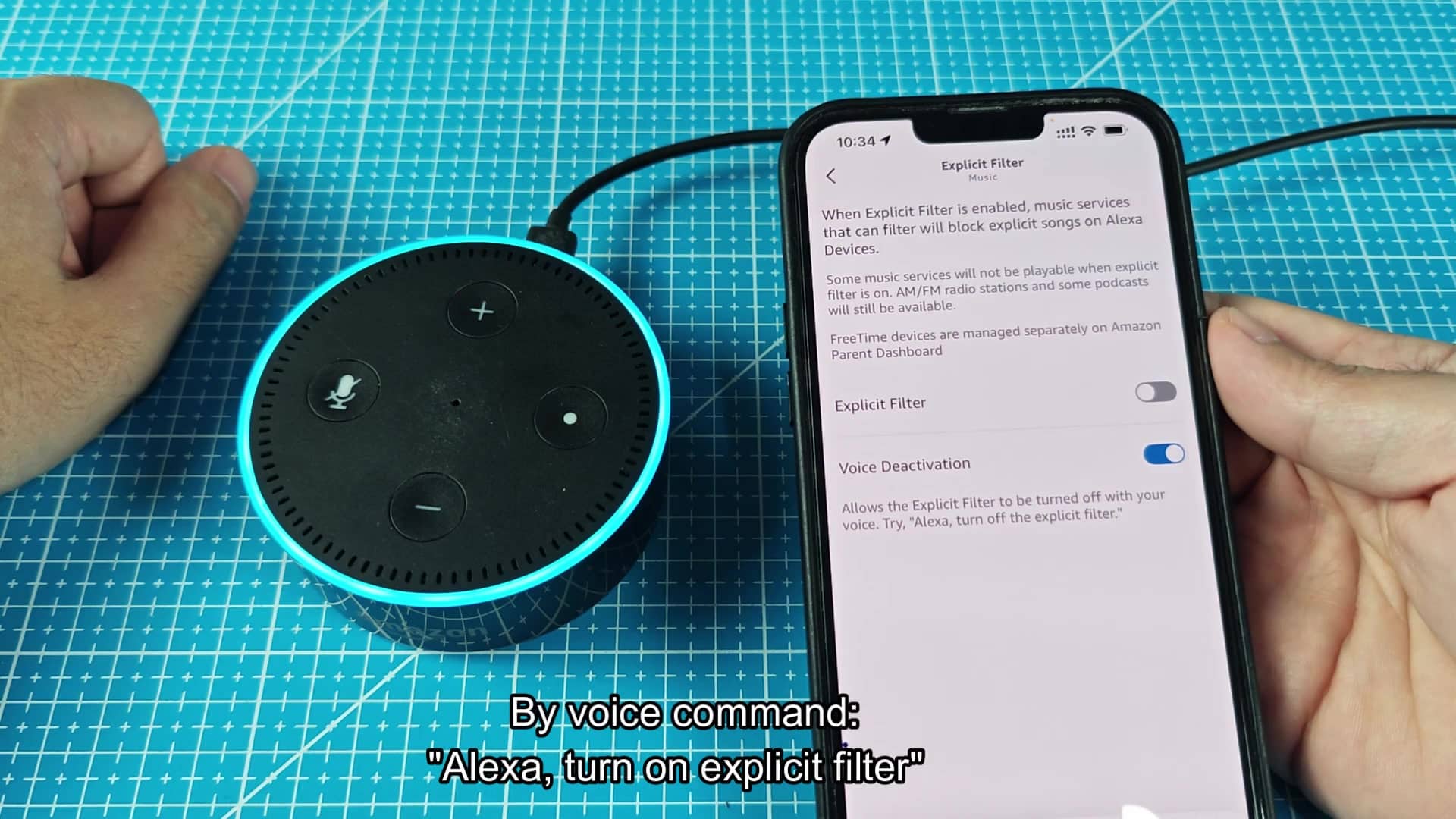
A little indicator shows whether it is turned on or not by changing color. In this interface blue tends to indicate “on” or “active”. It is simple enough for anyone to understand instanly. Flip the toggle and see for yourself. There’s no need to reboot, and it doesn’t take long at all either. The speaker adjust in an instant. Your new preference takes hold immediately.
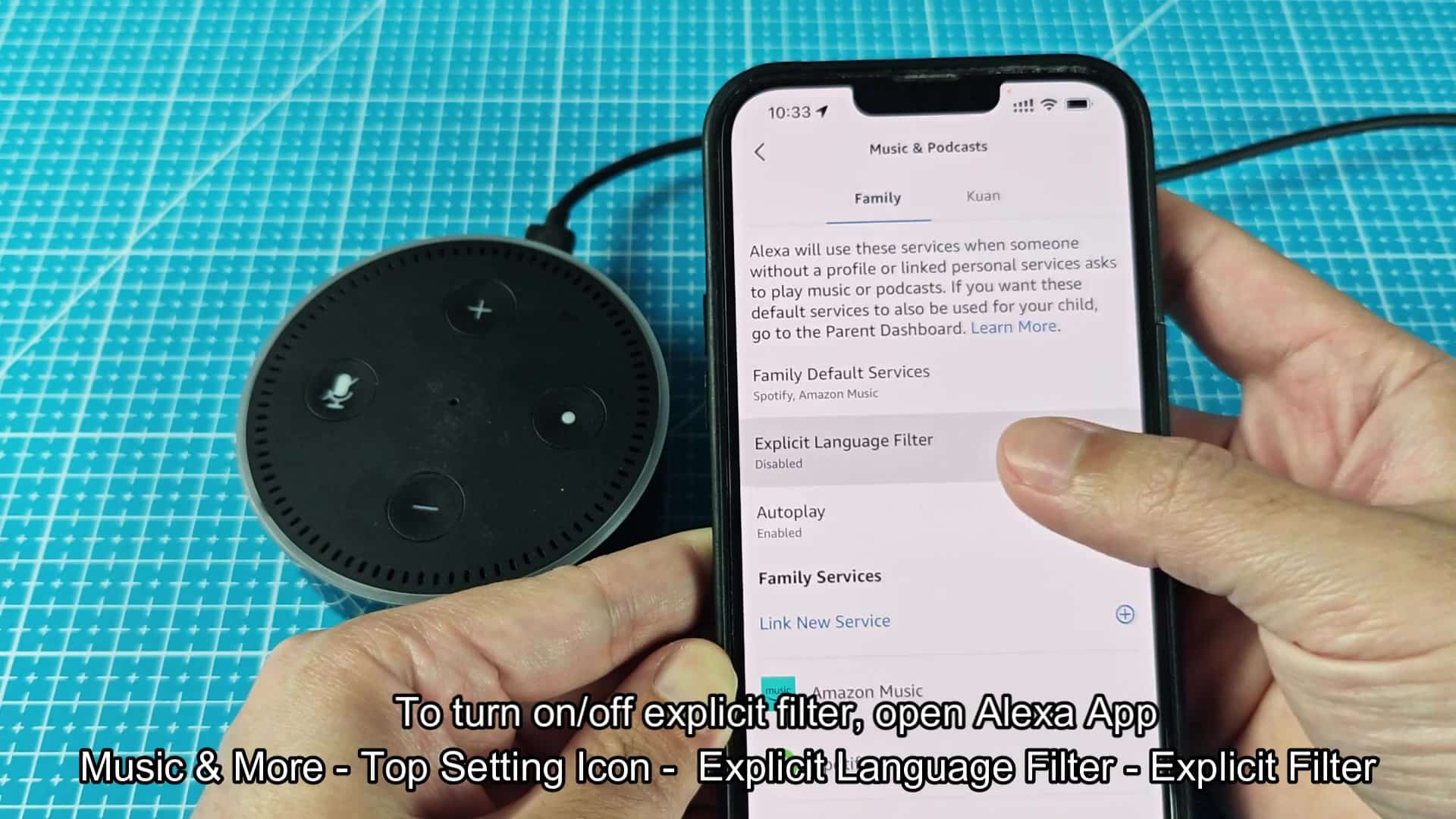
It gives you flexibility over how you want to listen. You can switch back and forth as needed based on who is present. And there’s never any interruption with your tunes.
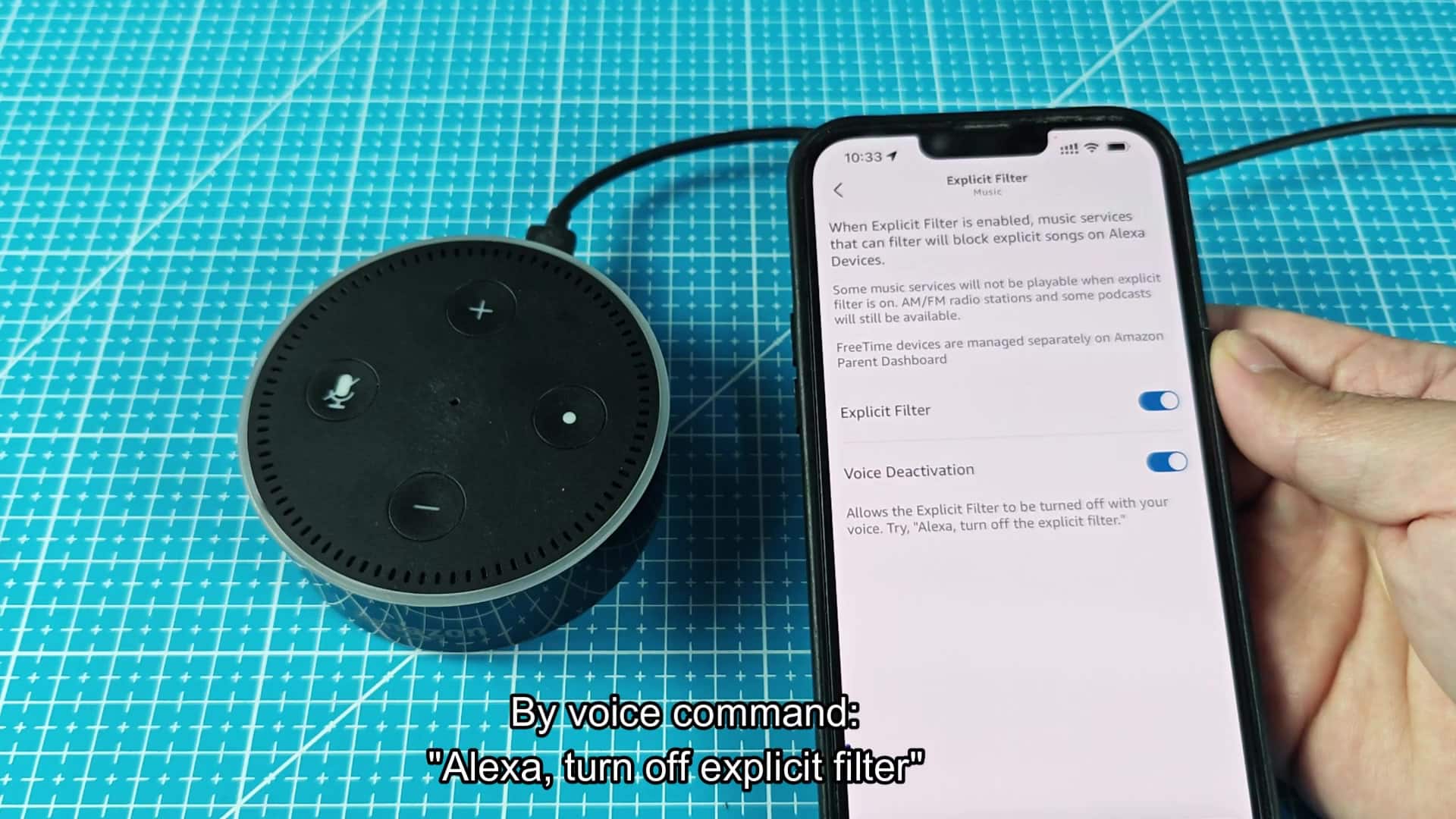
There’s also a quicker option: voice commands. Simply tell Alexa to enable or disable the explicit content filter by saying, “Alexa, turn on (or) turn off explicit filter.”
Alexa will confirm the command in just a few words. It’s perfect if you’ve got your hands full. You won’t need to fumble with your phone’s touchscreen. A simple conversation is all it takes. Check it in the app once more. The setting has changed, and it’s reflected properly. As desired, the explicit filter is disabled.
Voice and app sync seamlessly. Your preferences stays the same across devices. No need to double check a dozen times. Turning it off is equally easy: You can say another phrase to restrict content. To do so, simply say “Alexa, turn on explicit filter.” The block will re-enable right away.
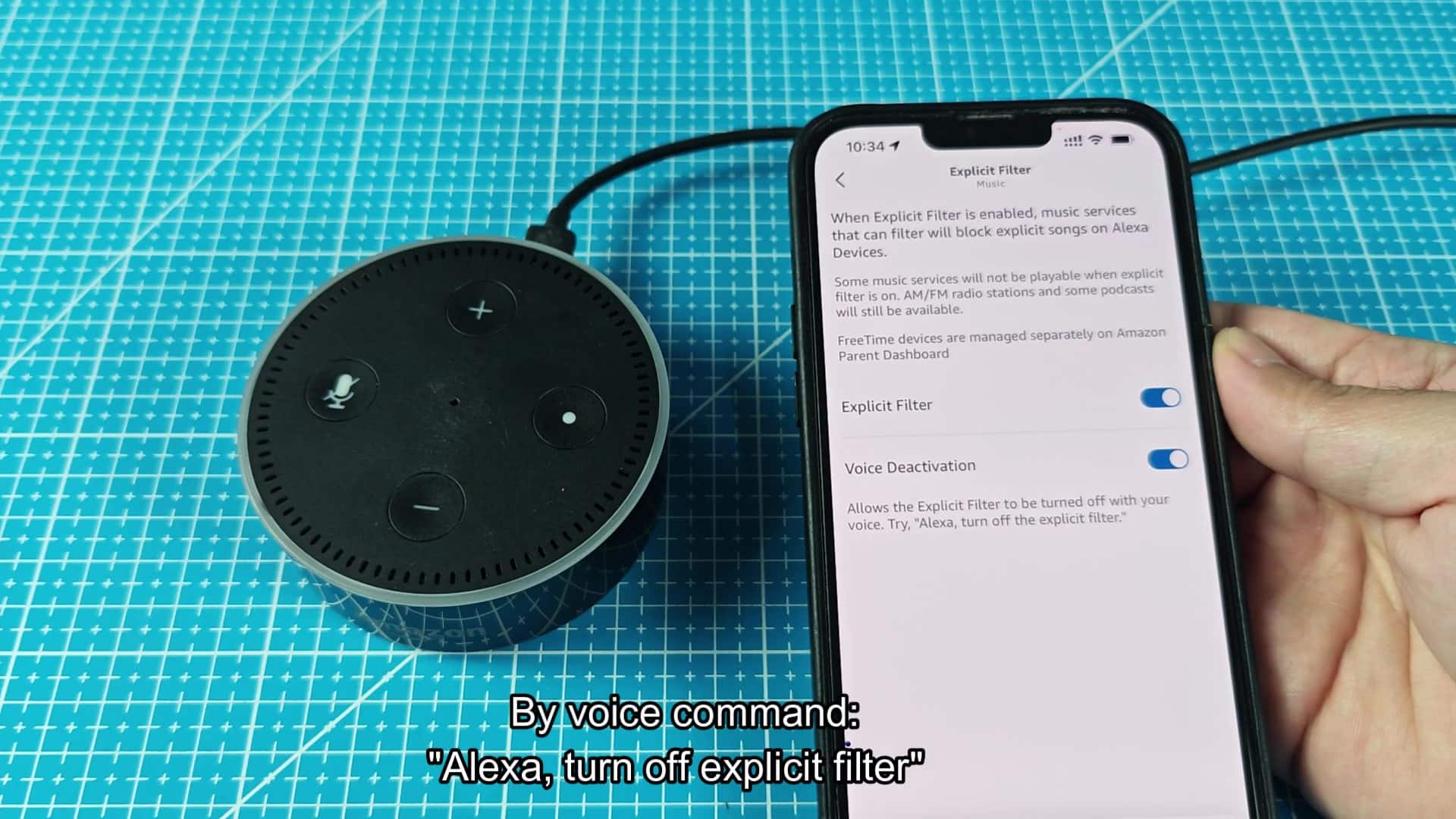
The speaker confirms the request instantly. That means you have the power to choose which content to play, all from the comfort of your couch, with no menu diving required. It’s responsive and natural each time. Check your smartphone’s display and confirm it was activated. Switched back on? Good, the toggle is blue again. Good, the toggle is green again. So yes, the system heard you say ‘disable’ and acted accordingly.
That’s what you want in a home control system: trust. When you give an order directly, it gets carried out. Immediately you feel more at ease. It’s a quick process that doesn’t take more than a couple of seconds to complete. Using your voice or the app delivers the same results.
This was an addition from Amazon. And it’s a great blend between giving parents control and allowing users their own freedoms. Now you can customize how you listen. Every time it worked just like it should of. Audio settings are important, you don’t want to hear unexpected stuff in the background while playing some music casualy. These options give you peace of mind without any hassle.
Everything stays intuitive and reactive. Why shouldn’t it be like that? For all users, adjusting your settings should be this simple. It is a little thing that makes a difference when using it every day.