
There are some discrepancies in terms of speaker volume with smart speakers. That’s because you’ll discover that your Alexa is blasting at 8 a.m., but whispering when it plays music for a rowdy group of friends at 11 p.m.
Enter adaptive volume, which will adjust the volume to match ambient noise. No more fiddling with your settings when there’s a shift in room environment.
Controlling Volume Via The App
This is an automated system that you want to have full control over. There are some times when you want to keep your volume at a steady level, no matter what’s happening in the room. Some other times you want it all handled by the device.
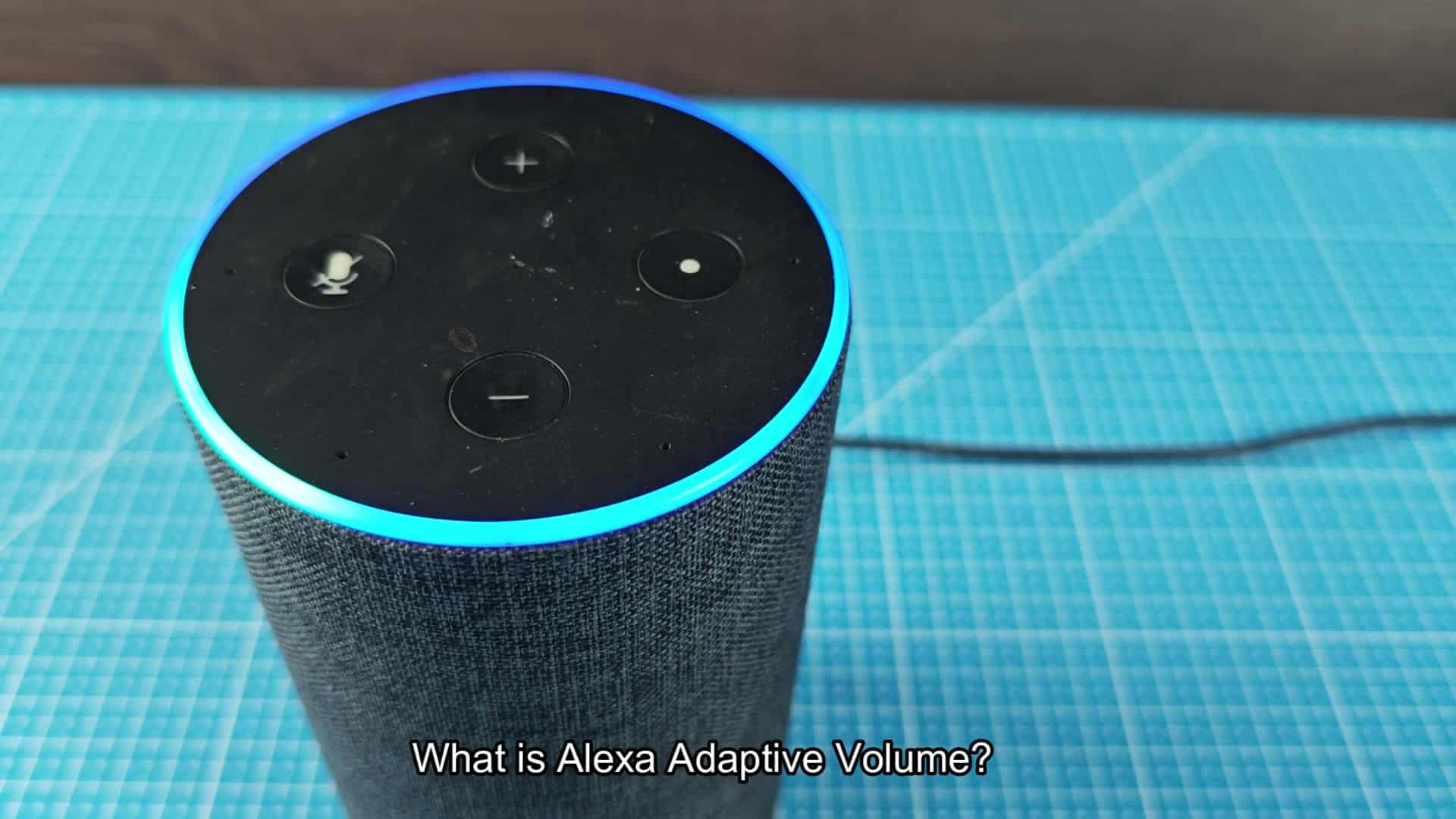
The toggle makes it easy to switch on and off. You can do it instantly with a voice command. It feels like having your own audio preference assistant. Enabling it is as simple as speaking up. “Alexa, turn on adaptive volume.” Once enabled, the system will automatically adjust itself. It will let you know the mode was toggled and it’s done.
You can test it out in a quiet library environment. As soon as you spoke that line, the speaker lowered its own voice to suit the hushed environment. It fits in perfectly with the room. But at other times, you want automation turned off. When you’re playing music or watching a movie, you prefer consistent volume levels. It’s annoying if the volume goes up and down randomly, it takes away from enjoying your chosen entertainment.
Fortunately, enabling (or disabling) this feature couldn’t be easier. Just tell Alexa “Alexa, turn off adaptive volume,” and she’ll go right back to doing whatever you tell her to do. She won’t push back one bit.
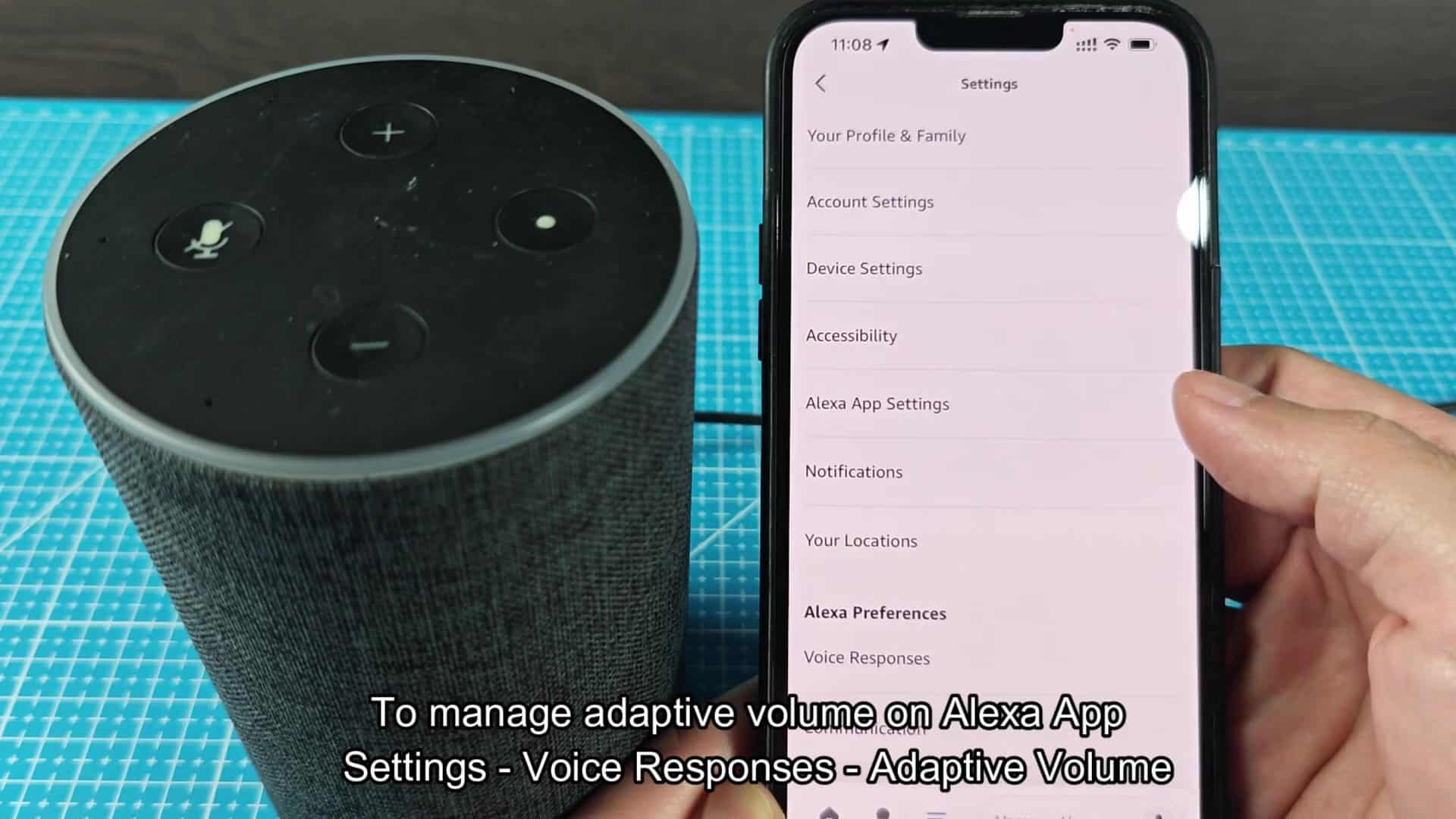
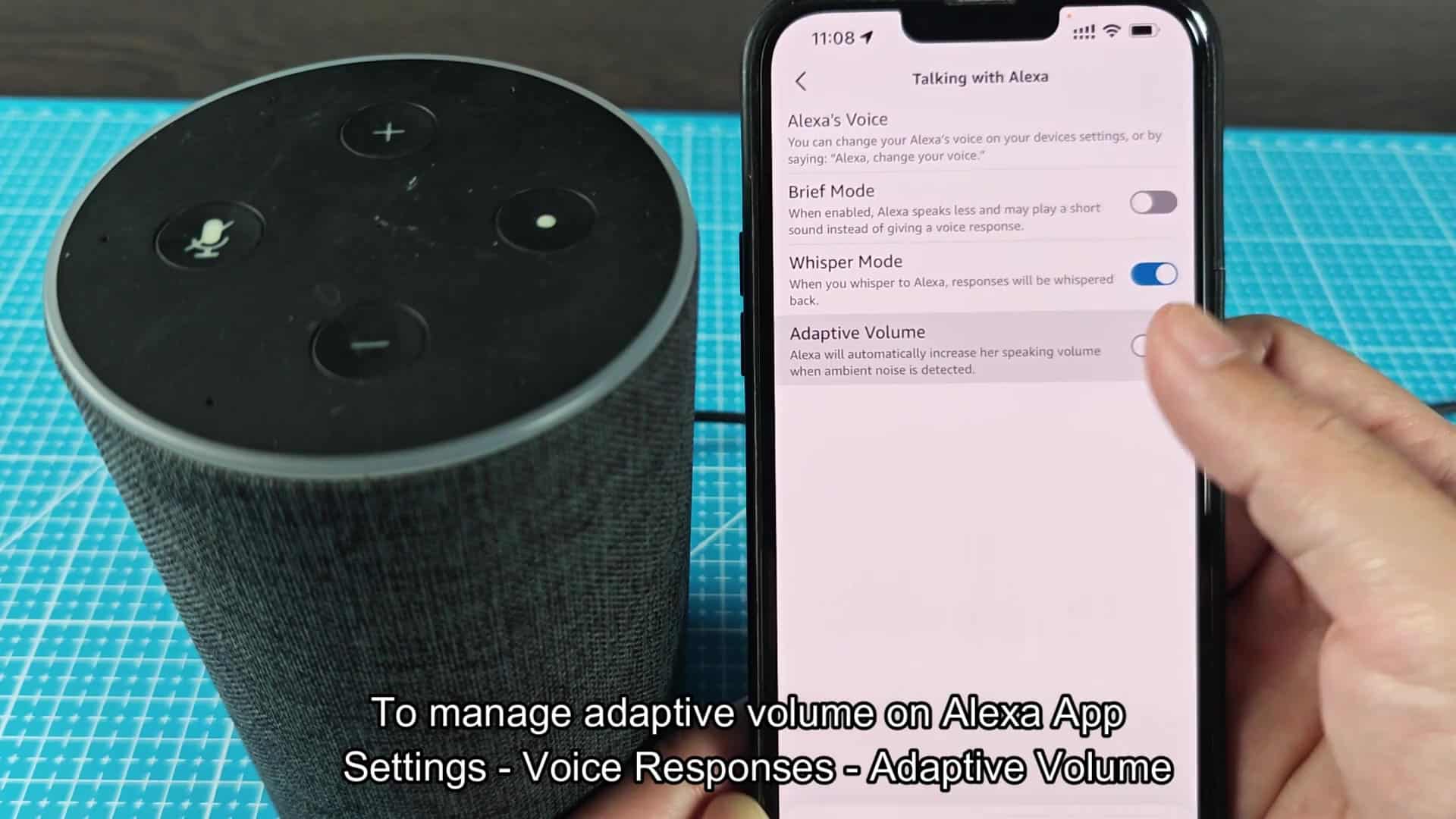
If you like to see things with your own eyes, the app has a way to do that as well. Digital menus make it easy to get around and set things up. In other words, this method is useful when troubleshooting connection issues.
That’s something you can use the app to help with for troubleshooting or general verification: did Alexa hear what I said? There isn’t much complexity here; most anyone will be able to poke around this thing just fine. To begin, open the app’s main menu; from there, you are only a few taps away. Typically, you navigate directly into Settings since that houses all customization options. It organizes similar features cleanly so you can find what you’re looking for easy.
On your phone screen, finding the voice response settings took less than ten seconds. In this example, I’ve been taken into the Voice Responses menu, where we can see the adaptive volume toggle nicely displayed on the screen along with other voice communication options such as whisper mode and brief mode. To make sure that it’s enabled or disabled according to your needs, you simply tap to turn it on or off.

If you’re hearing that the switch has flipped correctly, now you have a visual confirmation as well. Hearing and seeing these clues helps you feel confident that your selection is actualy accurate. These modes has made your interaction with smart home products more convenient over time. Being able to toggle between them for manual or automatic control is a good thing. There’s no need to stick to one approach forever.
What you listen to varies depending on the week, day and scenario. Having options for both makes everyone happy in various situations.
But you still love the voice control feature that lets you make on-the-fly changes. It is faster than reaching for your phone, unlocking it, then launching an app. Because sometimes efficiency trumps accuracy when it comes to running a home.
And you enjoyed that the system responded quickly to your verbal commands. Rather than feeling like it required technical skill, it felt easy to use for controlling your sound world.
Ultimately, it depends on personal taste and context. For some people, you’ll set this once and never mess with it again. For others, they love playing around with the settings from time-to-time to get things running best for them.
Either is a perfectly fine way to use the technology being offered. It’s there to meet your preferences rather than impose upon them. Options make using tech easier every day. That flexibility should of been used to its fullest extent.
