To help strike that balance between your privacy and convenience, there are communications settings you can control on your Echo devices. To keep things private in your household, it’s important to be able to control who calls you. It’s really simple; just use the mobile app or even voice commands to control this setting. There’s no deep tech required here.
Using Voice Commands For Speed
If you’re realy looking for speed, then just use your voice on the device itself. Just talk to your Echo and command it to disable drop-in via its mic. It’s instant and doesn’t even need you to touch your phone at all. Perfect if you don’t have your phone nearby as you can stay in control without looking at your screen.

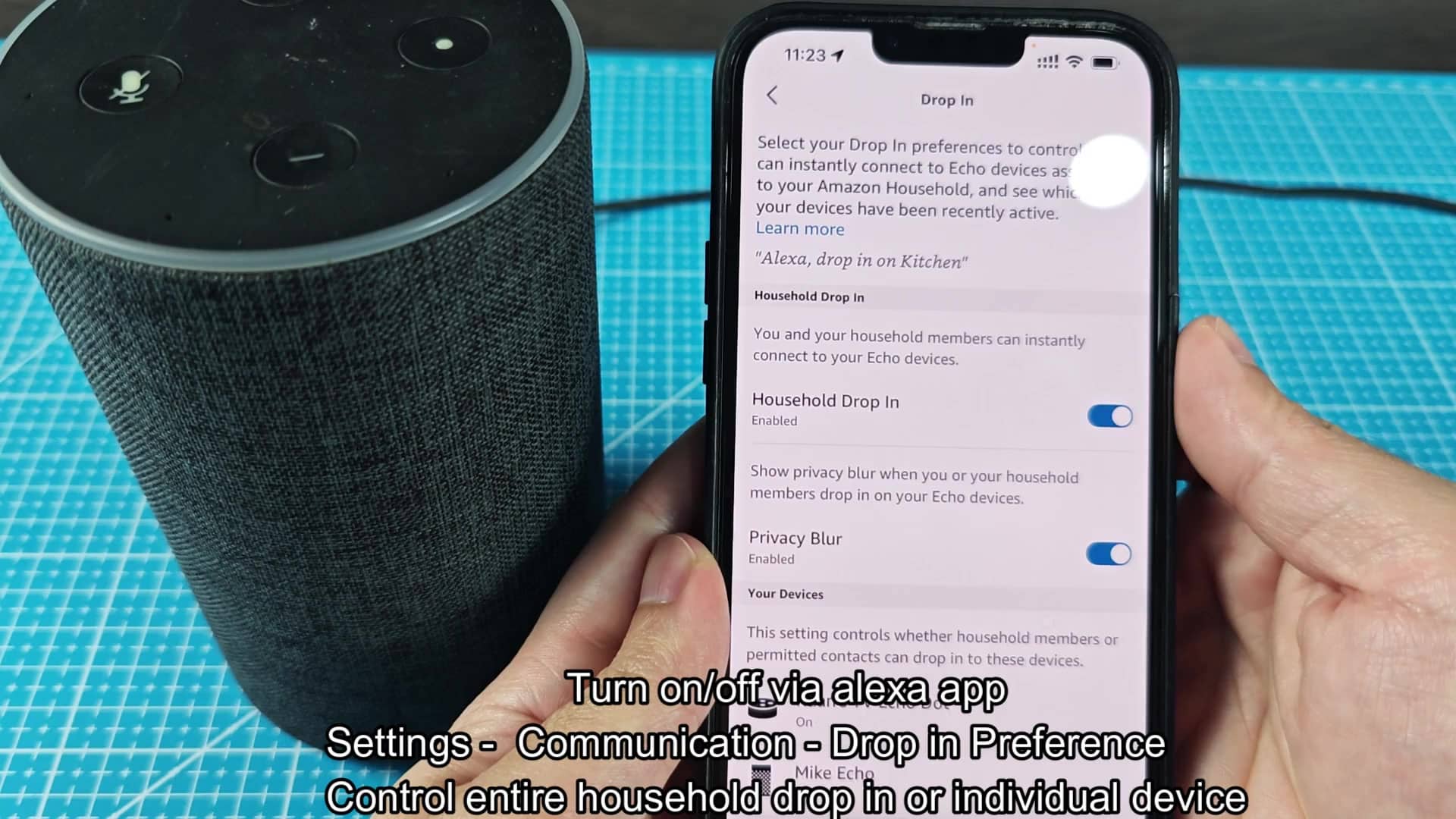
The app does provide finer-grain controls when you happen to have your phone out anyway. Tapping the main menu will open up a variety of customizations that aren’t as accessible via voice command alone. From there you can drill down into the settings section where you can get really detailed with certain communications options. Here is where we see what is actualy turned on and off, giving us a better idea of what devices is in use.

As you scroll down, you’ll see that this is the part of the interface where they stores your drop-in preferences. You can choose to keep it closed and let people connect from inside your home or open it up more broadly. These options are easy to find here, there’s no excess junk taking up space on the screen.
This area serves as a central hub for managing incoming audio calls. This is a good way to divide overall settings from the permissions around a particular device.
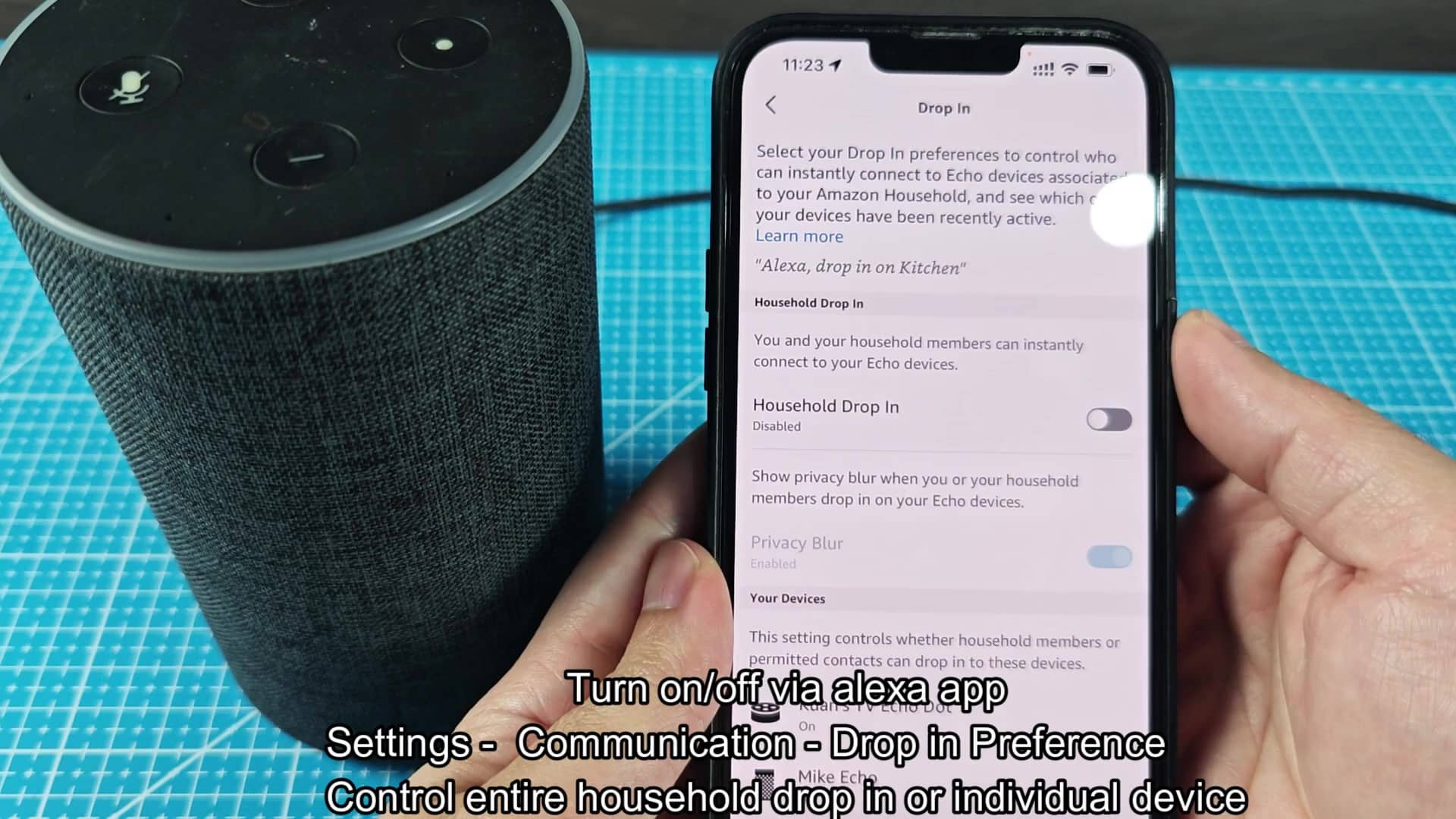
One toggle is all it takes to turn off drop-in from the whole house, anywhere. If you want some guaranteed alone time, for yourself or for anyone else near an Echo device, just flip that switch. Once you do, no one on your home network can barge into your conversation uninvited. When toggled, the change apply to all devices associated with your account immediately. No more guessing whose ears could be burning.
But if you think that’s excessive, there’s always the happy medium: choose which devices to enable drop-in on. Need drop-in in your kitchen? Enable it there. Bedroom? Turn it off there. That way, each unit will have a light showing its current call status (is it on or off?) so you’ll know when you might want to avoid interrupting someone’s privacy time.
So that’s what we have: Two very different ways to do this and which one you use depends entirely on your current circumstances.
If you’re standing next to the device and need a short term block, e.g., while I’m leaving my home office, I don’t want anyone walking into it; then voice commands will be ideal. But if you’re setting up longer term blocks or configuring more than one room at once, the app interface is for you. There’s no better or worse here; it’s just about doing different things at different times. Knowing both options removes the frustration of accidental connectivity and you should of known that.