
Smart speakers are great for convenience, that is, until they start to clog with news feed content.
If you use something like an Echo Show device, you might find yourself scrolling past headlines that don’t interest you. The constant flow of news can also just be noise instead of actualy information.
Disabling News on Screenless Devices
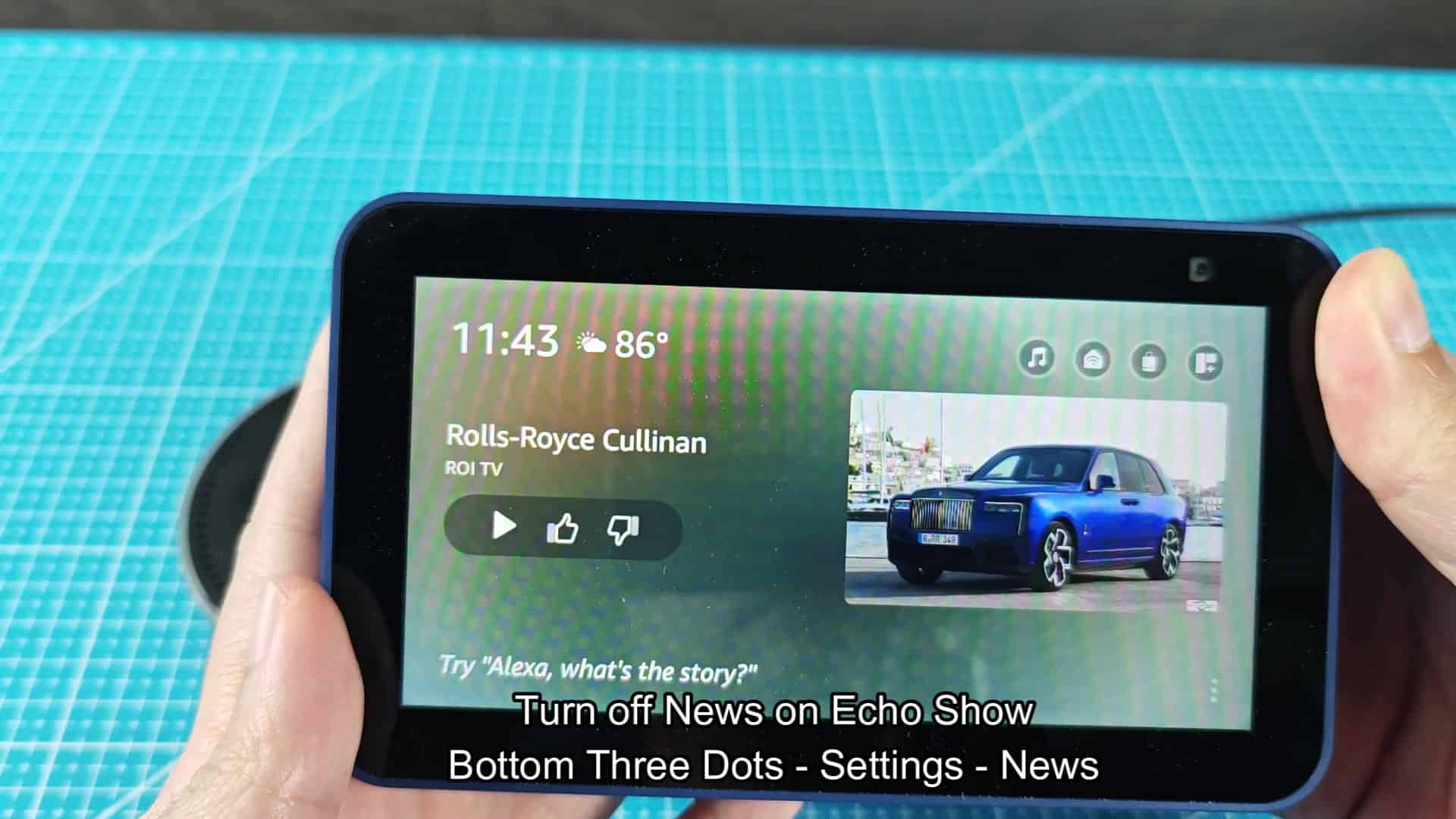
Why would you spend precious space on your screen getting top headlines from your favorite news outlets when you never end up reading them? A clean home screen that focus on what matters to you might be more important then keeping it factory fresh. Ditching these notifications is more important than keeping it exactly how it looked when you first got it.
If you’ve been wondering how to disable your Echo Show’s news feed, it’s pretty simple once you know where to go. Just swipe down from the top of screen to see the quick settings panel. Then, tap the “Settings” option to open main menu.
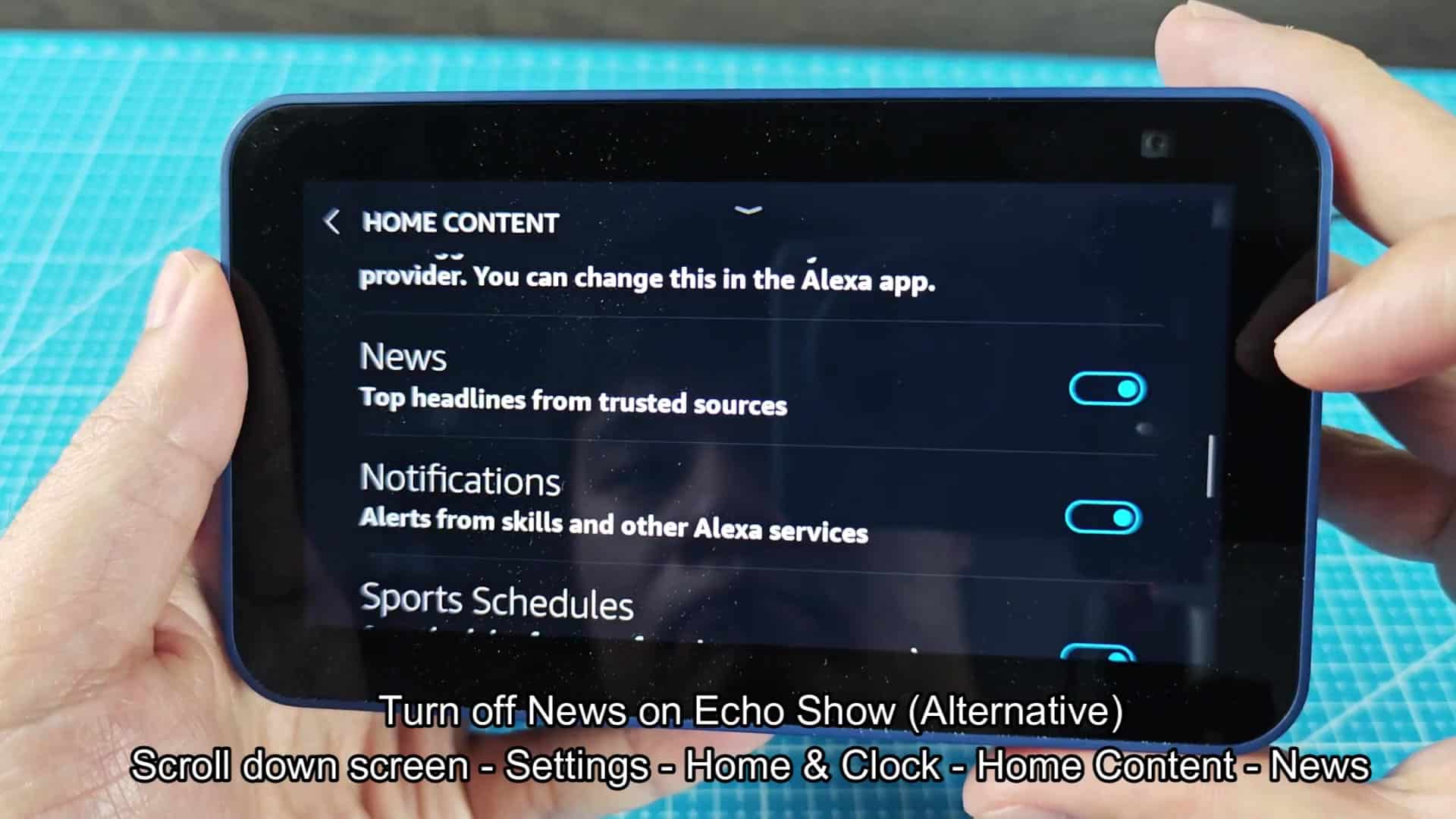
Then scroll over to the Clock, then Home. These are all visual parts that make up your home screen. When you see the Home Content section, tap into that. Scroll through menus here until you find the right toggle to turn off news updates.
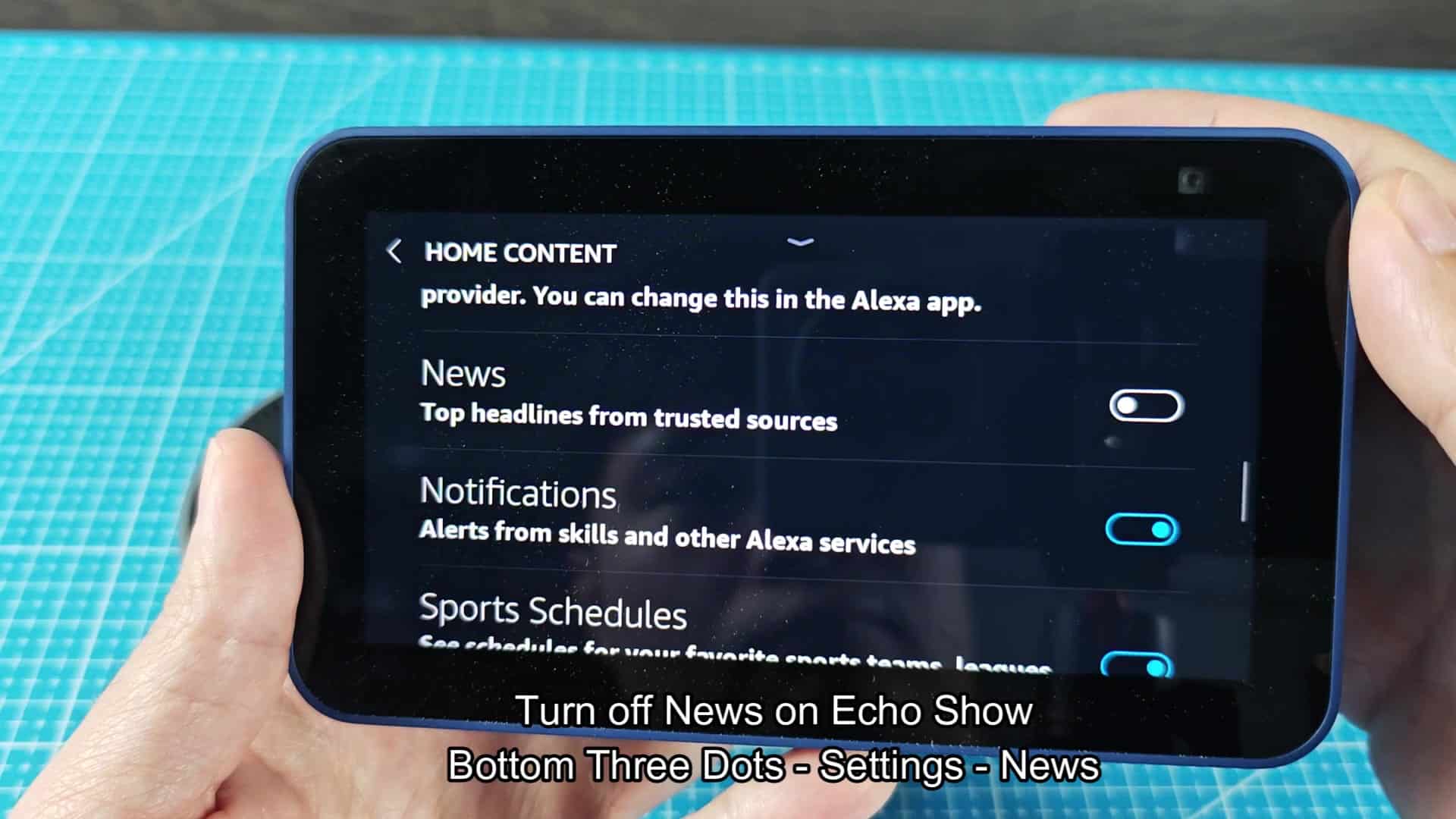
Scrolling down, you’ll find items such as Sports Schedules and Music For You inside of the Home Content menu. At the very top, you have the News toggle described as delivering the day’s top headlines. It pull in news from multiple sources and presents it on your screen through cards.
And maybe you don’t want your kitchen speaker yelling at you over breakfast while you’re trying to make coffee? You can turn that off. The UI makes sense and is tidy enough that you won’t really get lost without a manual.
To prevent this from happening, just go to Home Content > News and then flip the toggle switch located based off “News” to the Off position. After you do so, you will see the blue indicator dissapears, showing that news cards is no longer displayed on your Echo Show home screen.
You’ll notice right away what a clean difference this makes in your Echo Show’s interface. A little tweak like this can make a world of differance in using device each day.
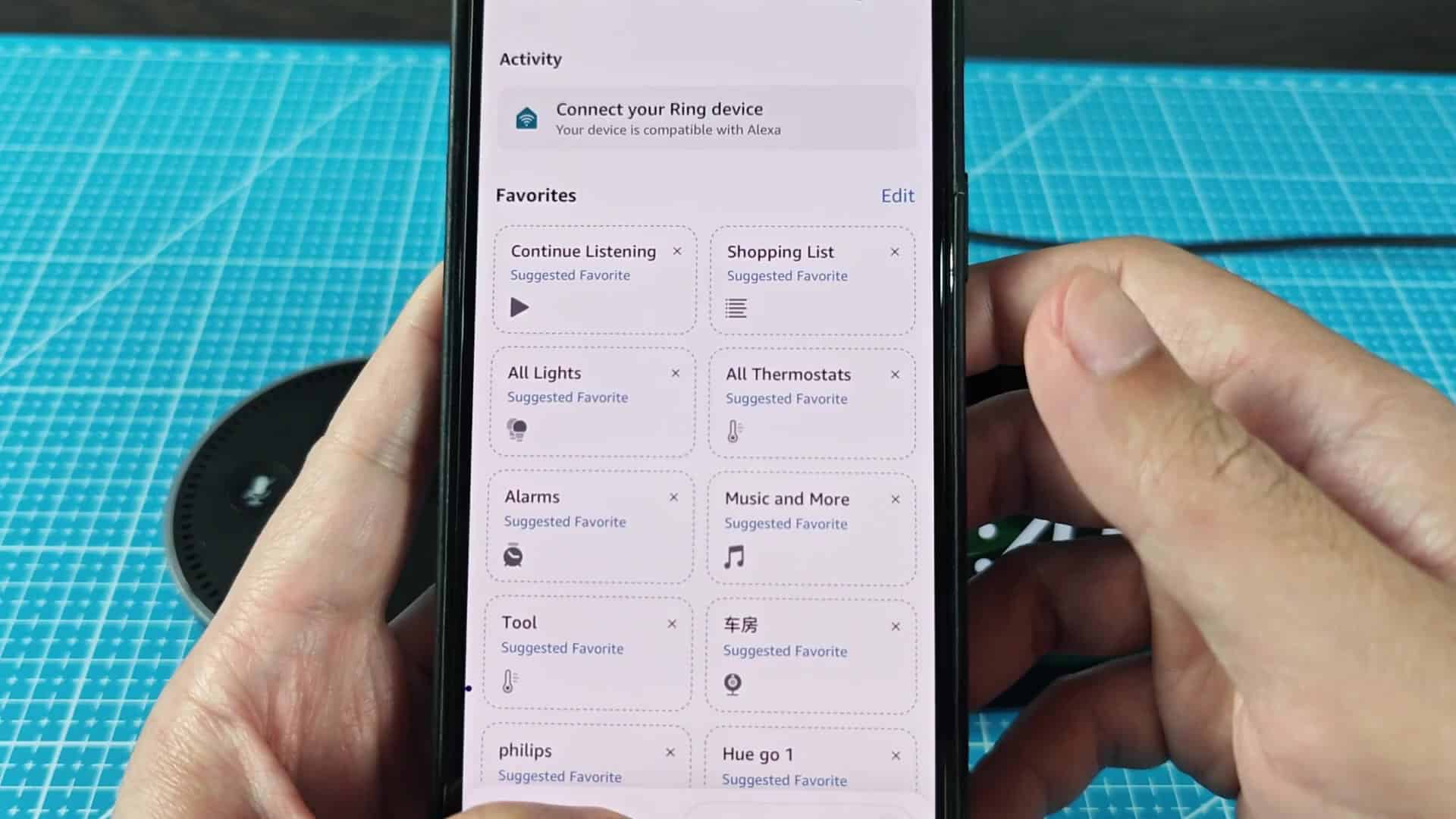
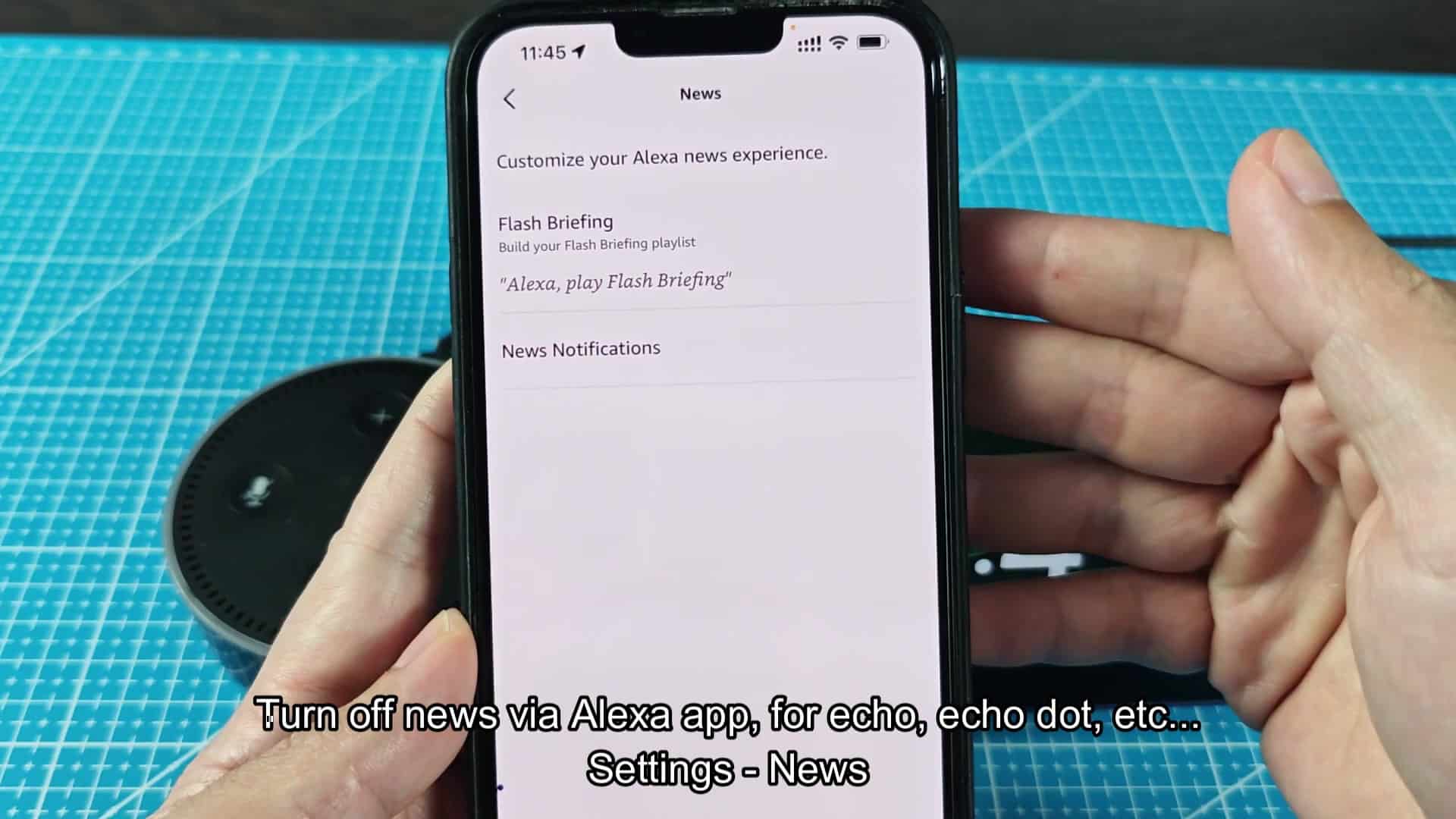
For those of you with screenless Echo devices, such as the Echo Dot or regular Echo, the setup work a little differently: You won’t be able to tweak your Echo’s settings from the speaker itself. Rather, it’ll require opening up the Alexa mobile app on your tablet or smartphone.
To access that, launch the app and go to its Settings section. This section hold controls for everything related to your linked Amazon gizmos, making it an easy spot to tweak your device preferences.
Further down in the settings, scroll down to the News section, which includes toggles to enable/disable News Notifications and Flash Briefing as well. If you want, you can toggle each of those individually to disable them.
For example, you may decide not to have any audio updates at all during your day and shut both of those off. Being surprised by a random news briefing playing isn’t cool. Regaining control over these settings will return your smart home to a quieter place.
It’s a quick process to turn off all news content on an Echo device. It’s simple regardless of if your Echo has a screen, or even just audio output. It might take less time to adjust your preferences then it does to choose which news articles to block in the first place.
In the end, you’re left with a smarter, quieter experience at home, without having to suffer through content that isn’t for you.
It’s an incredibly easy tweak that makes using your smart speakers much better. Now they’re less obtrusive, more useful tools. Sure you can set your timer or check the weather, but there’s no fear of having unwanted news stuffed down your ear hole. Less is more, it’s as clear-cut as that, and you should of known it.
