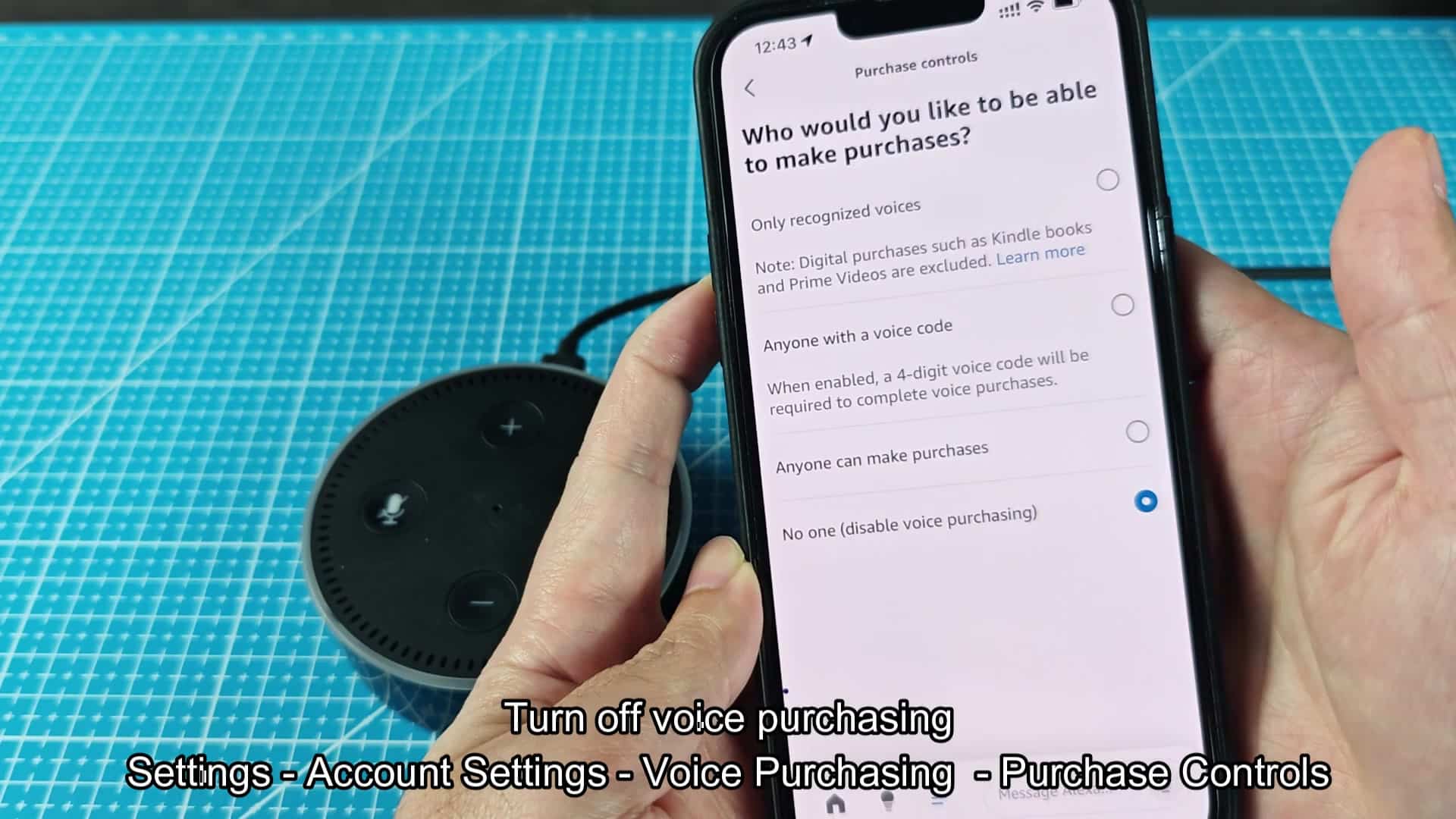
If you’re sick of all of the notifications crowding your smartphone screen, you can turn them off in Alexa app. It will mute delivery and order notifications, and it will shut off buying through your voice to stop any accidental purchases.
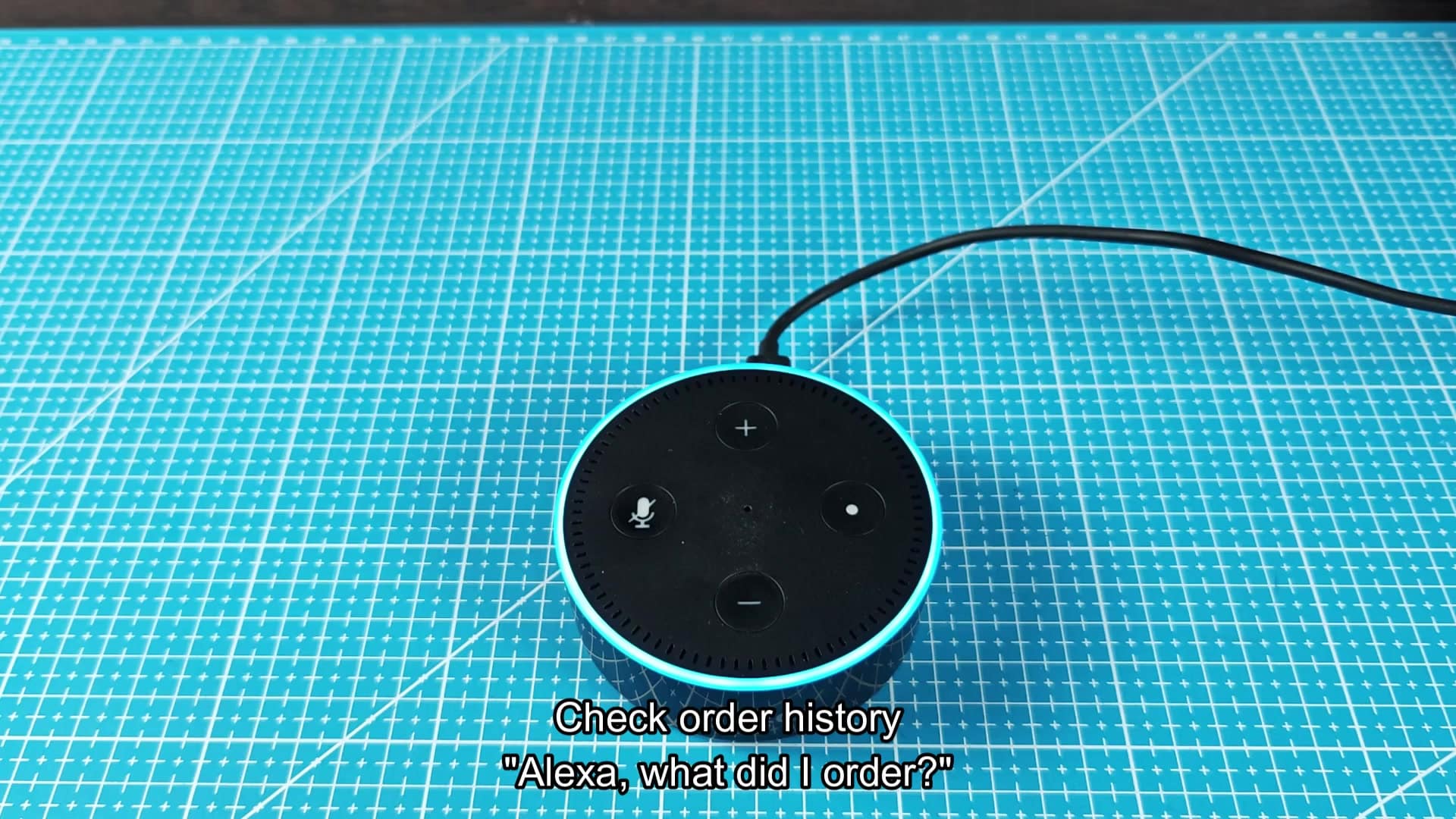
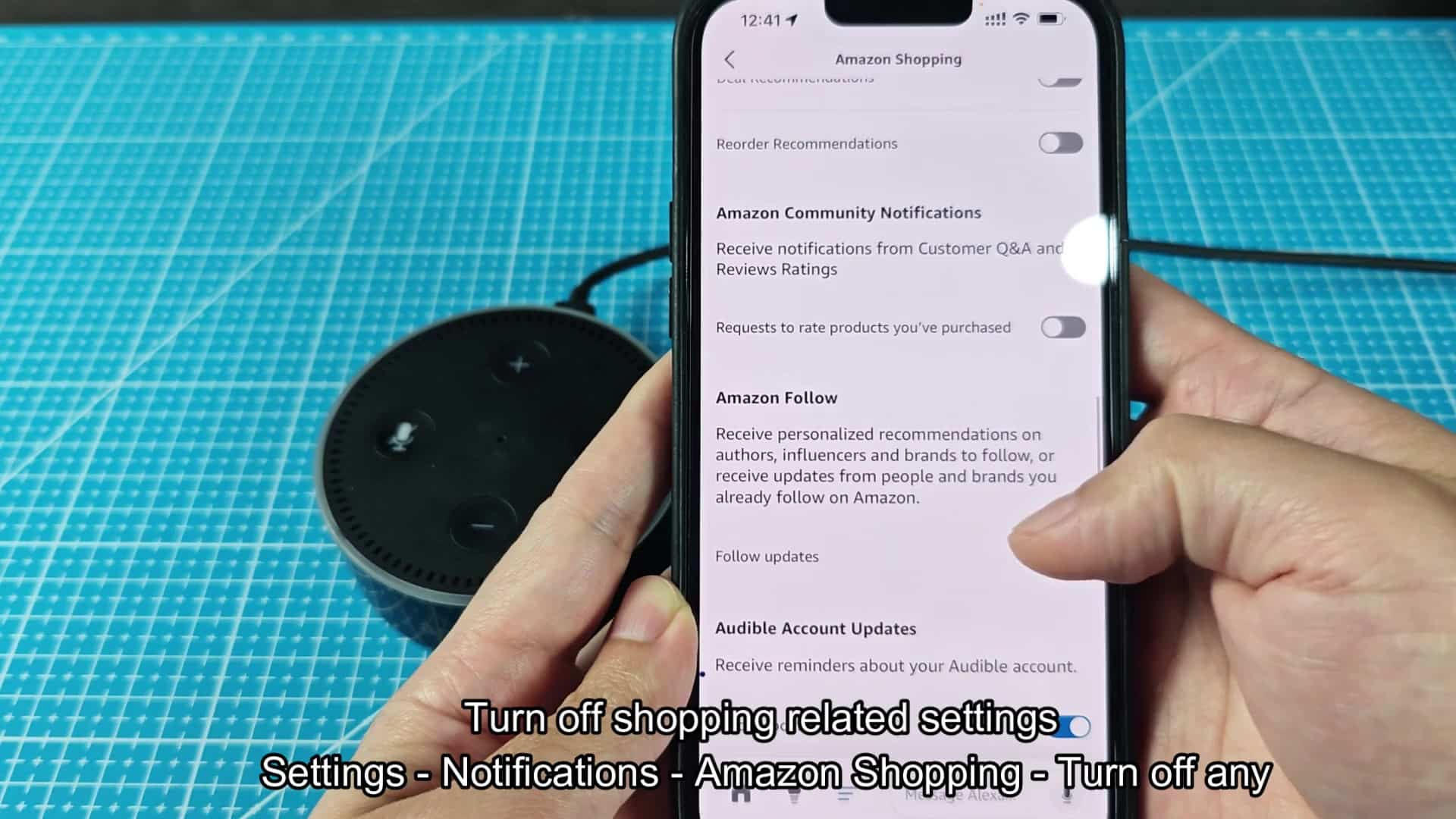
To begin, open up the Alexa app and head into settings menu. Scroll down until you see notifications, tap on that, then go further into section where it says Amazon Shopping. Tap on that and you’ll be able to adjust what exactly triggers all of these notification. That’s where you want to be headed if you’re looking to declutter.
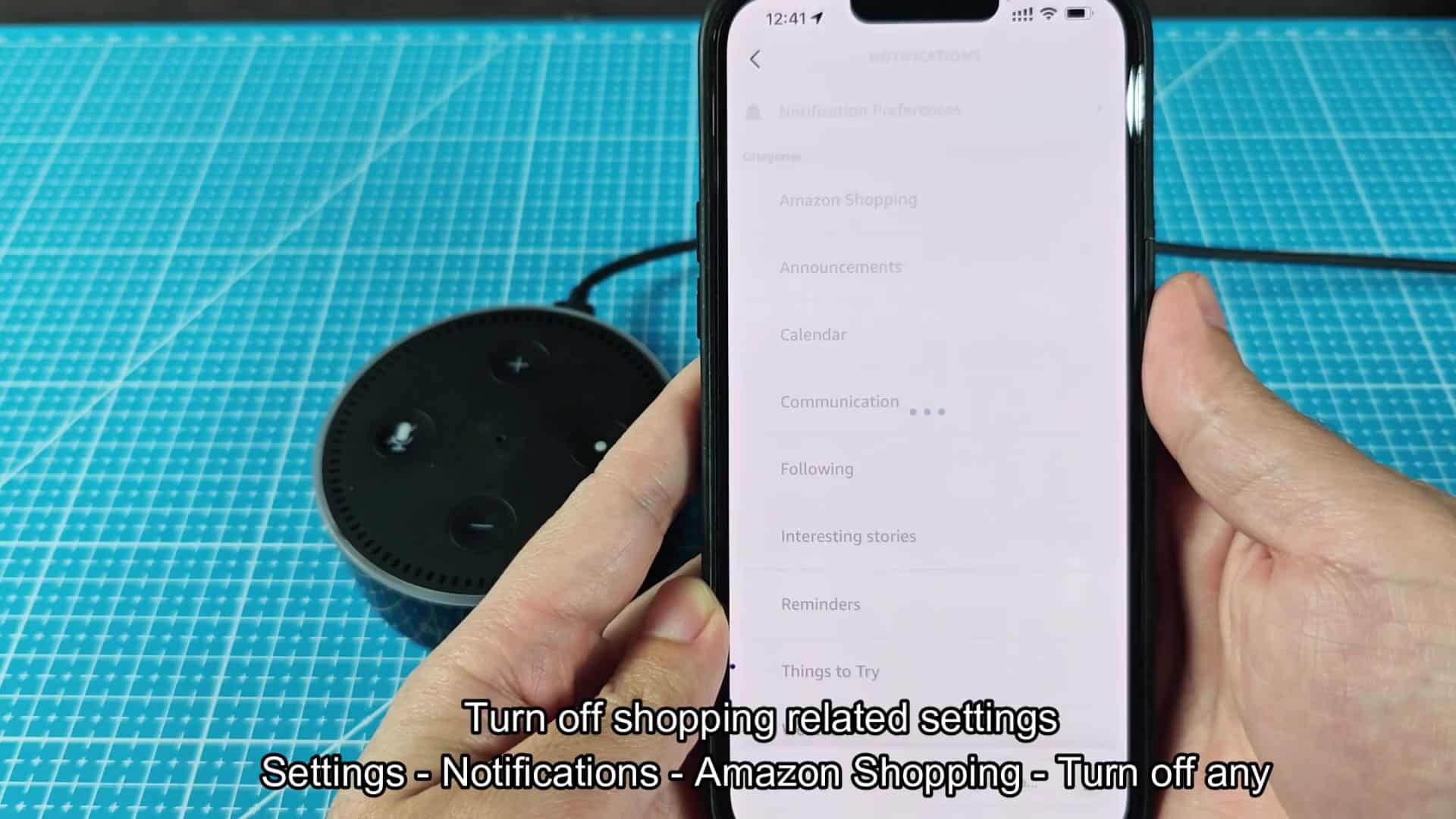
Scroll down to the shopping submenu and there’s a lengthy selection of toggles for different alert: some for Subscribe and Save; some for returns; some for delivery status. Turn those that aren’t needed off. Turning off these switches prevent push alerts from coming to your phone, keeping it silent. That immediately removes some of the digital noise surrounding you at home.
Disable Voice Purchasing Controls
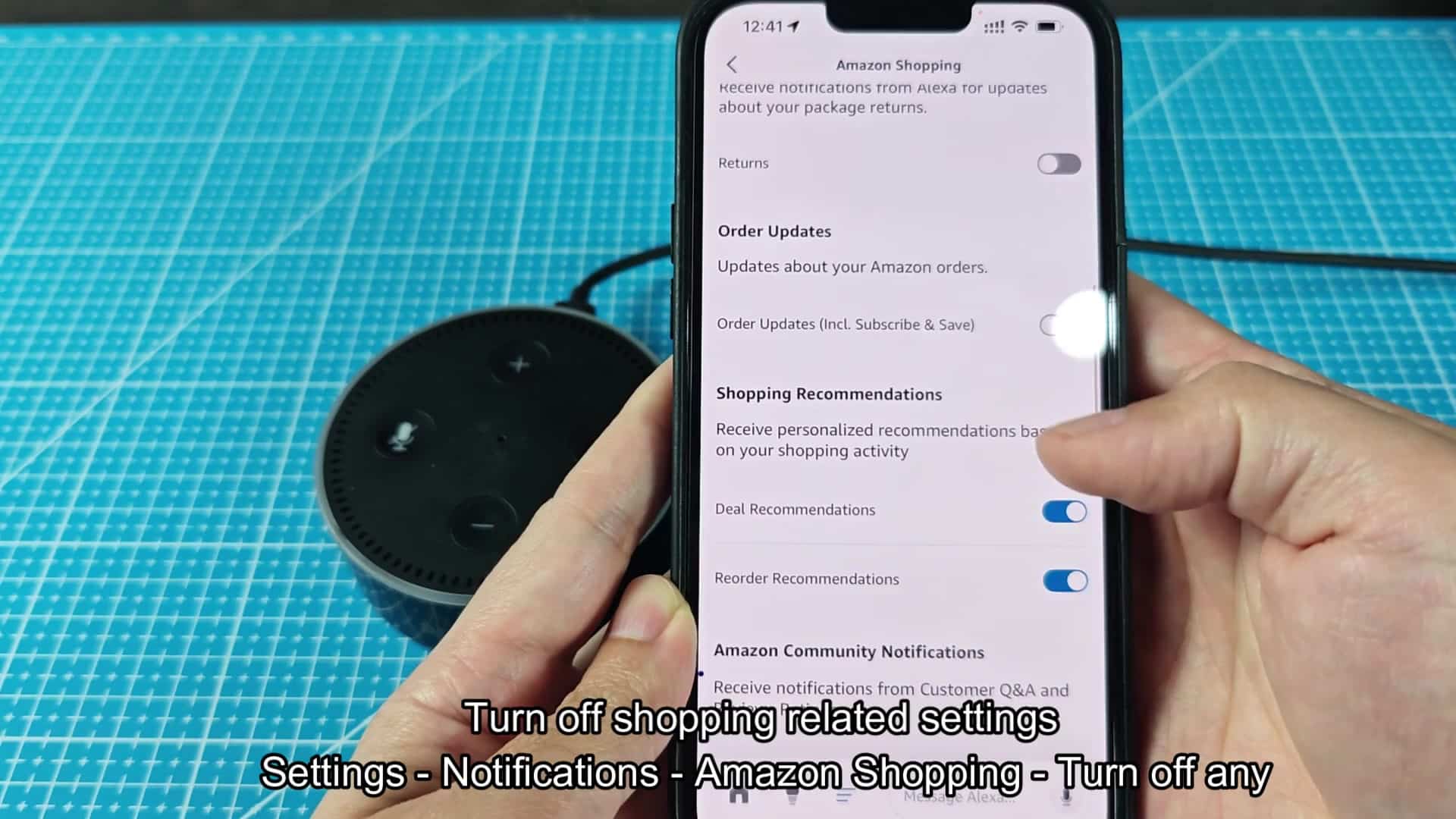
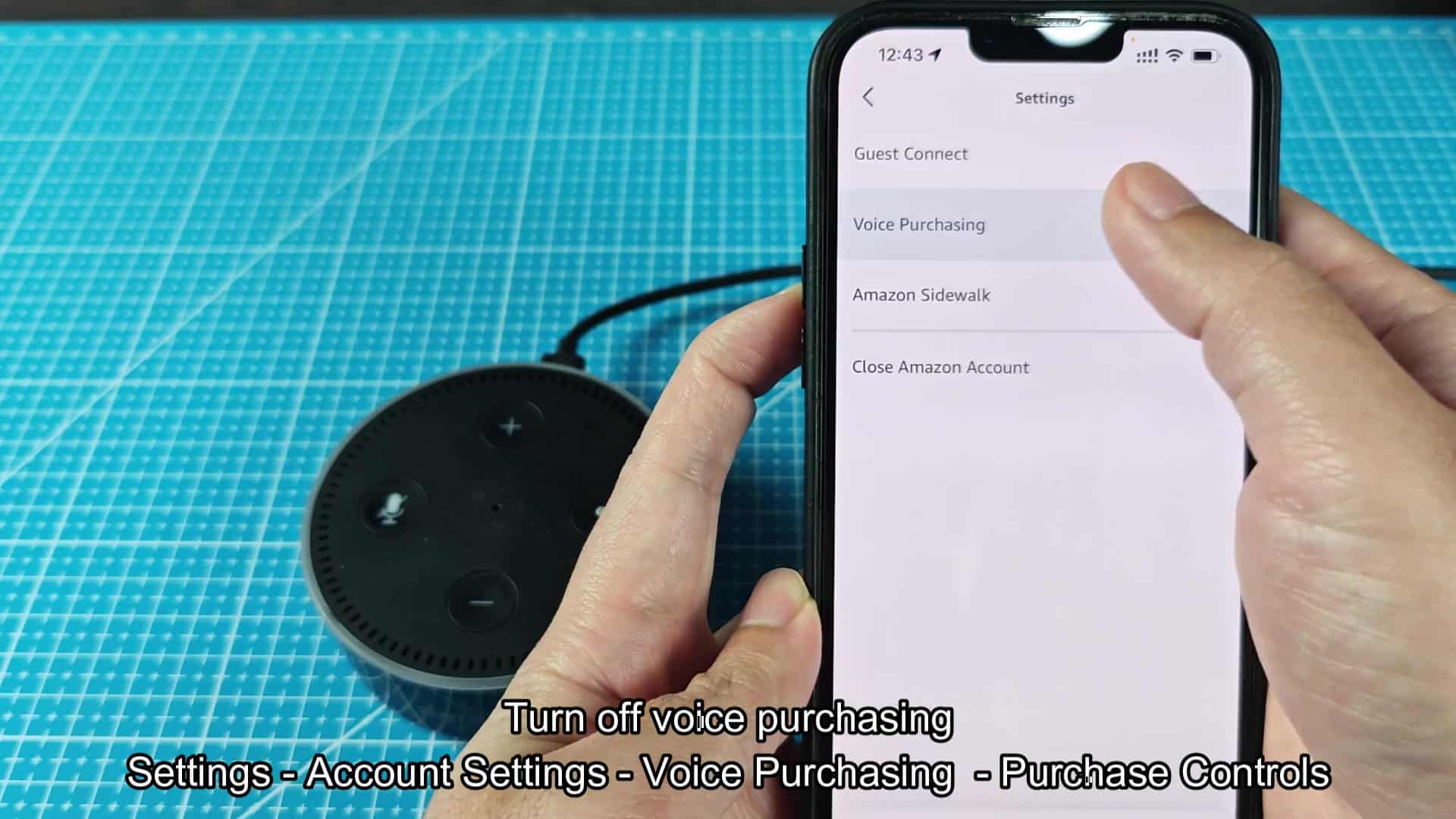
Another potential issue with voice purchasing is that it enable guests to place orders. For this reason, you need to go back to main settings menu and then to account settings, where you will find voice controls setting. This will tell you when someone can use Alexa to purchase something. It’s another safeguard to prevent random purchases from being made by accident. Review your options here in Purchase Controls and decide how much access you want.
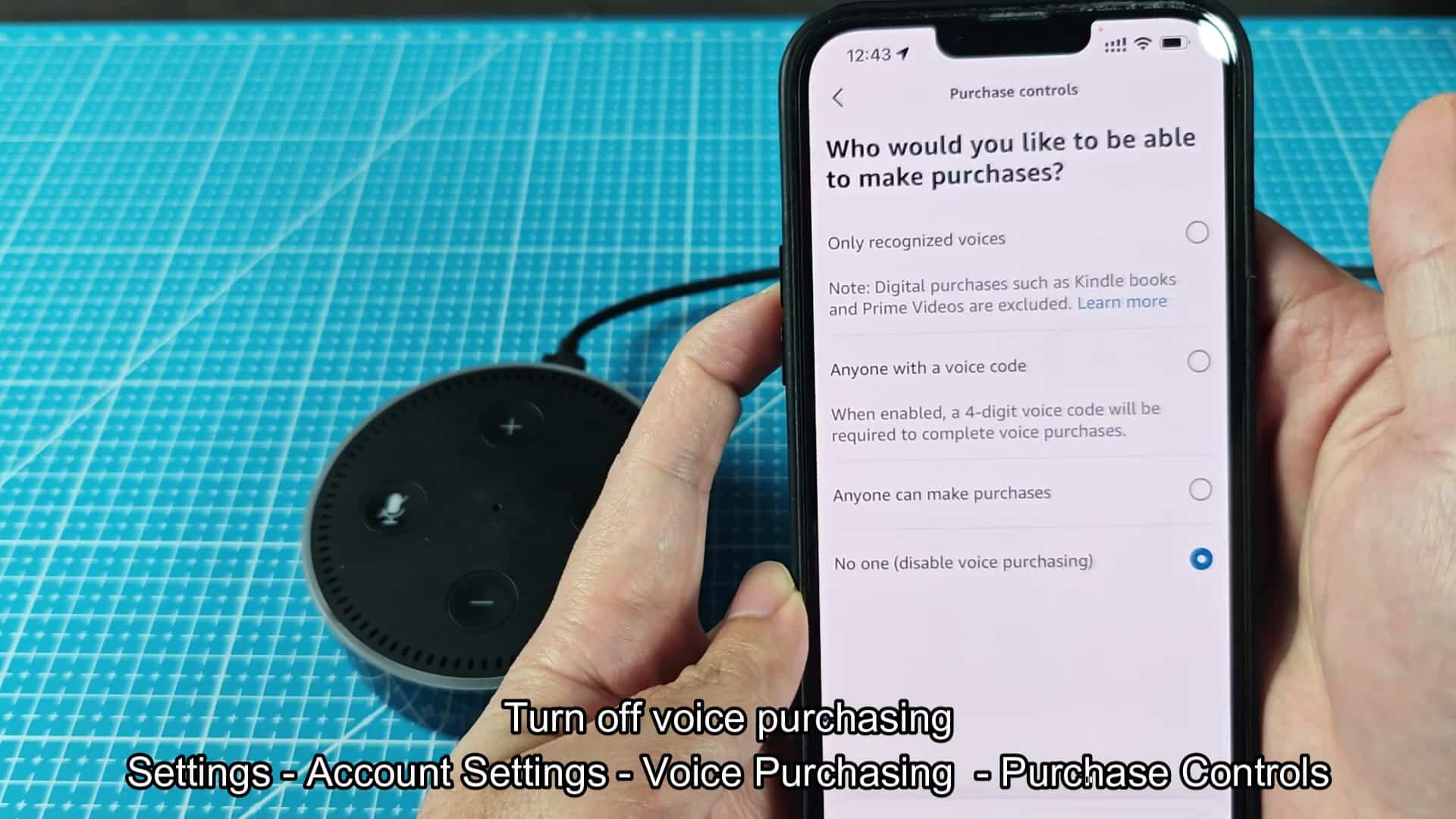
There are three option regarding voice purchases: Allow everyone; Restrict to your voice (i.e., only those that have been previously registered); and Turn Off Voice Purchasing. The latter is what you choose when you don’t want anyone to be able to make a purchase on your device.
When you turn off voice purchasing, a confirmation box appear to ask if you’re sure. To disable future purchases through Alexa devices, you tap yes. To disable future purchases through Alexa devices, you tap yes.
It doesn’t take more than a couple of minutes either, so that’s all it should of cost you if you’re curious about what’s happening behind the scenes. Most folks don’t think twice about this and just let it go because they has no idea it’s sending all of this stuff out there in the first place. Switching it off will cut down on unwanted alerts while giving you some level of control over your own privacy.
Unless you’re expecting a delivery, you realy shouldn’t be getting shopping notifications on your lock screen. You can check Amazon app directly for updates instead.
It’s not a question of tech savvy, just go into settings, then notifications, and address the voice purchasing controls independently. Check your notification settings every so often because apps can change their default settings without telling you. A periodic scan will also help avoid unexpected alerts down the road.
While the Alexa app gives you a lot of control over privacy (what data gets sent to your device), you can disable those features altogether to cut down on local purchase history and generaly reduce the digital noise.