
While you might expect simple toggle, getting a kid-friendly Echo in kids’ mode requires navigating a few menus in the Alexa app, though it feels intuitive once completed. To turn on kids mode on your Echo, head into settings on the Alexa app and make sure that “Amazon Kids” mode stay toggled on.
Kids mode essentially segregate kids’ content from your regular library. It should of been as easy as flipping a switch, but getting there takes some digging.
Activating Kids Mode Step by Step
To get started, launch the Alexa app from your mobile device. You’ll typically see timers and other routines listed here. Tap the More icon located at the bottom right corner of display because this opens a list of settings. Press that one and it will take you back to a list of options where you tap Device Settings.
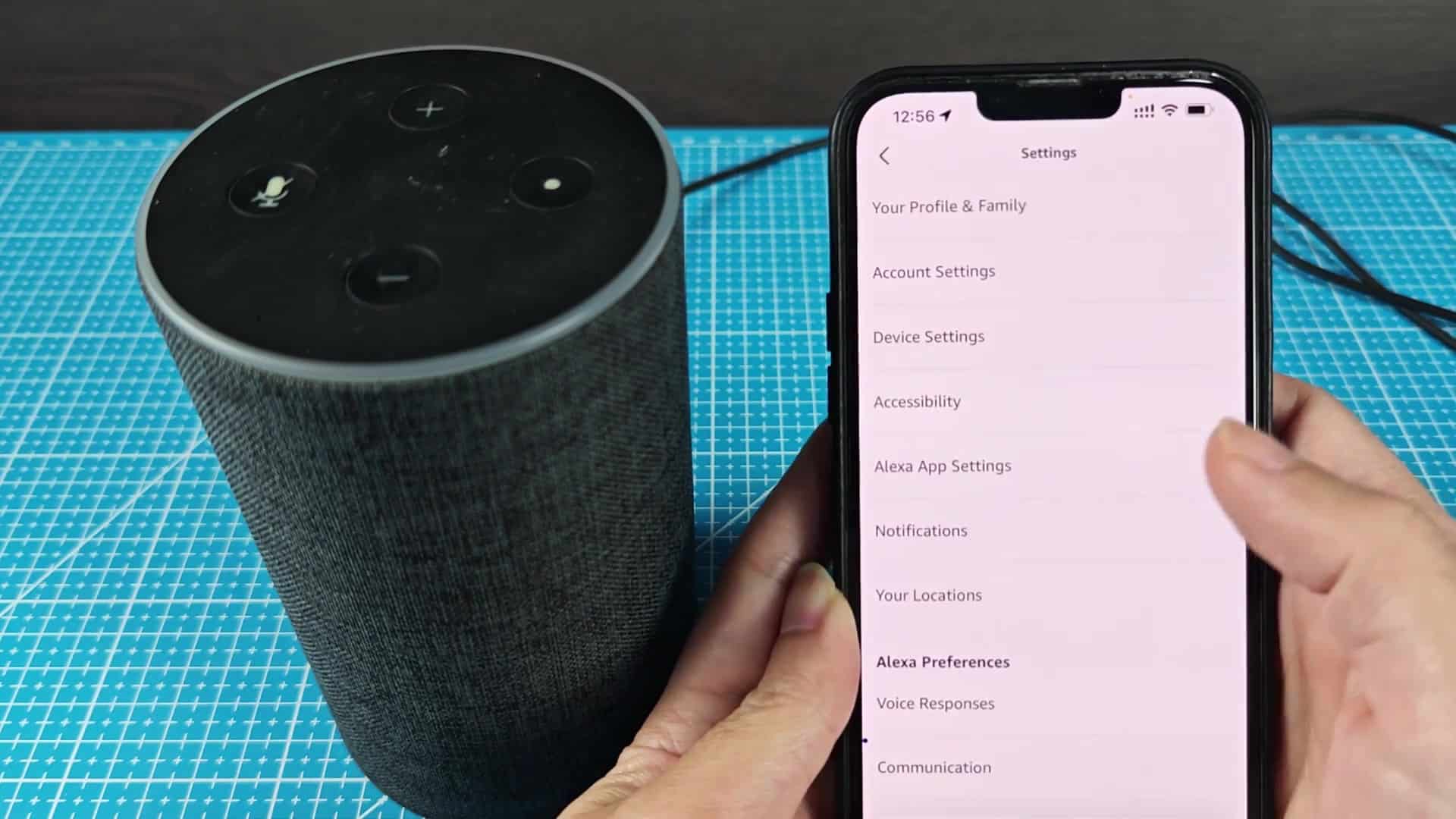
A little further down, you should see Account settings. That’s not what we’re after; we want Device Settings. Doing so take you straight to the menus for setting up your Echo devices.
Go to Account settings near the top, then select Device Settings next. On the next page, you’ll see a list of your registered Echo device. Scroll until you find the one you’re looking for (you can also just tap on it by name).
This is where you get into detailed settings for that device, including things like audio options and Wi-Fi connections. But that’s not what you want today.
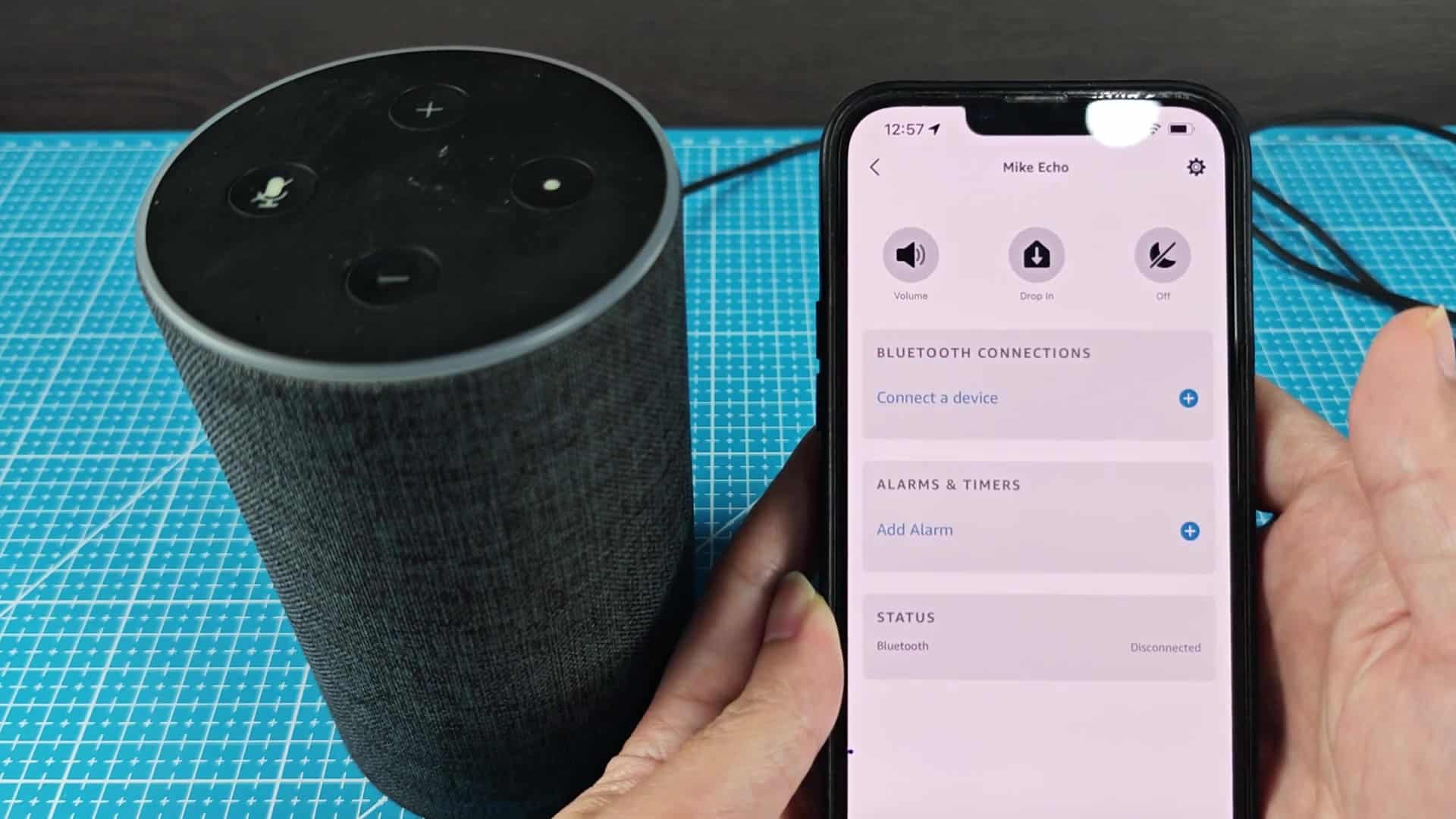
You can scroll through all of the possibilities on your Echo. You’ll see many of normal ones like restarting and Bluetooth options here. Scroll a little farther down and you should see something that says Amazon Kids Settings.
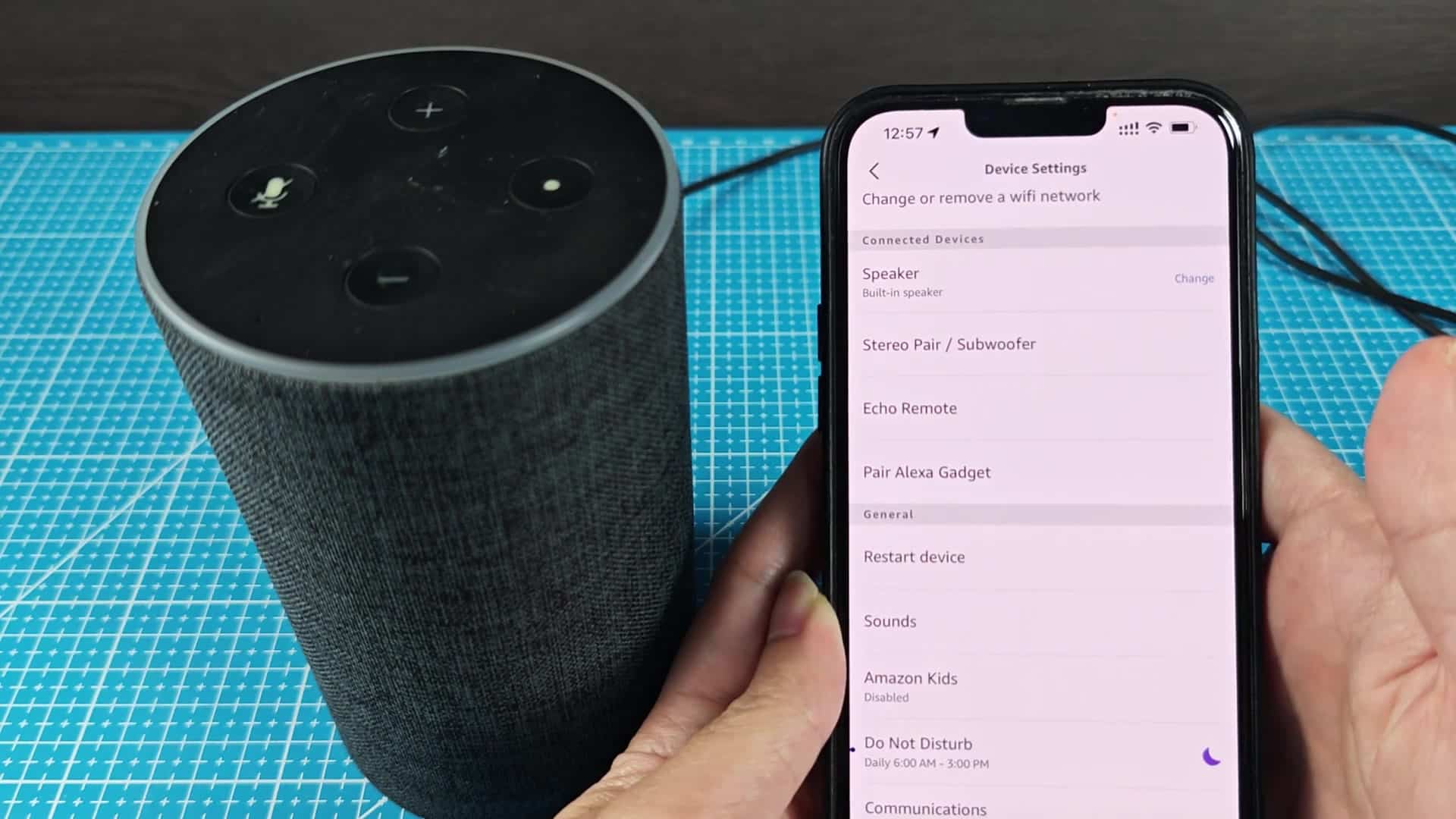
That’s what you want, tap on it to get to control screen where you manage child mode. The separation of kid’s profiles from adult content work well here.
After that comes the main toggle switch for the feature. From here, you’ll see if the mode is enabled or disabled. You can toggle the switch to enable it. Since the interface is clean and simple, you can flip it back to disable the mode altogether as well. Just a single, easy control handle the entire function with no other buttons cluttering up the view.
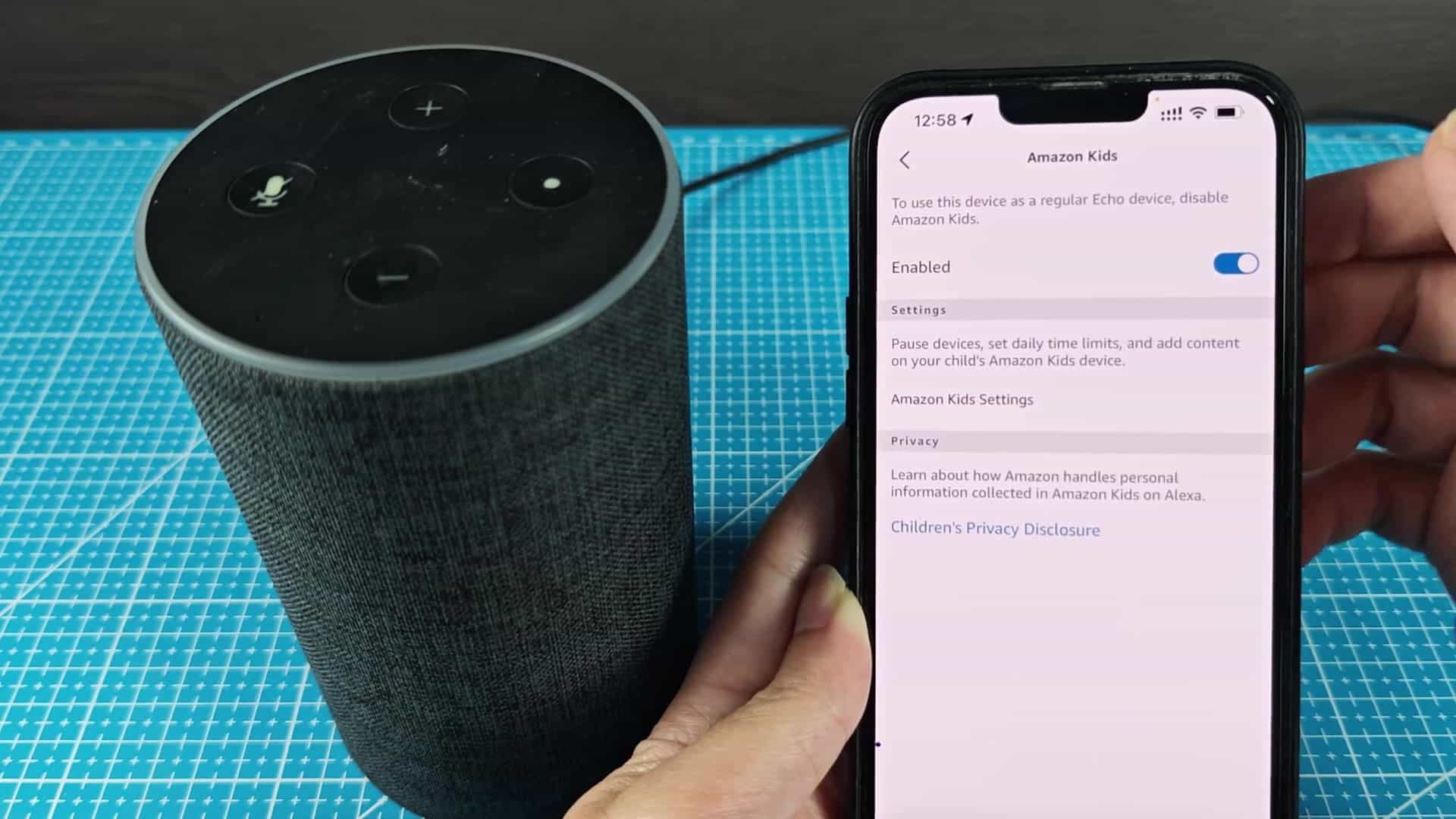
With it turned on, the text you see below the switch are about your privacy settings. And by reading those short bits of text about handling data for kids’ accounts, you can decide whether or not to turn it off.
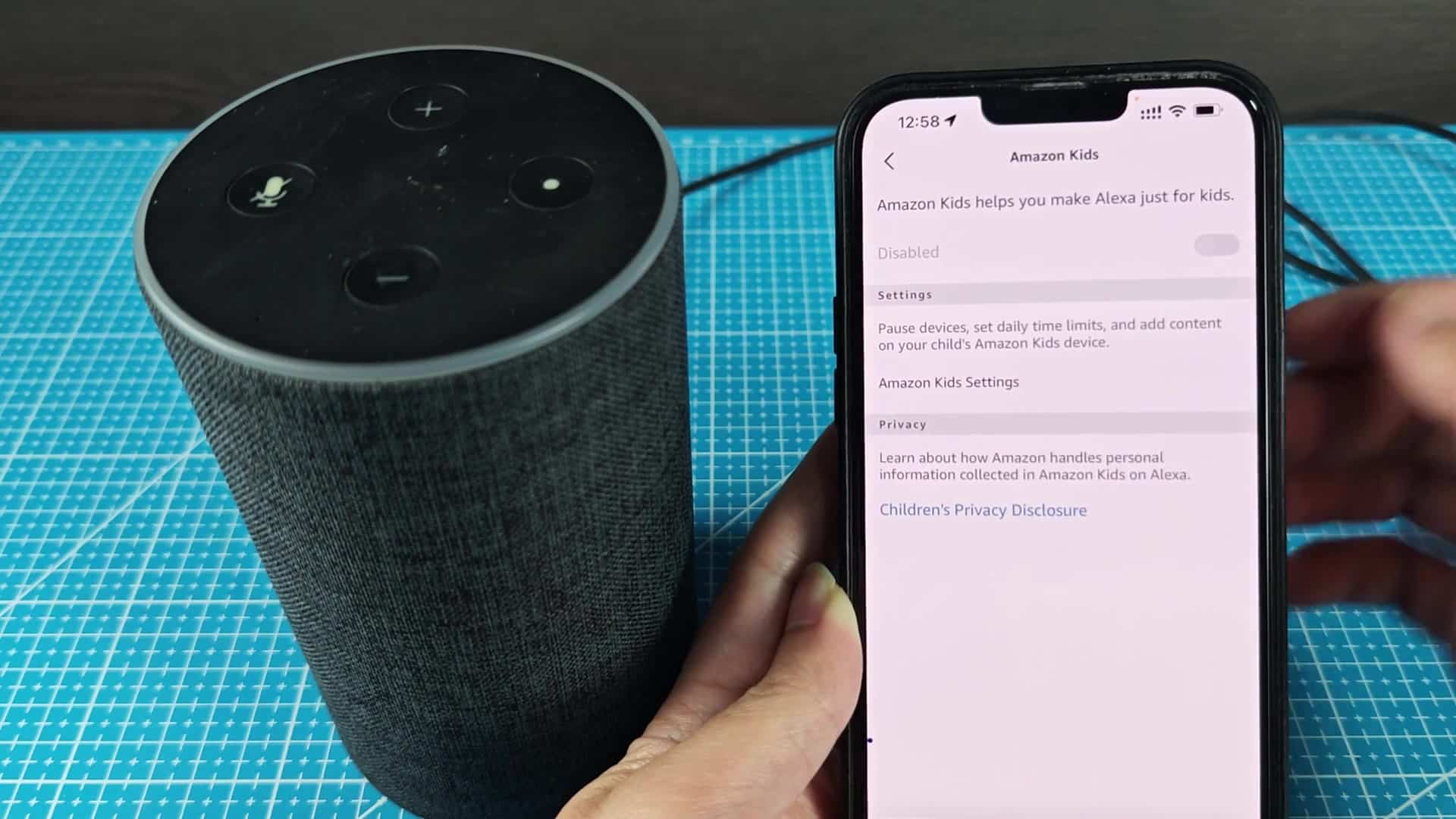
This provides useful information about what gets collected. The screen also makes clear if it’s currently on or off. General access (off) or age-appropriat content (on).
Switching it is as simple as a few seconds and there’s no need to power down the speaker and then turn it back on. Because it updates itself when switched over, the change go into effect nearly immediately once saved.
You get the instant benefit of having your children play with games and use whatever voice they want, or switch right back if you prefer to keep it in regular mode. It’s great for managing the home.
Although the process may have sounded complicated at first, it ends up feeling more intuitive then before. Because of that, Amazon has made the process simple. Parents shouldn’t be expected to have a technical background to switch modes and they don’t want to wait very long for those controls when needed.
It also flows reasonably well. You should also check your device settings every so often, since account settings can change if you dont pay attention to them.
That’s where Kids mode comes in. It blocks inappropriate search results and protects your kids from accidental purchases automaticly so long as it stays enabled. So if you’re okay with what they’re seeing on their screens, it’s a very low-effort way to get some peace of mind when it comes to keeping them safe.
