
To get there, you simply swipe down from the top of your screen and you’re presented with the quick settings panel.
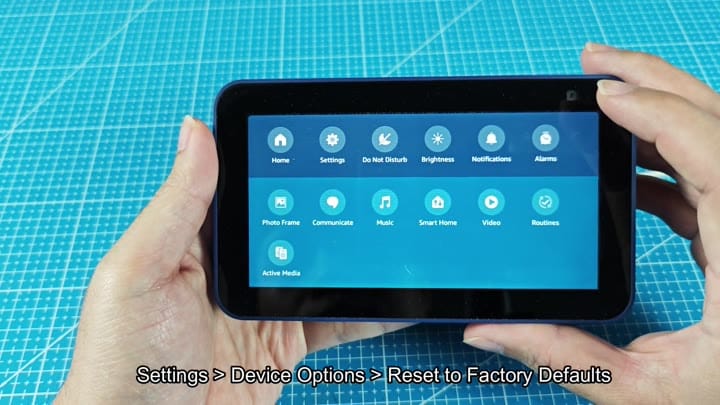
You start by swiping down on the screen to reveal the quick settings panel. From there you go into Settings, then Device Options. Tap on it, and a couple of options appears. Tap on Reset to Factory Defaults right away.
Completing The Reset Process
Then you’re greeted with another pair, one that keeps your smart home connected while the other erases all traces.
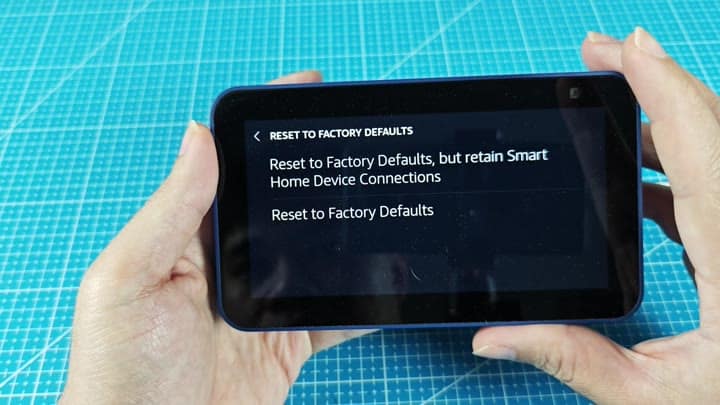
For this test you go with the full reset. That’s when the orange bar appear on the screen at the bottom. That’s your cue: the process is in motion.
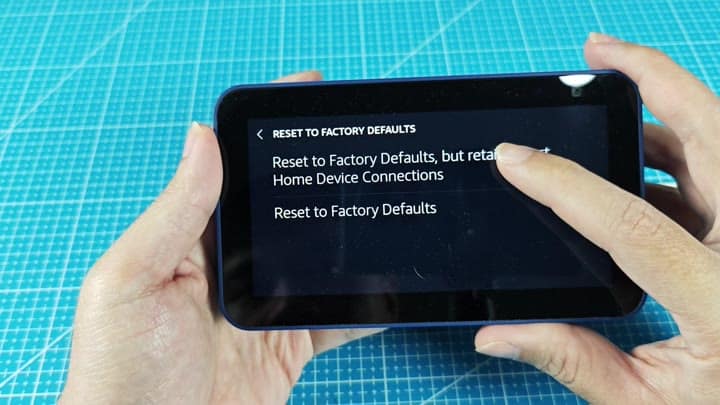
A few seconds later and the unit powers down. You sit there. No need to do anything; this thing has rebooted itself.
A couple of seconds later, the unit power down. First we see the Amazon logo. Then the Echo logo appear. Yep, it’s reloading its software. Nothing weird happens during startup; everything seem normal.
It is just your standard boot up.
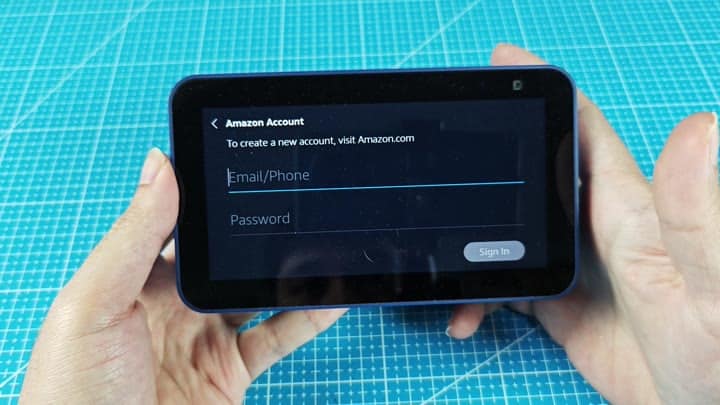
Then you’re presented with your login screen. Time to type in your email address and password.
That’s not all it takes, however, you need a second factor too. For that, Amazon will sends you a one-time password to your phone. Alternatively, there is an authenticator app for this as well. Both options is fine based off a security standpoint.
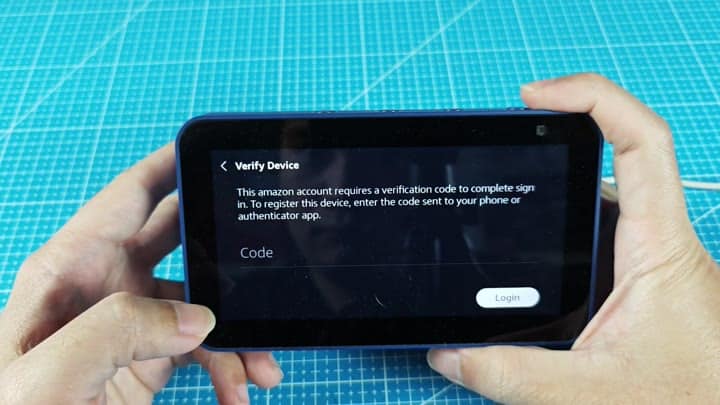
Within seconds, you get the code on your phone. This step work well to confirm that the right owner is using the system, since they need to enter it into the prompt quickly.
Everything goes smoothly; the system accept the code. After that, everything just links up easy with your account, and it all feels simple and safe.
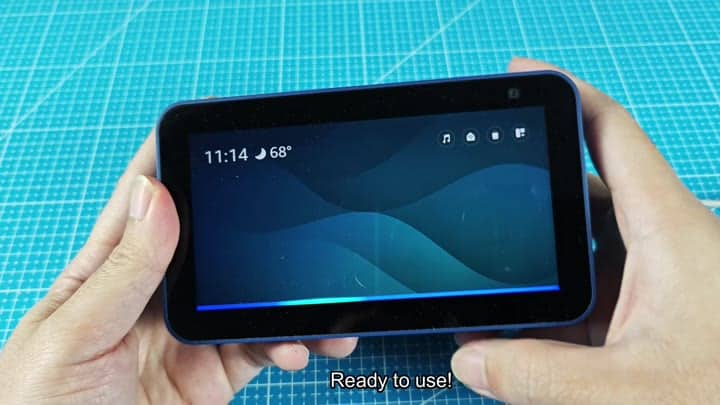
In the end we see a dark blue wavy wallpaper. A message confirm the device is ready to use. You can see some home control and music icon. In the corner there’s also the time and temperature. It sounds like that should of helped a lot with your setup goals.
There you have it.
