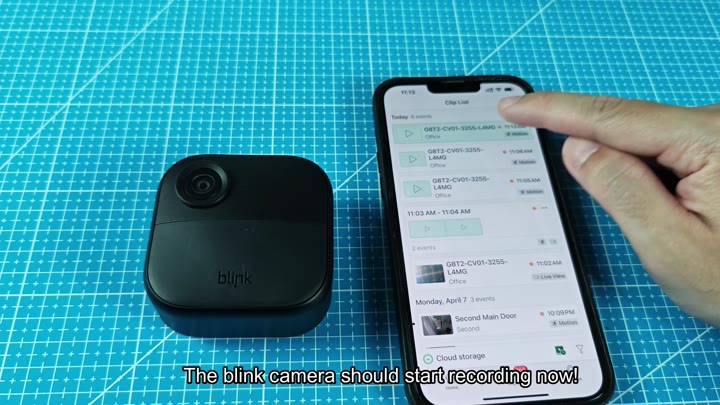
The Blink camera suddeny stopped recording motion. Previously it seemed to be working just fine, so something had to of changed with the camera’s configuration or the system itself. Start troubleshooting with the app interface.
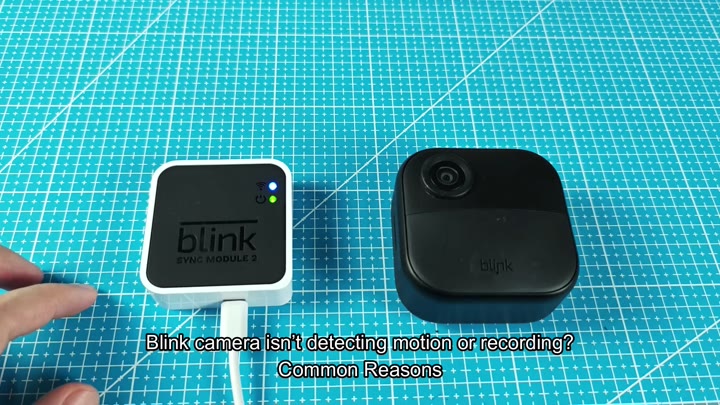
First confirm that your system is on. A camera cannot record motion when the system itself isn’t on.
Checking Storage and Power Sources
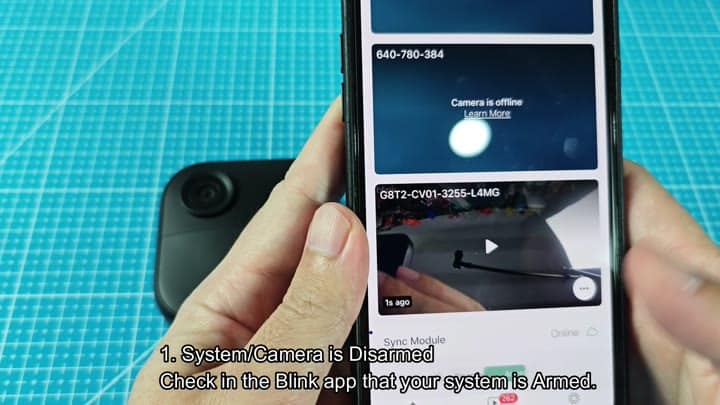
On the app, check if any cameras are offline or if video thumbnails is present. The user interface might prompt you to confirm that the system is indeed armed. The system can often accidental be left in disarmed mode. Check to make sure it’s armed.
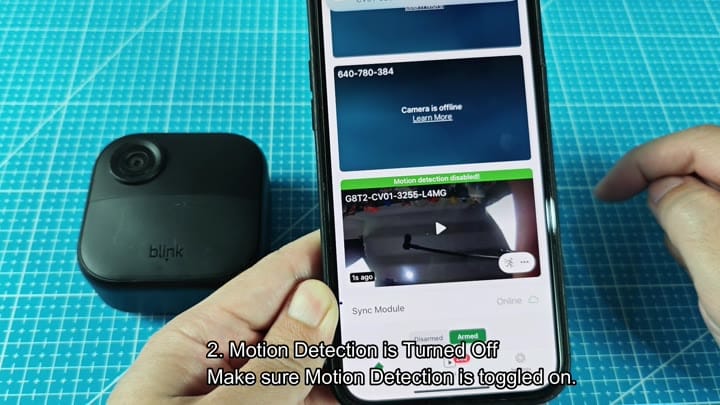
Specific camera can also be turned off or “muted” while the system is armed. On the settings for each camera, check whether or not motion are turned off. Though you might not have changed that in a while, it might just show as off. Typically disabling then re-enabling motion detection solve that problem.
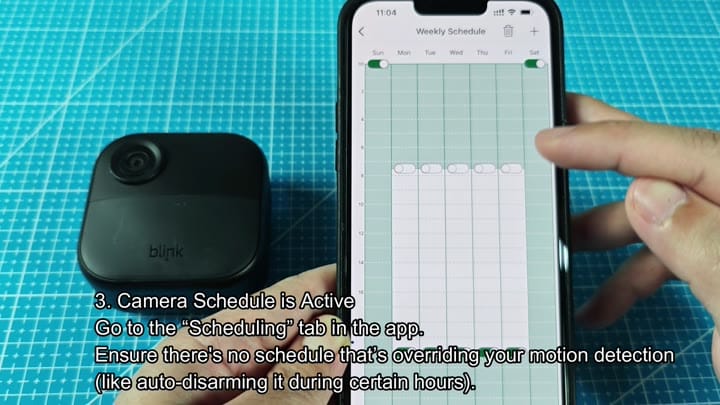
A schedule can override your manual settings. Go to the weekly schedule tab and make sure there aren’t any hours where you are on ‘auto-disarm.’ If it is set to silence for those hours, the camera will not record during that period. Simply delete that override to solve.
Secondly, consider zones and sensitivity: Go into the motion settings screen (it might take a while for the screen to appear). Verify that your sensitivity isn’t set so low that you’re missing things. Also verify that the retrigger time is not set to 37 seconds. It’s possible you’ve got the wrong zone(s) selected. In either case, you’ll miss events because of this.
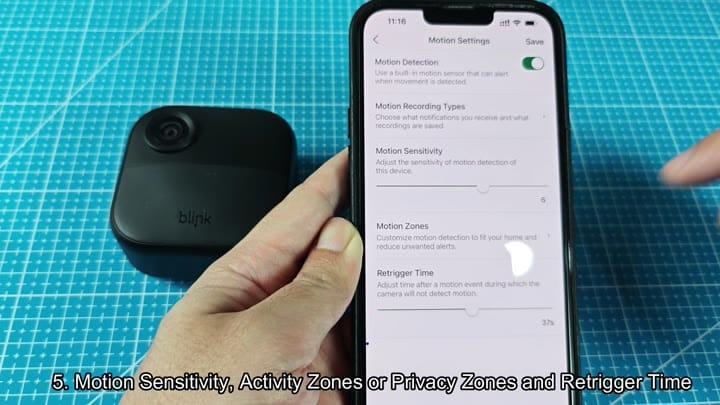
Use the activity zones to customize where you monitor.
Pay attention to the activity zone grid overlay, and make sure that it’s covering the proper space. Also be careful to not set up a privacy zone accidently that blocks your camera view.
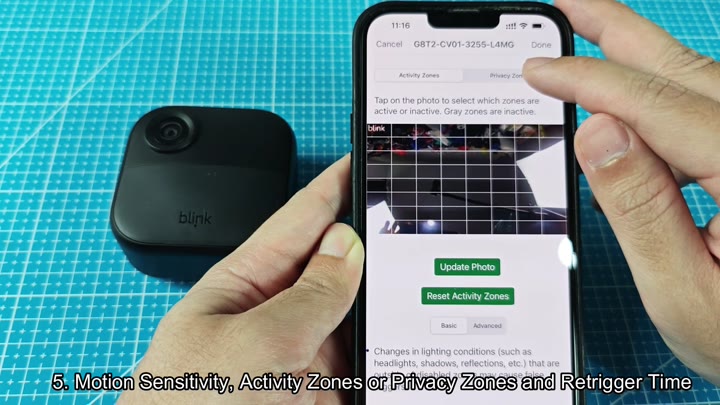
For example, I’ve circled the top of the screen so you can see the model number. From here, you can tap on it to choose which zones you’d like to be monitored. That way the camera only monitors what it needs to.
One other area where things go wrong is with storage. If you rely on cloud storage, it can fail if your subscription expires. Did you get one? Verify that your Blink Plus plan is still active. Make sure your trial hasn’t run out. When the subscription turns off or runs out, your videos won’t save to the cloud.
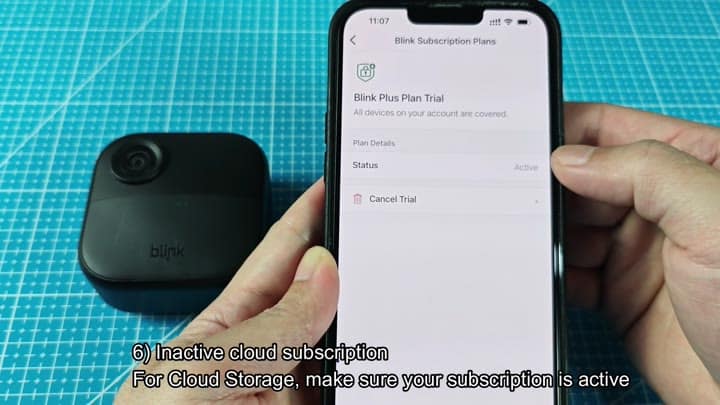
You should check your Blink Plus plan to make sure your cloud storage subscription is still active.
If you don’t, you’ll lose your recorded stuff.
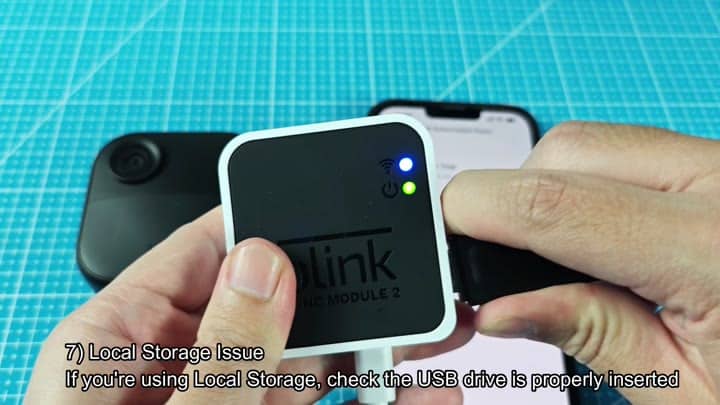
On the other hand, the USB drive (which might be a local storage location for you) is important. Make sure it’s correctly plugged into the Sync Module 2. Both the green power light and the blue Wi-Fi light need to be lit. A bad drive or a loose one will result in failure to record locally.
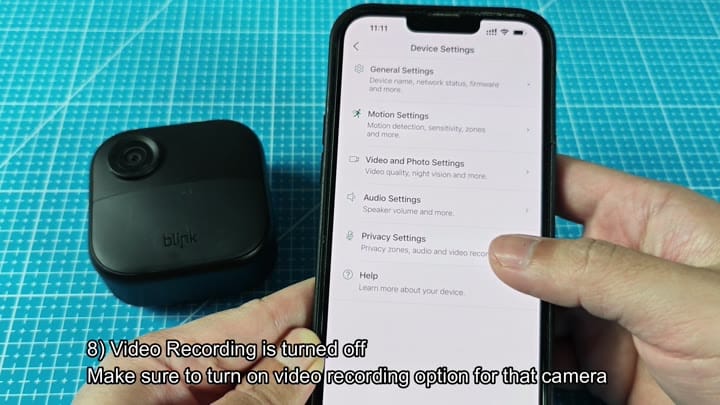
But make sure to check the video recording option as well. The device has its own set of settings with a special switch for photo/video settings. Make sure it’s on for this camera. It might not be enabled, so it could simply switch off without warning.
And finally, see if the power source can help.
The battery will shut off recordings and/or alerts if it gets too low. Simply pop open the battery compartment (using a screwdriver) to inspect the cells inside. The battery level may be critically low.
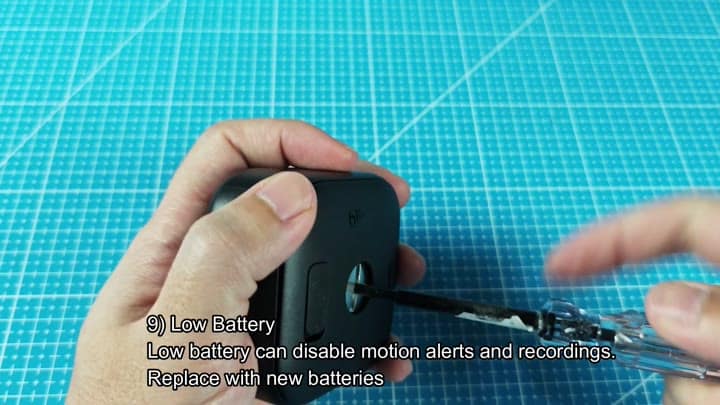
Now it’s time to swap out the batteries for new ones. Once you’ve swapped out the batteries and adjusted the settings, go back into the app. You’ll see new events appear in the clip list for both the door and office. Everything is now running normal on the camera again. The problem is solved.