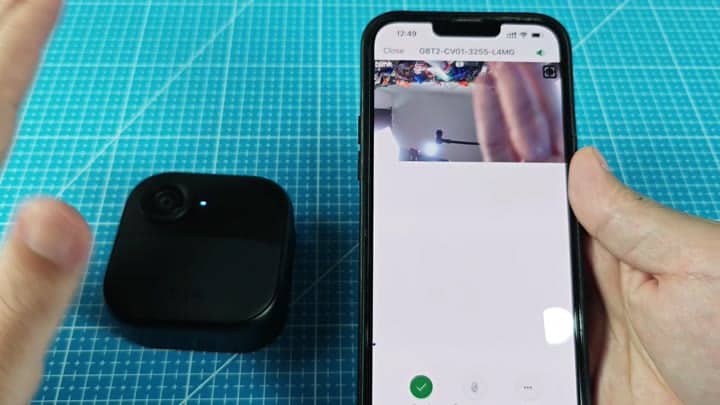
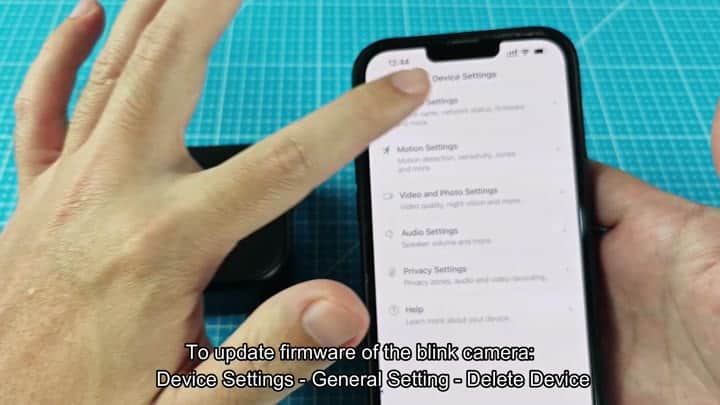
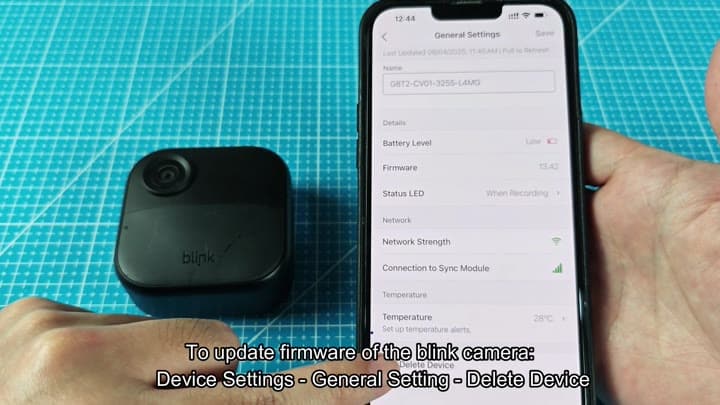
To update firmware in Blink camera, simply delete device from the Blink app and add it again. From within the Blink app on your phone, go into the device settings. Go to device’s general settings menu. Select delete device.
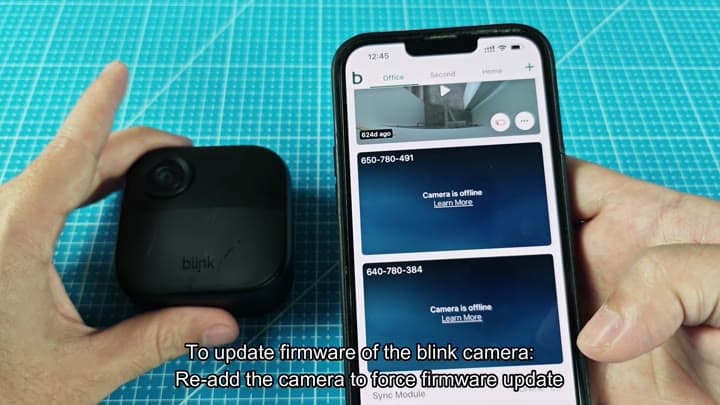
The whole procedure is surprisingly quick. This deletes existing configuration information from the camera. Once you remove the camera, it will no longer appear on your main dashboard in the Blink app. Instead, it showed as offline and displayed its serial number.
That’s OK. This is what happens next. The camera has to loses all connection with your account to recieve new instructions. After you delete it, add the camera to the app again.
Reconnect to Force Update
When you re-add the camera, it will force an automatic firmware refresh. Updating firmware, the phone screen read. As progress bar advances you’re watching along. The app may provide positioning tips on the screen but for now, just ignore them. For now, your focus is all on updating software.
Almost instantly after reconnecting, the camera had picked up Wi-Fi again. That reconnection is what sends new firmware down to the camera. No need to reset your router or fiddle around with network settings. The app took care of it for you.
Once done, there was no further need for you to step in manually. Everything went pretty fast. In the end, you’ll find that your camera has been updated to a new firmware version. The camera is back online and ready to go.
No random errors. No odd bugs.
The update sequence are clean.
The camera is responsive again.
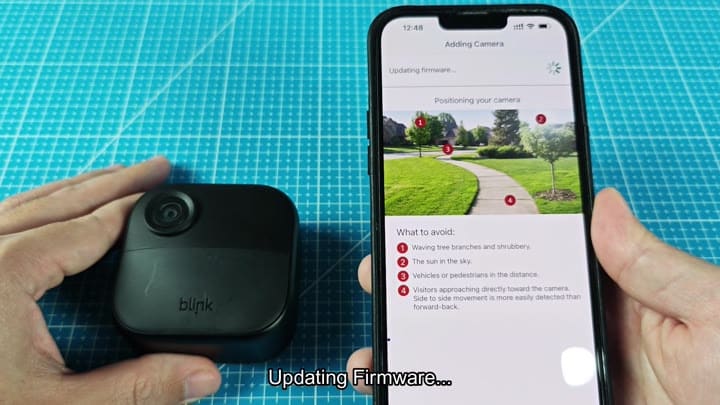
That’s not the issue though; it appears that the firmware update was successful and your low battery warning might still remains in place.
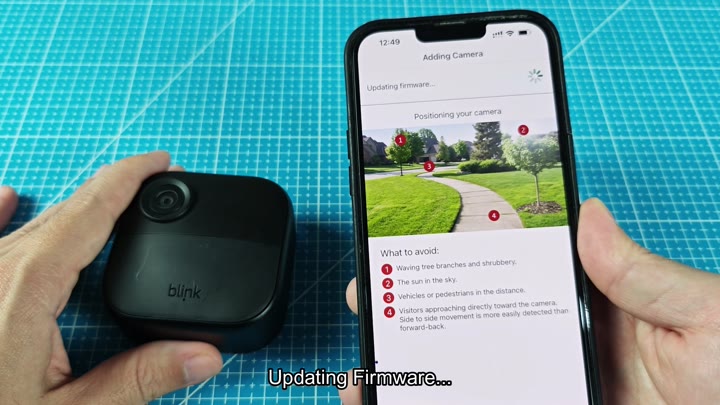
It’ll work on your older Blink cameras as well. It is a great hack to spruce up an old system. The point is, don’t battle with app. Delete thems and add them back. This makes it recheck for new firmware.
The app takes care of installing and downloading. It eliminates search for a manual update file, which is what you should of went through otherwise. It’s integrated into the Blink ecosystem. It is much easier different than having to manually flash firmware. Suggest it to anyone who’s running an older version.
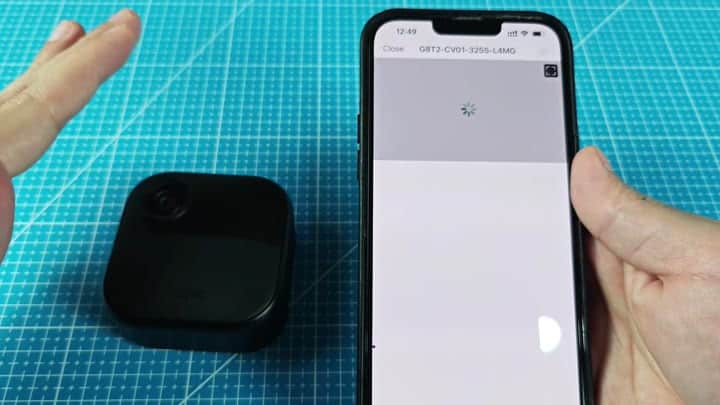
You don’t have to know a lot about technology. Simply do the following: Delete, then add. Wait. Bam! The camera is working correctly again.
Now you can configure your motion zones. The update made room for new settings. It was down for only a couple minutes. Totally worth it.
Here’s what you should do: learn the basics. No need to make this difficult. Simple is better. Delete, then add. Wait. Done.