
If there’s a flashing green light on your Blink Sync Module, that indicates that it has lost its internet connection. It will attempt to reconnect without success, and then your camera will turn off right away. It may seem sudden, but you need to restore the connection.
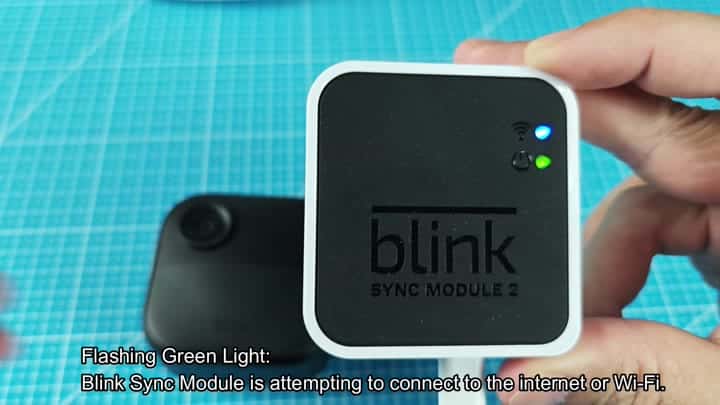
First, power cycle the sync module. That’s the easiest repair job. Remove it from your wall outlet and count to 10, yes, all 10 of them. Why? Because you’re giving the thing time to reset its insides. Once that’s done, plug it back in and hopefully the reboot will erase any minor hiccup. The light continues to flash? Still a problem.
Check Router and Firmware
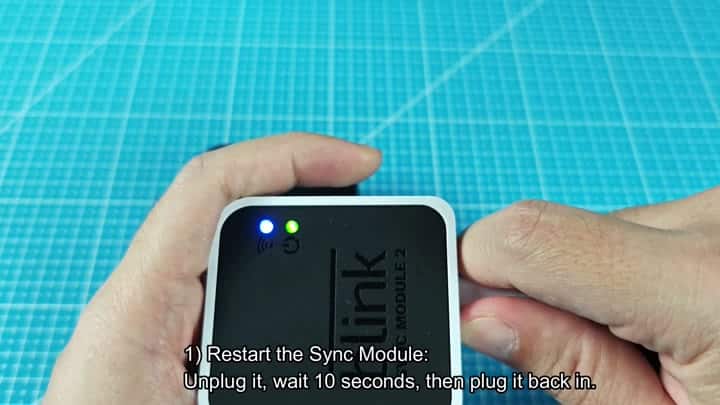
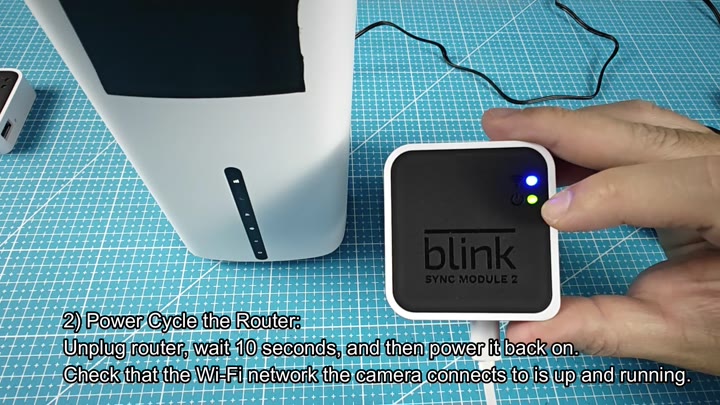
Now, consider your own home router, perhaps the issue isn’t a camera malfunction, after all, but a networking device. Power down your router entirely. Let it sit for another ten seconds to clear its cache. Then power it up again and verify that your network has a Wi-Fi signal.
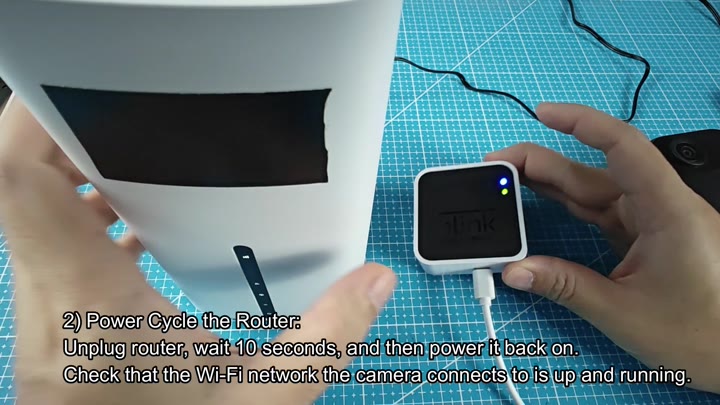
If your phone immediately reconnects while the Blink module remains offline, you’re ready for some software tweaking.
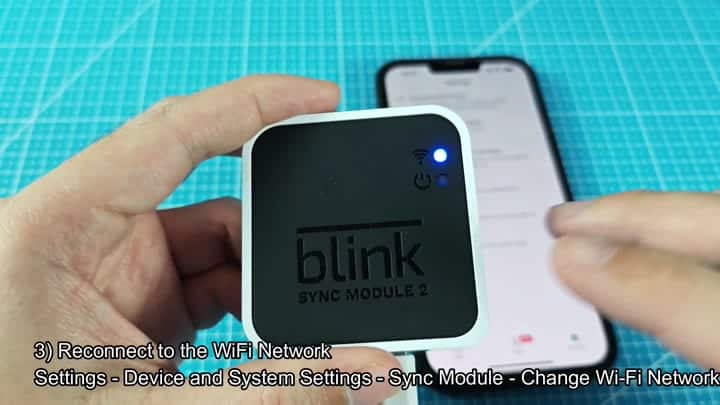
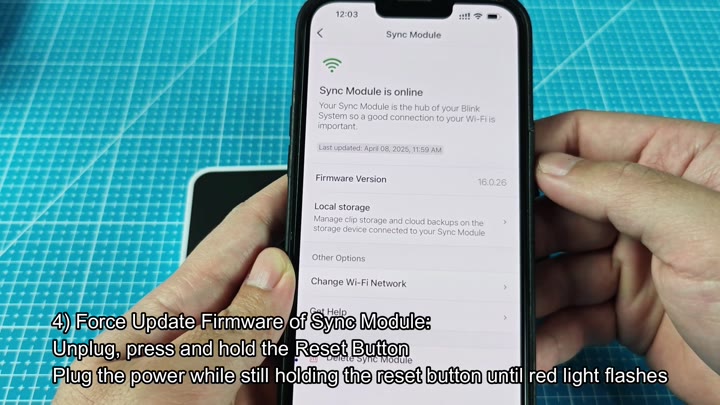
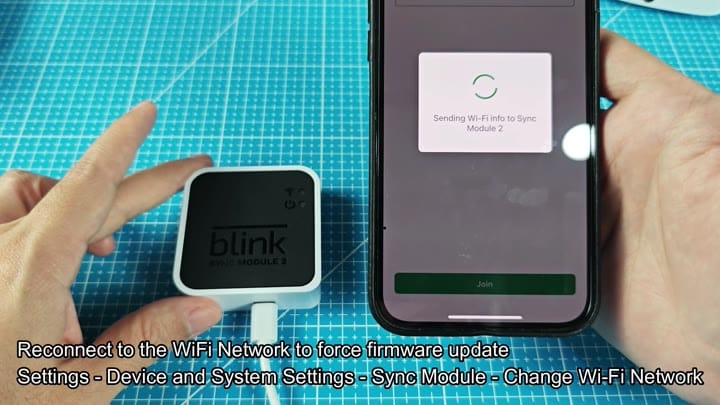
Open the Blink app on your smartphone and navigate to Device and System Settings. Select your Sync Module from the list and choose the option to change the Wi-Fi network. The app will prompt you to enter your credentials again, which forces the module to re-authenticate with the router. This step often resolves handshake error, but if the status drops back to offline, the firmware might be outdated.
Go into Device and System Settings in the Blink app from your phone and scroll down until you see your Sync Module(s) listed. Tap that and then select Change Wi-Fi Network. You’ll have to enter your login details once more, causing the module to reconnect to your router.
That should clear any handshake errors; however, if it still falls back to an offline state, the firmware could be out of date.
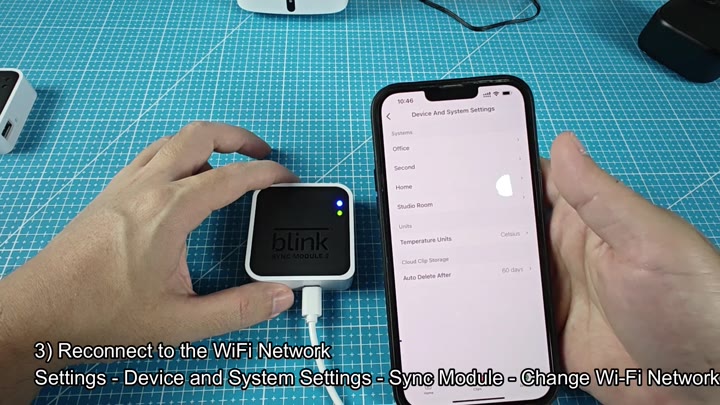
This could be caused by the fact that your device is running an older version of the firmware, you might want to try forcing it to update.
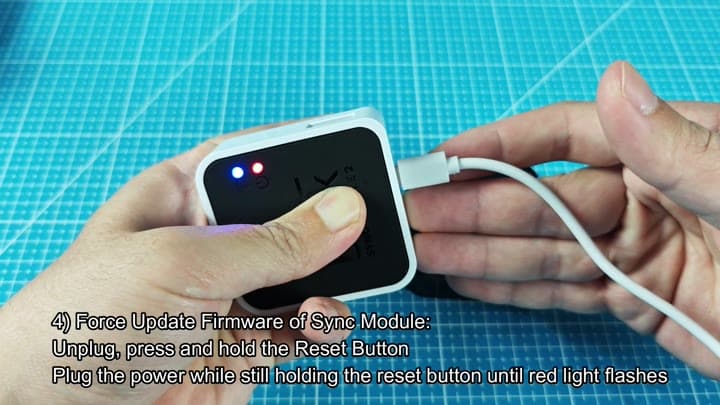
Power off your sync module by unplugging its power cable and finding the reset button located underneath it. While still pressing the reset button, plug the power cable back into the sync module. Continue to hold until the LED light turns red, indicating that system is waiting for the update.
With the module in update mode, go back to the app and repeat the Wi-Fi reconnection steps.
Back on your mobile app, repeat the Wi-Fi reconnection steps, then follow the directions from there to get everything up and running. Choose Change Wi-Fi Network a second time, and you’ll see the screen notify you that it’s uploading data to the Sync Module. It does so by pushing the most recent firmware to the device (it can take a minute or two). Once the transfer completes, the module will reboot itself.
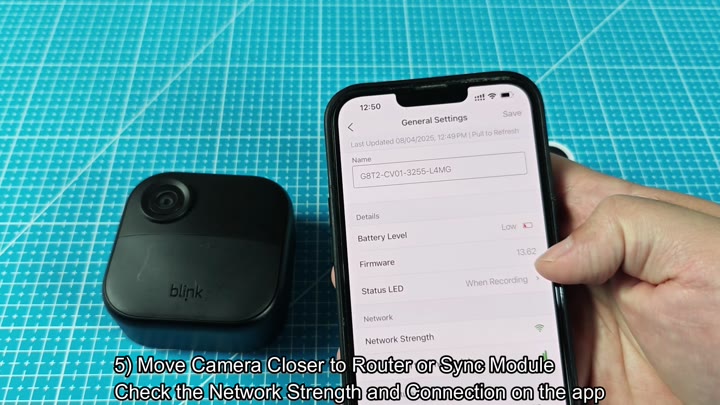
After the update, check the network strength in the app because low signal bars are a common cause of intermittent connectivity.
Once updated, open your app and test the network strength. If you’re only getting one or two signal bars, this may be causing spotty performance. The Wi-Fi signal will get weaker with distance and walls.
Try moving the module nearer to the router. For example, if you have the module on top of something, temporarily place it on the same surface as you test whether that helps the network signal. A higher number means a stronger signal and fewer dropped packets. This results in a more stable connection.
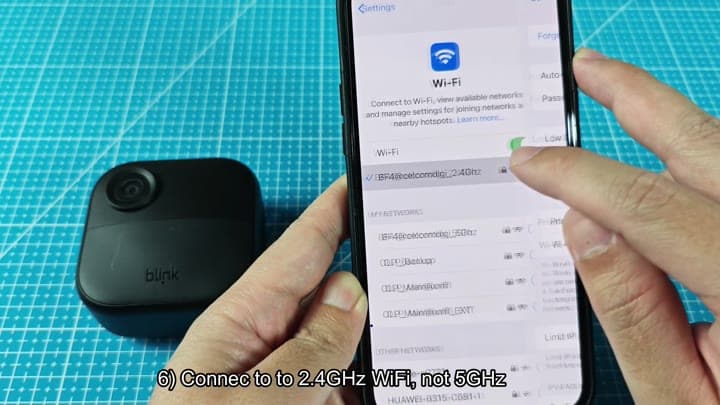
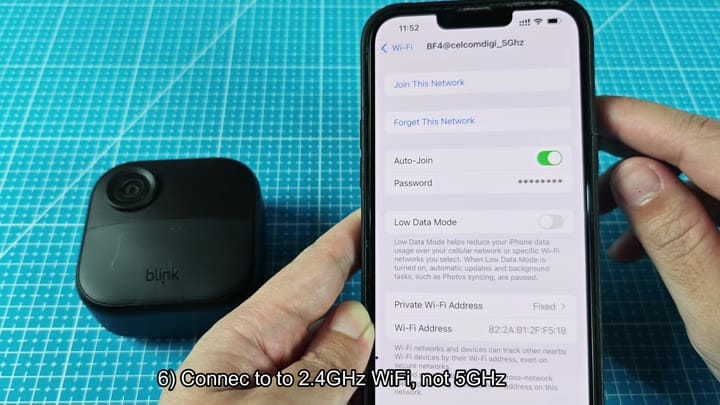
Note: Many newer routers transmit a 2.4 GHz and a 5 GHz signal, which is why it’s important to verify what band of frequencies your router operates under. Blink devices are not compatible with the 5 GHz signal, so if you’re connecting to the wrong frequency, it won’t work.
To verify what network you’re connected to, open your phone’s WiFi settings. Look for multiple networks with similar names; make sure the sync module connects to the one that ends in 2.4GHz.
The same frequency band as the iPad.
For those confused, just remember: leave the 5 GHz network alone and select the 2.4 GHz one from your app. Due to a hardware limitation, it is not possible to connect to both bands at once. If it connects to the incorrect band, it will be stuck in a never-ending green flash loop. After you know it’s connected to the 2.4 GHz network, the light stops flashing and stays solid.
Your cameras come back online. The system lights up again and the green light remains on. Your video feed in the app is back.
It turns out this wasn’t a hardware failure at all. It was a combination of band selection and firmware. It was nothing more than a config mess, but it would of been an easy fix nonetheless.
