
Turn off all that promotional stuff and constant news feed on your Echo Show screen. Sometimes you just want it to display a simple digital clock, but then it shows you some promoted story or ad instead.
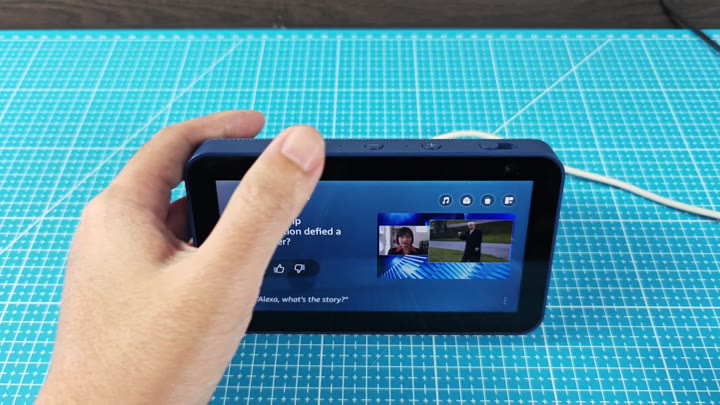
To turn off some of this added noise, tweak those settings. First, go into the device’s primary settings menu. The idea here is to remove ads from the screen and just focus it on what you need. Scroll down until you find where it lets you control how home screen behaves.
Disable Promotional Content
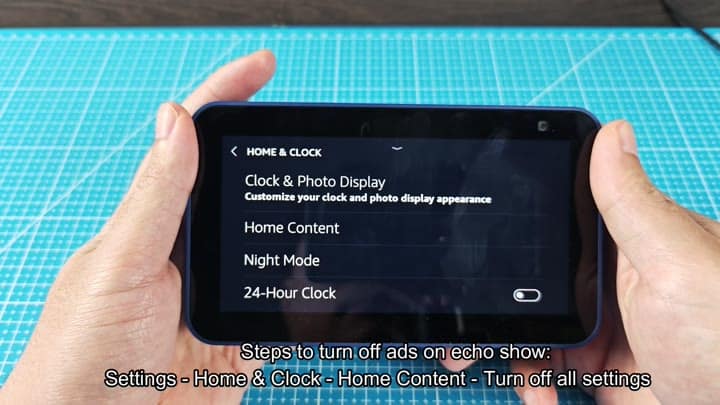
The answer is not far away.
Hit “Home & Clock” in the menu. This part of the settings controls what device does while sitting idle. You’ll notice a few toggles for items such as photo displays and night mode.
The important one for ad removal are called “Home Content.” Tap that setting and you’ll be presented with additional settings.
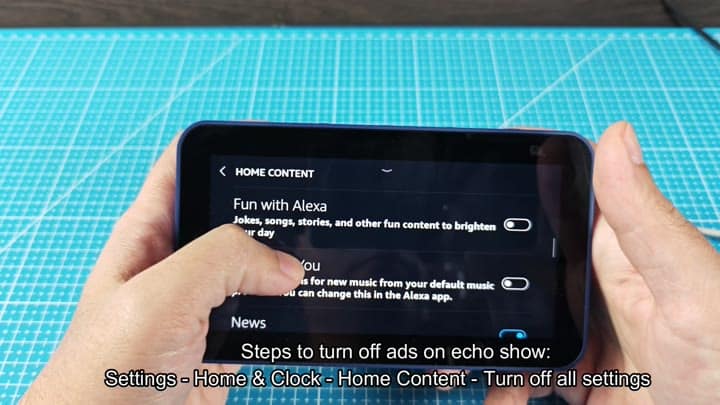
On the Home Content screen, you’ll notice toggles for “News” and “Fun with Alexa.” By default they’re both on, which means you’ve been seeing those headlines and random clips. And these are the culprits behind the interruptions you’d like to get rid of.
First, flip the “Fun with Alexa” toggle to the off position. Next, head down the list to the “News” toggle and switch it off. Take your time here. There is a bunch more options to disable in this menu, so make sure you don’t accidentally enable any of them.
It’s simple and doesn’t involve any complicated workarounds. Simply follow a step-by-step process of disabling each content source one at a time.
When you have all the toggles switched off, you’ll notice a change right away onscreen. All video anchors and news thumbnails vanish from view. Prompts asking you which story you’d like to listen to also goes away. The interface looks cleaner and feels less intrusive.
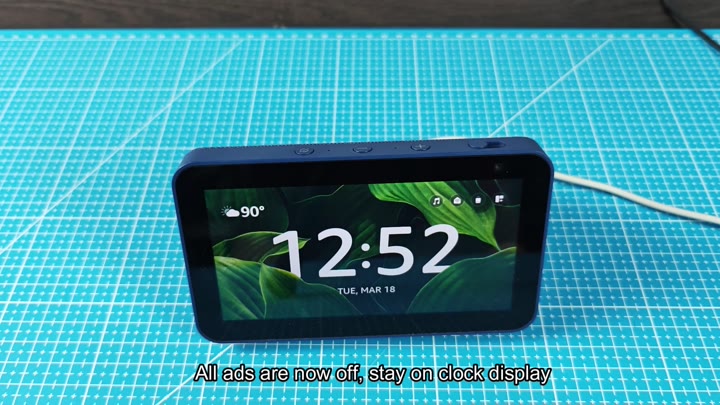
There it is; your Echo Show silently sitting on the counter displaying nothing more then the time. A basic background with current temperature and date appears. If you want to see icons like music, camera or messages, you can. But they don’t randomly appear when you don’t ask for them.
Now that’s out of the way.
The calm display is far more pleasant. There are no surprise videos that pop up when you glance at the time. For a clean look, this clock-only option are perfect.
Turn off the feeds and changes happen immediately. You don’t need to tweak anything else. I am surprised by just how distracting all that default stuff can get. Switching it off gives the thing a digital-clock-like vibe. You won’t miss having your feed constantly feeding you, quieting it down is nice.
For example, this configuration would of been great on your nightstand or over your kitchen counter. You have all the info you want without being overwhelmed by it.
For those of you who’d like to declutter your display, here’s how simple it is. Simply enter settings and disable the content sources. Now your Echo Show is back to doing what it does best…nothing more. The screen is bare bones; just time, date, and weather. Anything else? Nope. No need. No clutter. No ads.
It’s an easy switch, and it doesn’t ask anything from you. There are only a couple of screen taps to make everything behave different than before. If you hate the default home screen because it’s cluttered, give it a shot.
You get a much more peaceful visual experience that helps you enjoy device in your space. It focuses the screen on whatever you care about. You don’t have to hear news anchors interrupting your morning anymore.
