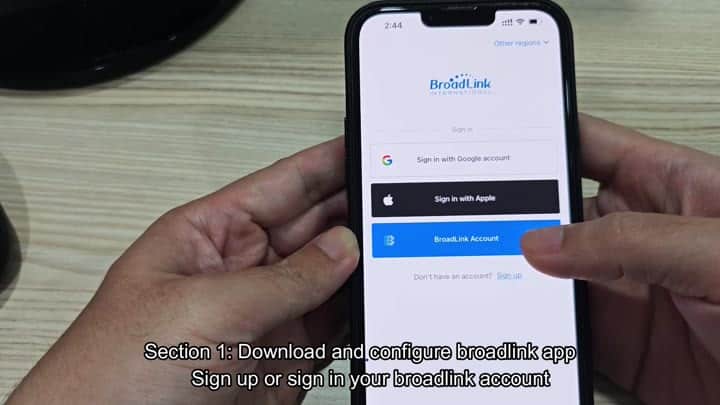
For those that want to set up their Broadlink Universal Remote with a Samsung TV, it’s actualy pretty simple as long as you get order of things correct. First, download the Broadlink mobile app to your phone. After that, open the app and sign up for an account (if you don’t have one). It’s super fast and painless, you can use your Google account to log in.
Once the app is ready, you create a new account if you do not has one already. Signing in with a Google account are quick and easy.
Testing and Finalizing Setup
Once logged in, you can go into main menu and start adding devices. To do that, you will tap on “Add Device.” A list of compatible hardware type will appear. Tap on “Universal Remote.”
From there, the app prompt you to choose the correct model for your configuration. If that’s the RM4 mini, you would of selected that option. This ensures the app enable the correct features.
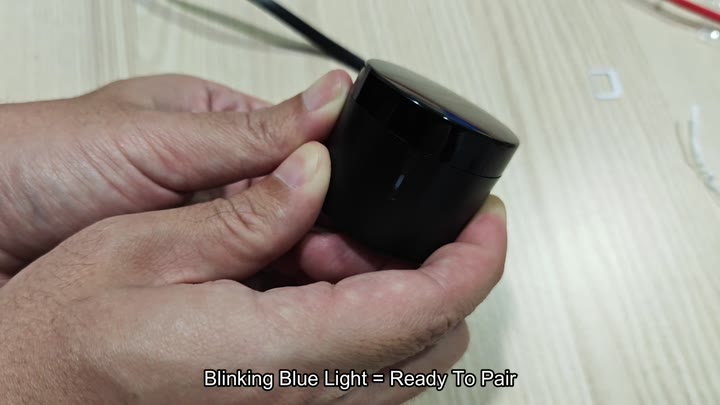
In order to pair with the remote the hardware has to be prepped beforehand so that the app know where to look. To put the Broadlink remote into pairing mode you will need to do a hard reset. The tiny cylinder shaped black device light up blue from top when it’s ready. That’s the sign it is ready to pair.
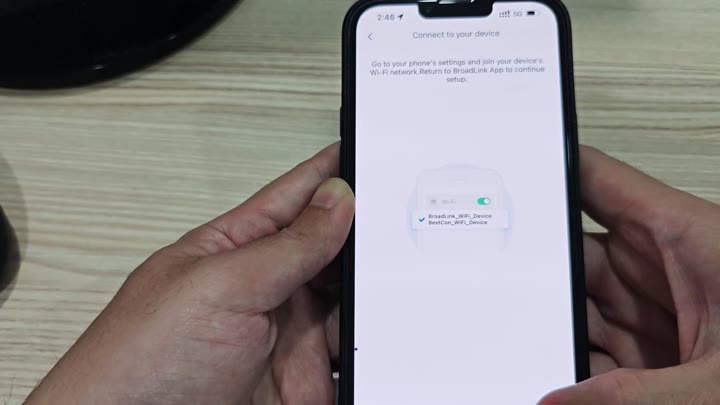
Make sure your phone and remote are both connected to same WiFi network. The first handshake requires you to actually connect to new temporary network being broadcast by the remote.
With the network connection established, you return to the app to complete the registration.
Once that’s done, you’re back on your phone and finish registering via the app.
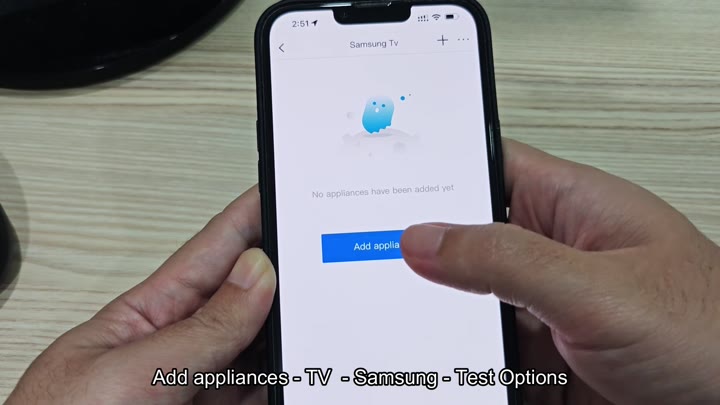
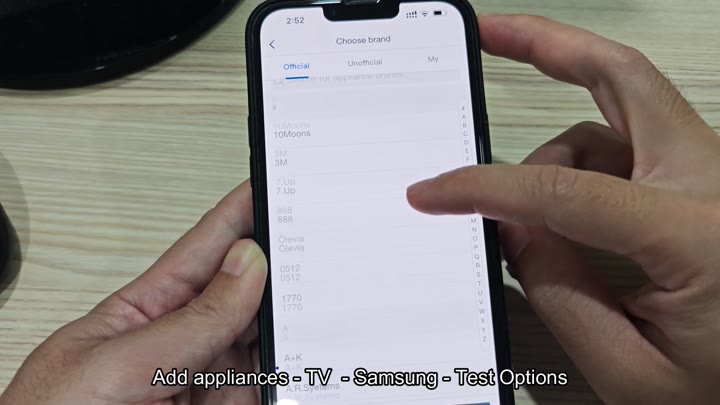
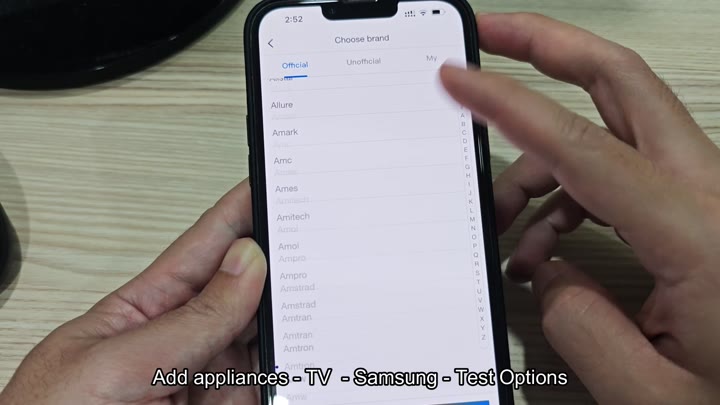
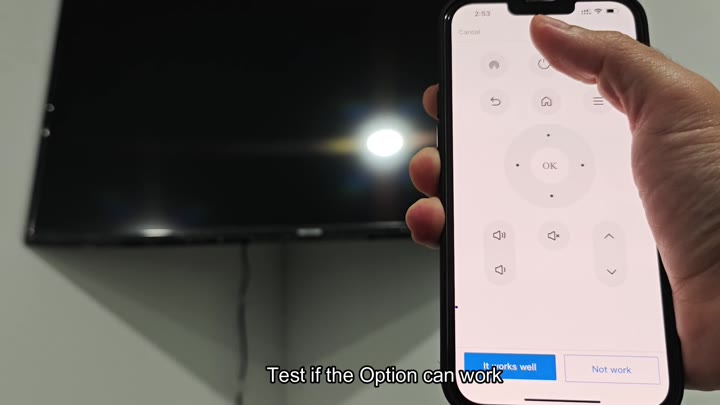
Next, you’re asked to add an appliance. Tap “TV,” choose Samsung from the brands directory, and run through test options provided by the application.
A list appears where you’re asked to test various option; this is key to determining which infrared codes will work with your TV. Next, you’ll assign a name to the newly added remote so you can identify it later, and then the app shows you a list of options to test.
Scroll through the various tests the app offers.
The screen show various buttons including volume controls and directional keys.
There is a range of buttons such as directional keys and volume controls on the screen.
The screen show various buttons including volume controls and directional keys.
To test out a particular command, you’d tap “OK” on the virtual remote which sends a signal to your TV. Then through the remote control, you can check and see if it did in fact work as intended.
By tapping either “It works well” or “Not work,” you’re confirming if that option was effective, which will help the app more accurately improve its code library over time.
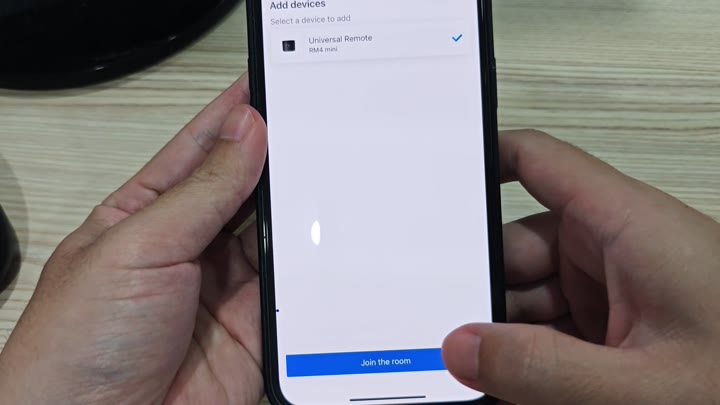
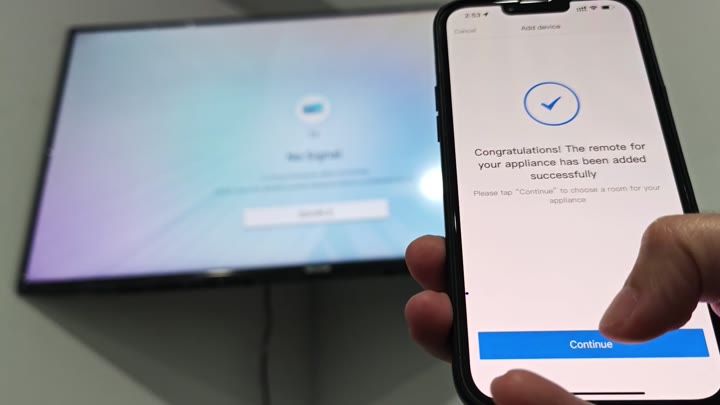
After the test, if it all works out, the app will confirm as much with a message saying you’ve successfully added the remote for your appliance. Then you’ll hit Continue on next screen, where you’ll select the room in which appliance is. That’s an organizational step, one that keeps your smart home set-up neat. After saving, it take you to the last part of setup.
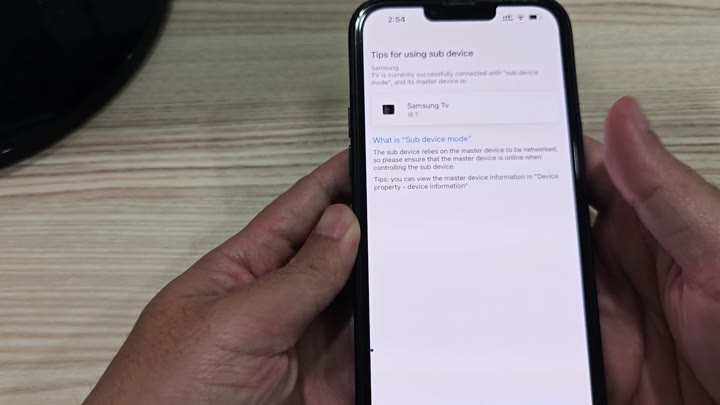
Finally, it displays instructions to use the sub device. As you can see below, your Samsung TV has been successfully connected. The sub device is now in sub device mode, with T87 displayed as master device. It also say the sub device is relying on the master for networking.
“Make sure the master device remains online so that the sub device continues to work,” it reads. Once you do all this, you’re able to control your Samsung TV via the app from your Broadlink remote without any problems.