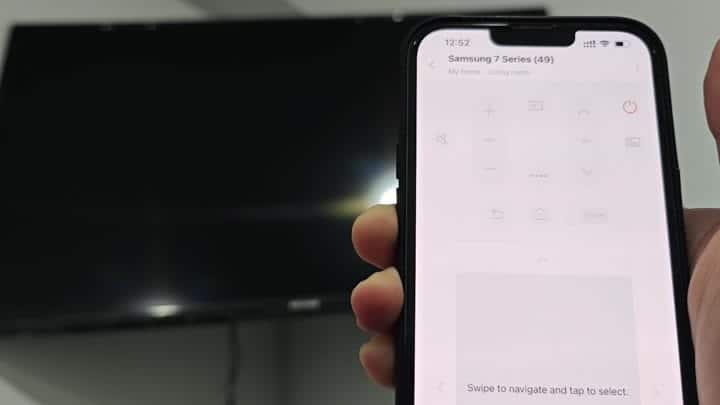
If you’ve run into this particular annoyance, your Samsung TV won’t turn back on via the SmartThings app, even though it powers off just fine, it’s as if something went wrong in the middle; the device recieve the “shut down” instruction and processed it correctly, but never heard the “turn on” command.
Tapping the power button on your phone leave you with nothing more than a blank screen. At that point, you don’t really know what’s going on… it just doesn’t make any sense; why does it respond to half my commands?
How to Fix the Issue
The reason turns out to be a toggle switch, buried deep in the depths of settings: ‘Power On with Mobile’. When the toggle are turned off, your TV simply won’t listen to remote wake-up signals sent from your phone.
This explains it: The TV is already on so it doesn’t require any special permission to listen, which is why the off command succeeds. But if you want to use a command to turn the TV on, that permission has to be turned on just for it. Here’s how to adjust your TV menu to fix that.
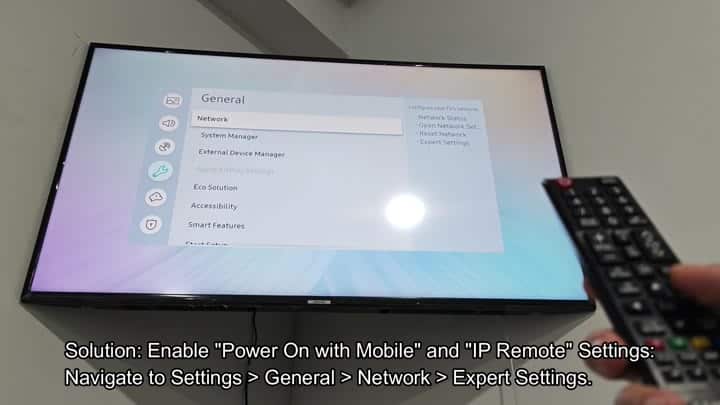
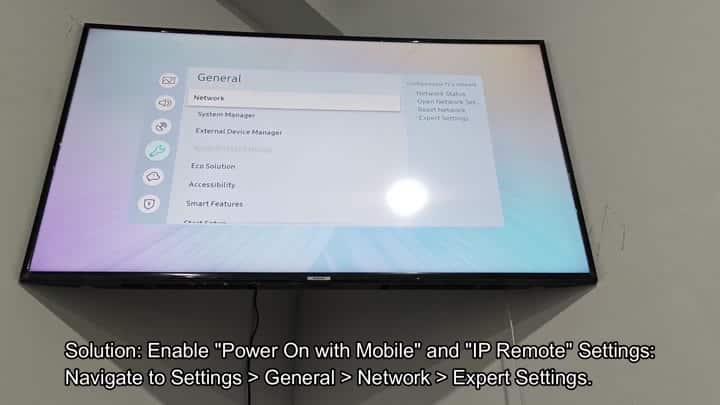
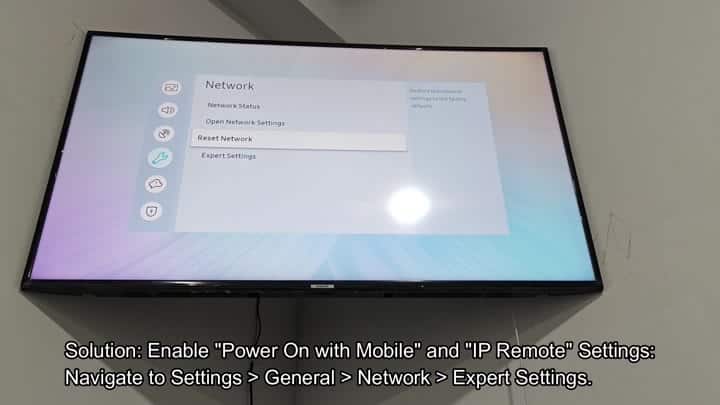
The solution? Well, it’s as simple as diving in to your TV’s settings. From there, head into the main settings menu of your TV, followed by General, then Network.
It might not be immediately clear where to go for a fix, but keep digging around based off the network settings. Within the Advanced Configurations area (which is usually out-of-reach for casual users), click into Expert Settings.
The options appears nicely within Expert Settings. The options we’re concerned about in this case have to do with a setting called IPv6 and one called Power On with Mobile.
If you want the SmartThings integration to work right when it comes to controlling power, both of these should be enabled. Chances are good that your Power On with Mobile toggle was turned off. Turn it on.
Then you want to check the IPv6 box. That will enable the TV to talk correctly with the rest of your house’s device, which use the moddern network communications system called IPv6.
When it’s off, your TV might not be able to complete its handshake with your phone. And remember: these two boxes goes hand-in-hand. You want the IPv6 box as well checked so your TV remains in listening mode (but not high power). That way, when you turn on your remote, it picks up signal.
Without those two boxes, the TV go deep to sleep, it won’t hear anything from outside.
After flipping both toggles on, you can test it out in the SmartThings app on your phone. On home interface, choose your living room TV and the remote control icons will pop up on screen.
Press the power button on your phone’s app and the TV will wake right up again. No errors, no lag, just signal going straight through. The connection is re-established.
Fortunately, it didn’t involve a factory reset, and the fix is surprisingly simple. No firmware updates are required. You should of not needed to re-pair it. Simply enable the right network permissions.
Sometimes the answer hides itself in plain sight among the expert settings. Once you know where to look, this is an easy fix.