
Replacing your home Wi-Fi router is typicaly a pretty simple process. You’d think that you could set up your network in no time at all. But then there’s this one device, the Blink Sync Module, that just won’t connect to the new network. The power light turns on and stays on (green), but the Wi-Fi light never come on (it’s completely dark).
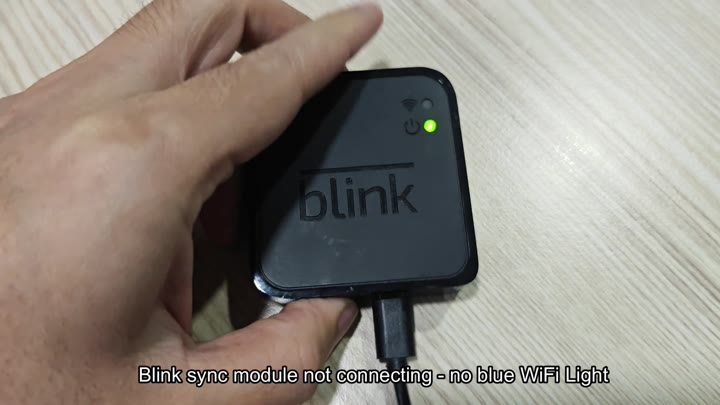
The green power indicator stay solid, and the Wi-Fi LED remains completely dark.
Performing a Forced Firmware Update
Perhaps you give the reset button a go right away. The unit won’t go into pair mode or even restart. Nope, nothing at all. But what about that combo of a solid green with a flashing blue? That never materializes either.
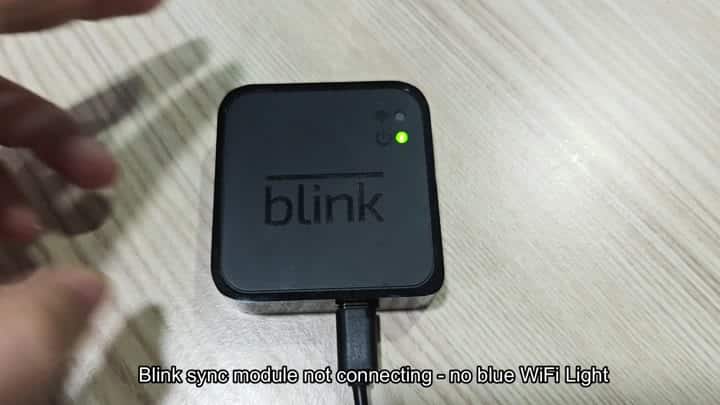
It won’t respond. You can’t get it to come back online; normal reset methods fails. It seems permanently broken.
But it isn’t. The module itself is powered up, but there is no connection.
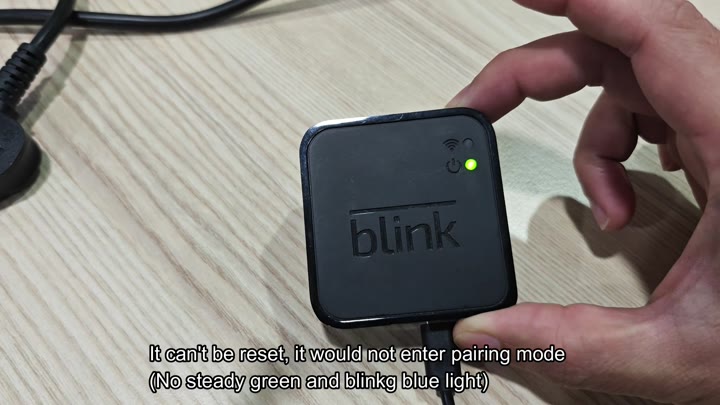
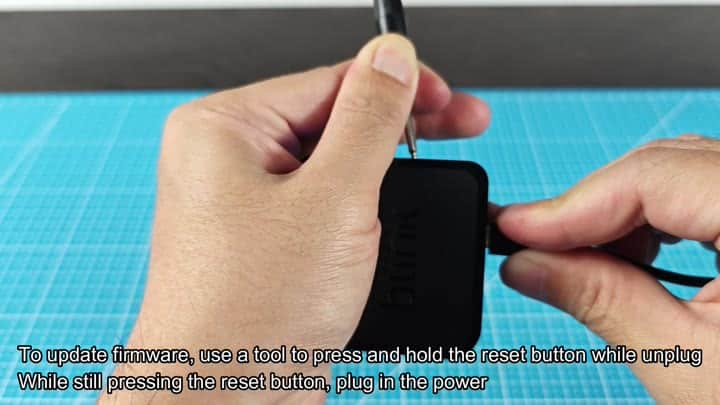
That’s where the fix lies, and it involves a forced firmware update. To do this, you don’t simply reboot; you actualy interrupt the power cycle by pressing the button during the process.
Unplug your Sync Module from power and then press and hold the reset button. Plug the power cable back in while keeping the button pressed. Keep your finger on the switch until it connects again and then let go of the button.
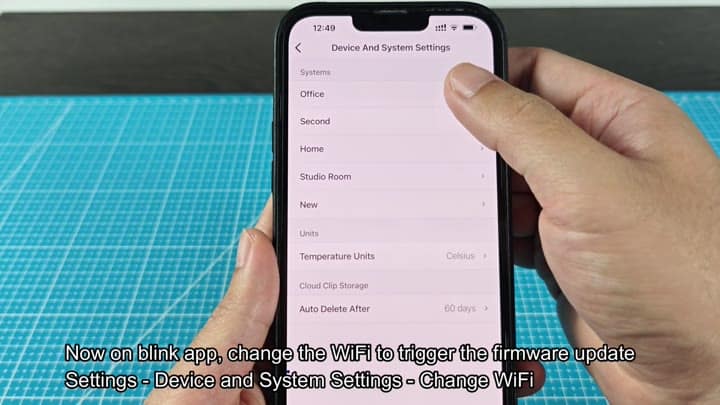
Then from there, you go into the Blink app on your phone. And then you’ll get into the settings menu and you click the button to change the Wi-Fi network which causes the firmware update to start.
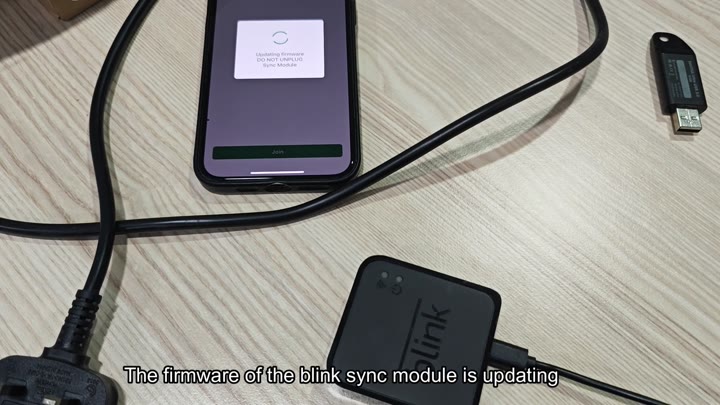
The app finds the module and starts the process. You see the progress bar filling up on the screen. It will tell you not to unplug it, so you do not.
The firmware updates successfuly.
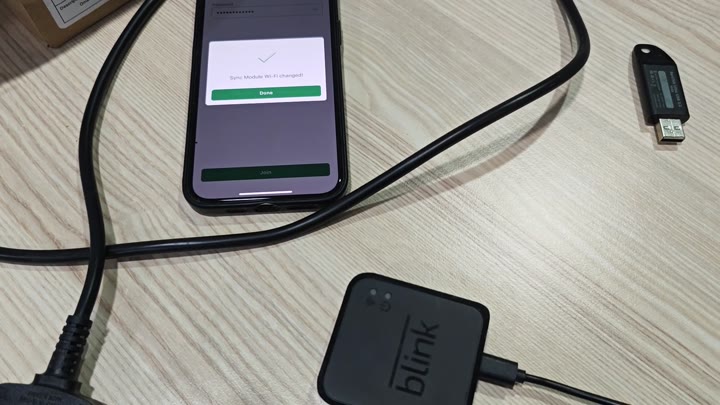
It changes the Wi-Fi and does so successfully. That’s important as the module wouldn’t accept new router otherwise. It gets confirmed in the app and we get a notification that the Wi-Fi has changed.
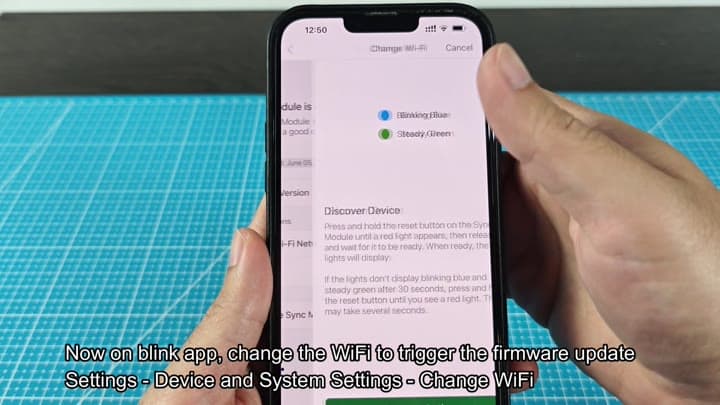
Then you hit done.
So we plug in the Sync Module again and it reboots. Everything works fine. It reconnects to the network just fine. But here’s the strange part: the Wi-Fi light never turns on. Never.
But everything else are working fine. The power light is solid green. The cameras connects and everything runs as normal. The power light is solid green. The cameras connect and everything runs as normal.
Check again. It still says that the module is on-line, and the latest firmware are installed. But there’s no blue Wi-Fi light. Is it a failure? Not so fast. Because of this fix, this is exactly how it should of look.
The hardware’s good. It’s connected to the network and the software’s updated. The lack of a blue light isn’t impacting anything; it’s purely cosmetic. Turn a blind eye to the dead LED, don’t freak out.
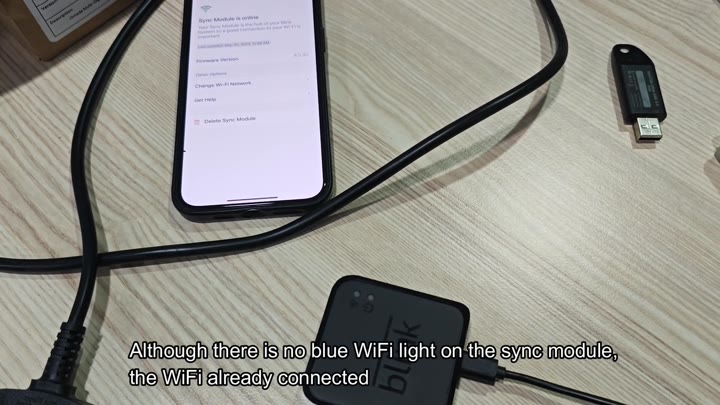
So there it is: Your system’s up and running in full force. The router replacement was successful. Traffic flowing just fine through your Sync Module. You no longer need the blue light to confirm.
Status on the app is what matters. That should look something like this. Don’t sweat if yours does.
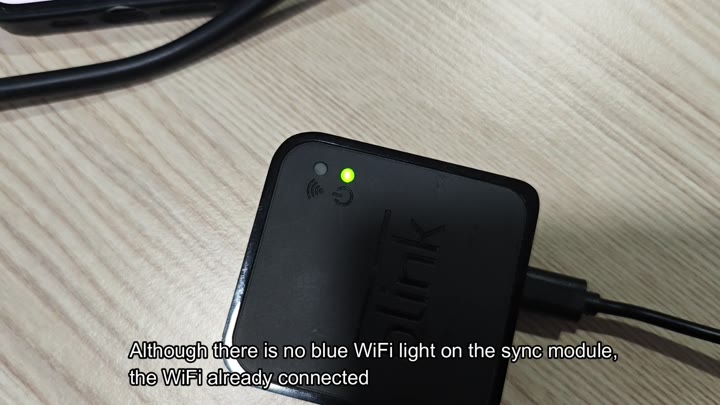
And it’s working.
