
Believe it or not, resetting your PS4 via the controller are easier than you think. It’s not like pulling out cables or performing some strange combination of buttons on the console, it’s all done within the regular menu system.
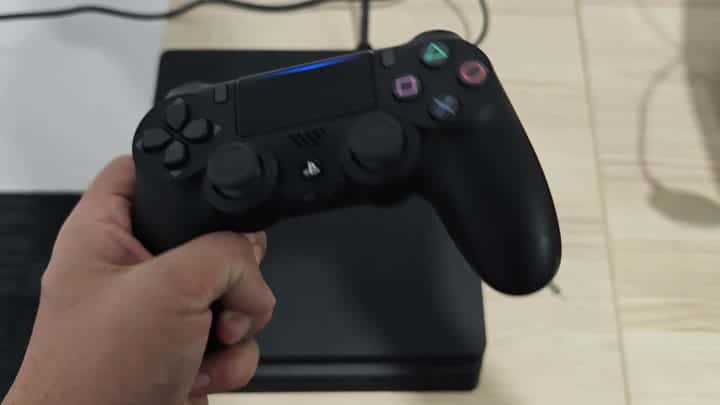
Don’t forget to log in first. Then it start on the main home screen. You’ll see the other apps there. One of them is a Settings icon. Scroll until you see the option for Initialization.
Choosing The Right Reset Option

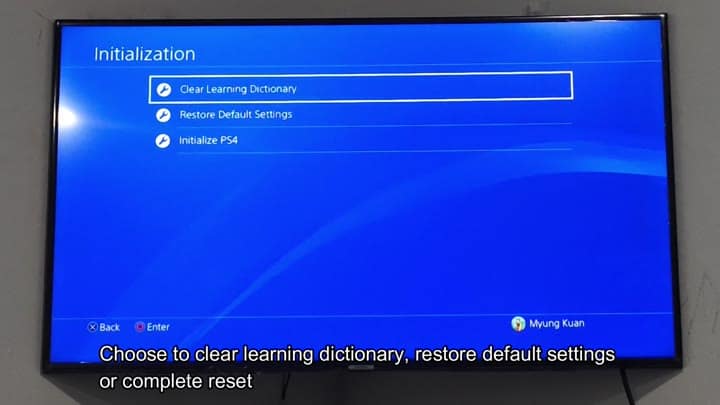
There it is, where all of the reset options live. There is actually three different options within that menu. One is to clear the learning dictionary. The next one reset your settings back to defaults. The last option is full initialization of the PS4.
That’s probably what you’re thinking of doing, a full wipe. To do that, you click one more button at the bottom which prompts you to enter your passcode. That’s there as an added layer of protection against accidentally deleting stuff. Normally, it’ll be set to the number 0000 (though obviously change that). Then you tap out that code on the screen.
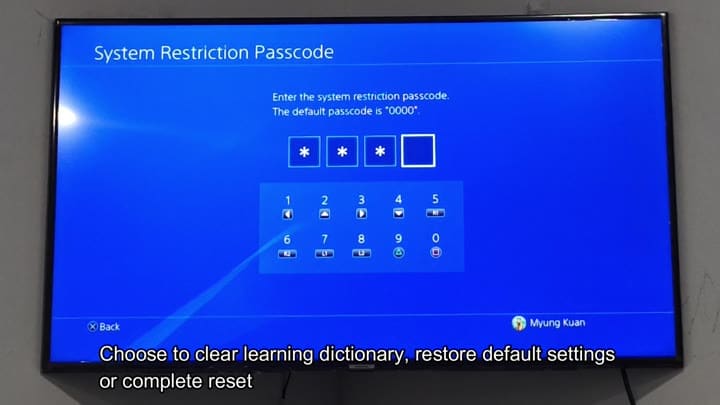
Easy enough, and the step feels secure but straightforward. After entering your code into the system, it’ll finally give you an option for either Quick initialization or Full initialization. Full will wipe everything, while Quick will only remove user data but leave your games installed.
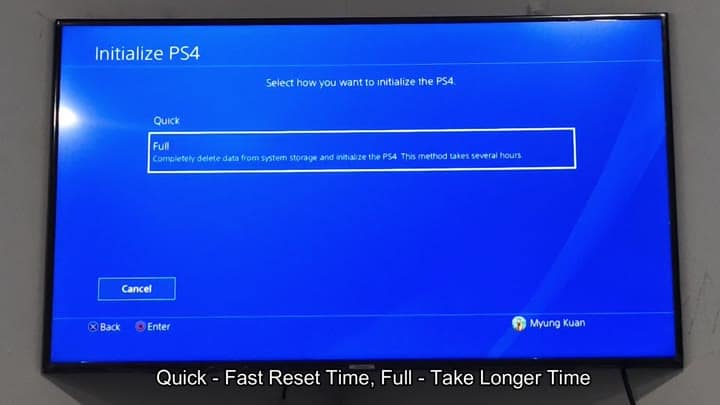
The process will take a few hours.
Choose the Full option, which gives you a clean slate. Yep, it’ll take a while, as the system tells you. All of your data are removed. Gotcha. Check. Confirm. Click to wipe. And your console does its thing, quiet in the background.
The drawback here is that you have to have your console on. It won’t work in safe mode using the controller alone. The system has to boot up all the way in order to get into initialization menu. If it’s not turning on at all, you’ll have to find another way. For normal purposes, however, it’s great.
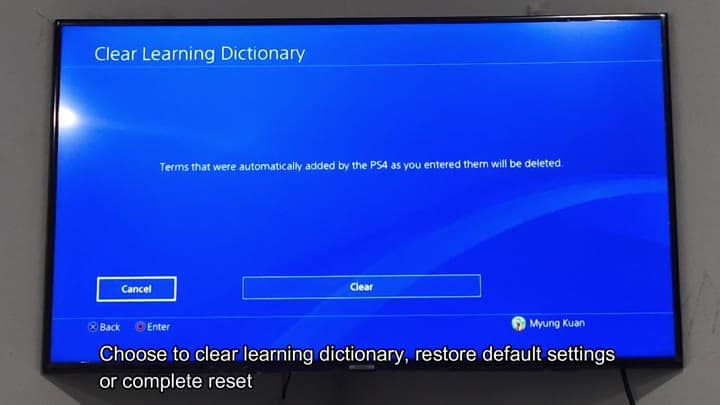
For problems with voice commands, the learning dictionary option come in handy. It clears terms that were automaticly added. That might solve recognition errors.
If not, you might want to go with one of the other middle grounds: restoring default settings. That wipes out your system preference but not the games themselves. The library stays intact.
That’s because it takes less time using the controller for those functions. It doesn’t require you to get up and go to console. You’re sitting on the couch the entire time. And that blue light on the touch pad stay on, signaling a solid connection. There are no pauses.
Don’t forget about the passcode step. Unless you’ve changed the code to something else, it is 0000. Remember what your code was? If not, the reset won’t go through. If you didn’t change your code, that’s fine. It’s default.
Full initialization is complete. And it’s time consuming. It takes hours. Don’t shut it down while you’re doing that. Let the system take care of deleting all that data for you. Just sit there and wait.
This would of been an excellent candidate for something you initiate before bedtime. By morning, it’ll be finished. Resetting your PS4 is a pleasant experience. Navigation through the menus makes sense. Everything is easy to locate. There’s nothing intimidating about it. There are a few basic choices. No tricks or anything.
If you’re selling the console, this works best. It erases all of your personal information. It gives new owner a fresh start. If it’s glitching on you, try this too. Sometimes glitches gets fixed with a complete reset. It cleans out corrupt data.
The console powers up and starts running all of the initialization on its own. You head off to make some food. When you return, the console is once again a fresh start. It’s exactly what you were hoping for. It was worth doing.
Your controller stays attached the whole time. No pairing problems occur. The DualShock 4 take in all of the data without issue. It is a solid piece of equipment for keeping things maintained. Better than hunting around for that power cord. It is an easy-peasy fix.
Keep the passcode with yourself. Write it down somewhere. Don’t forget it. Otherwise, you’re locked out. Ouch. With the passcode, access is easy. Type it in and confirm. Done deal.
Quick vs. Full makes quite the distinction. Quick retains downloaded data. Full wipes it away. Select accordingly. In this case, you need everything gone. So Full it is.
It doesn’t matter what kind of PS4 you’re using. It’s all the same. There’s still a menu. Still settings there. You can still initialize it. It’s built into the console. Consistent. Reliable. Good enough.
If you’ve ever reset a console, then you’ve done this before. And if you do it with your controller, it’s the best way. You do not need any tools. It is not invasive. Just use your remote and your system. It is simple. It is effective. It is the obvious winner.
