
Resetting your PS4 from safe mode is another option that doesn’t require a login password. Instead, the console will boot into recovery menu where you’ll be able to either restore default settings or perform a full initialization.
Safe Mode isn’t tied to an individual account, so you won’t even have to sign-in here. All you need is ability to physically access the console and this should work just fine on most setups.
Connecting Your Controller
To perform this process, you’ll need to have your PS4 fully shut down (meaning in the “off” state), because rest mode won’t work for this.
With the system powered off, press and hold power button on your console. Don’t let go until you hear one beep (which happens immediately). Continue to hold the power button down.
A second beep will sound, which means the console is now in Safe Mode. Let go of the button when you hear the second beep.
You won’t see anything, the screen might go black or simply say something else entirely, but it’s time to get your DualShock 4 controller out. It can’t be connected via wireless in Safe Mode; you’ll have to go for a good ol’ fashioned wire connection here.
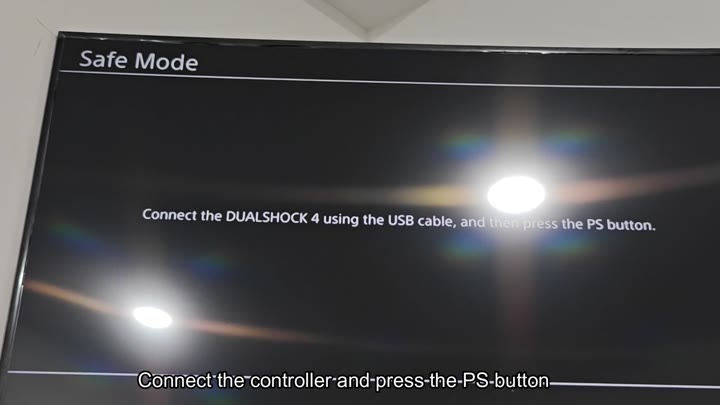
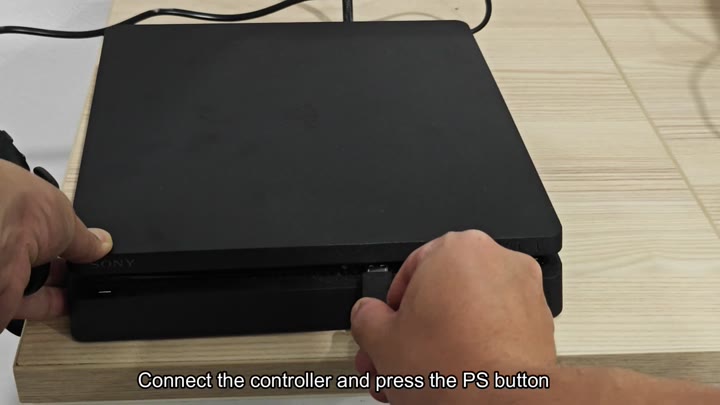
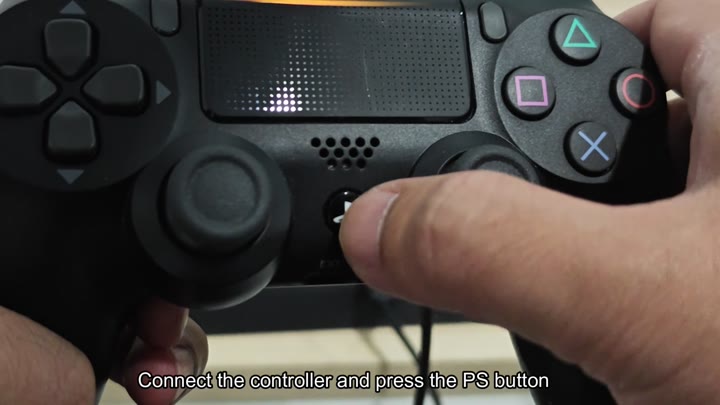
Simply insert one end of a USB cable into your controller and plug the opposite end into console itself (specifically its front-facing USB port). That hard-wired setup is what you’re going to rely on here, as wireless doesn’t register with system at this point. Once that’s done, hit the PS button located on the controller to start the boot sequence that leads to maintenance menu.
Bypassing the regular user interface, this puts you into the system, which may take some time to load. To confirm it has connected, check your controller’s light bar: It should remain lit steadily. You’ll see a screen showing the Safe Mode menu and various recovery options.
The options include things like switching to a different screen resolution, or even restarting. But none of that is what you want when you’re trying to reset your system.
Down at the end is a couple of options that are of interest when resetting.
There’s one that will initialize everything (and another to reset your settings back to there defaults).
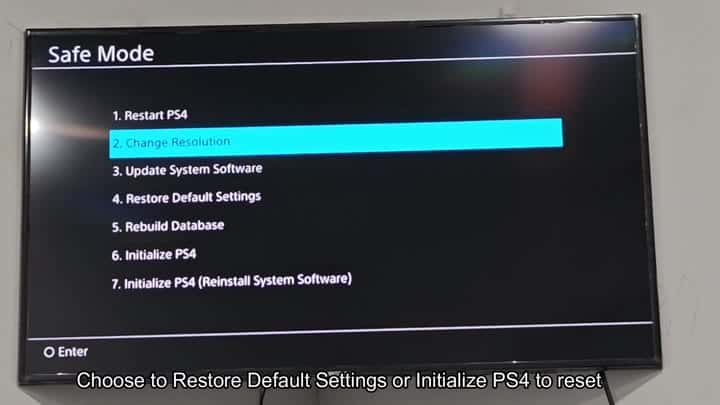
To erase all data from your system, choose “Initialize PS4.” Doing so will wipe the hard drive clean. There’s no going back once you begin initialization. Choosing this will get your console ready for a clean slate.
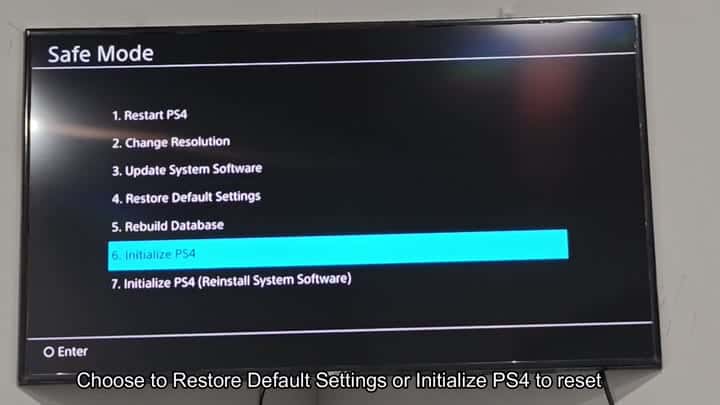
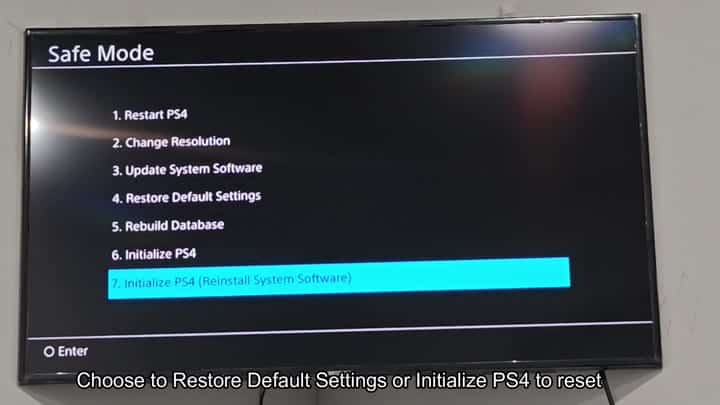
Or, you could use the newest firmware and reinstall the system software using a USB drive. However, if you don’t have the firmware handy, just go with the regular initialization as that will use current system files and it’s easier for most people anyway.
Once you choose initialize, a confirmation screen pops up. The system also alerts you to data loss. Click confirm and away we go on the reset process. It’ll take a while, so don’t turn the thing off in the middle.
Just let it do its thing. Let it run its course and finish up.
After that completes, your PS4 will reboot and appear as if it’s a fresh system all over again. Re-entering your account information, setting up the network, and selecting the language won’t feel naturaly. It will seem odd to see those first-time setup screens again, but there’s no other option for completing a full system reset.
Afterward, you can log in smoothly and the system will be fast and clean once more. No need to fret over lost passwords or call support; with this trick, you get a hard reset based off the regular UI.
