
If your Samsung TV has problems caused by improper settings, you can fix it with a factory reset. A factory reset clears your TV of strange settings and gets it back to its original setting.
The best part: you don’t have to press any button on the TV’s panel. Instead, you can use remote to do it, which is much simpler.
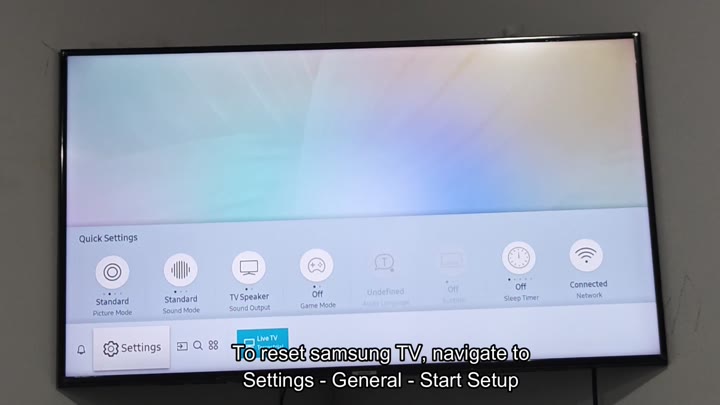
Then, press the Settings button on the remote. That will opens a quick Settings menu on the side of screen. Here you’ll see some basic options like Sound Mode and Picture Mode, along with your current network status.
Performing The Factory Reset
But these are all basic settings that won’t impact the reset. Your goal is to get beyond this first menu. The reset option’s buried a little deeper in the system settings.
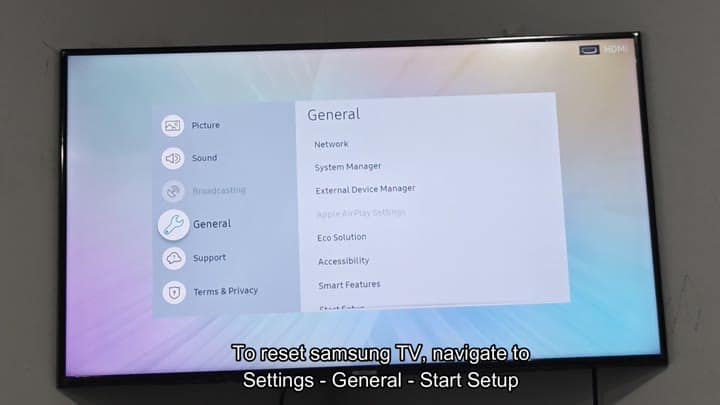
Scroll down until you reach General category. The General category has a number of system control, including Network and System Manager. But again, don’t expect it to be at the very top of list.
There are plenty of options in the General category, so take your time as you scan through them all. Finally, look for Start Setup option near the bottom of the General menu.
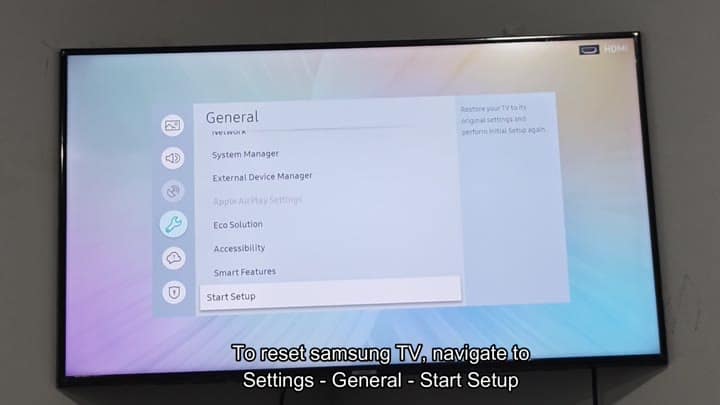
You might see other choice such as Accessibility or Eco Solution. Tap on Start Setup and you’ll initiate the factory reset. Everything return to default.
Once you find the right menu item, the rest is easy. It’s buried way down in the menus but it’s always there.
Factory resets removes any custom settings. Delete picture and sound profiles. Log back into apps. It’s going to be a fresh-looking TV.
Depending on your model, the menu layout might differ slightly. But route is roughly the same across models. Under Settings, go to General, then Start Setup.
The reset isn’t a sound setting, nor a picture setting. It’s a system setting. That means you won’t see it in your Quick Settings menu. You’ll only find it under General.
If you’re saving time, start there. Don’t scroll around looking in some odd sub-menu. Get straight to General and you’ll be able to locate your reset.
Press the arrow buttons using the remote to get through the menus. Press the center button to accept the choice. You should of not notice any lag as it moves you through the menu. That’s how Samsung TVs works. This method works reliably on most model.
When you press start setup, just confirm that you want to do that too. Your TV will reboot and spend about a minute resetting itself.
Restarting your TV makes it look like new again
Whether you have lingering bugs or you’re selling the TV and want to prep it for its next owner, performing a factory reset does just that. No matter why you need to perform this task, the process remains consistent.
From Settings, choose General followed by Start Setup. All-in-all, it only lasts about 30 seconds. It is clean and fast.
