
If your Lenovo Ideapad isn’t charging, check the power adapter. Ensure it’s plugged in correctly and that it works, as a loose brick or frayed cable can cause failure. A bad adapter (frayed wire or loose brick) will not work.
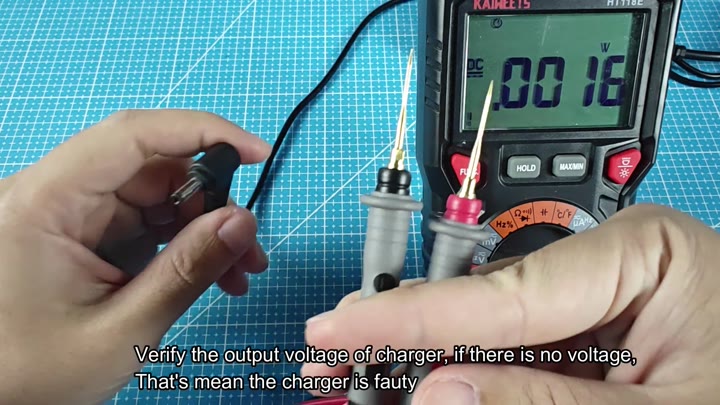
Using a multimeter, you’ll touch one probe to each of the tips on your connectors. The display will read voltage.
In this case, since I don’t have voltage coming out of it, then my charger must be bad. If voltage is present, your power source should be good.
Diagnosing Driver and Software Issues
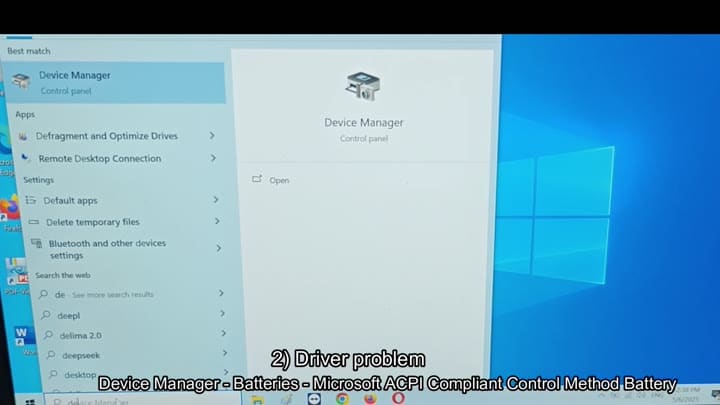
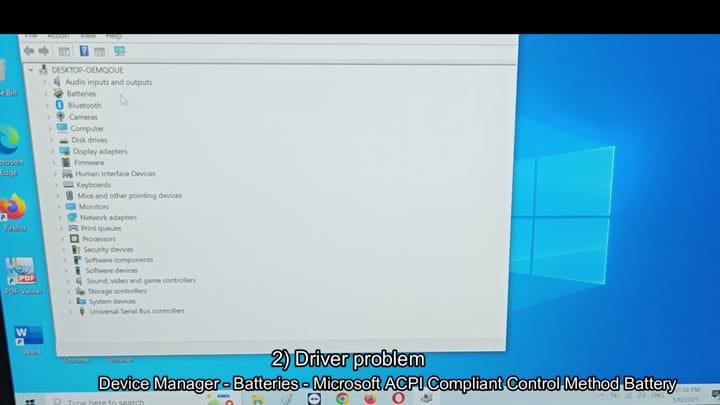
Since software glitches can make a piece of hardware act weird, then it’s time to check out driver issues. In this case, you search for Device Manager in Windows start menu and click on that. A window will pop up showing your desktop name at the top. Scroll down until you reach Batteries category.
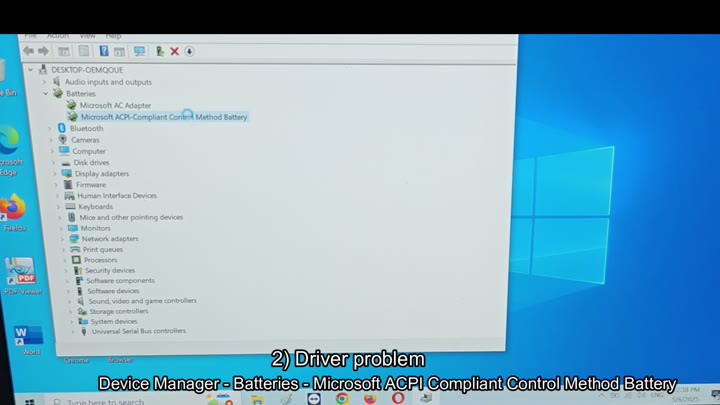
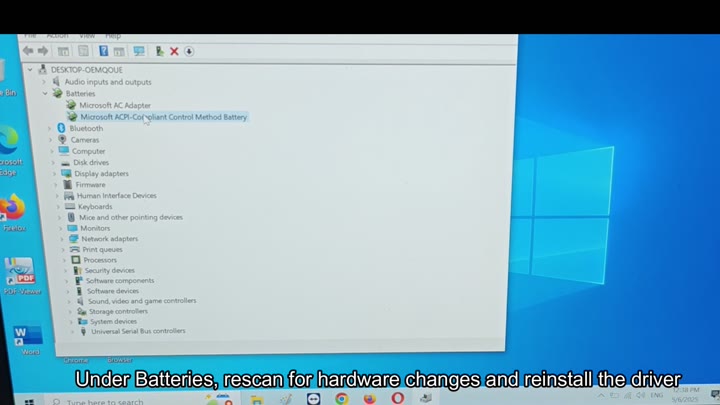
The section is where you control power delivery settings on your operating system. By expanding the list, you’ll notice that there are two primary entries here. The Microsoft ACPI-Compliant Control Method Battery and the Microsoft AC Adapter.
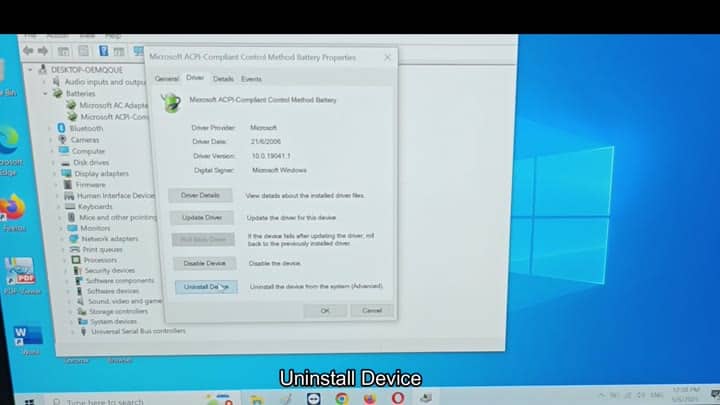
You’ll be focusing on the ACPI battery entry which controls how OS communicates with your battery hardware. To get into context menu and uninstall the device, simply right click on it and choose Uninstall Device option.
You’ll see a dialog box displaying drivers. Click the Uninstall Device button. It will remove the driver software but not delete the hardware. This will simply cause Windows to forget how the device is currently configures.
Next you’d hit Scan for hardware changes which causes it to rescan everything that’s plugged into it. It finds your battery again and installs new driver for it for you.
Still no luck? Well now maybe it’s just the battery, as they do degrade with age and stop supplying power.
If drivers do not fix issue, the battery itself might be the culprit because batteries degrades over time and eventually refuse power.
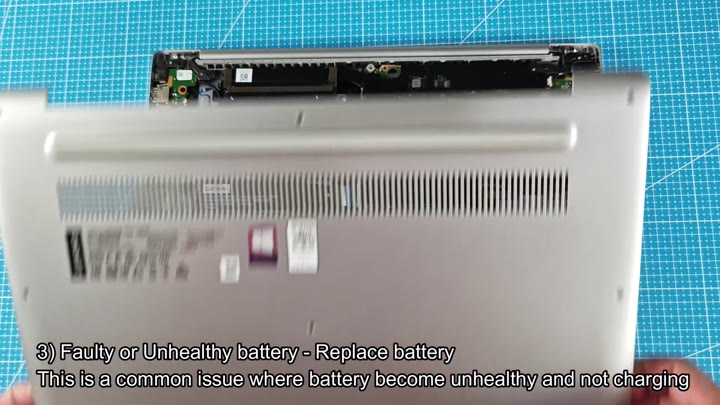
Remove back panel of your laptop and disconnect the battery ribbon cable to access the battery. Then, you have to remove the back panel of your laptop in order to gain access to its innards and disconnect the battery ribbon cable.
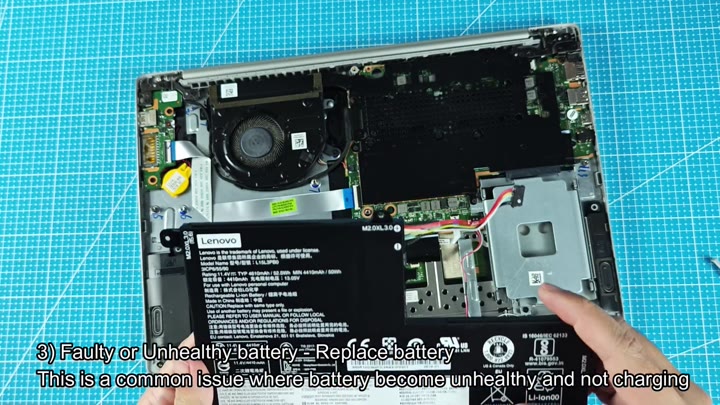
So you pull the unit out and take a look at it. The battery is swollen or just plain old. You replace it with a new one just in case your battery has cell failure, which is a common problem with bad batteries.
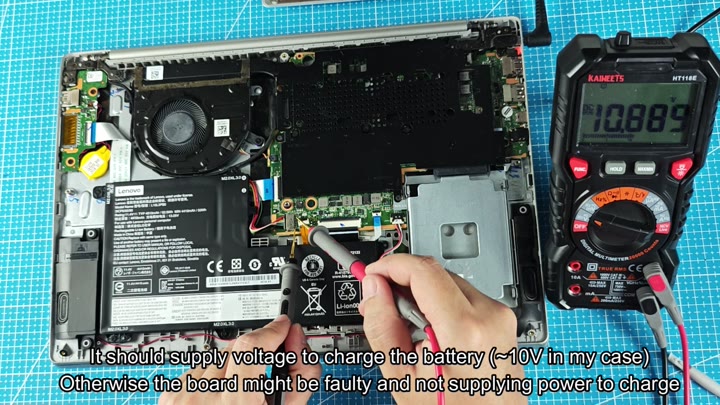
If your battery tests good and it still won’t charge, that means you’ll need to see about the motherboard as it may not be passing power through to the battery. Once the case is open, use your multimeter to check the motherboard pins closest to the battery bay where the battery plugs in.
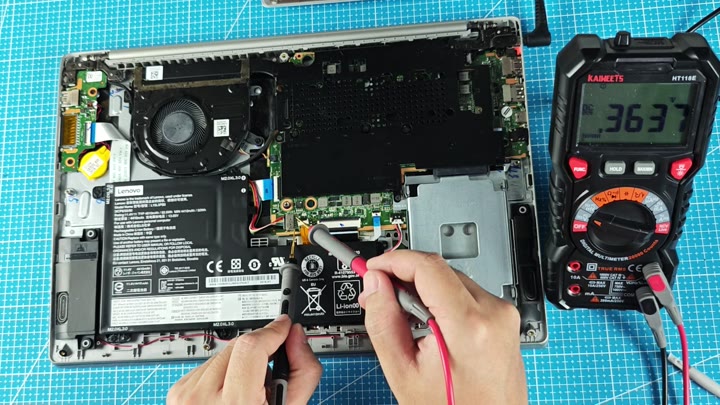
When we apply about 10 volts from the board, it charges the battery and a voltage read of around 10.8 volts tells us that everything is okay with the circuit.
Note: If the reading was zero then the board would of been defective. In our example it is charging properly.
If your Ideapad won’t charge, there’s a 4 step process for troubleshooting: First, the charger; second, the drivers; third, change out battery (if it’s old); fourth, test the motherboard voltage. One of these four steps usually solves the problem when an Ideapad refuses to charge.
