
To clear out your Roku Streaming Stick 4K, there’s a set of instructions for resetting the thing that will make all that data go away. It’s simple enough. But you have to pay attention. In fact, they’re easy to miss if you don’t look closely.
One: It takes power. That means plug it in. Powering the streaming stick are necessary for it to work. It can’t talk to the TV or the remote unless it has juice. Don’t skip this one.
Two: Solid connection. A bad plug will cause strange things later on. So double-check here. Seat it.
How to Perform the Reset
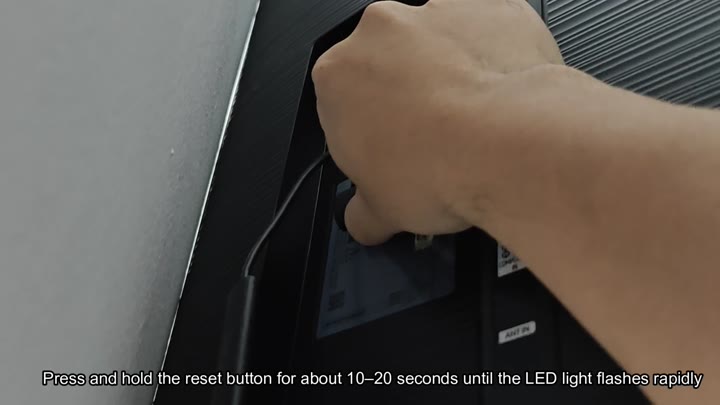
Now find where the reset button is located. This will be a tiny hole in the unit. Use a paper clip or some other thin object to press the button. Instead of just tapping the button, push and HOLD the button down.
As you’re waiting for the light simply wait for the LED to flicker (it typically does in ~10, 20 seconds). When you see the light flash quickly, release the button. This shows that the button has been pressed and registered. You don’t want to hold it any longer then needed.
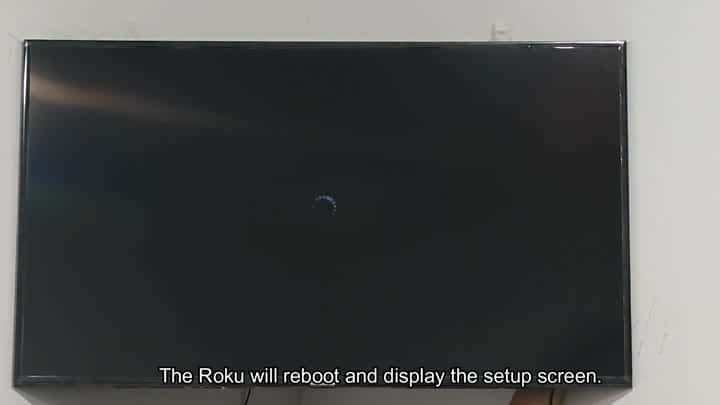
So then let go of that button, and the thing begins to restart itself… Again. The TV display will show a tiny circle rotating in the middle against a black background. It’s just a bit slow, because it has to purge all that memory from the system.
So don’t pull the plug now! Be patient. It will get there. When the animation stops and dissapears, that’s when it’s finished.
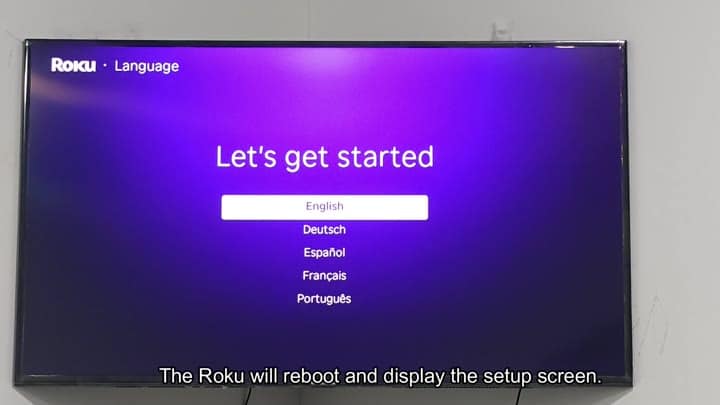
So it reboots, and when the screen comes back on there’s the setup interface greeting you again. There’s a purple background, language selection in the upper left-hand corner and a big white phrase saying “Let’s get started.”
Beneath that are your language choices. By default, English is selected, but you have an option of Español, Deutsch, Français and Português. You can switch here, but otherwise the device is new and waiting for fresh apps and accounts. Gone is the old stuff.
It was a very simple process and less than five minutes long. I thought there would of be some steps involved but nope, turn on, push button, done.
Well, blinking lights were the only thing that was a little confusing as most folks think you tap the button and nothing happens. Nope, you gotta hold it and there ya go. There isn’t anything else you need, no computers, no special tools, just power and the stick.
It’s good to give your device a reset occasionally. Not only does that clear out any glitches, but also freshens up the connection between the box and content sources. In fact, this works on all kinds of streaming devices. It is a fix for most problems. I definitely noticed the Roku felt snappier after the reset. It is worth it.
One last thing is that you reconnect to Wi-Fi at the setup screen. Go through the same old prompts to select your network and reenter your password, and then you’re back in business, albeit with all your apps having to be installed again and all those logins reentered. Fresh slate time. Starting clean leads to ending better.
Sometimes there are minor bugs that hang around, but they go away when you reset. It’s like rebooting your computer. There isn’t even a need for a reason. Do it just because.
No technical expertise is needed; it’s a few simple steps anyone can take. Try it. You may be pleasantly surprised how much cleaner your system is.
