
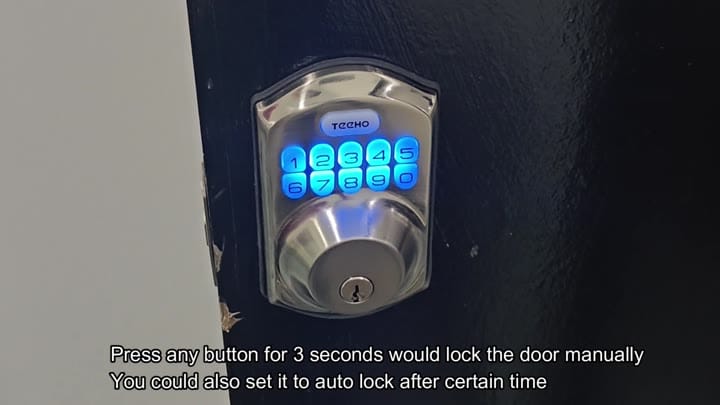
Teeho locks has an auto-lock function that will automaticly secure after you walk away. It’s easy to program and involves following correct order of buttons to engage the feature.
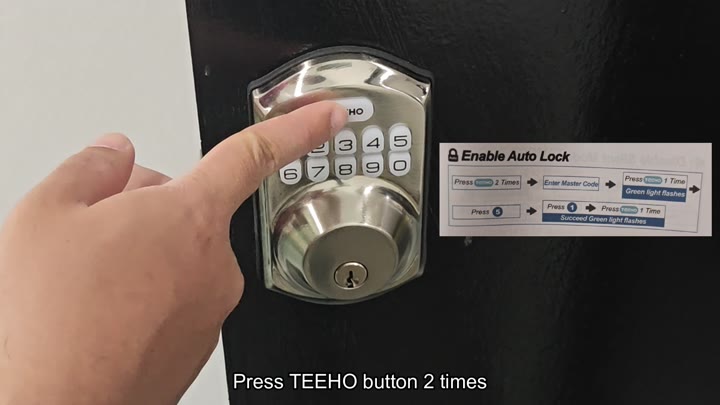
Tap the Teeho button twice in rapid succession. This puts system into programming mode. Now wait for your next command.
Adjusting the Auto Lock Timer
First, tap the Teeho button twice to enter programming mode.
Enter your master code next to approve this change.
You enter the master code to ensure only an admin can alters the settings. Once you’ve accepted the code, press the Teeho button once. Now it’s waiting for the function command.
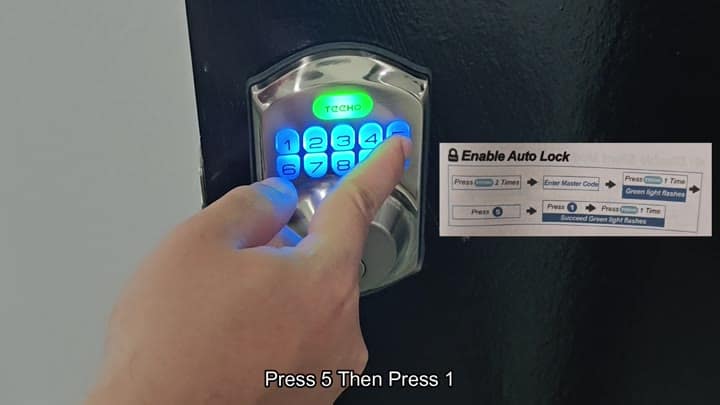
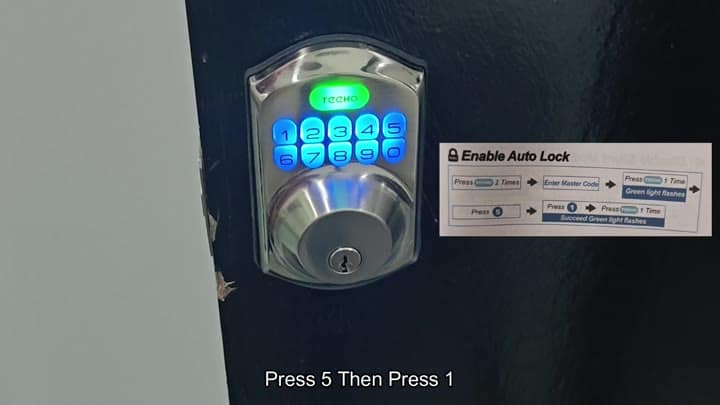
Press 1, followed by the number 5 on the keypad. That combo tells device to enable the auto-lock function. Finally, press the Teeho button once more to confirm the setting. When successful, a green light will flash.
Now when the system goes into auto-lock mode, you might wish to adjust it so that it doesn’t close right away (you don’t want that) but also that it’s not unlocked for very long.
Return to the setup menu by tapping on the Teeho button two more times. Re-enter your master code as you did before. As soon as it recognize you’re the master, it does its thing.
Tap the Teeho button twice, enter the master code, then tap the button once followed by the number 8. That will put the timer adjuster on screen. Here you can select up to 99 seconds (or go low with a 10 second timer if you are only testing).
To set the timer, tap the Teeho button twice, enter your master code, press the Teeho button once, and then hit 8 to open the timer adjustment menu.
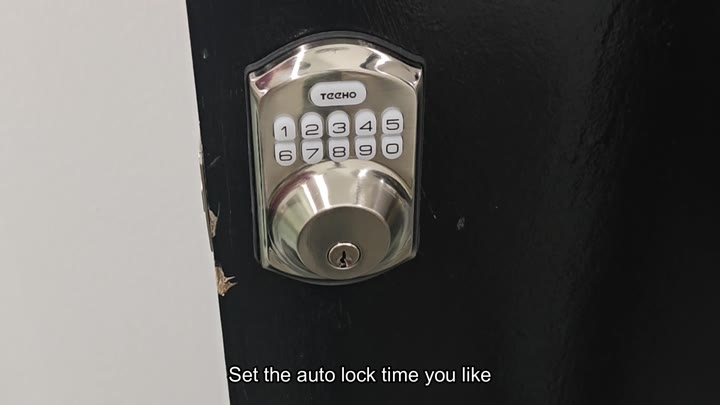
Once your decision is made, set the timer.
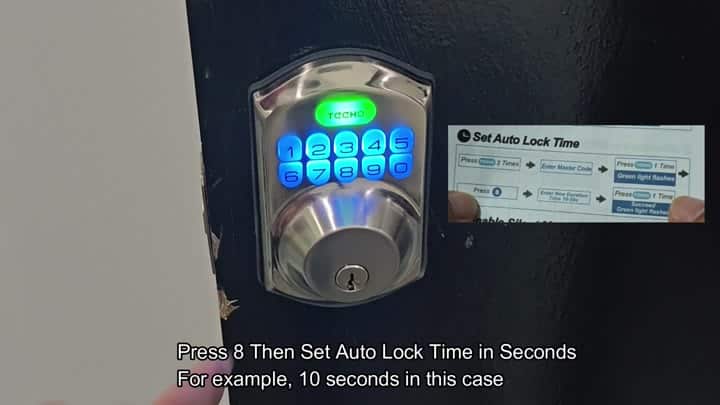
The display updates to reflect your updated wait times.
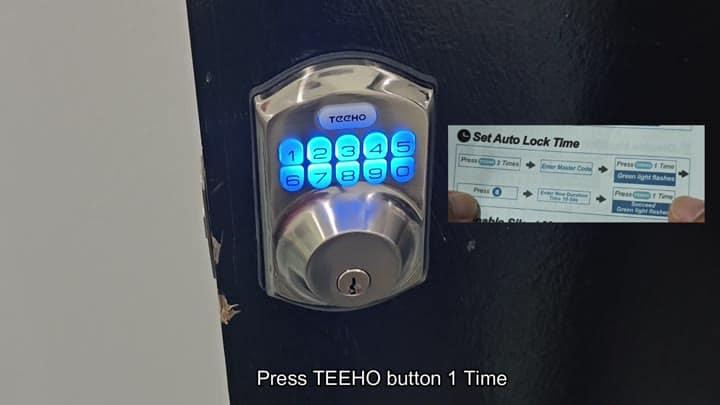
The display updates to reflect the 10-second delay. From there on out, when you close the door, it’ll automaticly lock behind you without having to use your fingers again.
It’s simple. No additional apps needed. No additional tools required. You only need the keypad.
Lock the door and unlock it a couple of times to test it. It should of work just like you programmed it to work.
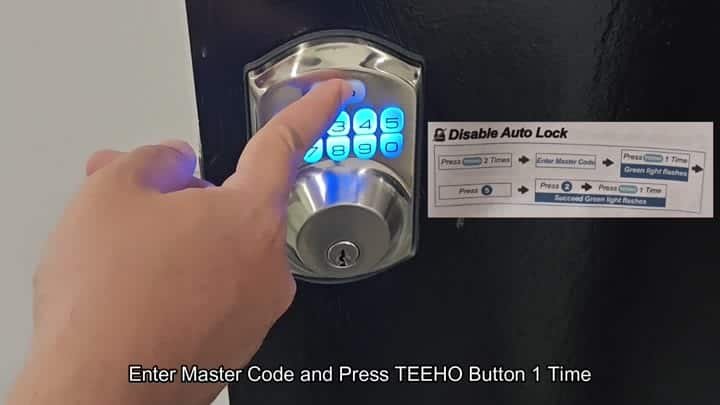
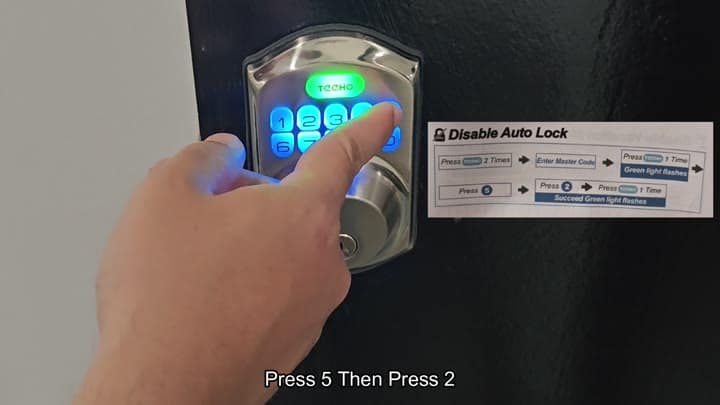
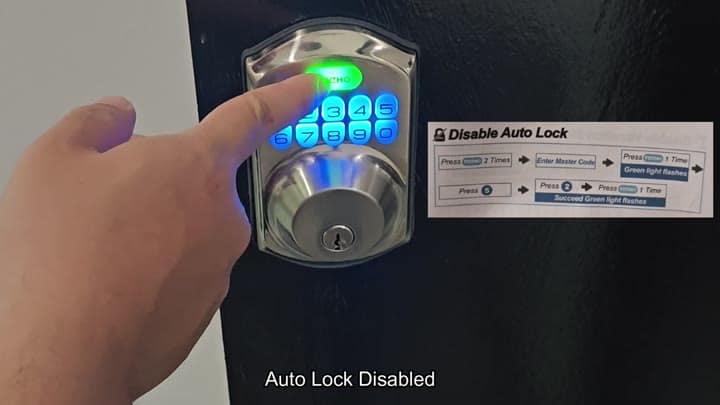
This is also how you would turn off the feature if you change your mind down the road. The process for turning off the auto-lock feature are the same as it was for turning it on.
Tap the Teeho button two times and enter the master code. The lock understands you are in control.
Tap the Teeho button twice and enter the master code, then tap the Teeho button one time, followed by tapping 5. Rather than tapping 1, tap 2 this time. This tells the system that you want to turn off the auto-lock feature. Tap the Teeho button once more to complete the order. You’ll see the change right away.
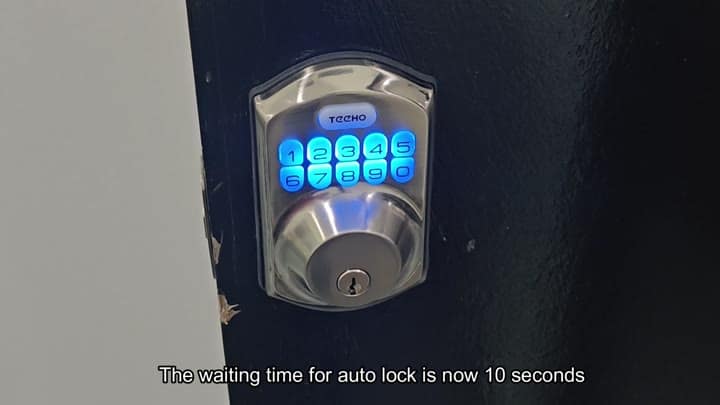
It’s an under-two-minute process.
It’s easy enough to understand. The logic of the keypad makes a lot of sense.
Tap twice. Enter the code. Tap the button. Enter a few more numbers.
To enable, disable or time your door, the process is pretty much the same. It only differs in that last number. You don’t have to scroll around in menus, just tap and away you go.
There’s an auto-lock feature which comes on after forgetting to hit the button, but can easily be disabled if you want full control of things. Either way, the door stays locked.
