
How do you reset your Nintendo Switch? There are actualy two primary options: one for when it’s running properly and another for when it doesn’t start up at all. If it starts, you can do this from within system menu. If not, it’s through recovery mode.
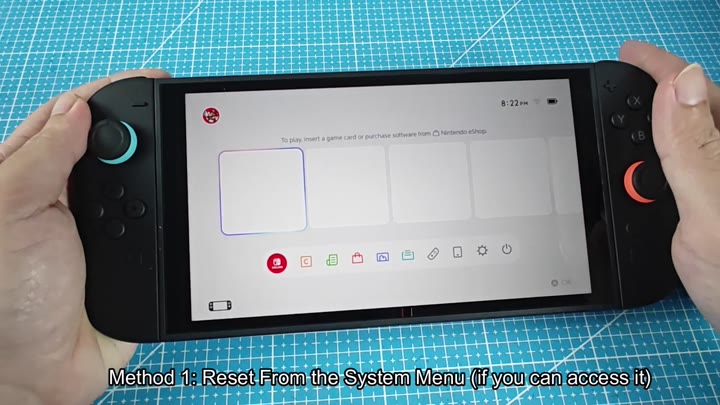
The good news is that both methods restores the Nintendo Switch to factory settings, and you need to understand which path applies to your situation. If you can get into home screen, go with the first option.
Using Recovery Mode
You start by opening the System Settings menu, which look like a gear icon.
To begin, open the System Settings menu (the one with the gear icon). Then scroll down to the System category at the bottom of the menu. Within the System menu is a selection for Data Management, followed by Data Cleanup. And finally, you pick Restore Factory Settings.
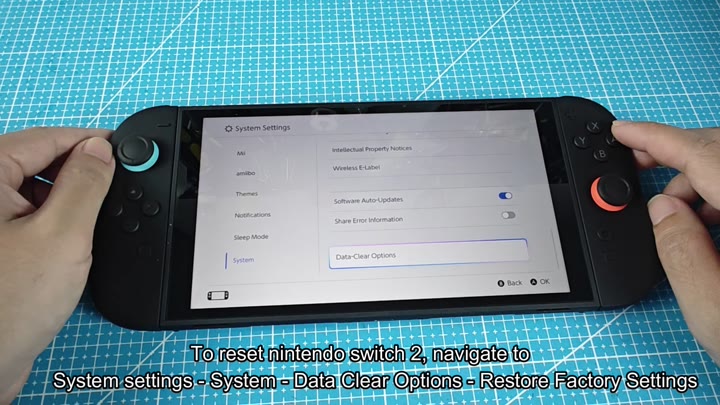
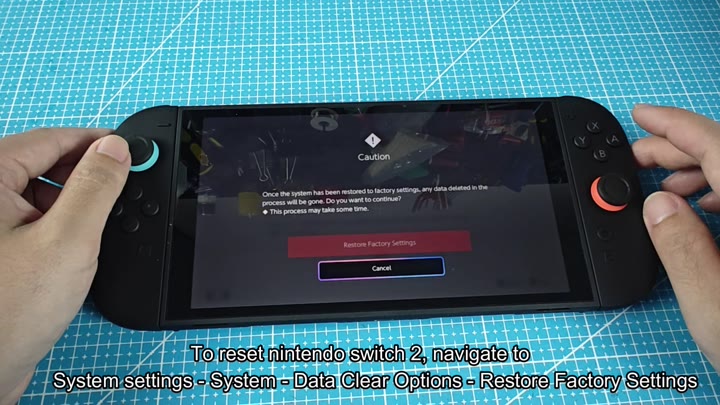
A caution screen appear and warns you that your data will be deleted.
You’re then warned your data will be erased, with a caution screen. You confirm the action and it wipes your data. It’s simple enough since you know you’re erasing data. You don’t have to mash two buttons at the same time, and you can actualy see what you’re doing.
But sometimes, the system menu doesn’t load. Sometimes it’ll just freeze up and display a blank screen. If that happens, you’ll want to force your way into recovery mode.
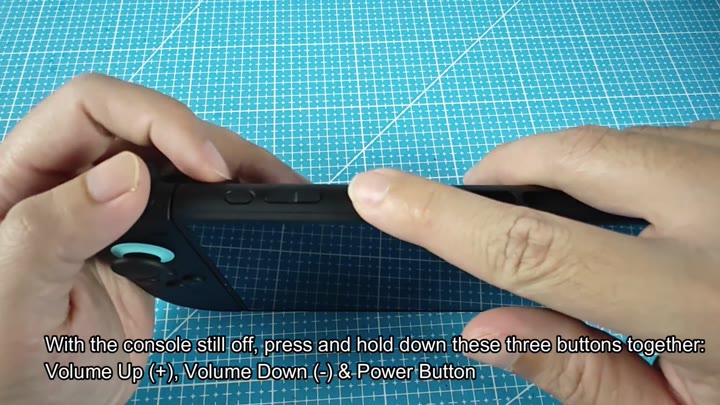
Ensure that your console is turned OFF. This means totally shut down, not sleeping. While holding the power button, hold both volume down and volume up buttons simultaneousy for a few seconds. Continue to do this until you see screen flash differently.
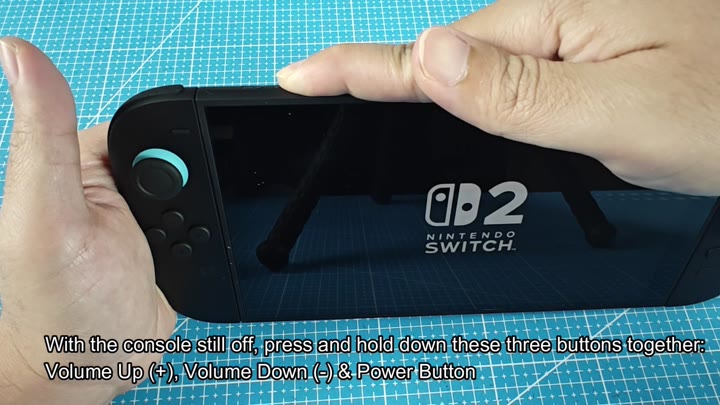
The second option leads you to the recovery mode interface, a menu designed to let you fix things at the hardware level. From there, you choose Restore Factory Settings, and voila! It’s just like the first way; your console is wiped clean of everything.
It clears your user data, games and saves. It’s like you got yourself a brand new system. How you get there doesn’t matter: both ways accomplishes the same thing. Neither requires any fancy tools; it’s easy to do and you don’t have to know any secret codes or tricks. Just run through the normal procedure and you’ll be good to go.
Before starting, however, you’ll want to make sure your game data is backed up. It will wipe everything automaticly during the reset, and this time, there’s no chance to confirm you’re OK with the delete.
Don’t say we didn’t warn you: if you haven’t saved your progress somewhere else (or in the cloud), you’ll have lost your old saves. Thankfully the recovery mode buttons aren’t hard to locate. They’re found on both the top and the sides of the machine. You do not need to guess which buttons to press.
It’s a good thing to have knowledge on how to reset things when necessary even if you don’t have to do it very often. With that in mind, you’ll be prepared when the moment arises whether you use the button method or the menu method. They’re both equally effective and easier then they look. Just follow the prompts and voila! Your Switch is like new again.
