
For example, I couldn’t get Alexa to turn on my Samsung TV. This was annoying. Alexa could power down the television no problem. But then you’d say “turn on” or whatever to assistant, and it doesn’t work. Alexa doesn’t respond. The TV remains dark.
You repeat your request to the assistant several times. Nothing happens. The TV is still black. Half the functionality aren’t working. What a waste of money.
Locating the hidden setting
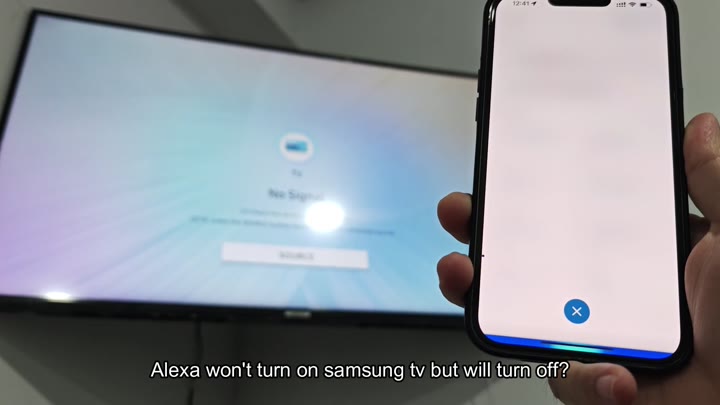
So you double-check that it’s on. Under smart home settings, you see device there, and the app indicates that the TV are connected correctly. That doesn’t make sense. If it’s connected then it should turn on when I tell it to.
The network status checks out. Everything appears normal. No error messages is being returned. What gives? At this point, you may think it’s just a bug. Not so much.
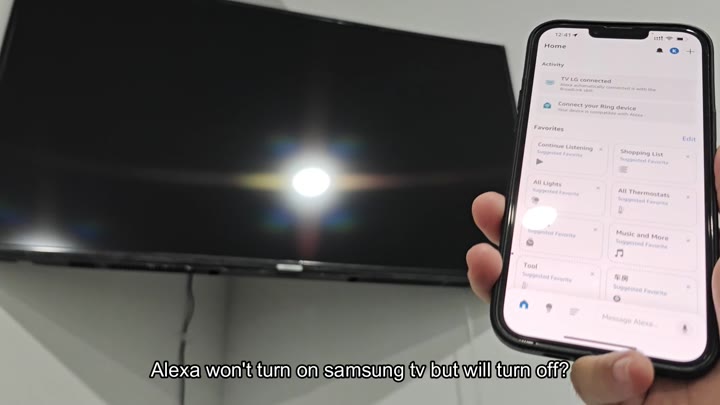
What’s happening here? A particular setting that’s enabled on your device. To be clear, it’s meant to block off any “on” signals and let through only “off” signals when you send power commands to the TV.
By default, this setting is turned off. What’s the solution? Modify a network setting. Sounds simple enough. But there’s a catch… That setting’s buried way down inside of the menu system. Go to settings:
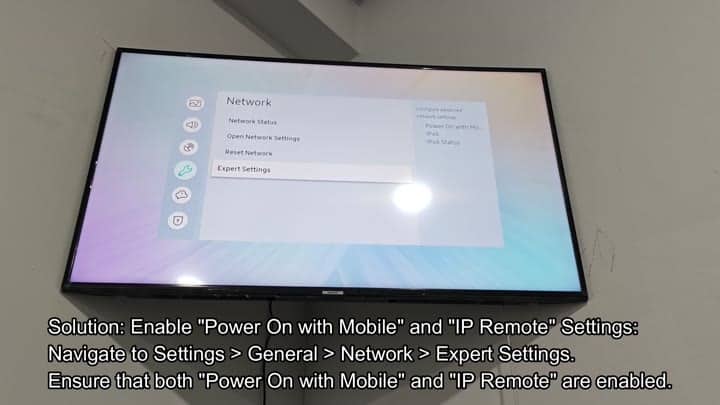
So, let’s speak in general terms.
Then it’s over to Network. Clicking in here, we see Expert Settings. Here is where we find “Power On with Mobile“. We switch this toggle to the on position. Everything else can be left alone. It’s a simple, clean interface. That one toggle are all that matters.
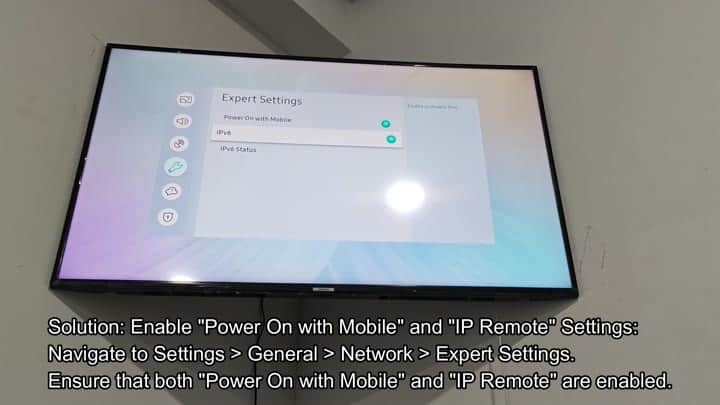
And you ensure that it’s on.
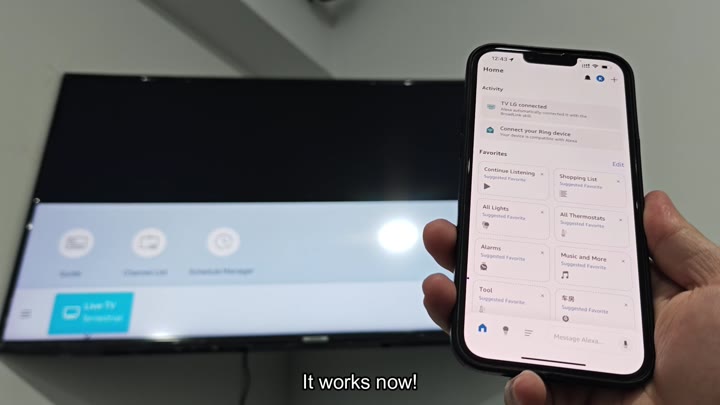
You do that and then you change the setting. And you sit there a second while it applies. Then you tell Alexa to turn on the TV. Sure enough, the TV turns on right away. It’s working. Your voice command is recieve straightaway.
The problem is fixed entirely. No more factory reset. No more reboots. It is just a quick menu option tweak. It is annoying that they didn’t just have it enabled by default, but it’s an easy fix.
The difference is obvious. Before the change, the TV was unresponsive to power-on requests. After enabling the setting, it work.
It didn’t respond to power-requests before the switch. Turned the setting on, and boom. You get full control over the power. It turns on and off nicely. It fits right in. No more reaching out for the remote. Now you can rely on voice commands. That removes a hassle. It makes the thing usable once more.
It’s simple and just takes a couple of minutes. No tech skills are required. All you have to know is where to go. Once you figure out where that route goes through settings, it makes sense. Go to Settings, then General, followed by Network, and then to Expert Settings.
Pretty well hidden there, but you can get there. And most people won’t ever get there. Then they’ll think their TV is busted.
Oh, it’s just an oversight in the configuration.
It’s a time saver. A lot of complicated advice appears when you go looking for answers on the internet. People talk about rebooting your router. That’s rarely necessary.
The solution: It’s in the TV. It is in its network expert settings. Allowing “Power On with Mobile” provide the missing link. It lets Alexa send the wake up call. Without that setting, the TV remain off. With it, it all works correctly.
Before you assume that your hardware has failed, run through your settings. A lot of times, that’s where the solution lies.
For those of you on Samsung TVs: Here’s that little switch that will make the whole thing work. It allows the TV to be fully compatible with your voice assistant. It sounds like a no-brainer, but something as small as this can make all the difference. Now the TV works just like it’s supposed to. No more hassle for you.
And it’s fixed now. Forever. After enabling this, Alexa can turn the TV back on. The connection won’t drop out.
Alexa will work with other voice commands too. Volume buttons is unaffected. Switching channels is immediate. Everything else still works. The power-on function was the problem, but now it is fixed. The entire system feels solid. This wasn’t a difficult thing. It was just hidden.
If that’s been an issue for you, you should of checked this out. Head to Settings > General > Network > Expert Settings. Scroll down until you see the Power On option. Don’t make it more complicated than it needs to be. The answer is literaly staring you in the face. It’s such a simple tweak, but it brings back some major functionality. Now your TV works just fine.
