
How to Connect a Samsung TV to Alexa for Hands-Free Control
This means controlling your TV via voice. It is hands free. But only if you have a Samsung TV and speak to an Amazon Echo (or similar device). It’s easy in theory, but actualy takes a couple of steps in two separate applications, so following the right series of instructions are key.
Voice Control Commands
Once you know what to do, setting it up is pretty easy.
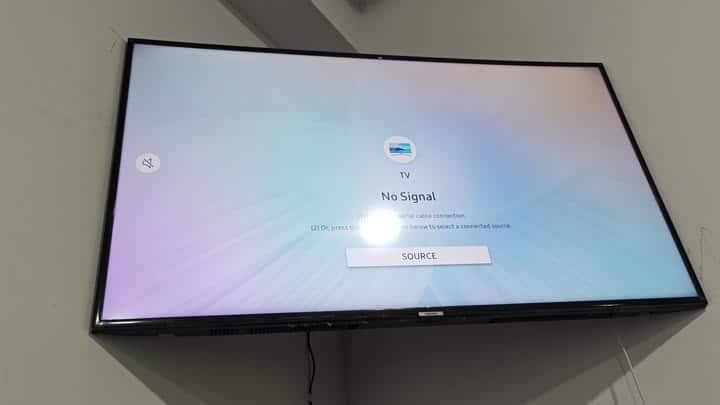
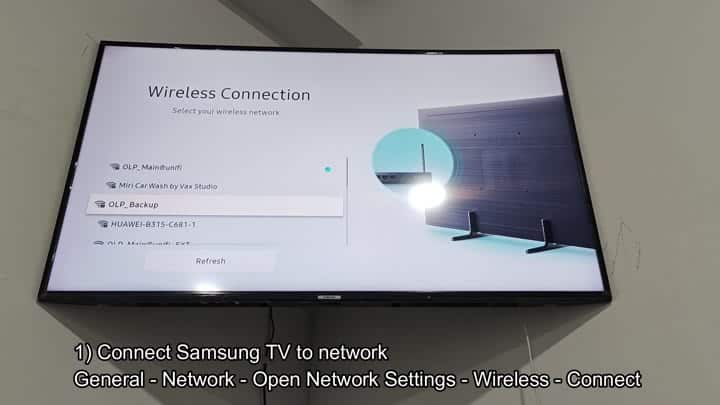
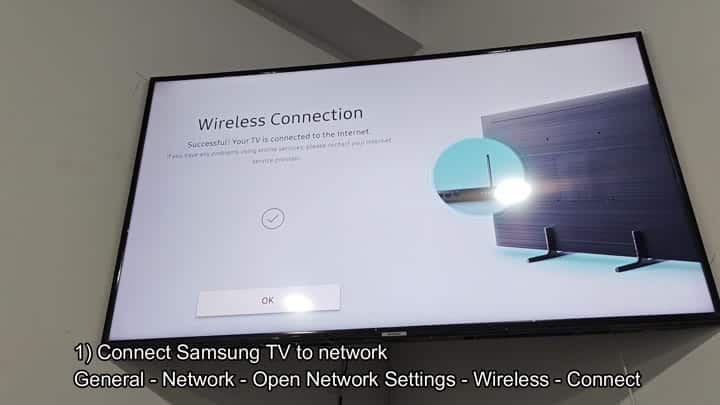
The first thing is getting the TV online. Without any input on the TV, it will display a black screen saying “No Signal”. From here go to the tv interface and find network settings. On there you will see wireless connection. Select this. A screen should appear with all of your available networks. Select the one that’s connected to your home router. The status will change and show that the TV have an online connection.
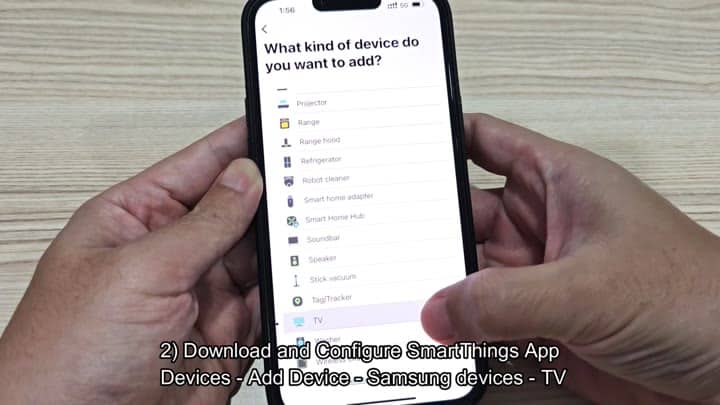
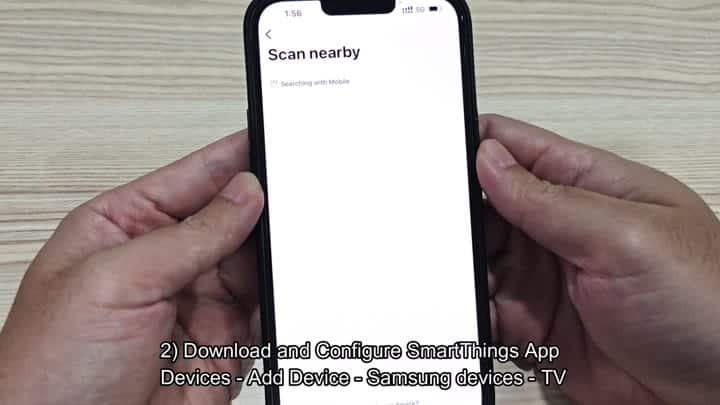
Then it’s time to do the same thing with your phone. Install SmartThings app. Sign in to your account. Go through the first-time setup process.
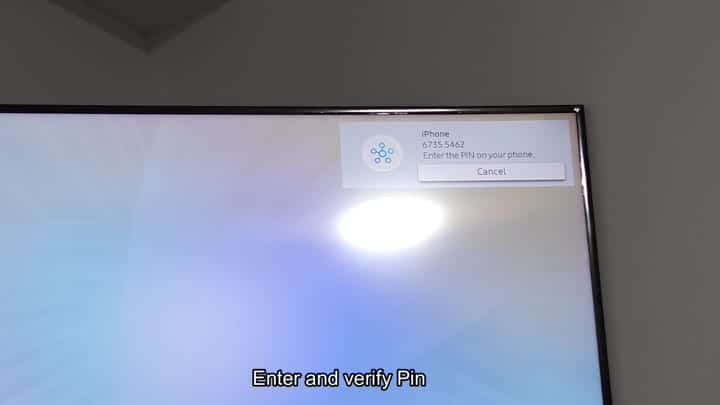
Then the app prompts you to specify which type of device you’re adding. Tap TV from the list. Your phone will begin scanning for devices around you. It immediately detects your Samsung TV. A PIN code pops up on the tv screen. Type it into your phone. You succeeded! The pairing are complete. The app shows that your TV has been added to your home list.
Now that your TV is up and running via SmartThings, go into Alexa app.
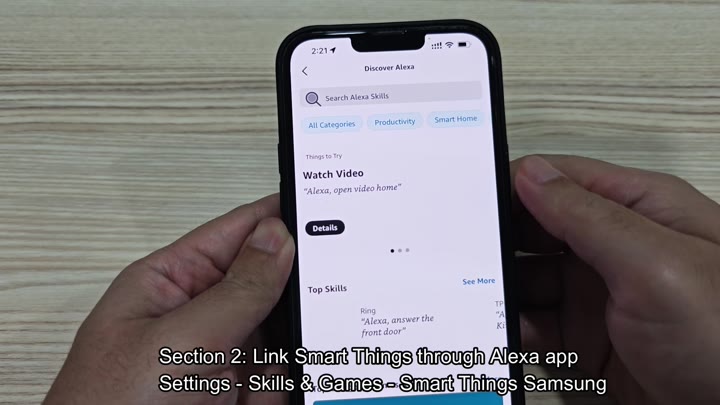
Go there. It’s called Skills and Games.
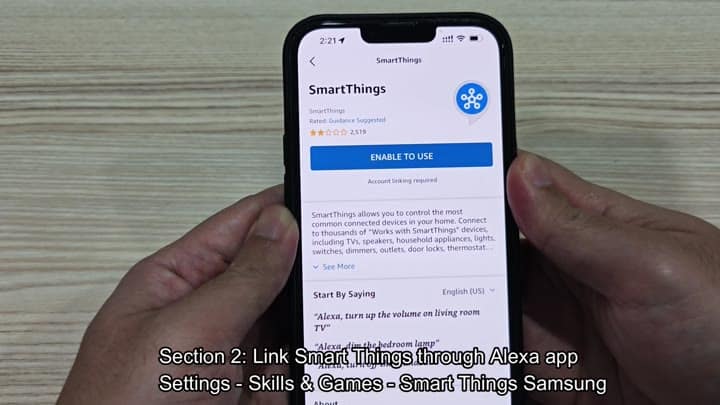
Tap the Enable button, then you’ll be searching for the SmartThings skill.
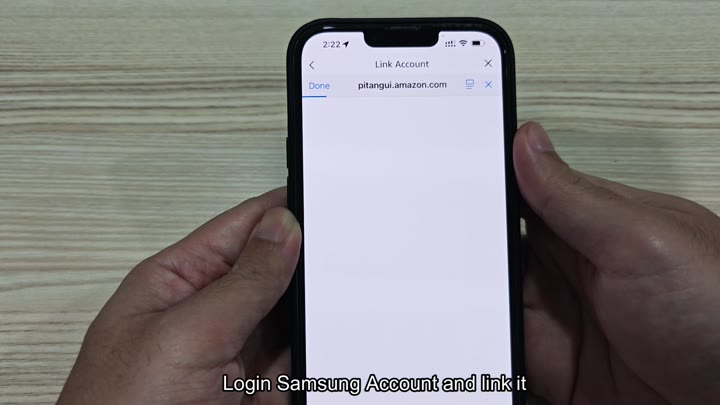
It asks you to connect it with your Samsung account.
It connects the two services after you log in.
It’s a bridge from the apps.
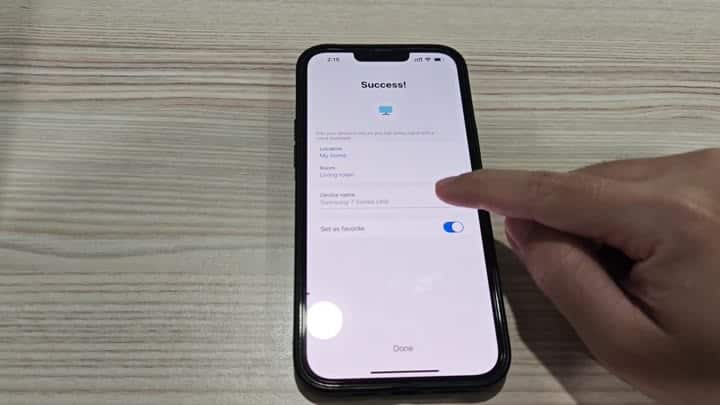
Give your TV an easy-to-remember name. For voice control, use that same simple name. The linking process do not make any mistakes.
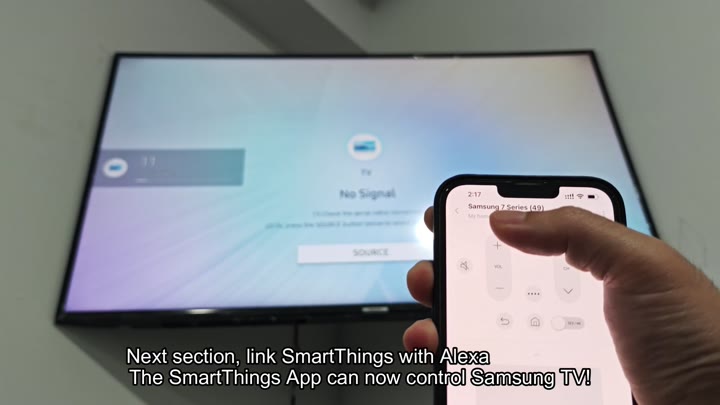
And there you have it all set up.
Here’s how the voice commands work.
Alexa, turn on Samsung TV.
And you’re in the living room.
Alexa, turn on Samsung TV.” The TV screen lights up instantly. “Alexa, turn off Samsung TV.” It responds just as fast.
Want to control the volume? That’s in the package too. “Alexa, make the volume higher.” The volume levels increases. “Alexa, mute the TV.” Sound shuts off.
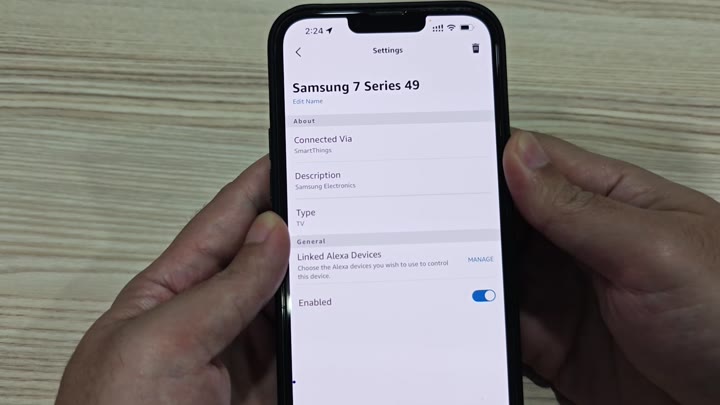
In the Alexa app, you can find the TV under devices. It is also labeled as a linked device there. And the toggle switch is enabled. This confirms it worked.
And yes, no remote required. Simple commands via your voice work just fine. More convenient then using the TV remote control. Change settings without having to stand up. It feels like it fit right into the TV experience.
There’s no complicated set-up required. First thing is connecting it to your Wi-Fi. Second is adding it to SmartThings. Third is linking your accounts on Alexa. Each step build on the previous one.
Before long, you’ll be running a completely voice-operated TV. It works with naturaly-language commands. They’re logical. You can say things like “turn on,” “turn off,” “raise volume,” “lower volume” or “mute.” That’s pretty much all you need. You don’t need any additional hardware. Everything is done through the apps.
Now your TV is part of your smart home environment. You can tell it what to do as easily as you talk to your lamps. In everyday use, that saves time. The whole thing sets up faster then you would of expected. Keep it simple
