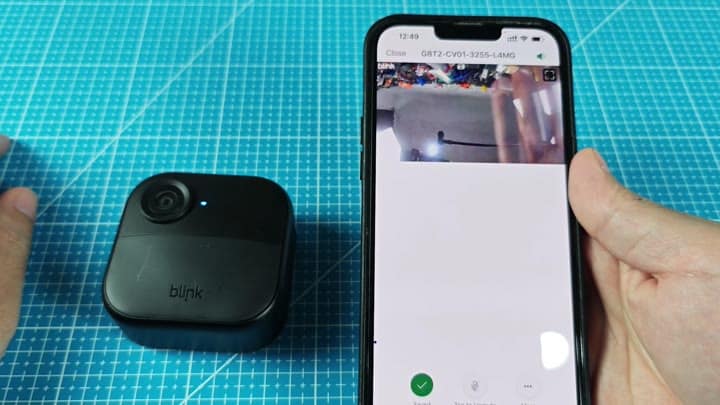
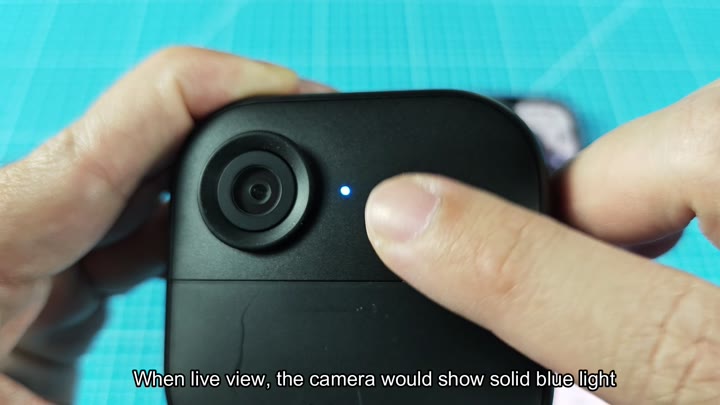
First, test your hardware. Both the Sync Module and camera has an LED indicator to show their status. If everything is connected correctly, the Sync Module will have a solid green and blue light to show a good Wi-Fi connection. The camera will have a solid blue light to show it’s actively using Live View.
Troubleshooting Software Configuration Issues
Even with all of those lights showing as solid, though, you might still see a blank screen in the app, in that case, move on to check the software configuration. Begin by tinkering with video quality settings within Blink app.
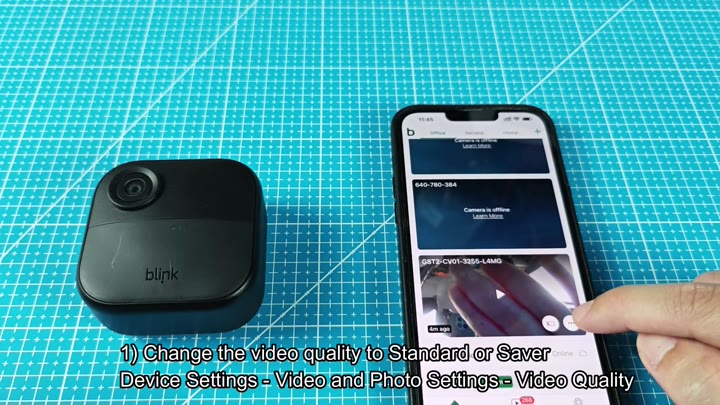
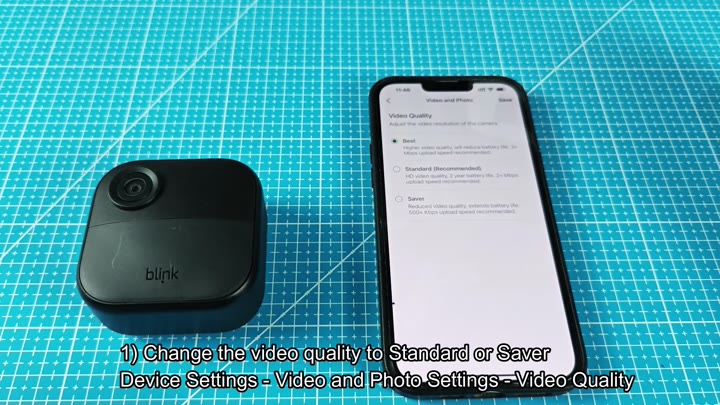
High definition requires more bandwidth, which means it might be too much for a congested network. To do this, go into the Video and Photo Settings section. On the quality bar, if it says Best then switch it to Standard.
Standard mode is designed to balance performance with clarity so we recommend it for most people. For this test, though, just keep it on Standard (saver mode will use less data but you’ll want Standard for this test). Let it take effect.
Look at your screen. Does the video feed come back? If not, the problem probably isn’t related to video quality.
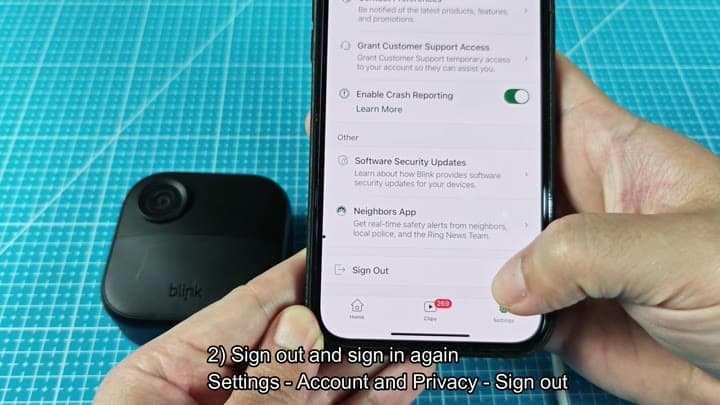
But sometimes the session data can get corrupted and the app will actualy freeze up as well. Simply log out and back in to your account and it should reset. You’ll find the Sign Out option toward bottom of the menu within the Account and Privacy section.
Sign right back in afterward. That should clear any temporary glitches, including resetting connection with the servers from the phone. Give Live View another go. Still no video? Then there is a deeper problem.
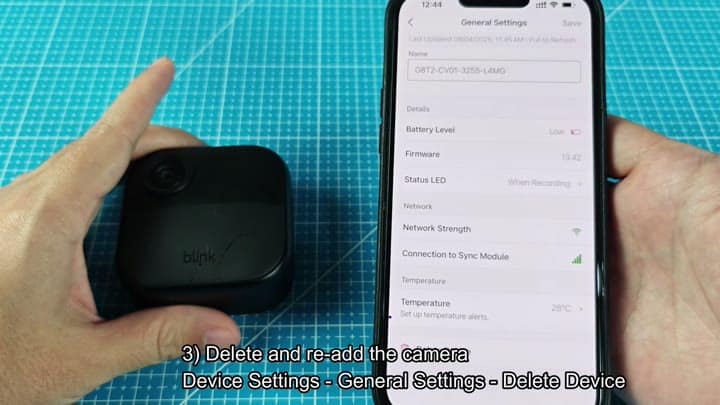
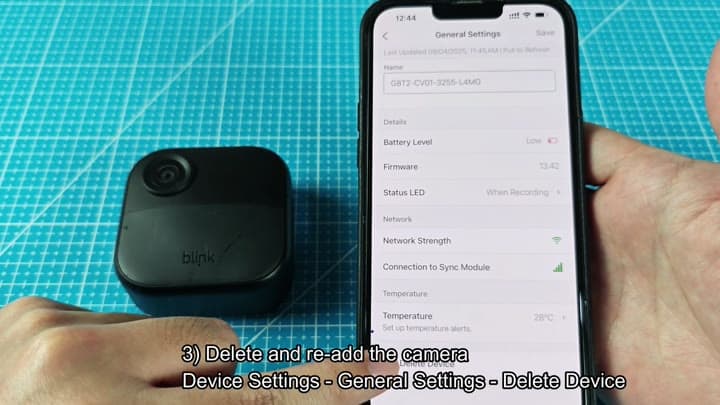
For any stubborn connectivity problems, delete camera within the app. This should cause the app to do a re-handshake with the Sync Module and reconnect. To do this, launch the app and go into Device Settings > General Settings. At bottom of page, there is an option to Delete Device.
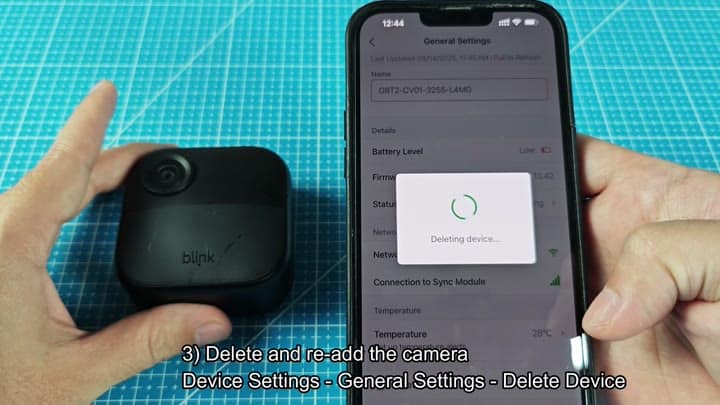
Confirm that action, and the app will remove the camera for you. It will display a loading spinner as it processes, which shows that it is currently removing and unlinking the camera. You’ll need to add the camera back in as new camera (again).
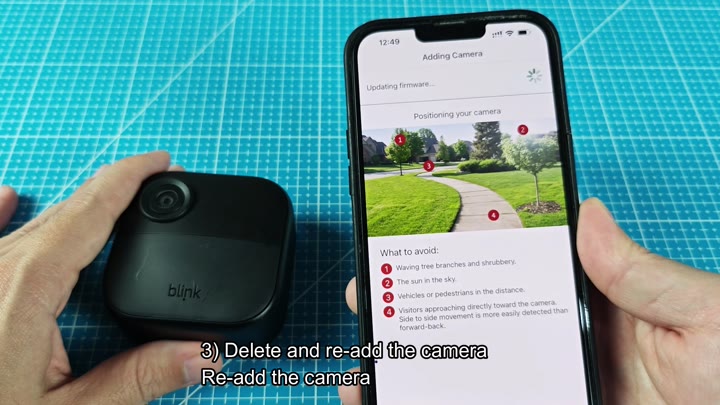
Add the camera back into the system by following the instructions. Position the camera as directed in the app (it shows you a tip on where to put it). It will reconnect with the Sync Module. It will display which firmware it’s running. Let it pair up.
When it’s done you’ll want to verify that status lights are on. The Sync Module should have blue and green and camera should have a solid blue LED. Then open up live view and the feed should come right up.
It’s all under 10 minutes. Logging back in will refresh the connection, and reducing video resolution lowers the load on your network. Re-adding the device clears deeper connection errors. That is the main way to fix a blank screen on Live View. The problem is solved and the camera are functioning as normal.
Sometimes you need to start over with technology and this is one of those instances.
Now it works like it’s supposed to and you get to keep an eye on your place. You should of tried these steps earlier.