
Before resetting, however, make sure that your Blink Sync Module has power turned off. Without doing this, the reset process wont go through. Simply unplug the power cable completely to ensure unit is disconnected.
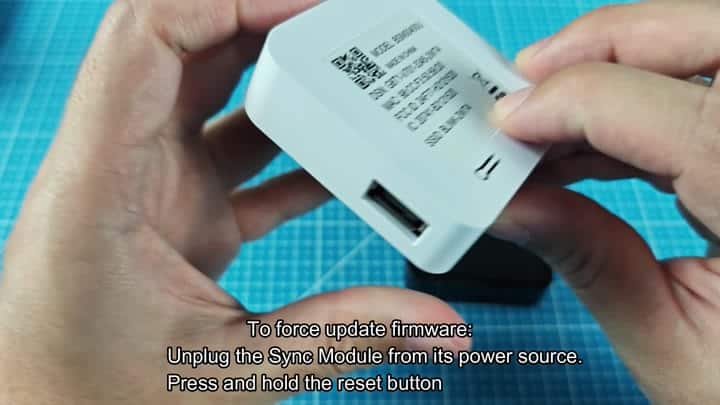
Now you find that little reset button on the module. Press it and hold it down firmly. While holding the button in place, you will now restore power.
Reconnecting to Network
Don’t remove your finger from the button just yet. The hardware will be ready to make the change. The timing of this step matter.
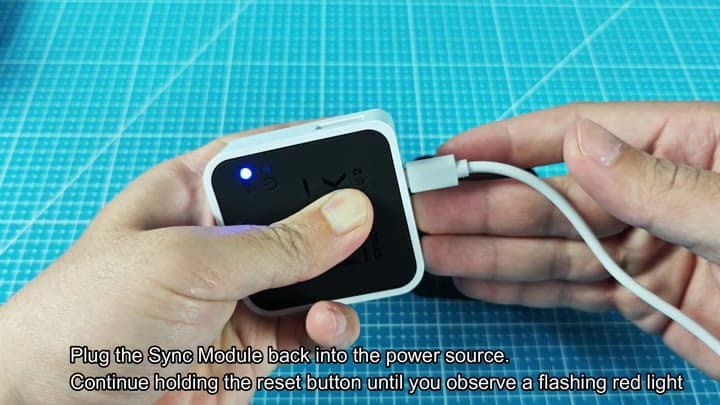
At this point you plug the power cable back into the module and hold the button down during that process. A few seconds later (immediately after you reconnected power), the front panel will start blinking red indicating it’s receiving your request for a reset.
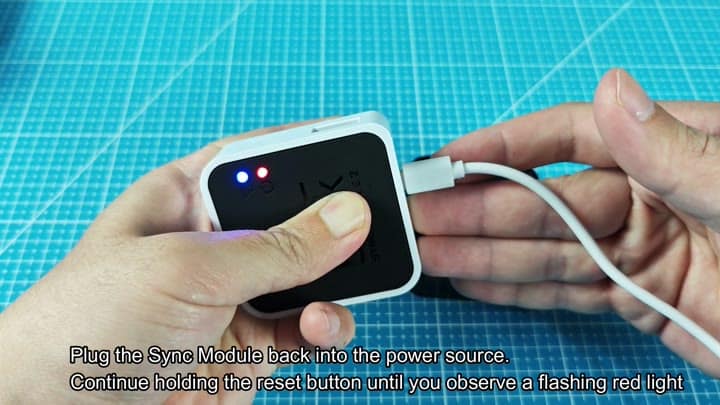
Once the red light starts blinking, you release the reset button and sit back and wait. At this point you don’t mess with any of the other buttons on the unit. Give it some time to process the data. Watch carefuly for the indicator lights which will change sequence as the module loads.
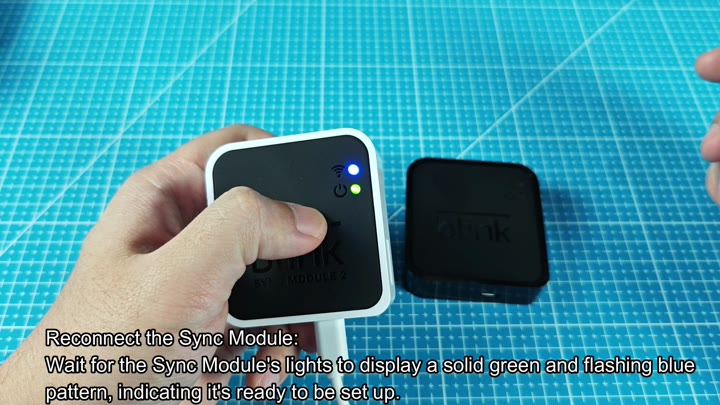
Pressing the button again causes the unit to go back into setup mode. You’ll know when this happens because the lights will stop blinking and just stay lit in some other way. In this case, there’s one that flashes blue while another stays on as a solid green. That’s setup mode and you can reconnect at this point.
Open up the Blink app on your phone and head to software side of things. Go through the menus until you reach the system options. Next, go into the Sync Module section. The interface makes sense, but there are some options buried deeply in the menu structure.
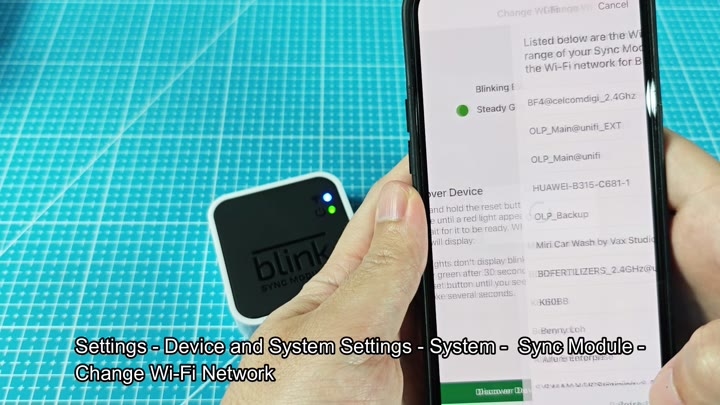
Then you choose to switch the Wi-Fi network. That’s so that the module can renew the connection (even though you may be using the exact same network). The app will ask you right away what your network name is and then your password. Choose from the list of networks you see.
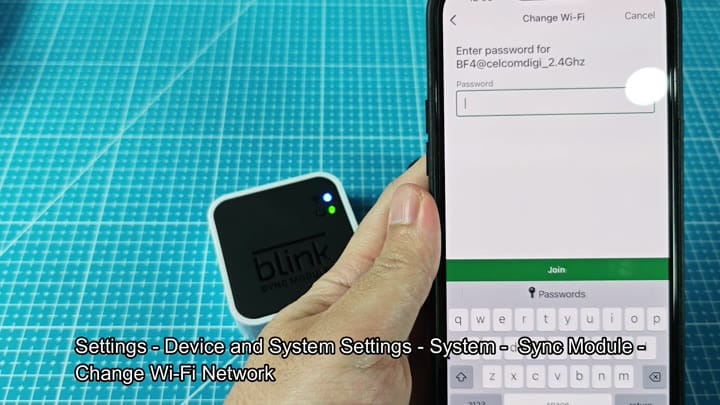
Then, after entering your password, you start the re-pairing process. Most of it happen in the background through the app. Then you just have to wait until you get the confirmation message.
Finally, the app shows that the Sync Module is online. It notifies you with a success message: the firmware update was successful. The system is back online with new software.
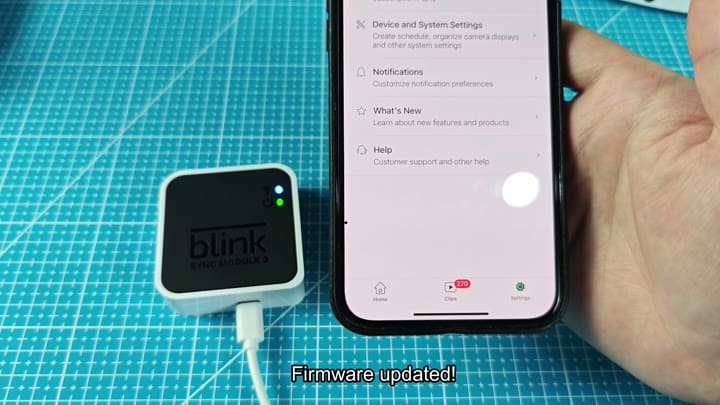
And finally, check your status to confirm. Sure enough, the app indicates that the Sync Module is now online. It also displays its firmware version number. Seeing the latest version listed ensures the update was successful.
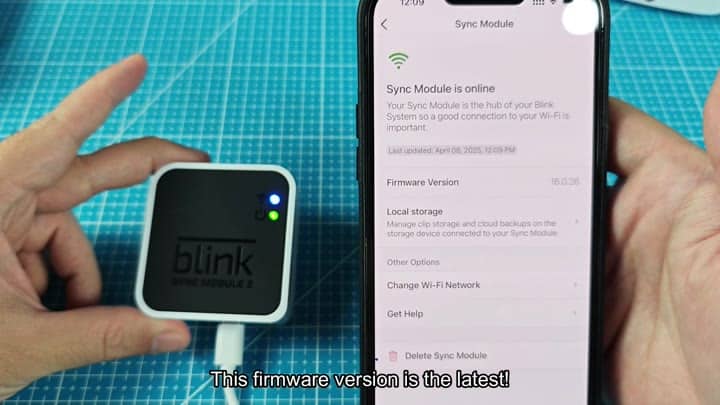
The whole thing takes under 10 minutes, which is pretty quick different than most people’s expectations.
The Sync Module is back online. Everything work as it should. Cameras talks with the cloud service just fine.
This process makes sense. It’s easy to follow. So long as you do all of this, I don’t think most people will run into any significant problems at all. And yes, you’ll use this exact process for forcing a manual update when necesary.
