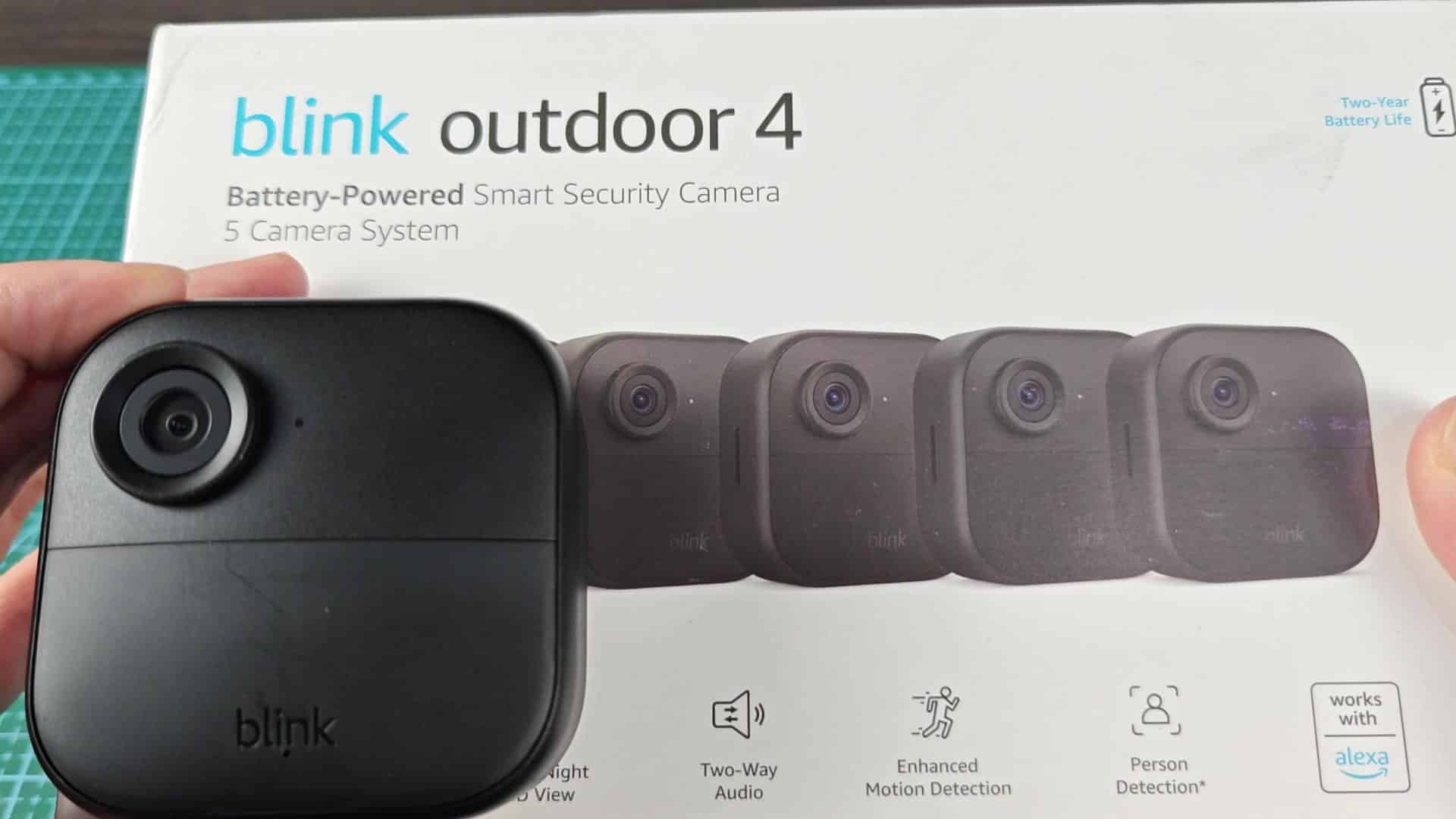
To perform a hard reset on the Blink Outdoor 4, just perform physical reset. This allows you to verify that it is paired or pair it again if it isn’t.
This little guy is a solid black camera that will have to be set back into factory defaults before resetting the system and getting ready to sync up to app again. This take several steps. Once complete you’ve cleared any past network association(s) and are ready to start over.
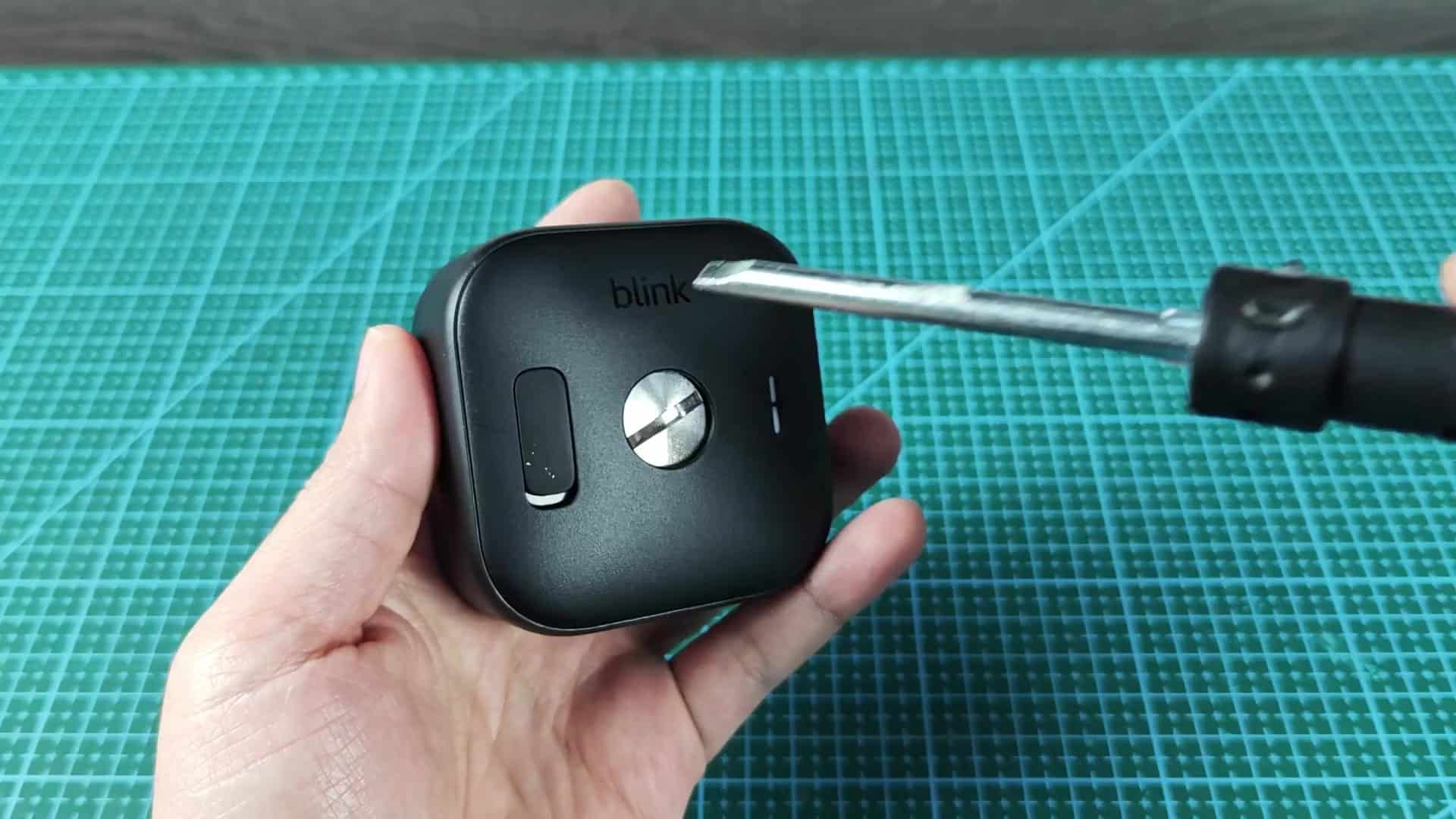
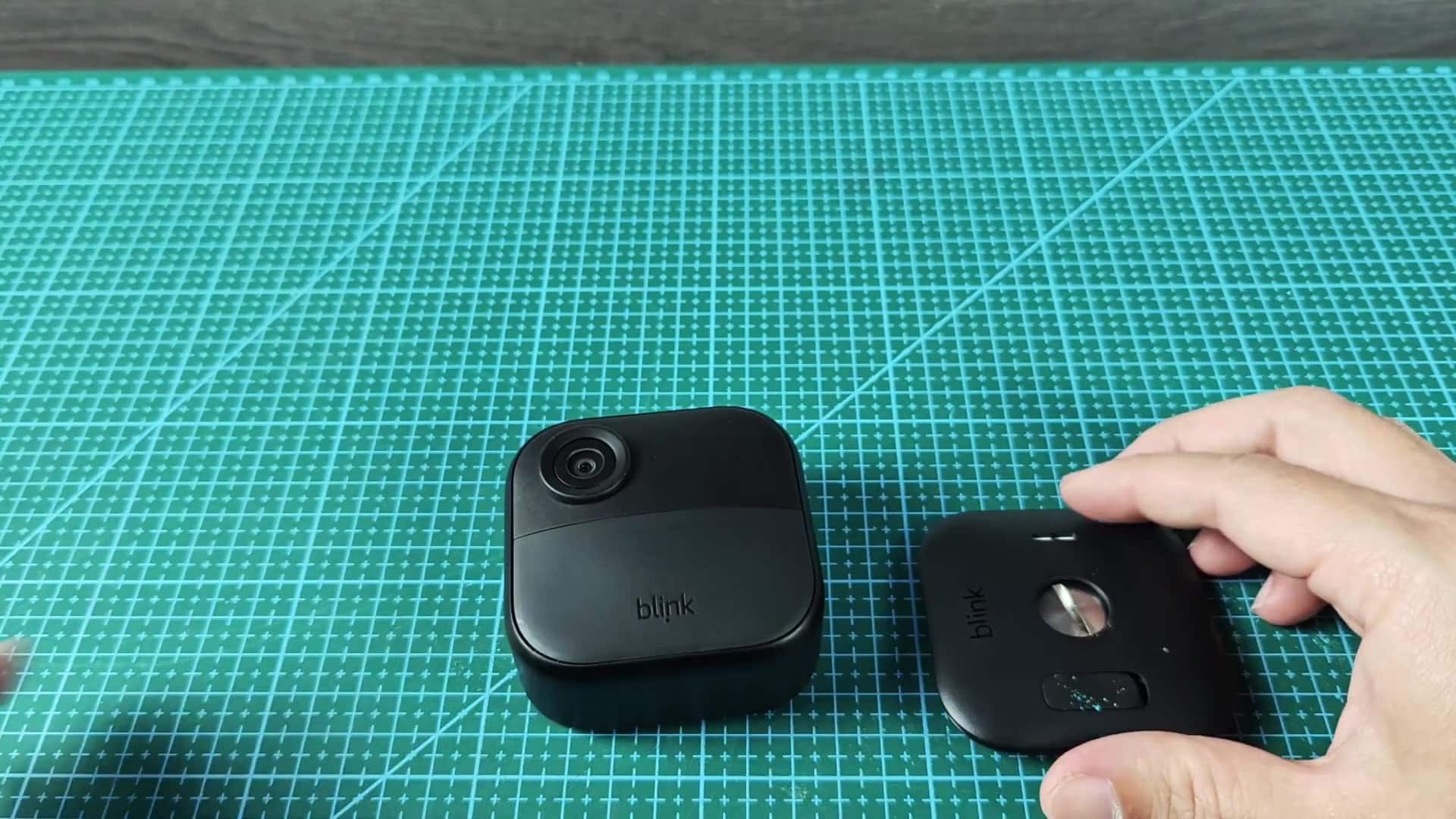
To get into guts of the camera, you’ll begin by removing the battery cover. The cover is held on with one central screw located on the rear of the camera. Loosen it up with a small screwdriver.
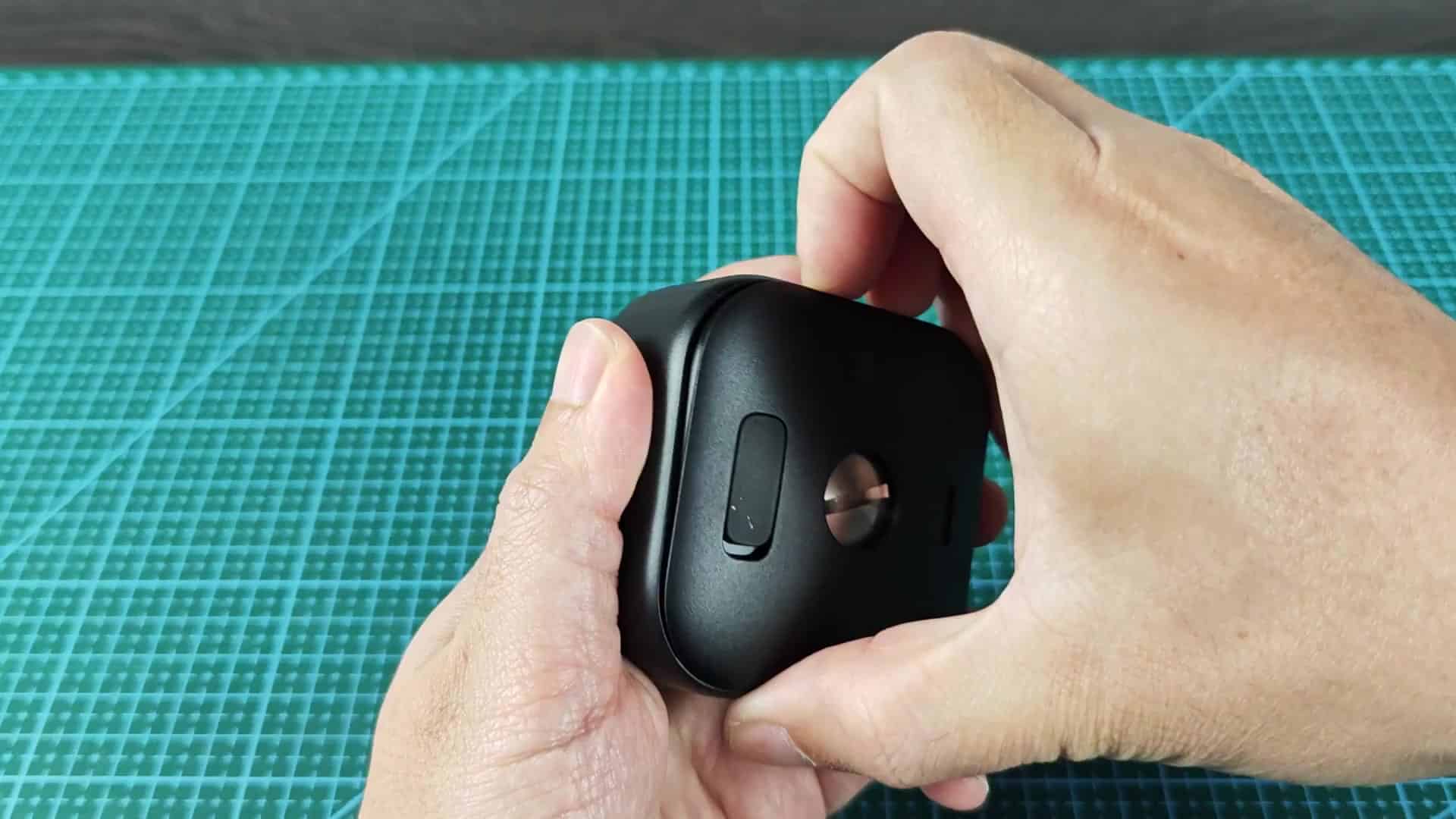
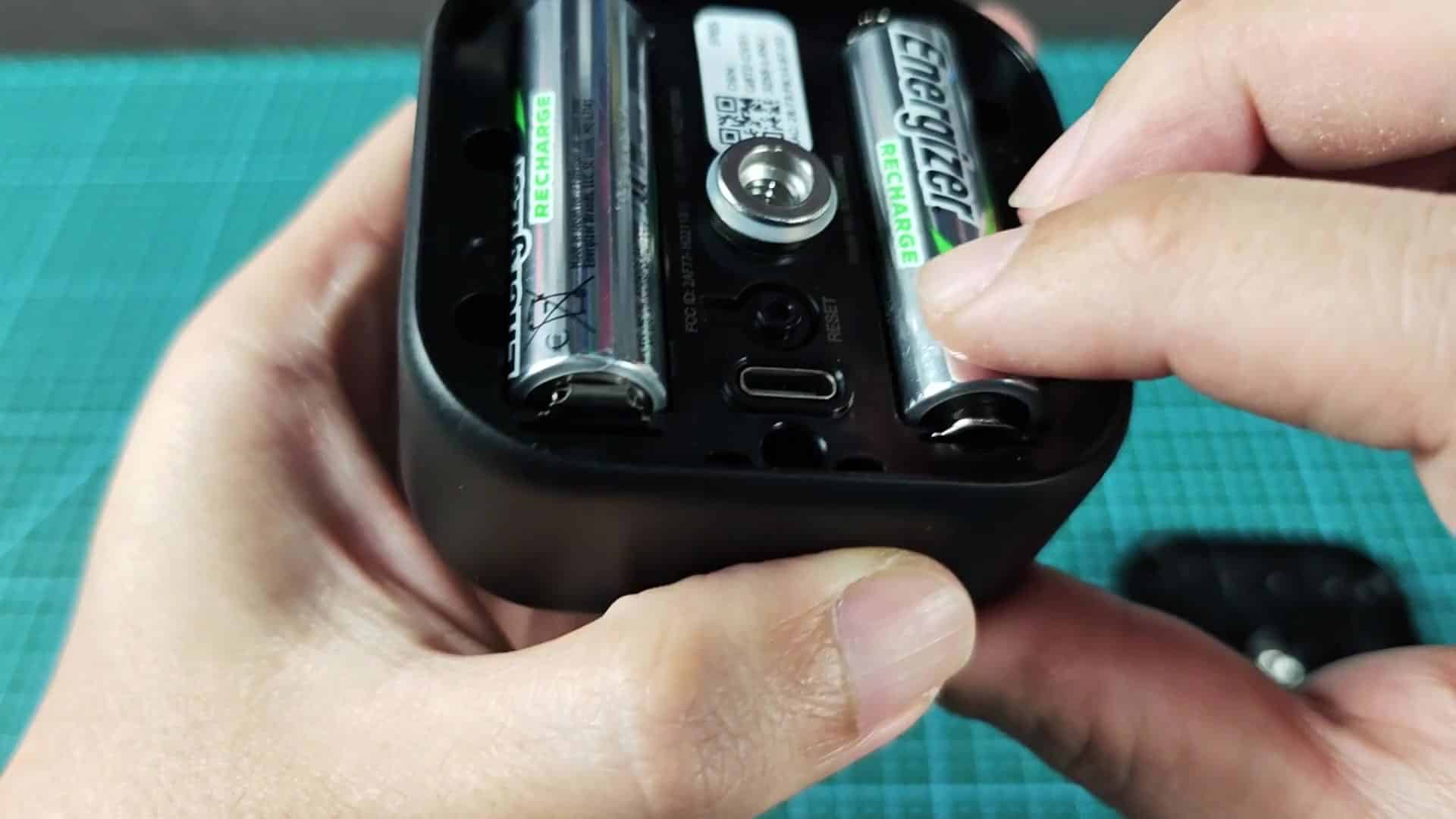
Don’t remove it completely, but loosen it so you can twist off the cover. That will allow you to reach the reset mechanism as well as the battery compartment. After removing the cover we can see what’s inside. At the bottom are two slot for AA batteries. To the right of the battery holder is another label with the device information (MAC address and DSN) as well as a QR code.
Reassembling The Camera
Immediately adjacent to the label is the reset button, which is recessed into the case where it won’t get accidently pushed when using the device. You’ll have to pay close attention to find this one. It’s really easy, though it takes a little time. Just hold that button down. Do not just give it a light tap; hold it down for real. Hold your finger right on top of it in the recessed area.
Once you do this, the camera will clear its memory of all past network associations and enter into its pairing mode internally. While you are holding this button, observe the front of the device. You’ll notice the status indicator light turn on. It’s starting to respond to you.
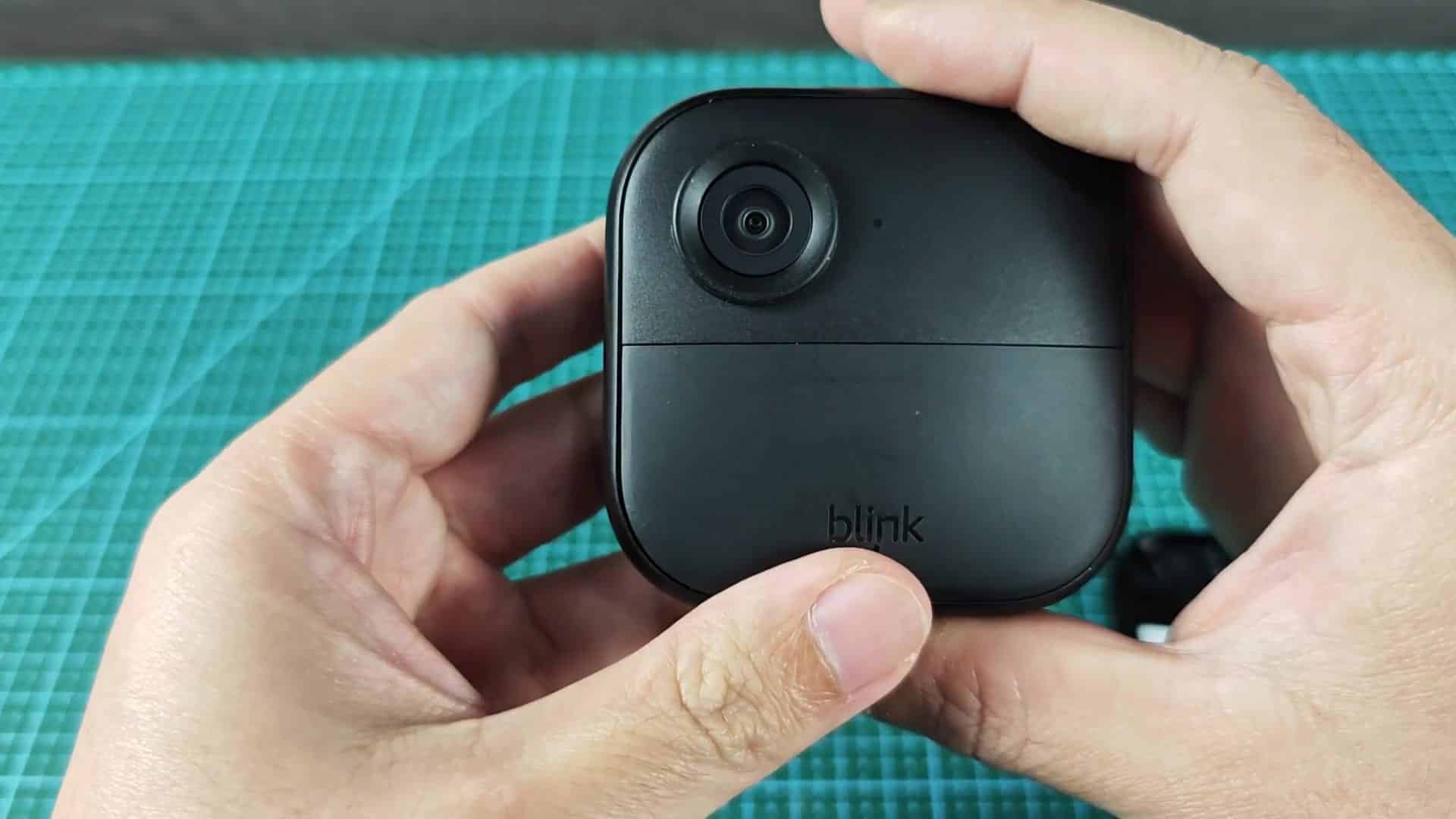
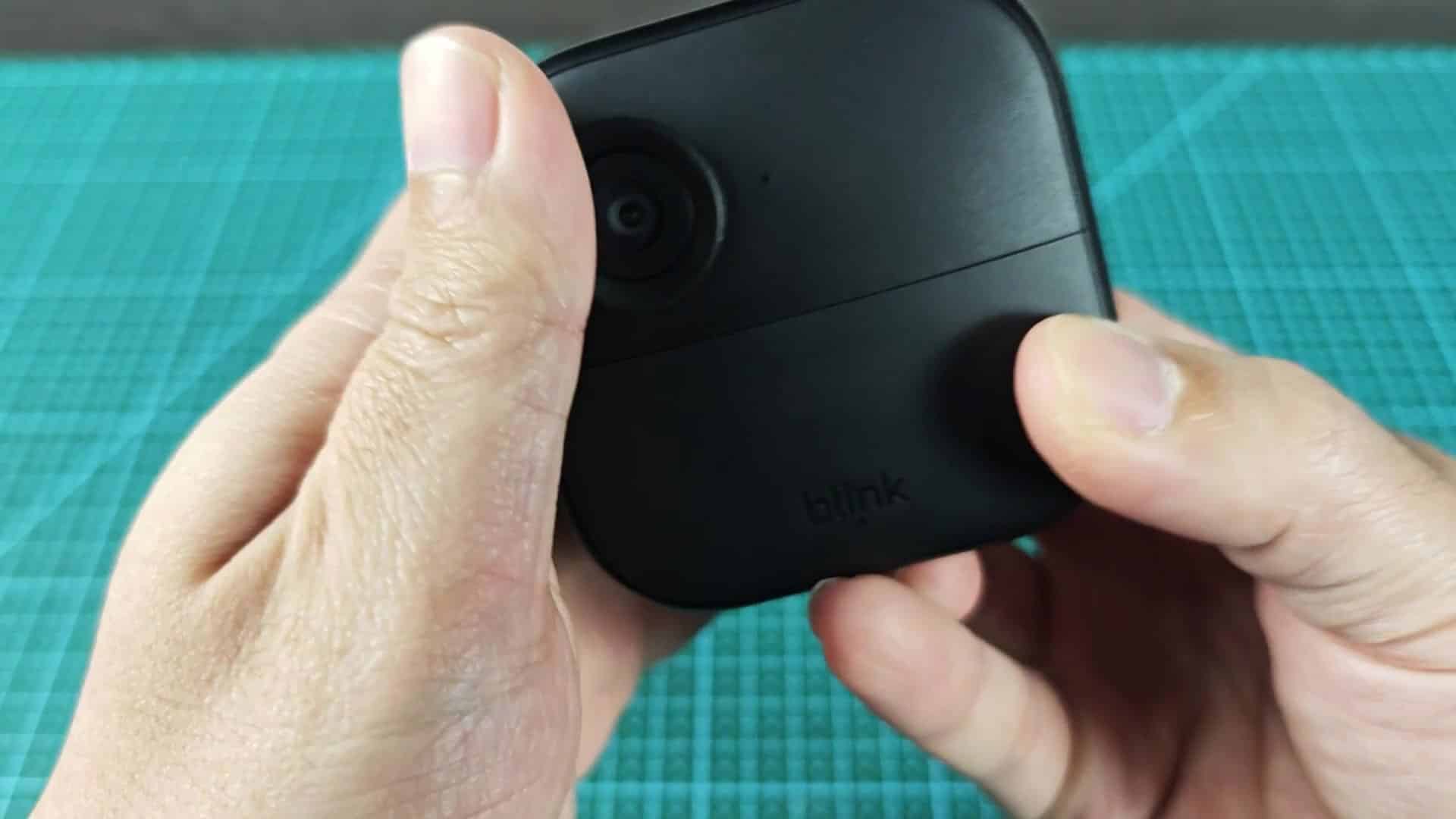
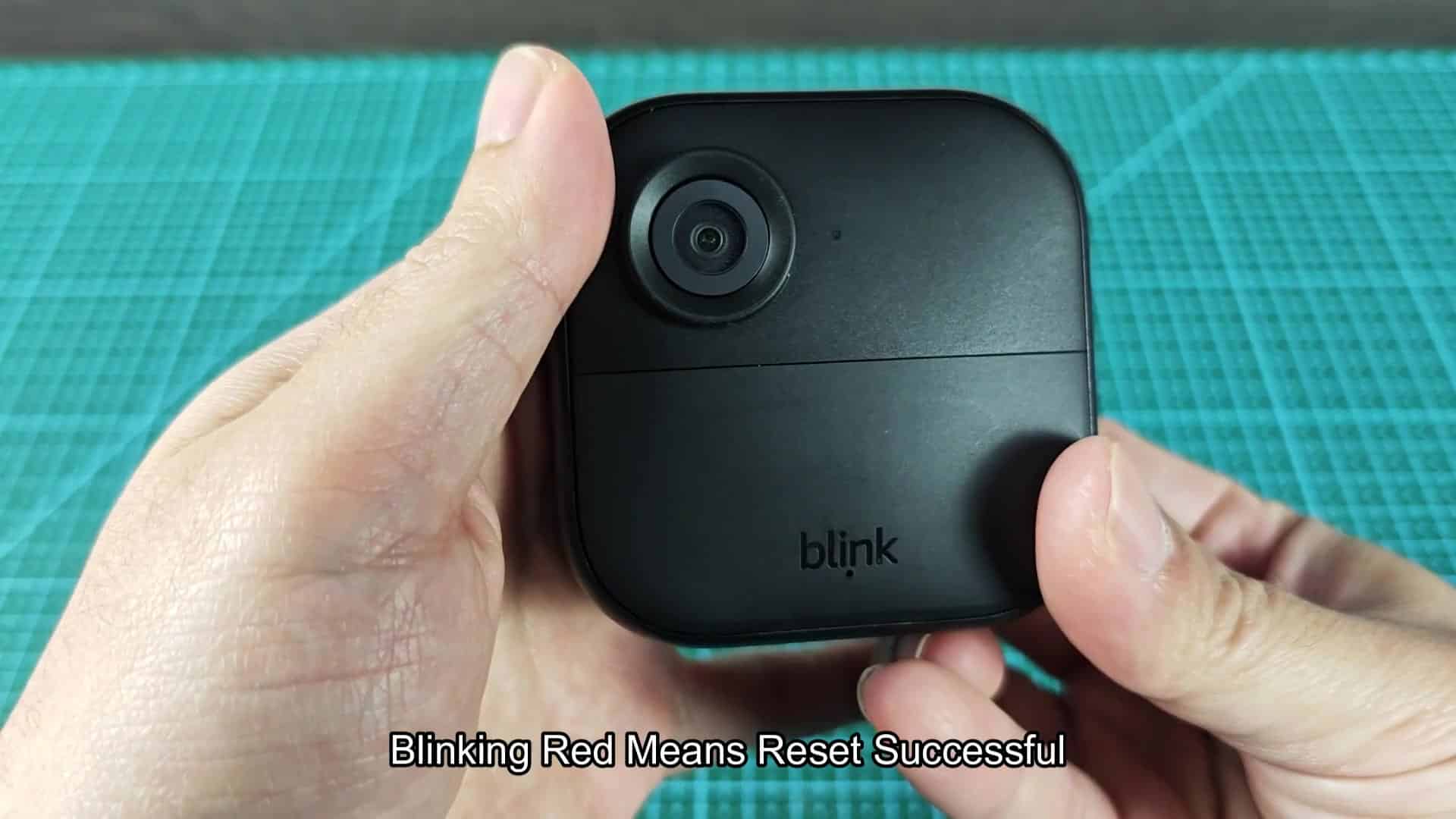
The light on the front lens housing begins to blink in red. This tell us the camera is now ready to pair. It’s received our reset command and is awaiting another connection. That’s where you’re looking for a visual cue that everything went right: A blinking red light indicates all of those old settings are erased. Time to find your camera again, courtesy of Blink app.
When the rhythm has set in, release the button. You can let go of it; the indicator light will keep flashing as you turn your attention back to the phone. That’s a nice thing for resetting if you’re having problems connecting, or moving between networks. This resets the hardware to pair mode; it basically wipes the hardware and brings it back to out-of-box state.
Often if your network connections is being finicky, this is an easier way to get things going different than unpairing the device in the app settings on the phone itself. Here the hardware interact with the user directly. The Blink Outdoor 4 is simple to set up and maintain. I know exactly where the reset button live now. There will be no more frustrating moments down the road trying to find it.
Plus, because it’s rated at IP65, the unit can withstand outdoor conditions quite well. Just make sure you know how to get in there if/when needed as that battery cover come off easy.
When you see that blinking red light pop on, pull out your phone and open up the app. Within seconds, your app should spot the camera waiting to be discovered, and adding it takes less than a minute.
From that moment until it’s added, it shouldn’t take more then a minute. It’s a simple piece of moddern mechanical engineering solving a digital problem, and the reset button does just that. Snap it back together, tighten down that screw, put the cover back on and there you have your camera again. You will have no problems putting the camera in its mount and going about your business.
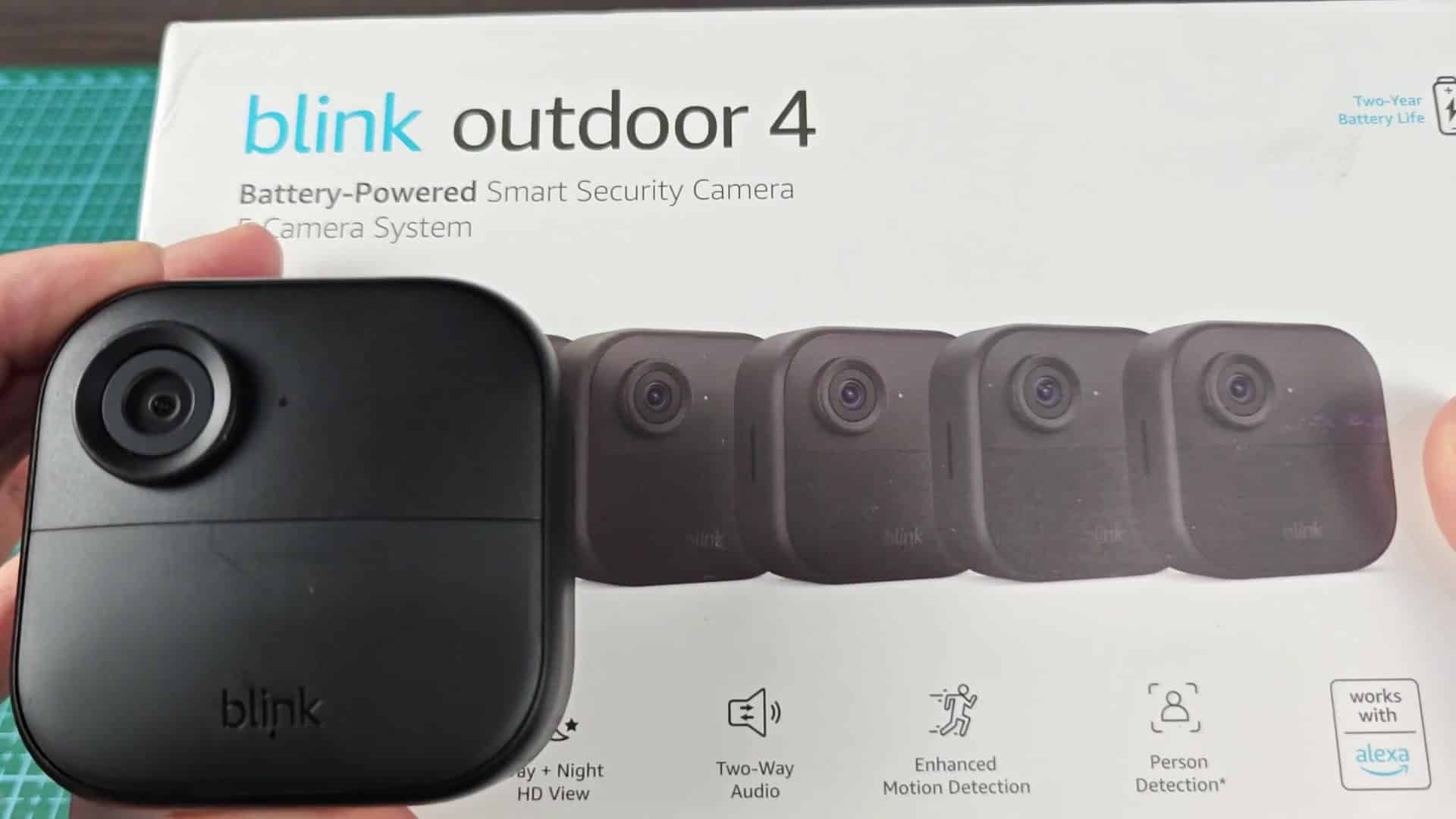
It is a nice little peace of mind knowing we can reset the camera without hassle when traveling or switching to a new router. It’s one small but very important aspect of using smart home security devices.