
To get started, you do all of this from your phone.
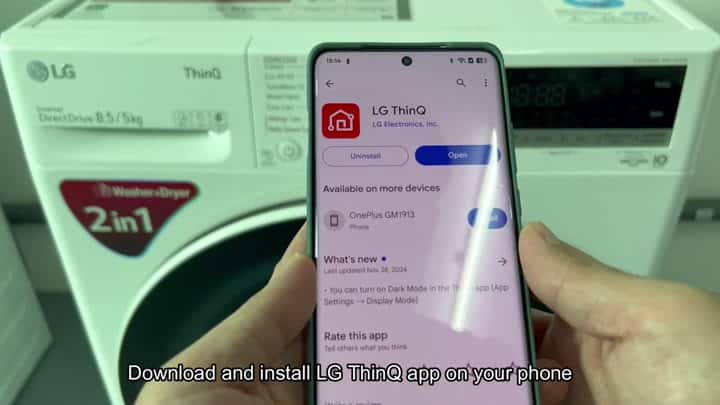
Hit up the app store, grab LG ThinQ app and let magic begin. After downloading, your phone will confirm that you’re good to go.
Scanning The QR Code
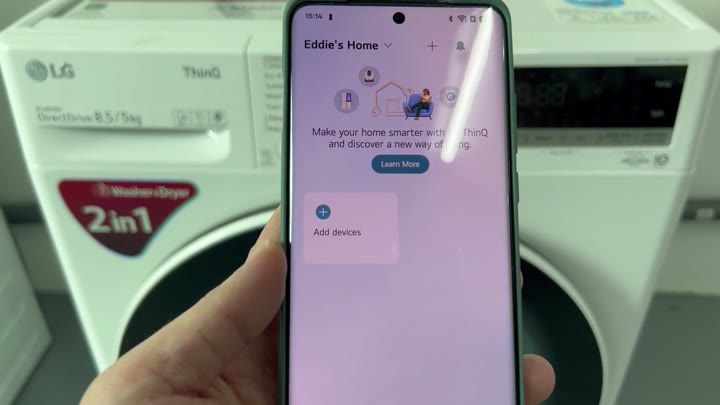
Your phone confirms it is ready once the download finishes so you can proceed with confidence.
Then you turn on your washing machine. The display lights up immediately but wait for it to be fully on before starting step two, because stability are key.
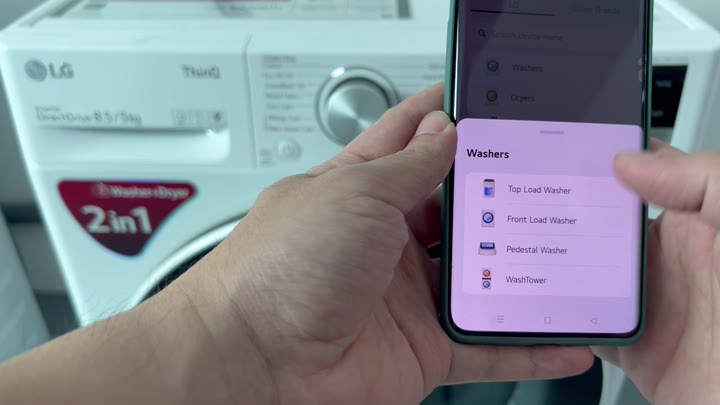
In the app interface, you tap “Washers.” From there it shows you various appliance options and you tap front-load, assuming that’s your washer type at home.
Then it asks you to scan a QR code. That part can get a little confusing; many people ends up scanning the wrong tag.
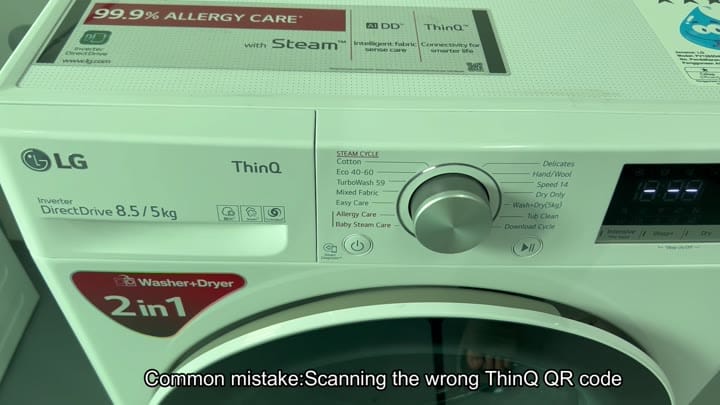
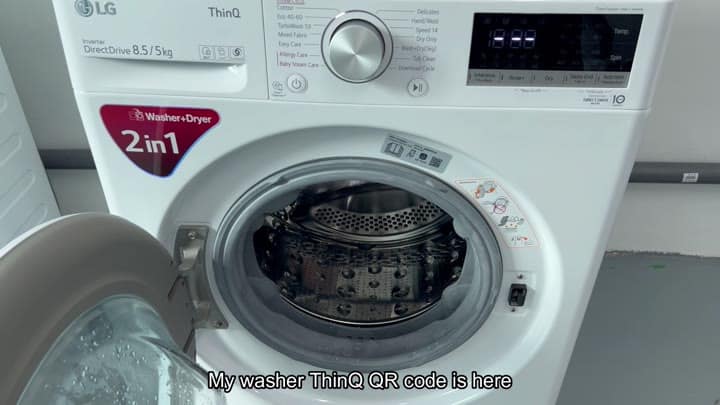
It’s that ThinQ branding on the front door of your unit; that’s where you expect to find the label. You point your camera at the label near the door opening and presto, the scanner knows exactly what it is looking at.
After a successful scan, the app picks up speed again.
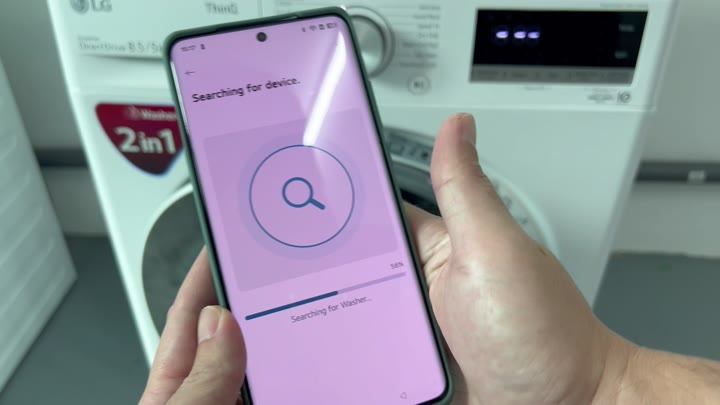
It then automaticly grabs the information about the device and, for a second, shows “searching” on the screen.
At this point, you want to have your phone nearby… A little closer to appliance, as that’s where the connection happen.
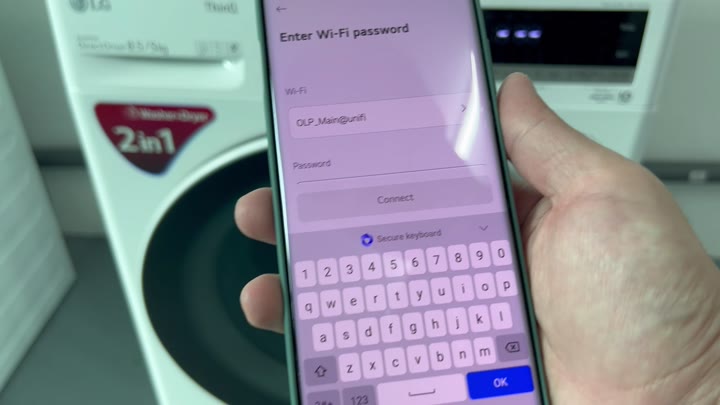
And then it’s time to set up Wi-Fi. You’ll see a list of all your available home networks. Pick the one you want and enter the password. An on-screen keyboard will appear so you can type as usual.
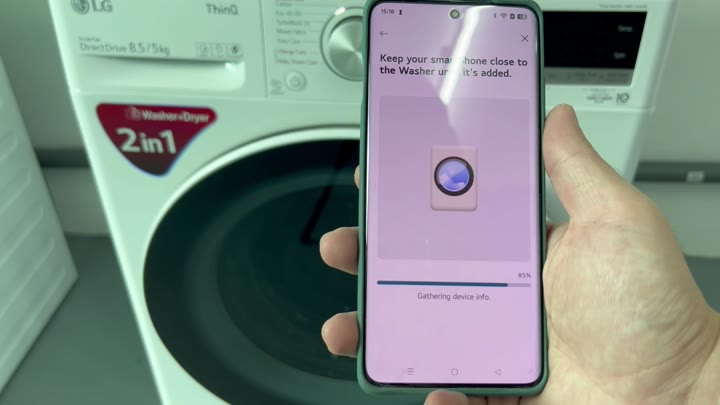
The washer goes online once more, and you hold your phone next to it. Slowly a progress bar fills up as the washer gets almost all the way connected before finishing.
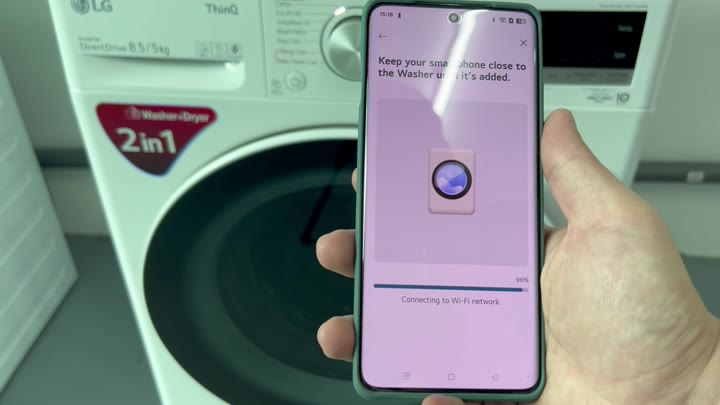
Now you must take action on the machine itself, which is the final piece of hardware. Using the Remote Start button, which can be found on the control panel, you press and hold for three seconds. The appliance will then enter pairing mode.
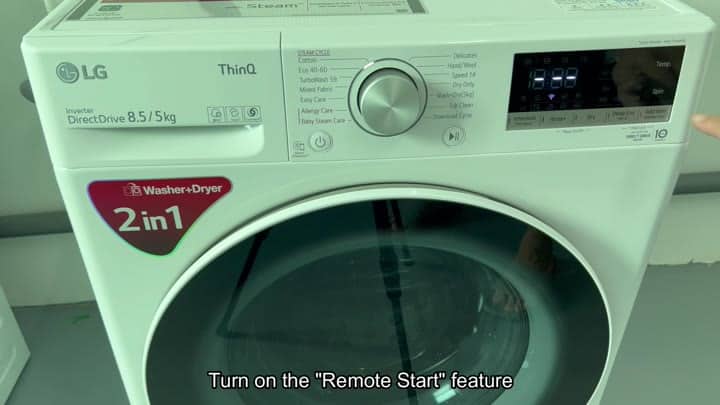
After the initial handshake between the washer and your phone is complete, they’re synced up. You’ll be able to view the cycle’s current status in the app. Including its temperature and spin speed settings.
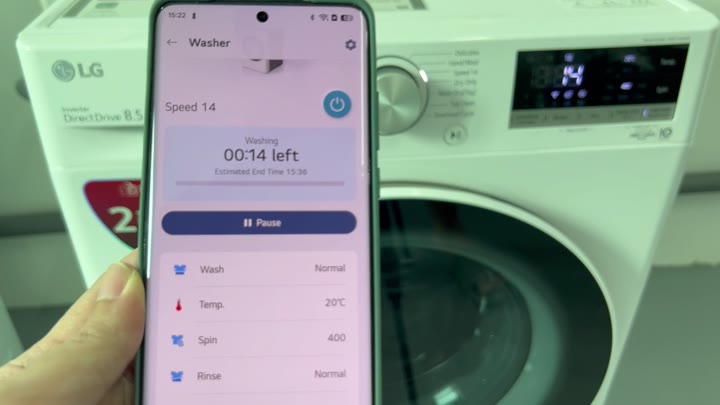
Standing in front of the machine isn’t necessary anymore. And with ThinQ technology, you can do all that from the comfort of your couch. That is why those features exist and it makes sense to use them more better than before. You should of used them sooner.
