
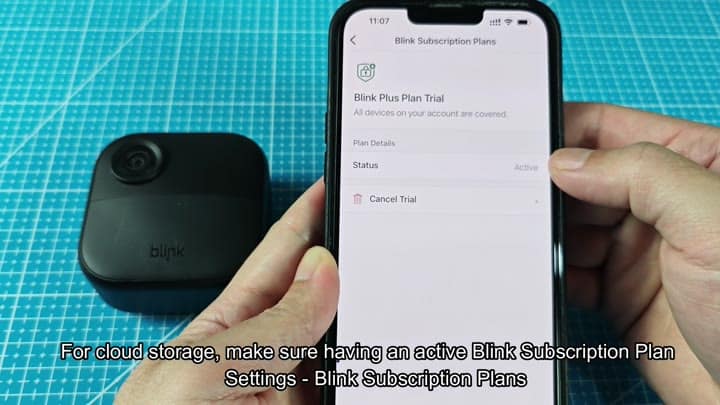
To start, you need a cloud storage account (an active subscription), which you can confirm by checking your cloud account status in the app. Videos won’t be uploaded if there’s no subscription, so head back into the app; go to subscription plans… And make sure your account isn’t expired. If not, great: That removes the first barrier.
Hardware Compatibility And Setup
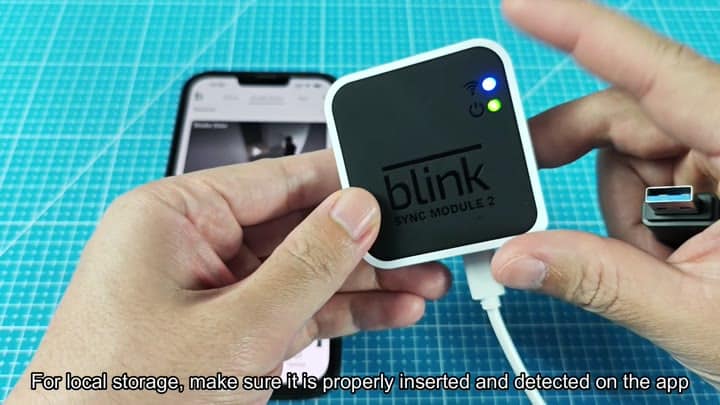
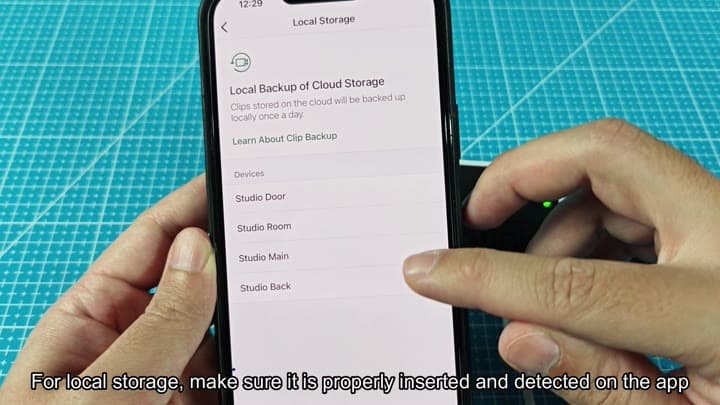
For those who want to use local storage, that’s another matter, with an option for configuring the system to rely on a USB drive. After inserting the drive correctly into the Sync Module 2, which has status lights to let you know when it connects, you’ll see blue and green lights light up. That tells you it recognized the drive.
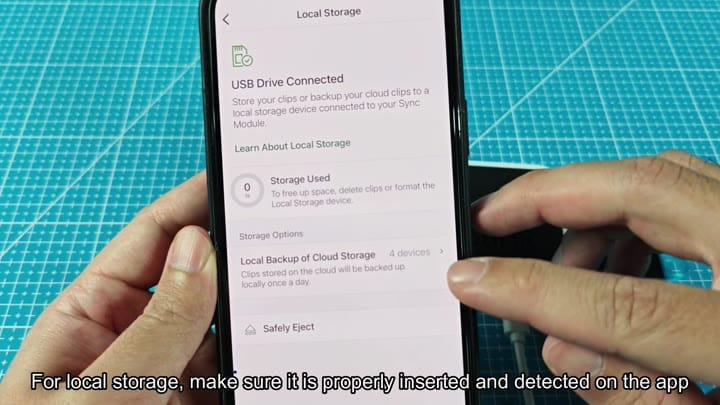
Then you’ll need to go back to the app to verify that you see local storage option. You should also verify that the drive is connected and ready via the interface.
Everything appears fine: the app shows exactly what’s being stored; the amount of free vs. It shows the used storage, the number of devices connected, and everything look good on the screen.
Then you realize your Blink XT camera isn’t even storing anything. So you dig deeper by checking the compatible devices list for local storage, only to find that certain older cameras doesn’t work with this feature. Older devices like the XT and XT2 don’t support writing to the USB drive.
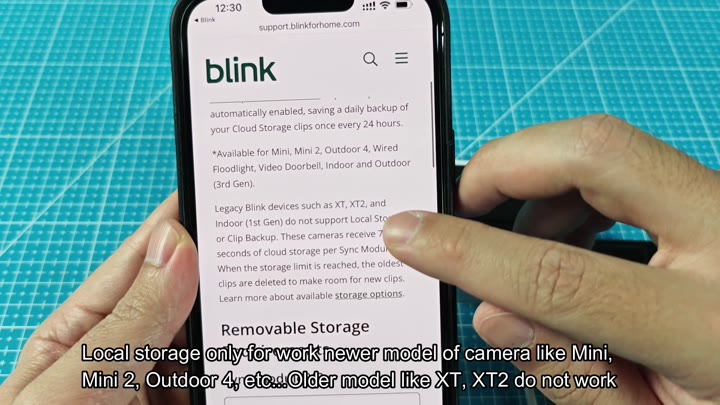
It only works with newer ones that can do local storage (Outdoor 4, Mini 2 and Mini). Some recordings weren’t saved because not all of your recording cameras is supported. No, it wasn’t a glitch. It’s a hardware limitation and you should of retire the older ones from the local storage plan.
The next important step in the process is to format the drive to the exFAT file system. To do this you plug the USB drive into your computer and find it via the file explorer. Right click on the icon for the drive then choose the format option. Change the file system to exFAT and start the format process. Any existing data will be erased from the drive and it will be ready for use with Blink.
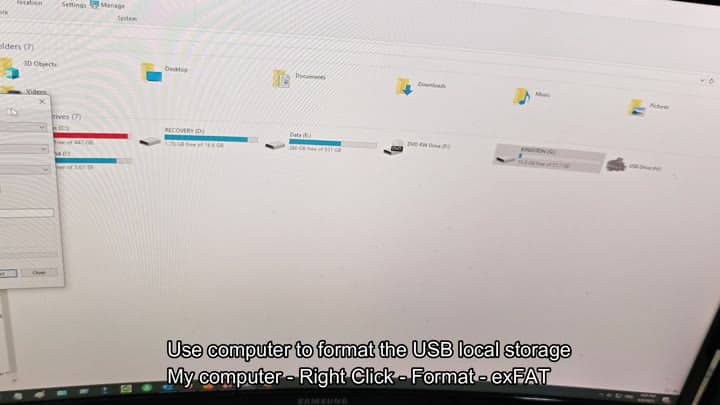
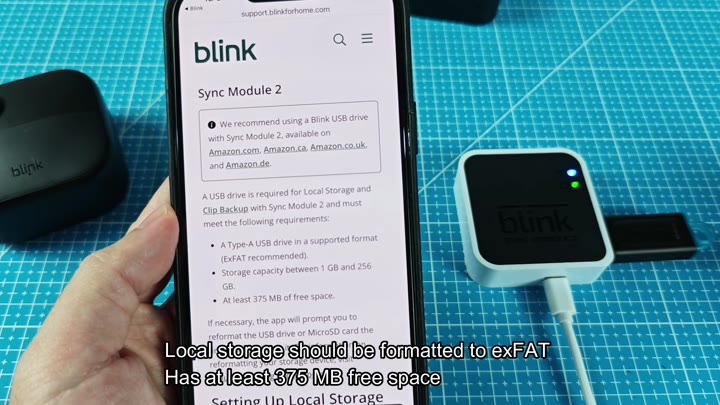
Also, there must be enough free space on that drive. Minimum needed space for the system is 375 MB. When you format it and look in drive properties, its got lots of space. That is a strict requirement.
If the drive is filled up with too much stuff, it won’t save your clips to the USB drive. Don’t fill the drive up with anything else. Keep it clean so that there’s room for the camera to write data.
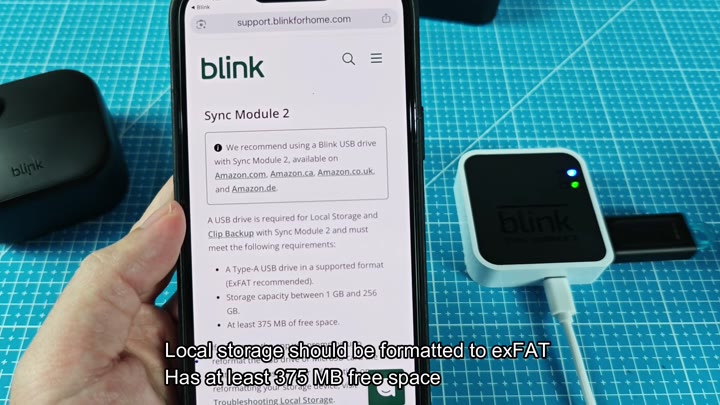
The app notices the formatted drive instantly when you put it back in the Sync Module 2. Status lights are solid. You press record on the Outdoor 4 camera. You wait. And wait. You refresh your app constantly. Nothing shows up. What gives?
And then you remind yourself how this whole system operates and that the device only ever writes to the USB drive every 24 hours. No, it doesn’t write the clips as they are recorded and you need a whole day to elapse before you’ll see anything on your drive.
So you wait another day. Then open up the app again the following day. And there’s your clip. It backed it up overnight. It’s not in real time; it’s a daily syncing process, and you have to be patient.
The camera didn’t do what you wanted it to, so you followed a set of steps. Data format matters. Hardware compatibility matters. Subscriptions matter in the cloud. Local storage has its own rules. Retrieval timing matters.
Follow each step, and you will learn that it’s easy to fix. First it didn’t work, but then it did. Now you no longer stress out over missed shots, because the system just works. You understood how it was designed to work.
