
Setting up local storage on a Tapo camera require some steps. To begin with, there’s actualy a physical card slot that needs to be reached. Simply lift the camera lens up and the microSD opening will become viewable.
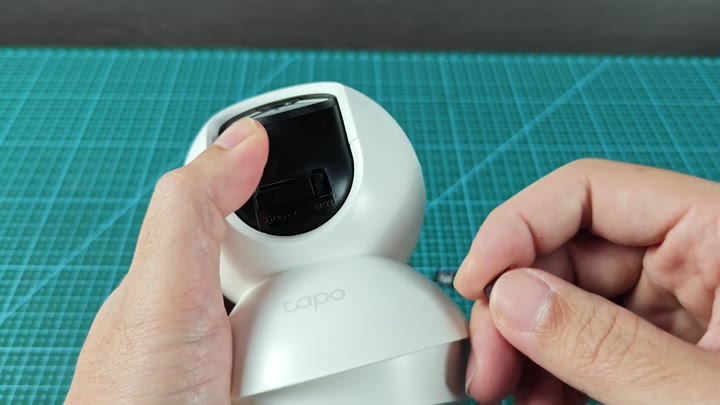
For security purposes, the slot remain concealed.
Troubleshooting Formatting Issues
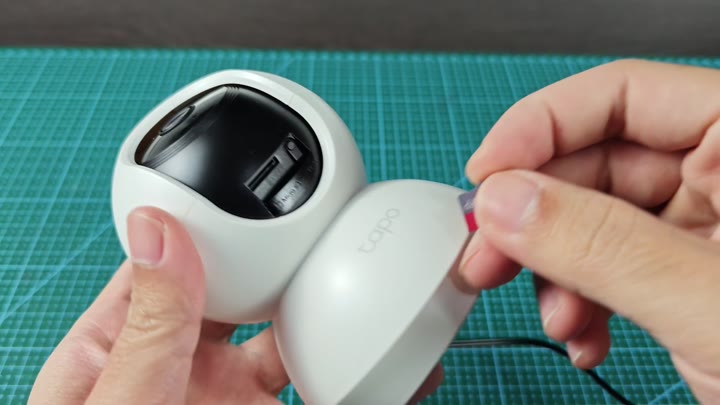
Insert your microSD card into the slot. In the demo we’re using 128 MB card. It worked fine, though note that your particular Tapo camera model may support different sizes.
Check ahead of time to make sure your card size fall in the compatible range for your unit. Going to big might lead to trouble down the line.
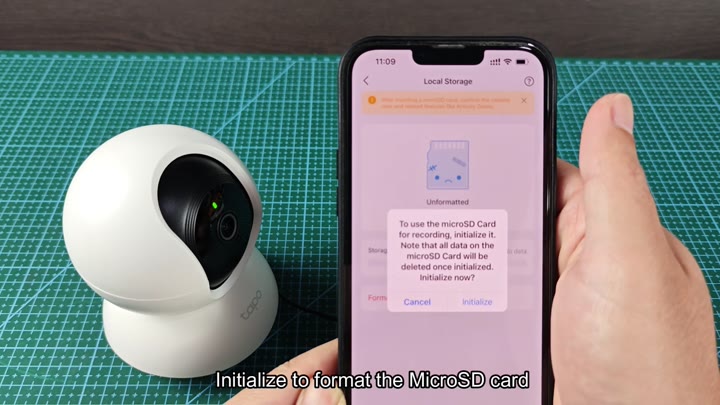
Once installed, open up the Tapo Camera app on your phone. Getting around it is fairly simple, if you know what you’re looking at. To get into storage and recording options, tap on gear icon located up in the top right-hand corner of the app’s main screen. Here, you can toggle various settings for saving your video localy.
Open storage options and tap on Local Storage. In this example, the new card were recognized by the system but had not been formatted for use yet. Tap on Initialize to start the format.
Confirm the action in the pop-up from the app. Let the camera do its thing and wait while it formats the card internally. This will prepare a file structure so that you can record video clips.
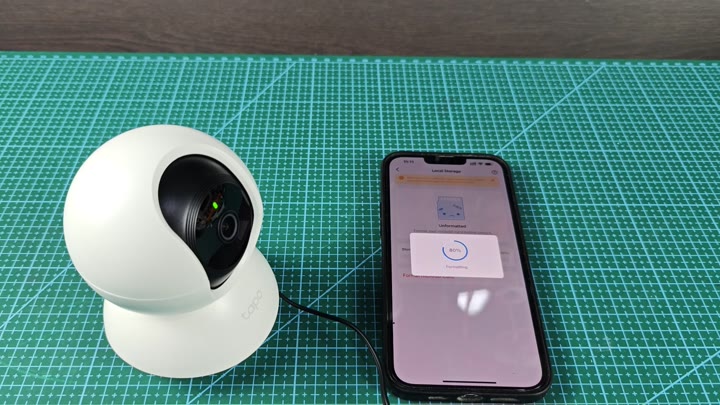
Then it’s a matter of waiting.
As it’s writing, you’ll see that progress bar move along. Soon after, it’s finished initializing and away you go.
Now your camera will write directly to the card rather than requiring cloud subscription. This way, when you want local control, you got it. You do not has to pay monthly fees just for basic recording capabilities.
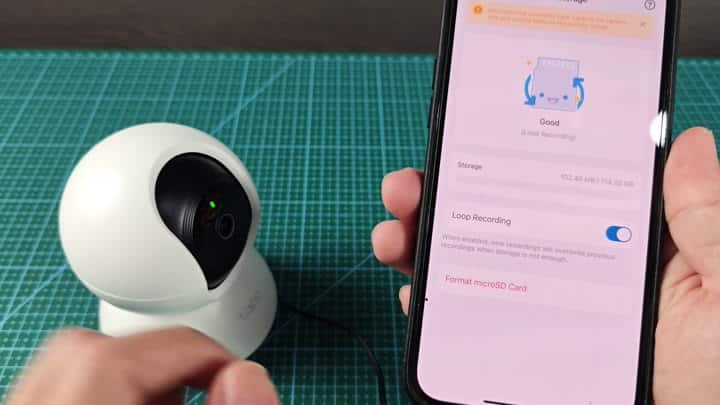
But it doesn’t always work. One particular villain can stops formatting efforts. Most of the time it’s because you’ve inserted an exaggerated capacity card, a counterfeit that claims to store more data then it can.
For example, these fake cards will fail to format in the Tapo camera completely. I tried this out with one cheaper brand and it bombed on the first try.
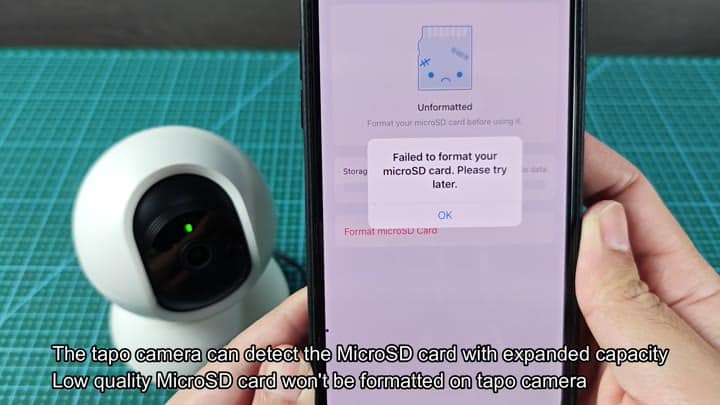
And it tells you an error: Your formatting has not succeeded. Try again later. But generally speaking, swap for a genuine card and try initializing again. It’s not you; it’s them.
Cheap microSD cards can have their capacities mislabeled. One says it’s 128 GB when actualy it holds a small fraction of that. The camera spot the mismatch and refuses to let you proceed. That’s for protection against corruption.
Replace fake card with the real deal. Invest in a quality microSD card rated for your camera. When it comes to tiny memory, brand does count.
There are a lot of counterfeit cards on the market right now. Don’t skimp and save a few bucks on your storage media. You’ll regret it when you have to go through the format process more then once.
Purchase a good card and problem is gone. The second time around goes off without a hitch. Video begins rolling on your camera. No hiccups. No issues. Whew.
