
Then there’s that keyboard. Yep, you’re plugging a regular old USB keyboard into one of the PS4’s front ports. It work immediately, no troubleshooting necessary.
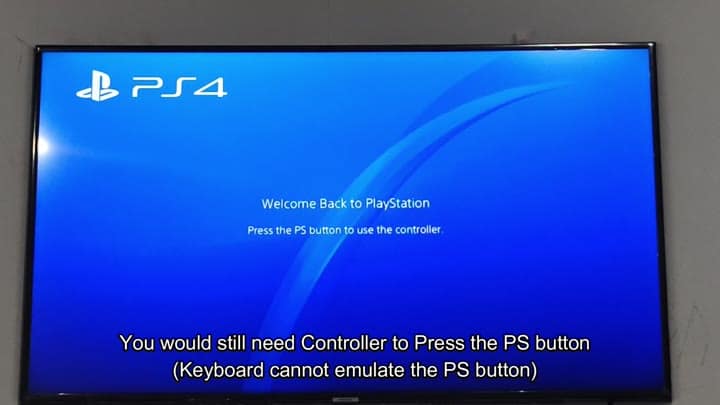
But that doesn’t mean it give the keyboard complete control over the system either. It can’t replace function of the PS button, which is something even basic keyboard can’t do.
Configuring Your Peripherals
That means you’ll have to use gamepad when dealing with your user profiles and waking up the console. Basically, you still use the gamepad to talk to the system menu and press the PS button to get into the system and login.
With that out of the way, you test out the keyboard by using it as an input device. You stick around with the controller as well since you’ll want it handy for logging in and navigating the initial welcome screen after the PS button is activated.
Once the system is active and you are logged in, you set up the peripherals. On the home screen you go into Settings, then devices to bring up options for hardware.
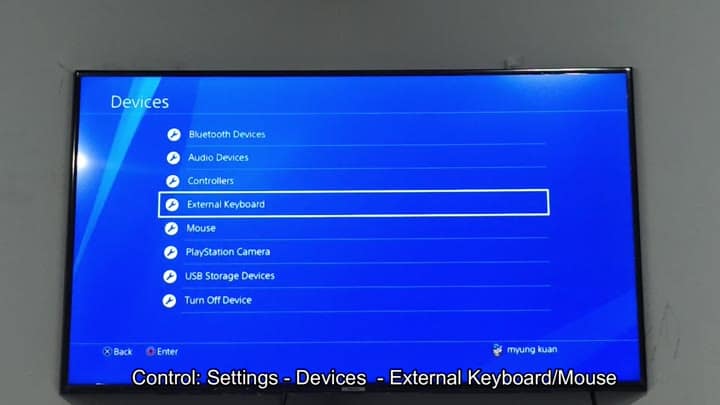
To start configuring things, you point to the External Keyboard option and follow along. The menu system is simple enough that it is easy to find what you are looking for. Next to that is Mouse option, which needs to be configured in the same way.
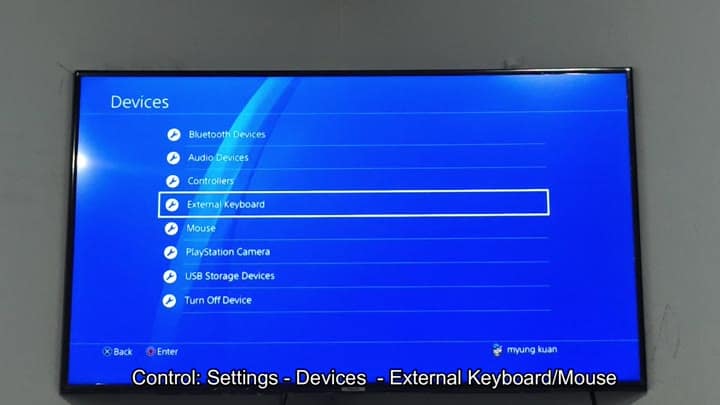
Once the keyboard is plugged in, the console will recognizes your keystrokes for text input and navigation purposes. Test out some simple moves to make sure they’re registered properley.
Response time isn’t quite as snappy as that of a controller when doing some menu stuff, but it’s fine. Typing in search terms or usernames can be done with the keyboard which is nice.
The keyboard also has a set of key assignments for common functions which become known with time and use. For example, the back button are replaced by the Escape key. To quit out of an option or go back in menu, you simply hit the ESC key. It’s a sensible swap for any gamer that plays on PC.
The select button becomes Enter. This lets you highlight things and confirm them via the keyboard rather than needing to pick up the controller. When you’re looking around in your library you’ll be hitting this combo quite a lot.
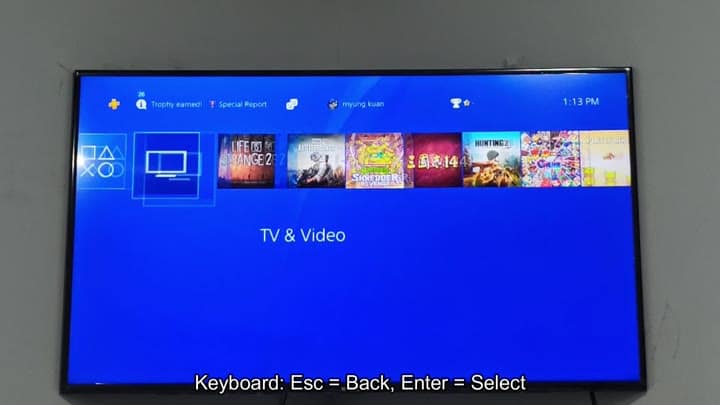
The shortcuts fit easily into everyday use as I test out navigating the media menu. From there you navigate across titles including Romance of the Three Kingdoms 14 and Life Is Strange 2.
When looking for a friend or title specifically, text input can be entered via keyboard which will speed things along. It is much more convenient than it used to be.
While it doesn’t remove the need for the controller completely, it’s nice to have an alternative that make text-based actions easier. Having those options and using control scheme that works best for what you’re doing is helpful. Searching around the store and typing longer texts is a lot less difficult.
While there’s no Bluetooth syncing to worry about or complicated pairings to perform, it’s mostly plug-and-play. You just need to remember that the gamepad controls has first dibs on the PS button.
After that, it’s smooth sailing. You’ll leave the keyboard plugged in for instant access to things like search and other settings. When exact input is required, it becomes an essential part of your PS4 setup.
