
Sounds easy enough, right? Well, here’s the rub: When the screen is blank and you press some buttons, it won’t do anything. If there’s no signal, nothing happens. The monitor need a signal before those buttons will work.
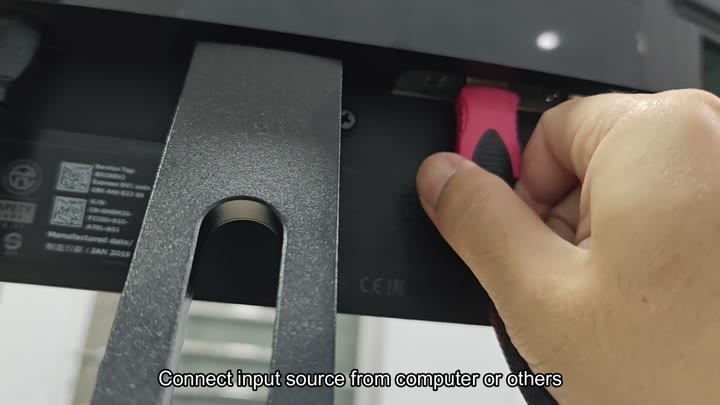
Use a pink HDMI cable to connect one end to the back of the Dell monitor and the other to your computer. It fits snugly into place with a click. The device clearly indicate which port it’s for.
How to Reset Monitor Settings
Ensure that you have a solid connection. This will be important for the next step. If there is no input, there won’t be any menu. No signal = no menu.
It is an easy fix.
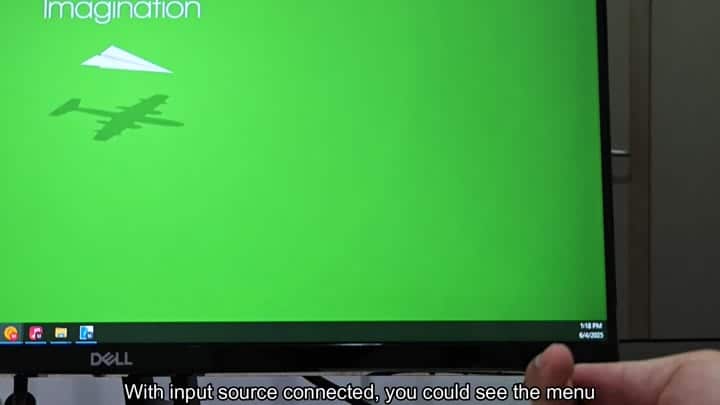
You plug the cable into the monitor and then the screen turns on. In the corner are a bright green background that says “Imagination“. On the screen, there are silhouettes of an airplane. There’s even the Windows taskbar down at the bottom. It was 1:18 PM.
Then you know the input is working. Now what? Because the video is live you can see the menu. Why does it need to be turned on? That doesn’t make any sense.
But it does.
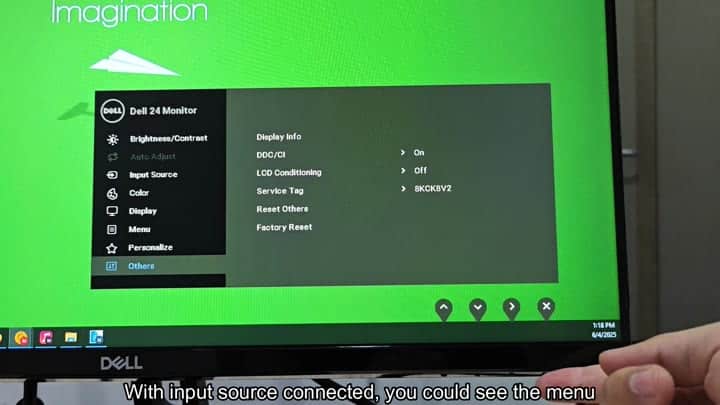
Hit the buttons on your monitor’s screen. That brings up the on-screen display. There’s a menu that appears over the green. Go through them all until you see an option labeled “Others.” Scroll down a bit further. There it is.
Choose it and you’ll get some more settings. Some things called LCD Conditioning and DDC/CI shows up. Leave those alone. All you’re after here is one thing. There is one little button. It says… Service Tag. Ignore that too. Just keep scrolling. Clear as day, right? You know what you need to do.
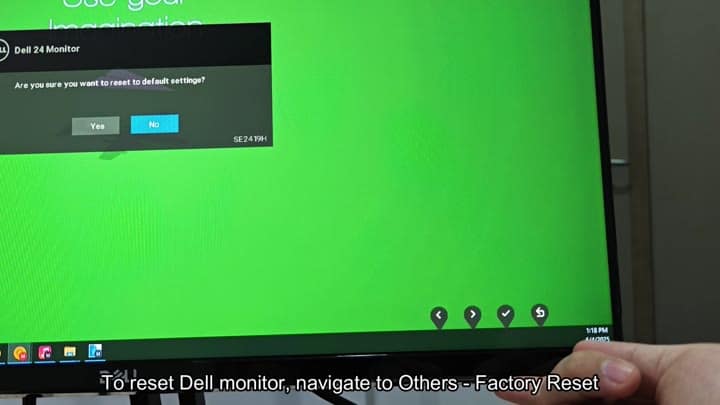
And then there’s the last choice, the one tucked in there. “Factory Reset.” Select it. The cursor floats above the words. Confirm the selection.
Okay. Instantly a dialogue pops up. Verify your decision. “Are you sure you want to reset to default settings?” the text says. Press Enter. There are only two options. Yes and No. Say yes. The monitor considers it. The settings return. That’s it. The screen flashes once while computer applies everything.
Everything’s reverted back to stock. Contrast, brightness, color temperature. Everything is now at default. No more messing around with advanced settings for you. That’ll save you a bunch of time.
A big part of troubleshooting image problems is eliminating the possibility of configuration error. Resetting takes care of that. It will remove any strange settings you’ve tinkered with. It is reliable.
It’s a fast way to begin anew. Next time your display appears off, give it a shot. It could of very well work. Easy fix.
