
Your Blink camera‘s red light could annoy you. And if you want the camera to blend in with its surroundings, well, that glow might be something you’d rather hide. Fortunately, there isn’t any hardware change required to prevent it from doing so.
Instead, it’s just a matter of configuring the app properley. By changing settings, you will effectively disable red light (letting the camera record away unseen).
Verify Camera Functionality
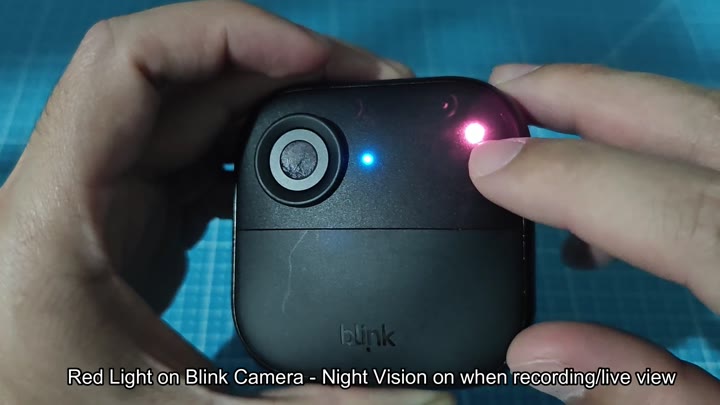
Okay, so start by opening up the Blink app from your smartphone. Then select the camera you’d like to modify. Next tap on Device Settings. This will take you through all of the options available for that device. Finally scroll down until you see Video and Photo Settings.
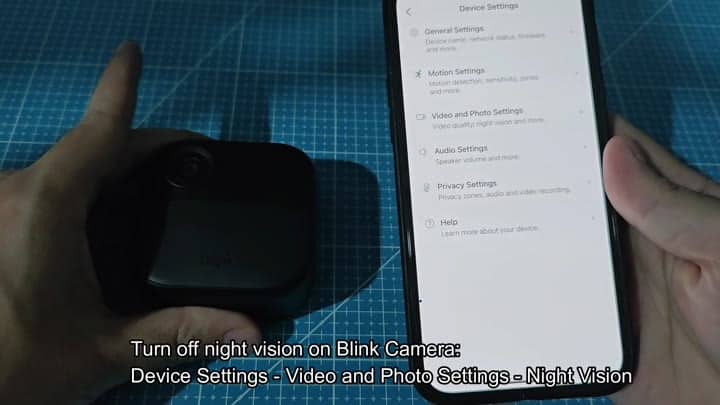
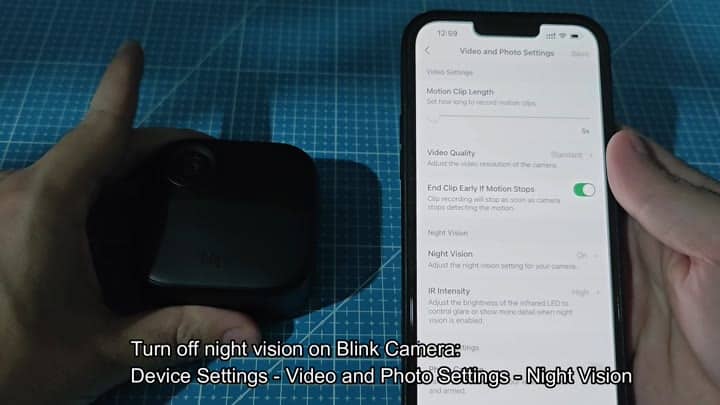
Here you control the infrared output. Turning off the IR eliminates red light which is tied to the night vision. If you look around in this menu, you’ll find the Night Vision toggle near the top.
By default, the Night Vision feature are enabled (i.e., set to On). To disable it, simply tap the toggle until it moves into the off position. It update instantly. After a brief time as the device syncs, it’ll alert you of the change on your screen. There’s no delay whatsoever.
Now you want to check the live feed and make sure it took hold. While recording, the actualy red LED on the cam should be turned off. The cam will work just fine and even record, but it won’t use a light to show it is on.
The IR Intensity setting isn’t required for this fix so you can leave that alone. Turning off night vision do the trick. The red light goes away entirely. Some users is concerned about losing clarity in dim conditions.
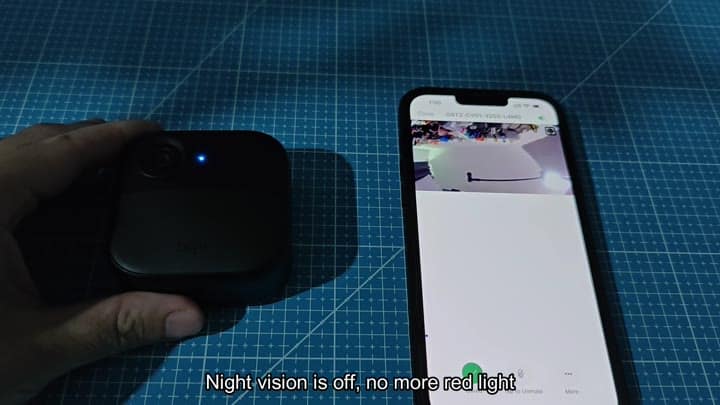
Maybe you want stealth but not so much night time visibility? The camera will still detect motion. It will also fire off an alert. So no harm done, the system is not broken. It is just a different visual profile different than before.
Try it out during the day and at night to make sure it stay dark. It doesn’t require a reset or firmware update. It is just a menu setting that takes effect instantly.
