
You can also adjust a few settings on the device and in the Alexa app to cut down on weather alert interruptions. These alerts often cause loud chimes that might be too much for people who want their device to work with them instead of telling them what to do. Silencing these notifications is simple enough and can all be done via right menu options.
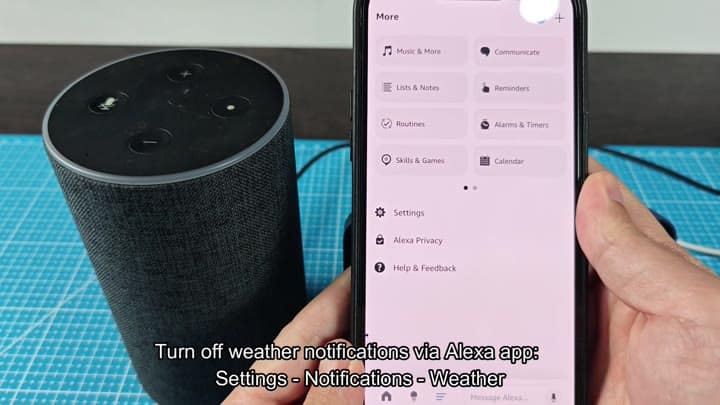
It begins with Alexa app running on your smartphone. In the bottom-right corner, you’ll see the More menu. Tapping that will bring up a series of links, such as Routines, Music and more.
Customizing Your Echo Show Display
Tap Settings, which take you into the central control panel for your smart home set-up. Tap on Notifications, followed by the Weather option. Here you’ll be able to manage every type of alert being sent on your Echo speaker. The Weather entry is just one of several categories here, including Calendar and Reminders.
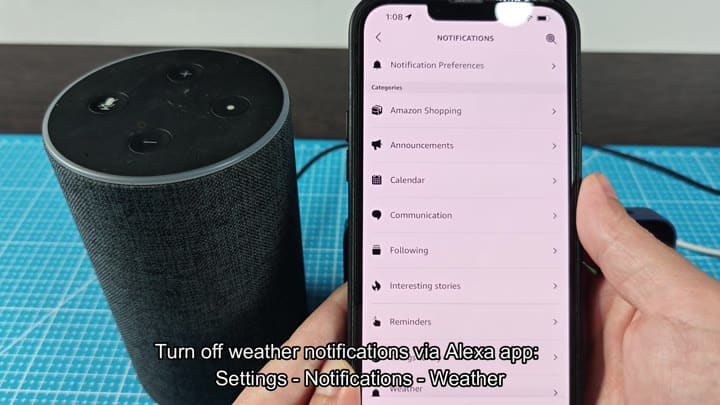
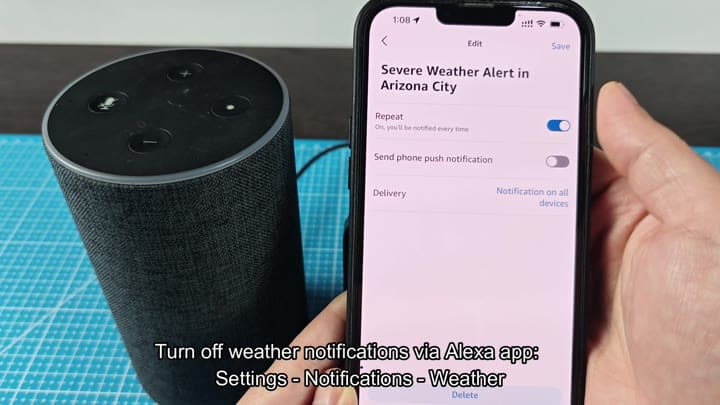
To view Weather controls, you tap in to Settings > Weather. Here, you can choose certain settings for alerts. For instance, it shows you where you have options for severe weather alerts. You can choose if you want an alert repeated or if you want a push notification sent to your phone.
If you’ve noticed the “Repeat” option turned on, that’s what caused the continuous chimes. Turn it off right now. You also visit the delivery settings to make sure it isn’t broadcasting notifications out to every device at once. When you turn them off, those immediate audio distractions cease and there is no more unannounced alarms.
You might also want to tidy up the visuals on your Echo Show. By default, the clock screen will display present weather and temperature, which can get cluttered.
If you’d rather have something cleaner, say just the time and a photo, you’ll need to dig into the display settings and make adjustments right on the device itself. This means physically using its touchscreen interface.
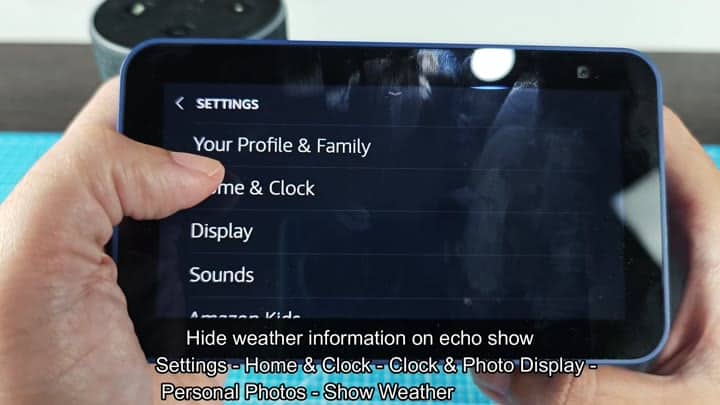
The quick settings menu can be accessed by swiping down from top of the screen of your Echo Show. That takes you to the main Settings hub.
Find the “Home & Clock” option, which control what’s displayed on the device while it’s idle. Tap that, which then presents a submenu of both Photo Display and Clock settings. Here you can choose exactly what you want to see on the screen while it is not in use. This gives you more control over how your device looks, helping it feel more like home.
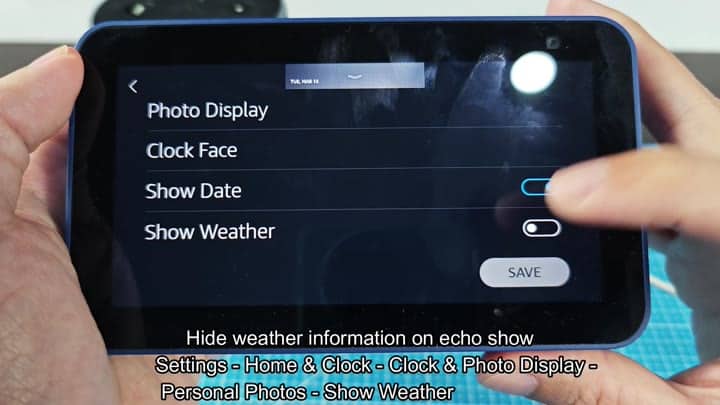
Inside the Clock & Photo Display menu, you’ll find an item called Personal Photos. That’s where there’s actualy a toggle for “Show Weather.” It’s currently enabled, which will put weather info overtop your clock face.
To get rid of this completely, you just turn it off. Then hit Save at the bottom of the screen to save the settings.
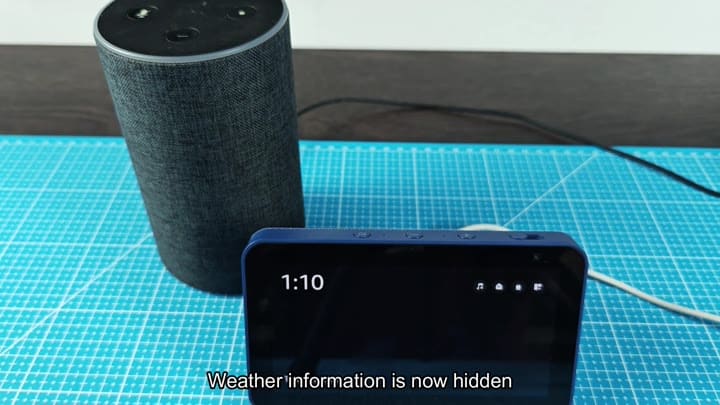
The screen appears much more clean, and the weather dissapears.
The end result? A smarter, less cluttered-looking smart home. No more random weather alerts from your Echo device that cut into your day. And, if you have an Echo Show, a pared-down clock face for its screen.
The whole thing takes roughly five minutes of your time to tweak. It’s not a huge adjustment. However, it has a major impact on how you use your smart home and clears away some visual clutter from your surroundings.
No need to dig into your router settings to update your firmware. No need to restart your router either. Everything can be done in an instant through the device settings and the app.
It’s a quick hack that makes perfect sense if you’re tired of all these weather updates interrupting your Echo devices, and you would of been happy with the result.
