
Sometimes you may want your Dyson air purifier online so you can view air quality from anywhere in the house. And other times, you’ll just want it to be offline for conveniance or if there’s no internet. It turns out, turning the WiFi on/off is really simple and doesn’t require any app at all.
You can also see what settings are currently active right on the display. Most of the time, you shouldn’t have to mess with anything since it should run in auto mode without too many issue. If you hold down power button, it will act as a menu button (this isn’t something I noticed right away, either).
Why disconnect wifi occasionally
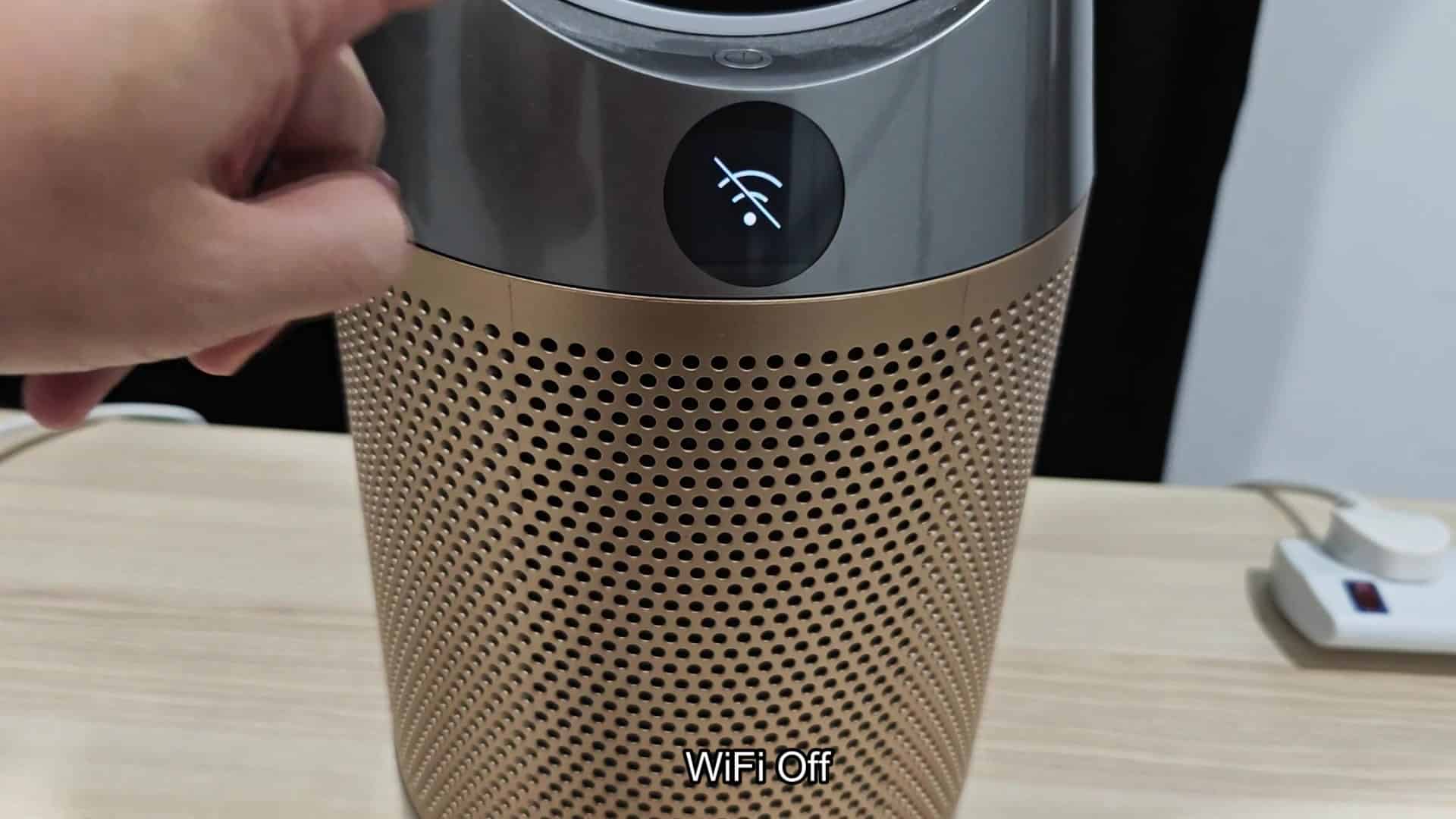
Place your finger on top edge of the device near the display where the power button sits. When you do so, don’t tap it in quick succession, just press and hold. You will notice nothing will happen for the first one or two seconds. It feels counterintuitive but hold it firmly without releasing it.
After a couple of seconds, the screen starts changing and you’ll no longer see regular air quality readout. Instead, you’ll see another icon appear on circle screen: it’s the wifi symbol crossed out, indicating that connection has been totally lost.
To check if this is working, just take a quick look at list of devices connected to your router. If you were connected before, you should no longer see the Dyson device on the list, and it’s easy to confirm that the toggle worked as intended. Whether it’s for troubleshooting or privacy reasons, this can save you from having to search through complicated menus each time.
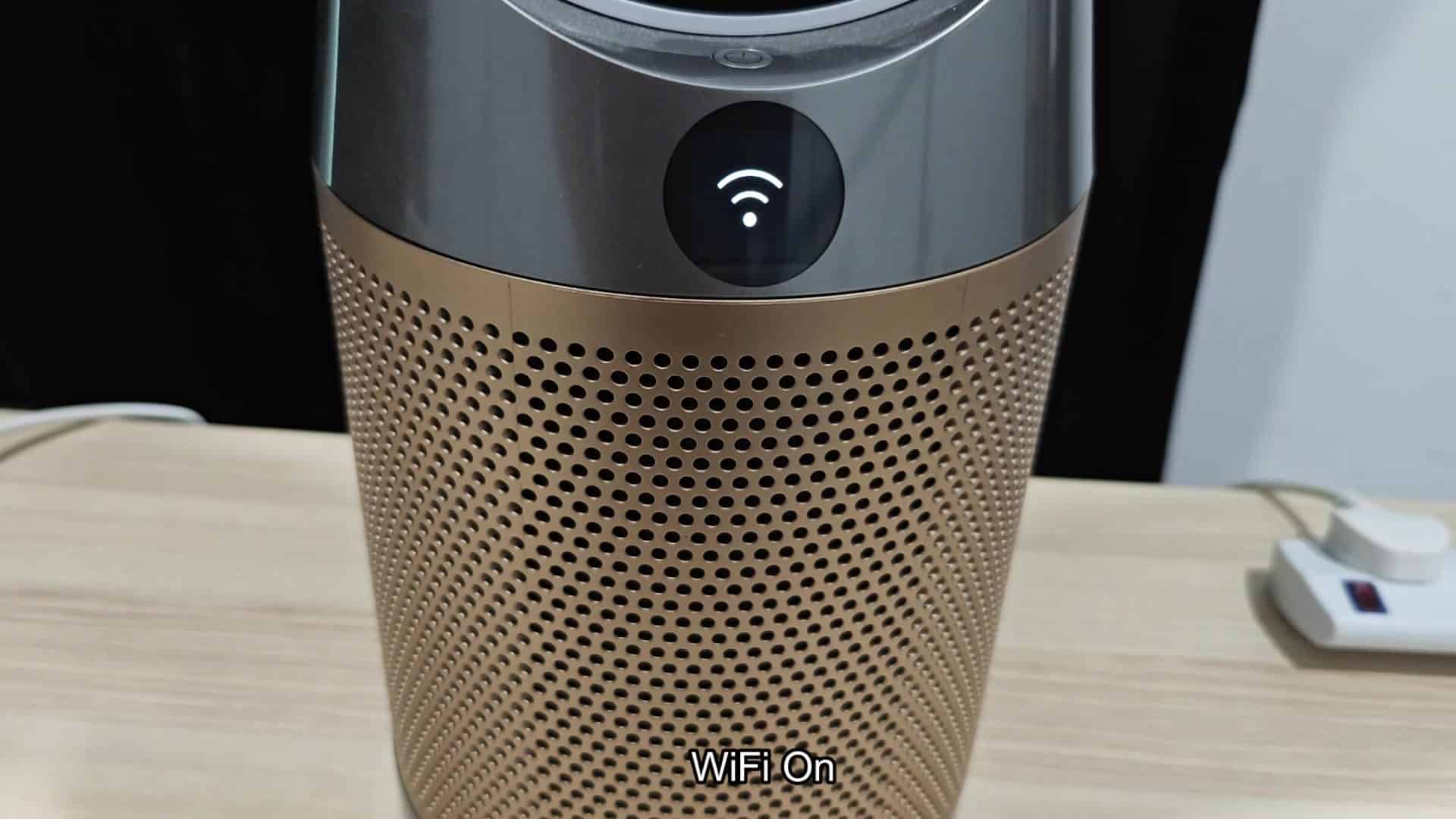
Press and hold power button once more to switch feature back on. The crossed-out WiFi symbol dissapears and you’re greeted with regular auto mode screen. A green bar appears across the bottom.
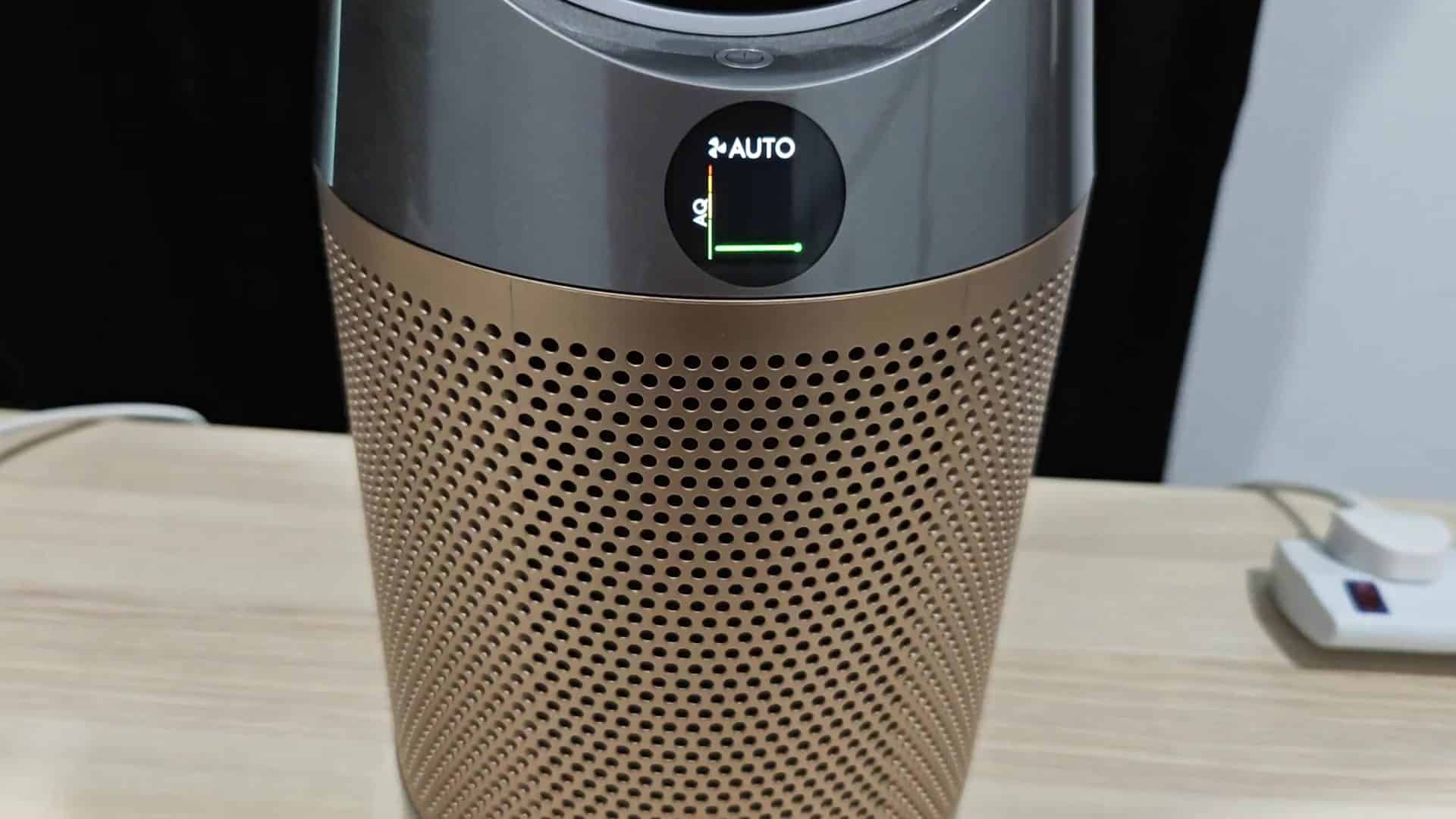
Then, action connects it again automatically and instantly. And the display once more shows air quality on screen moments later, with a green bar indicating there is clean air in the room. Without needing to reboot or wait around, the purifier resumes doing whatever it was doing before.
Compared different than sometimes-slow/sometimes-glitchy mobile apps, this is all pretty quick and direct. There’s no need to fumble out your phone and unlock it just to do this one thing; hardware button works every single time you press it.
Even without wifi, it continue to work well in auto mode and feels responsive. Connecting is just another level of control… Not needed at all for cleaning, but nice to have. Disconnecting doesn’t prevent it from cleaning; it will continue to clean as normal. It’s seamless and unobtrusive.
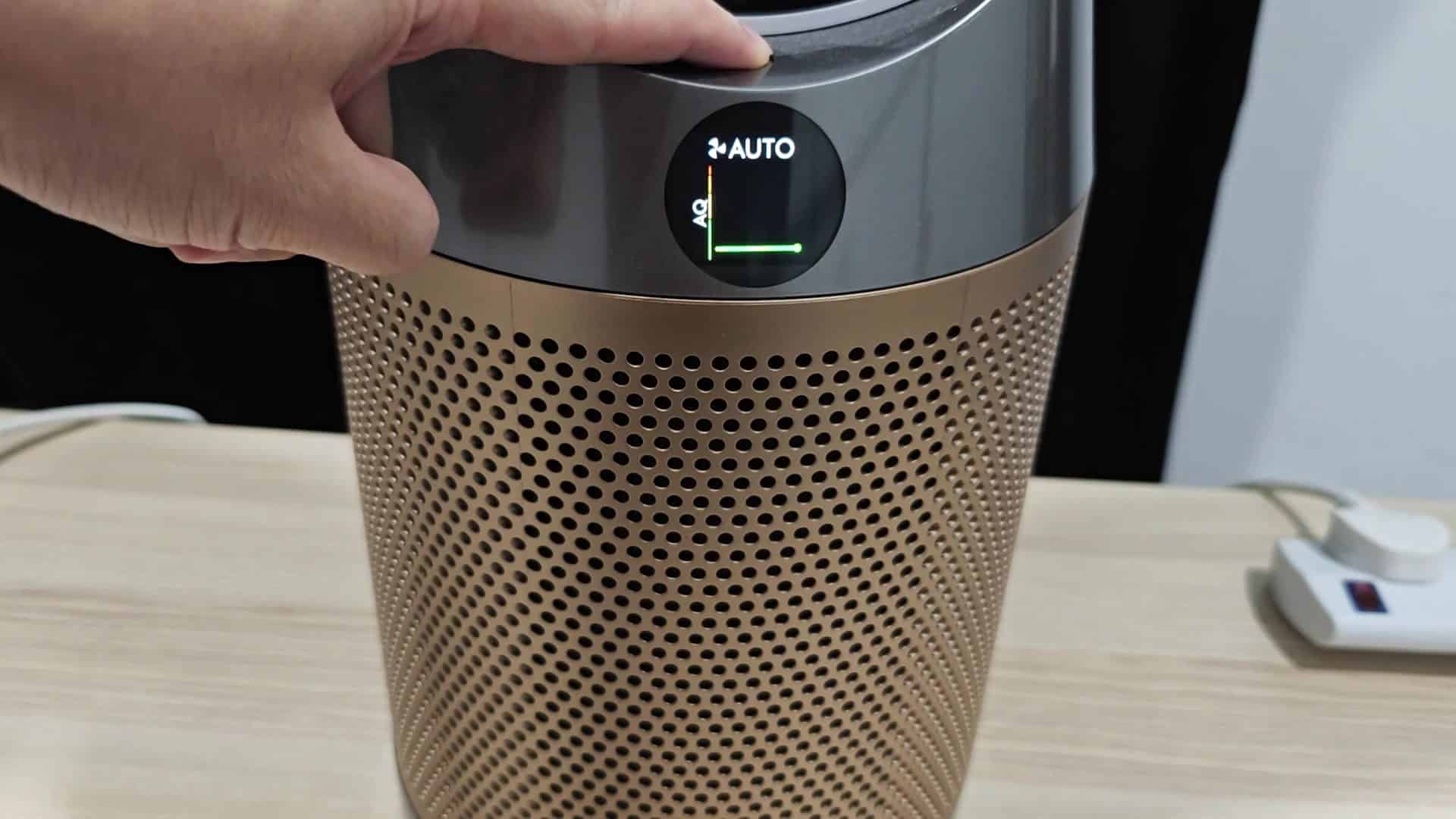
After one time, two times, it’ll become second nature. You just hold the button down and wait for icon to change.
This is one of those little features that’s nice to know about, but still allows you to see the change then walk away without having to worry about it anymore. It isn’t so complicated that you need a manual to understand how it works; instead, it is something you can learn through trial and error.
And now you know which button to push whenever you want to make a quick adjustment. It should of been a handy thing to have in your back pocket.
