
The settings let you keep the distracting stuff hidden from view, allowing you to transform your Echo Show 5 into a basic clock. By default it displays ads as well as news headlines, but there’s no need for a factory reset to prevent that.
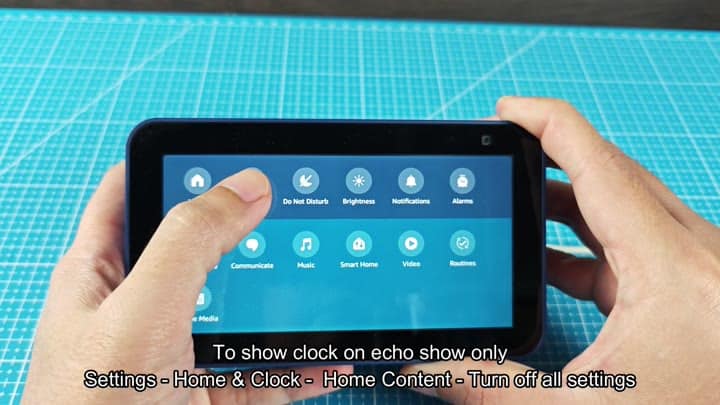
The primary menu is all that needs changing.
Disable home content features
To access it, tap the settings icon on the touchscreen to open the menu. Scroll down from the smart home controls and the alarm until you reach the rows of other settings. Instead of changing the display’s brightness, you’re looking for an option that deals with what appears on the screen. The background image setting is located there. Go into settings → Home and Clock.
These controls manage your home content, which is what shows up on your idle screen. To disable them, tap on Home Content. That’s where you’ll find the master switch for all this distraction. Music suggestions and even news updates is included here. Delete ’em all if you so choose.
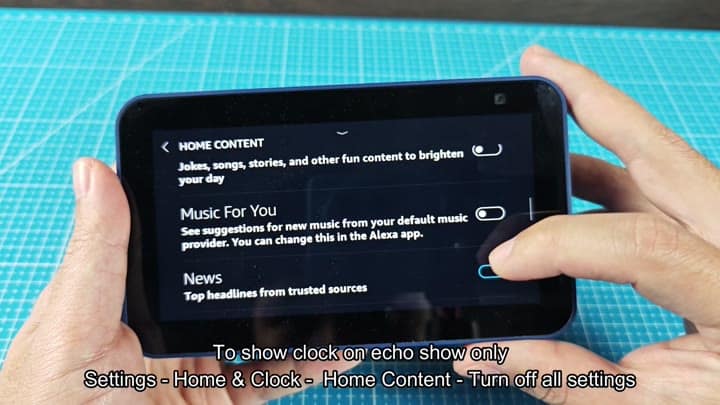
To make it go away, turn them off, one at a time. Begin with the music recommendation widget: Music For You. Don’t need its recommendations when you brush your teeth. Turn off the newsfeed of headlines next. An unwanted layer is stripped away with each click.
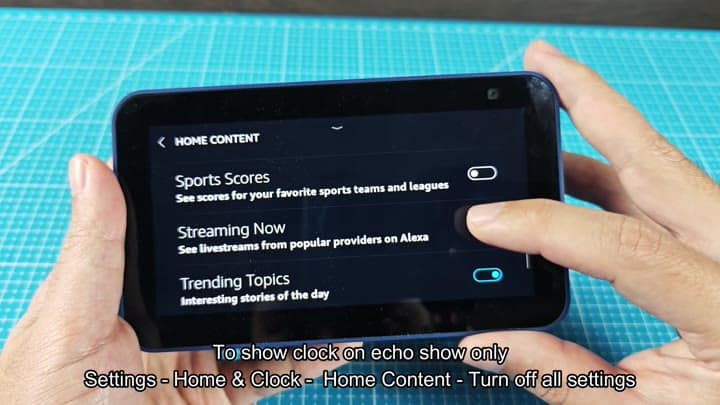
To complete it all, click the last option and disable everything else: Sports Scores (unless you’re into real-time sporting events), Streaming Now (if you don’t want to see your viewing habits from other devices), and Trending Topics (you probably don’t want random viral stuff).
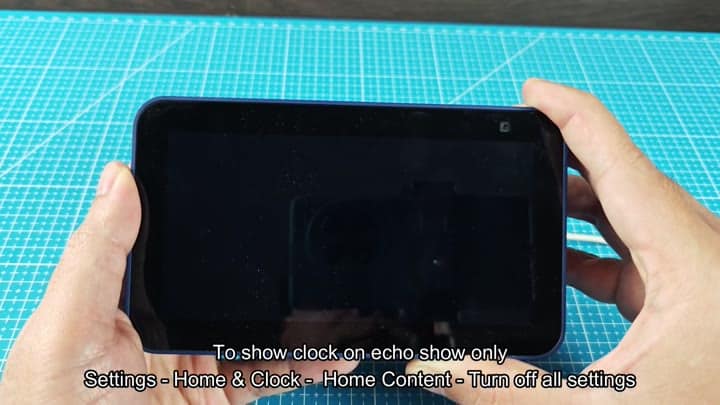
The screen stays black between changes as you disable each home content option.
Once all the home content options are disabled, however, it turns into something completely different.
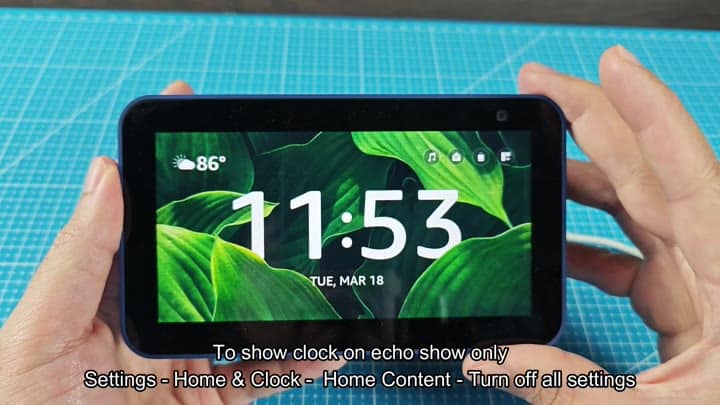
There are no more news widgets or ad cycles. It shows just the time, cleanly displayed in the middle of the screen with the date below it. You can still see weather info up top.
It is a practical display that doesn’t clutter things up. It’s a less-than-a-minute fix, and you should of done this earlier.
The settings let you keep the distracting stuff hidden from view, allowing you to transform your Echo Show 5 into basic clock. By default it displays ads as well as news headlines, but there’s no need for a factory reset to prevent that.
The primary menu is all that needs changing.
To access it, tap the settings icon on the touchscreen to open the menu. Scroll down from the smart home controls and the alarm until you reach the rows of other settings. Instead of changing the display’s brightness, you’re looking for an option that deals with what appears on the screen. The background image setting is located there. Go into settings → Home and Clock.
These controls manage your home content, which is what shows up on your idle screen. To disable them, tap on Home Content. That’s where you’ll find the master switch for all this distraction. Music suggestions and even news updates are included here. Delete ’em all if you so choose.
To make it go away, turn them off, one at a time. Begin with the music recommendation widget: Music For You. Don’t need its recommendations when you brush your teeth. Turn off the newsfeed of headlines next. An unwanted layer is stripped away with each click.
To complete it all, click the last option and disable everything else: Sports Scores (unless you’re into real-time sporting events), Streaming Now (if you don’t want to see your viewing habits from other devices), and Trending Topics (you probably don’t want random viral stuff).
The screen stays black between changes as you disable each home content option.
Once all the home content options are disabled, however, it turns into something completely different.
There are no more news widgets or ad cycles. It shows just the time, cleanly displayed in the middle of the screen, with the date below it. You can still see weather info up top.
It is a practical display that doesn’t clutter things up. It’s a less-than-a-minute fix.
