
When we talk about smart home device privacy, cameras tend to be at the forefront. After all, who wants a camera staring back at them? If you don’t use it, turn off that lens.
Here are two easy solutions based off what kind of device you have. Both are quick and painless; no technical know-how required.
Using The Physical Slide Switch
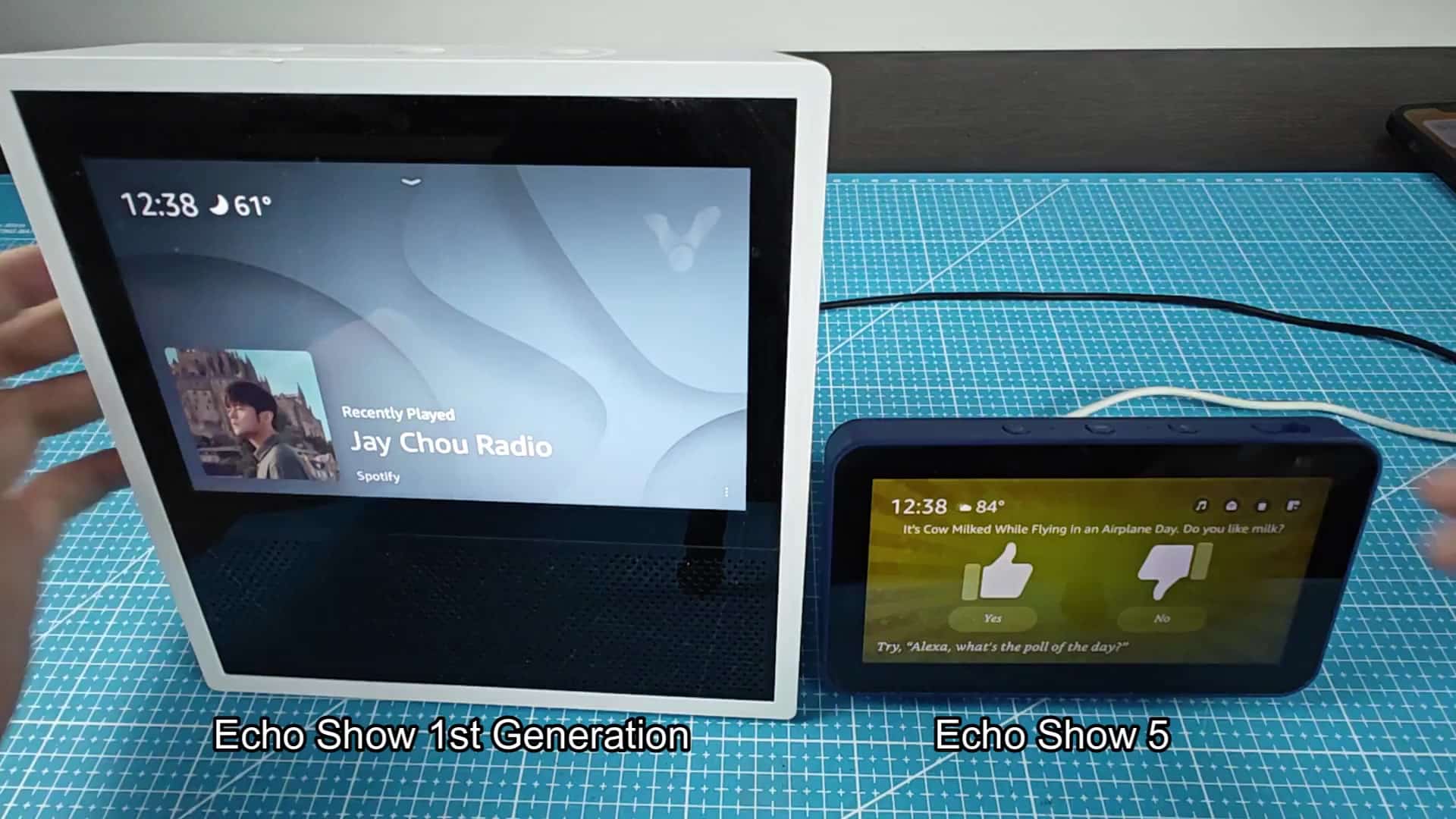
For all Echo Shows: The simplest solution is to use one that will work on every Echo Show: Just slap a piece of sticky tape over the camera. No matter what you set in your software, this physical barrier prevent the camera from seeing anything at all.
And because it’s mechanical (rather than an electrical switch or digital toggle), it works regardless of software settings. Slap a piece of something opaque on top of glass and it’ll work every single time.
This real-world barrier is the whole point of this first-gen Echo Show. That older frame doesn’t even have a built-in hardware switch to enable or disable camera. Instead you get a sticker you slap right onto the spot where lens is located. It is on top of the thing, up above your screen. Easy enough to place and easy enough to remove, though it might leave some goop behind.
Alternatively, turning off the camera completely on the Echo Show 5 is cleaner. The more recent Echo Show 5 have an onboard slide switch that does exactly that, turns the camera off.
The switch is located in the body of the device, close to where the camera lens would be. When you slide the switch to off, it cuts the camera’s hardware entirely. Even when software believes it’s turned on, the sensor can’t actualy pick up anything.
When you flick the switch, the screen update. There’s a definite sign on screen it has done so. It’s spelled out: “Camera is off.” That visual feedback reassure you that your privacy is protected. You no longer have to guess whether this setting was applied. To turn the camera back on, it’s equally easy. Slide the switch again when you’d like to run an Alexa routine or make a video call. You’ll instanty re-connect everything.
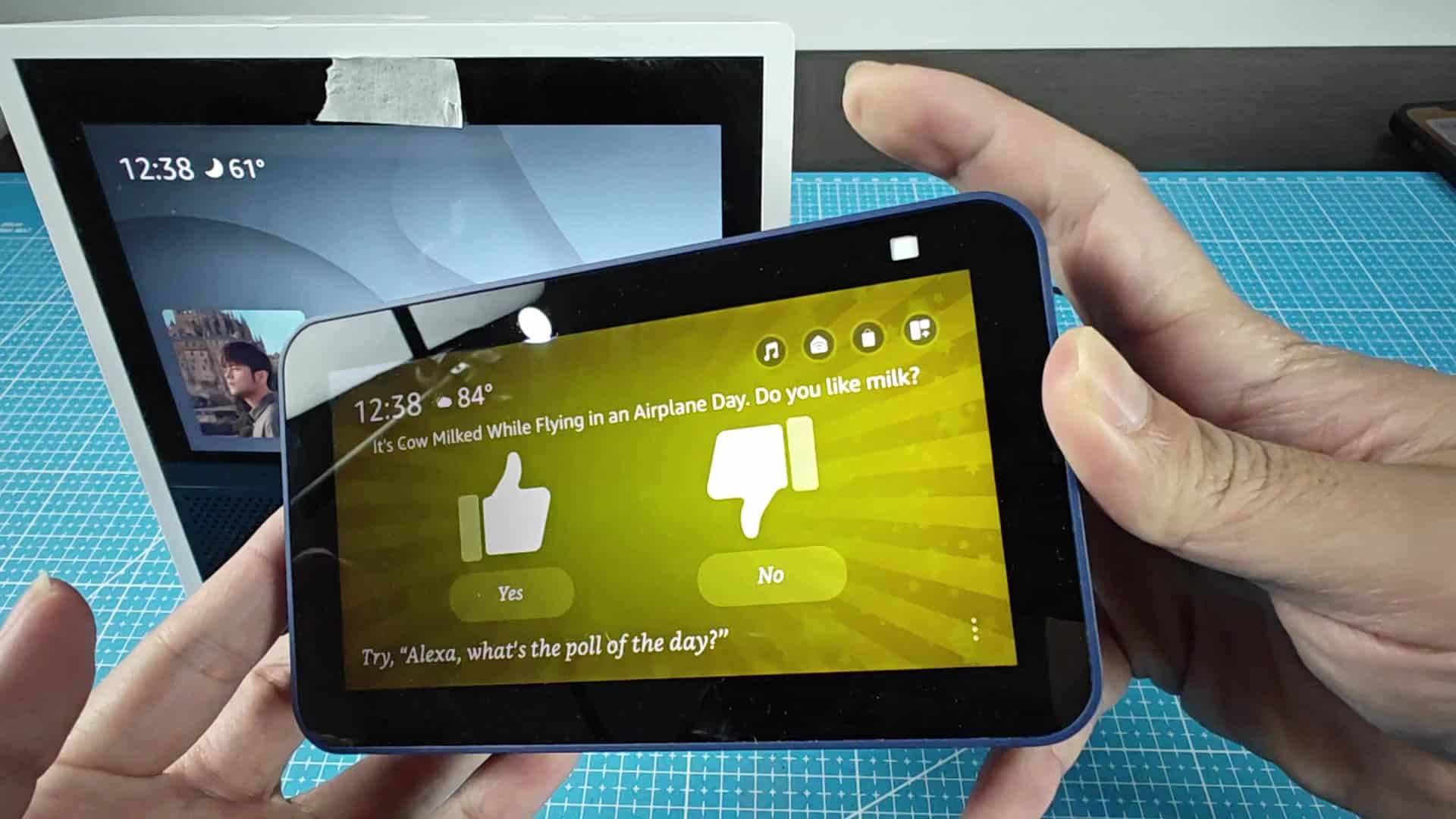
Once the connection is restored, visual indicator on the screen dissapears. It all happens so smoothly that it feels better than removing a sticker every day.
On the first-generation version, you needed to keep some adhesive on hand for when stickers fell off. And removing them could leave residue.
On the Show 5, the slide switch has been made part of the routine. You never have to worry about losing materials or damaging the device.
With the hardware switch, you have confidence that the setting won’t be matched by software. There’s no question, the physical connection has been cut off. Maybe you’ll sleep easier with the slider flipped down instead of trusting whatever your apps are configured to do.
Within seconds I’m back in camera mode. There are no loading screens, there’s no navigating through any menu. Every single time it respond as expected and immediately.
And that simplicity is one of the best things about this design on the Show 5. For short-term needs, the sticker thing do work OK on the old one. But the dedicated switch on the new one just seems to feel more permanent. It’s a naturaly part of your everyday interaction with the device.
Keep in mind: Your privacy controls shouldn’t complicate your day-to-day life. These two options offer the best mix of security and simplicity. See what’s available on your device, if you have a hardware option, you should of go with that (a switch, preferably rather than glue).
