
The Blink camera stopped working after you swapped its batteries, and you thought it would start right up again. But it’s totally blacked out. The voltage is correct and the battery appear properly oriented. What gives?
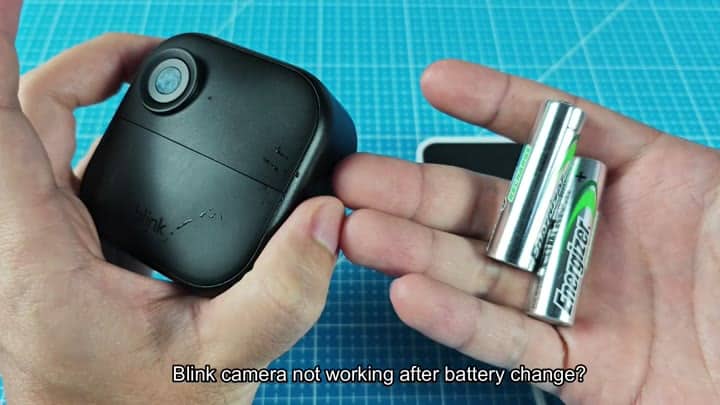
Because a battery failure causes the camera to lose all connection with the app (and software glitches can lock out hardware whenever the voltage dips to zero), you wondered if the Blink app mightve disconnected during the battery swap.
Resetting Device Connection
You opened the Blink app on your phone and headed into settings menu, where you found the Account and Privacy section. There, you logged out and logged back in, and waited for dashboard to refresh. It still did not work; the camera remain offline.
You swapped the batteries in your Blink camera and expected it to work immediately, but the device went completely dark.
It wasn’t a battery problem; the new ones installed had a lot of juice on them (they’re Energizer cells). It was something more fundamental that broke between the devices.
You didn’t feel like messing around physically with the hardware again. Logging out didn’t clear the cache enough; the camera still appeared grayed out in list of connected devices.
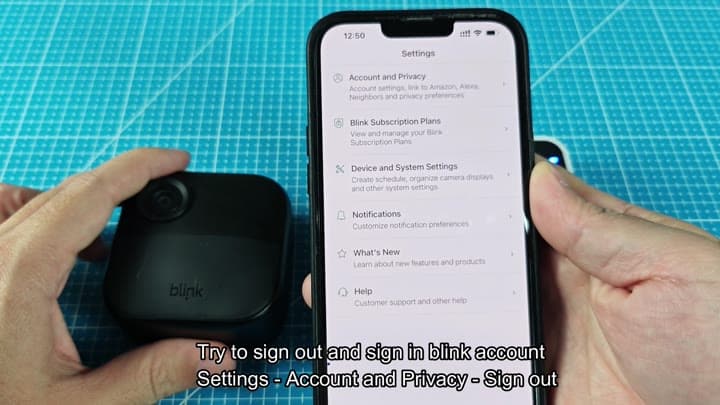
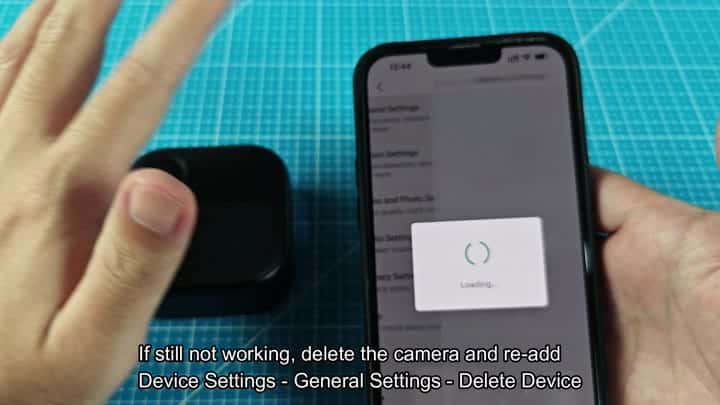
Oh, right, you recalled, the system believed the camera was connected but not responding; time to cut it off for good. So back to Device Settings you went.
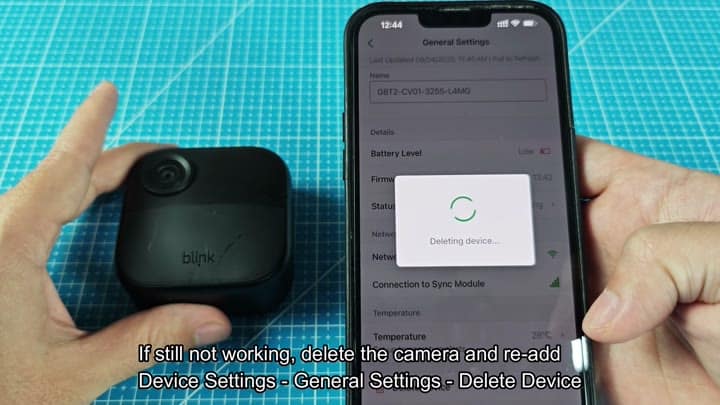
The Delete Device option was under General Settings. Yep, confirm. The app displayed the loading spinner and … poof! That camera are gone from your account.
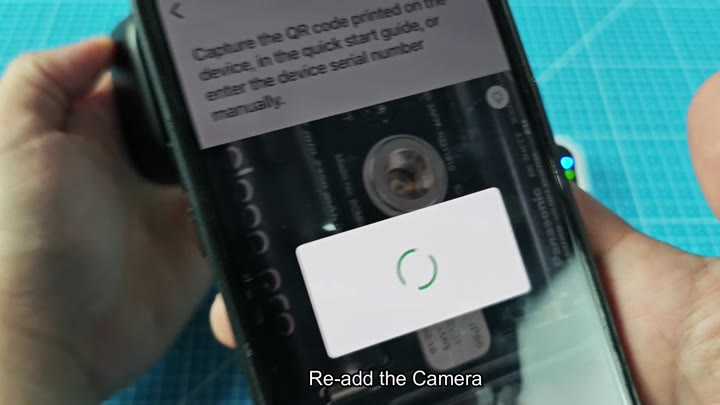
Then it was time to re-add the thing. You got out the quick start guide, scanned in the QR code on the back of the camera by holding your phone over it until the app’s screen locked focus, then read off serial number: GBT2-CV01-3255-L4MG. That filled into the field.
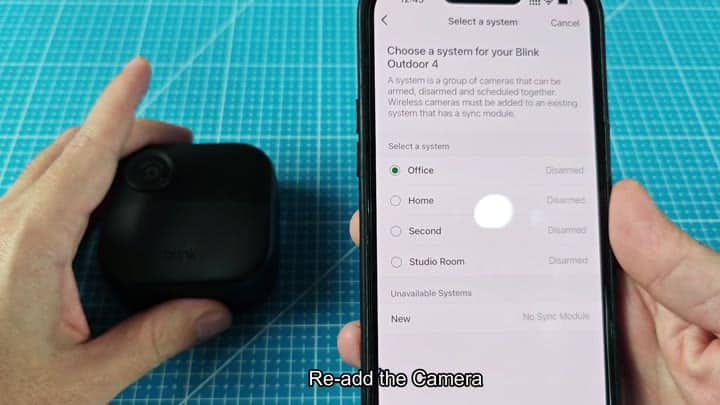
Because the sync module is already paired with Office in list of saved locations, you tapped that to select your system and then chose Office on this one. You also chose to skip tutorial (it asked for positioning and warned against placing it in direct sunlight); you’re here to get a feed, after all.
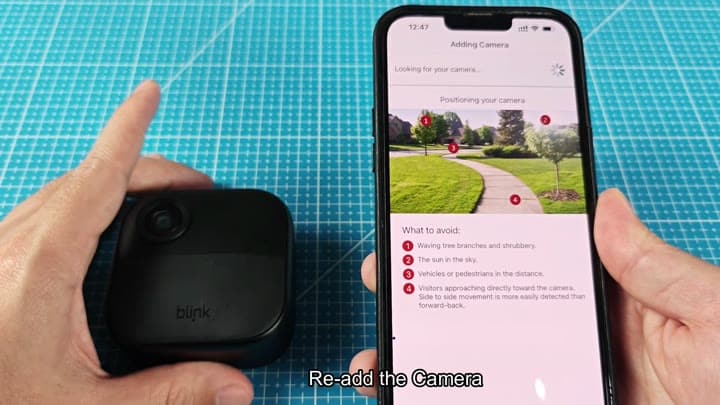
Placement tips were in the setup wizard, which you got a lecture on then hit continue to skip anyway. You pointed your phone’s camera at the module until it found the signal, whereupon green spinner solidified into a solid line indicating connection.
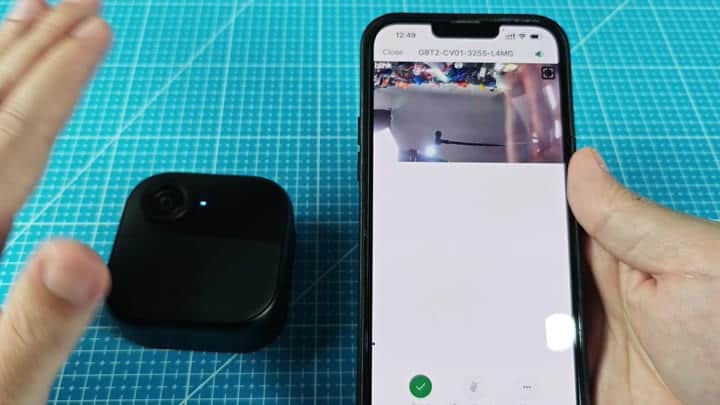
A good sign was that a solid blue light glowed from the camera body’s LED. Inside, the app launch and brought in the live video feed. You could see the indoor scene clear on your screen.
The camera’s serial number matched the one you’d scanned for as its identifier (it came back to life).
It’s a bit extreme: delete the device from the app and add it back in, but sometimes the most basic reset is required. Break the connection. Set it up again.
And presto, your camera is working once more. No need to mess around with battery connections… Just a clean digital handshake that would of been well worth the effort.
