
You plug your HP laptop into the wall and nothing happens. The screen say “No battery detected.” What? Huh? That’s weird. Your battery’s there, and you’re plugging it in. Everything appears OK, but now nothing works.
Sounds like a hardware issue, right? Wrong! Try this: Reinstall the charging driver. It’s an easy software solution before you should of pay for parts replacement.
Steps to Reinstall Driver
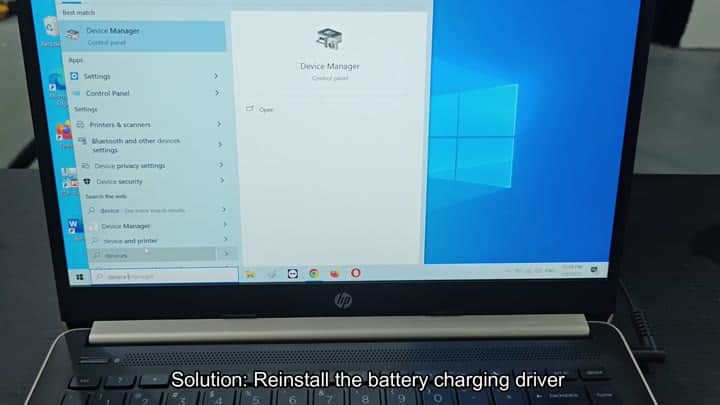
To get started, head over to Windows search bar and type in “device.” The first item that pops up should be Device Manager. Click on this and you’ll see a list of every component on your machine. That is how you manage drivers on your computer in Windows 10.
From here, locate the battery settings. Scroll down until you see “Batteries,” then expand this section. You’ll have two options. One say Microsoft ACPI Compliant Control Method Battery, and the other is simply called the battery manager.
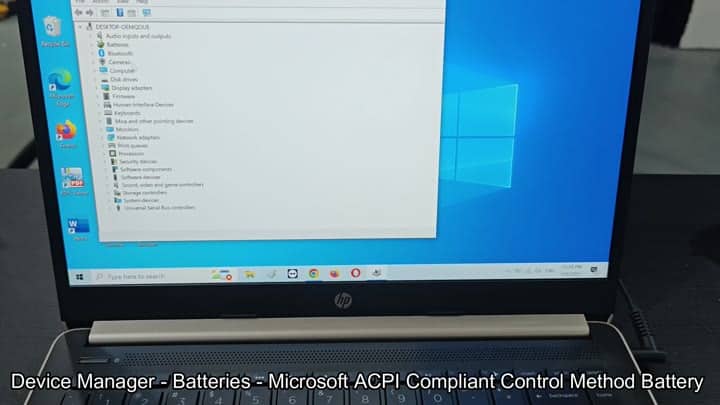
The latter one’s what we’re after.
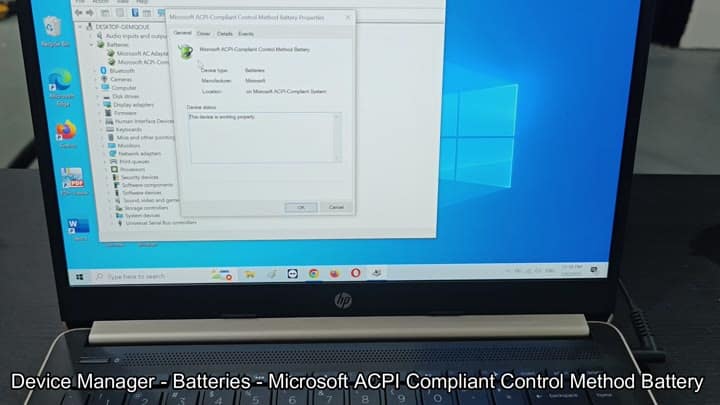
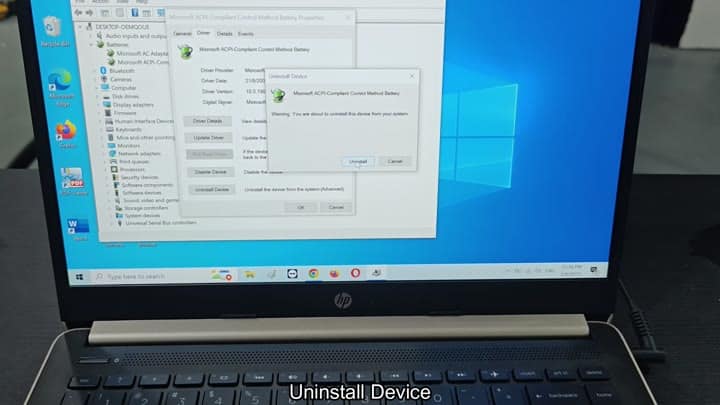
Open the properties window for the Microsoft ACPI Compliant Control Method Battery by double clicking it. It’s listed as “This device is working properly,” which seems wrong because laptop won’t charge.
Look at the driver details though; it’s provided by Microsoft. This sounds more like a software problem different than a hardware one (specifically an OS bug related to detecting hardware).
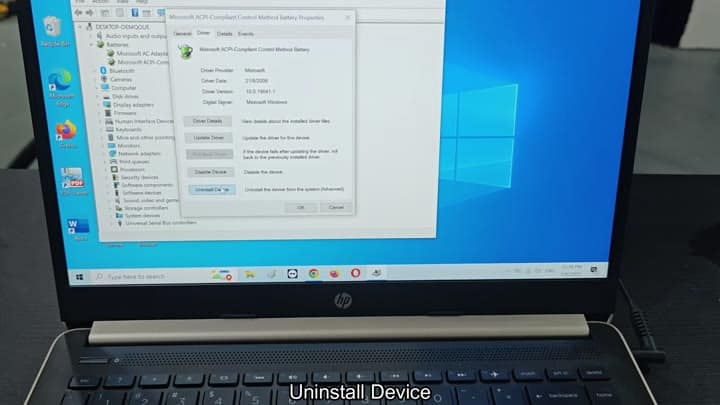
Hit the “Uninstall Device” button. A warning dialog box should pop up. Hit yes, and the device entry will vanish from list.
Sit there for a second or two, nothing changes on your desktop. That’s okay; it won’t show anything because it doesn’t need to see something yet. It just wants to know to check again.
Return to Device Manager’s main menu and click on “Scan for hardware changes,” which makes Windows check again for any attached device. The display will flash quickly as it does this, then you’ll see some new items appear in that list. You should also find your battery driver there again.
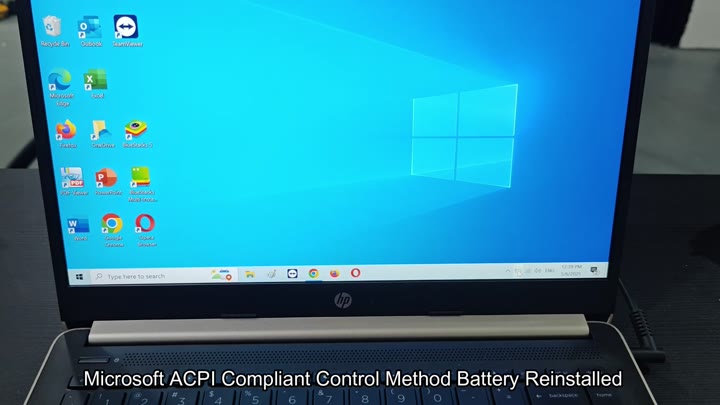
Done! Driver installed. It was loaded with new settings and reinstalled.
It works without any user intervention. Everything is done automatically by the system. Look at taskbar corner, see that battery icon? It used to display an empty warning. That’s gone, now it displays a charging symbol.
The power adapter were recognized. The connection is restored.
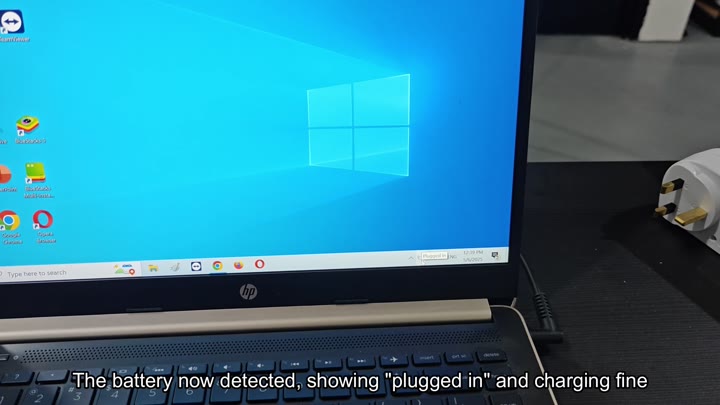
The warning goes away and the laptop begins charging again right away. No additional components was necessary, and it only took under two minutes to fix.
There’s no need for complicated diagnostics; just a quick driver reset fixes the issue. These types of software bugs on ACPI drivers (which communicate power information) are quite common. Reinstalling the driver resolves the confusion caused when the connection fails.
It’s cheaper. It doesn’t require a visit to the store for you. Free software fix vs expensive hardware replacement.
Always take the easy road first. Don’t jump to the conclusion of hardware failure right away. Check your drivers. It’s a quick way to troubleshoot that might be all you need. The power problems has been solved and now your HP laptop is back to normal.
