
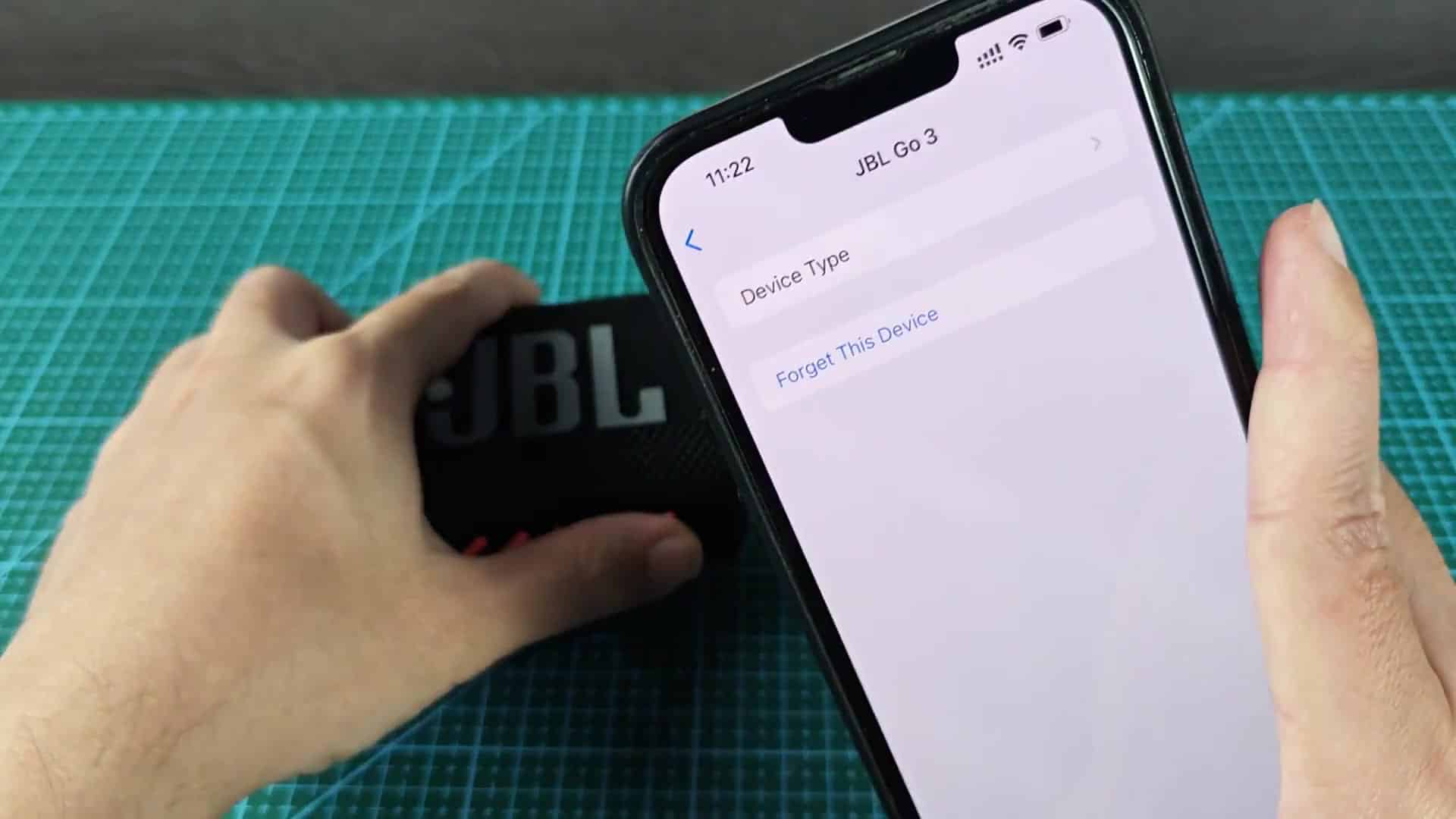
Clearing out old pairings when checking the connection status is something you should of do. If you’re having trouble with picky Bluetooth, starting over will help clear things up.
Go into your iPhone‘s Bluetooth settings, where sure enough the speaker show up in your device list. Tap Forget This Device and poof! It’s gone from your phone’s memory. Now you can start fresh with just a few tap.
How to Reset the Speaker
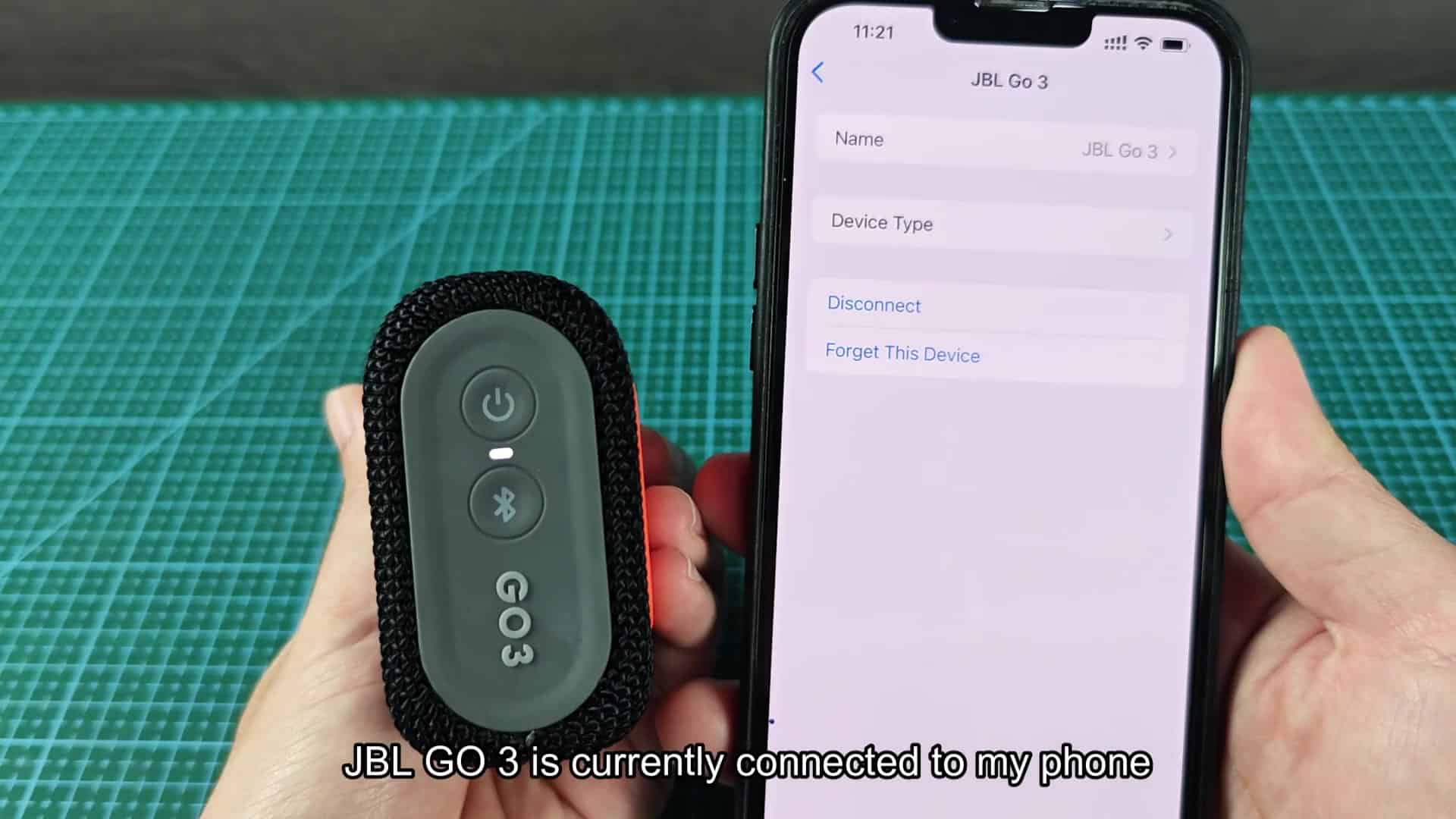
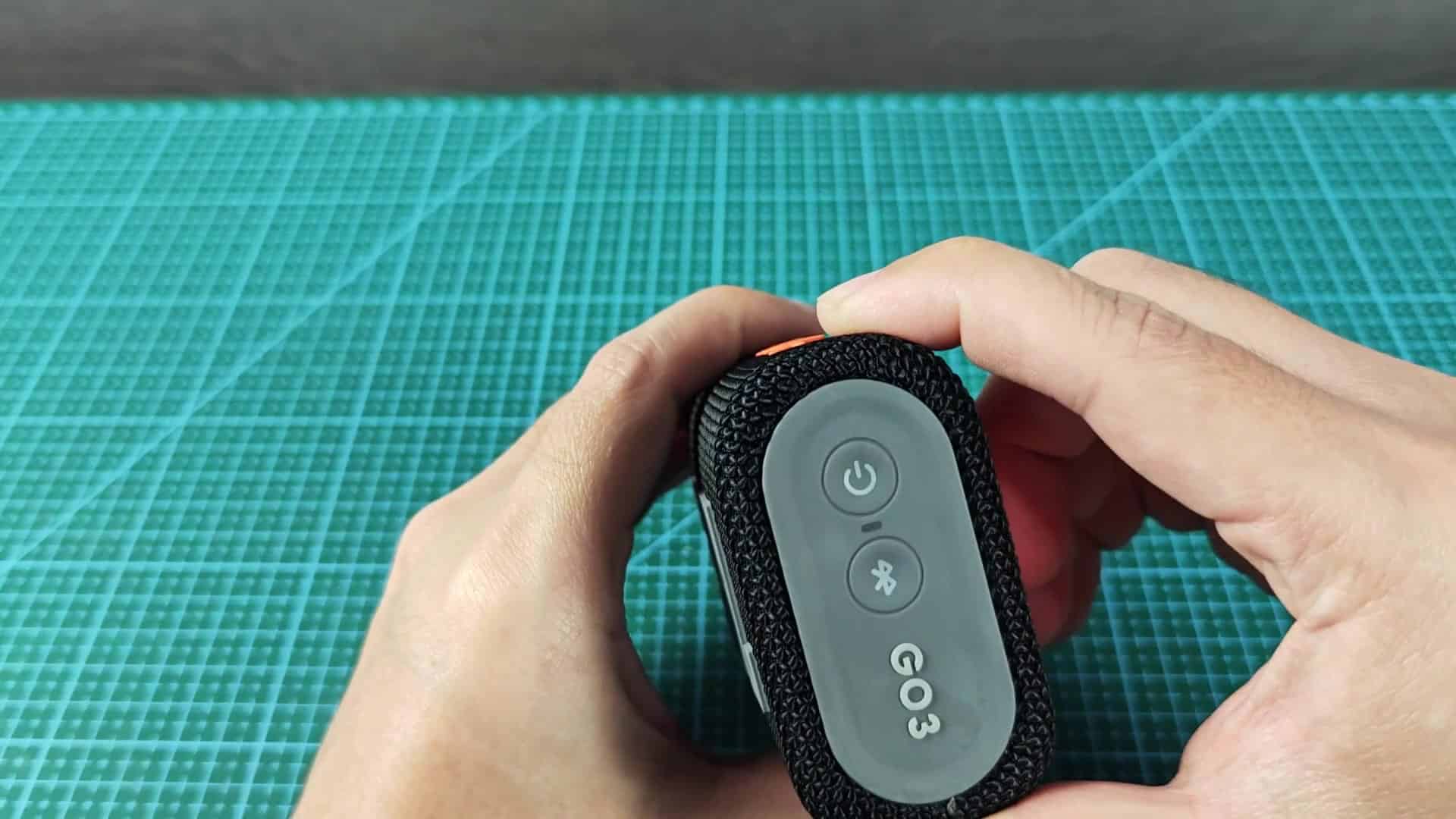
It’s small and simple to carry around. To get to the control buttons, simply flip it over to where they are located on end panel just below indicator light. There you’ll find volume buttons along with power button and Bluetooth symbol. Everything is labeled in plain vertical text right next to each button so you can easily identify them.
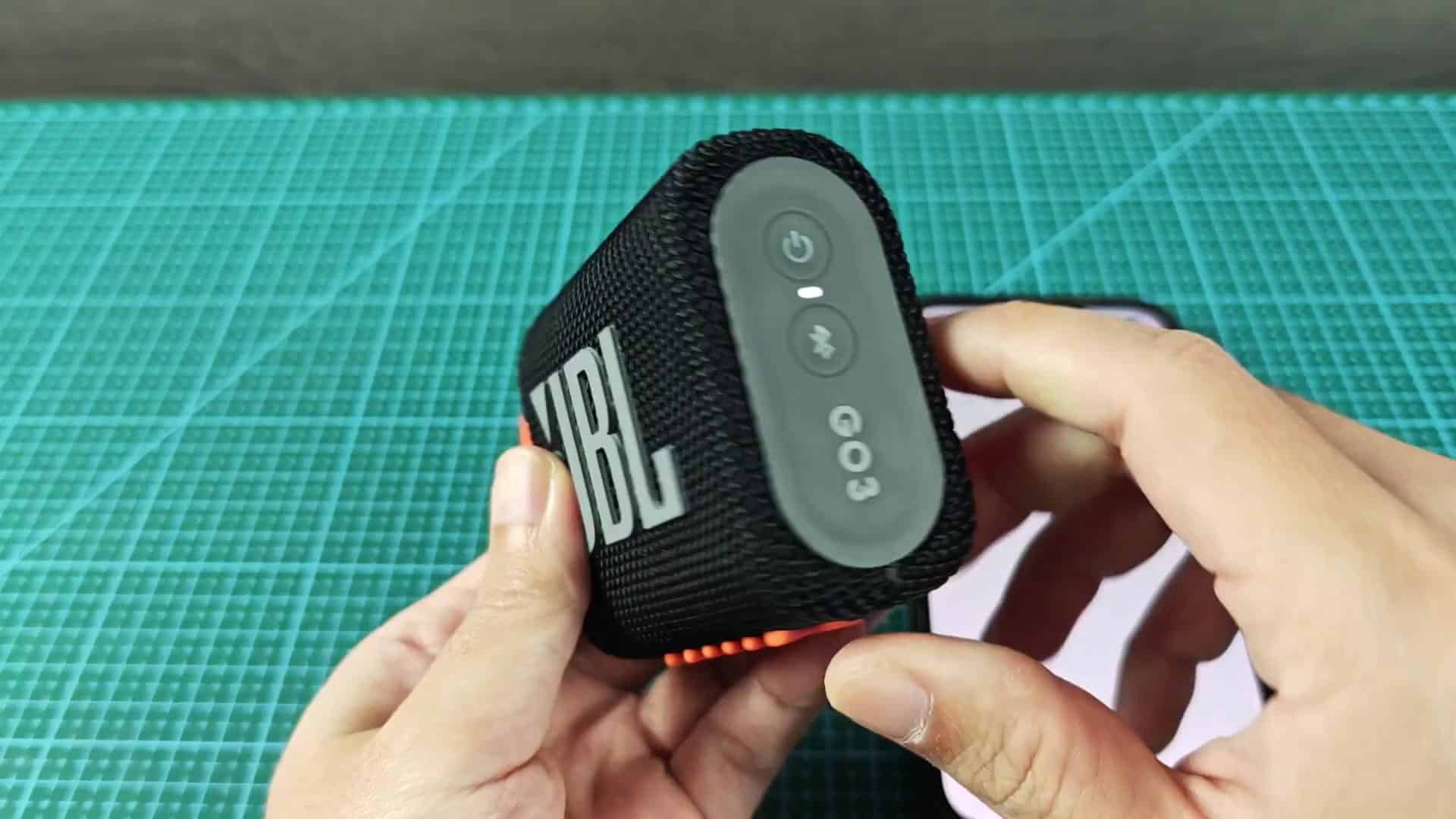
For resetting, you’ll want to align your finger near the right buttons. This is not a time when precision doesn’t matter. You don’t want to accidently change the volume.
To actualy initiate the reset, you has to hold two buttons at once. These are the Volume Up button and the Bluetooth button, which is separate keys right next to each other on the panel. Place one finger on each key and then just hold.
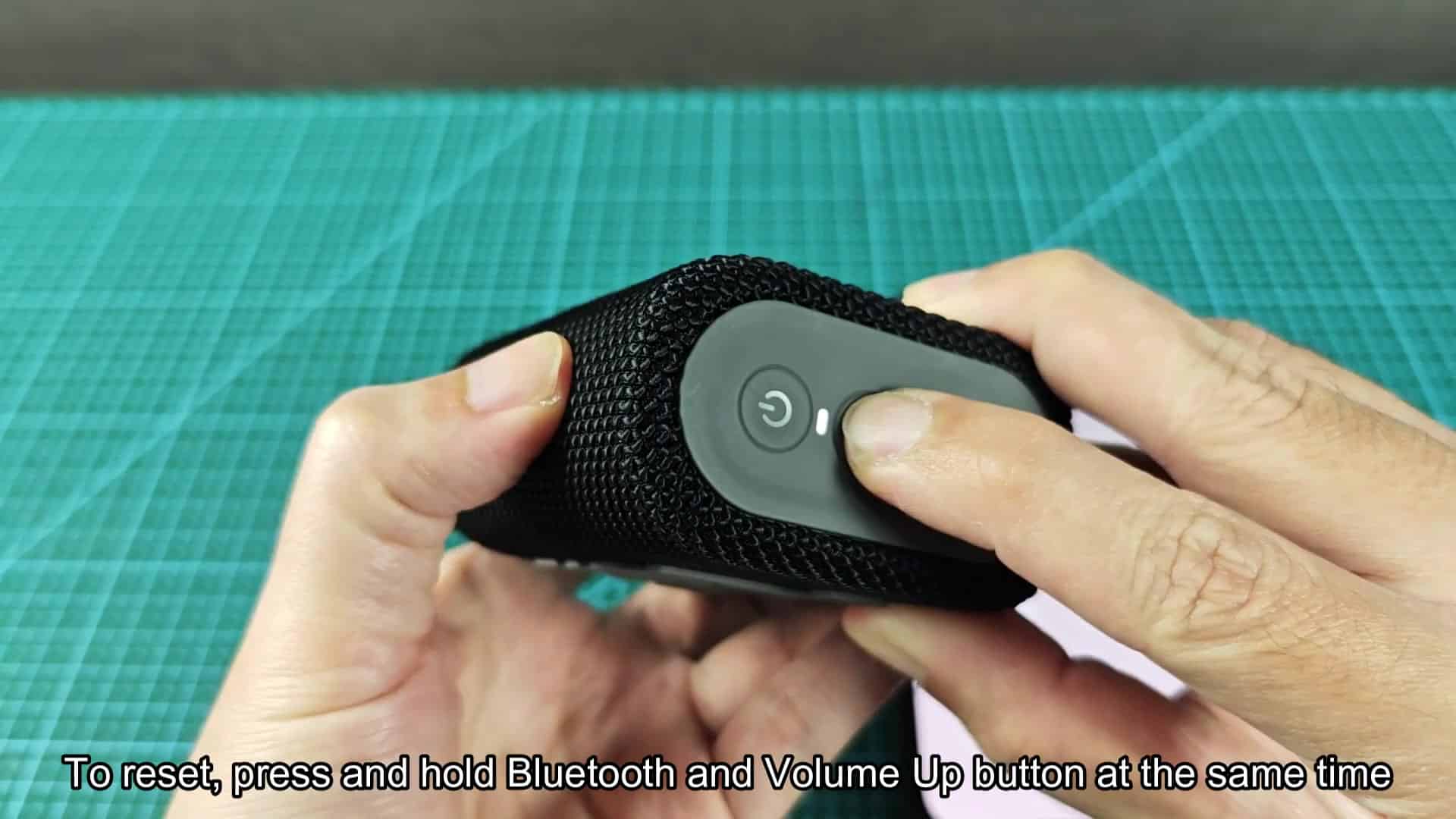
The system will take a second or two to acknowledge that you want it reset. Don’t let go prematurely, though: If you don’t hold long enough it won’t be able to execute the reset. Once you’ve got ’em held, the factory reset process begins which erases all pairing information from memory in the speaker.
The little indicator light on the end panel is what you’re watching for. After a second or two, it starts flashing in a certain way. If it’s working, it will blink white, indicating it’s reset successfuly (you confirm this with your eyes) and the speaker is now available to be discovered by another device.
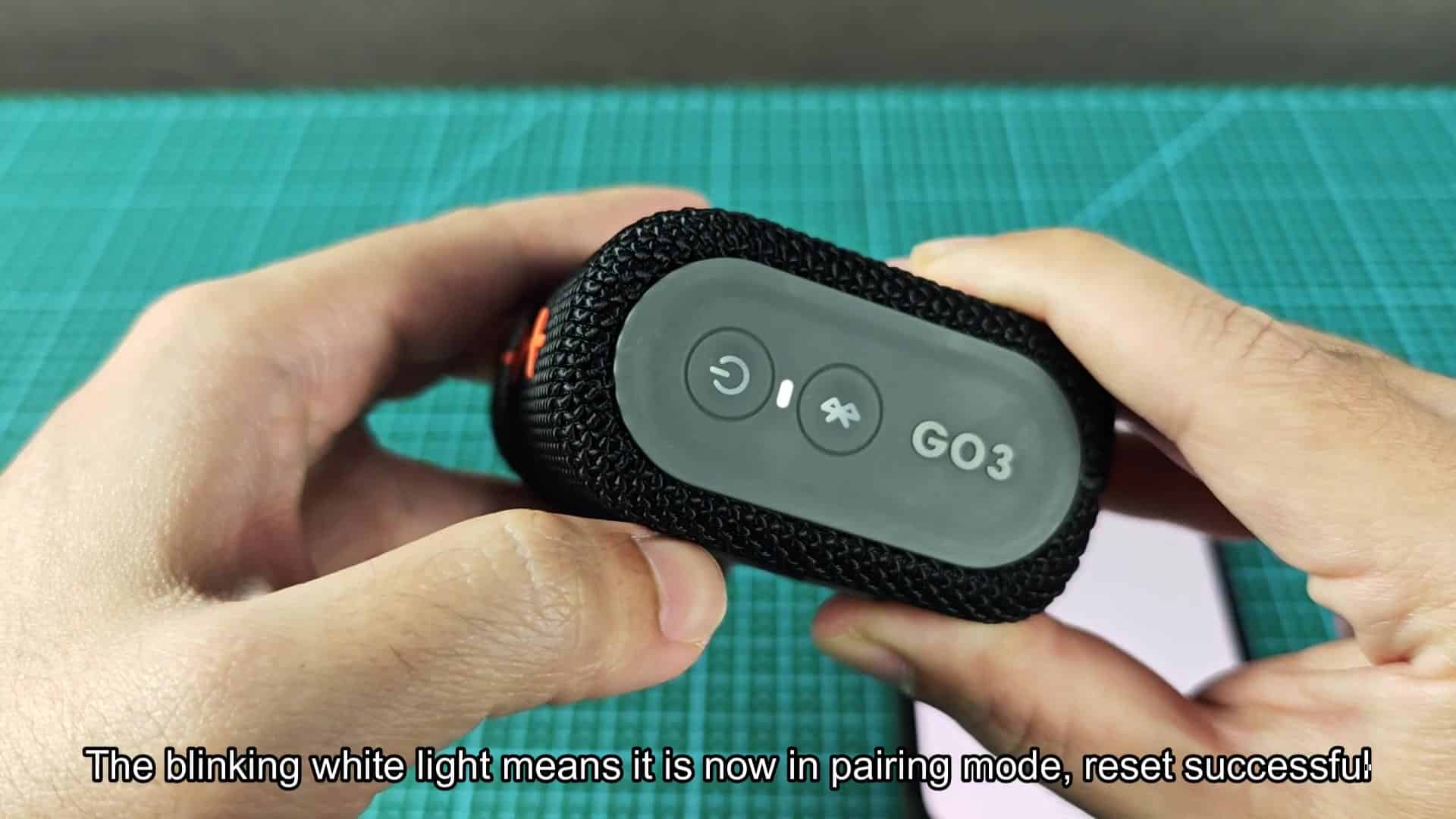
The previous state is completely gone at this point. You check again that light is behaving as expected and you know: yes, it’s ready to go. This flashing sequence isn’t one you’d see if everything were operating normaly.
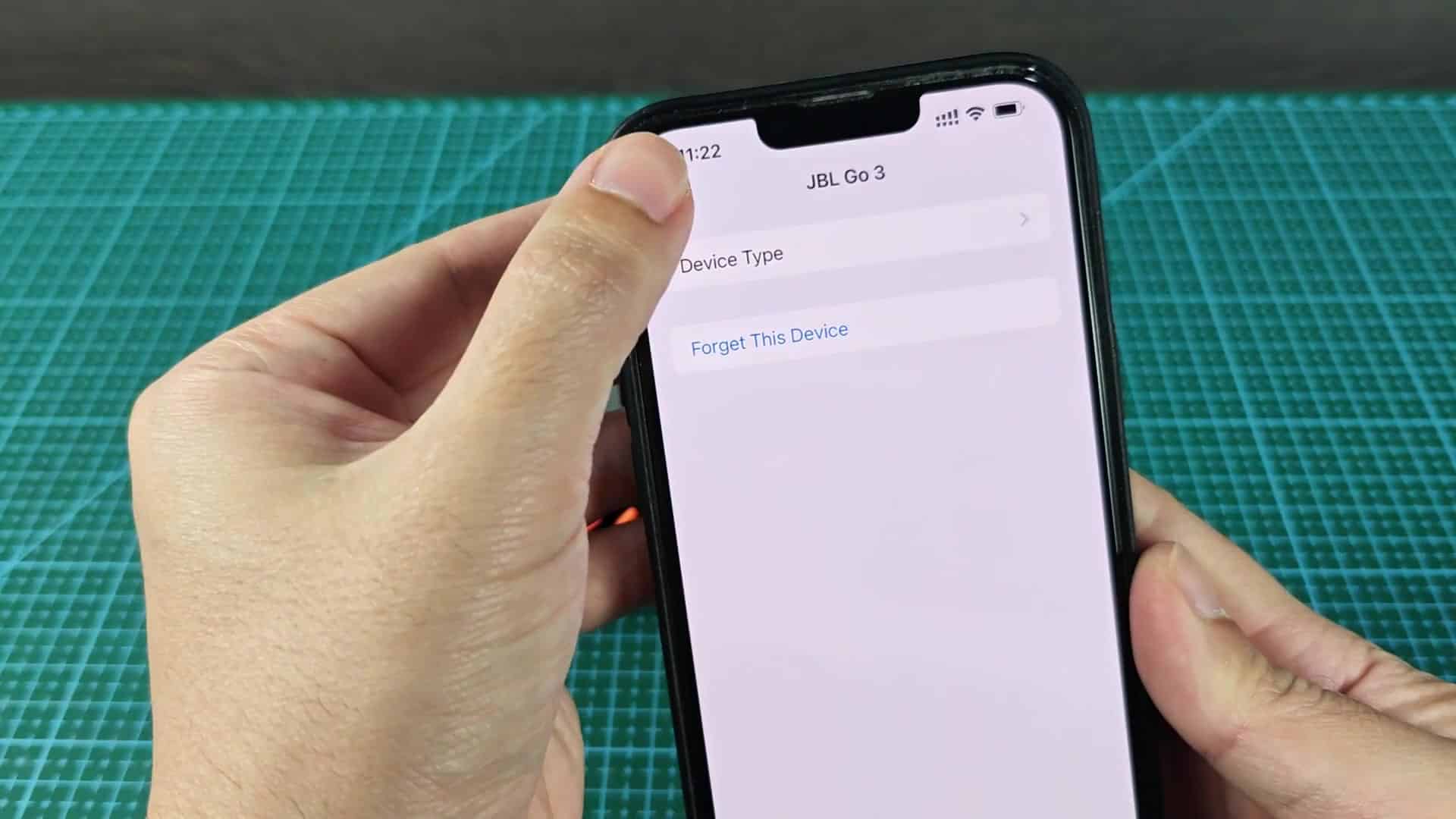
Then you go back into Bluetooth on your phone. A list of nearby available devices appear on the screen. Your JBL GO 3 is there again but this time it’s under ‘My Devices‘. Since you’ve forgotten about it, it says that it’s not connected at first. That’s normal.
The list will also include other devices such as other headphones or your car. You’ll patiently wait until the speaker name populates correctly. And sometimes that takes a second or two. But overall, it works smoothy.
Now you tap on the JBL GO 3 item in the list to start pairing. Because of the reset, your phone instantly knows about the speaker and switches to state where it’s trying to connect. This time there’s no wait or error message.
The speaker was previously hanging during the process but the reset fixed it. You watch the indicator light flash and it’s clear that the tech did what it is supposed to do here. The problem is solved, and no troubleshooting are necessary.
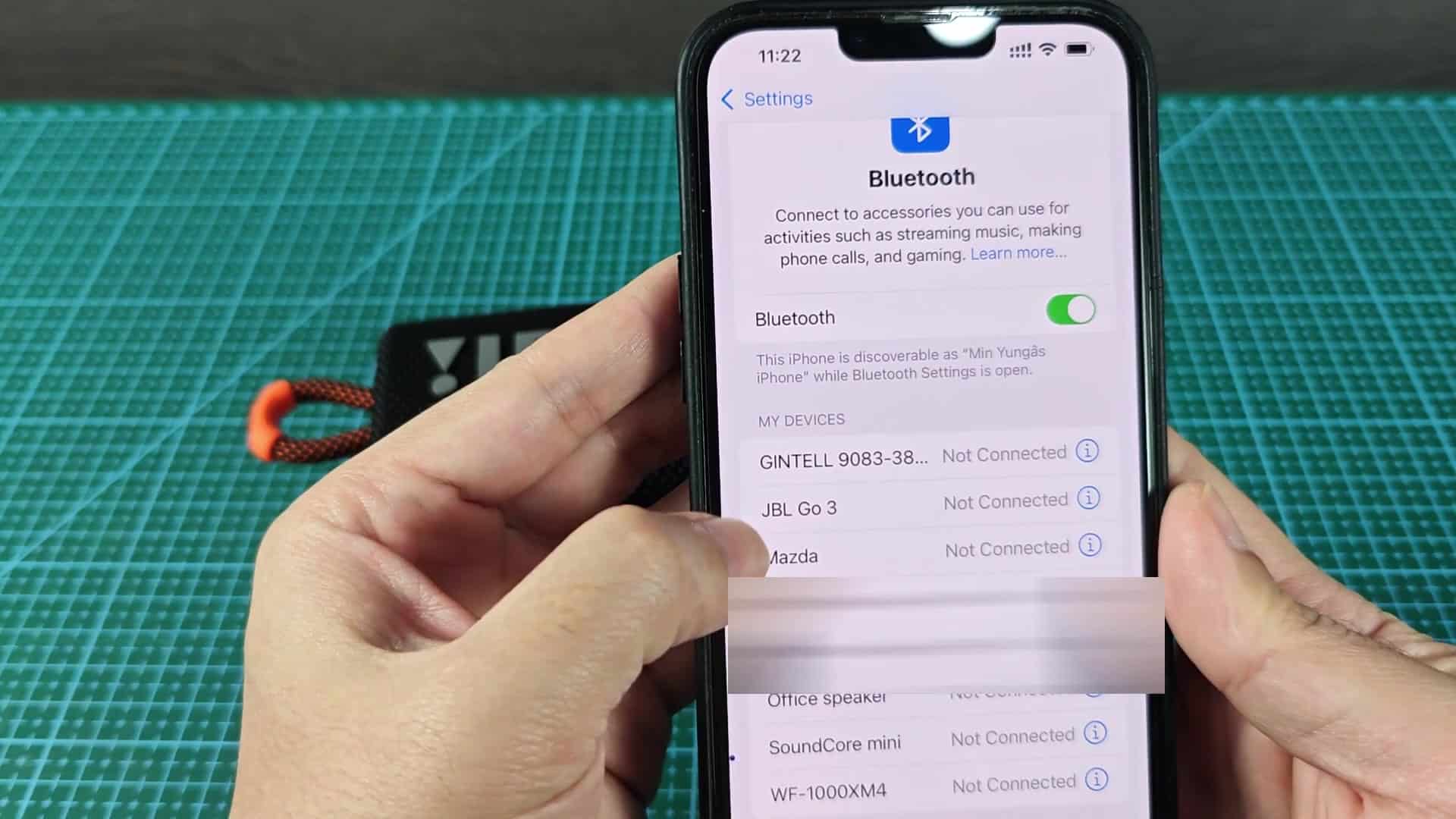
Check if it is playing audio correctly by holding it.
The fabric exterior shows some wear from daily use, but the big logo on the front appears to be in fine shape. A little orange around edges makes for some nice contrasting color. It fits well in your hand as you play back some audio.
There doesn’t seem to be any change to its physical condition due to the reset and the audio sounds just as good than before. After the reset, everything functioned normaly again.
